TABLE OF CONTENTS
- About Blackboard AI
- Session Recording: Get Creative and Save Time with Blackboard AI
- Course Structure Suggestions (Auto-Generate Learning Modules)
- Generate Ultra Document Layouts and Knowledge Checks
- Insert or Generate Images
- Generate Authentic Assessments (Assignment, Discussion, and Journal Prompts)
- Generate Grading Rubrics
- Generate Test Questions and Question Banks
- AI Conversations
- Automations
- Alternative Text Assistant (Ally)
About Blackboard AI
Overview of Blackboard's AI Tools
Blackboard’s AI tools are designed to speed up course setup, support student interaction, and improve accessibility, while still keeping you in control as the instructor. They focus on helping you draft and refine content rather than automating teaching or grading.
- AI Design Assistant: The AI Design Assistant helps you generate course structures, learning modules, test questions, grading rubrics, layouts and knowledge checks for Ultra Documents, and prompts for assignments, discussions, and journals based on your course description, or example content. It can also suggest or generate royalty‑free images, giving you a head start on layout and visuals while requiring you to review, edit, and approve anything before students see it.
- AI Conversations: AI Conversations are structured, guided chat activities you create inside a course to let students explore a topic through Socratic questioning, reflection, or role‑play (for example, practicing professional scenarios). You choose the topic, scenario, and parameters, and students then interact with the AI conversation as a learning activity, with you retaining oversight of prompts and how it appears in the course.
- Automations: Blackboard’s AI‑powered automations focus on streamlining routine design and setup tasks. These automations are intended to reduce repetitive work and support consistency in course design, while still requiring instructor review, editing, and final decisions before anything is used for teaching or assessment.
- Ally Alternative Text Assistant: Ally’s Alternative Text Assistant uses AI to suggest concise image descriptions when an image is missing alt text, accessed via an “auto‑generate description” option in the Ally instructor feedback panel. Instructors must review and approve or edit each suggested description, to ensure that the descriptions are accurate, pedagogically relevant, and aligned with accessibility goals.
When generating AI content with the Design Assistant or AI Conversations tool, you will be able to select a level of complexity. There are ten levels of complexity for AI-generated content:
- Early primary school
- Late primary school
- Early middle school
- Late middle school
- Early high school
- Late high school
- Undergraduate lower division
- Undergraduate upper division
- Graduate level
- Advanced PhD level
The AI tools are intended to inspire and offer recommendations, not replace your experience and expertise. You are always in control - simply review, edit, and approve the generated content before adding it to your course.
Privacy and Security
Blackboard's AI tools are powered by Microsoft's Azure OpenAI service and do not collect or store any personal data or personally identifiable information about students or instructors. All course data used for the input and all output generated by the AI tools are stored in Lesley’s existing Blackboard database and none of the data created by the AI tools are used for (re)training of the AI system or shared with others.
For more information and additional resources, please refer to:
- Data, privacy, and security for Azure OpenAI Service.
- Anthology’s Trustworthy AI Approach.
- AI, Academic Integrity, and Authentic Assessment: An Ethical Path Forward for Education: Anthology's stance on best practices for maintaining academic integrity in the world of AI.
- Transparency Notes:
Session Recording: Get Creative and Save Time with Blackboard AI
Save time and boost your creativity with Blackboard Ultra’s AI tools! In this recorded session from Faculty Development Day (January 2026), Danielle and Tae-Jin from eLearning & Instructional Support walk through the AI tools in Blackboard Ultra.
Explore how to leverage the AI Design Assistant to quickly help you sketch out course module structures, create engaging assignments and discussion prompts, draft test questions, generate rubrics, and craft visuals that match your teaching style. Discover how to use the AI Conversations tool to assess learners' depth and application of knowledge via an interactive conversation. And learn how to use Automations to create personalized messages that are automatically sent to students when specific criteria are met.
With Blackboard’s AI tools, you’re always in control—review, adjust, and approve every AI-generated item to ensure it fits your expertise and course goals.
Watch the Session Recording: Get Creative and Save Time with Blackboard AI (54:29). You may be prompted to login with your Lesley credentials in order to watch this recording.
Course Structure Suggestions (Auto-Generate Learning Modules)
Are you trying to figure out the best way to design your course? Unsure where to start? The AI Design Assistant can help! Provide some information about your course such as the title, description, objectives, etc. or select your syllabus and the AI Design Assistant can create learning modules to help you organize your content and guide your students through the course.
To auto-generate Learning Modules, click on the + button anywhere on your Course Content page. From the menu, select Auto-Generate Modules.

Provide some information about your course in the Description box (limited to 2000 characters) to narrow the focus. Or, if you already have content, click Select Course Items to select items from your course (ex your syllabus, Ultra Documents, discussions, assignments, etc.). You may opt to select a title prefix for your modules (ex Week 1, Module 1, Unit 1, etc.) and whether to include images. Set the complexity and the number of Learning Modules and click Generate.
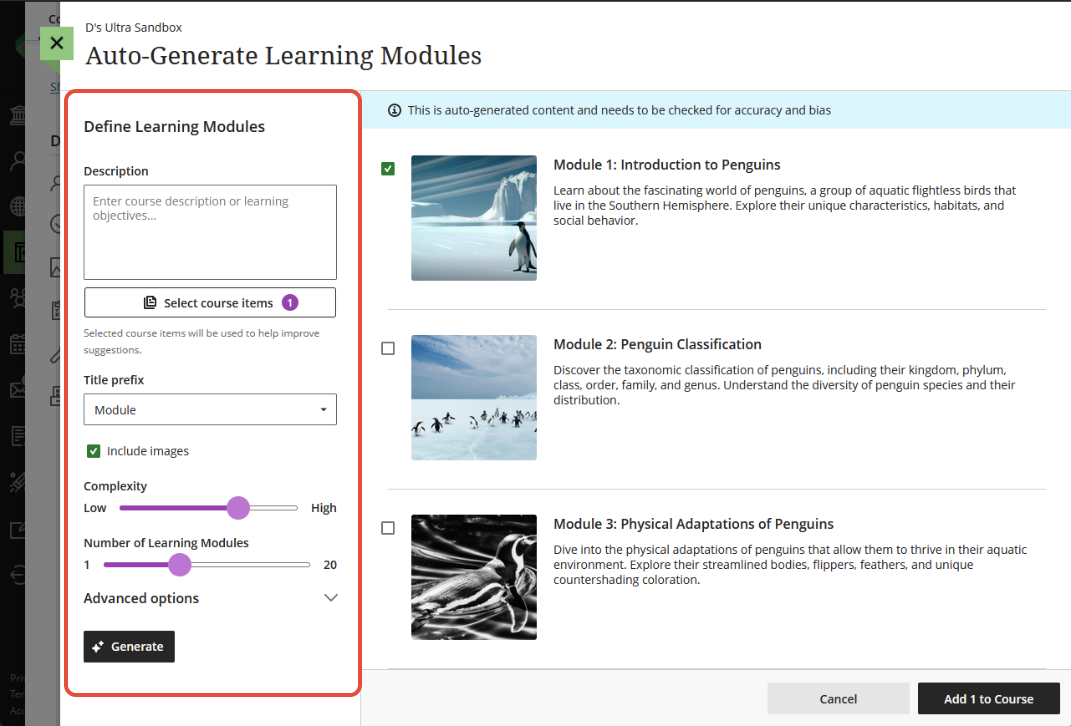
Review each Learning Module's title and description for accuracy. You may also edit your Learning Modules to better fit your content, goals, outcomes, and teaching style.
For more information on auto-generating Learning Modules, refer to the Auto-generate Learning Modules support article or watch the AI Module Generation tutorial video.
For more information on creating and editing Learning Modules, refer to the Create Learning Modules support article.
Generate Ultra Document Layouts and Knowledge Checks
Generate Ultra Document Layouts
Use the AI Design Assistant to update and format the layout of your Ultra Document by breaking your content into blocks, applying headings, adding images, and even adding an embedded Knowledge Check.
From within your Ultra Document, click the Edit Content button to switch to edit mode. Then click the Generate Document Layout button.
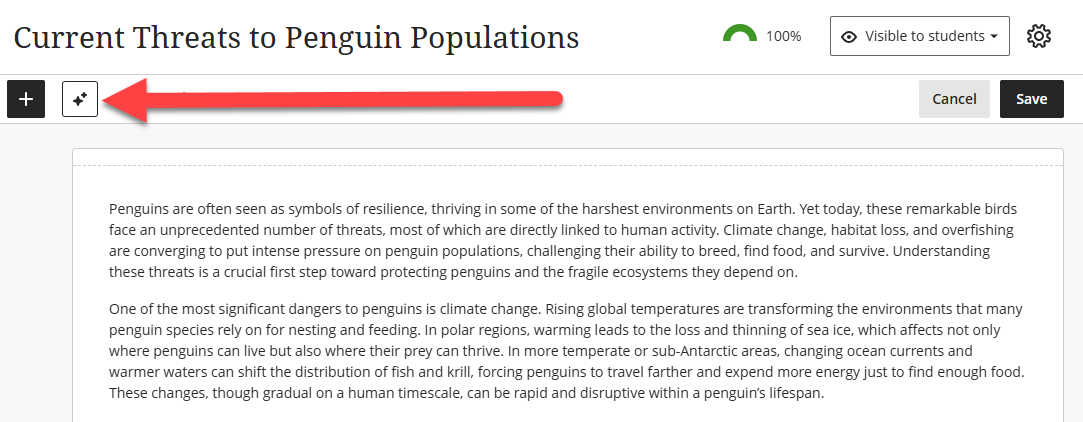
The system will begin generating your new layout. In the Define the Layout settings, select whether to include images (stock images from Unsplash or AI-generated images) and whether to include a Knowledge Check at the end of your Document.
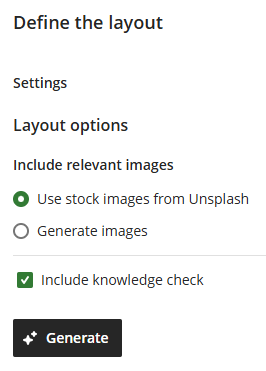
Click Generate. The design assistant divides your content into logical blocks, adds headings where appropriate, sources or generates images, and inserts a knowledge quiz based on your content. Click Apply Layout to apply the new layout.
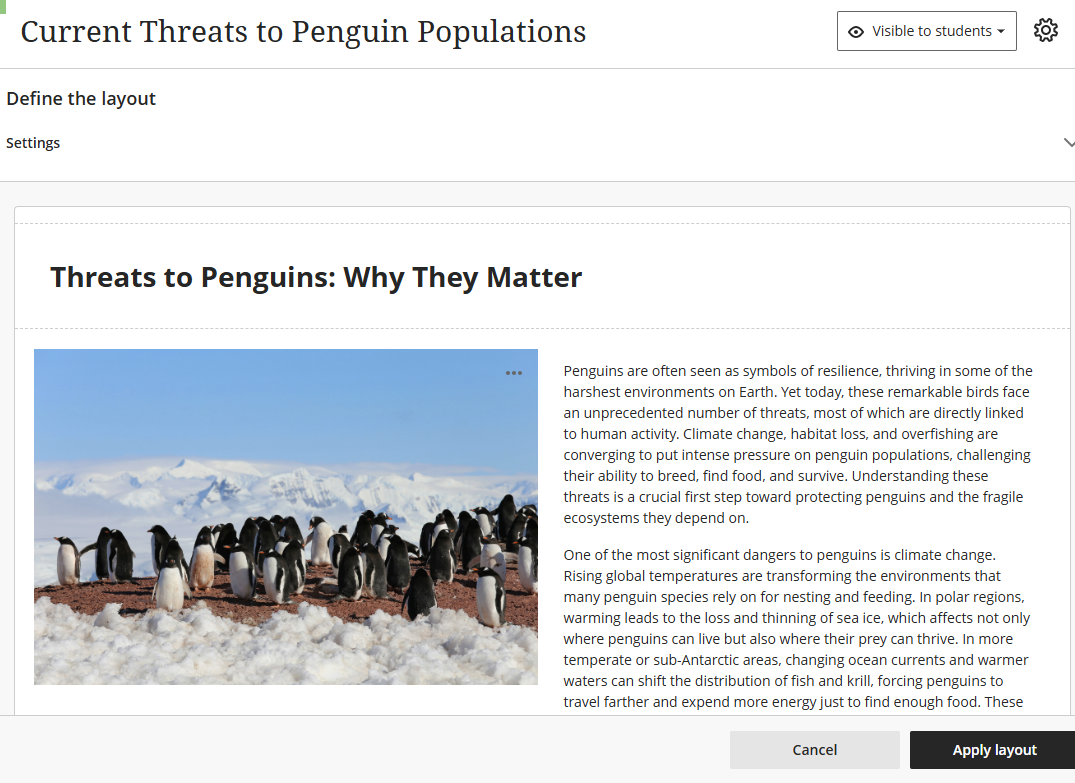
Review and tweak each block as needed—edit headings, reposition images, adjust styling, or refine questions. Once you have finished, click Save.
Generate Knowledge Checks in Documents
Create just‑in‑time formative assessments using AI‑generated questions based on the content of your Ultra Document and any selected course materials.
Within an Ultra Document, create a new block and select Knowledge Check.
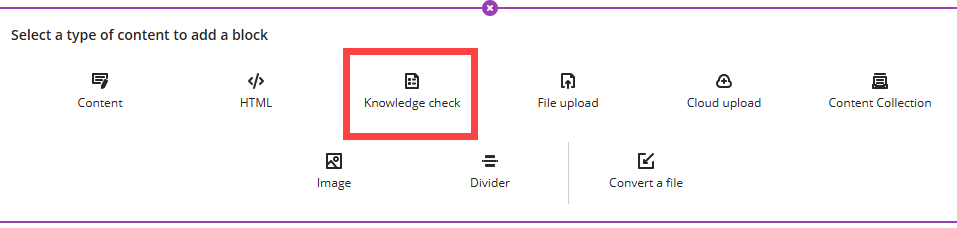
You will be prompted to enter your question or use AI to auto-generate a question.
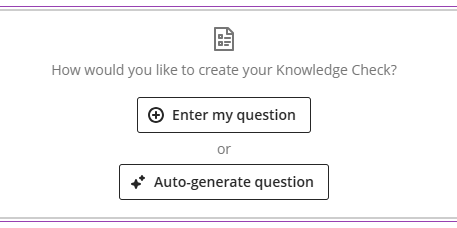
The design assistant will automatically generate Knowledge Check questions based on the content of your Ultra Document. You may also enter a text-based description or select course items to use in creating the questions.
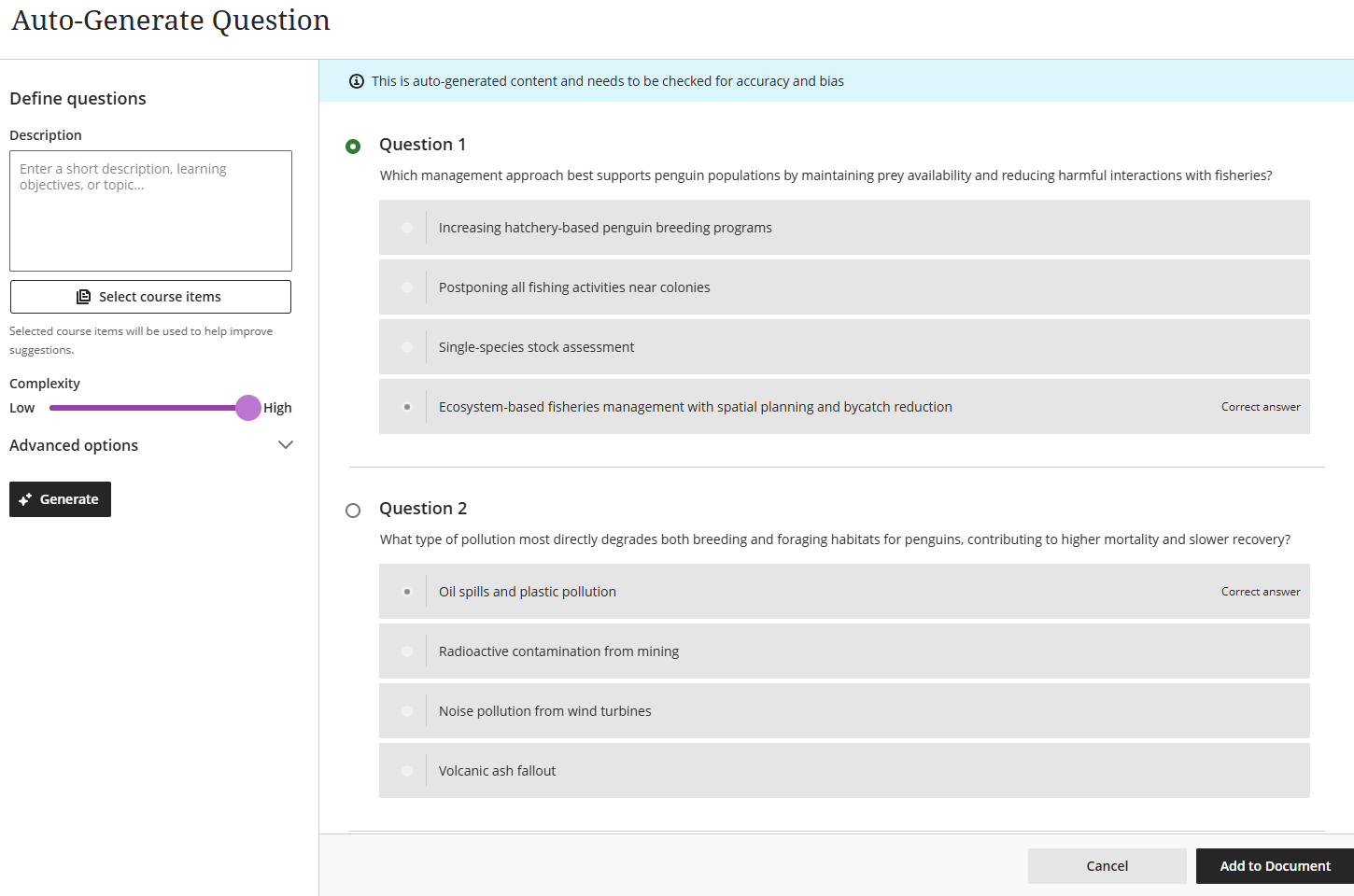
The system will auto-generate four multiple choice questions at a time. Select a question to add it to your Ultra Document.
Insert or Generate Images
You can use AI to insert AI-generated or stock images alongside your text, learning modules, or anywhere you can add an image.
To begin, click the Image button wherever you can insert an image.

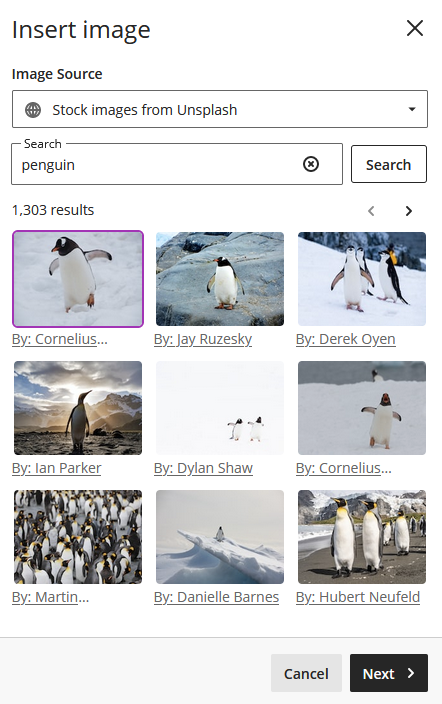
In the Image Source area, select Stock images from Unsplash to add a royalty-free image from Unslplash. Search terms will be auto populated from your text, however you may enter your own search terms to search for and select an image.
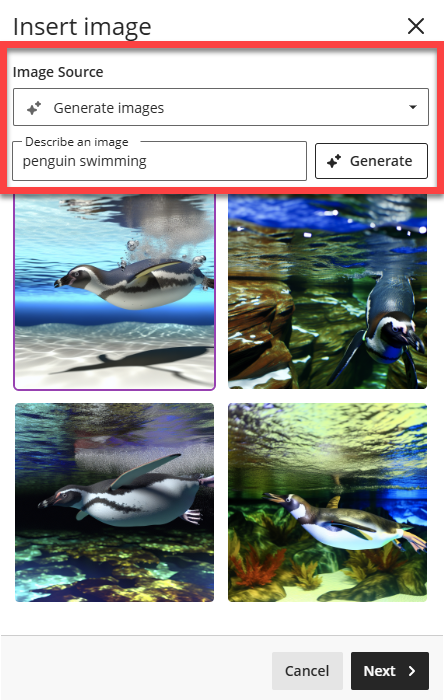
If you prefer, you may use AI to generate an image. In the Image Source menu, select Generate Images and enter a brief description of the image you want and click Generate. The AI Design Assistant will generate four images. Select your desired image and click Next.
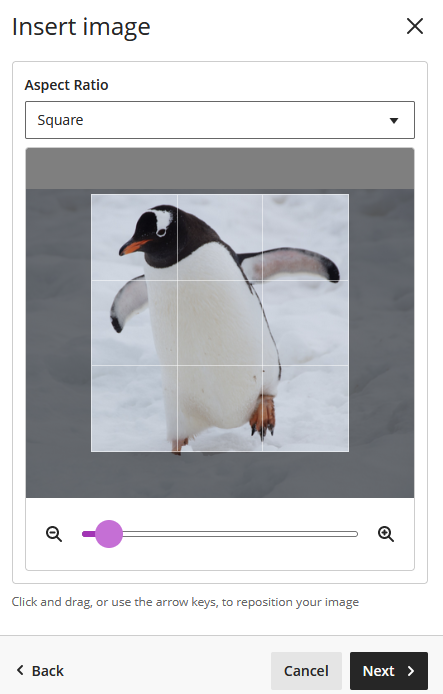
Once you have selected your image, you may change the aspect ratio and drag the slider or use the arrow keys to reposition your image. Click Next to continue.
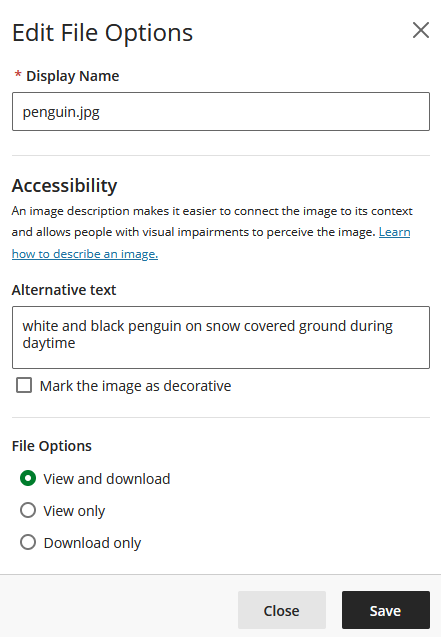
You will then be prompted to edit your file options. By default, the display name for the image is your file name, but you may edit it. Next, add alternative text to your image. If your image is purely decorative and does not convey any information, you may mark it as decorative. Finally, you may decide whether people may view and download your image, view only, or download only.
Click Save to save your changes and add your image.
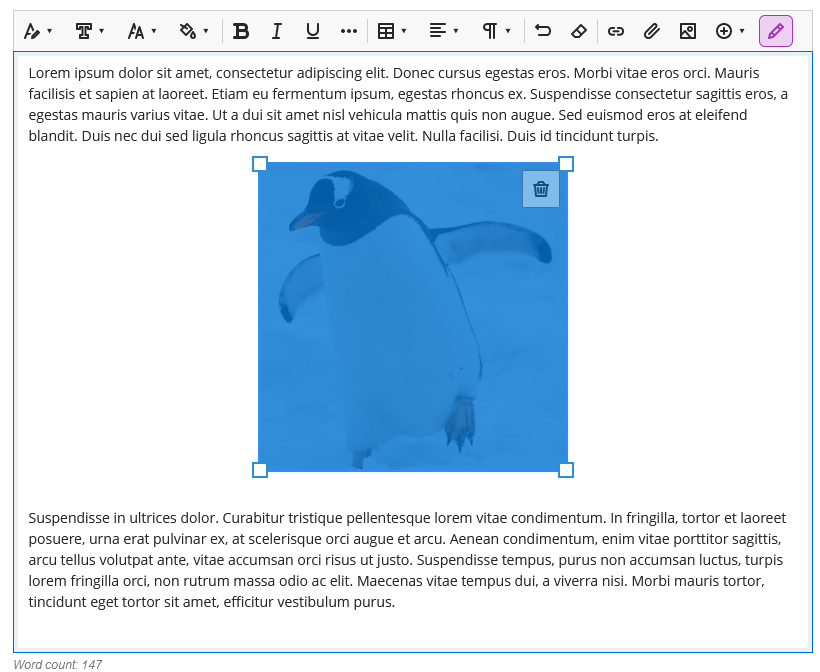
Once added to your content, you may resize the image by clicking on the image and dragging the boxes on the corners into your desired size. Please note that images will be on their own line and centered on the page. You may not align them to the left or right and you may not wrap text around them.
The Generate Images tutorial video will walk you through the basics of generating an image with the AI Design Assistant.
For more information on adding images in your course, refer to the Insert Images support article.
Generate Authentic Assessments (Assignment, Discussion, and Journal Prompts)
The AI Design Assistant allows you to generate authentic assessment prompts for Discussions, Journals, and Assignments. You can input keywords, a description of your content, or select any course content item to include to narrow the focus of your assessment. The AI Design Assistant utilizes Bloom's Taxonomy to create prompts that encourage students to engage in higher-order thinking, apply their knowledge, and emulate real-world situations.
AI Suggestions for Authentic Assessments overview video will walk you through a brief overview of what the tool has to offer.
Generate Assignment Prompts
The AI Design Assistant can help you to generate assignment prompts that encourage students to engage in higher-order thinking, apply their knowledge, and emulate real-world situations.
Start by creating a new Assignment. To create an Assignment, click on the + button anywhere on your Course Content page, within a Learning Module, or within a Folder. Select Create and then select Assignment.
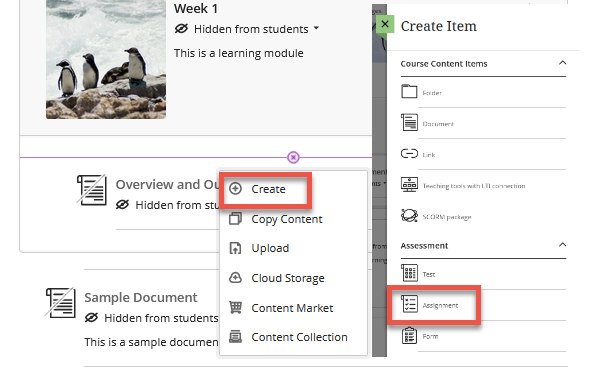
On the Assignment creation page, select the Auto-Generate icon.

This will launch the Auto-Generate Assignment tool. The AI Design Assistant will generate three assignment prompts based on the information that you provide.
Use the Description box (limited to 2000 characters) to add some information about your Assignment. Or click Select Course Items to select items from your course (ex Ultra Documents, files, Discussions, Assignments, etc.).
Next, select the desired cognitive level (Apply, Analyze, Evaluate, Create, or Inspire me!), complexity, and select whether or not you want to generate a title for your Assignment prompt. Once you have finalized your settings, click Generate.
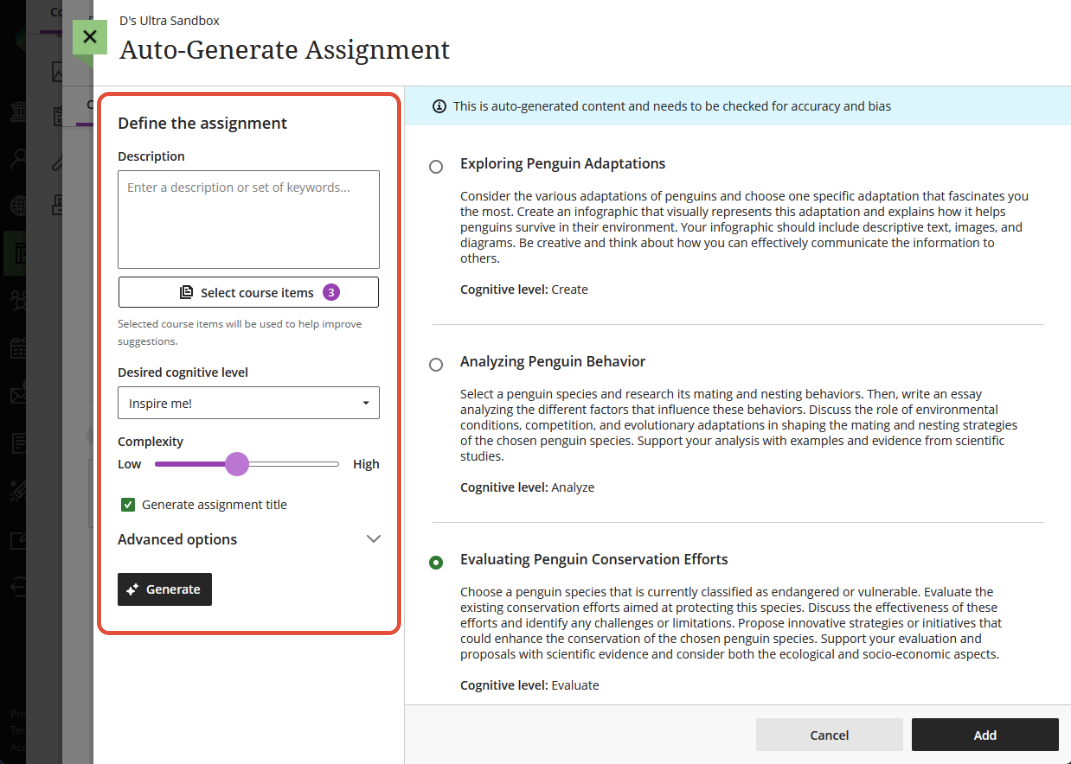
Choose the prompt you would like to add to your Assignment and review it for accuracy and bias. Click Add to add the prompt to your Assignment. You may edit and refine the assignment to better fit your teaching style, goals, and course outcomes.
For more information on creating Assignments, refer to the Create Assignments support article.
Generate Discussion Prompts
The AI Design Assistant can help you to generate discussion prompts that encourage students to engage in higher-order thinking, apply their knowledge, and emulate real-world situations.
Start by creating a new Discussion. To create a Discussion, click on the + button anywhere on your Course Content page, within a Learning Module, or within a Folder. Select Create and then select Discussion.
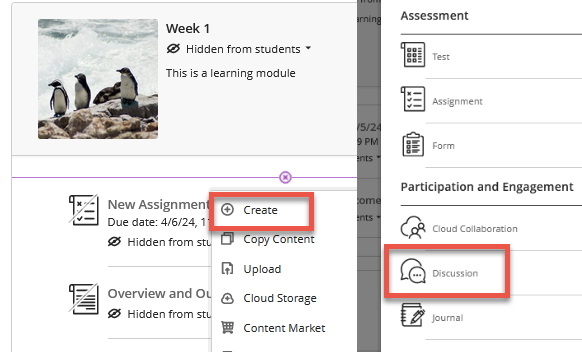
On the Discussion creation page, select the Auto-Generate icon.

This will launch the Auto-Generate Discussion tool. The AI Design Assistant will generate three discussion prompts based on the information that you provide.
Use the Description box (limited to 2000 characters) to add some information about your discussion. Or click Select Course Items to select items from your course (ex Ultra Documents, files, Discussions, Assignments, etc.).
Next, select the desired cognitive level (Apply, Analyze, Evaluate, Create, or Inspire me!), complexity, and select whether or not you want to generate a title for your Discussion prompt. Once you have finalized your settings, click Generate.

Choose the prompt you would like to add to your Discussion and review it for accuracy and bias. Click Add to add the prompt to your Discussion. You may edit and refine the prompt to better fit your teaching style, goals, and course outcomes.
For more information on creating and editing Discussions, refer to the Create Discussions support article.
Generate Journal Prompts
The AI Design Assistant can help you to generate journal prompts that encourage students to engage in higher-order thinking, apply their knowledge, and emulate real-world situations.
Start by creating a new Journal. To create a Journal, click on the + button anywhere on your Course Content page, within a Learning Module, or within a Folder. Select Create and then select Journal.
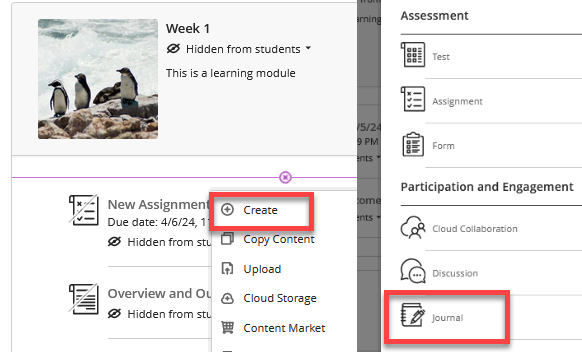
On the Journal creation page, select the Auto-Generate icon.

This will launch the Auto-Generate Journal tool. The AI Design Assistant will generate three journal prompts based on the information that you provide.
Use the Description box (limited to 2000 characters) to add some information about your journal. Or click Select Course Items to select items from your course (ex Ultra Documents, files, Discussions, Assignments, etc.).
Next, select the desired cognitive level (Apply, Analyze, Evaluate, Create, or Inspire me!), complexity, and select whether or not you want to generate a title for your journal prompt. Once you have finalized your settings, click Generate.
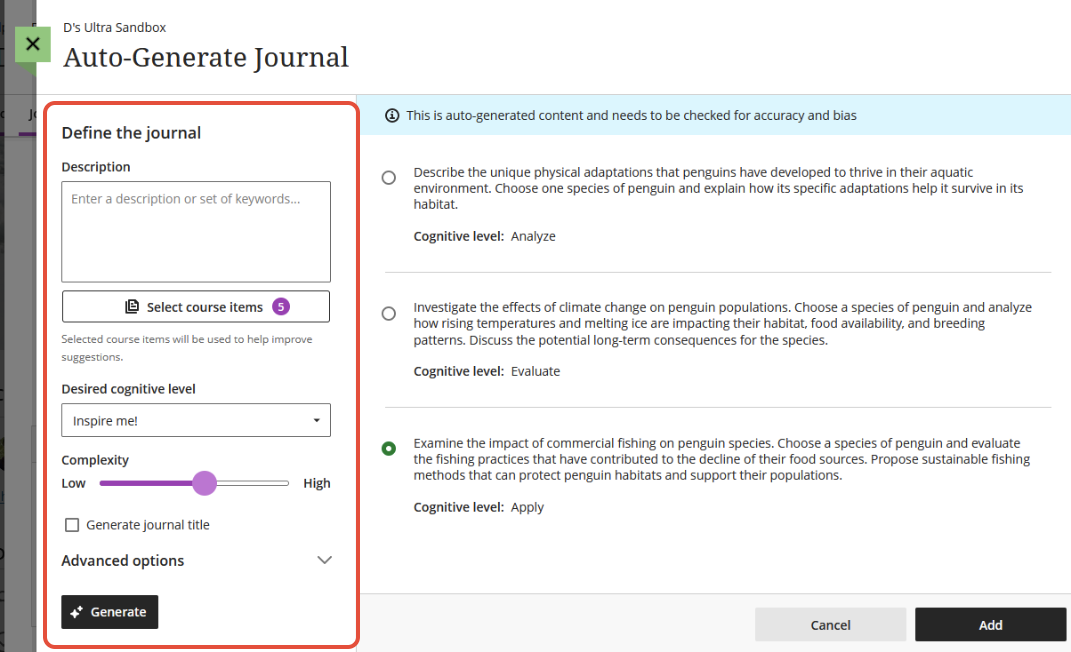
Choose the prompt you would like to add to your journal and review it for accuracy and bias. Click Add to add the prompt to your Journal . You may edit and refine the prompt to better fit your teaching style, goals, and course outcomes.
For more information on creating and editing Journals, refer to the Journals support article.
Generate Grading Rubrics
The AI Design Assistant can help you generate rubrics to create a structured framework for grading, ensuring fairness and consistency.
You may generate rubrics from any place where you can create a rubric, such as within the settings for an Assignment, Discussion, Journal or the Gradebook. Click Generate to begin.

This will launch the Generate Rubric tool. The AI Design Assistant will generate a rubric based on the information that you provide.
Use the Description box (limited to 2000 characters) to add some information about what you will be assessing.
Next, select the type of rubric you wish to create (percentage, percentage range, points, or point range), the complexity, and the number of columns and rows. Once you have finalized your settings, click Generate.

Review your rubric for accuracy and bias and to ensure that it meets your needs. Select Continue to edit the rubric to better fit your teaching style, goals, and course outcomes.
For more information on creating and editing Rubrics, refer to the Rubrics support article.
The AI Rubric Generation tutorial video will walk you through the basics of using the AI Design Assistant to create rubrics.
Generate Test Questions and Question Banks
The AI Design Assistant can help you generate test questions and question banks for both formative and summative assessments.
Generate Test Questions
Start by creating a Test. To create a Test, click on the + button anywhere on your Course Content page, within a Learning Module, or within a Folder. Select Create and then select Test.
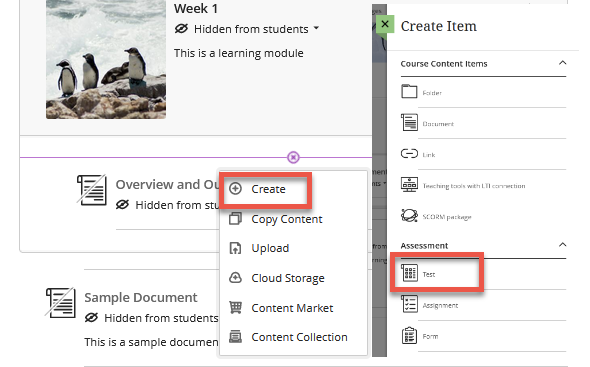
On the test creation page, click the + button to open a menu and select Auto-generate Question.

This will launch the Auto-Generate Questions tool. The AI Design Assistant will generate test questions based on the information that you provide.
Use the Description box (limited to 2000 characters) to add some information about your test questions. Or click Select Course Items to select items from your course (ex Ultra Documents, files, Discussions, Assignments, etc.).
Next, select the desired Question Types (essay, fill in the blank, matching, multiple choice, true/false) or select Inspire me! to create several different question types. Select your desired complexity level and the number of questions you wish to create. Once you have finalized your settings, click Generate.
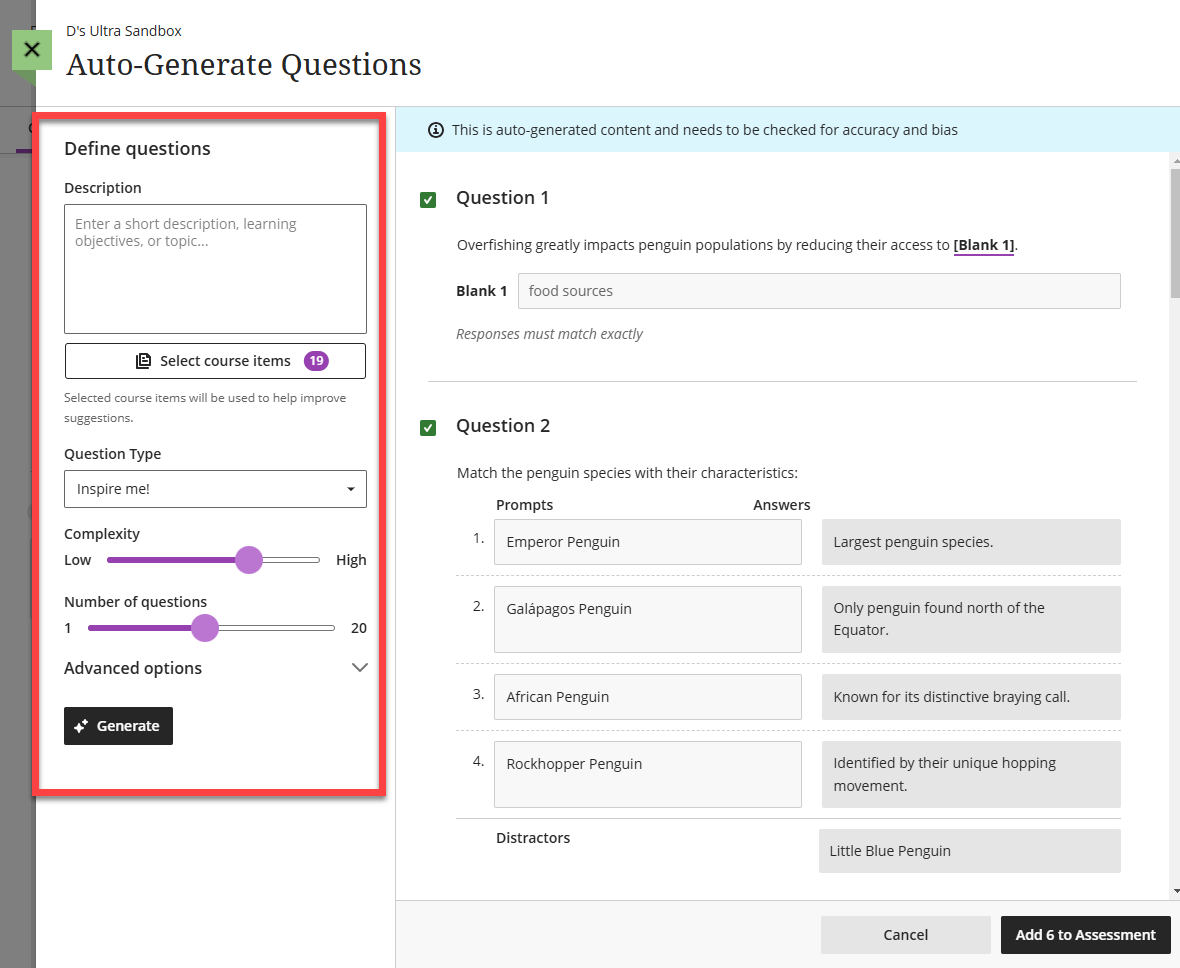
Once you have created your test questions, review them for accuracy and bias. Click Add to Assessment to add your questions to your Test. You may edit your test questions to better fit your teaching style, goals, and course outcomes.
The AI Question Generation tutorial video will walk you through the basics of using the AI Design Assistant to create test questions.
For more information on creating Tests, refer to the Create Tests support article.
Generate Question Banks
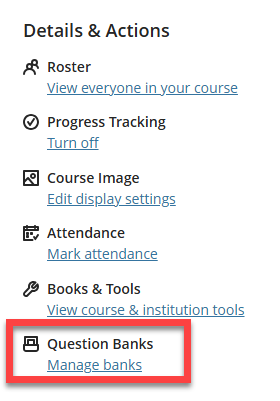
Start by creating a new Question Bank. To crate a new Question Bank, go to Details & Actions on your Course Content page. Select Manage Banks.
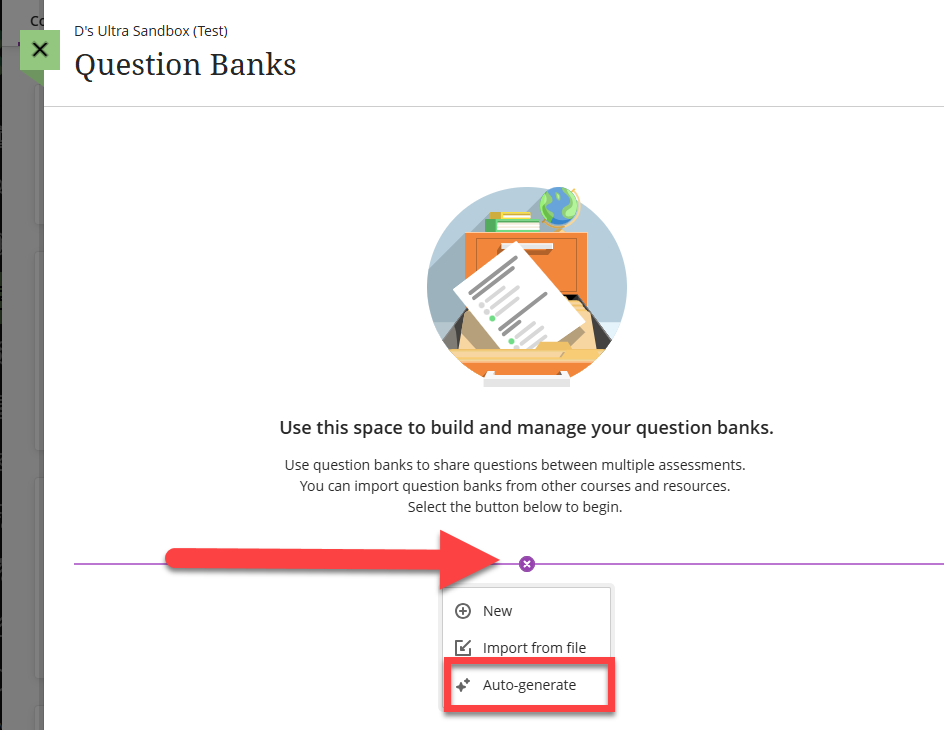
This will bring you to your course's Question Banks area. Click the + button to open a menu and select Auto-Generate.
This will launch the Auto-Generate Question Bank tool. The AI Design Assistant will generate questions based on the information that you provide.
Use the Description box (limited to 2000 characters) to add some information about your test questions. Or click Select Course Items to select items from your course (ex Ultra Documents, files, Discussions, Assignments, etc.).
Next, select the desired Question Types (essay, fill in the blank, matching, multiple choice, true/false) or select Inspire me! to create several different question types. Select your desired complexity level and the number of questions you wish to create. Once you have finalized your settings, click Generate.
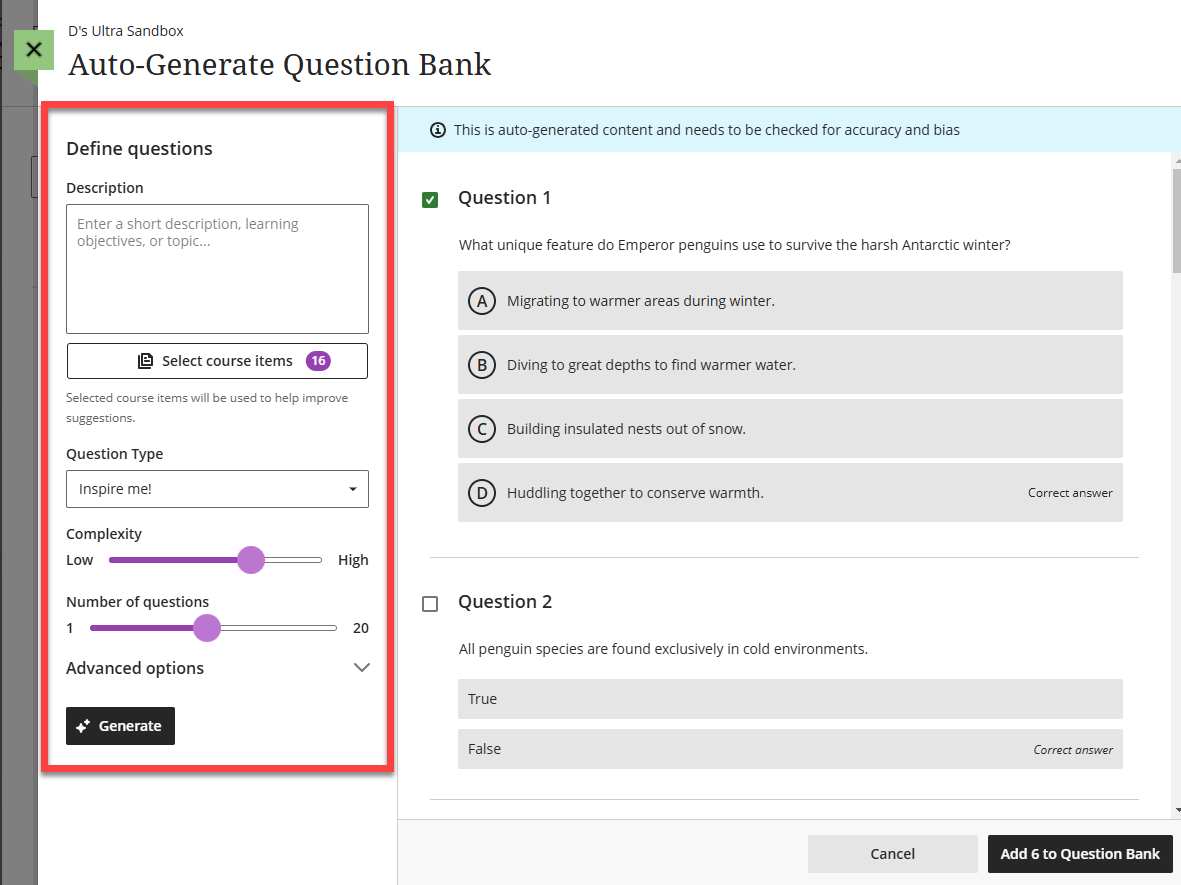
Once you have created your test questions, review them for accuracy and bias. Click Add to Question Bank to add your questions to your Question Bank. You may edit and refine your questions to better fit your teaching style, goals, and course outcomes.
For more information on Question Banks, refer to the Question Banks support article.
AI Conversations
What is the AI Conversation?
The AI Conversation allows you to engage your students in role play exercises or engage in Socratic questioning. At the end of the conversation, students will be prompted to reflect on the activity, highlighting strengths or weaknesses of the activity, or noting if the AI bot showed bias or inaccuracies.
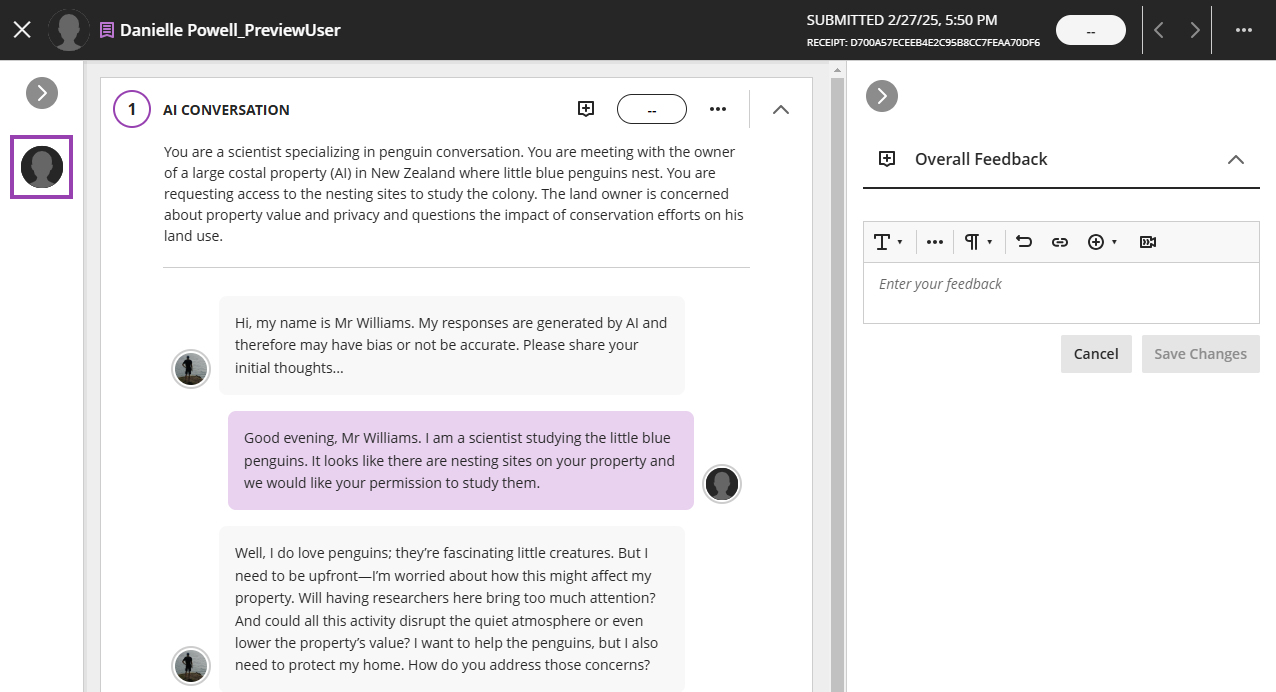
Once your student submits the activity, you will be able to review a transcript of the conversation and reflection, giving full transparency of the interactions.
Create an AI Conversation
To create an AI Conversation, click on the + button anywhere on your Course Content page, within a Learning Module, or within a Folder. Select Create and then select AI Conversation.
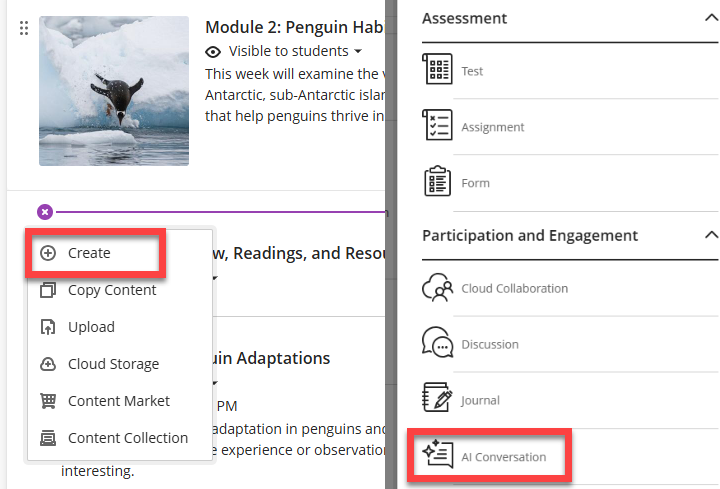
This will launch the AI Conversation tool. Select your conversation type. You may choose between Socratic Questioning and Role-play.
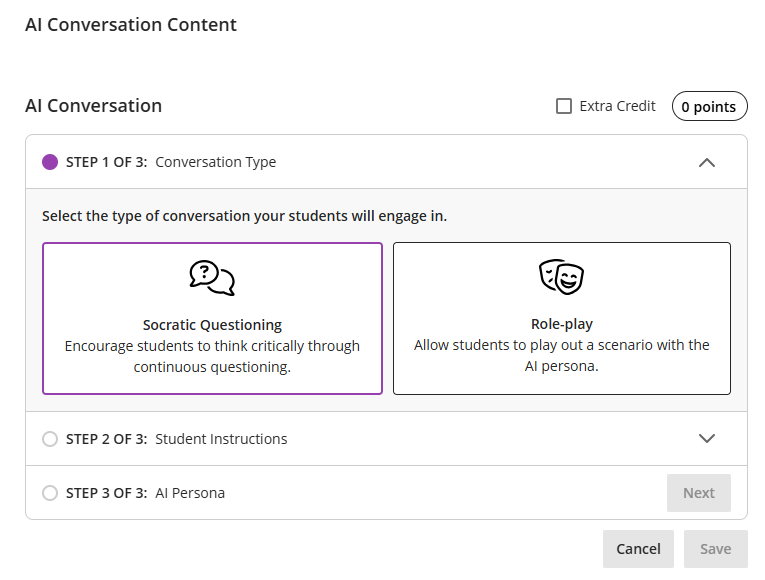
Create a Socratic Questioning Activity
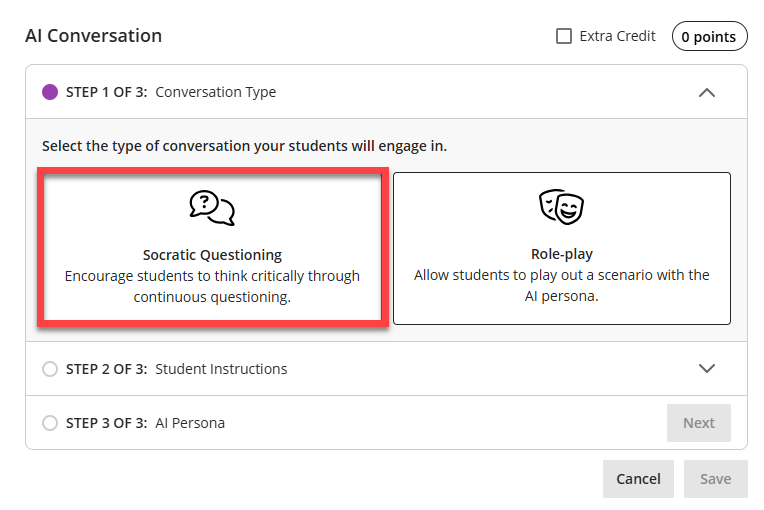
Socratic Questioning conversations encourage students to think critically through continuous questioning. The AI persona will not confirm or reject any student response but will instead move students through a series of questions.
Select the Socratic Questioning conversation type.
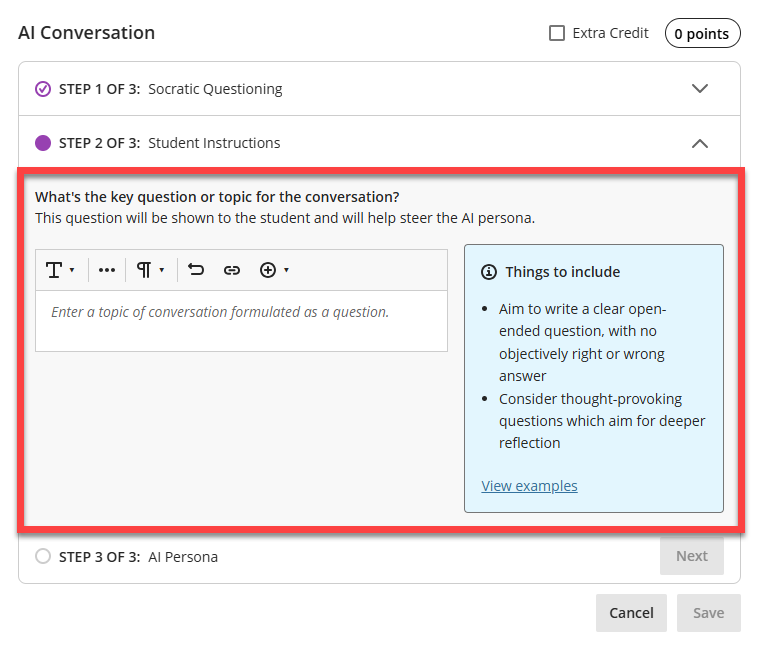
Enter a topic of conversation in the content field. Make sure that your topic is open-ended and doesn't have a right or wrong answer.
Please note that the conversation is open-ended and there is no limit to the number of questions students can ask and engage with. As a best practice, you may want to add an end point in the scenario, such as "stop after five questions" or "stop when a resolution is reached."
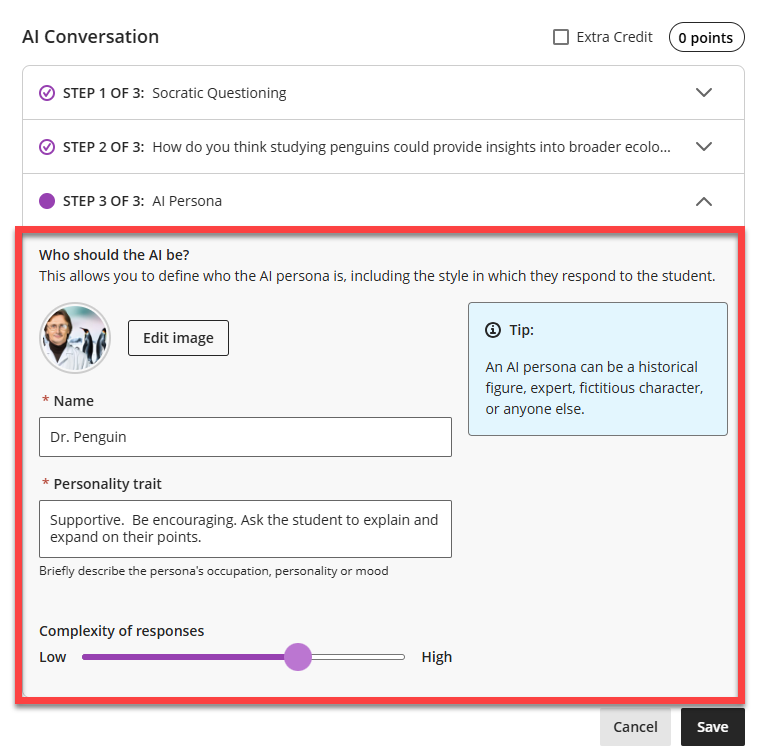
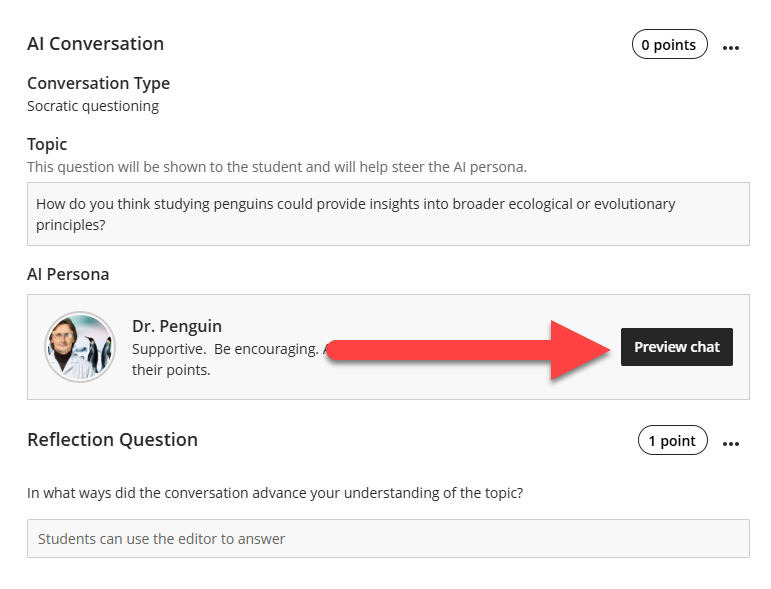
Next, you will select a persona for the AI Conversation. You may add an image for the AI persona, give it a name, and briefly describe the persona's occupation, personality, mood, etc. You can also adjust the complexity of the AI persona's responses.
The personality traits that you choose significantly shape the interactions and influence the tone and content of the conversation. Choose traits carefully and preview the conversation to avoid bias or otherwise inappropriate content.
Click Save to save your changes.
It's important to make sure that your instructions are clear and that the AI persona responds in an expected and appropriate way. As a best practice, before releasing the AI Conversation to your students you should preview it as a student and interact with the AI persona. Click Preview chat to preview your AI conversation and interact with it.
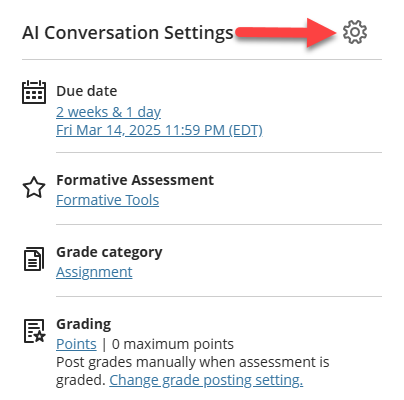
Once you are satisfied, go to the AI Conversation Settings to update the due date, change the grading (the AI Conversation is a formative assessment by default but you may change that), and more.
Create a Role-play Activity
Role-play conversations allows you to set up simulated conversations by defining specific roles for both the AI persona and the student.
Select the Role-play conversation type.
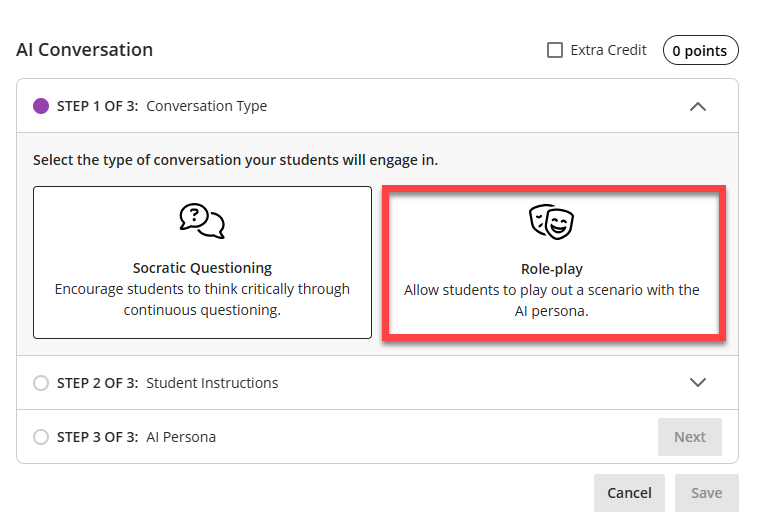
You will then outline the scenario. You will want to define both the student's role in the conversation and the AI persona's role as well as the outcome they are trying to achieve.
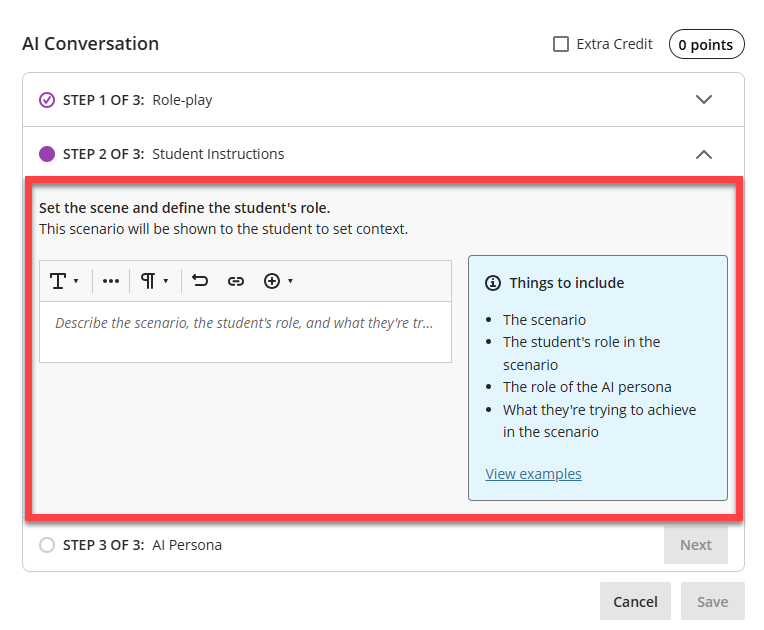
Next, you will select a persona for the AI Conversation. You may add an image for the AI persona, give it a name, and briefly describe the persona's occupation, personality, mood, etc. You can also adjust the complexity of the AI persona's responses.
The personality traits that you choose significantly shape the interactions and influence the tone and content of the conversation. Choose traits carefully and preview the conversation to avoid bias or otherwise inappropriate content.
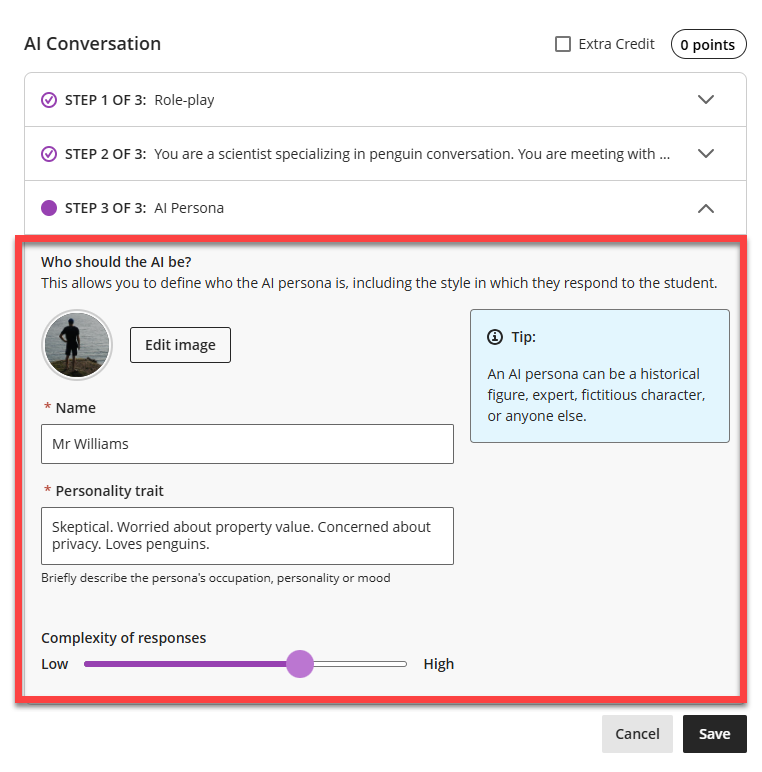
Click Save to save your changes.
It's important to make sure that your instructions are clear and that the AI persona responds in an expected and appropriate way. As a best practice, before releasing the AI Conversation to your students you should preview it as a student and interact with the AI persona. Click Preview chat to preview your AI conversation and interact with it.
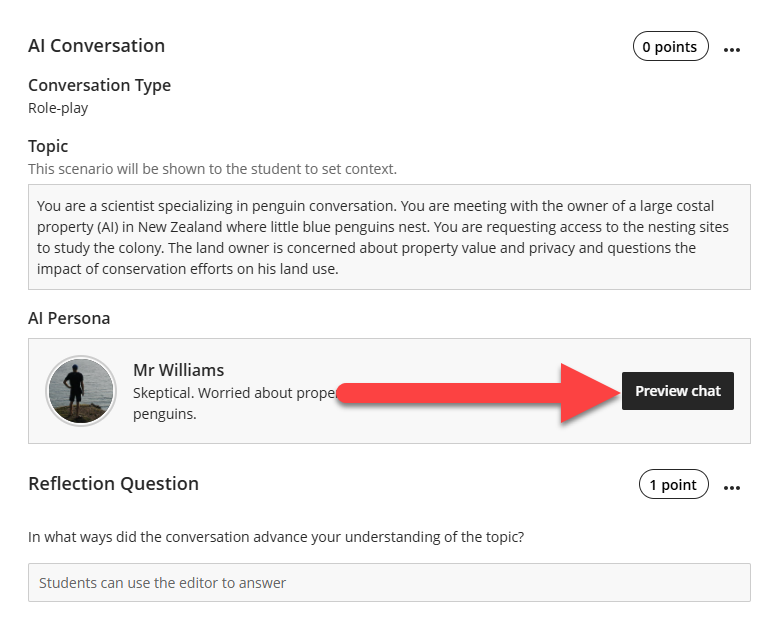
Once you are satisfied, go to the AI Conversation Settings to update the due date, change the grading (the AI Conversation is a formative assessment by default but you may change that), and more.
Review Student Interactions
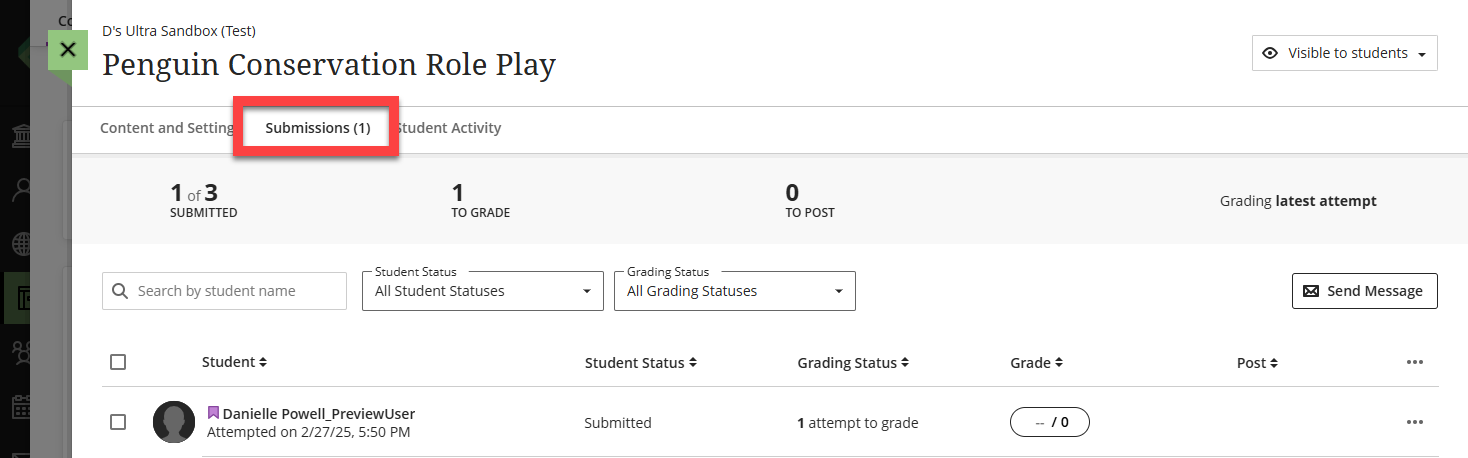
Once students submit their conversations you can review the transcript and your students' reflections. Locate the AI Conversation activity in your course and click on the Submissions tab to view your students' submissions.
Select a student to open their AI Conversation. Here you can review the conversation transcript and the student's reflection. You may also enter a grade and provide feedback.
For more information, refer to the AI Conversation support article.
Automations
You can create automations to send messages to students based on custom rules you set in your course. For example, you can create an automation to remind students to check their feedback.
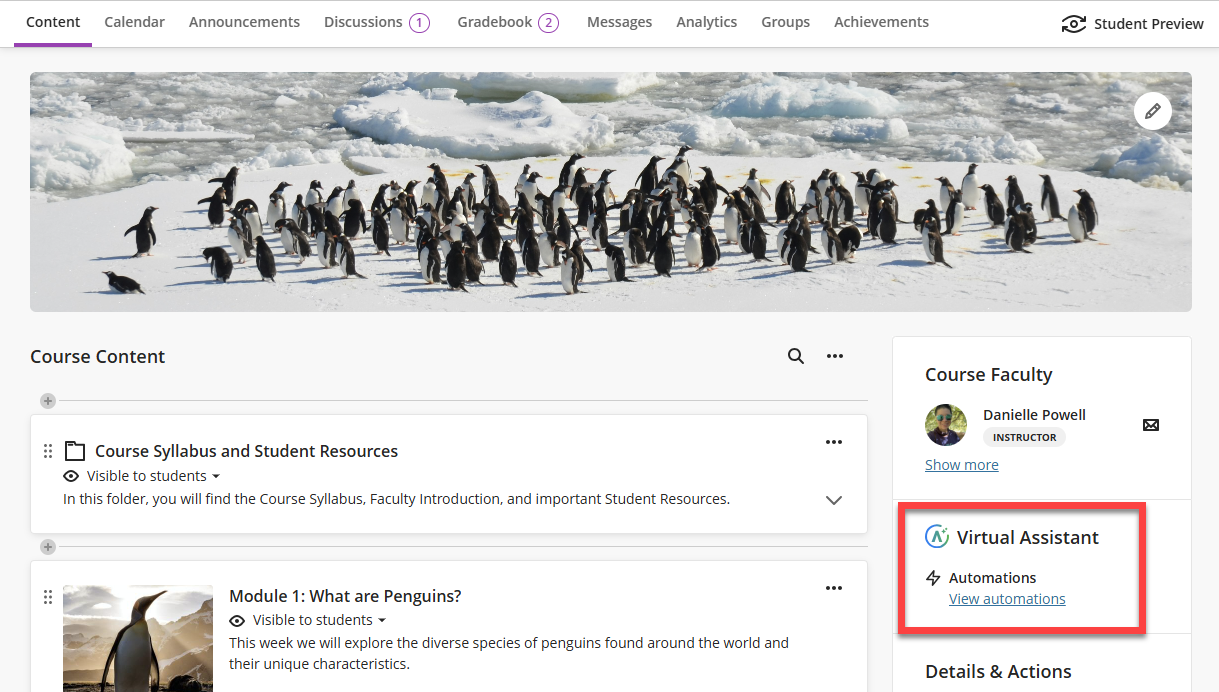
To create a new automation, go to the Course Content page and select View Automations.
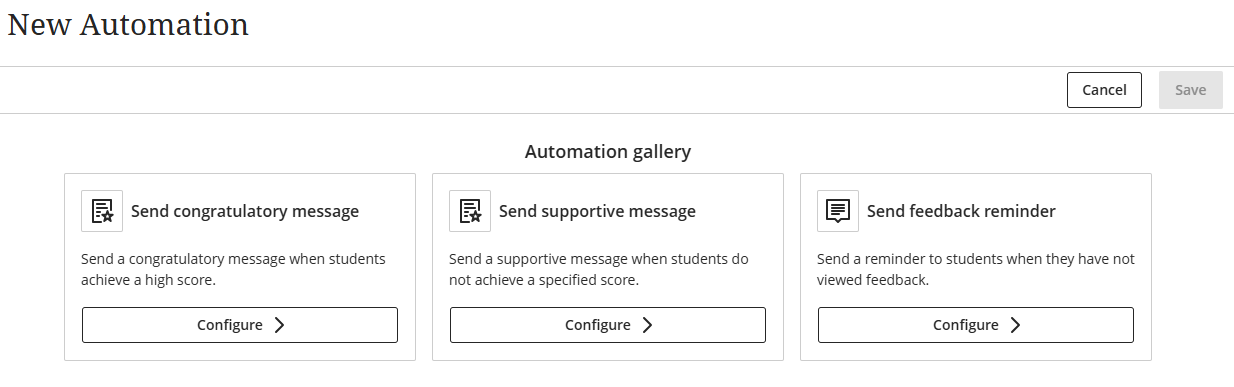
Select an automation type:
- Send a congratulatory message when students earn a high score on a graded item.
- Send a supportive message when students do not achieve a specified score.
- Send a feedback reminder to remind students to review their feedback.
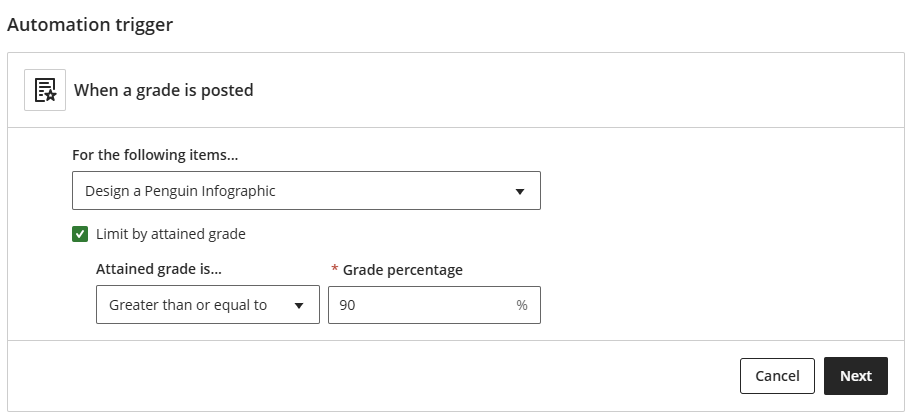
In the Automation Trigger section, set the conditions that will trigger the message to be sent (ex students earn 90% or higher on a specific assignment).
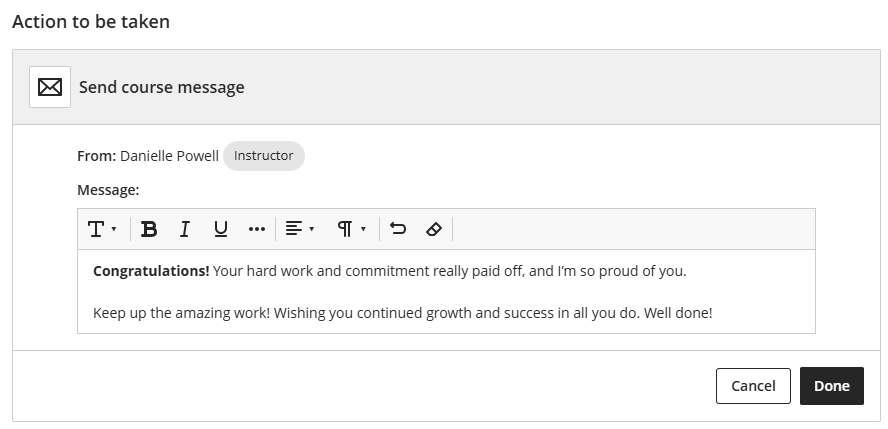
Then, in the Action to be Taken section, write the message that will be sent to students when the meet the conditions.
For more information, refer to the Automations support article.
Alternative Text Assistant (Ally)
Ally's AI Alternative Text Assistant is designed to assist you in creating descriptions for your images. An image description (also referred to as alt text), makes it easier to connect the image to its context and allows students with visual impairments to understand the image.
Ally checks for image descriptions anywhere there is an image, including image files and files that include images (ex attached Word documents, PDFs, and presentations).
Select the Accessibility Score Indicator to open the Instructor Feedback Panel.

The Instructor Feedback Panel will highlight the specific accessibility issues found in your image. Click on the Auto-generate description button. Ally will process your image and provide a suggested description.

Review the suggested description for accuracy and clarity. You may edit the description or delete it to add one of your own.

Once you are satisfied with the description, click Add to approve and apply the text to the image.
For more information, including tips and tricks for adding good image descriptions, refer to the Ally: Add Image Descriptions support article.
Was this article helpful?
That’s Great!
Thank you for your feedback
Sorry! We couldn't be helpful
Thank you for your feedback
Feedback sent
We appreciate your effort and will try to fix the article