As long as you are connected to the Lesley Network (wireless or wired), you can print to any Toshiba MFD or lab printer from your personal laptop or desktop.
Web Print currently supports the following document types:
Picture Files: BMP, DIB, GIF, JFIF, JIF, JPE, JPEG, JPG, PNG, TIF, TIFF
Document Files: PDF
Most other document types can be easily converted to PDF. For example, see this tutorial on saving a web page as a PDF:
http://support.lesley.edu/solution/articles/4000024446-save-web-page-as
How to Use Web Print
Go to www.lesley.edu/papercut when connected to Lesley Network (wireless or wired)
Log in with your Lesley username and password
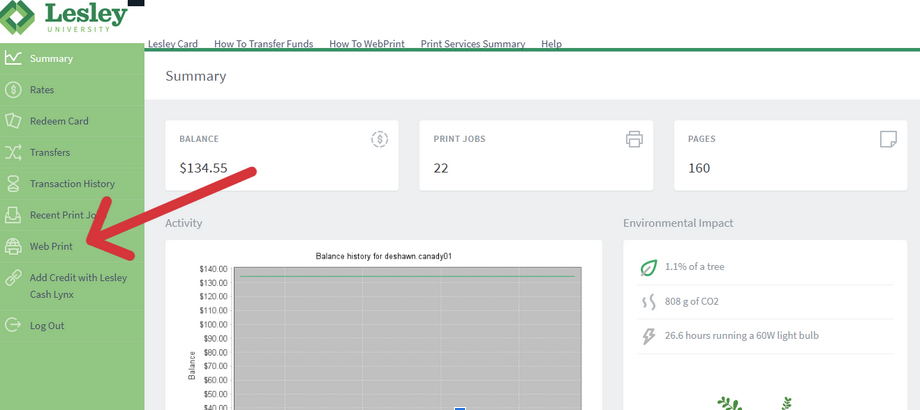
Click Web Print on the left sidebar
Click Submit a Job
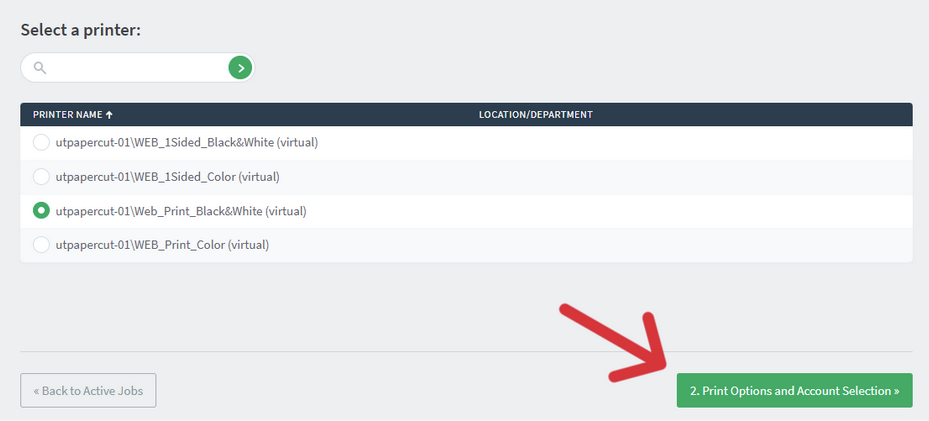
Select from the four options for your desired print job.
utpapercut-01\WEB_Print_Color (virtual) - 2 Sided Color
utpapercut-01\Web_Print_Black&White (virtual) - 2 Sided Black and White
utpapercut-01\WEB_1Sided_Color (virtual) - 1 Sided Color
utpapercut-01\WEB_1Sided_Black&White (virtual) - 1 Sided Black and White
Click Print Options and Account Selection
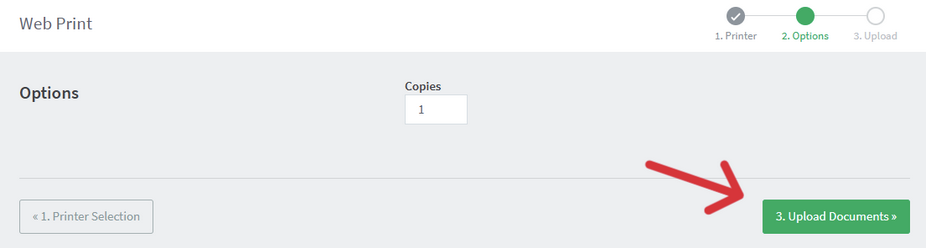
Enter desired number of copies
Click Upload Documents
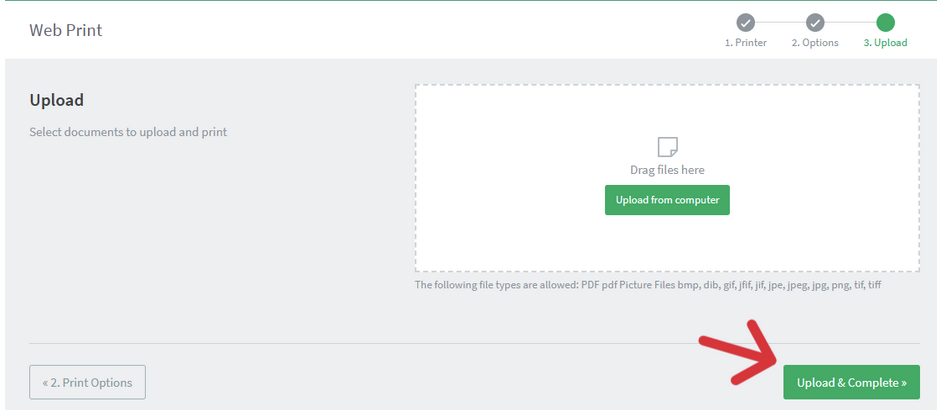
Click Upload from computer to locate the file you want to print
Click Upload & Complete
Go to any Toshiba copier located on campus and login with your Lesley username and password to release your files.

Synchronizing Lesley ID to PaperCut (First-time using ID):
- If this is your first time using your Lesley ID on a printer, you will encounter “Unknown Card” screen when swiping your card on a printer.
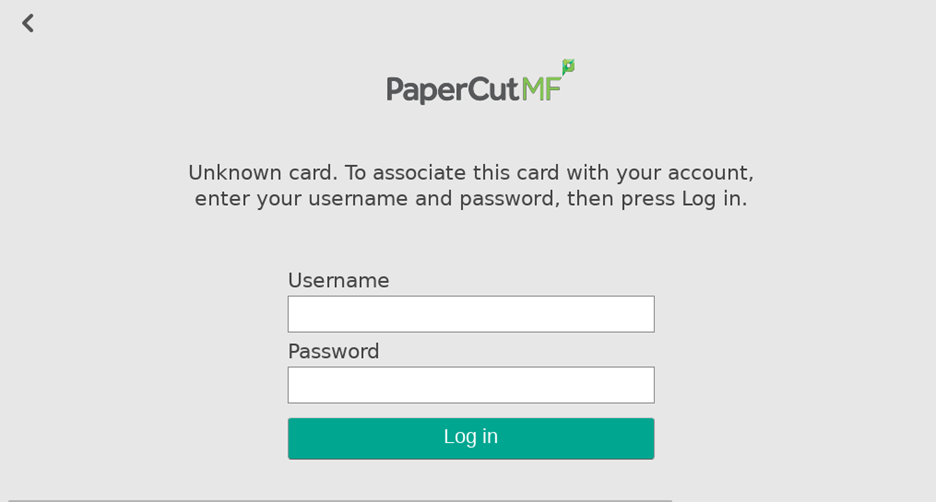
- Enter in your Lesley Credential to associate your Lesley ID with PaperCut.
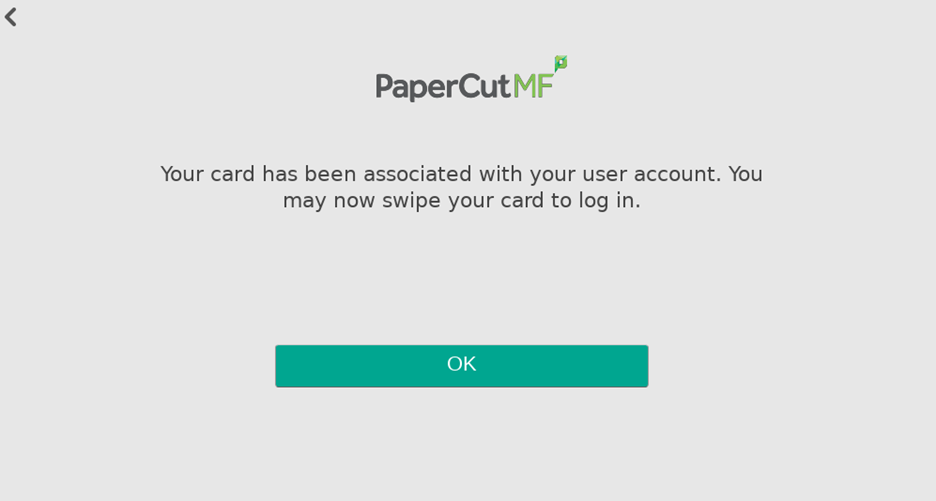
- Swipe your Lesley ID again to access the printing option.
Was this article helpful?
That’s Great!
Thank you for your feedback
Sorry! We couldn't be helpful
Thank you for your feedback
Feedback sent
We appreciate your effort and will try to fix the article