TABLE OF CONTENTS
Add an Embedded OneDrive File
You may add files from OneDrive to your Course Content area or within a Learning Module or Folder.
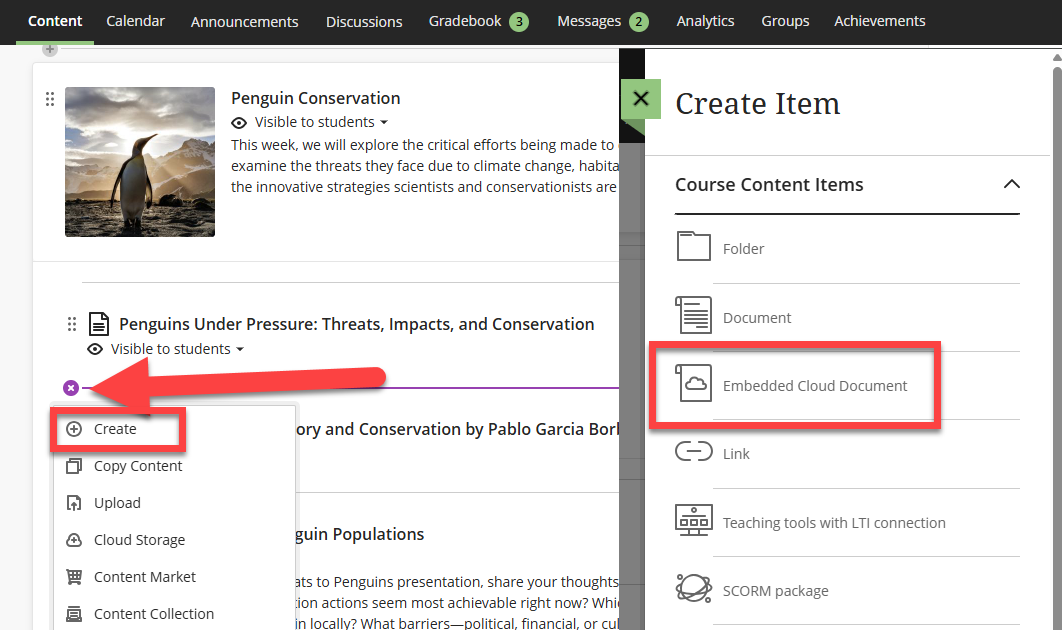
On your Course Content page (or within a Learning Module or Folder), click on the Plus Sign (+) to open a menu. Select Create. Then, from the Create Item panel, select Embedded Cloud Document.
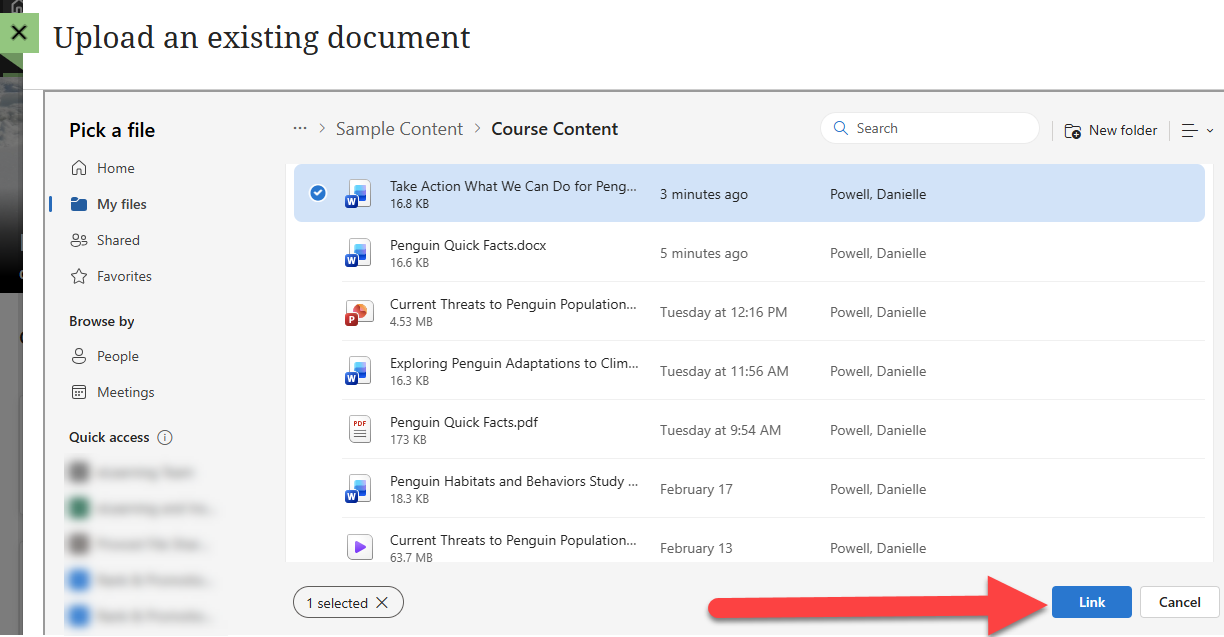
This will bring you to your OneDrive. You may be prompted to login to your Lesley University SSO account.
Once you have logged in, select the file(s) you wish to add and then click Link.
Your embedded file will appear in your course as a new content item. Open the file to make any edits/changes. These changes will be reflected both in the course and in OneDrive.
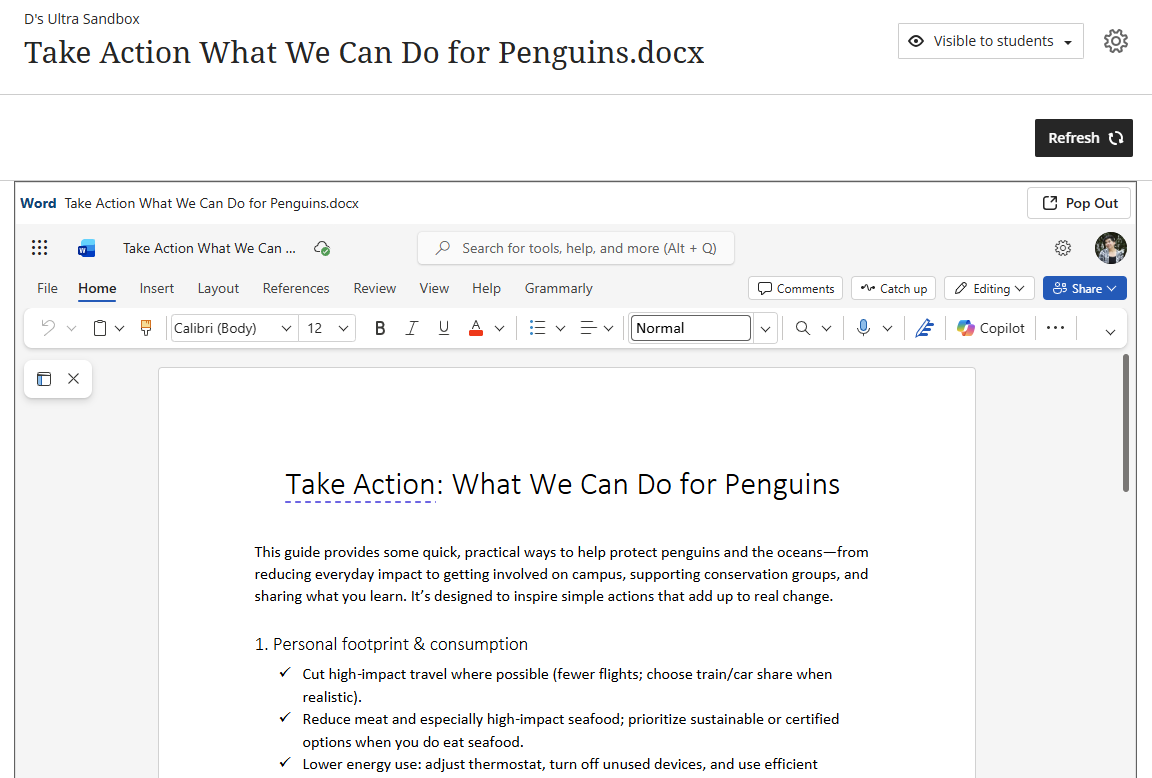
Note: Your students will have read-only access to your embedded OneDrive file.
Create a Collaborative Document
Create a Cloud Collaboration to allow your students to collaborate and engage with each other in real time or asynchronously. The following file types are supported for collaboration:
- Microsoft Word
- Microsoft Excel
- Microsoft PowerPoint
You may add a Cloud Collaboration to your Course Content area or within a Learning Module or Folder.
On your Course Content page (or within a Learning Module or Folder), click on the Plus Sign (+) to open a menu. Select Content Market.
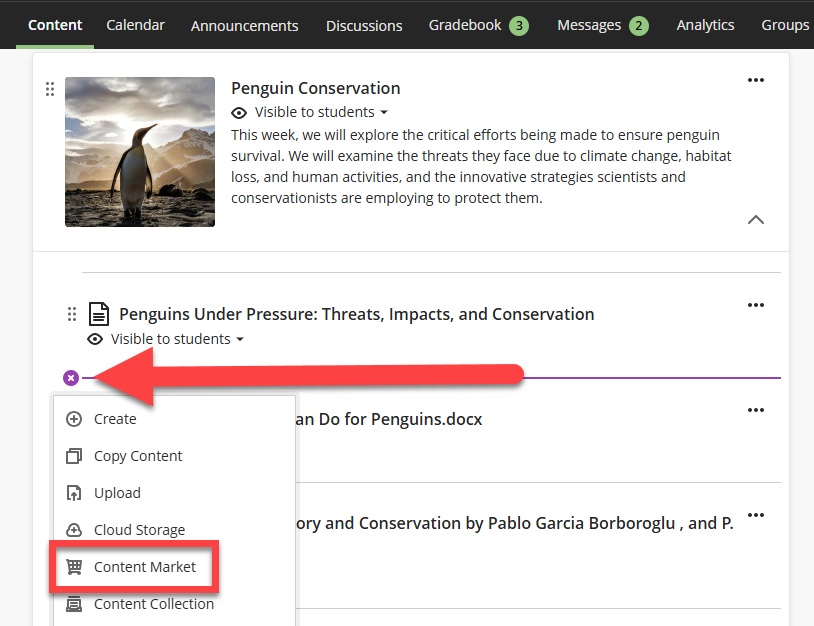
This will open up the Content Market. Select Microsoft Education Collaboration.
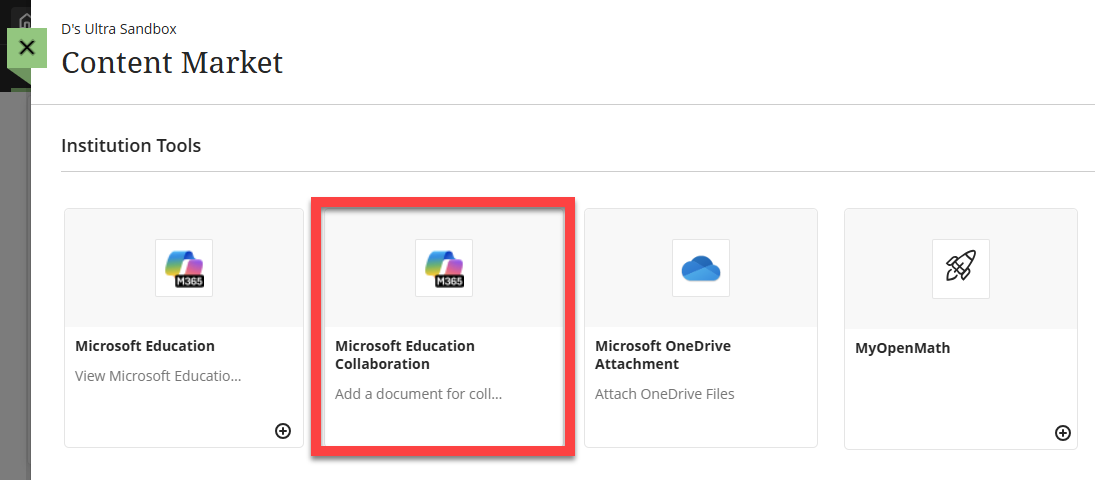
You may be prompted to login to your Lesley University SSO account.
Once you have logged in, you will be prompted to create a new collaborative document. You may select an existing document OR select a file type (Word, Excel, or PowerPoint) and enter a name and optional description. Then click Save.
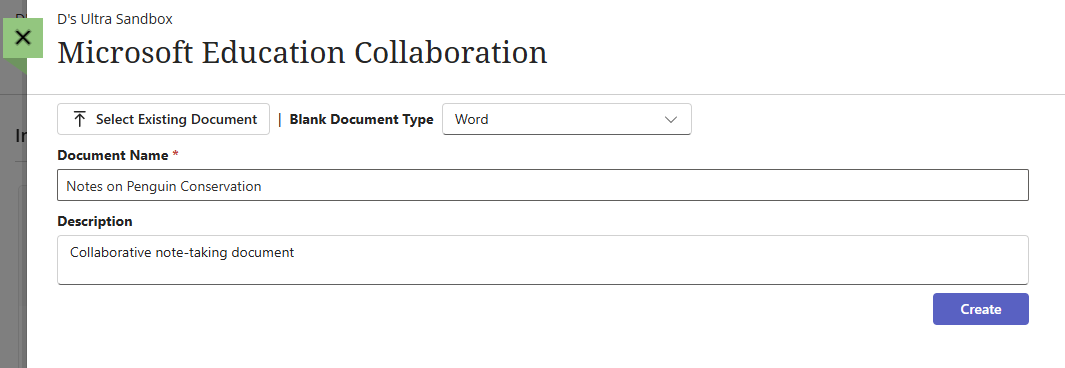
Your Microsoft Education Collaboration will appear in your course as a new content item. Open the file to edit and collaborate.
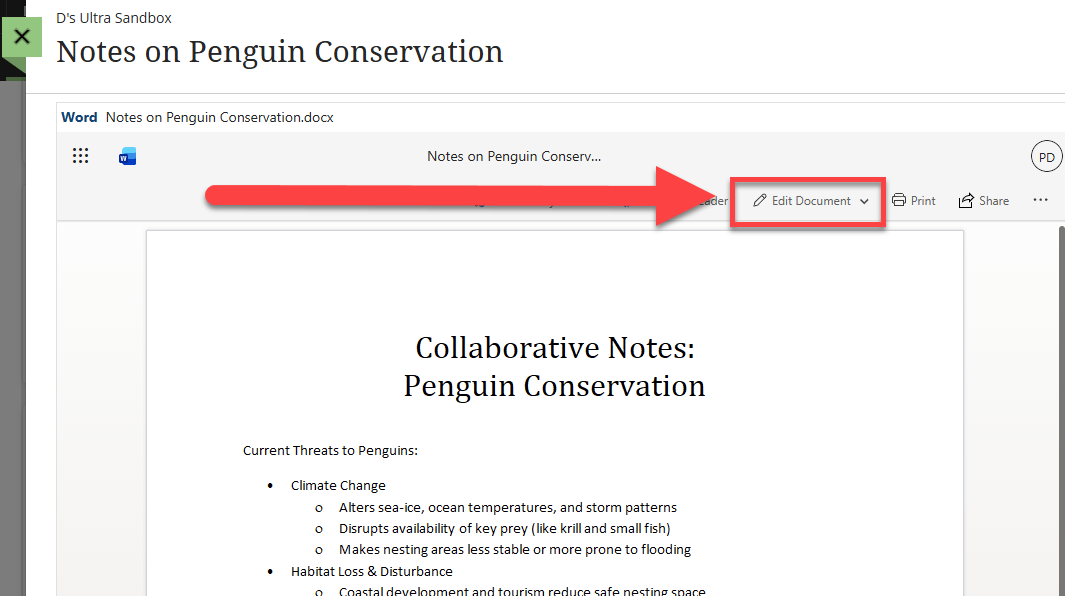
When you or your students open the file, any existing content will appear. Click Edit Document to open the file in Office 365 Online and make edits.
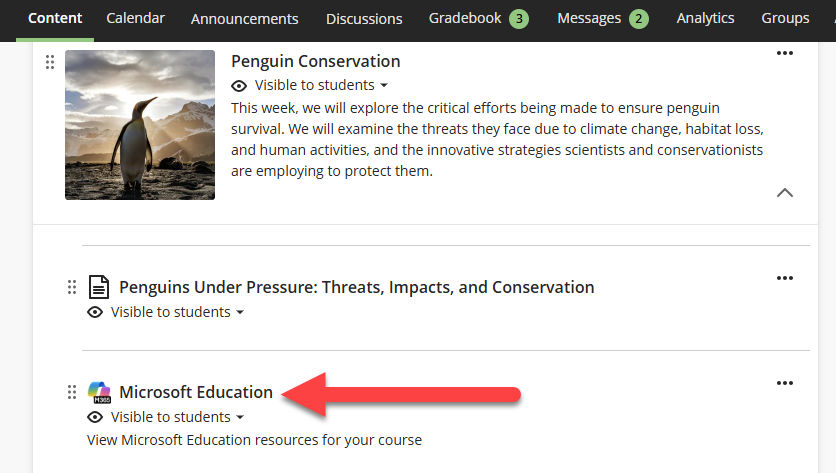
Microsoft Education
Create a link in your course to access the Microsoft Education Dashboard. From the dashboard you may access your OneDrive, Teams Meetings, Class Notebooks, and Reflect.
Add a Link to the Microsoft Education Dashboard
You may link to Microsoft Education on your Course Content area or within a Learning Module or Folder.
On your Course Content page (or within a Learning Module or Folder), click on the Plus Sign (+) to open a menu. Select Content Market.
This will open up the Content Market. Click the plus sign (+) in the Microsoft Education Collaboration area.
A link to the Microsoft Education Dashboard will be added to your course. Once your link has been created, click on it to finish the setup.
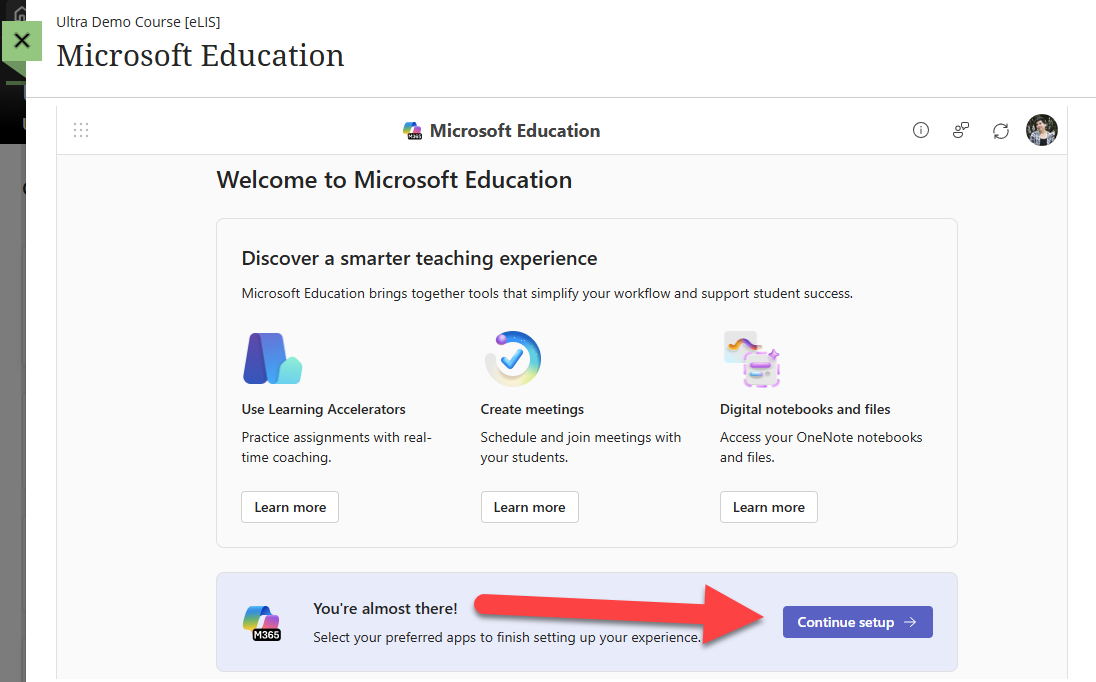
The first time you launch Microsoft Education you will be prompted to complete the setup. Click Continue Setup.
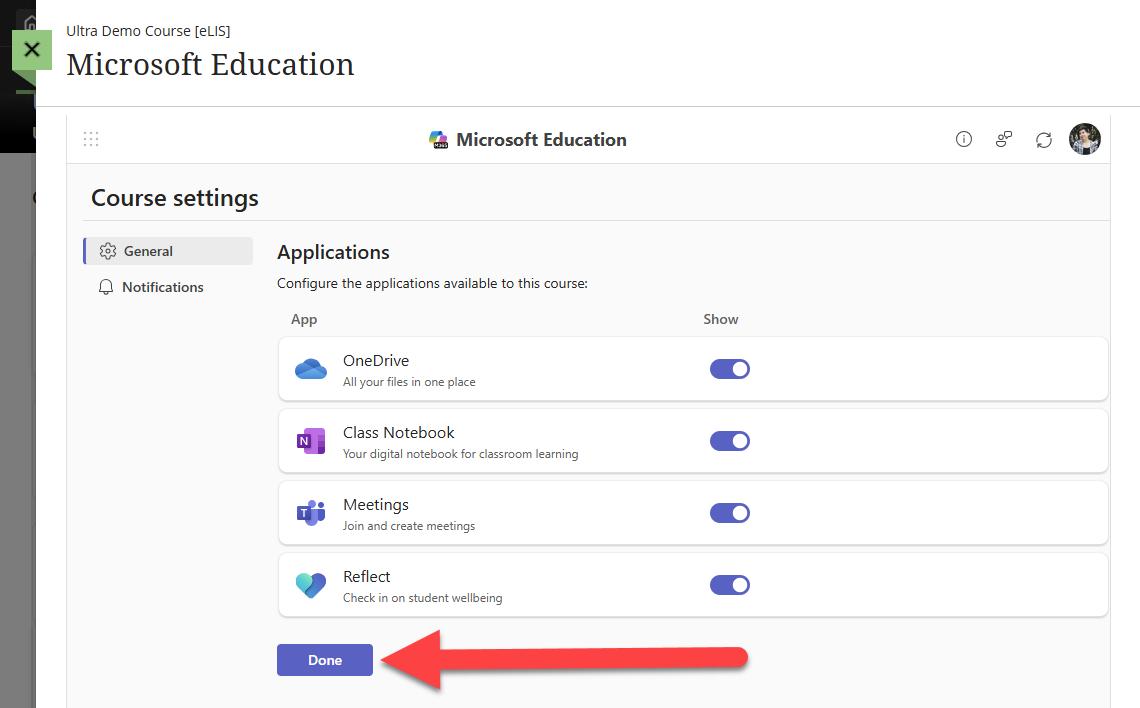
You will be prompted to select which apps you wish to use in your course. Toggle an app on or off to make it available to your students. Click Done when you have finished.
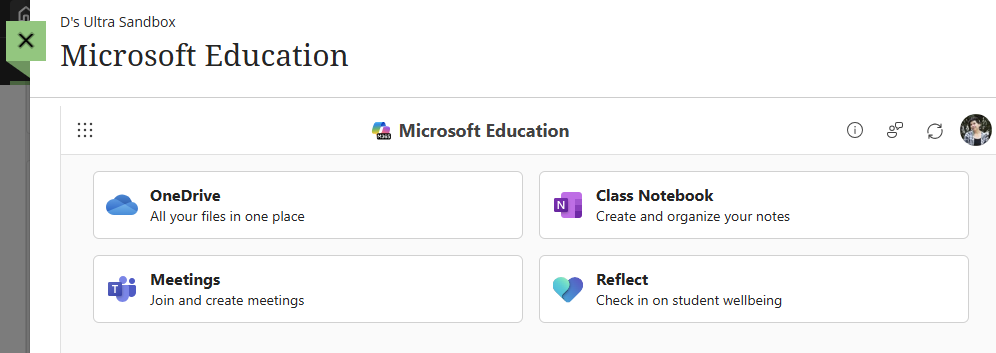
This will complete the Microsoft Education setup. Once the setup has completed, you and your students will be able to click on the link in the course to access OneDrive, create or join Teams Meetings, create or access Class Notebooks, or use Reflect to assign check-ins or activities.
Access OneDrive
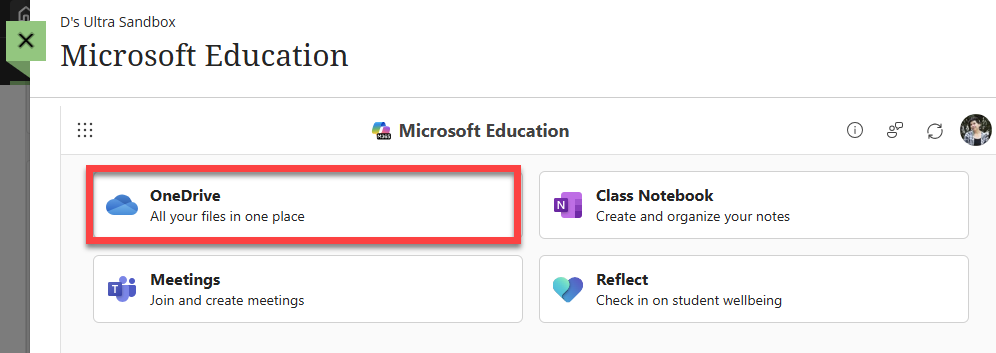
From the Microsoft Education Dashboard, select OneDrive. Each user will be directed to their own Lesley University OneDrive. Users may add and create files, edit existing files, etc.
Create a OneNote Class Notebook
From the Microsoft Education Dashboard, select Class Notebook.
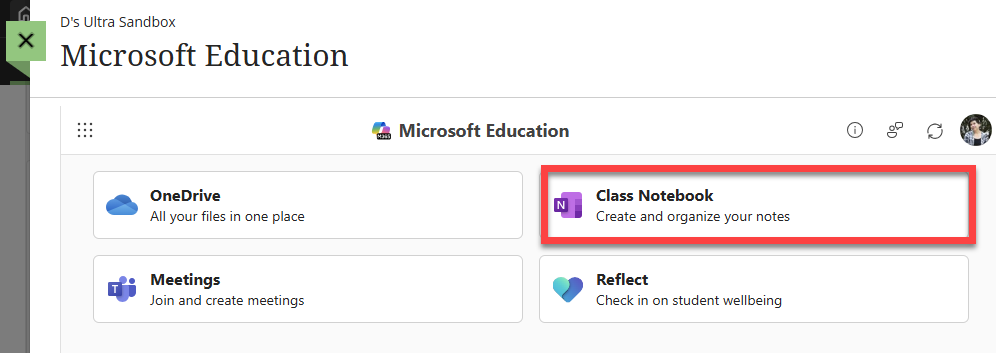
Follow the setup wizard to create a new Class Notebook.
Students will access the Class Notebook by clicking on the Microsoft Education link in your course and selecting Class Notebook from the Microsoft Education Dashboard.
OneNote for Education Support and Resources:
- Getting Started with the OneNote Class Notebook: A Walkthrough for Educators
- Microsoft Learn Educator Center: OneNote for Education
- Training Module: OneNote Class Notebook
Create Teams Meetings
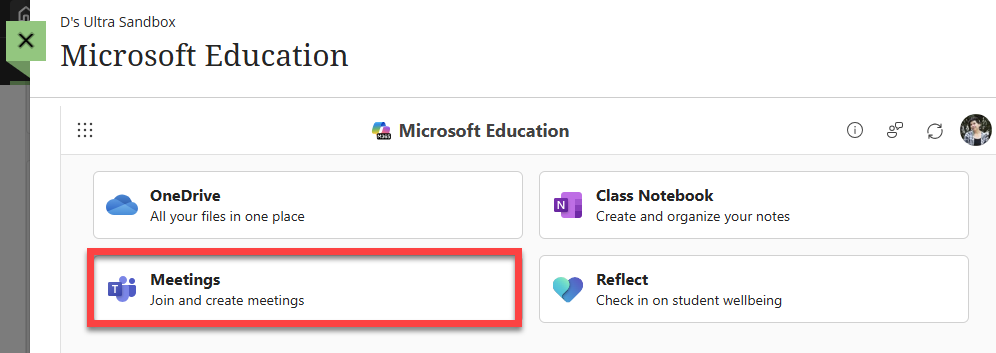
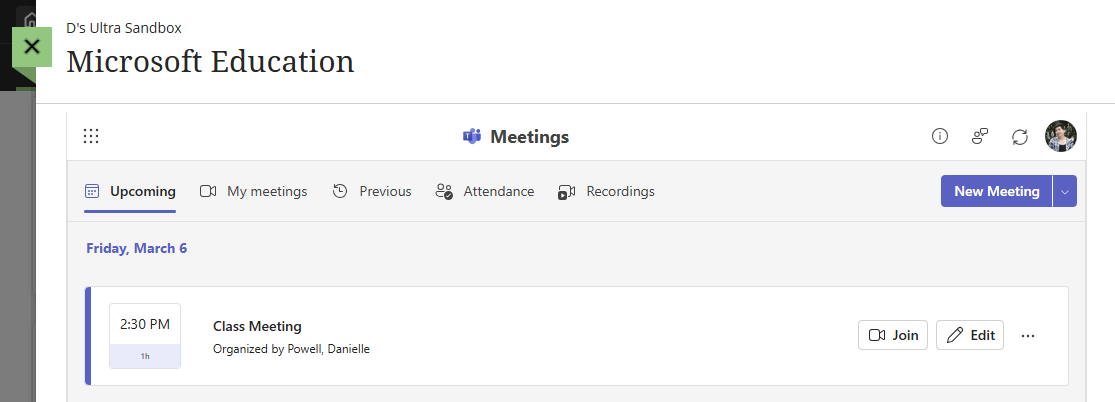
From the Microsoft Education Dashboard, select Meetings.
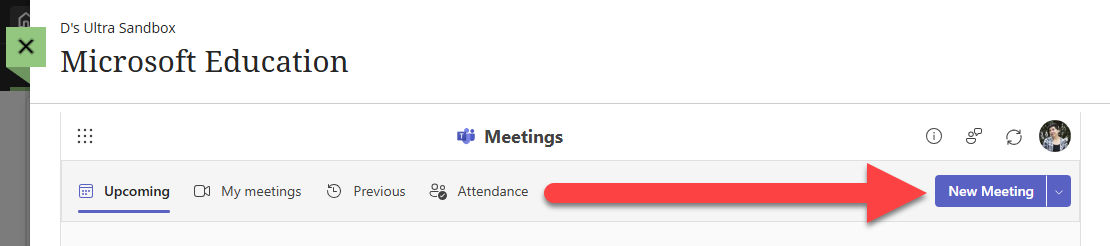
This will bring you into the Teams Meetings area for your course. Click New Meeting to create a new class meeting.
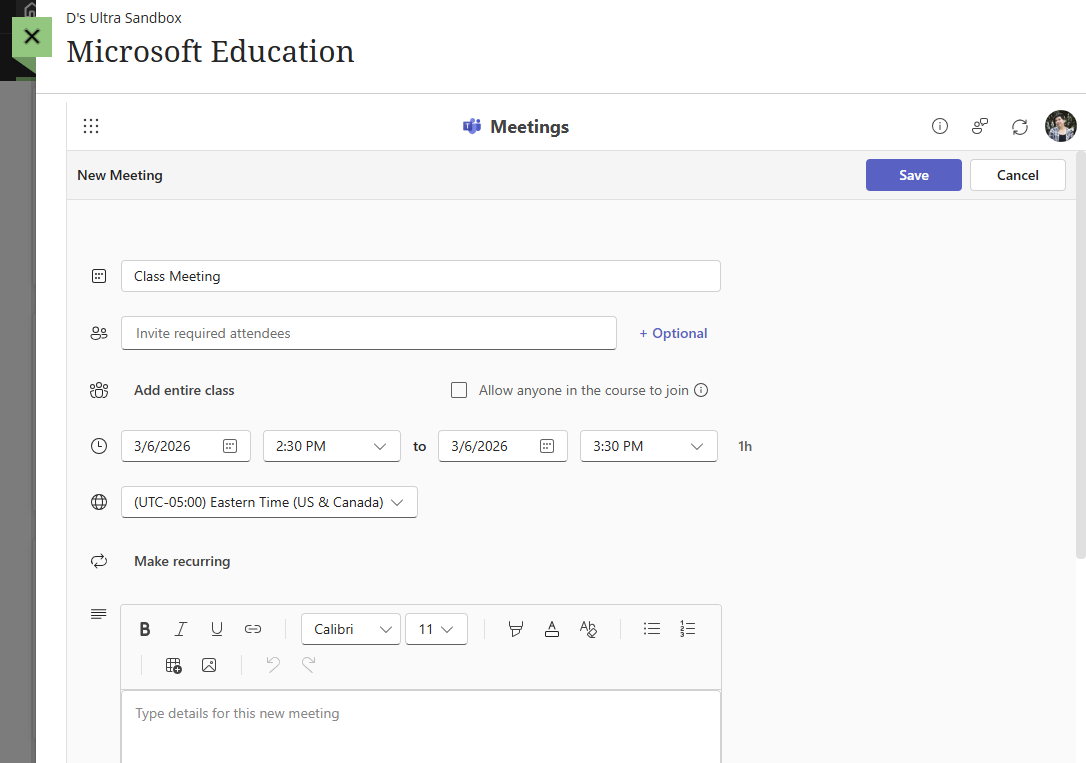
Fill out your Meeting details including the meeting title, date, time, and description (optional). Next, choose who to invite to the meeting–you can add the entire class, allow anyone in the course to join, and/or add guests. Once you have finished, click Save.
Once your meeting has been created, you and your students will be able to access it by going to the Microsoft Education Dashboard, selecting Meetings, and then clicking Join on the appropriate meeting.
Create a Reflect Check-In
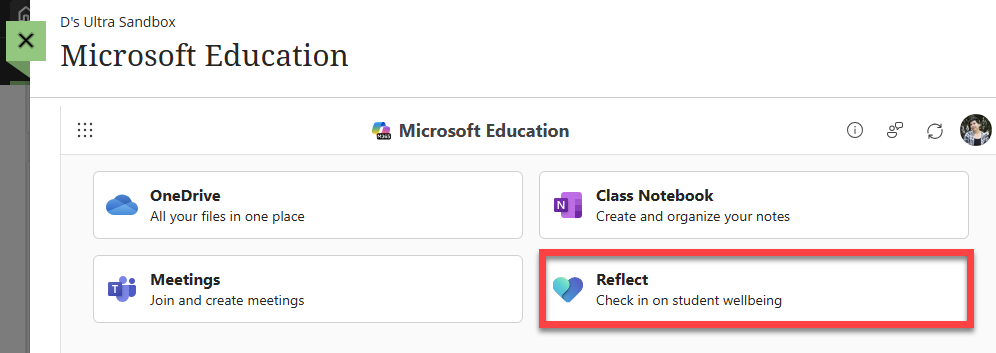
From the Microsoft Education Dashboard, select Reflect.
Click New check-in to create a new Reflect check-in.
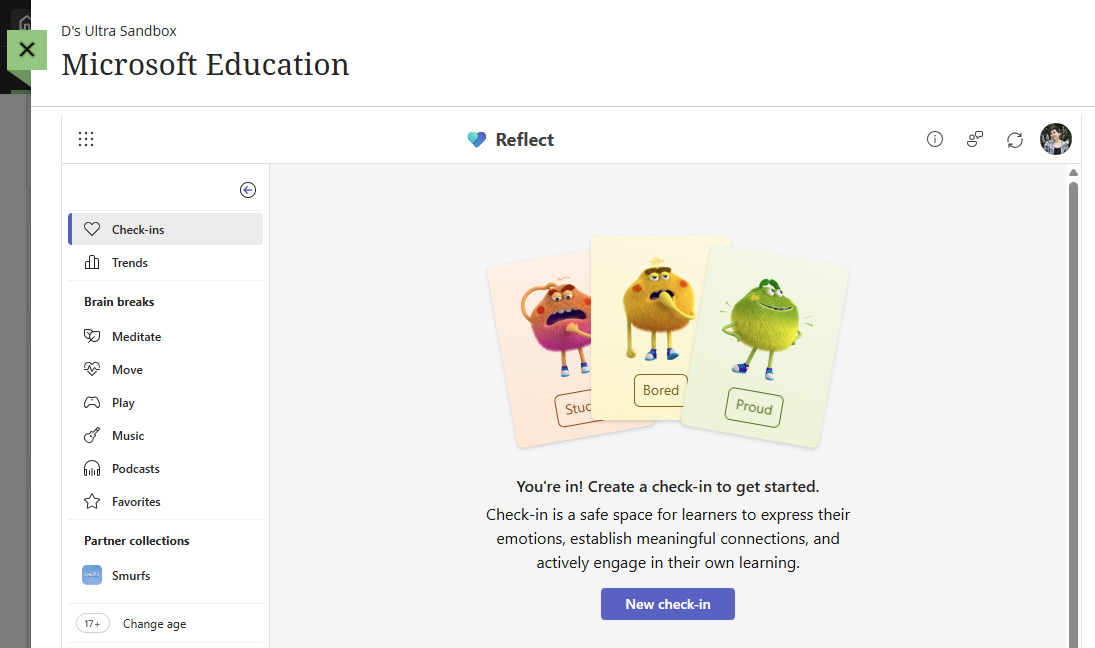
Once you have created your Check-in, you can share it with your students via a link or QR code. You may also embed Reflect Check-ins directly in your OneNote Class Notebook.
Reflect Support and Resources:
Was this article helpful?
That’s Great!
Thank you for your feedback
Sorry! We couldn't be helpful
Thank you for your feedback
Feedback sent
We appreciate your effort and will try to fix the article