Create Accessible Course Content (Blackboard Ally for Instructors)
TABLE OF CONTENTS
- Blackboard Accessibility Overview
- Create an Accessible Course
- Blackboard Ally Overview
- Use Ally to Create and Download Alternative Formats of Course Content
- Use Ally to Review and Improve the Accessibility of Your Course Content
- Use Ally to Identify and Fix PDF Issues
- Use Ally's AI Alt Text Assistant to Generate Image Descriptions
- Utilize Ally's Course Accessibility Report
- Ally for Instructors: Microlearning Video Series for Accessible Teaching
- Accessibility Resources
Blackboard Accessibility Overview
Blackboard believes that accessibility is essential for creating inclusive, effective educational experiences. Read more about Blackboard's commitment to Accessibility: Empowering learning through inclusive design.
Additional information and an overview of Blackboard's accessibility features, including how to navigate with keyboard shortcuts, may be found on Blackboard's Accessibility page.
Watch the Accessibility Overview in Blackboard Learn video to find out more about accessibility features in Blackboard Ultra. The video and full transcript may be found on Vimeo: Accessibility Overview in Blackboard Learn video tutorial.
Create an Accessible Course
As you design your course and upload content, it’s important to ensure that all materials are accessible to your students. Creating accessible content allows everyone to access, understand, and engage with your materials. In most cases, making content accessible doesn’t require special tools or technical expertise. Instead, it often involves making simple adjustments using the tools you already have.
Watch Blackboard's Inclusive Learning Experience video for simple ways to make your course accessible for all users.
Create an Accessible Course Structure
- Set up your course with a clear, consistent flow. This will allow students to spend their time focusing on the content, not finding the materials.
- Provide a basic, predictable structure. Organize your content into Learning Modules and/or folders based on the week or the topic. Label all Learning Modules and folders clearly (ex Week 1: Topic Name).
- Avoid folders within folders, as this creates a barrier for students trying to find the content.
- Each Learning Module or folder should follow a similar flow. For example:
- If your content is organized by week or topic, include an overview and learning objectives.
- Include learning materials, such as readings, videos, links, and other course content.
- Include assignments, tests, discussions, and other means for students to submit work or collaborate with others.
- Write clearly and use plain language whenever possible.
- Provide clear expectations and instructions. This should be included in your syllabus as well as in the course content.
- Provide specific and meaningful titles for your course content. Your students should be able to understand what the item it is before opening it.
Create Accessible Course Content
Be sure that any content you add to your course is accessible to all users.
- Create your Syllabus as a Word file and run the Microsoft Office Accessibility Checker to ensure that your syllabus is accessible to all users.
- When creating content, use the built-in text/content editor to format your text and add structural content.
- Use text heading styles to provide structure and hierarchy.
- Use the list options to create bulleted and numbered lists.
- Use tables for tabular data only. Create simple tables with row and column headers and avoid empty cells.
- Create descriptive links to online content.
- If you copy and paste text into Blackboard, use the Clear Format button to remove formatting and reformat your content (ex headings, formatted lists, tables) using Blackboard's text/content editor.
- Make sure uploaded files and attachments are accessible to all users.
- Do not upload scanned PDFs. Scanned PDFs provide one of the biggest accessibility challenges. When you scan a text, such as a book, journal article, newspaper article, etc., the resulting document is an image of the text. These scanned PDFs are considered completely inaccessible to all users.
- Before uploading a Microsoft file (ex Word, PowerPoint), run the Microsoft Office Accessibility Checker to ensure that your file is accessible to all users.
- Use color and contrast wisely. Do not use color as the only way to convey meaning.
- Ensure that your media content is captioned or a transcript is available.
- Add alternative text to your images. If your image does not convey any meaning, mark the image as decorative.
- Utilize Ally to check the accessibility of your course content and follow the instructions to fix any accessibility issues.
Review the Accessibility Checklist for more information about creating accessible content.
Blackboard Ally Overview
Ally is a tool within myLesley that helps improve the usability and accessibility of your course content. By making materials accessible, you give students the option to choose formats that suit their needs, such as HTML for easier reading on mobile devices, electronic braille for visually impaired users, and audio or ePUB files for learning on the go. Ally automatically scans your course and takes steps to enhance accessibility.
Ally can:
- Generate alternative formats that students can download.
- Provide accessibility scores for your course content.
- Offer instructors feedback and guidance on how to improve accessibility.
For more information refer to the Ally for Instructors support page, or watch the Ally for Blackboard Ultra tutorial video:
Use Ally to Create and Download Alternative Formats of Course Content
Ally automatically creates alternative formats of the content you add to your course. These alternative formats are made available with the original file so students can access everything is in one location.
Watch the Ally Alternative Formats video for an overview of alternative formats.
To find out more about what students see, refer to the Accessing Alternative Formats of Documents in myLesley support article.
Alternative Formats in Your Course
Ally scans the content in your course and provides alternative formats for the following types of content:
- PDF files (PDF)
- Microsoft Word files (DOC, DOCX)
- Microsoft PowerPoint presentations (PPT, PPTX)
- Content created in Blackboard (Ultra Documents)
You and your students may access alternative formats of your files by selecting the file you wish to access and clicking the Alternative Formats icon.
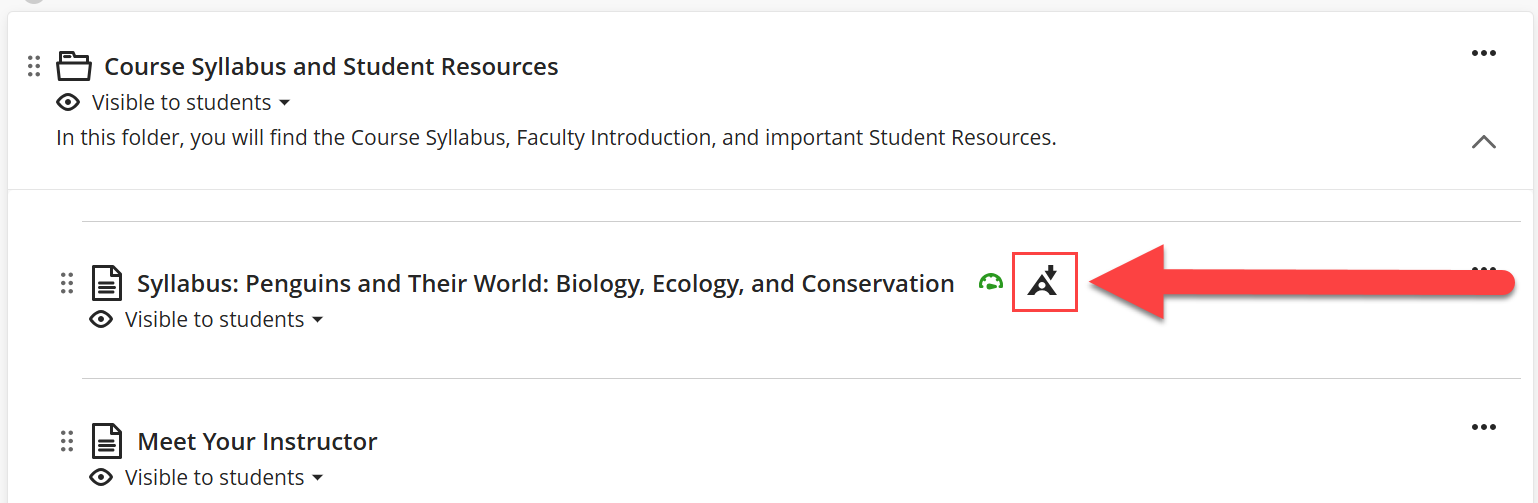
You will then be provided with a list of Alternative Formats. The available alternative formats may differ depending on your original file type.
Select your desired format and click Download.
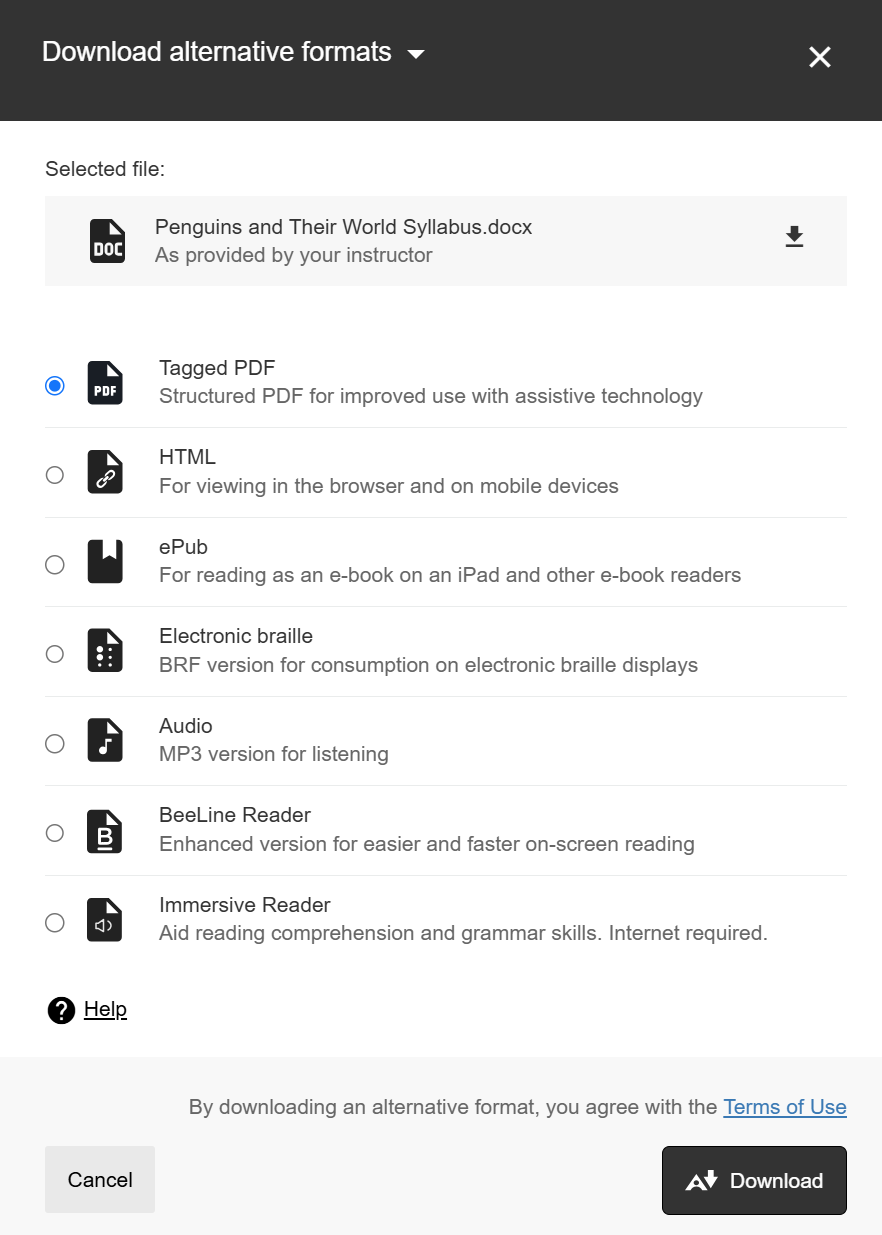
Your file will download. This may take several minutes.
Use the Ally File Transformer
The Ally File Transformer allows you to upload a file and download it in an alternative form, allowing you to personalize your learning experience to better fit your needs, devices, and learning preferences.
To access the Ally File Transformer from within myLesley, click on the Assist link in the main navigation menu. From the list of resources, select Ally File Transformer.
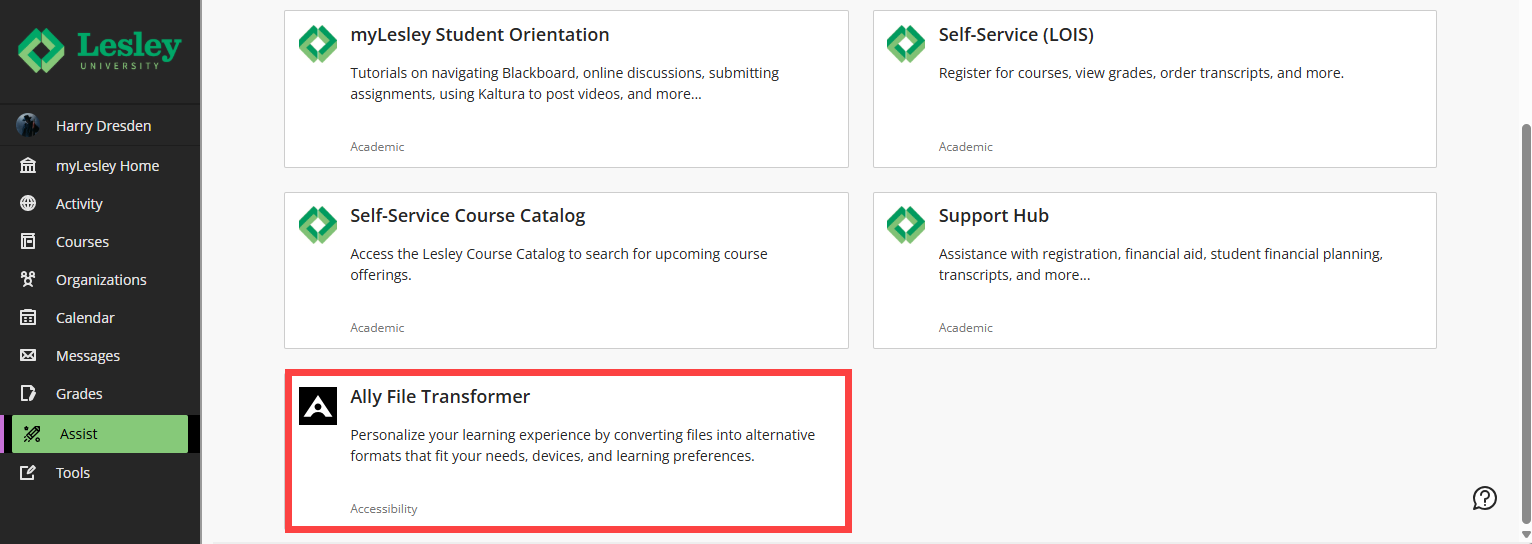
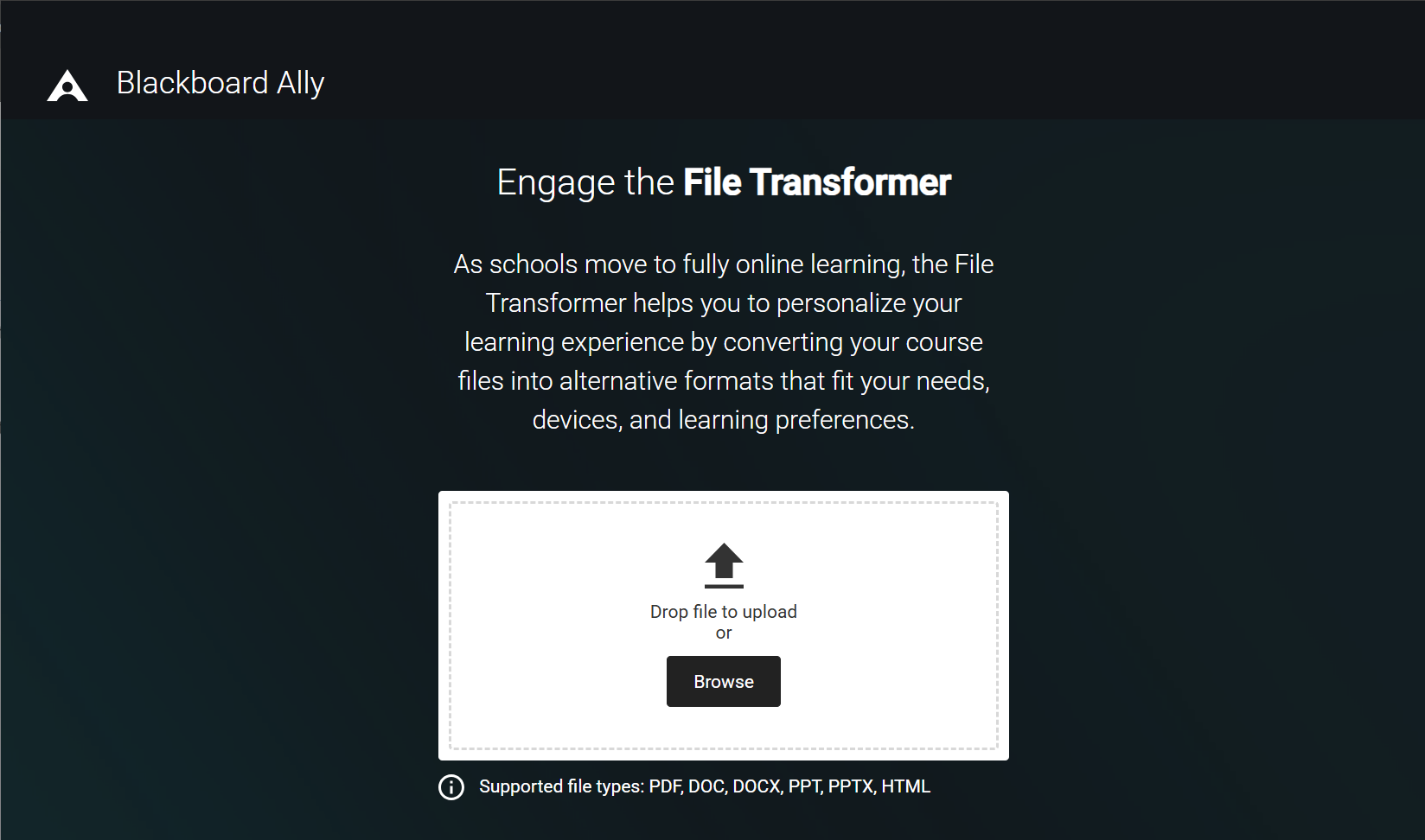
This will open the File Transformer. Upload a file (PDF, DOC, DOCX, PPT, PPTX, HTML) and then select the alternative format that best suits your needs.
What Types of Alternative Formats Does Ally Generate?
Based on the original file or content type, Ally may generate the following types of alternative formats:
- OCR'd PDF: Makes scanned documents searchable, more readable, and accessible to users on a screen reader.
- Tagged PDF: Improves use with assistive technology (currently for Word and PowerPoint files).
- Immersive Reader: Aids in reading comprehension and grammar skills. (Internet access required).
- Audio: MP3 version for listening on a computer or mobile device.
- HTML: Mobile-friendly version for reading in browsers or mobile devices.
- Electronic Braille: BRF version for tactile reading on electronic braille displays, other braille reading devices, or within braille software.
- ePUB: For reading and annotating on mobile devices or e-book readers.
- BeeLine Reader: Enhanced version for faster and more focused on-screen reading.
- Translated Version: This alternative format provides a machine-translated version of the original content into a total of 50 different languages. Supports PDF, Word, PowerPoint and HTML documents.
Use Ally to Review and Improve the Accessibility of Your Course Content
When you upload files into your course Ally will scan the content and produce an accessibility score for each file. The scores range from Low to Perfect and are determined by the severity of issues in each file. A low score indicates that the file has severe or multiple accessibility issues whereas a high score indicates that the file has minor accessibility issues.
At this time, Ally checks the following file types for accessibility:
- PDFs
- Microsoft Word documents (DOC, DOCX)
- Microsoft PowerPoint presentations (PPT, PPTX)
- Image files (JPG, JPEG, GIF, PNG, BPM, TIFF)
- Uploaded HTML files
- Ultra Documents
Accessibility scores are displayed next to the file and appear as a colored indicator icon. These indicators are only visible to the instructor—students do not see the accessibility score indicators.
 Low (0-33%): File is not accessible and needs immediate attention.
 Medium (34-66%): File is somewhat accessible and could use improvement.
 High (67-99%): File is accessible but could be improved.
 Perfect (100%): File is accessible. No improvement needed.
In addition to your accessibility score, Ally provides information to help you improve your content and overall accessibility.
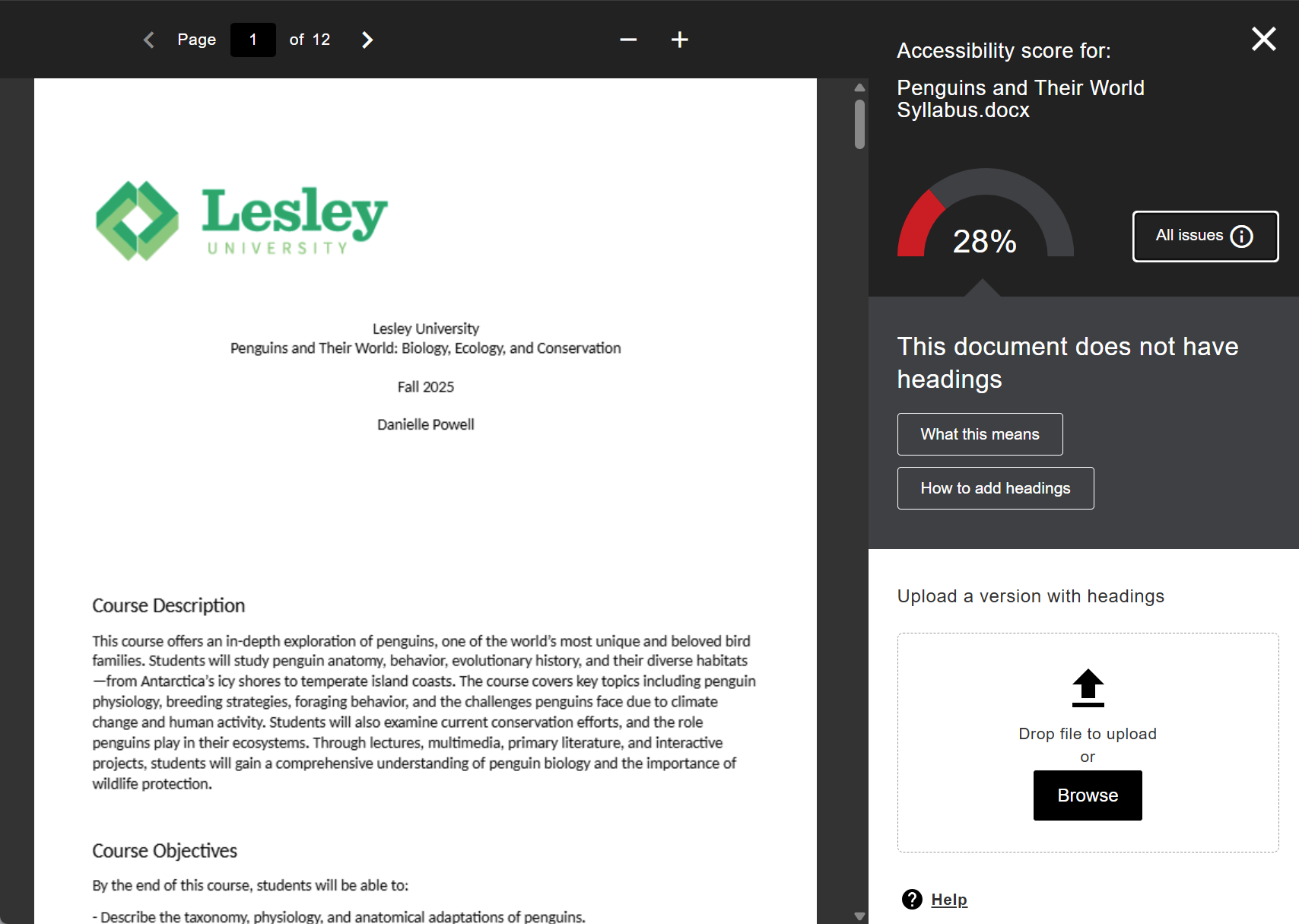
To review the Ally feedback, click the Accessibility Score next to your file or image to open the Feedback Panel.
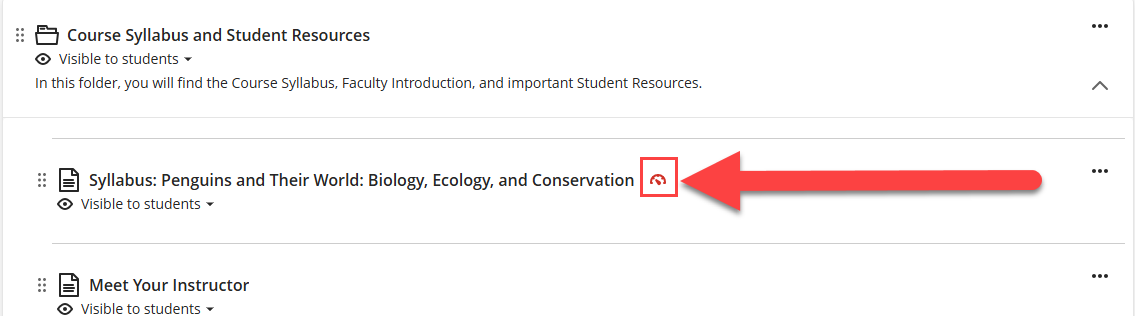
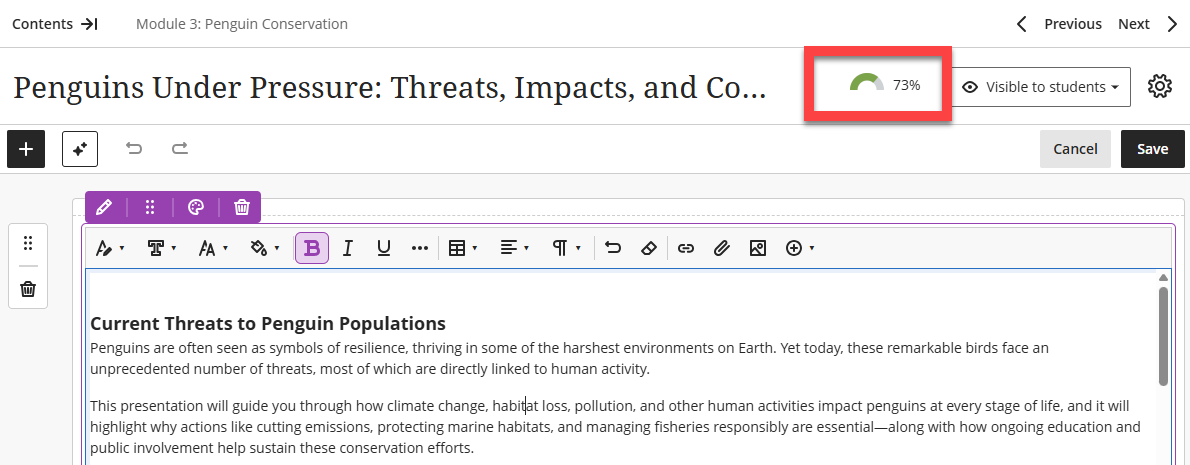
For Ultra Documents, the Accessibility Score is only visible when you are creating or editing the document. Click on the score to open the Feedback Panel.
The Ally Feedback Panel will display a preview of your file's content as well as detailed feedback and support to help you fix any accessibility issues.
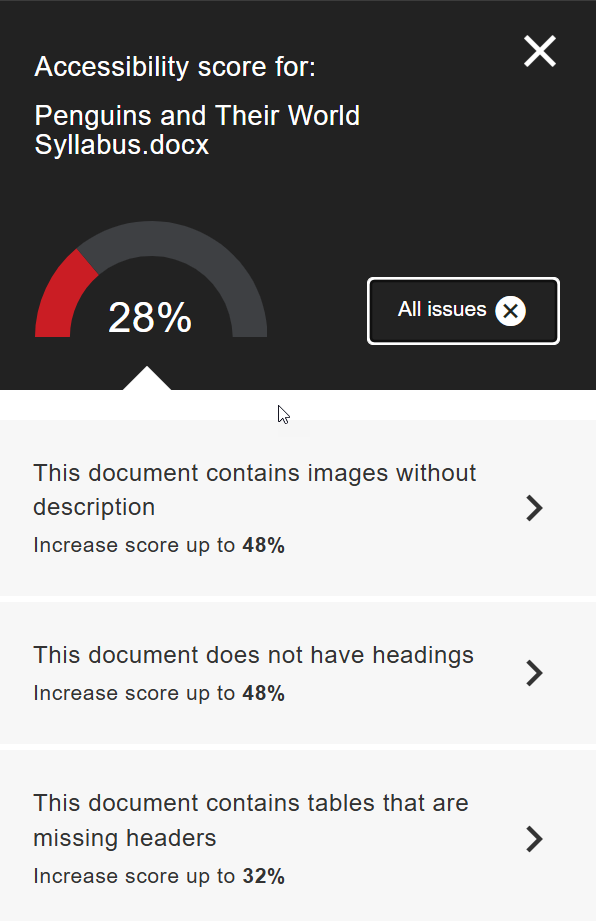
For files with multiple accessibility issues, the most severe issue is displayed first. Click All Issues to see a list of all accessibility issues found in your document. This will show you how much you can improve your score by fixing each issue.
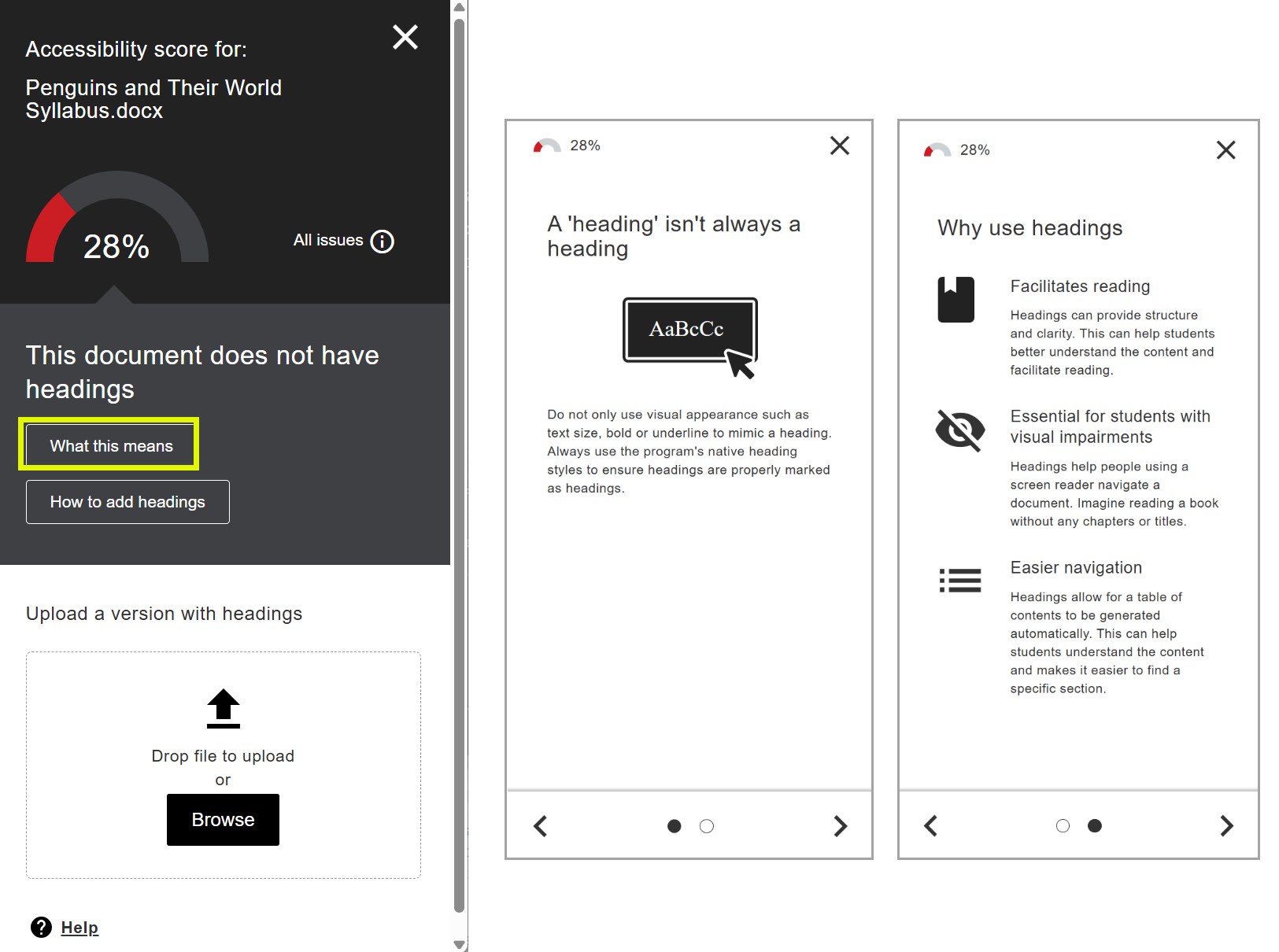
Select an accessibility issue and click What this means to find out more about the issue and why it is important.
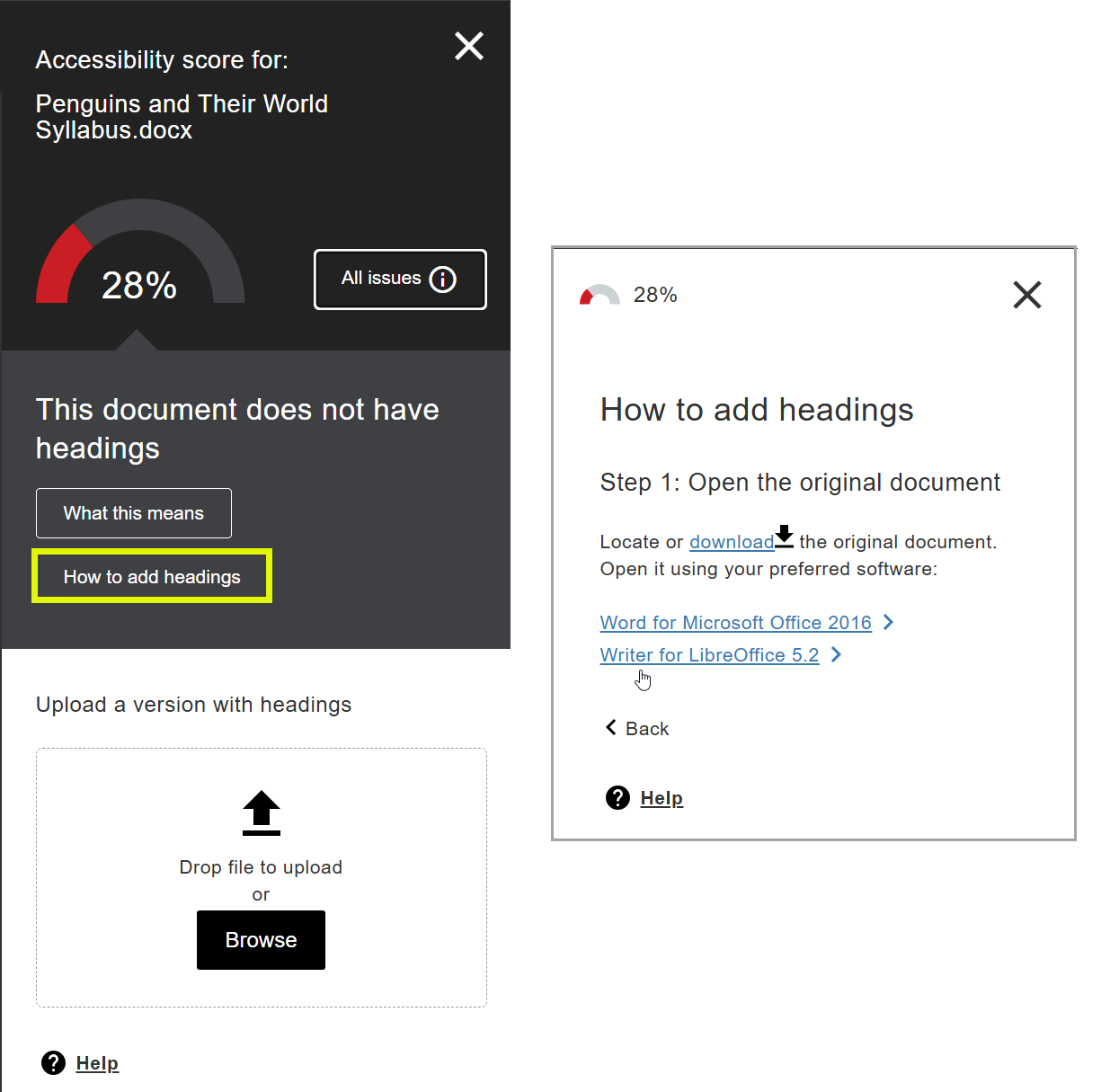
Click How To for instructions on how to fix your issue.
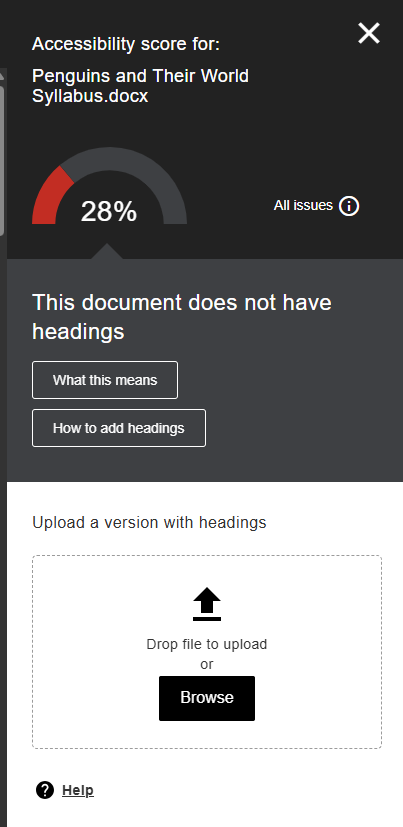
In most cases, you will fix your file using the program you used to crate it (ex Microsoft Word, PowerPoint, Adobe Acrobat). Once you have updated your file, upload it via Ally. You may drag and drop your updated file into the feedback panel or click Browse to search for the file on your computer.
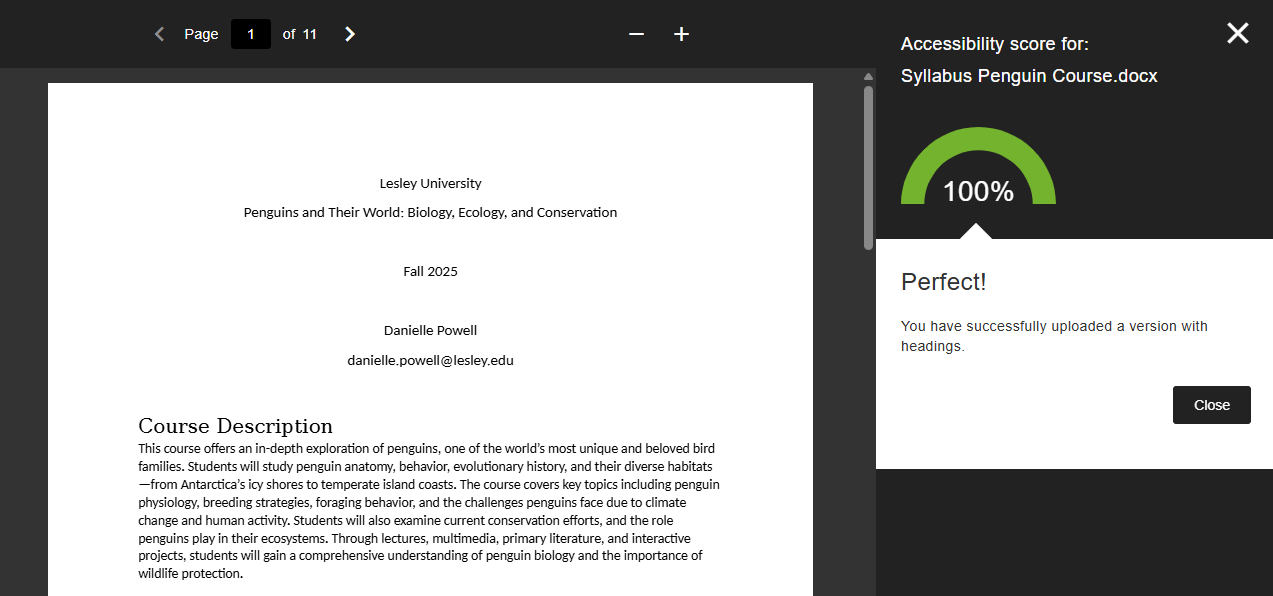
Ally will replace the old file with your new accessible version.
Ally can provide information and resources to help you:
- Identify and fix PDF issues, including scanned PDFs, untagged PDFs, and PDFs without a title or language set.
- Add image descriptions.
- Add headings to a document.
- Add table headers.
- Identify and fix broken links.
- Identify and fix text contrast.
- Remove or flag potentially harmful content, such as GIFs and other rapid-moving or flickering media.
- Identify videos without captions.
Refer to the Ally: Improve Content Accessibility support page for more information and detailed instructions.
Use Ally to Identify and Fix PDF Issues
PDFs are some of the most common course files and are often the most inaccessible. Ally allows you to take advantage of quick fixes for PDF documents right from the Instructor Feedback Panel. This includes the ability to:
- Auto-tag PDFs
- Set a title
- Add a language set
- OCR a scanned PDF
Ally will walk you through fixing your PDF without ever leaving your course. Once your file has been fixed, Ally will save and upload a new version of the PDF into the course and overwrite the old file in the process.
Refer to Ally PDF Remediation Options support page for more information and detailed instructions.
Note:
Avoid using scanned PDFs, especially as course content. If possible, find a digital copy of the original document. If you find a digital version online or in the library, link to it. Do not download the document and upload it into your course!

For more information, refer to: Accessibility Checklist: Don't use scanned PDFs.
Use Ally's AI Alt Text Assistant to Generate Image Descriptions
Ally's AI Alternative Text Assistant is designed to assist you in creating descriptions for your images. An image description (also referred to as alt text), makes it easier to connect the image to its context and allows students with visual impairments to understand the image.
Ally checks for image descriptions anywhere there is an image, including image files and files that include images (ex attached Word documents, PDFs, and presentations).
Select the Accessibility Score Indicator to open the Instructor Feedback Panel.
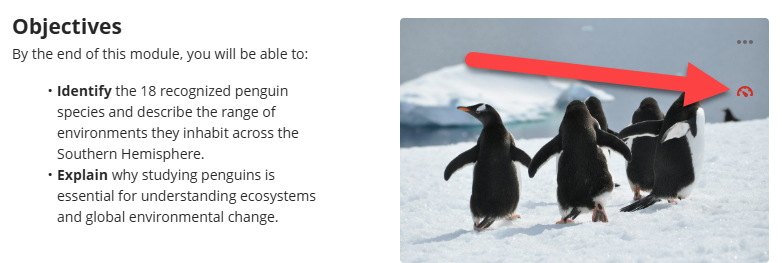
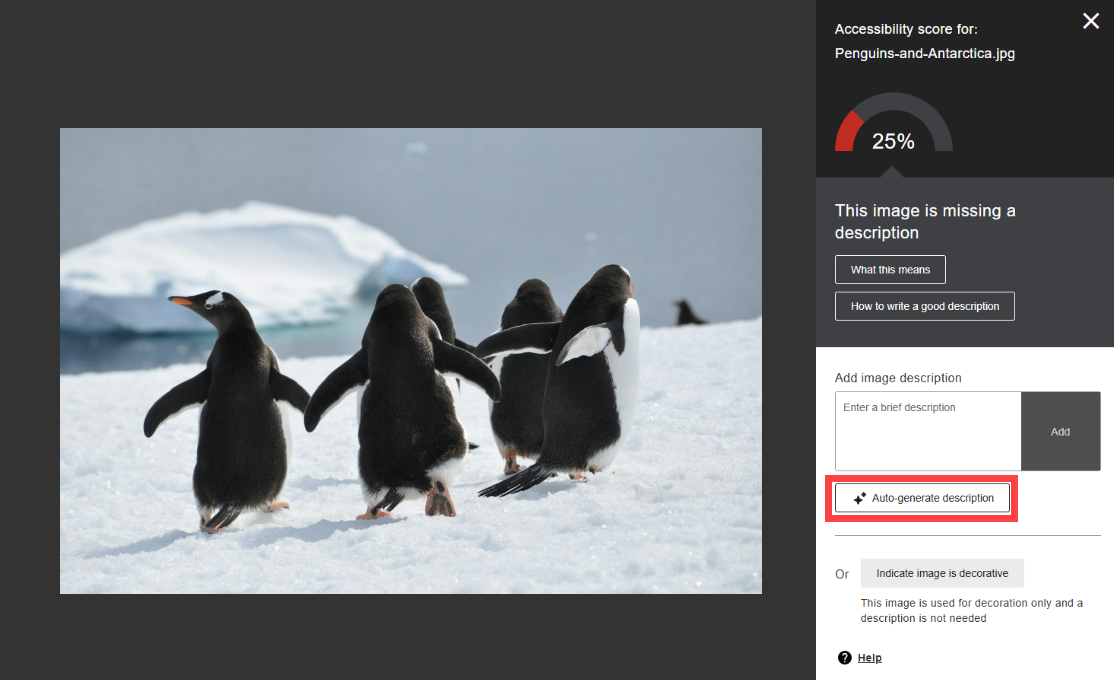
The Instructor Feedback Panel will highlight the specific accessibility issues found in your image. If your image is missing a description, you click on the Auto-generate description button. Ally will process your image and provide a suggested description.
Review the suggested description for accuracy and clarity. You may edit the description or delete it to add one of your own.
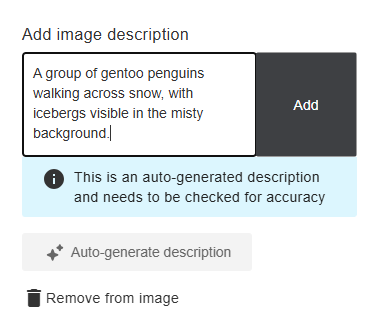
Once you are satisfied with the description, click Add to approve and apply the text to the image.
For more information, including tips and tricks for adding good image descriptions, refer to the Ally: Add Image Descriptions support article.
Utilize Ally's Course Accessibility Report
Ally’s Course Accessibility Report provides you with a comprehensive view of your course's accessibility, helping you see the big picture and drill down into specific details. This report allows you to quickly assess your course's overall accessibility and identify specific content that may need improvement.
Ally can provide information and resources to help you:
- Identify and remediate PDF issues, including scanned PDFs, and PDFs without a title or language set.
- Tag PDFs for easier navigation.
- Add image descriptions.
- Add headings to a document.
- Add table headers.
- Identify and fix broken links.
- Identify and fix text contrast.
- Remove or flag potentially harmful content, such as GIFs and other rapid-moving or flickering media.
- Identify videos without captions.
For more information, refer to the Ally: Improve Content Accessibility support article.
Access your Course Accessibility Report
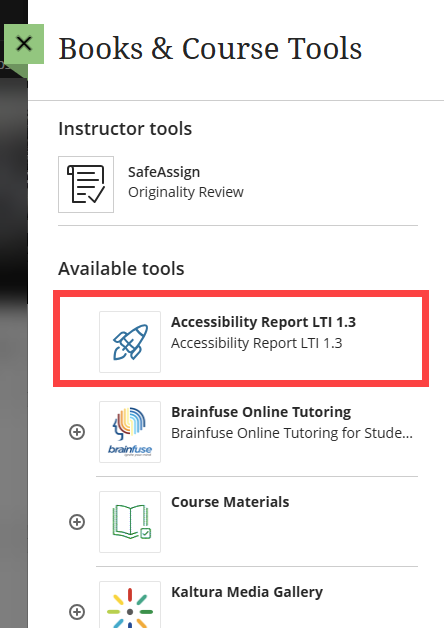
To access your Course Accessibility Report, go to your Details & Actions menu and click on Books & Tools: View course & institution tools.
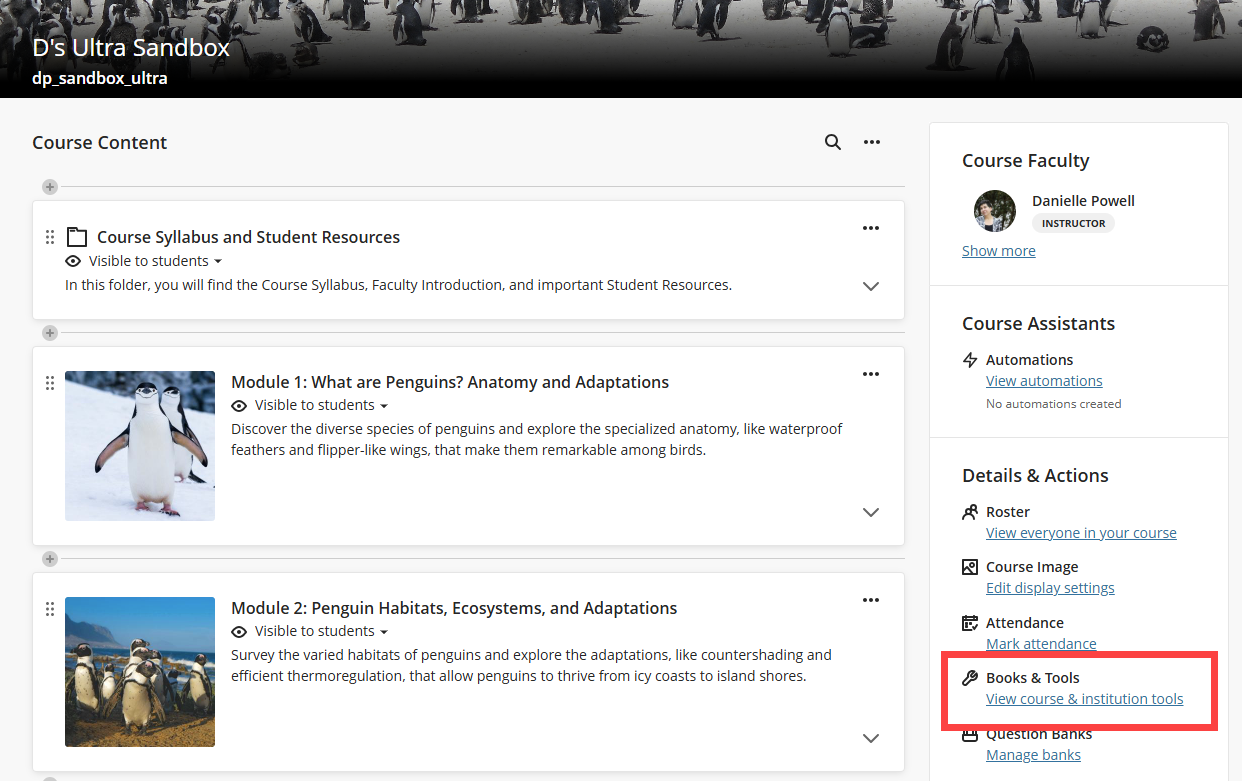
This will open the Books & Course Tools panel. Select Accessibility Report LTI.
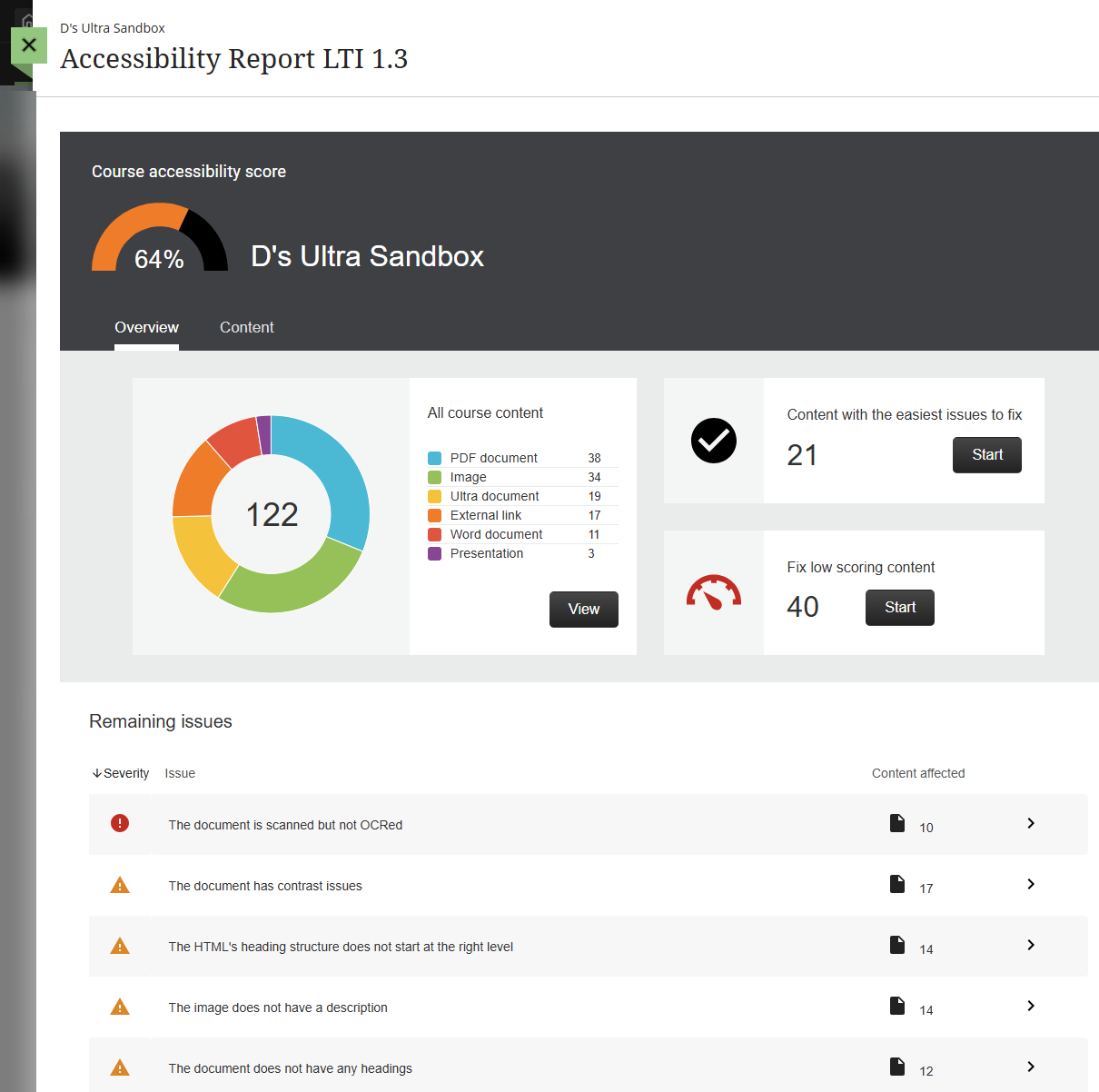
This will open the Course Accessibility Report. The report showcases the accessibility score for your entire course, groups course content by type, and lists all accessibility issues found in the course.
Choose What to Fix First
Use the report to help you decide which accessibility issues to address first. You may review a list of all content items in your course, start with content that's easiest to fix, fix content with the lowest accessibility scores, or address issues by severity type.
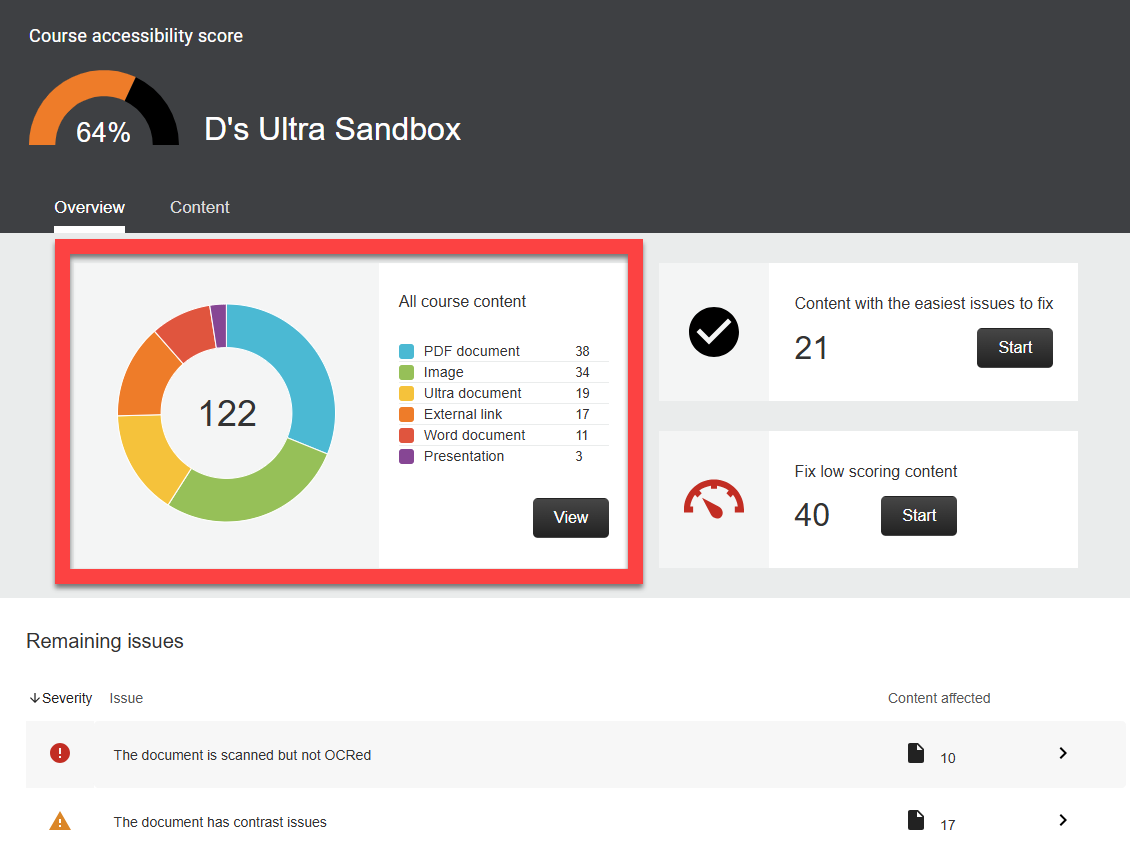
Review All Course Content
The All Course Content section shows all content in your course grouped by content type. Click View to view a list of all content in your course. Then select a content item to open the Instructor Feedback Panel to fix the issue.
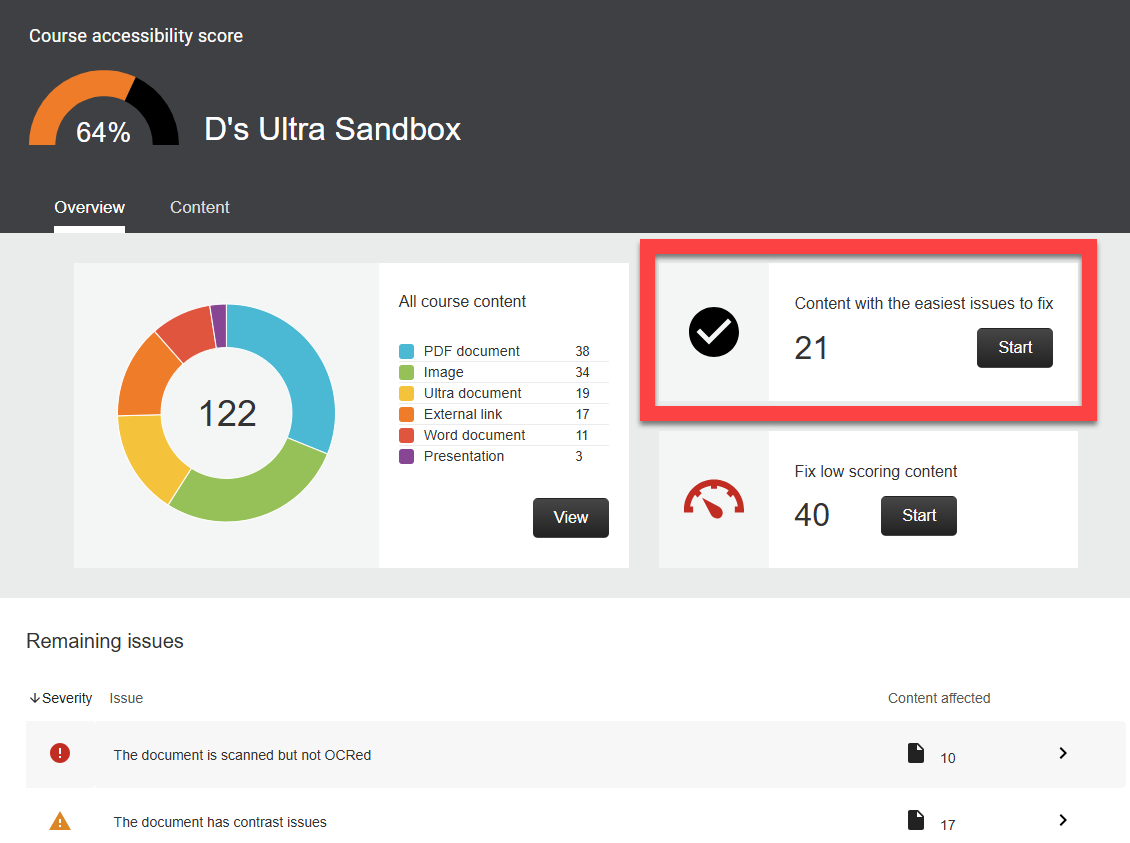
Review Content With the Easiest Issues to Fix
The report will group together content that it determines are the easiest to fix. These may include images missing a description, documents without headings, etc. Click Start to view the list. Then select a content item to open the Instructor Feedback Panel to fix the issue.
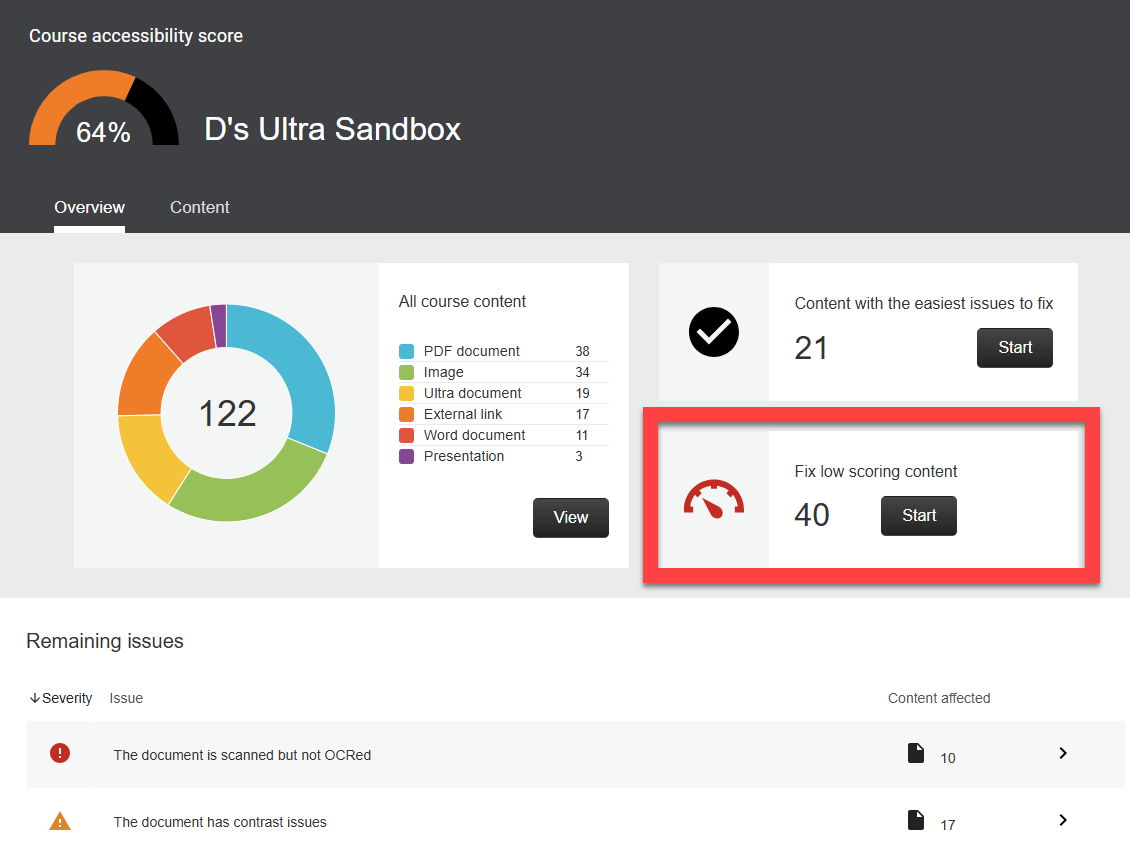
Review Low Scoring Content
The report will group together content with the lowest accessibility scores. This often includes scanned PDFs, untagged PDFs, files with several accessibility issues, etc. Click Start to view the list. Then select a content item to open the Instructor Feedback Panel to fix the issue.
Review Content by Severity Type
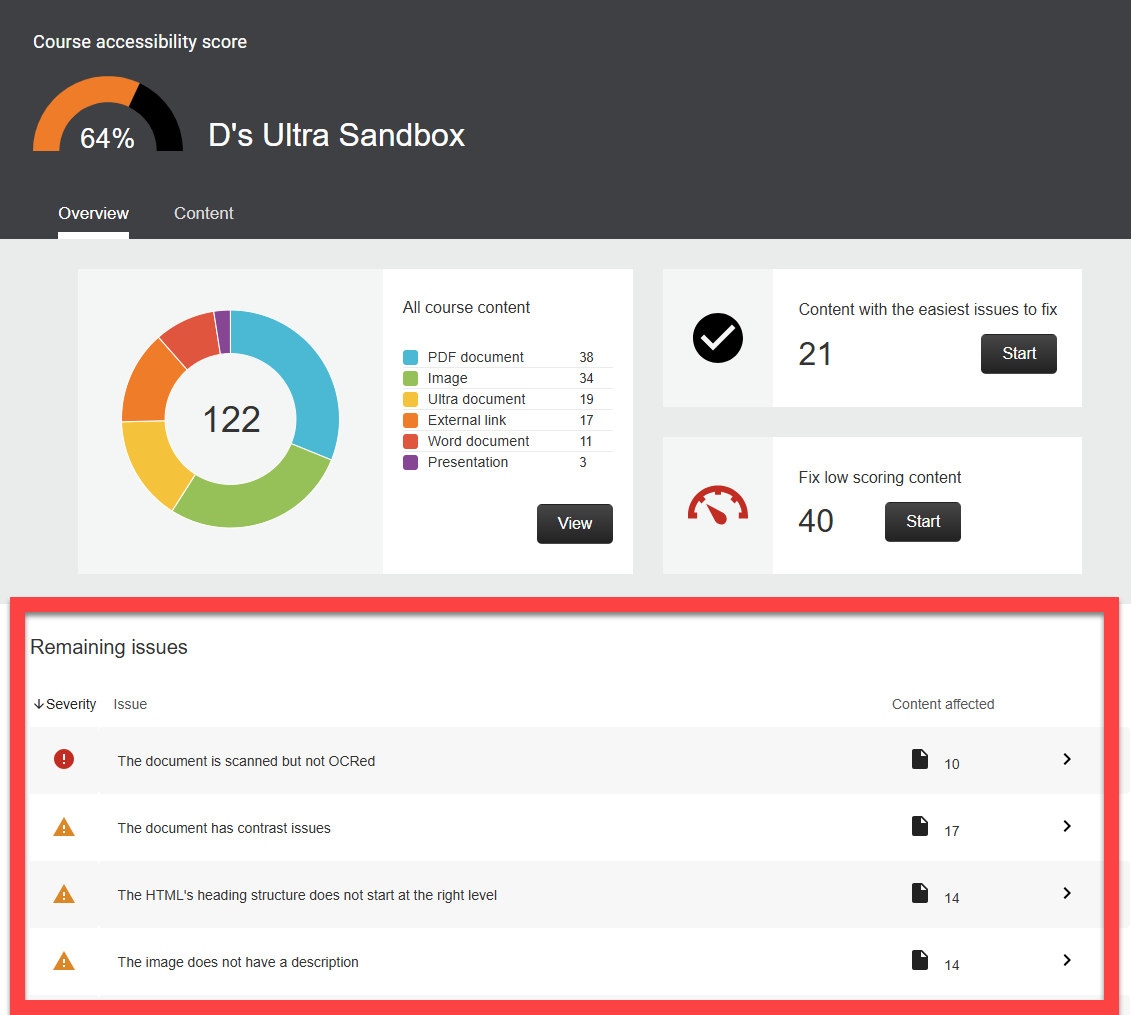
Scroll down to Remaining Issues to view content grouped by severity type. Issues are listed in order of priority from severe to minor. Those listed first should be addressed first. Ally looks at the number of students impacted, how often the issue occurs, and the accessibility score to determine the priority.
 Severe: These issues are the greatest risk to accessibility and require the most attention
 Major: These issues impact accessibility, and while not severe, require attention.
 Minor: These issues should be considered for a better accessibility score.
Select an issue to review all of the content that has that specific issue. then select a content item to open the Instructor Feedback Panel to fix the issue.
Ally for Instructors: Microlearning Video Series for Accessible Teaching
The Ally for Instructors: Microlearning for Accessible Teaching video series helps faculty quickly build confidence in creating accessible, inclusive course materials. Each episode highlights one practical task you can apply right away in your myLesley course. With clear demonstrations, real examples, and quick wins, the series supports both beginners and experienced instructors in reducing barriers and improving course content.
Getting Started with Accessibility using Ally's Course Accessibility Report
This video in the Ally for Instructors: Microlearning for Accessible Teaching video series guides you through Ally’s Course Accessibility Report and how it can be used as a springboard for determining your remediation strategy. You’ll also explore the three guided remediation approaches available to help improve course content.
Strategically Prioritizing Accessibility using the Course Accessibility Report
This video in the Ally for Instructors: Microlearning for Accessible Teaching video series shows how you can use Ally's Course Accessibility Report to strategically prioritize accessibility through four real‑world scenarios. Each scenario highlights which guided remediation approaches are the best fit for addressing the identified issues.
Using Ally's AI Alt Text Assistant
This video in the Ally for Instructors: Microlearning for Accessible Teaching video series gives you an overview of alt text and introduces Ally’s AI Alt Text Assistant. It explains how the feature works and demonstrates its use across five different types of images, including handwritten content, WYSIWYG-embedded images, equations, campaign posters, and charts.
PDF Accessibility: Challenges for Instructors and Learners
This video in the Ally for Instructors: Microlearning for Accessible Teaching video series gives you an overview of why PDFs are notoriously inaccessible, discusses common accessibility issues found within them, and shows you how to use Ally to help.
Ally's PDF Quick Fix: Missing Language Set
This video in the Ally for Instructors: Microlearning for Accessible Teaching video series walks you through using Ally to add a language set to your PDF.
Accessibility Resources
Accessible content makes it easier for everyone to read and access your materials and can improve the overall quality and usability of your course. The following resources will assist you in creating accessible content.
Accessibility Checklist
The Accessibility Checklist provides resources for making your content more accessible to all users.
Ally Resources
Ally has put together a series of resources to help you improve your content's accessibility.
- Three Quick Accessibility Fixes to Start the Semester Strong with Ally: To help instructors get started, Ally has put together three quick fixes you can make in 10 minutes or less. These high-impact actions can help all learners engage more fully from day one.
- Ally's Accessibility Checklist: Review Ally's quick start reference for creating more accessible course content.
- Ally Remediation Cheatsheet: This resource details common Ally error reports and how to fix them.
- Innovating with Human-Centered Accessibility: This on-demand webinar explores the critical role of humans in accessibility decision making, the importance of designing with inclusion from the start, and how innovation can drive better learning experiences for all students.