TABLE OF CONTENTS
- About Course Content
- Upload Your Syllabus
- Organize Your Content in Learning Modules or Folders
- Create and Edit Ultra Documents
- Upload Files
- Link to Online Content
- Create and Share Media (Audio and Video)
- Create Student Work and Participation
- Edit and Manage Course Content Items
About Course Content
Your course creation starts on the Course Content page. Here you can create Learning Modules or Folders in which to organize your content, copy content from a previous course, upload content from your computer, link to online resources, etc.
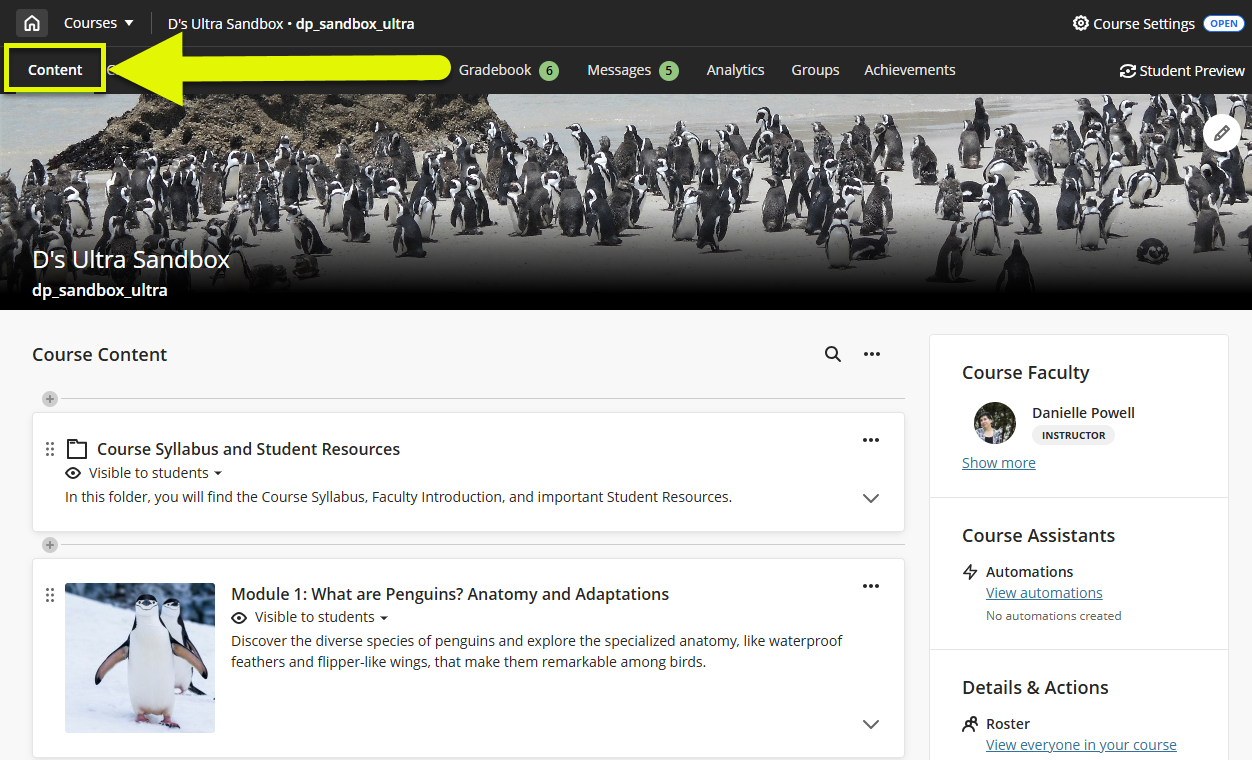
When you design your course, we recommend that your content be “chunked” into discrete, manageable units of learning. This could be by week, unit, topic, or whatever will help to present materials in a meaningful and helpful way.
Upload Your Syllabus
Upload your syllabus to your course so that your students can easily access it. You should upload your syllabus as a Word file (DOC, DOCX) or PDF.
Before you upload your syllabus, check to make sure that it is accessible to all users.
- Write clearly and organize your content so that your audience can easily understand the content and find the information that they need.
- Ensure that your text is legible. Pay special attention to your font, size, color, and spacing to ensure that your content is easy for users to read and understand.
- If you copy and paste text into your document, use the Clear Formatting option to remove formatting and reformat your content (ex headings, formatted lists, tables) using the built-in text/content editor.
- Use text heading styles to provide structure and hierarchy.
- Use list options to create bulleted and numbered lists.
- Use tables for tabular data only. Create simple tables with row and column headers. Do not merge or split cells and avoid empty cells.
- Create descriptive links to online content. Your link may be the title of the page or a description of the page.
- Use the Microsoft Accessibility Checker to ensure that your file is accessible.
For more information and links to additional resources, refer to the Accessibility Checklist support article.
In your Course Content area, click on your Course Syllabus and Student Resources folder to open it. Hover your mouse over the location in the folder where you wish to upload your Syllabus. A purple line with a plus sign (+) will appear. Click on the plus sign to open a menu and select Upload.
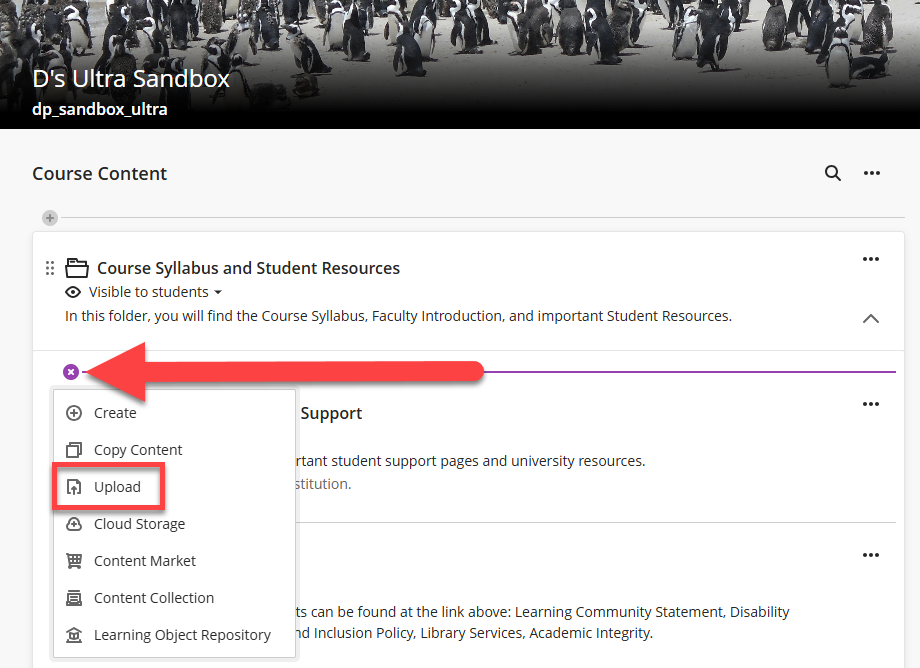
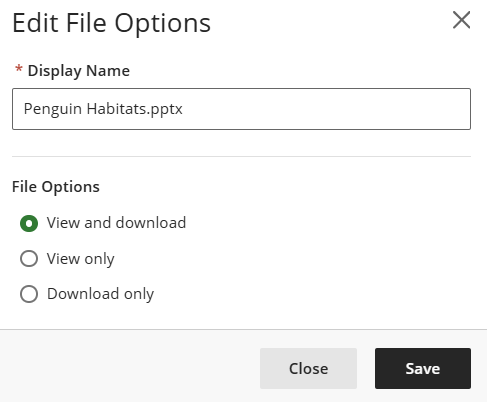
Locate the file on your computer and select it to upload. You will then be prompted to edit your file options. You may edit the file's display name and decide how you would like students to interact with your document: view and download, view only, or download only.
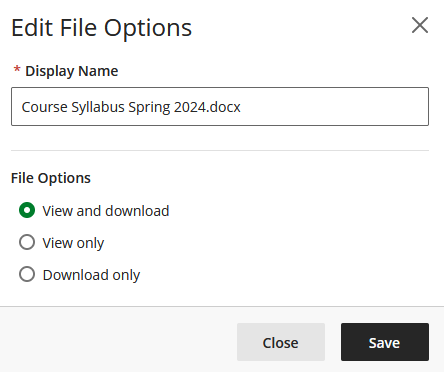
Click Save to save your changes.
By default, any content you upload to your course will be Hidden from students. To make your syllabus visible, click on the visibility setting to open a menu. Then select Visible to students.
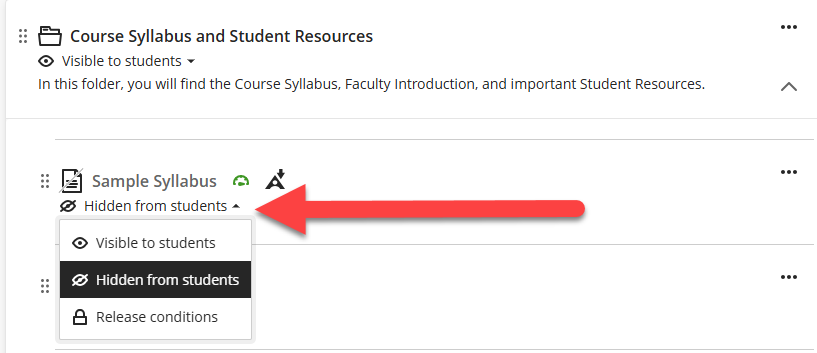
For more information on updating the visibility of your course content, refer to the Setting Content Visibility and Release Conditions support article.
Organize Your Content in Learning Modules or Folders
What is the difference between Learning Modules and Folders?
When you design your course, we recommend that your content be “chunked” into discrete, manageable units of learning. This could be by week, unit, topic, content type, or whatever will help to present materials in a meaningful and helpful way.
While Learning Modules and Folders may look and function similarly, they serve different purposes.
Learning Modules are designed to be the main course structure (ex to organize your content in weeks, units, or topics) and guide students through course content in a clear, engaging path. Students can move through Learning Module content sequentially or explore at their own pace, using the Table of Contents or navigation buttons to track progress. You can personalize modules with thumbnail images and include a wide range of content, such as folders, Ultra Documents, assignments, tests, discussions, links, and more, making them a flexible way to support any objective, concept, or theme.
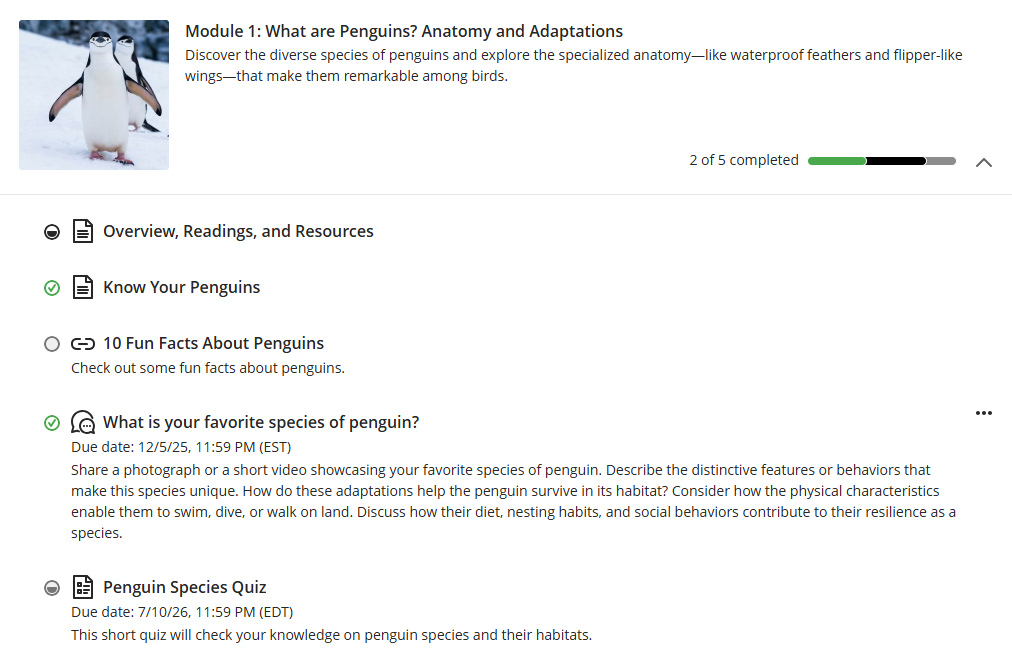
Folders are designed to organize course content within a structure. You can use folders to organize related documents, projects, resources, etc. For example, if you have an assignment or activity with multiple, related pieces, group them together in a folder for easier navigation.
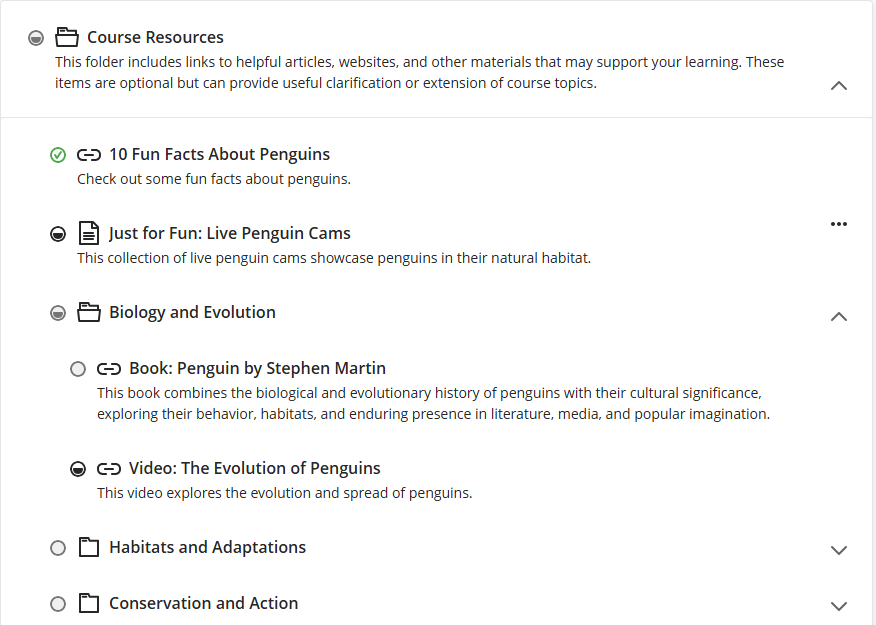
You can add Folders within Learning Modules to group related content, but you cannot place a Learning Module inside a Folder. This is because Learning Modules are meant to stay at the top level so that students can easily see and follow the course flow.
Create Learning Modules
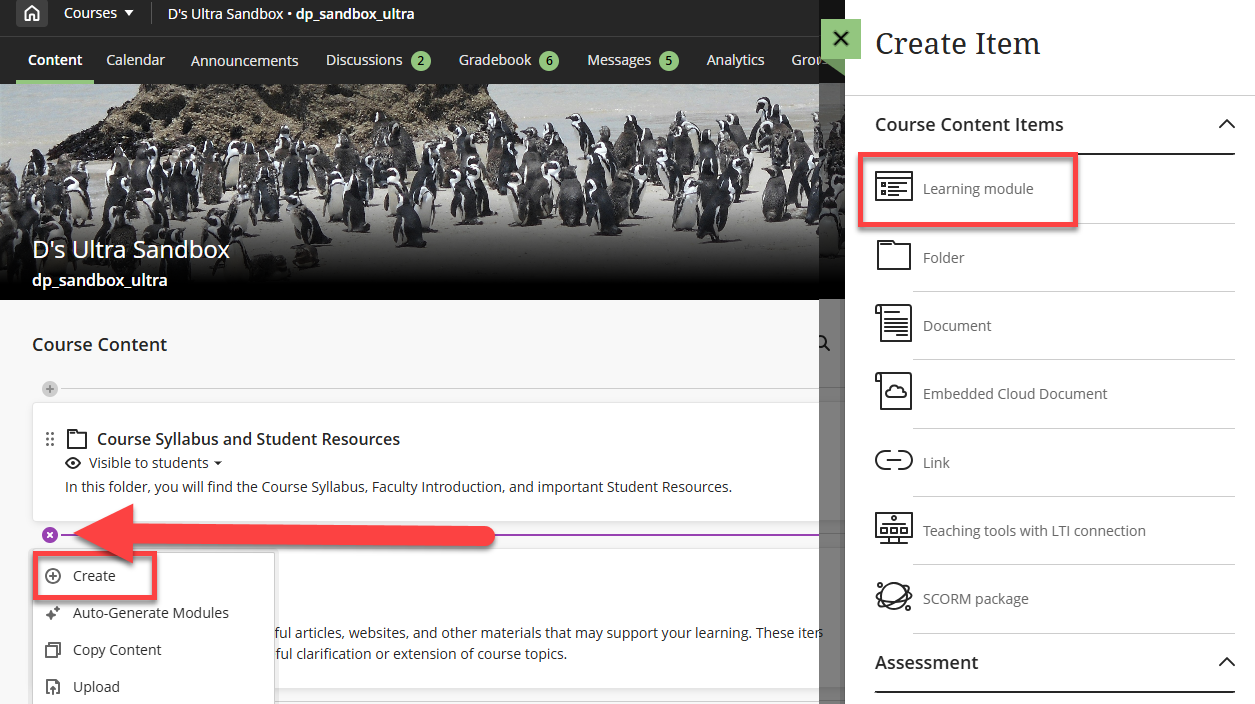
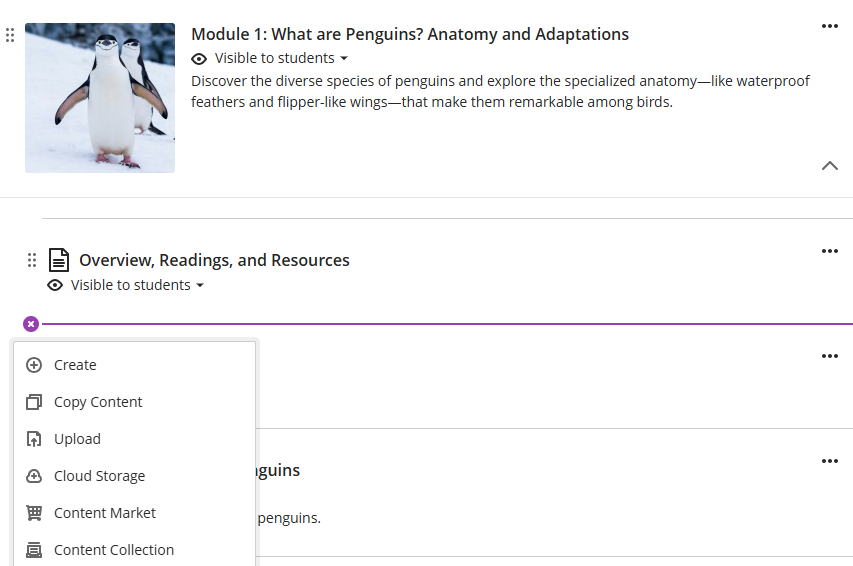
To create a Learning Module, click on the + button anywhere on your Course Content page. Select Create and then select Learning Module.
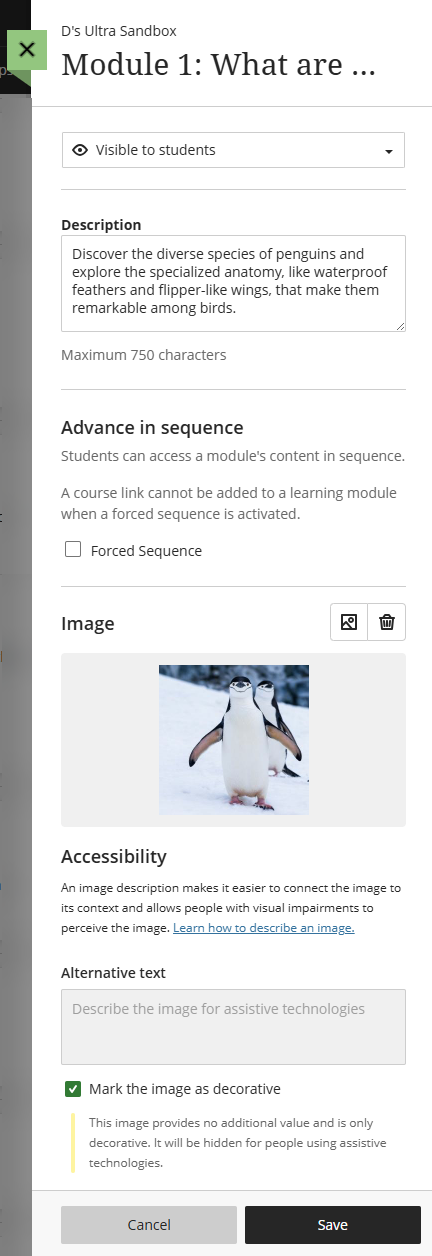
Give your Learning Module a name and decide whether to make it visible to students. You have the option to write a short text-only description (maximum 750 characters) and decide whether to force sequence. You may also personalize your module by uploading an image or using a stock image from Unsplash. Click Save to save your changes.
Once you create a Learning Module, click on it to open. Then click the + button to add content within it. You may add folders, Ultra Documents, assignments, tests, discussions, files, links, and more.
For more information refer to the Create Learning Modules support page or watch the Create Learning Modules tutorial video.
Create Folders
Folders, like Learning Modules, allow you to organize your content in a meaningful way.
To create a Folder, click on the + button anywhere on your Course Content page, within a Learning Module, or within another Folder. Select Create and then select Folder.
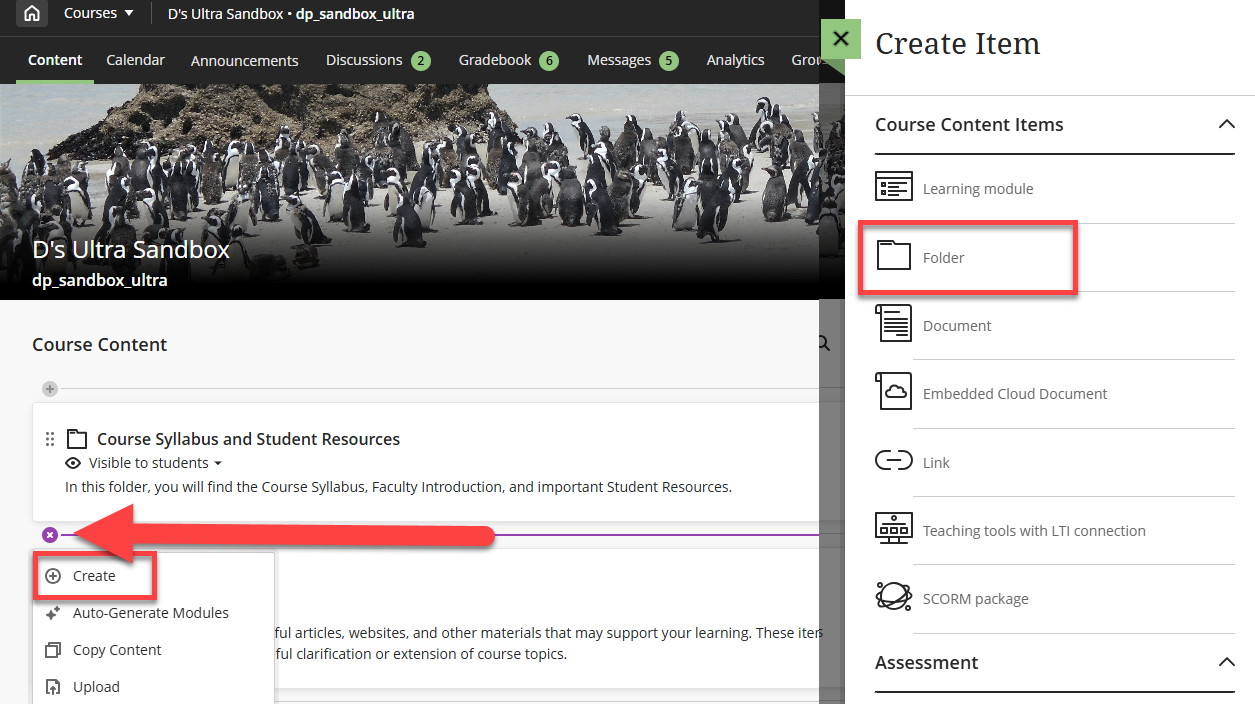
Give your Folder a name, decide whether to make it visible to students, and provide an optional text-based description (maximum 750 characters). Click Save to save your changes.
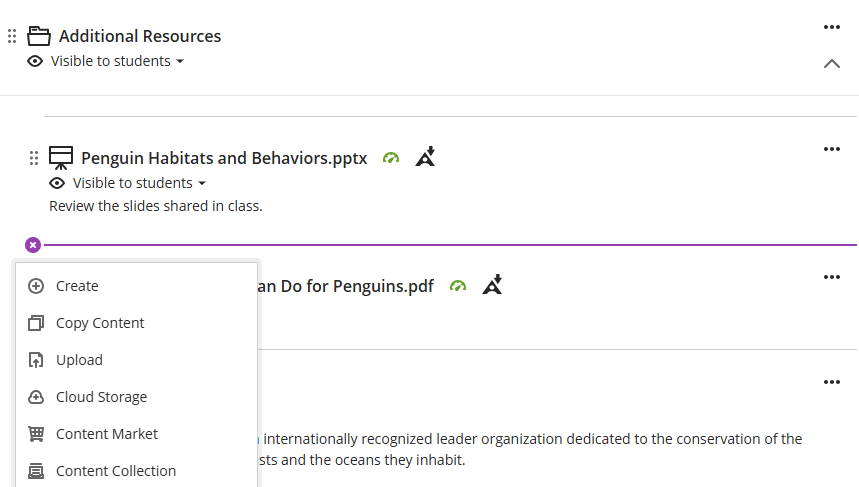
Once you create a folder, click on it to open. Then click the + button to add content within it. You may add additional folders, Ultra Documents, assignments, tests, discussions, files, links, and more.
Convert Folders to Learning Modules or Convert Learning Modules to Folders
You may easily convert Folders into Learning Modules by clicking on the More Options (three dots) menu. This will open a menu. Select Change to Learning Module.
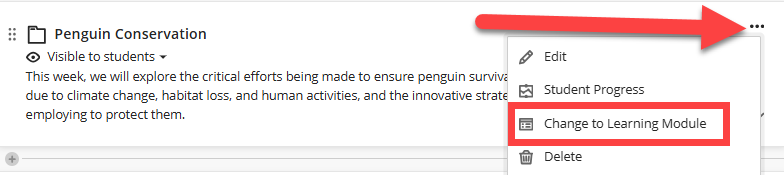
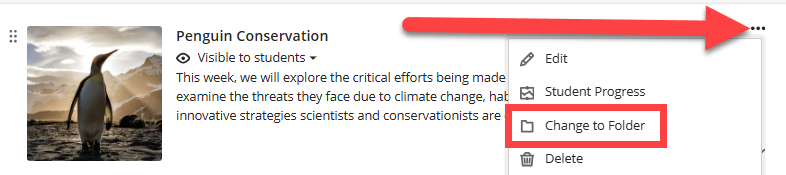
You may also convert Learning Modules into Folders. However, this will remove additional Learning Module features, including the image, student navigation, and progress bar. Click on the More Options (three dots) menu. This will open a menu. Select Change to Folder.
Create and Edit Ultra Documents
An Ultra Document lets you present a variety of content—text, images, video, attachments, links, Knowledge Checks, and more—all in one place. You can use it to build rich course materials by combining multiple visual and textual elements into a single, streamlined item. Ultra Documents are built with flexible block types, giving you control over layout, design, and how your content is displayed.
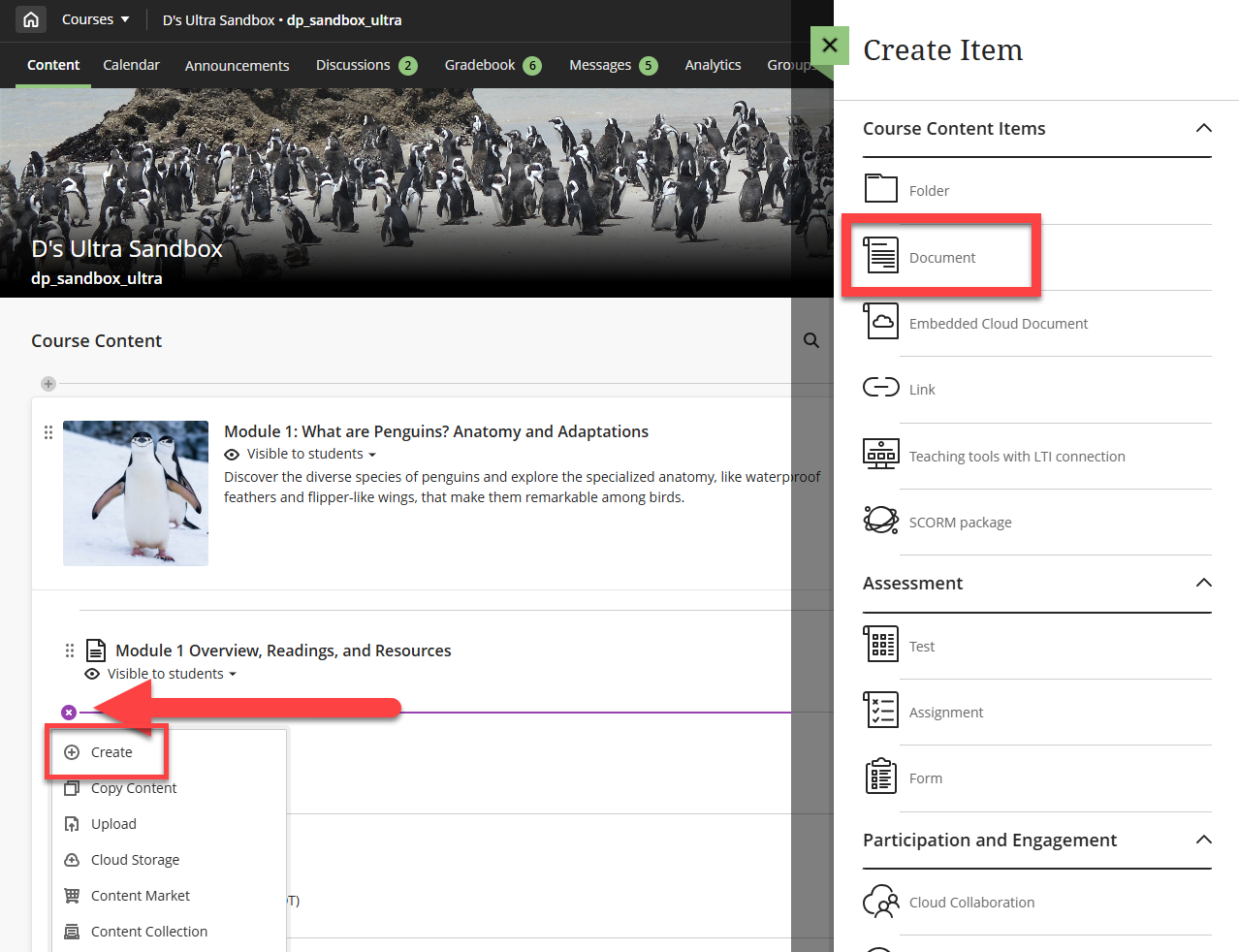
To create an Ultra Document, click on the + button anywhere on your Course Content page, within a Learning Module, or within a Folder. Select Create and then select Document.
Give your Ultra Document a name and set the visibility status. Next, select the type of content block you wish to add. Content blocks allow you to design Ultra Documents by adding different types of content.
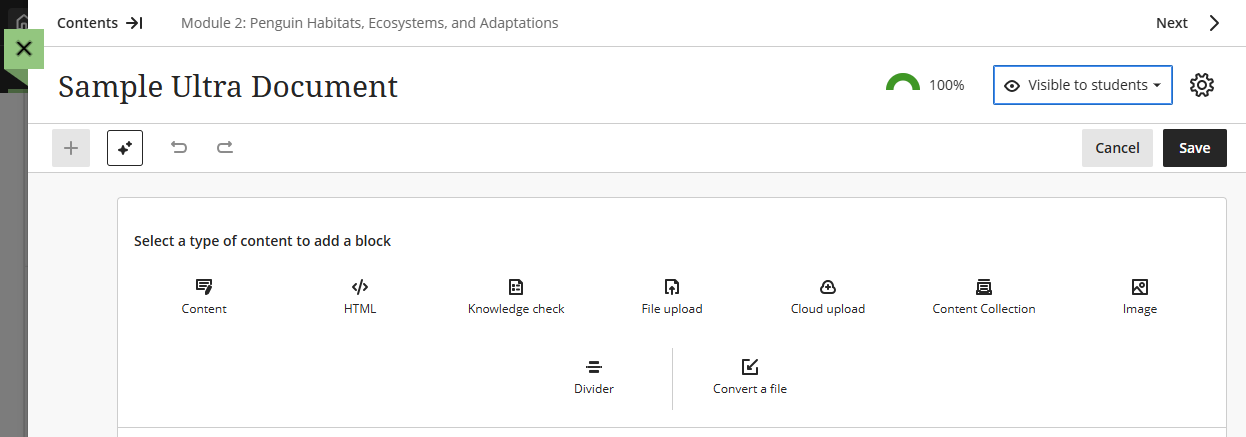
There are several different block types to choose from, but the most frequently used are Content, Image, File Upload, and Knowledge Check.
- Content block: The Content block is the most common (and familiar) block type. A Content block utilizes the the text/content editor to add and format text, links, file attachments, images, media, etc. This is most similar to an Item in Original courses.
- Image block: The Image block allows you to upload images from your computer, add royalty-free images from Unsplash, or use AI to generate an image. You will have the options to change the aspect ratio and reposition the image, add a caption, and add alt text or mark the image as decorative.
- File Upload block: The File Upload block allows you to upload a file from your computer. You may select whether your file may be view only, download, or have the ability for students to both view and download. Do not upload media files (ex mp3, mp4, mov) via this method. Instead, create a Content block and use the text/content editor to add media content.
- Knowledge Check block: The Knowledge Check block allows you to create multiple choice and multiple answer questions for students to engage with and receive immediate feedback. Watch the Knowledge Checks in Blackboard Documents video tutorial for more information.
If you create multiple blocks, you can create a more visually appealing layout by resizing and moving them into columns and rows.
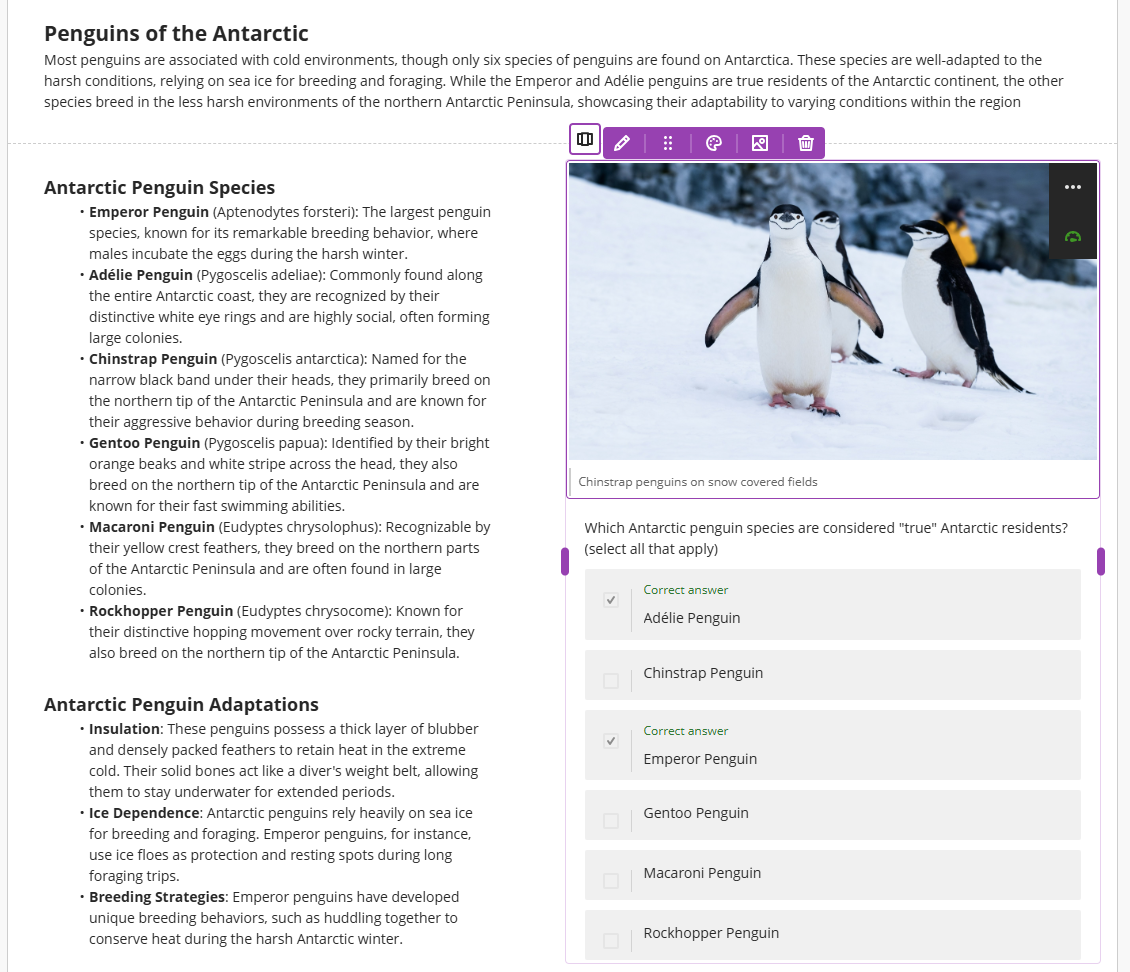
For more information about Ultra Documents, including all block types, block styling options, and how to create a document layout, refer to the Create and Manage Ultra Documents support article.
Upload Files
Supported File Types
You may upload many different files into Blackboard including:
- PDF Files
- Documents (DOC, DOCX)
- Presentations (PPT, PPTX)
- Spreadsheets (XLS, XLSX)
- Text files (RTF, TXT)
- ZIP packages
- Most image types
Files: Best Practices
- Media (audio and video files): Do not upload media files (audio or video) directly into the Course Content area or within a Learning Module or Folder. Refer to the Create and Share Media section of this document for more information.
- Scanned PDFs: When you scan a text, such as a book, journal article, newspaper article, etc., the resulting document is an image of the text. These scanned PDFs are considered completely inaccessible to all users. Additionally, scanning text, journals, etc. and uploading them to your myLesley course, may be a violation of copyright and fair use. For more information and resources, refer to the Accessibility Checklist: Don't use scanned PDFs support page.
- Link to Online Content: Link to content that you find online (including journal articles and library resources). This helps to drive additional traffic to the site and show that the content is being used. Additionally, downloading files, journal articles, and library resources and then uploading them to your course may be a violation of copyright. Need help finding online resources? Have questions about fair use and copyright? Reach out to a librarian: asklib@lesley.edu!
Upload Files or Folders
You may upload files directly into your Course Content area or into a Learning Module or Folder. To upload your file, click the + button and select Upload.
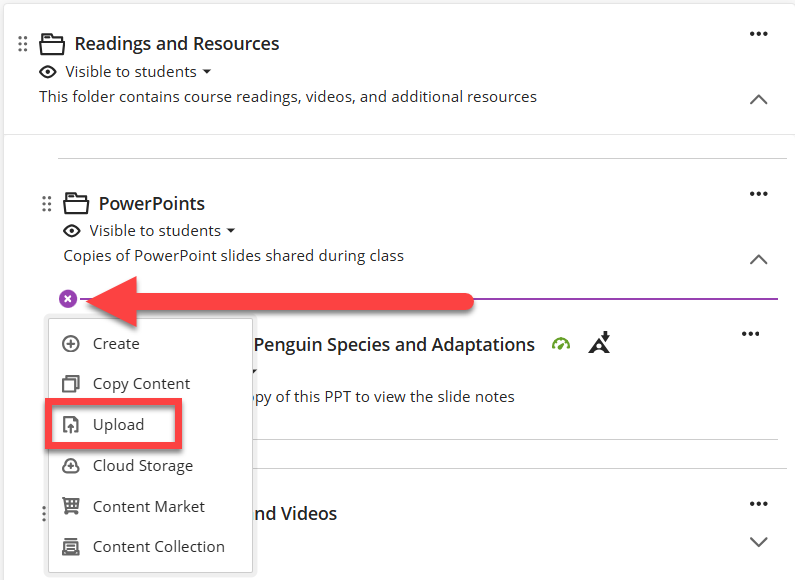
Select your file. You will then have the option to edit the file's Display Name and decide how students can interact with the file (view only, download only, or view and download).
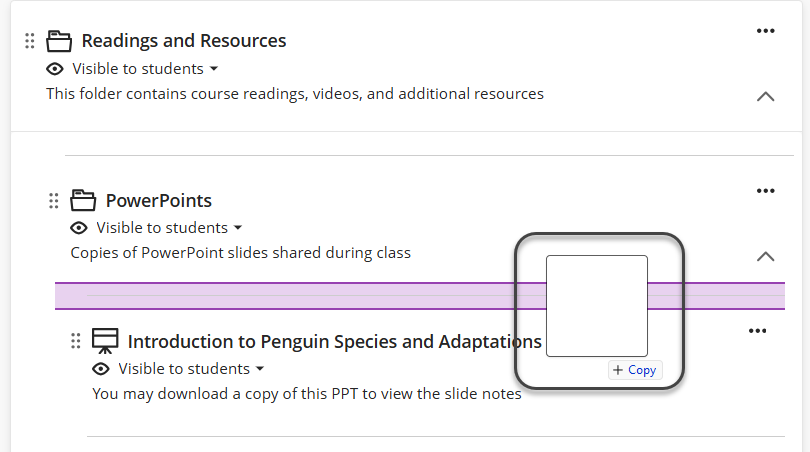
Alternately, you may drag and drop files and folders by locating the them on your computer and dragging and dropping into your desired location.
When you upload files and folders to your course these items are hidden from students by default. You may update the visibility of the file individually or use the Batch Edit tool to update multiple items all at once.
Use Ally to Improve Your File's Accessibility
When you upload files into your course Ally will scan the content and produce an accessibility score for each file. The scores range from Low to Perfect and are determined by the severity of issues in each file. A low score indicates that the file has severe or multiple accessibility issues whereas a high score indicates that the file has minor accessibility issues.
At this time, the following file types are checked for accessibility:
- Microsoft Word (DOC, DOCX)
- Microsoft PowerPoint (PPT, PPTX)
- Image files (JPG, JPEG, GIF, PNG, BPM, TIFF)
- Uploaded HTML files
- Ultra Documents
Accessibility scores are displayed next to the file and appear as a colored indicator icon. These indicators are only visible to the instructor—students do not see the accessibility score indicators.
 Low (0-33%): File is not accessible and needs immediate attention.
 Medium (34-66%): File is somewhat accessible and could use improvement.
 High (67-99%): File is accessible but could be improved.
 Perfect (100%): File is accessible. No improvement needed.
In addition to your accessibility score, Ally provides information to help you improve your content and overall accessibility.
To review the Ally feedback, click the Accessibility Score next to your file to open the Feedback Panel.
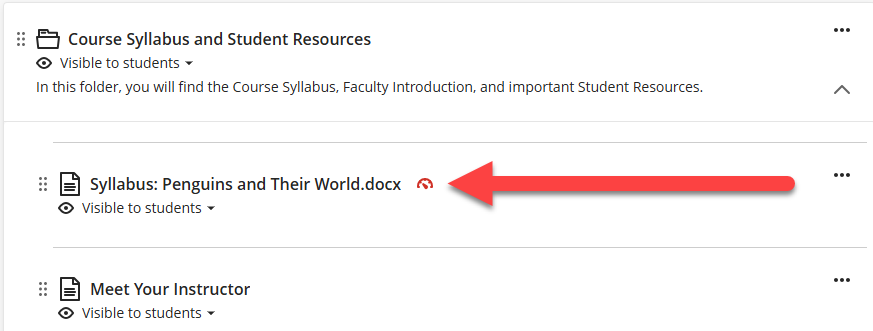
The feedback panel will display a preview of your file's content as well as detailed feedback and support to help you fix any accessibility issues.
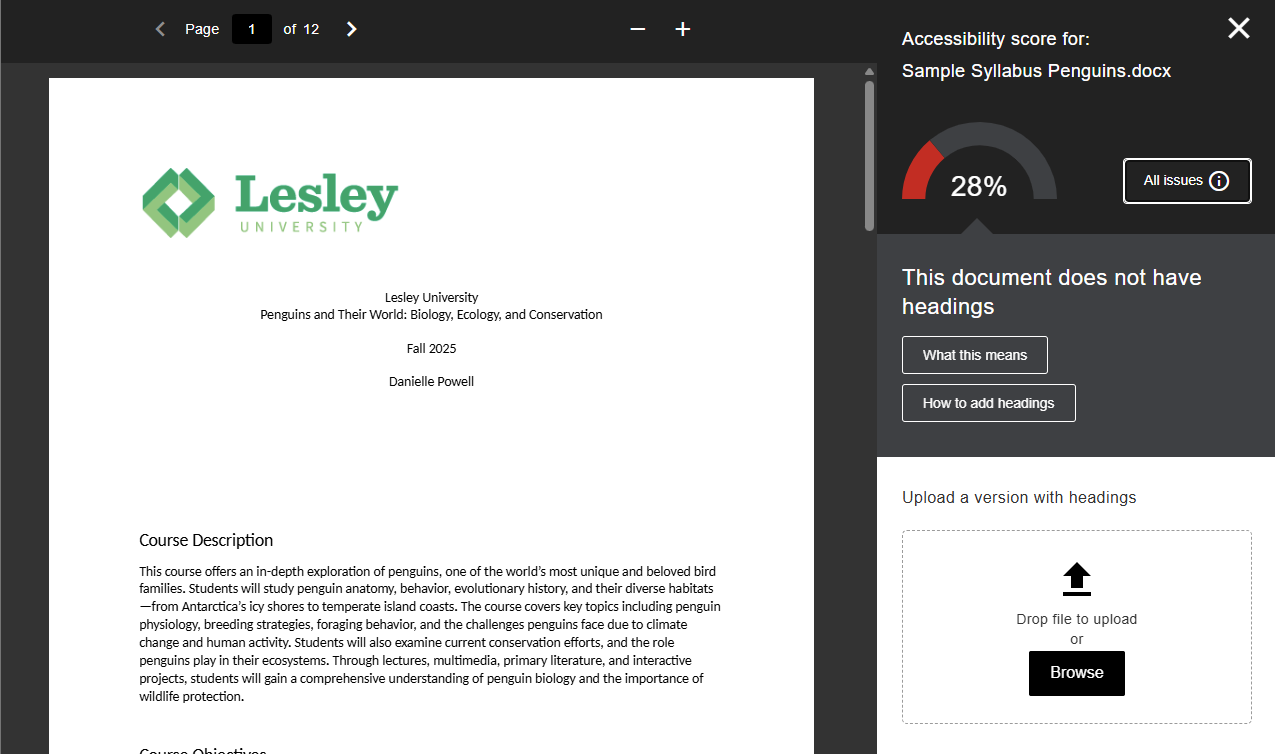
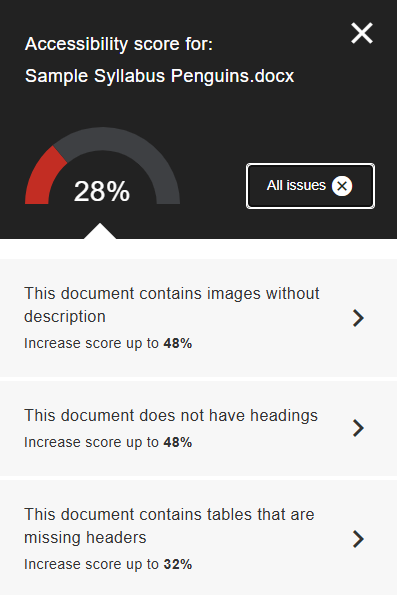
For files with multiple accessibility issues, the most severe issue is displayed first. Click All Issues to see a list of all accessibility issues found in your document. This will show you how much you can improve your score by fixing each issue.
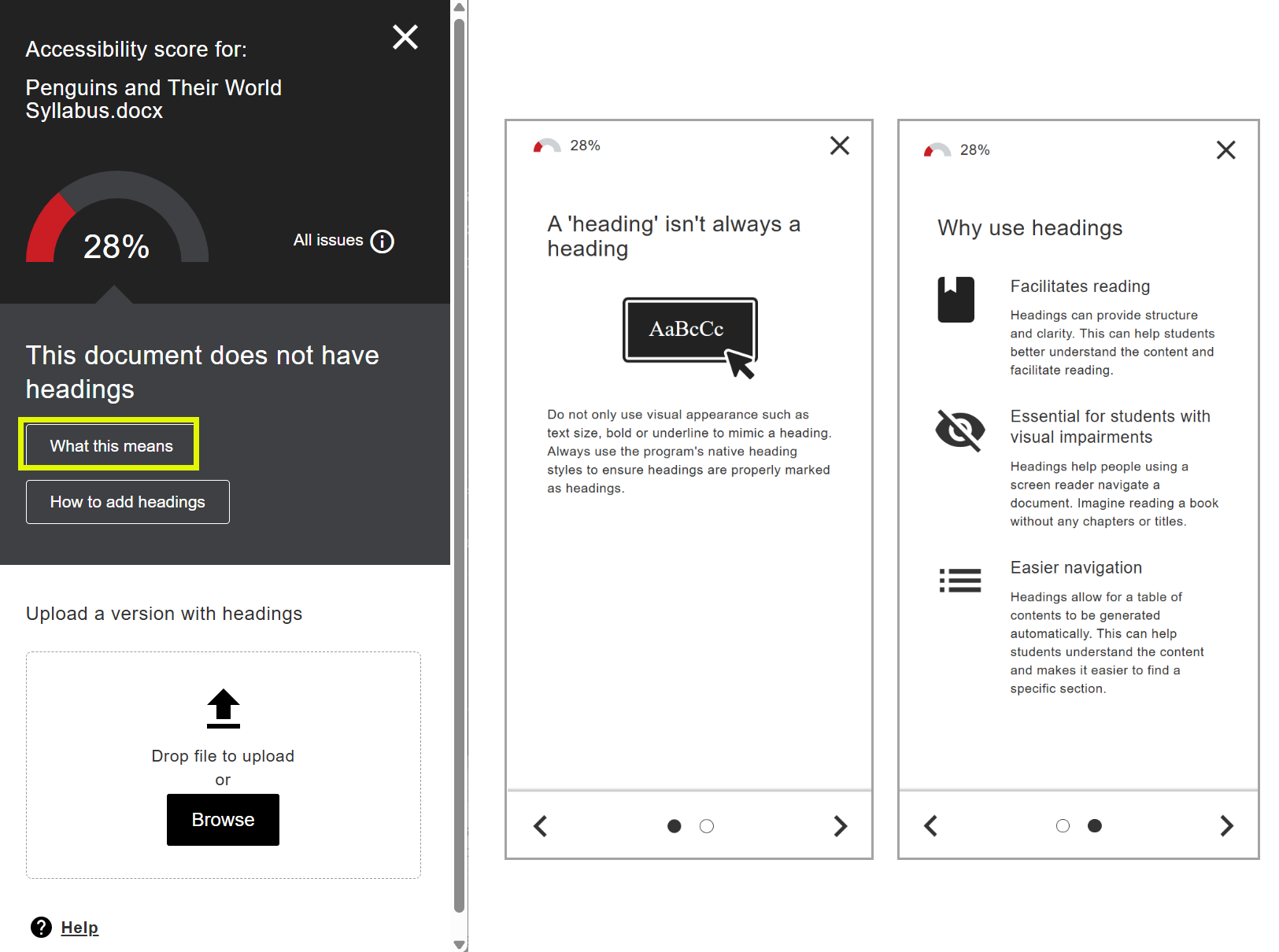
Select an accessibility issue and click What this means to find out more about the issue and why it is important.
Click How To for instructions on how to fix your issue.
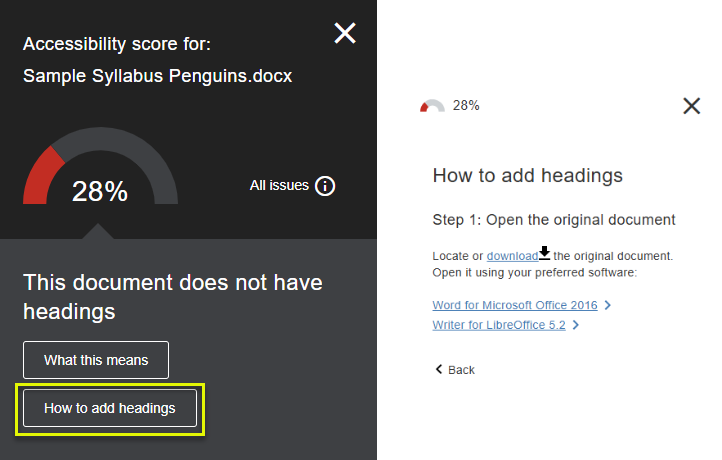
In most cases, you will fix your file using the program you used to crate it (ex Microsoft Word, PowerPoint, Adobe Acrobat).
Once you have updated your file, upload it via Ally. You may drag and drop your updated file into the feedback panel or click Browse to search for the file on your computer.
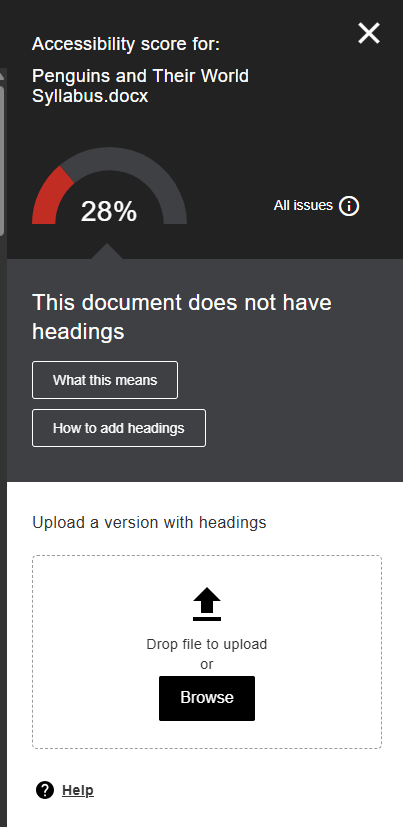
Ally will replace the old file with your new accessible version.

For more information, refer to the following resources:
- Create Accessible Course Content (Blackboard Ally for Instructors) support article.
- Accessibility Checklist support article.
- Ally: PDF Remediation Options
Edit, Delete, and Replace Files
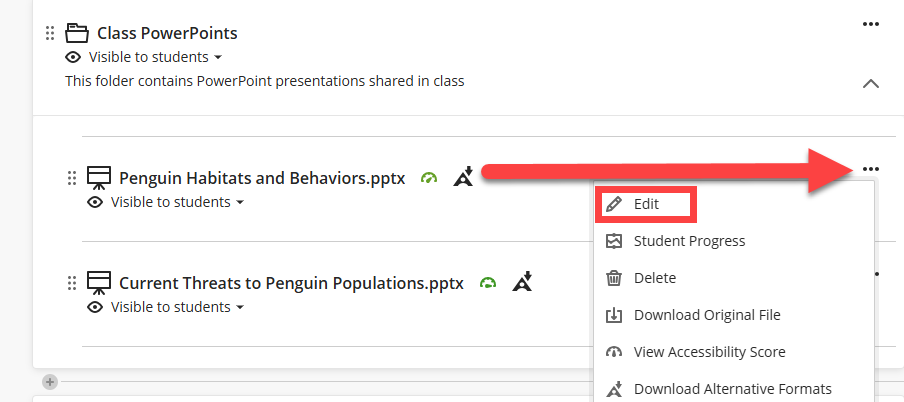
Locate your file and select the More Options (...) button to open a menu. Select Edit.
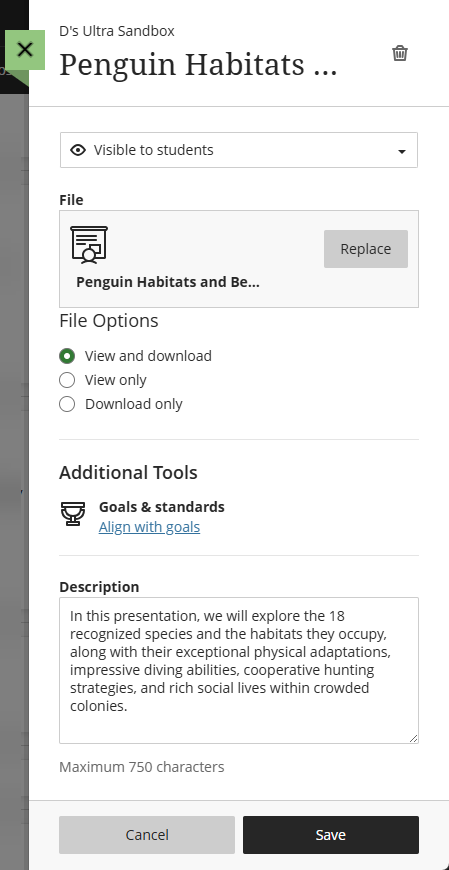 This will open a panel that allows you to:
- Edit the Display Name: Select the display name at the top of the panel to edit the name that appears on the Course Content page.
- Replace the File: Click the Replace button to replace your file. For example, you updated your PowerPoint presentation. If the file in question is being displayed in multiple locations in the course, a prompt asks if you wish to replace the file in all instances or this single instance. The old file will be deleted.
- Change Student Permissions: Change whether students can only view the file in the course, only download a copy of the file, or can both view the file in the course and download a copy of the file.
- Add or Edit a Description: You may add a description to provide your students with more information about your file. Your description can be up to 750 characters (text only, no formatting) and will display on the Course Content page below your file name.
- Delete the File: Click the Delete (trash can) button next to the display name to delete your file.
Click Save to save your changes.
Link to Online Content
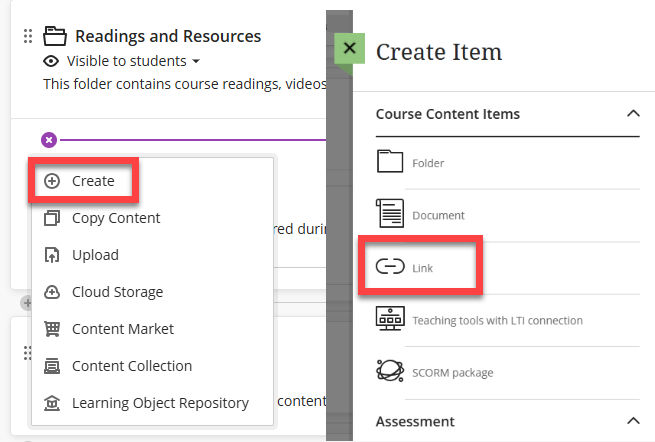
To create link, click on the + button anywhere on your Course Content page, within a Learning Module, or within a Folder. Select Create and then select Link.
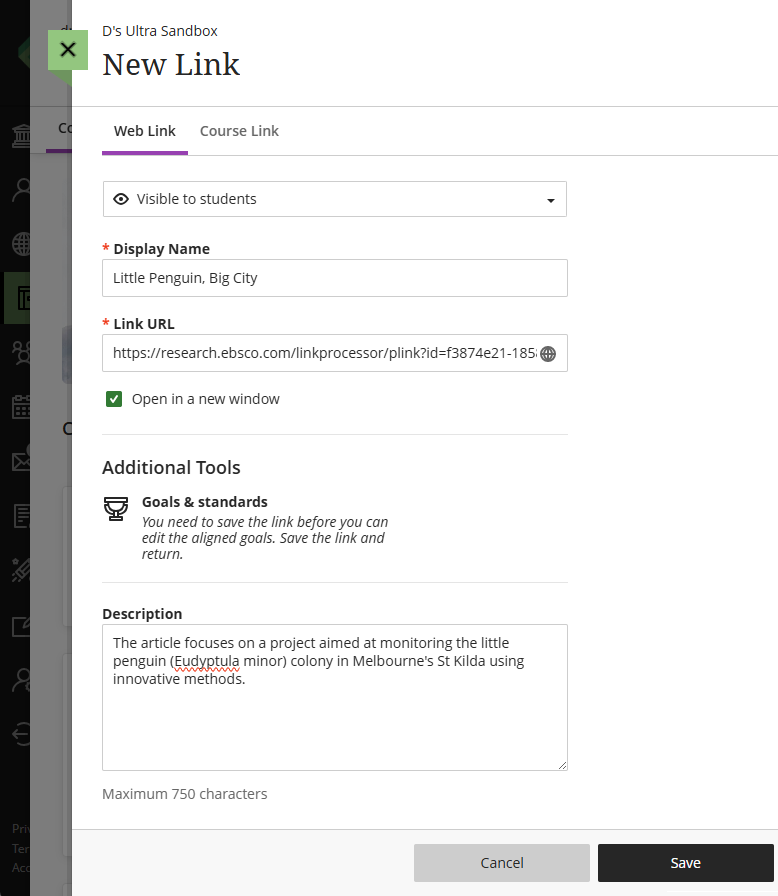
Give your link a Display Name (ex the title of the website or article), enter the Link URL, and enter an (optional) description. Click Save to save your changes.
In order to link to content from the Lesley Library, you will need to use a permalink. This permalink will contain the Library's proxy prefix, so materials can be accessed off campus. For information about linking to Library resources, refer to the How to Link to Library Content Guide.Create and Share Media (Audio and Video)
The best way to share media (audio and video) with your students will depend on whether it is media you have created or media that others have created.
Add Media You Created (Using Kaltura Media)
To share media you have created, including recorded lectures or narrated presentations, upload your media to myLesley via Kaltura Media.
Kaltura provides a lot of advantages, both to you and your students, including:
- Compatibility: Kaltura will accept a large amount of media types and automatically convert it to versions your students can view, regardless of their device.
- Accessibility: Kaltura will automatically caption your media content. Accurate captioning of audio and video content ensures that people who are Deaf and hard of hearing can understand your content. Additionally, captions are very useful to non-native English speakers, viewers watching in a sound-sensitive environment such as a library, can help viewers with learning disabilities or attention deficits maintain concentration, and can help all learners improve comprehension.
- File Size: Students do not have to download content. Instead, the media is hosted on Kaltura's servers and streams through myLesley. Additionally, uploading your media to Kaltura does not impact your overall course file size (all courses have a 5 GB data limit and communities have a 50 MB data limit).
- Privacy and Security: Kaltura content cannot be downloaded by anyone who is not the owner, nor can they be shared on other websites.
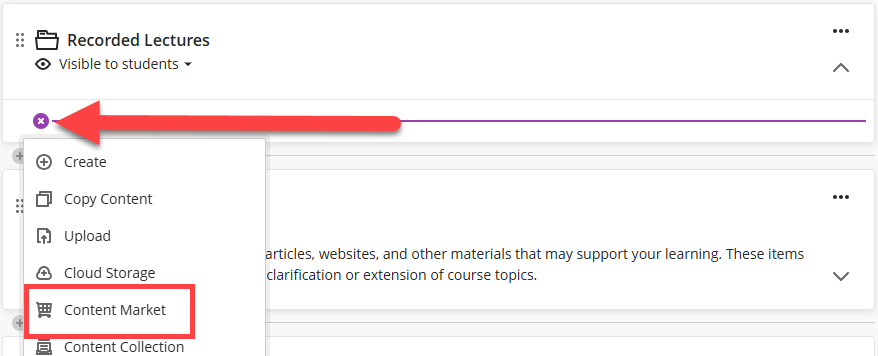
To add Kaltura Media content directly to your Course Content page (or within a Learning Module or Folder), click the + button and select Content Market.
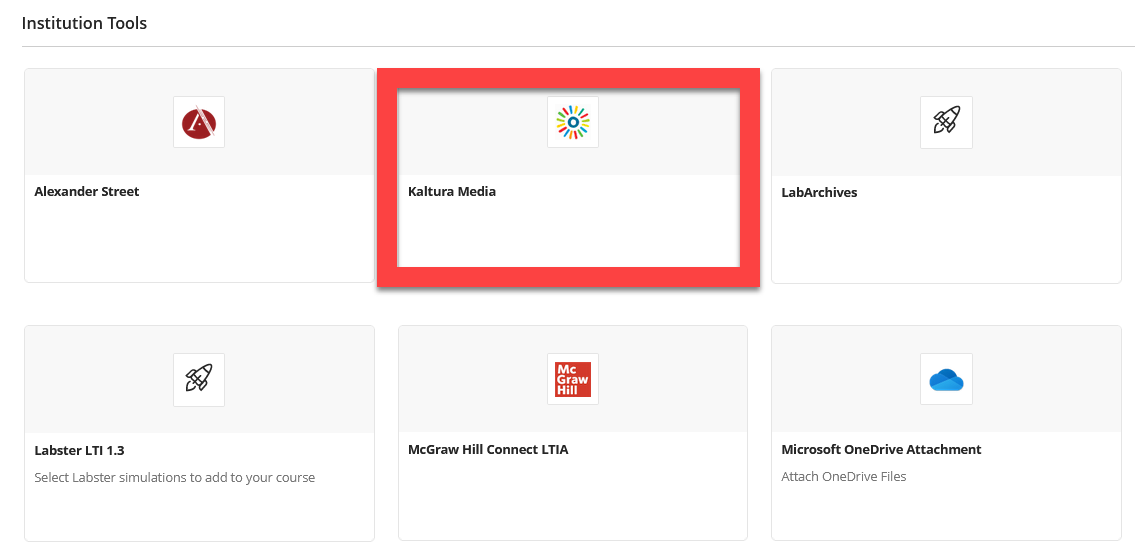
This will bring you into the Content Market. Select Kaltura Media.
This will take you to your Kaltura My Media, where all of your Kaltura media is stored. From here, you may upload new media, embed media you uploaded previously, or record new media.
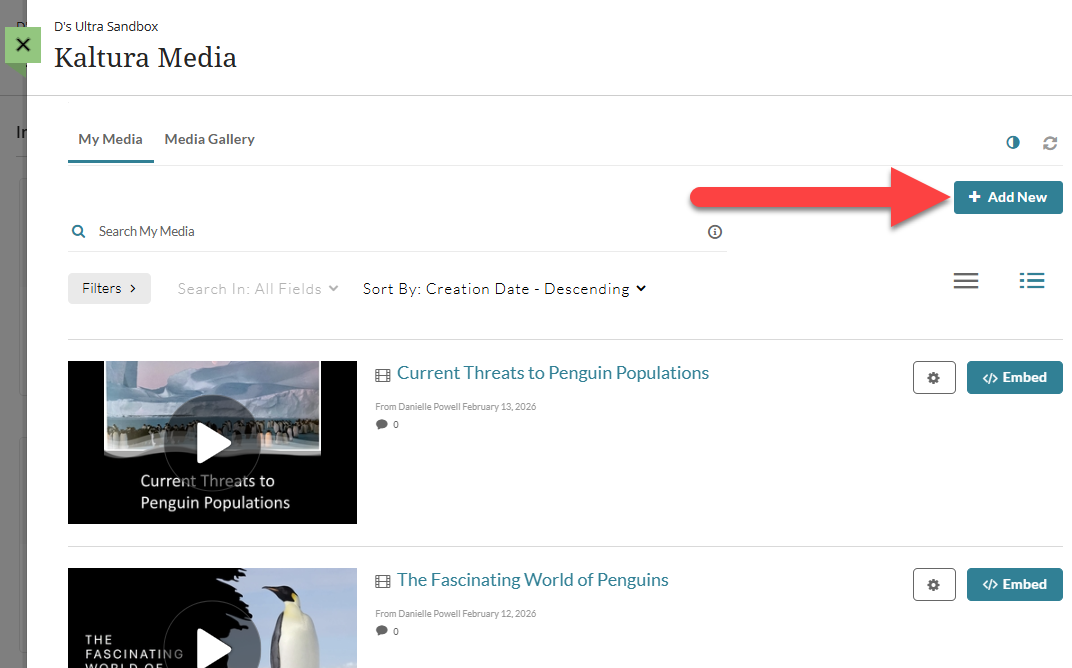
For more information and detailed instructions, refer to:
- Upload media to myLesley via Kaltura Media
- Record a Presentation and Share it in myLesley via Kaltura Media
- Use Kaltura Media Express Recorder to quickly record your webcam or screen
- Kaltura Media: Captioning Video Content
Media Created by Others
If you are not the creator of the media or do not have permissions from the publisher, you cannot upload the media into your course. This includes copies of DVDs that you have purchased. If the content exists on the web (ex YouTube, Vimeo, PBS, library media databases), you may either link to it, or embed it anywhere you see the text/content editor (ex Ultra Documents, Assignments, Discussions, etc.).
Have questions about fair use and copyright? Reach out to a librarian: asklib@lesley.edu!
Manage Your Media in myLesley
For more information about managing your media content in myLesley, refer to the Managing Media in myLesley support article.
Create Student Work and Participation
You can create your Assignments, Tests, Discussions, and Journals in the Course Content area, right alongside other content. This enables students to access their course content and submit their work all in the same place. When you create Assignments and Tests, a Gradebook item is created automatically. If you set your Discussions and Journals to be graded, this will also create a Gradebook item.
For more information and detailed instructions, refer to the following:
- Create and Grade Assignments support article
- Create, Manage, and Grade Discussions support article
- Create, Manage, and Grade Tests support article
Edit and Manage Course Content Items
Edit Visibility Settings
By default, any content you add to your course will be Hidden from students.
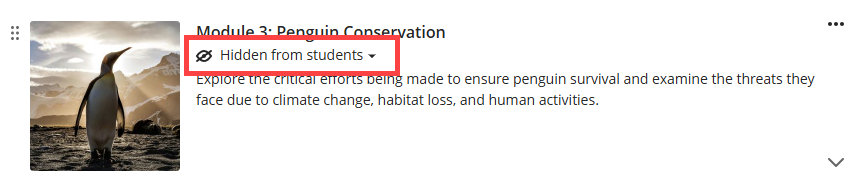
You may click on the menu to make your content Visible to students or Set release conditions to make your content available on a certain date or to certain students.
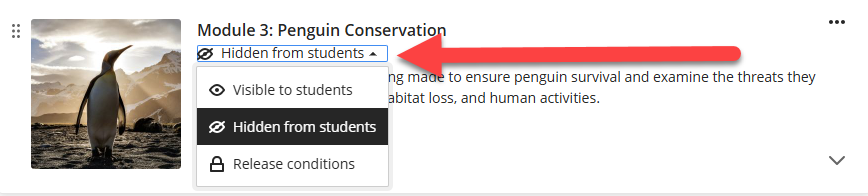
For more information and detailed instructions, refer to the Setting Content Visibility and Release Conditions support article.
Move and Reorder Content
You can easily move the items on your Course Content page, including moving items in and out of Learning Modules and Folders.
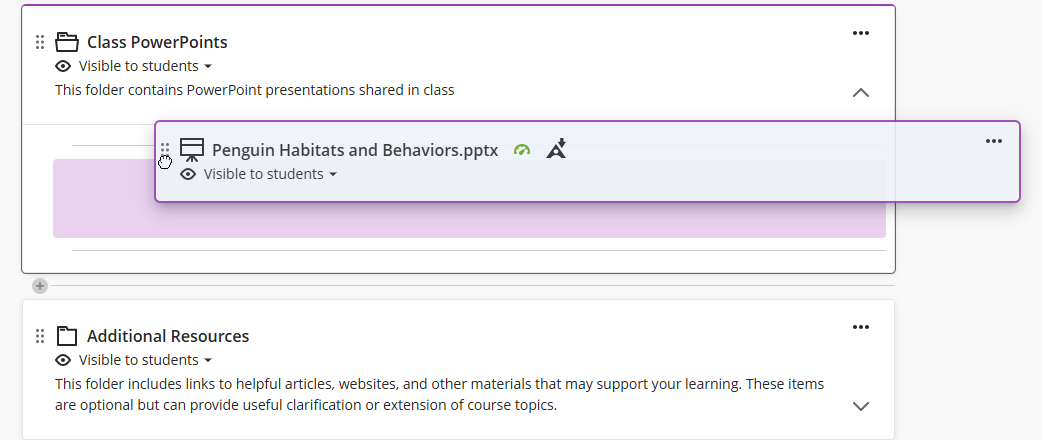
To move an item, select the item you wish to move and drag it to a new location.
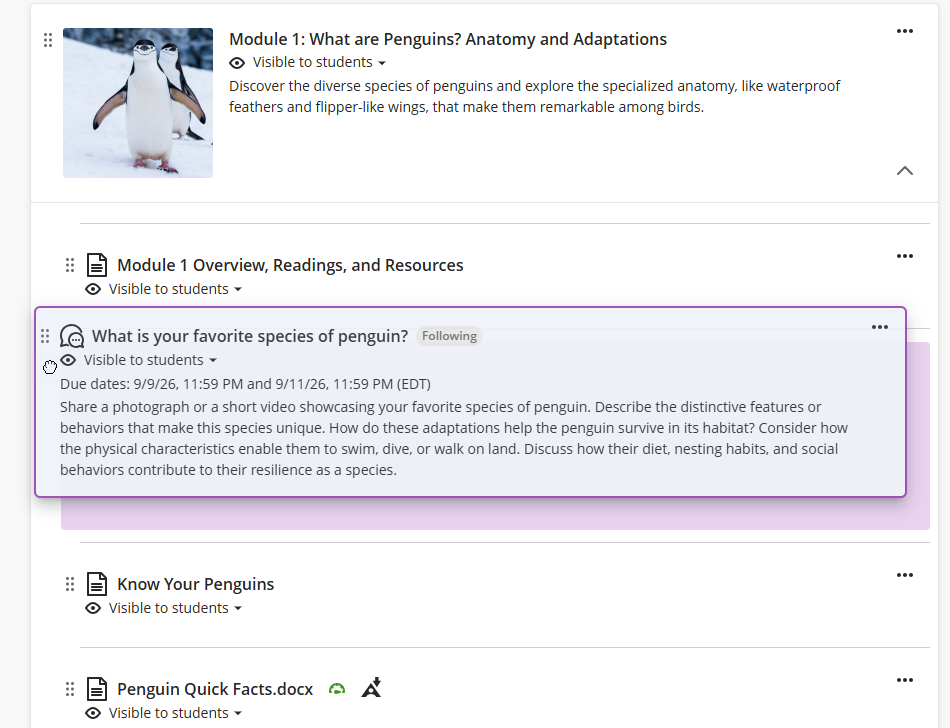
To move items into Learning Modules or Folders, open the module or folder and then drag the item into it.
Edit or Delete Course Content
You can edit your content to change the display name, visibility status, add a description, and more.
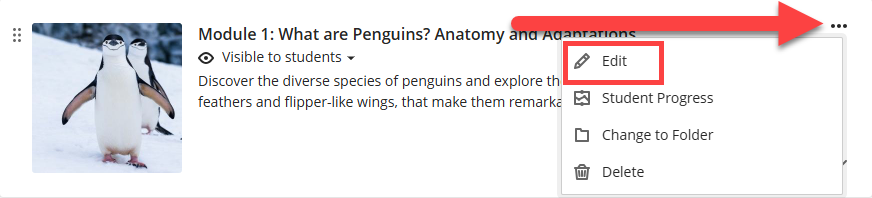
To make changes to content on your Course Content page, click the More Options (...) button. This will open a menu. Select Edit.
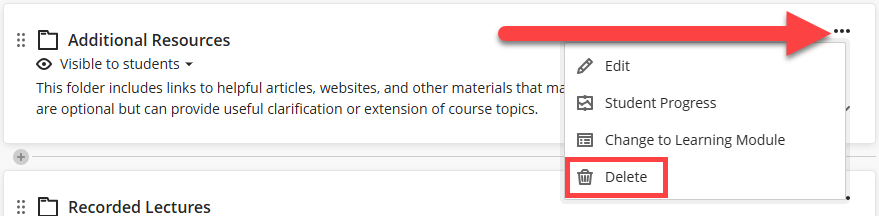
To delete items on your Course Content page, click the More Options (...) button. This will open a menu. Select Delete.
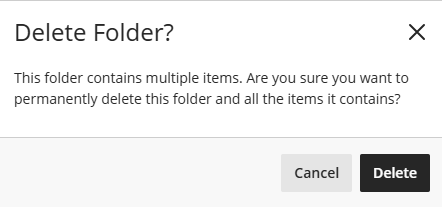
A warning message will pop up to let you know that your content will be permanently deleted. If you delete a Learning Module or Folder, all of the content within it will be deleted as well. Click Delete to delete.
You may also use the Batch Edit tool to delete multiple items at once. For more information and detailed instructions, refer to the Setting Content Visibility and Release Conditions support article.
Unused Files Management Tool
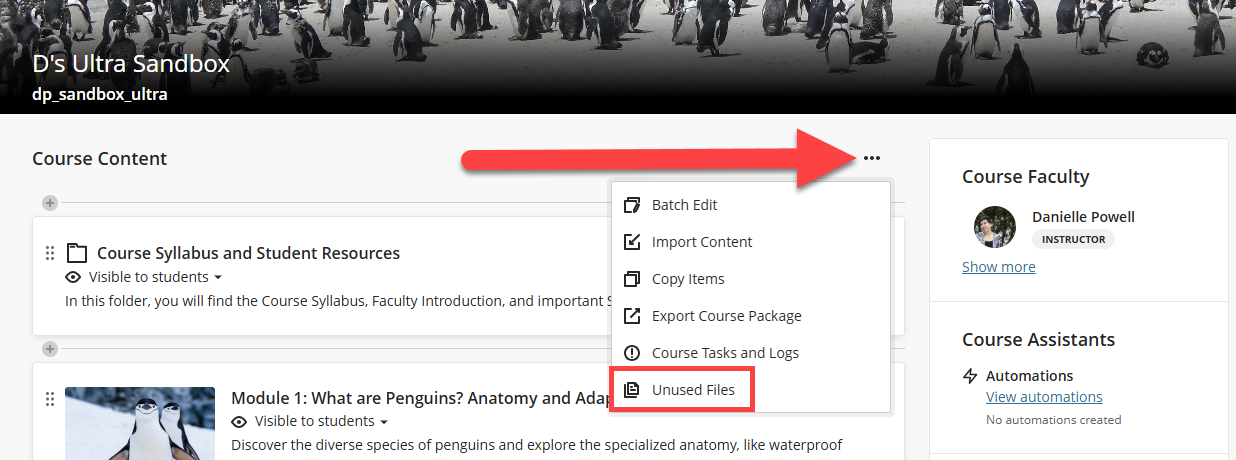
You can easily locate and delete unused files in your course. On the Course Content page, click on the Options (...) menu and select Unused Files.
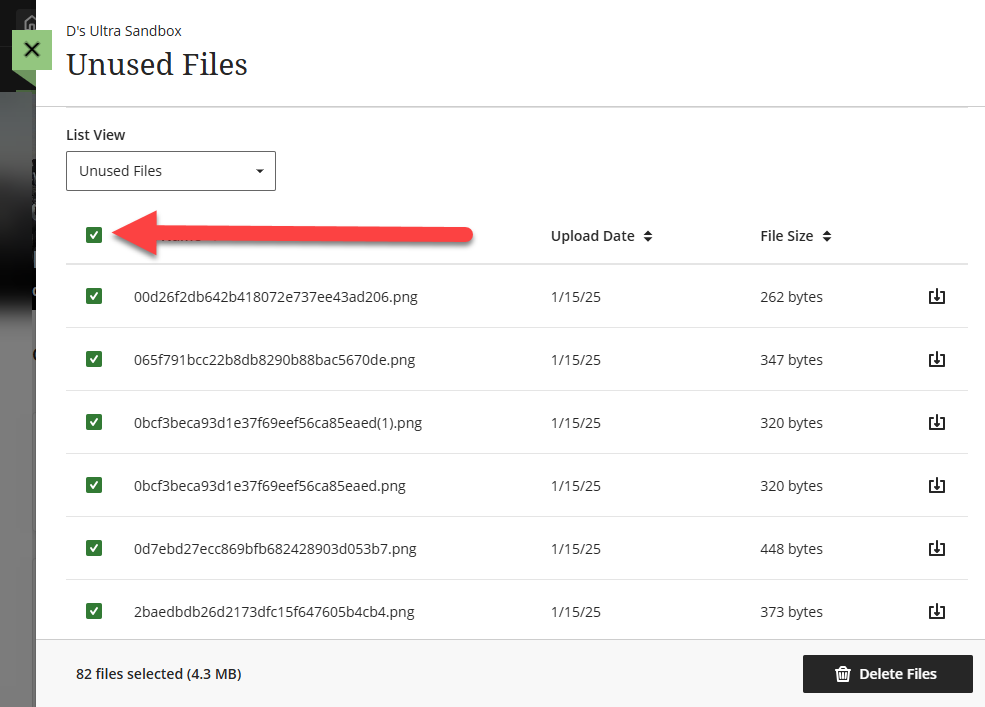
This will bring up a list of all files that are not currently linked to content in your course. Select the files you want to remove or click the Select All option to select all files. Click Delete Files to permanently delete your unused files.
Was this article helpful?
That’s Great!
Thank you for your feedback
Sorry! We couldn't be helpful
Thank you for your feedback
Feedback sent
We appreciate your effort and will try to fix the article