Follow these steps to install the Company Portal app from the Microsoft Store on your Windows computer.
Install Company Portal
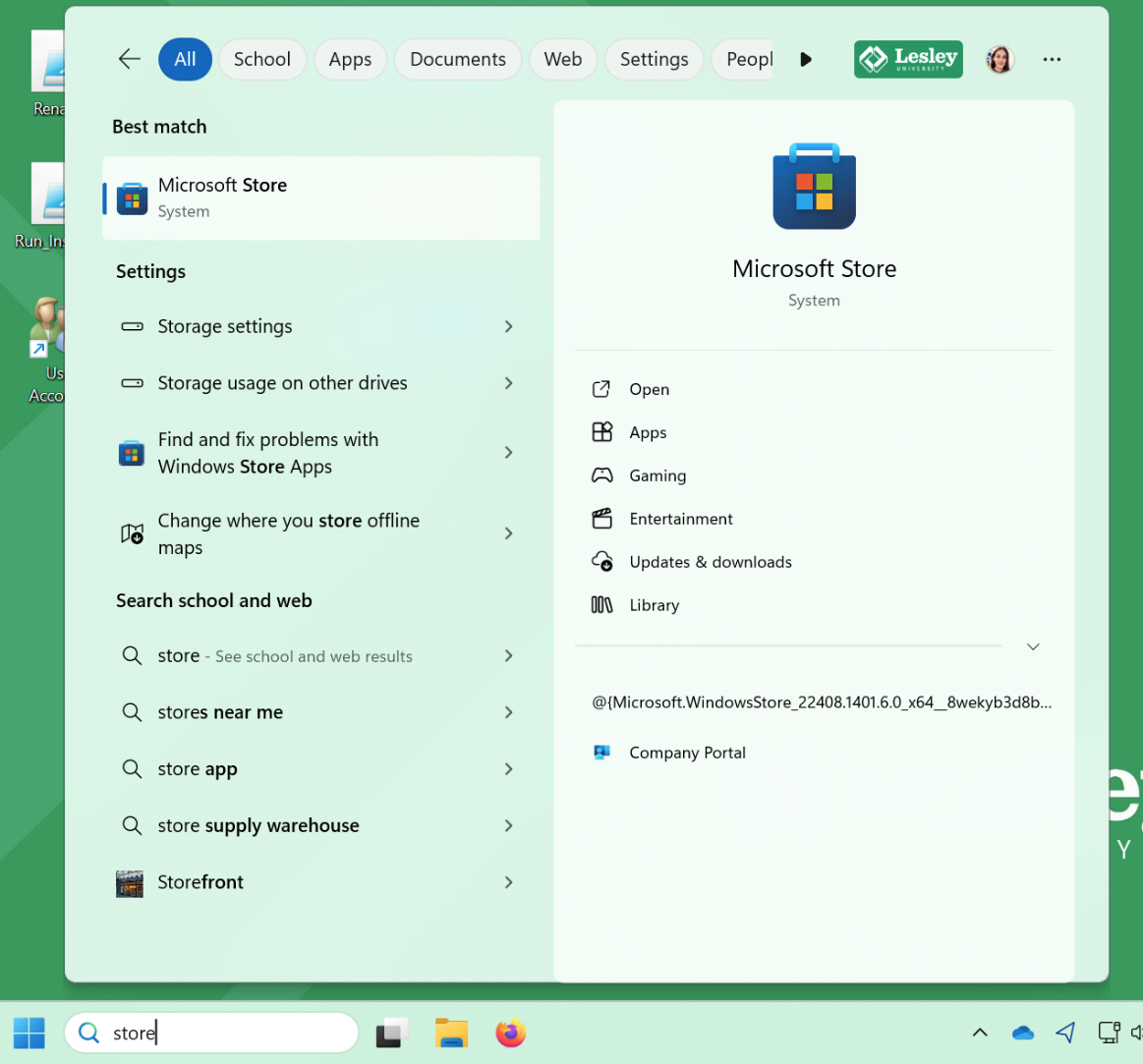
- Search for Store in the Microsoft search bar, then click the Open button shown under the Microsoft Store logo.
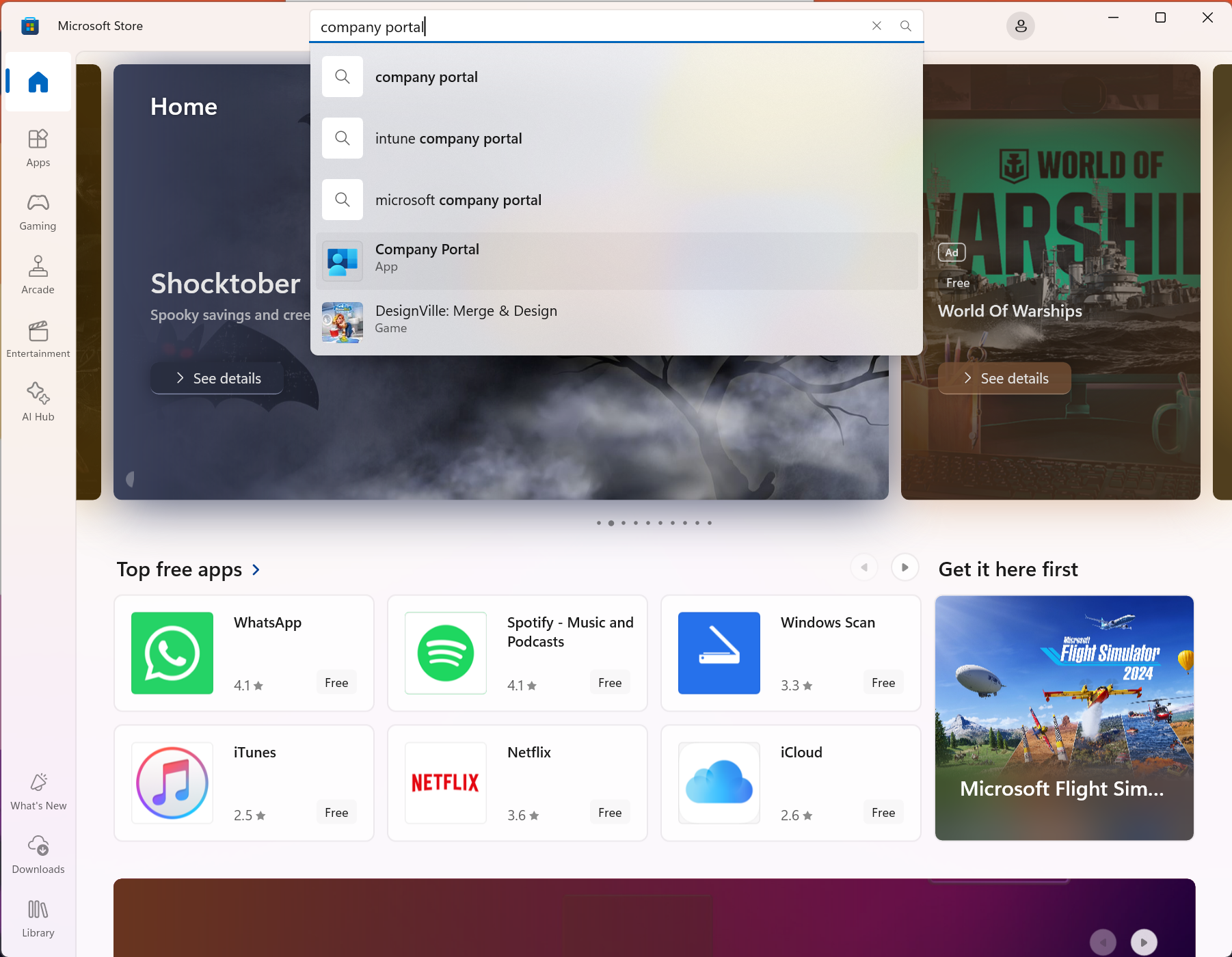
- Once the Store is open, search for the app Company Portal, and select the result with the logo of a generic blue person, as shown.
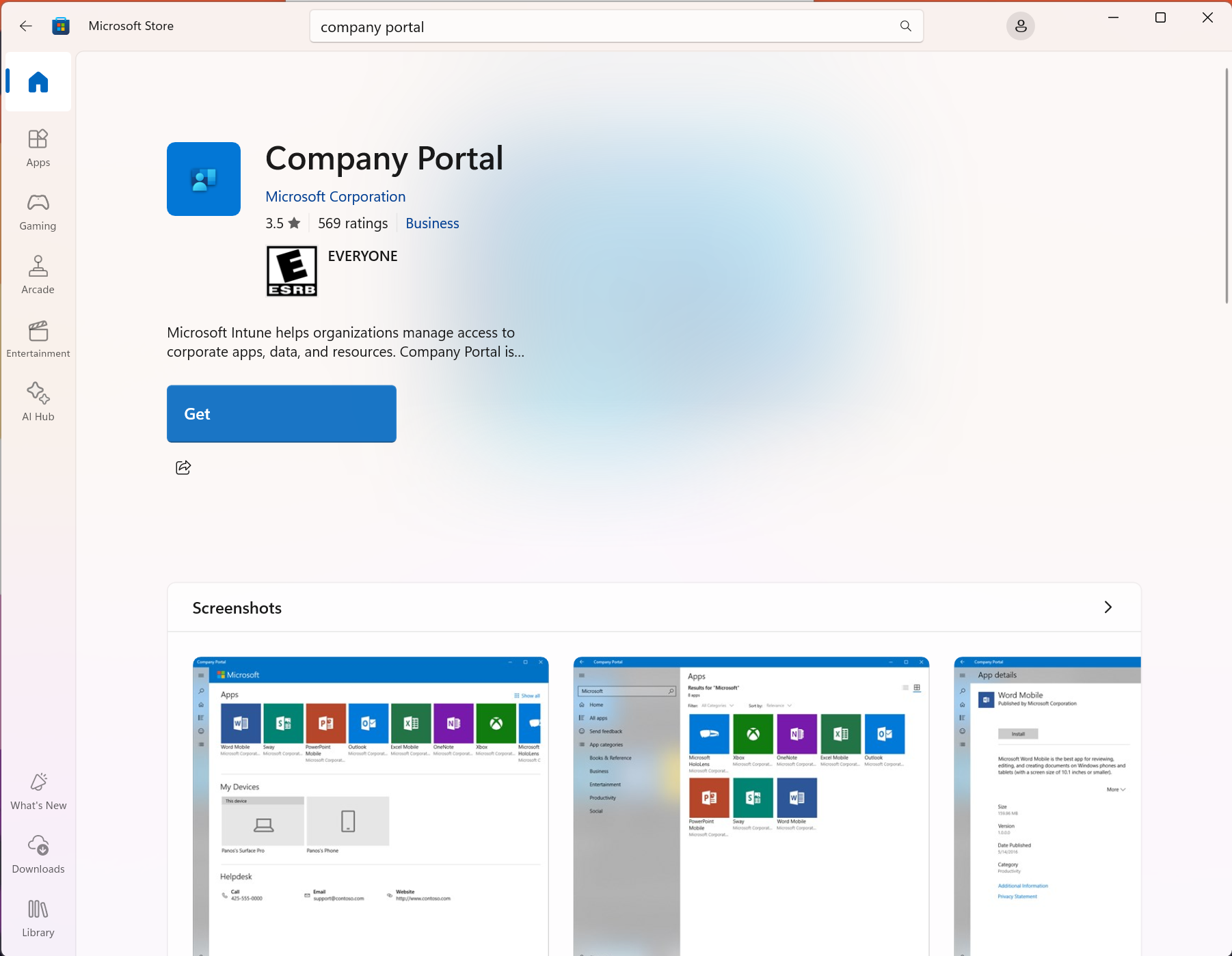
- Click the big blue Get button.
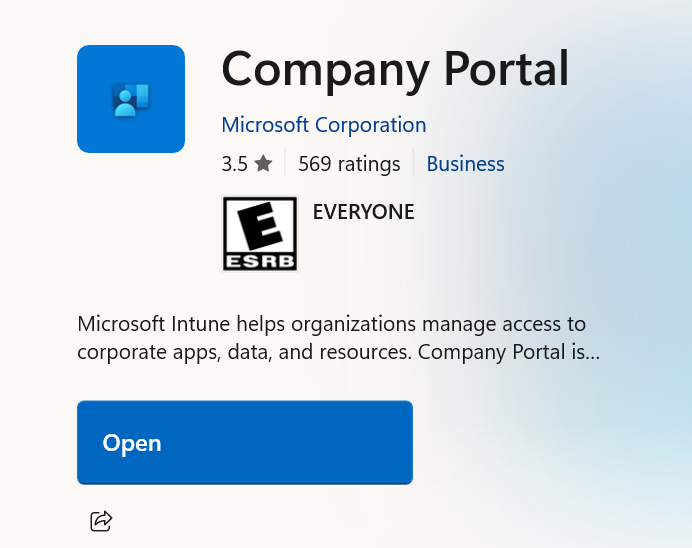
- It may take a moment to install. Once installed, click the Open button.
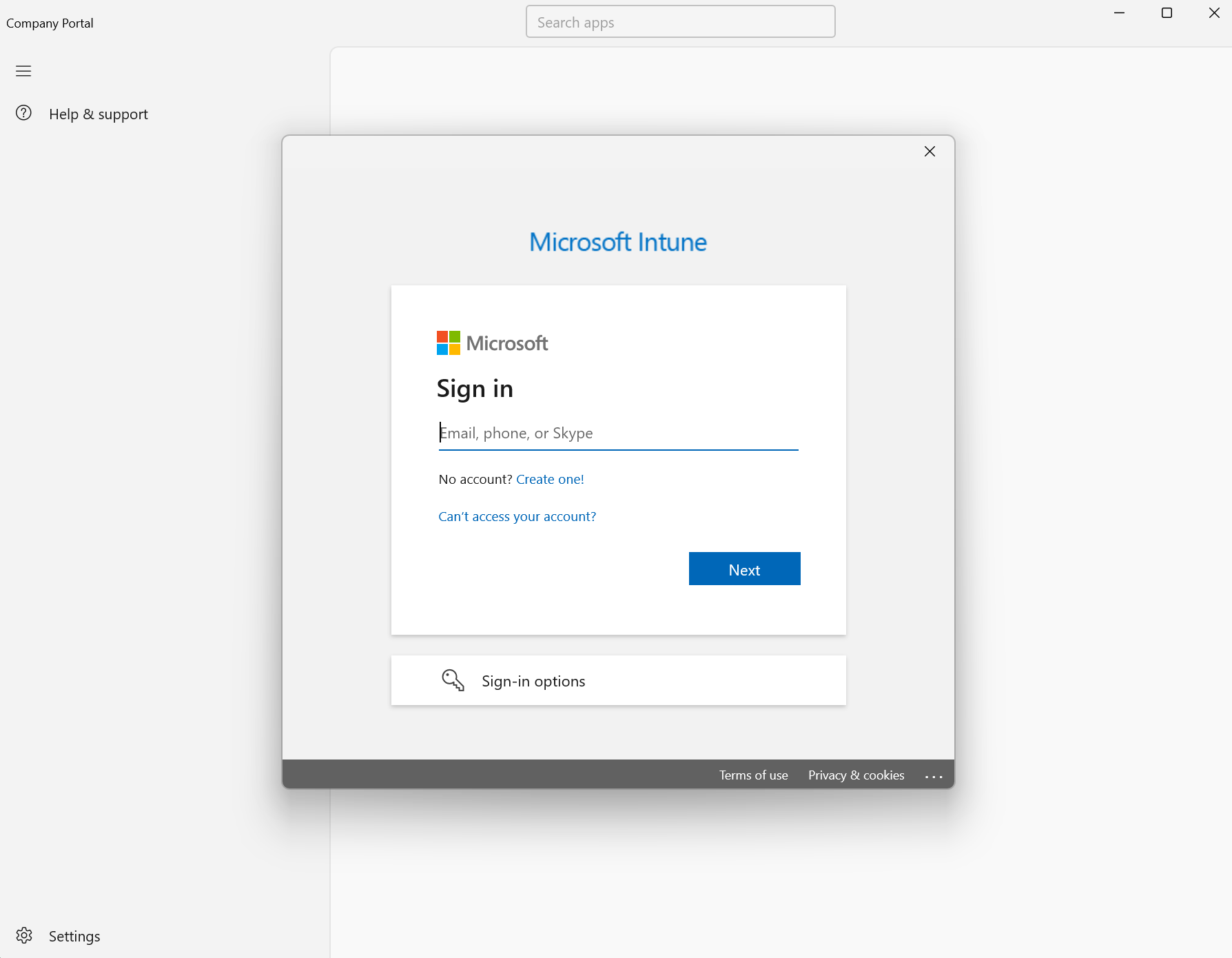
- Once opened, it will ask you to sign in. You may instead see a screen with two steps and a message telling you to sign in on the second step — click that. Sign in with your Lesley credentials as usual.
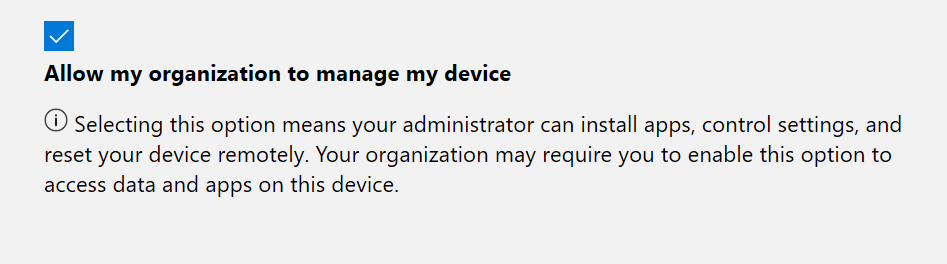
- If you are presented with the option below, make sure the tick box is checked. This ensures that IT can run updates and changes in the background to make your work experience better.
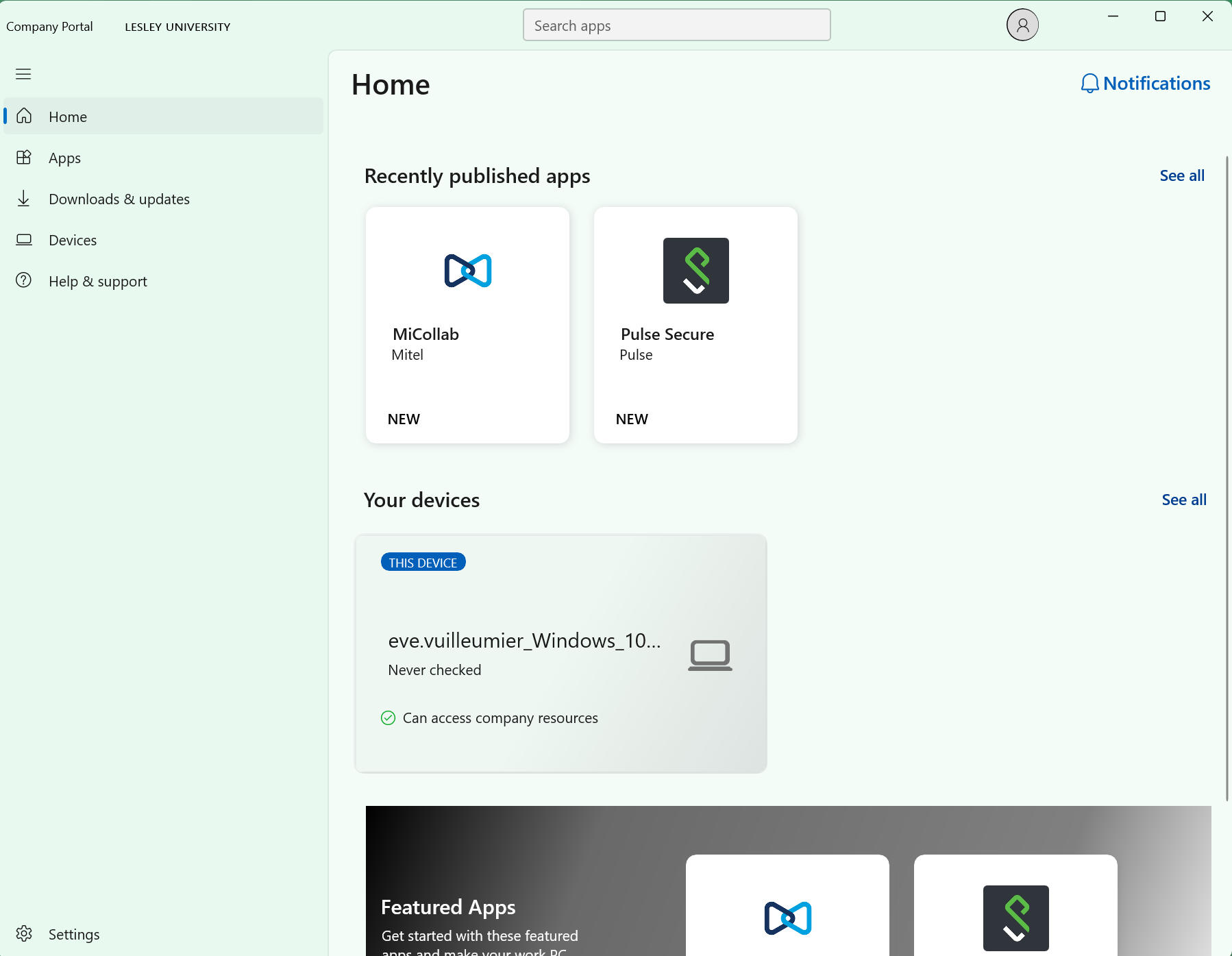
- It will now bring you to the Company Portal home page. You don’t need to do anything else!
Was this article helpful?
That’s Great!
Thank you for your feedback
Sorry! We couldn't be helpful
Thank you for your feedback
Feedback sent
We appreciate your effort and will try to fix the article