Where Faculty Can Find a Student’s Assigned Advisor(s) in Self-Service

Modified on Fri, Mar 6 at 10:15 AM

Are you a faculty member looking for a student's advisor? Faculty can view student advisor assignments from a course section's roster in Self-Service. Here's how:


1. Visit Self-Service and sign in with your Lesley username and password.

2. Select Faculty from the home screen. You can also access it from the Daily Work menu (the briefcase icon in the left sidebar).
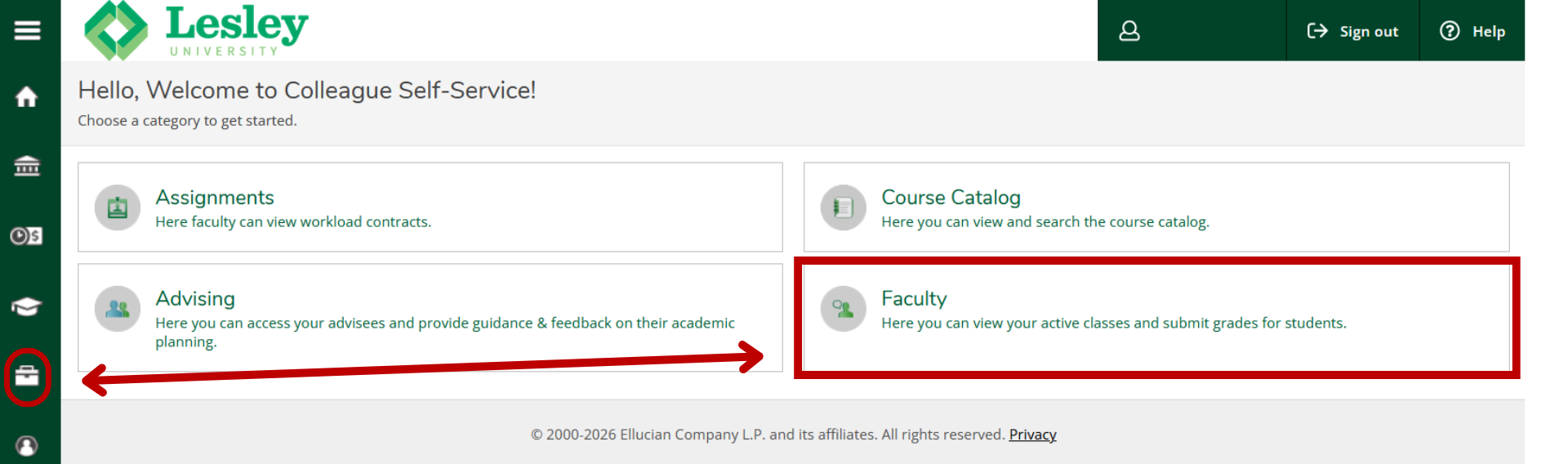

Self-Service home screen showing four category tiles. The Faculty tile is highlighted with a red rectangle, and a red arrow points to it from the Daily Work (briefcase) icon in the left navigation sidebar.


3. Locate the section in which your student is enrolled. Sections are organized by semester/term. Click on the link to the section.
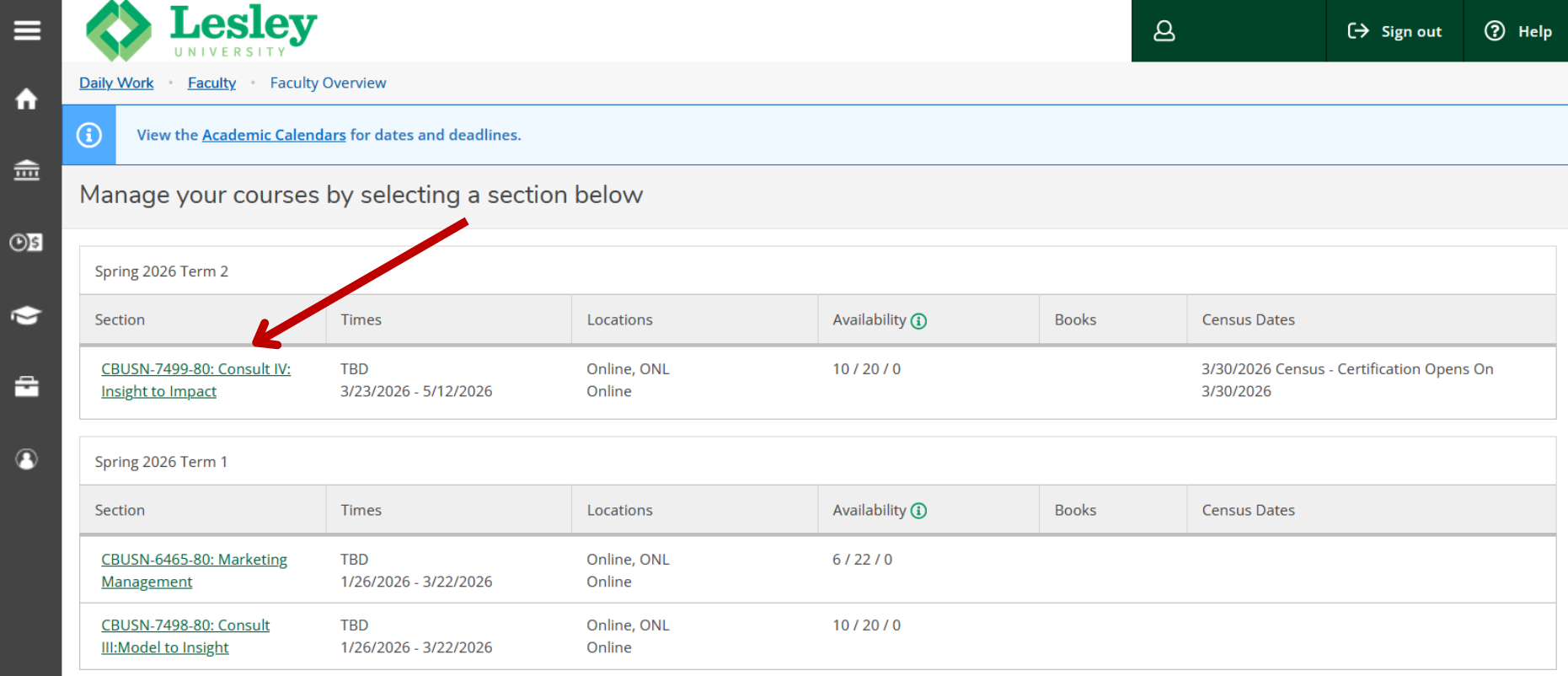

Faculty Overview page showing course sections grouped by term. A red arrow points to a section link in the section list.


4. Hover over the student's name in the roster and a pop-up window will appear. Click on the View Full Profile link in the pop-up.
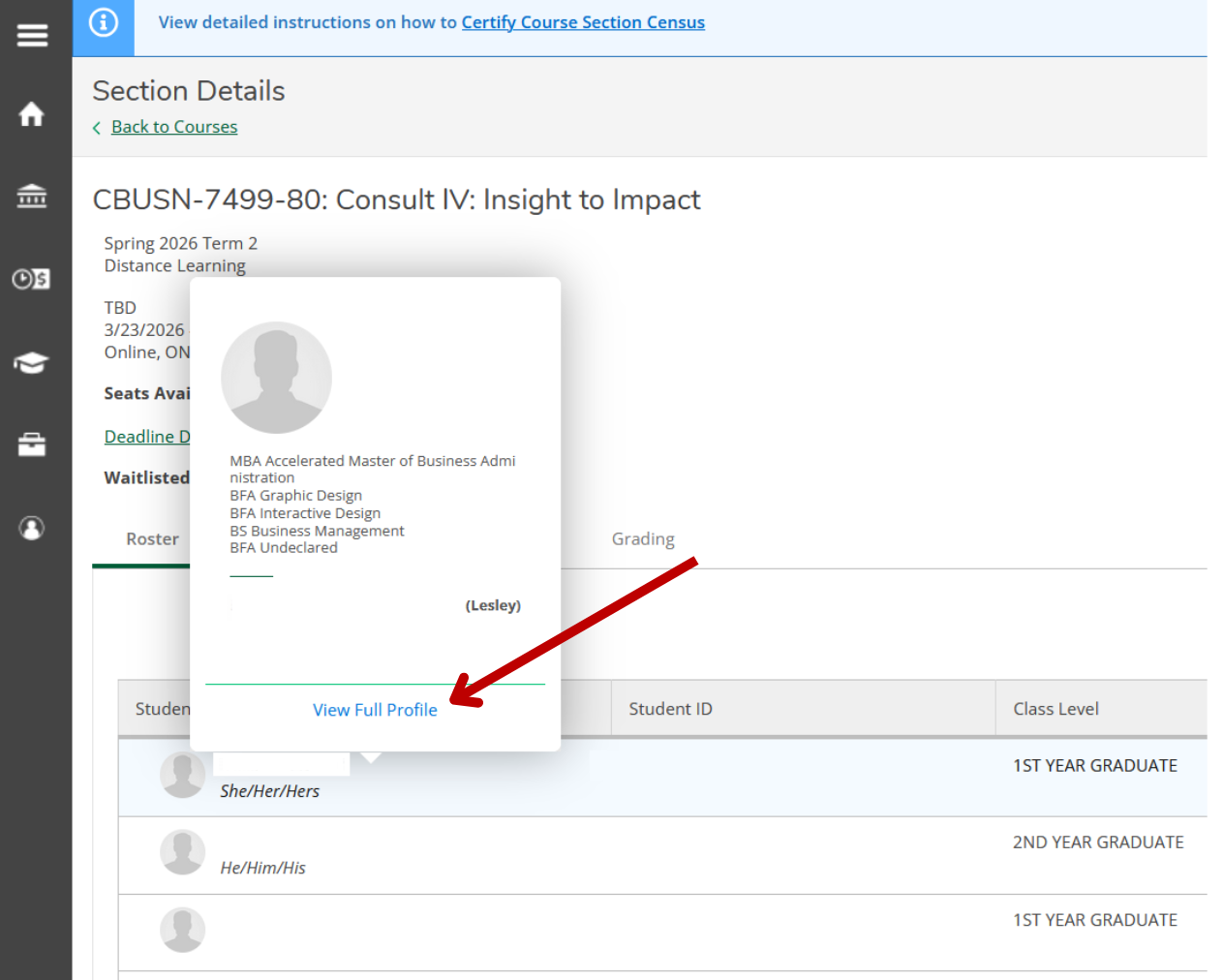

Section Details page showing the student roster. A pop-up card is visible for a student, displaying their academic programs and a View Full Profile link, with a red arrow pointing to the link.


5. The Student Profile window will load. It displays the student's advisor(s) as well as their student ID, email address, academic program, major, and minor.
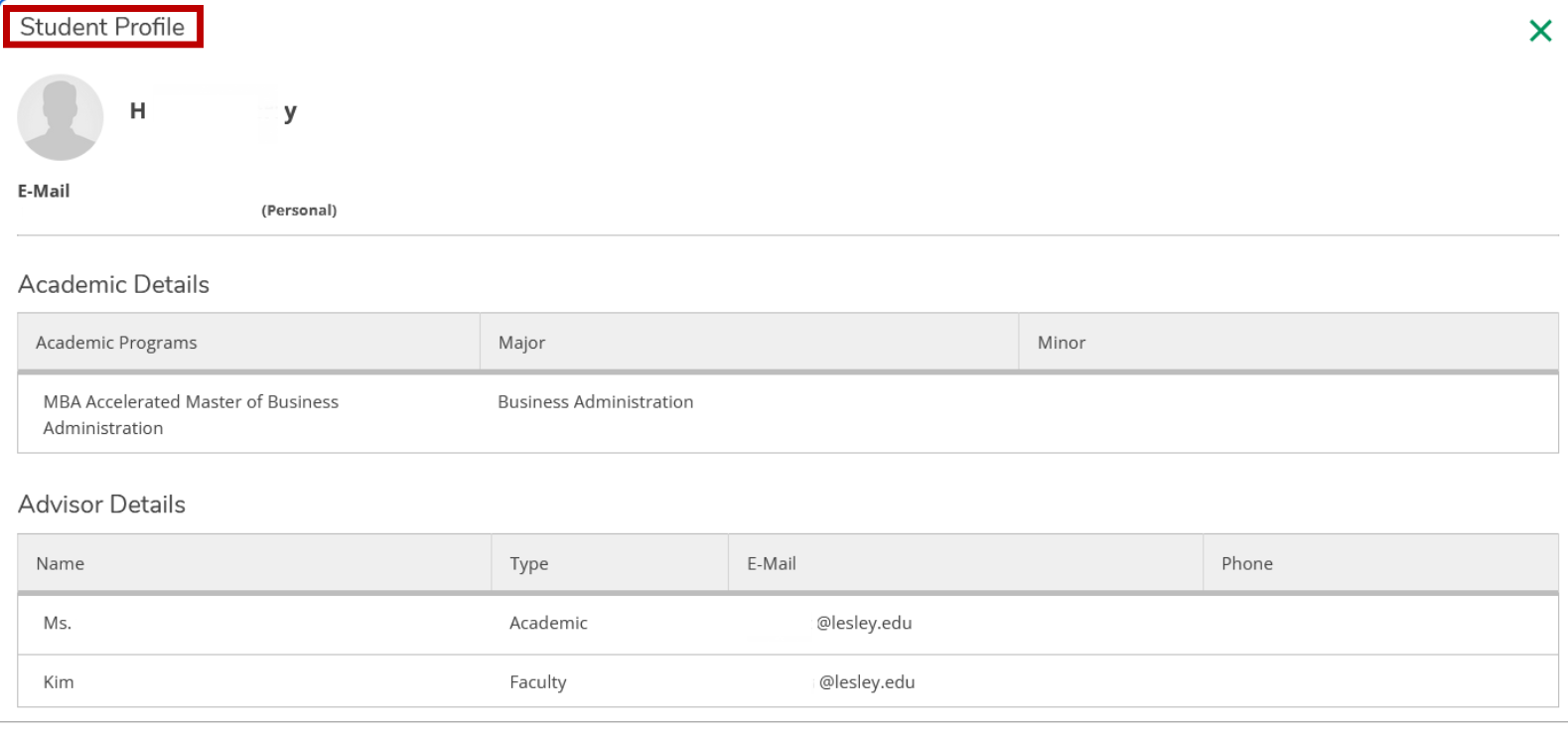

Student Profile window with the Student Profile heading highlighted in red. The window displays the student's email address, Academic Details table, and Advisor Details table listing advisor names, types, and email addresses.

Was this article helpful?

That’s Great!

Thank you for your feedback

Sorry! We couldn't be helpful

Thank you for your feedback

Let us know how can we improve this article!

Select at least one of the reasons
CAPTCHA verification is required.

Feedback sent

We appreciate your effort and will try to fix the article