How to Submit Your Enrollment Deposit
Welcome to the Lesley University community! To officially secure your place in your upcoming program and enable access to registration, all incoming students are required to submit an enrollment deposit. This guide provides a step-by-step walkthrough of the secure online payment process through the Lesley University Student Account Center. Whether you are a first-time undergraduate or joining one of our specialized graduate or Threshold programs, following these instructions will ensure your funds are applied correctly to your student account, allowing you to move forward with your next steps in the enrollment process.
Step-by-Step Deposit Instructions
To submit your deposit, please follow these steps:
1. Log In: Navigate to the Lesley University Student Account Center and log in using your university credentials via self-service.
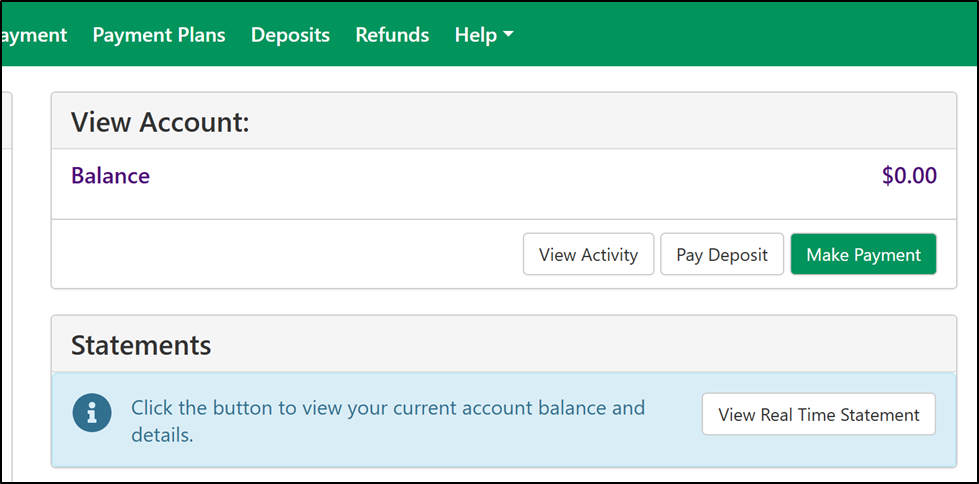
2. Select Deposits: Once on the dashboard, locate the top navigation menu and click on the Deposits tab.
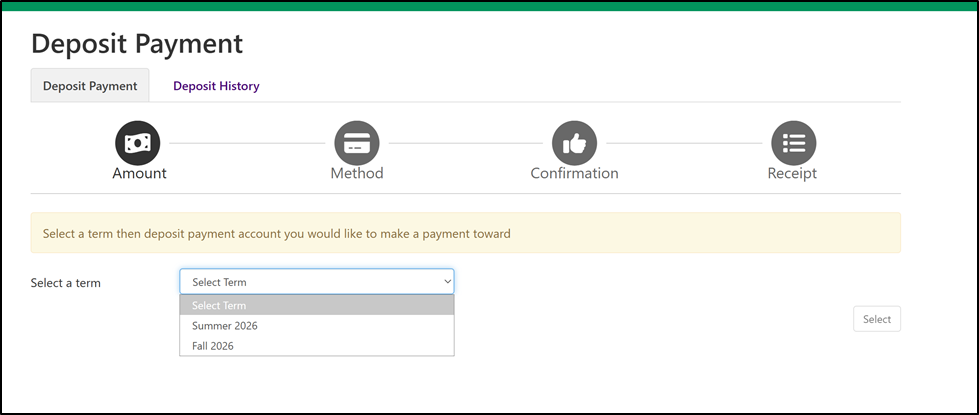
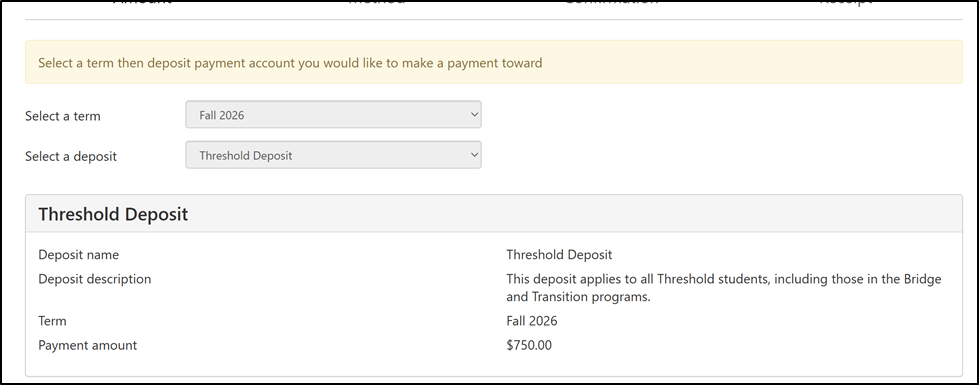
3. Choose Term: Select the appropriate Entry Term (e.g., Fall 2026) from the drop-down menu and click Select.
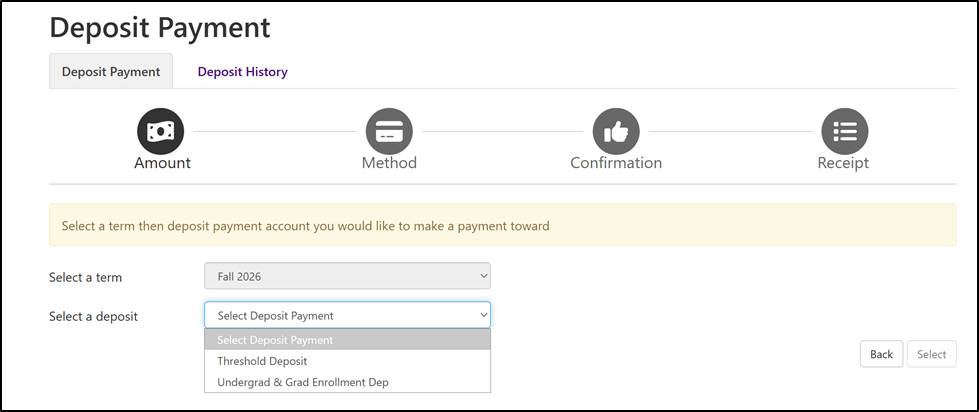
4. Select Deposit Type: Choose the specific deposit you are paying and click Select.
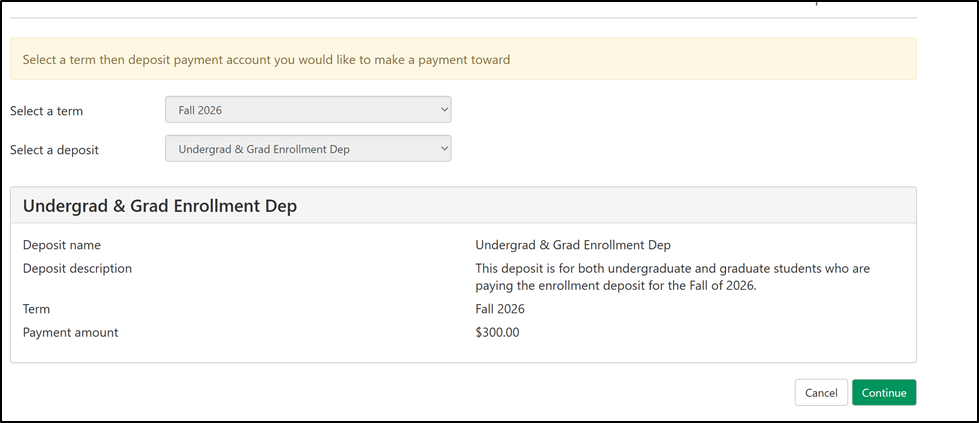
5. Confirm Amount: Review the deposit amount displayed. If everything is correct, click Continue.
6. Payment Method: Select your preferred payment method (Electronic Check or Credit/Debit Card) from the drop-down menu and click Select.
Note: Please be aware that credit card transactions may incur a non-refundable convenience fee.
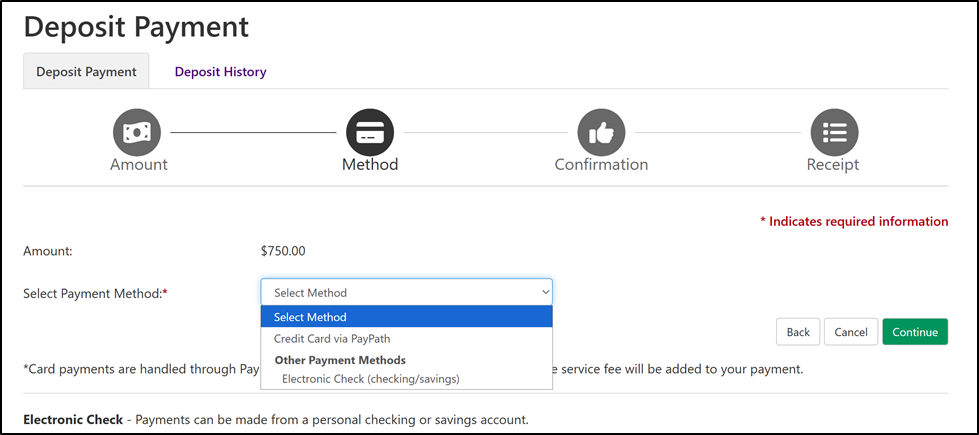
7. Finalize Payment: Enter your payment details and click Continue. Do not close your browser until you receive a confirmation message and a transaction receipt number.