Faculty: Disconnect your SLL Activity from your myLesley/Blackboard Course
TABLE OF CONTENTS
Disconnect your SLL Activity from your myLesley/Blackboard Course
If you are experiencing issues with your SLL link, you may need to disconnect your SLL Activity from your myLelsey/Blackboard course and re-link your activity. In order to do this, you will need to:
- Disconnect the LMS Link option from within SLL.
- Go back into your myLesley/Blackboard course and reconnect or delete your SLL link.
Note: Deleting the SLL link from your myLesley/Blackboard course will NOT unlink the activity. You will need to disconnect the LMS link in SLL first.
Step 1: Disconnect the LMS Link in SLL
Access SLL by clicking the link in your myLesley/Blackboard course or going to Lesley University's Watermark Login page and logging in with your Lesley credentials.
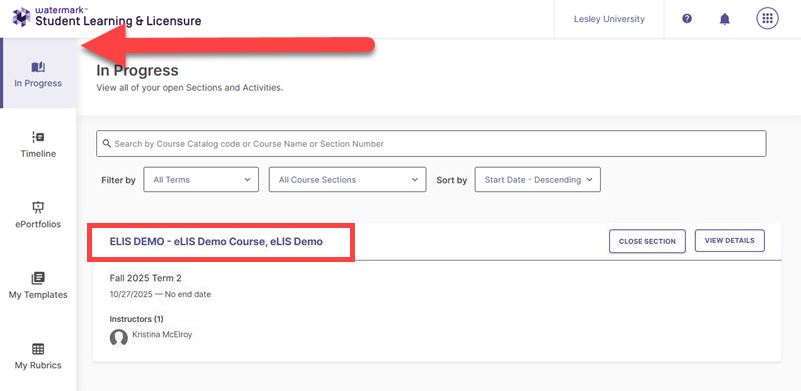
Click the In Progress tab and click on your current course to open it.
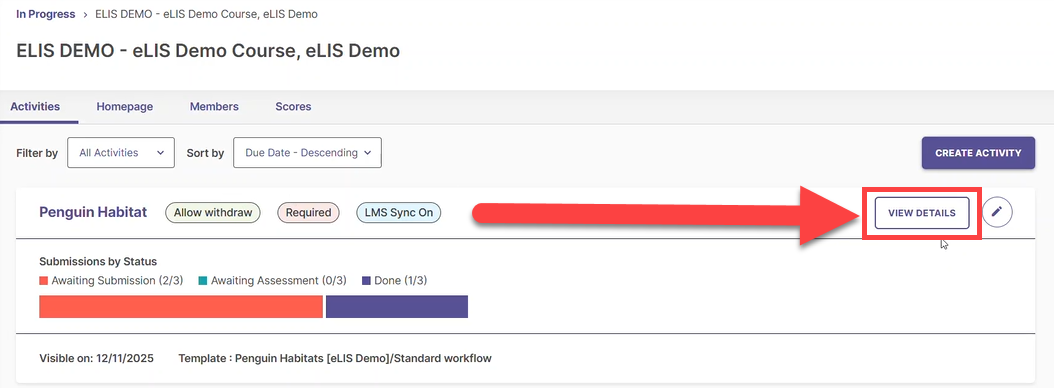
Click the View Details button.
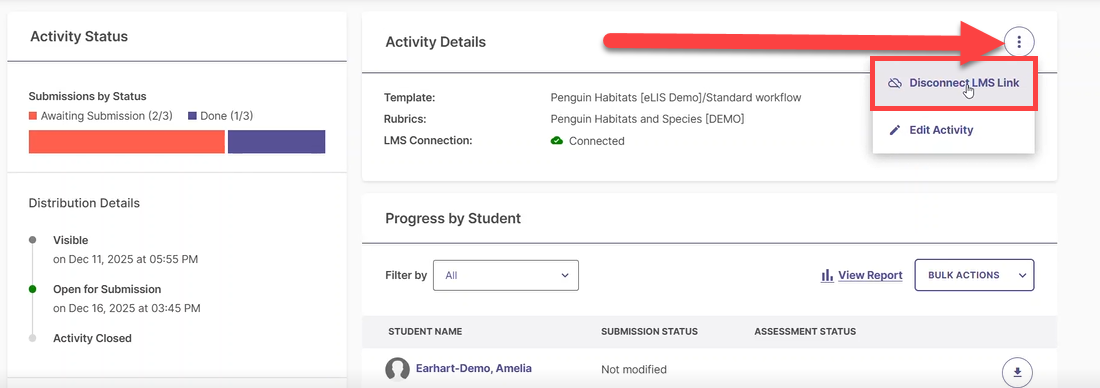
Then click on the More Options (...) button. This will open a menu. Select Disconnect LMS Link.
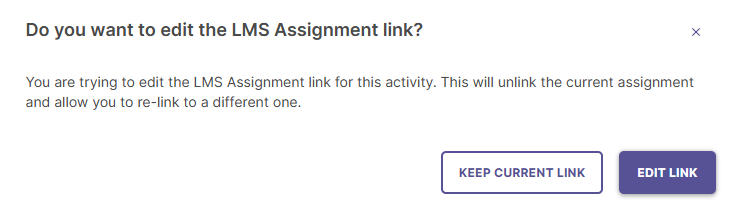
A message will pop up asking if you want to edit the LMS Assignment link. Click Edit Link. This will disconnect your SLL activity from your myLesley/Blackboard course.
Your SLL activity should now be disconnected from the LMS.
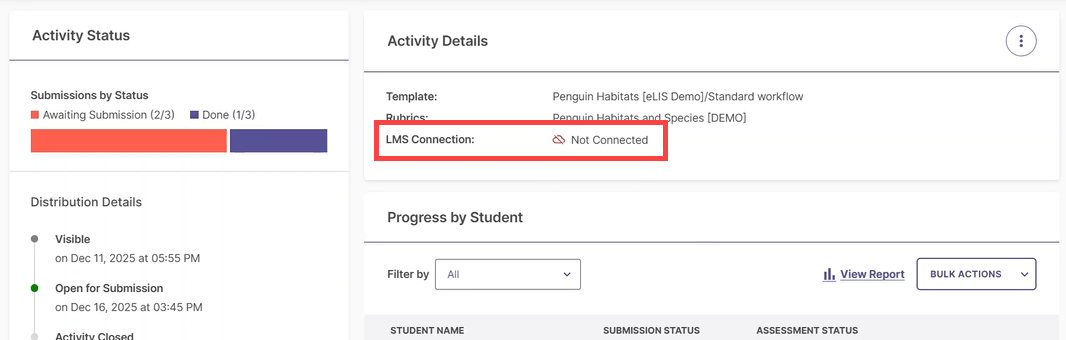
Next, you will need to go back to your myLesley/Blackboard course and either delete or reconnect your SLL link.
Step 2: Reconnect your SLL Link in your myLesley/Blackboard Course
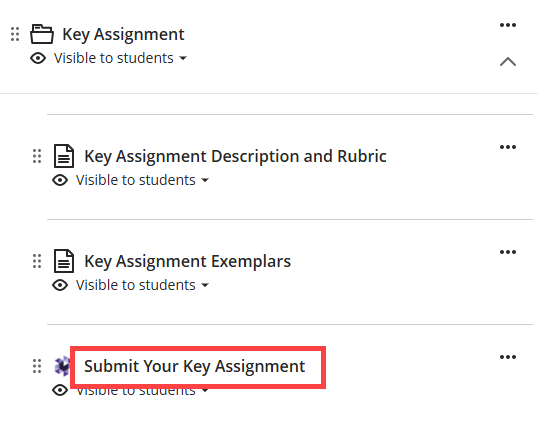
Navigate to your myLesley/Blackboard course and locate your SLL link.
To reconnect your SLL activity, click on the link.
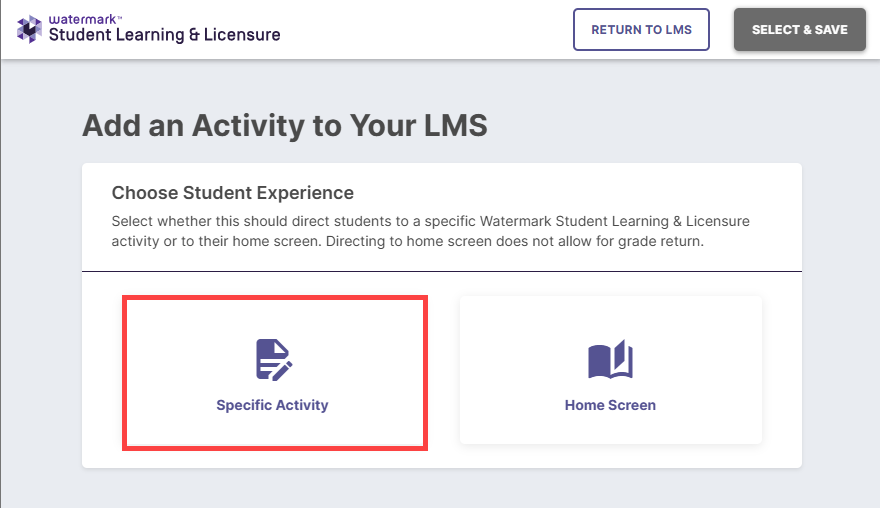
This will bring you into Student Learning & Licensure. Click Specific Activity.
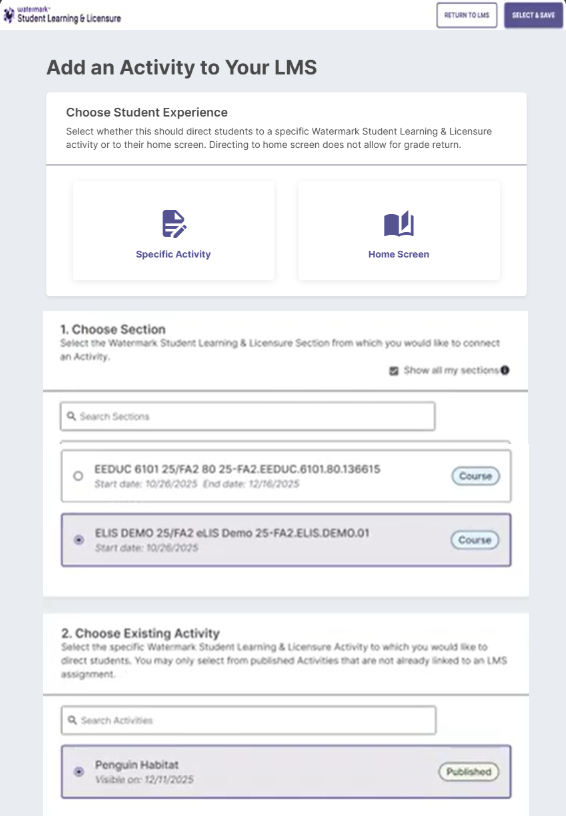
You will be prompted to select a course section and an activity. Once you have finished, click the Select & Save button at the top of the page.
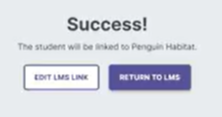
You will see a Success! message. Click Return to LMS. You may now close the browser window/tab to return to your course.
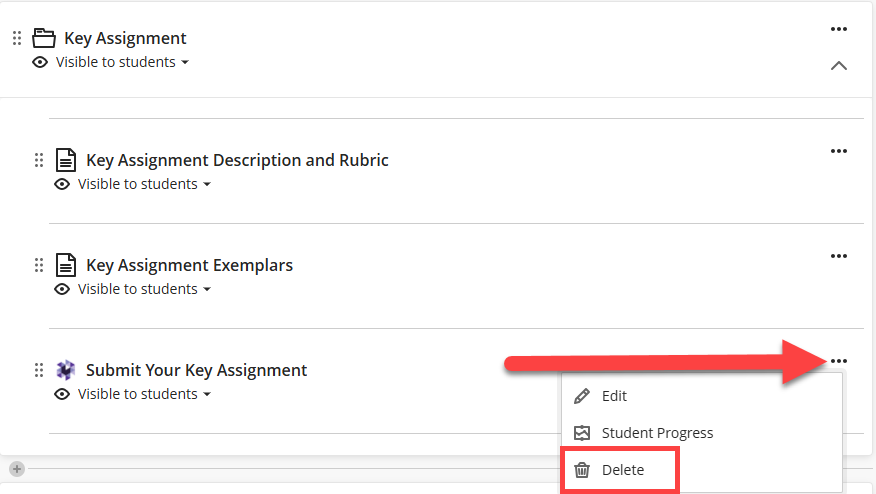
Optionally, you may wish to delete the link from the course. To do this, locate the SLL link in your myLesley/Blackboard course and click on the More Options (...) menu and select Delete.
Additional Resources and Support
Student Learning & Licensure resources and documentation:
- Faculty: Student Learning & Licensure (SLL) Overview and FAQ
- Faculty: Link to an SLL Activity from your myLesley/Blackboard Course
- Faculty: Assess Student Submissions in SLL
- Students: Submit an Activity (Assignment) in Student Learning & Licensure
If you need assistance connecting your SLL activity to your myLesley/Blackboard course, reach out to elis@lesley.edu.