TABLE OF CONTENTS
- Close Your Course (Make Your Course Unavailable to Students)
- Copy Content Into Your Course
- Common Copy Errors (And How to Fix Them)
- Open Your Course (Make Your Course Available to Students)
- Request a Course Copy
Close Your Course (Make Your Course Unavailable to Students)
When you copy content from a previous course into your current course, certain items, such as Due Dates, are included in the copy. In order to prevent students from seeing old information while you are updating your content, we strongly suggest setting your course to Closed before copying your content.
When a course is Closed, the course appears in students' course listings but they cannot access it until you open it.
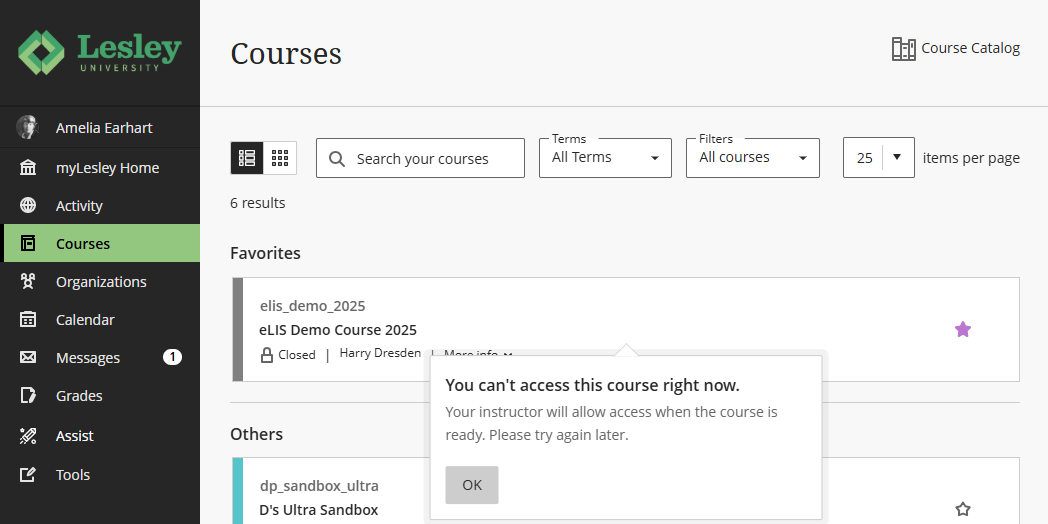
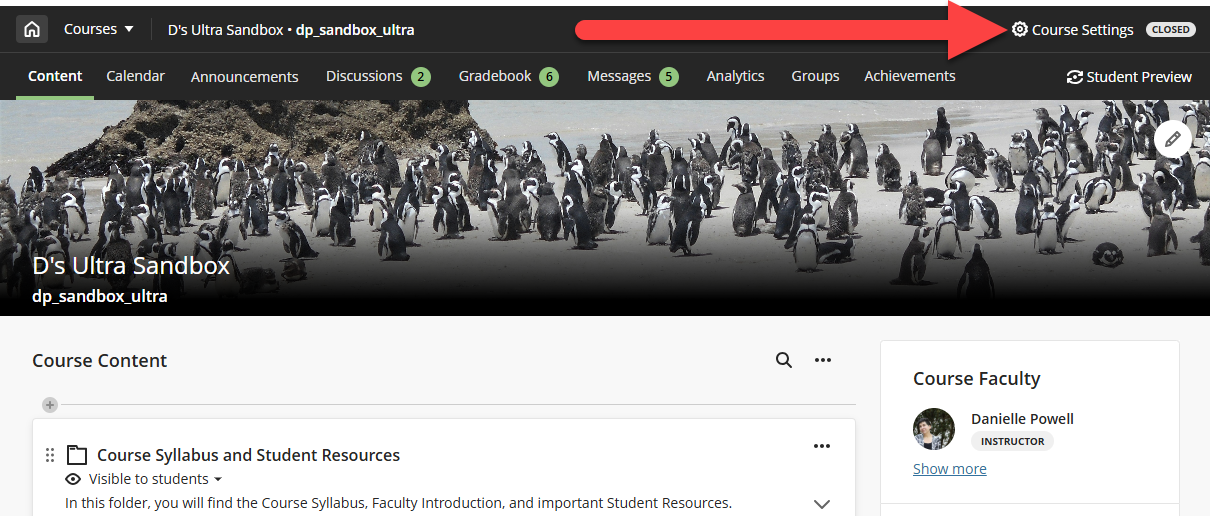
To close your Ultra course, click on Course Settings at the top of the page. This will bring you to your Course Settings page.
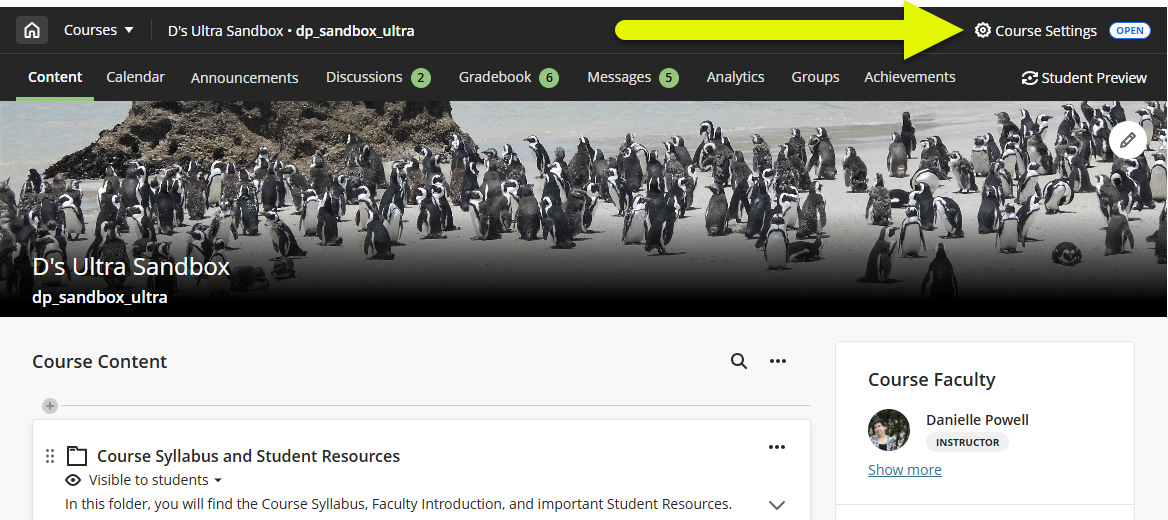
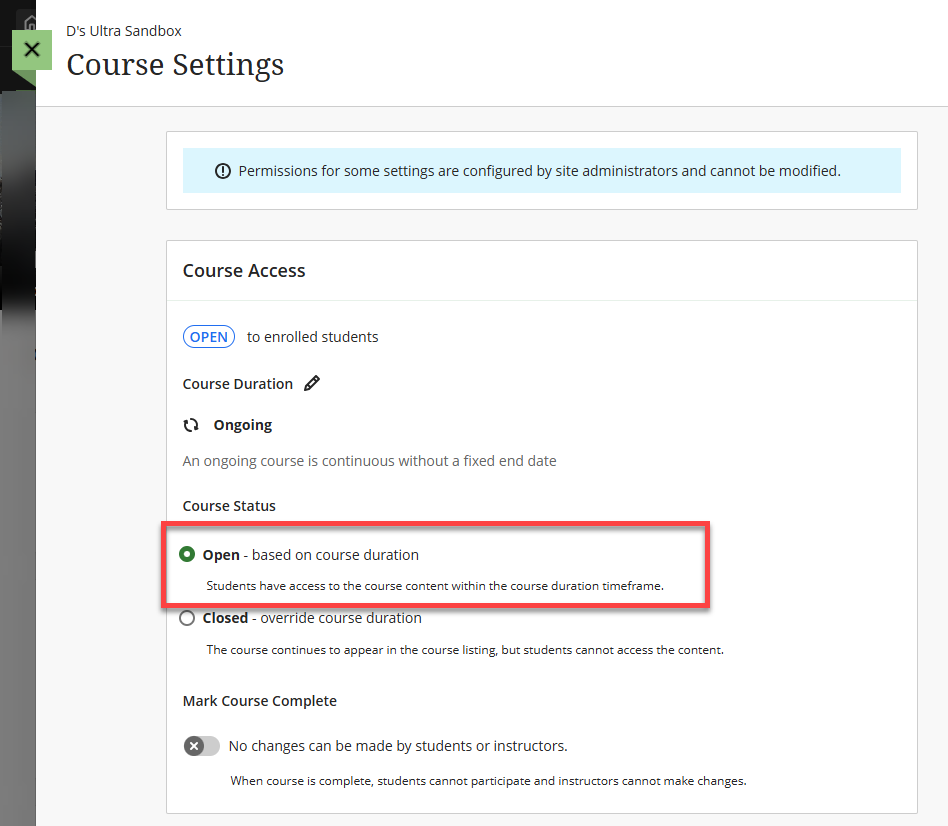
Once you are in your Course Settings, go to the Course Access section and select Closed.
After you have copied your content and updated your course, including due dates, you may go back into your Course Settings and select Open.
For more information and detailed instructions, refer to the Set Course Availability in myLesley support article.
Copy Content Into Your Course
Blackboard Ultra makes it easy to copy materials from one course into another. You may copy individual items, entire folders/modules, or create an exact copy of your course.
Note: Copying from Original Courses
You may copy content from an old Original course into an Ultra course, however please keep in mind that not all content will copy correctly. The Should I Create New Content in Ultra or Copy From an Original Course? support article will guide you through the types of content that you may copy from Original and which types of content you should create new in your Ultra course.
To copy content, go to the the course you want to copy content INTO. On the Course Content page, locate the place where you wish to add content (such as on the Course Content page or within a specific Folder or Learning Module). Click the plus sign (+) to open the menu. Select Copy Content.
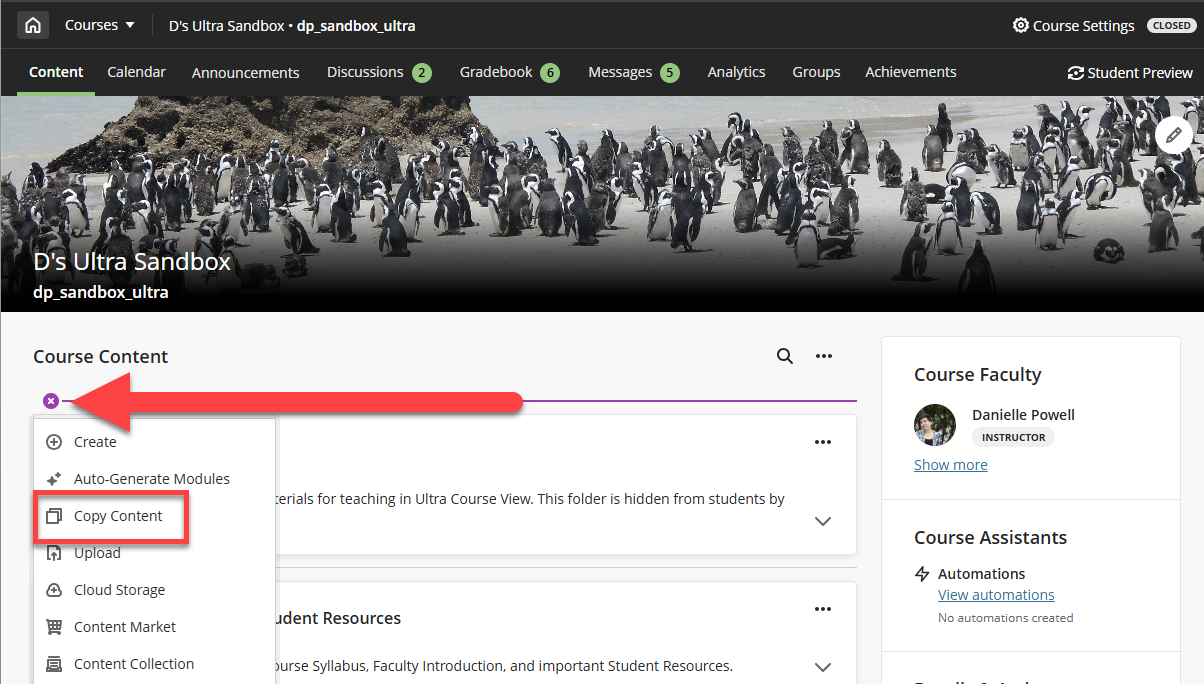
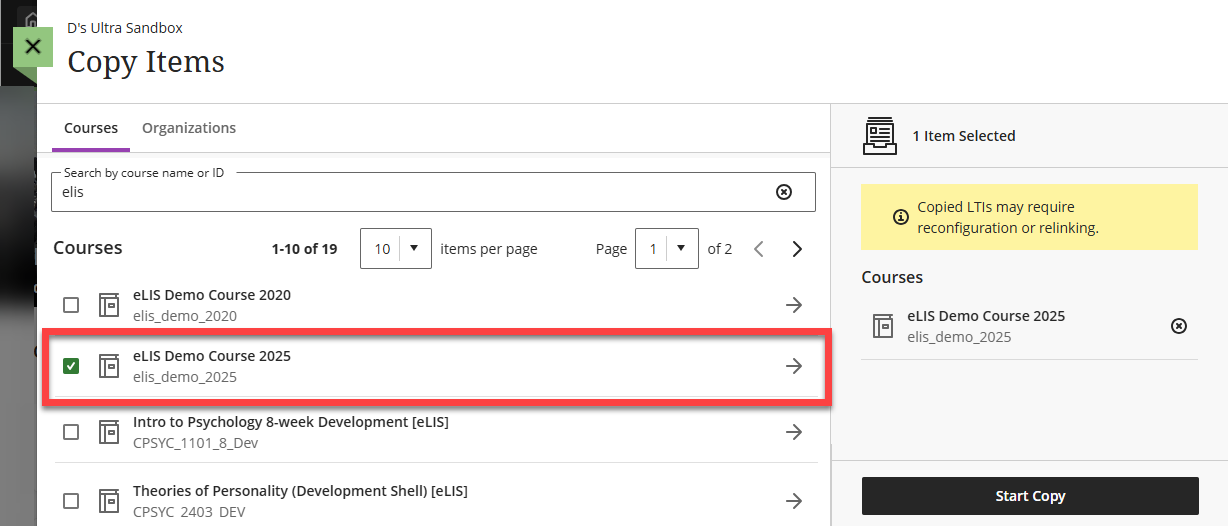
This will bring up a list of all courses in which you are enrolled. Scroll through the list or use the search bar to search for a specific course.
- Copy an Entire Course (Make an Exact Copy): To make an EXACT copy of a course (including all course content, assignments and activities, due dates, Announcements, etc.), click the checkbox next to the course. The course will be brought over to the Selected Items column.
- Copy Individual Items: Click on the course name to display a list of categories. Select a category to see items available for copy. You may select and copy as many items from the course as you wish, including entire modules, individual items/Ultra Documents, assignments, discussions, rubrics, and more. Your selected content will be brought over to the Selected Items column.
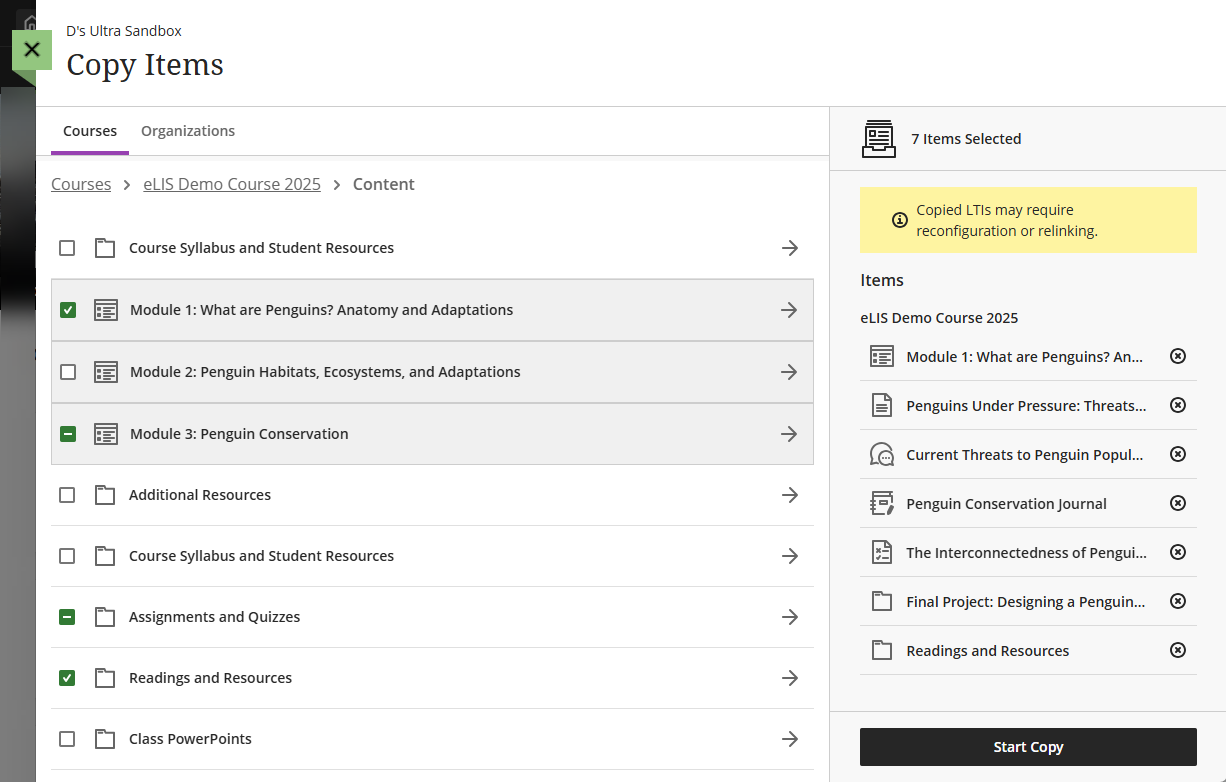
Click Start Copy to copy your course. The copy process may take several minutes to complete.
After you copy your course, review your content to ensure that it looks and functions as intended. Pay special attention to the following:
- Visibility: When copying individual content into your Ultra course, all content will default to Hidden from Students. You may adjust the visibility for these items one at a time or use the Batch Edit tool to update them all at once. The Setting Content Visibility and Release Conditions in Ultra Courses support article will walk you through updating your content visibility settings.
- Due Dates: If your gradable items have due dates assigned, these will come over in the copy. You may adjust the due dates for each item one at a time or use the Batch Edit tool to update them all at once.
- Formatting: Check all of your content for formatting issues, including text and spacing, broken links, attachments, media, and more. Pay special attention to embedded content, such as videos. If your formatting or content is wonky, you may edit or recreate it using the Content/Text Editor.
- Folder and Link Descriptions: Item descriptions in Ultra are limited to 750 characters and do not support formatting. If your Original course contained long or formatted descriptions (especially for folders, tool links, files, and links) only the first 750 characters will copy into Ultra.
Common Copy Errors (And How to Fix Them)
In some cases you may notice that content did not copy as you intended. This can be especially true when copying an Original course into an Ultra course. The following are some of the most common copy errors and suggestions for how to fix them.
Folder, Learning Module, and Link Descriptions
Item descriptions in Ultra are limited to 750 characters of plain, unformatted text. If your Original course contains long or formatted descriptions (especially descriptions for folders, tool links, files, and links) only the first 750 characters will copy into Ultra.
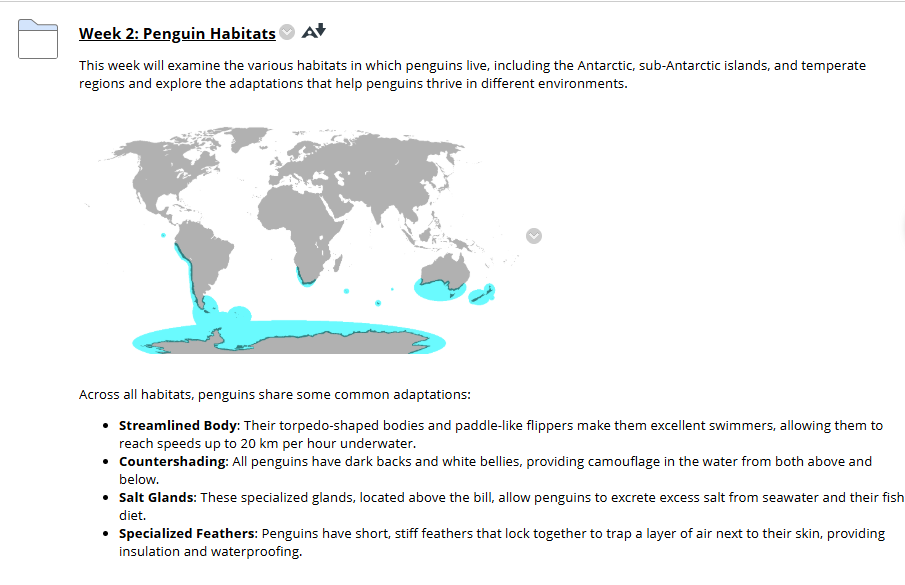
For example, in your Original course you have a long folder description with an image and formatted text, including a bulleted list.
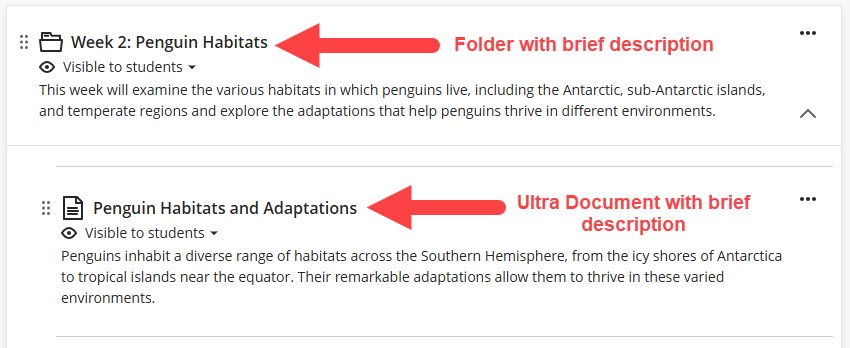
When this Folder is copied into an Ultra course, you will see that the Folder description now contains only the first 750 characters of plain text - all formatting and images are removed. Additionally, the folder will now contain a new Ultra Document with all of the content from the Original Folder description.
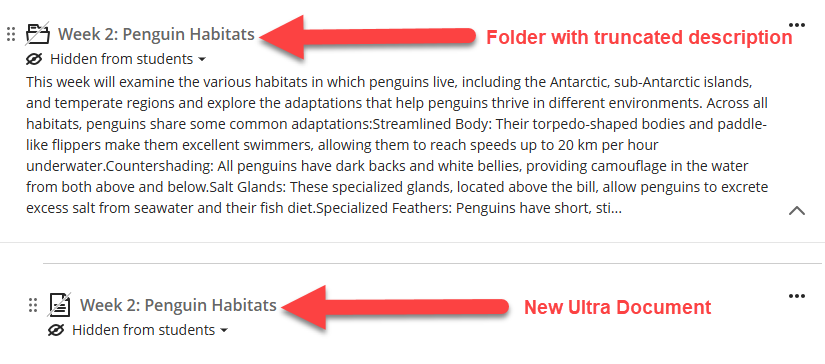
When this happens, we recommend editing your your folder to give it a short, brief description. Then, edit your Ultra Document to include any additional information that you would like to share with your students. You may also add a brief description to let your students know what is in the document.
For more information, refer to:
- Organize Your Content in Learning Modules or Folders
- Create Ultra Documents
- Blackboard Ultra Content Editor (Add and Format Content)
Nested Content and Flattened Folders
When copying Original content into Ultra, pay special attention to any nested content (ex a folder within a folder), as these can be "flattened" during a copy.
Ultra courses support up to three levels of nested content (ex. a folder within a folder within a Learning Module).
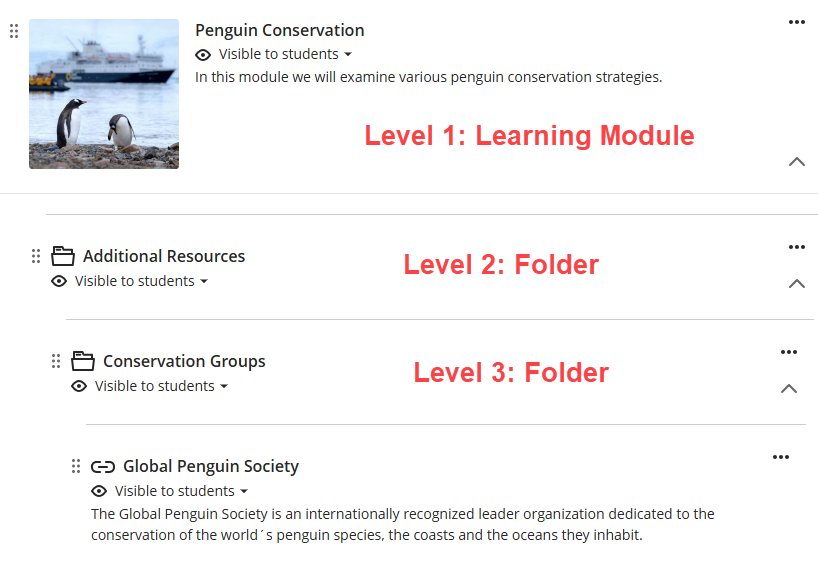
If you copy content from an Original course with more than three levels of content, your content may be "flattened." In other words, your content may be pulled out of folders and moved to the lowest supported level. If this happens, you will want to rethink your course structure and organize your content accordingly.
The best way to avoid this is to build out your course structure in your Ultra course and then copy content into it. For example, on the Course Content page, create your Learning Modules and/or Folders and then copy your content into them.
Missing Content
Certain types of content may not copy correctly from an Original course into an Ultra course, including Discussions and Journals. If this happens, recreate your Discussion or Journal directly in your Ultra course.
Other tools, such as Blogs and Wikis, are not available in Ultra Course View. We recommend using a different tool, such as Discussions in place of Blogs or a Collaborative Document in place of a Wiki. Not sure which tool to use? Ask the eLIS staff! We are happy to talk about your learning activities and help brainstorm some ideas.
If you are using a textbook integration in your course, such as Cengage, Pearson, or McGraw Hill, you will need to recreate your textbook integration in your course. This will ensure that everything is linked up properly and grades are passing seamlessly between the systems.
Please refer to the Should I Create New Content in Ultra or Copy From an Original Course? support article for more information on the types of content that you may copy from Original and which types of content you should create new in your Ultra course.
Formatting and Embedded Content Errors
Check all of your content for formatting issues, including text and spacing, broken links, attachments, and more. Pay special attention to embedded content, including videos. If your formatting or content is wonky, you may edit or recreate it using the Content/Text Editor.
Open Your Course (Make Your Course Available to Students)
Once you have copied your content, updated your content visibility and/or set release dates, and updated your due dates, you may make your course available to your students.
To open your Ultra course, click on Course Settings at the top of the page. This will bring you to your Course Settings page.
Once you are in your Course Settings, go to the Course Access section and select Open.
For more information and detailed instructions, refer to the Set Course Availability in myLesley support article.
Request a Course Copy
If you would like to have a member of the eLIS staff copy content into your upcoming myLesley/Blackboard course please fill out the Copy Request Form. There is a 2 business day turn around time for this service.
Was this article helpful?
That’s Great!
Thank you for your feedback
Sorry! We couldn't be helpful
Thank you for your feedback
Feedback sent
We appreciate your effort and will try to fix the article