Create Announcements in myLesley
TABLE OF CONTENTS
- Announcements Overview
- Create an Announcement
- Record or Upload Audio and Video to Your Announcement
- Send an Email Copy of Course and Organization Announcements
- Review Student Engagement with Announcements
Announcements Overview
Announcements are a great way to post time-sensitive information or notifications to your students. When sending the announcement you also have the option of sending it as an email, allowing your students to receive time-sensitive information even if they are not logged into myLesley.
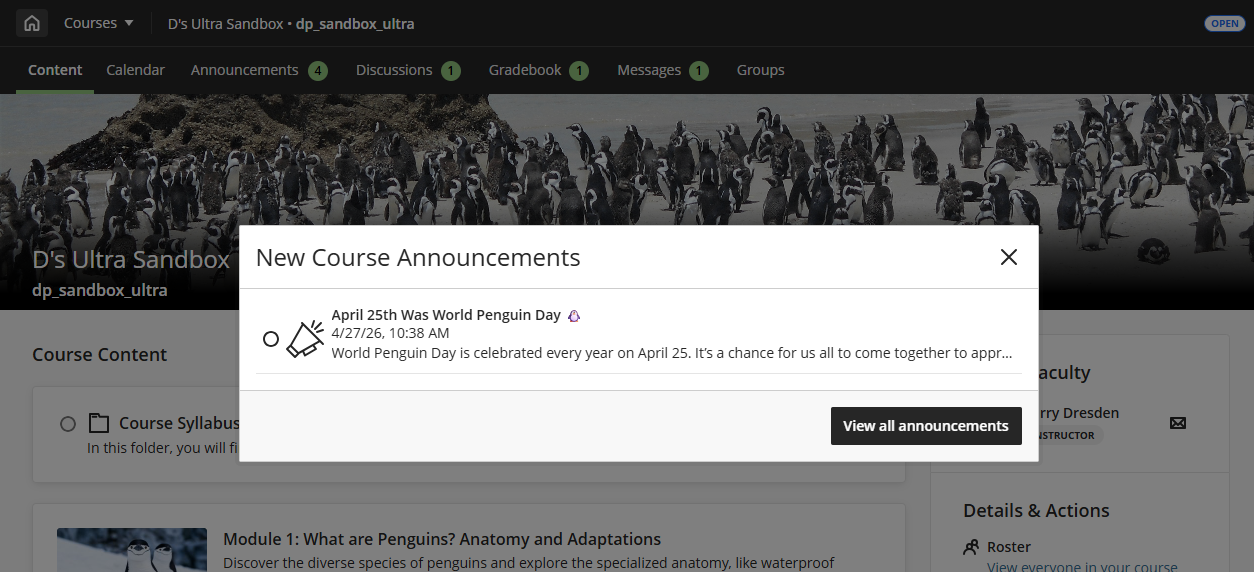
When students login to your course or organization, new Announcements will display as an overlay, requiring the student to view the Announcement or dismiss the pop-up before they can access the course content.
Create an Announcement
To create an Announcement, click on the Announcements tab in your course or organization. This will bring you to the Announcements page. Click on the Create Announcement (+) button to create a new Announcement.

Give your Announcement a title and enter a message for your students. Use the Text/Content Editor to format your content, add links, etc.
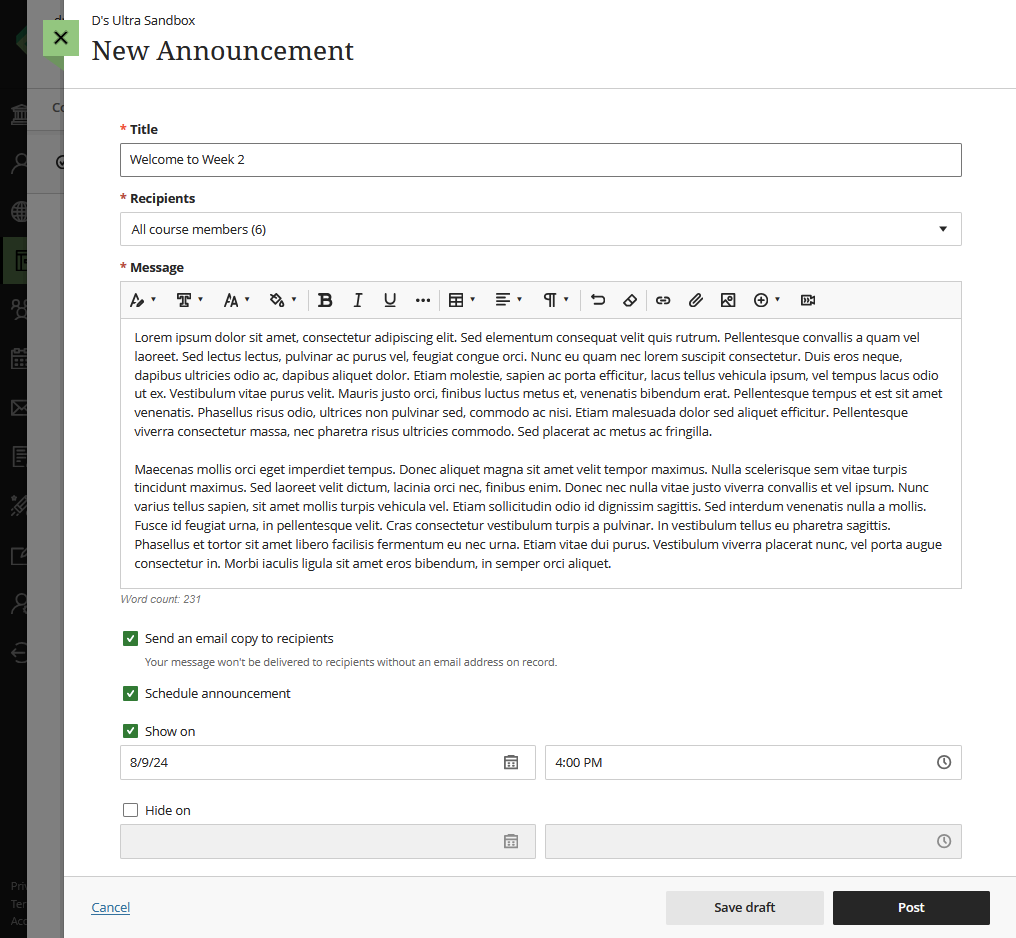
Once you have created your Announcement you may choose to email a copy of the Announcement and/or schedule the Announcement to send at a later time.
Click Post to send your Announcement immediately or on the scheduled date. Or click Save Draft to save a draft of your Announcement that you can edit or post at a later time.
For more information, refer to the Announcements support page or watch the Create Announcements Tutorial video.
Record or Upload Audio and Video to Your Announcement
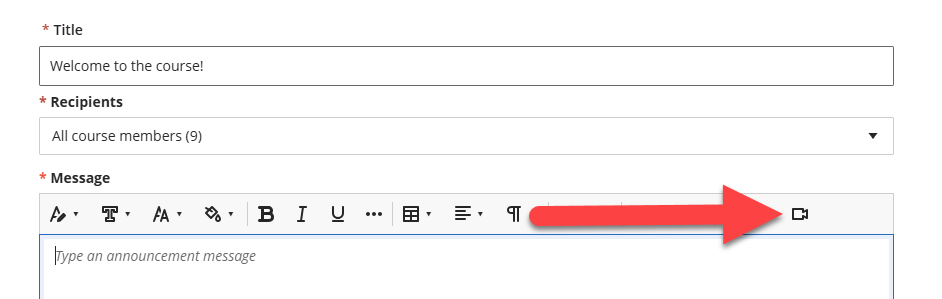
You can use the Video Studio tool within an Announcement to record or upload video and audio. Click on the Audio/Video button in the text editor to open Video Studio.
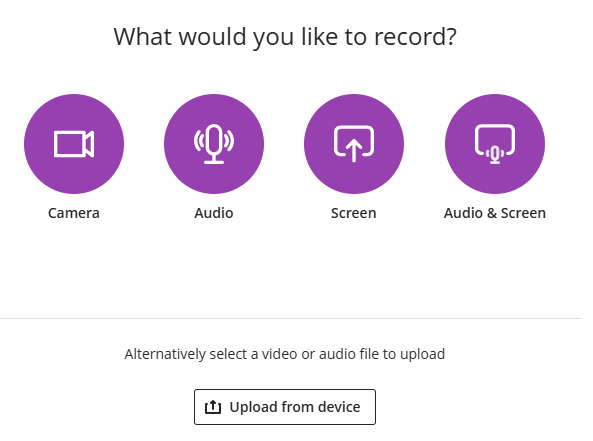
You may choose to record any combination of your camera, microphone, and screen. You may also upload a video that you saved on your machine.
Once the application launches, you may use the camera, microphone, and screen options to select or change your connected devices. If you are creating a recording, select Start Recording. There is a three second countdown before recording begins. While recording, you can pause, resume, retake, or end the recording. Once you end the recording you can preview the recording, edit the title, and add a description. Once it has finished processing, select Save.
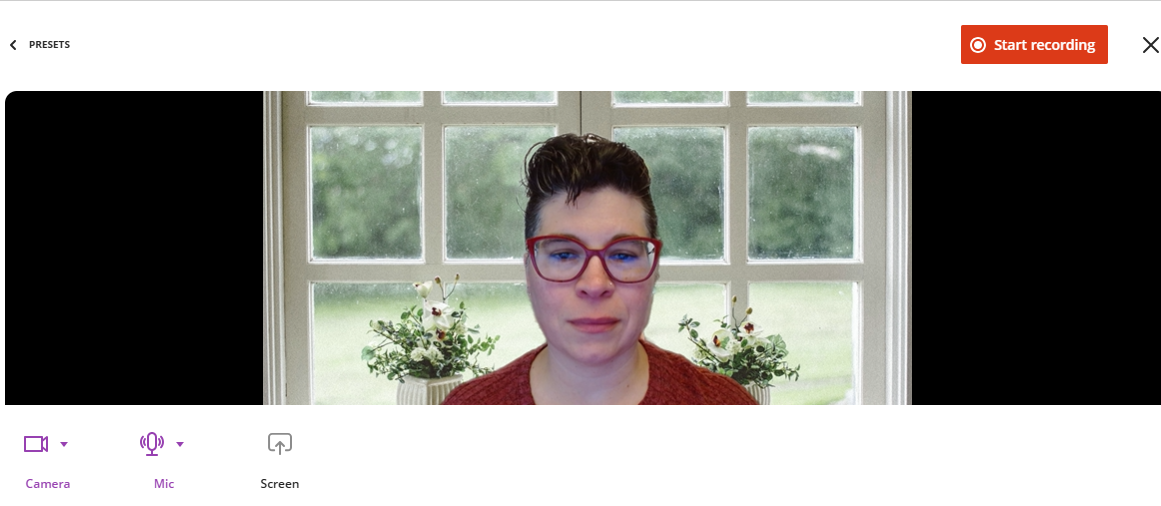
Please note that students can only access the audio/video recording from within the course. When sent as an email, students will need to click on the link to go into the course and view the Announcement.
Send an Email Copy of Course and Organization Announcements
When you create an Announcement, you have the option to send an email copy to recipients. This will send an emailed copy of your Announcement to everyone enrolled in your course or organization, including yourself, as long as they have a valid email address in the system.
Before posting your Announcement, select Send an email copy to recipients.
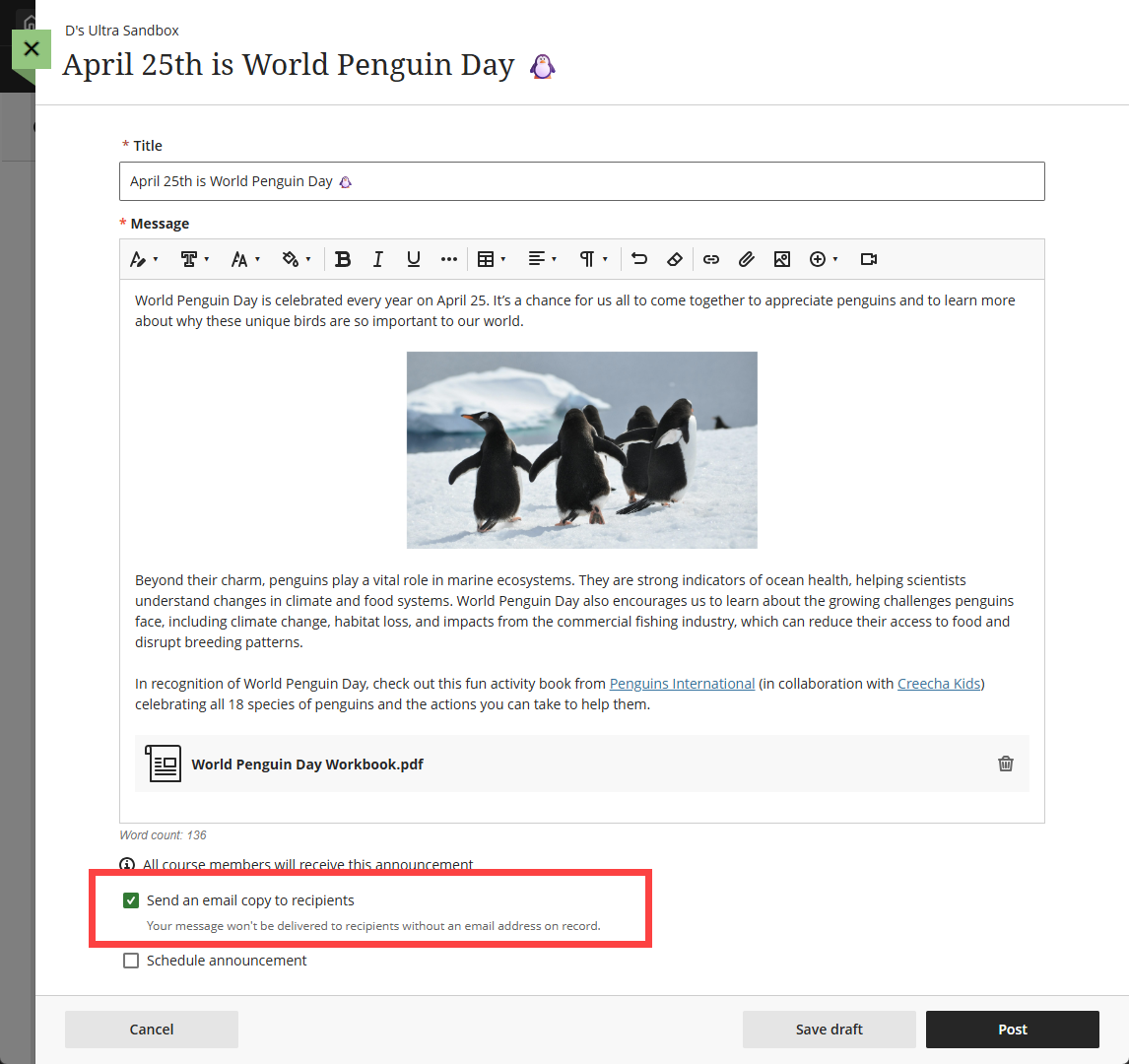
When you view an Announcement inside a course or organization, all formatting, links, embedded images, media, and attached files appear as intended.
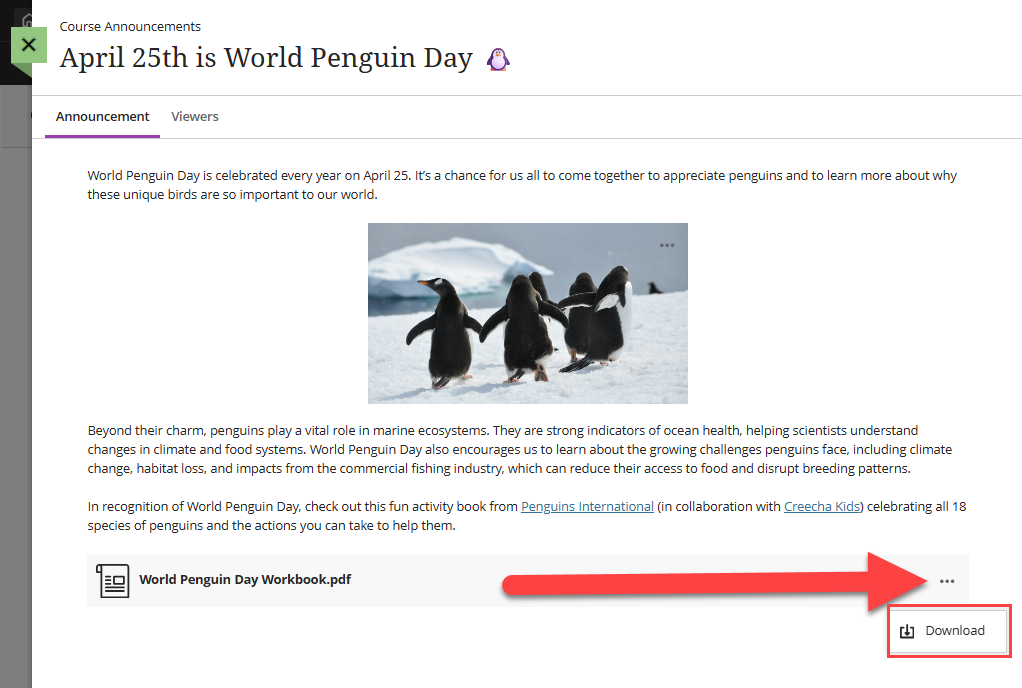
When this same Announcement is sent as an email, images, media, and attachments may display somewhat differently. You may click images or media to open on a separate page or click View Announcement to view the Announcement in your course or organization.
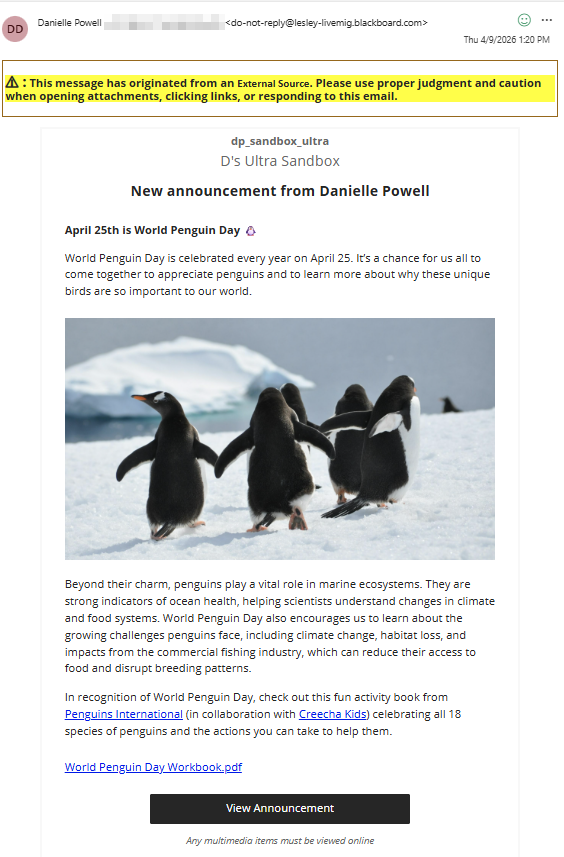
The table below details the types of content that you may include in an Announcement and how it displays in the resulting email.
| Content Type | Appears in emailed announcement? |
|---|---|
| Text (including font styles/colors, numbered and bulleted lists, tables, etc.) | Yes |
| Web links | Yes, and the link opens |
| File attachments | Attachments appear as a link in the email. Click the link to open the file in your browser. |
| Images | Images appear as a small thumbnail in the email. Click the image to open in your browser. |
| Embedded media (audio/video recordings, YouTube, etc.) | Embedded media appears as a link in the email. Click the link to open the media in your browser. |
Review Student Engagement with Announcements
Instructors and organization leaders can verify which students have viewed Announcements within the course/organization. The Announcements page displays a viewers column, showing the number of users who have viewed each Announcement.
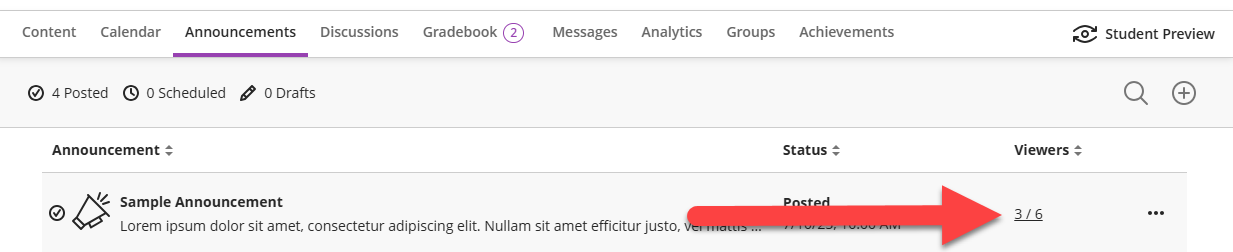
Clicking on the viewer count will open the viewers list, showing who has viewed the Announcement in the course.
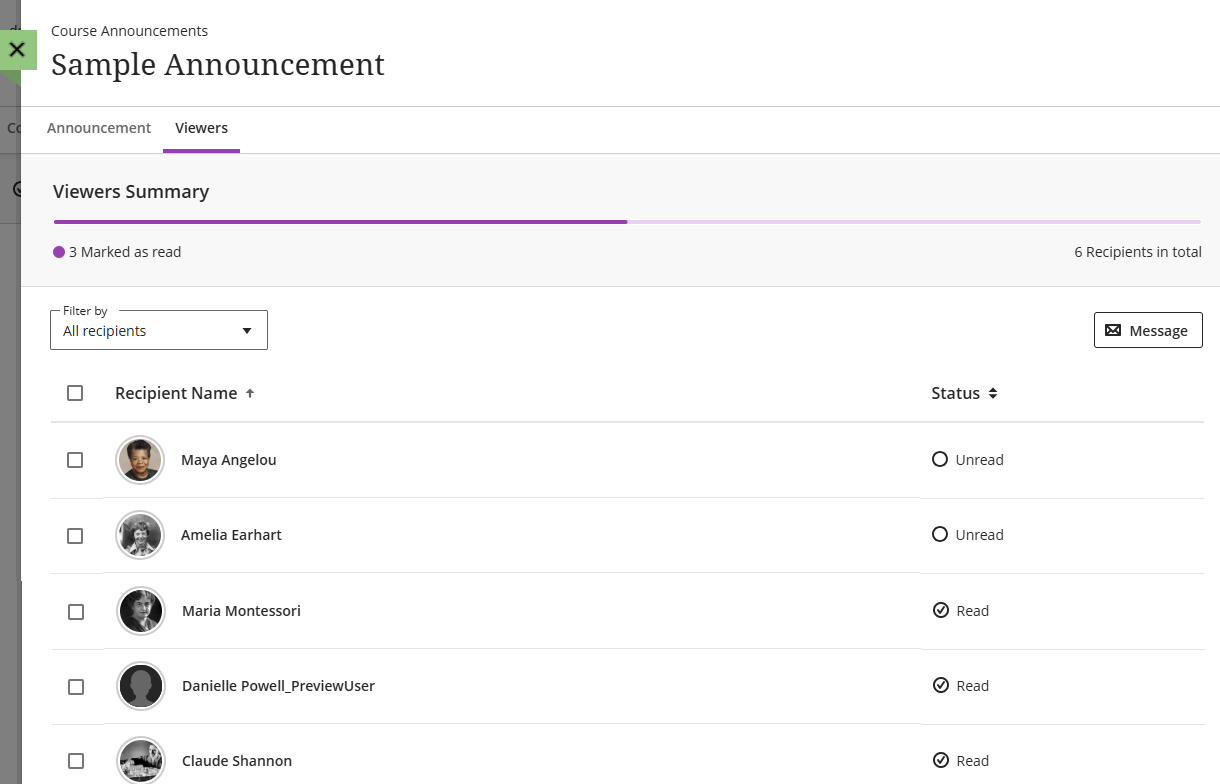
Please note that this only applies to Announcements viewed within the course. If a student viewed the Announcement as an email, but not within the course, their status will remain "unread".