TABLE OF CONTENTS
- Navigate the Gradebook
- Set Up Your Gradebook
- Manage Your Gradebook Settings
- Prioritize Your Grading Tasks and Action Items
- Grade Student Work
- Assign Automatic Zeroes for Late Work
- Manually Enter or Override Grades
- Manage Student Accommodations
- Track and Grade Attendance
- Download Gradebook Data
- Additional Resources and Support
Navigate the Gradebook
Your Gradebook is the central location for grading student work, calculating grades, and tracking student performance. A well-organized Gradebook allows you to simplify grading workflows, ensure grades are calculated accurately, and provide students with a clear view of their progress throughout the course.
Access Your Course Gradebook
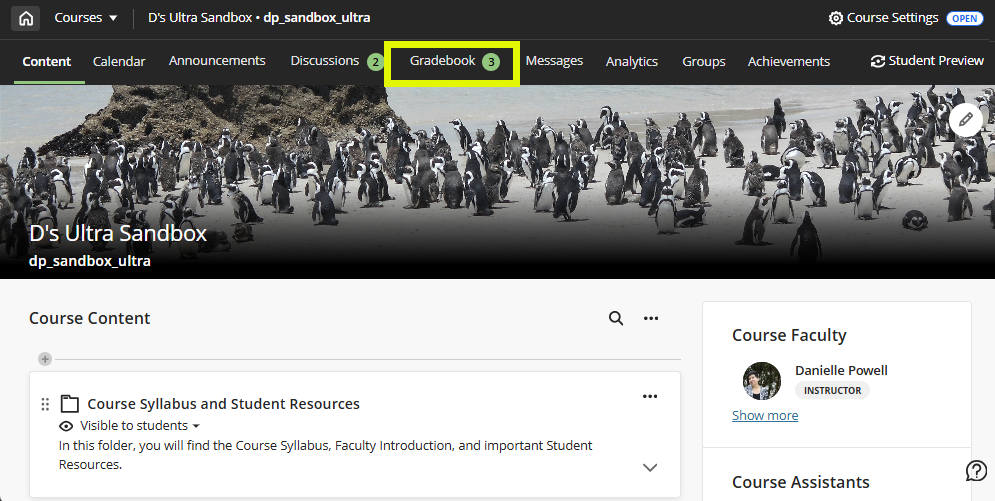
From within your course, locate the Gradebook tab. If you have outstanding grading tasks, you will see an indicator:
- Needs Grading: If you have submissions that need grading, you will see a number.
- Needs Posting: If you have graded all of your submissions but have grades that need to be posted, you will see an exclamation point (!).
Click on the Gradebook tab to navigate to your course's Gradebook.
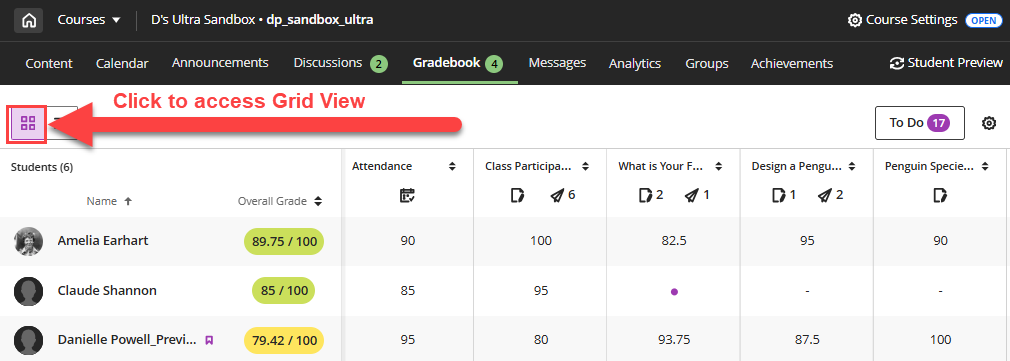
When you open your Gradebook the Grid View will display by default. You can easily toggle between the Gradebook's Grid View and List View by clicking on the buttons at the top of the page.
Gradebook Grid View
Click the Grid View button to access the Gradebook's Grid View. Students are listed on the left, along with their student ID and overall grade. Each graded item in your course appears as its own column, making it easy to view and manage grades for individual assessments.
Assessment Details Panel
Locate an assessment and click on the Assessment Name in the column header. This will open the Assessment Details panel.
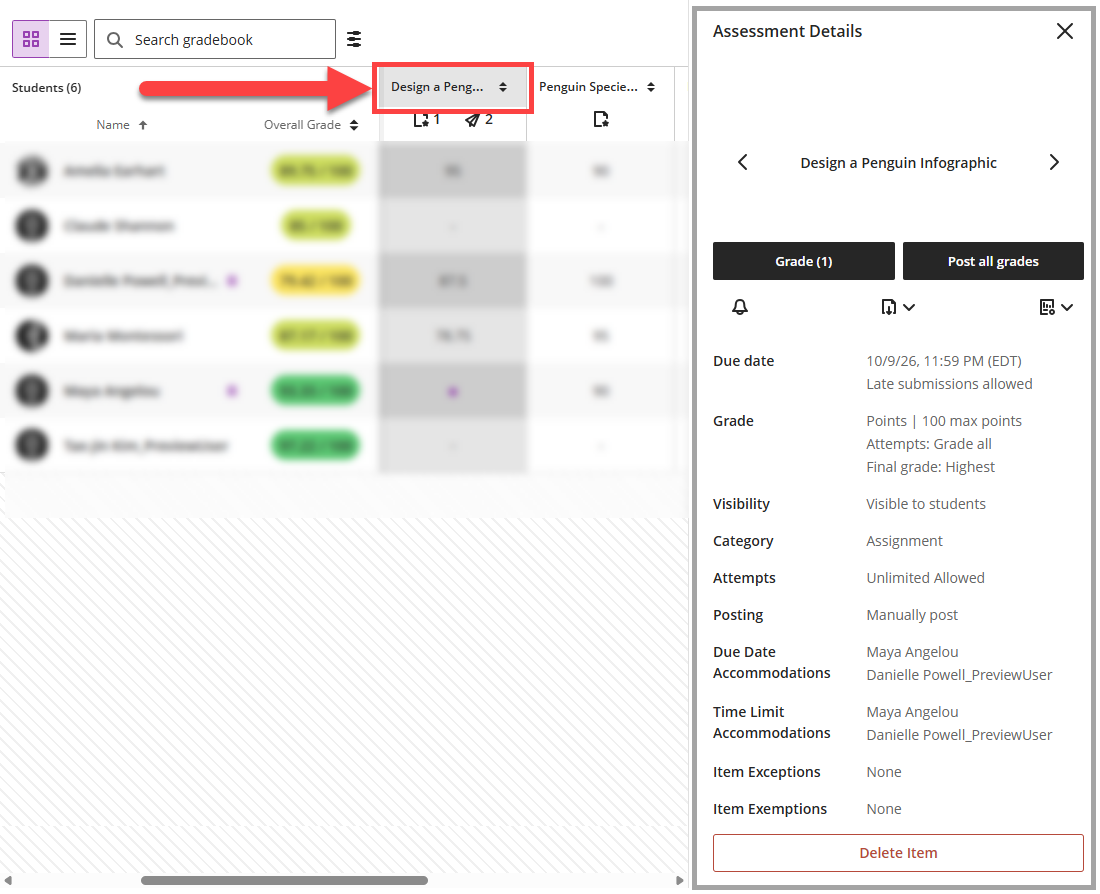
From the Assessment Details panel you can complete common grading tasks including:
- Grade student attempts.
- Post grades.
- Send a reminder message to students who have not yet submitted.
- Download submissions and results.
- View grade statistics.
Depending on your assessment type, you may view additional assessment details including the due date, grade and submission/participation information, student accommodations, and more. To edit this information, click on the assessment name.
Grade Details Panel
If a student has submitted an assignment a purple dot will appear in the Gradebook. Click the grade cell to open the Grade Details panel.
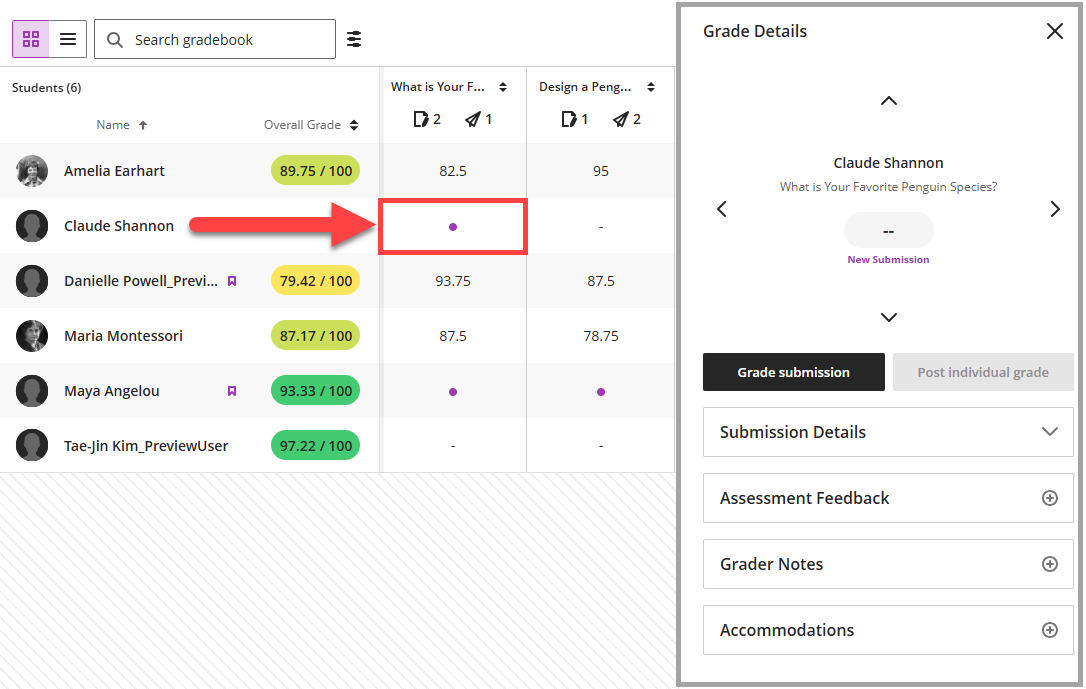
From the Grade Details panel you can complete common grading tasks including:
- Grade the student's submission attempts.
- Post the individual student's grade.
- View submission details (ex due date, submission date, grade, the maximum number of points, number of allowed attempts).
- Enter, edit, or view Overall and Attempt feedback.
- Add private grading notes.
- View the student's course-level accommodations, exempt the student from the assignment, or grant a one-time exception (due date extension, access extension, number of attempts).
Click the navigation arrows to navigate to the next student (up/down arrows) or the next assessment (left/right arrows).
Gradebook List View
Click on the List View button to access the Gradebook's List View. The list view lists all the gradable items in your course.
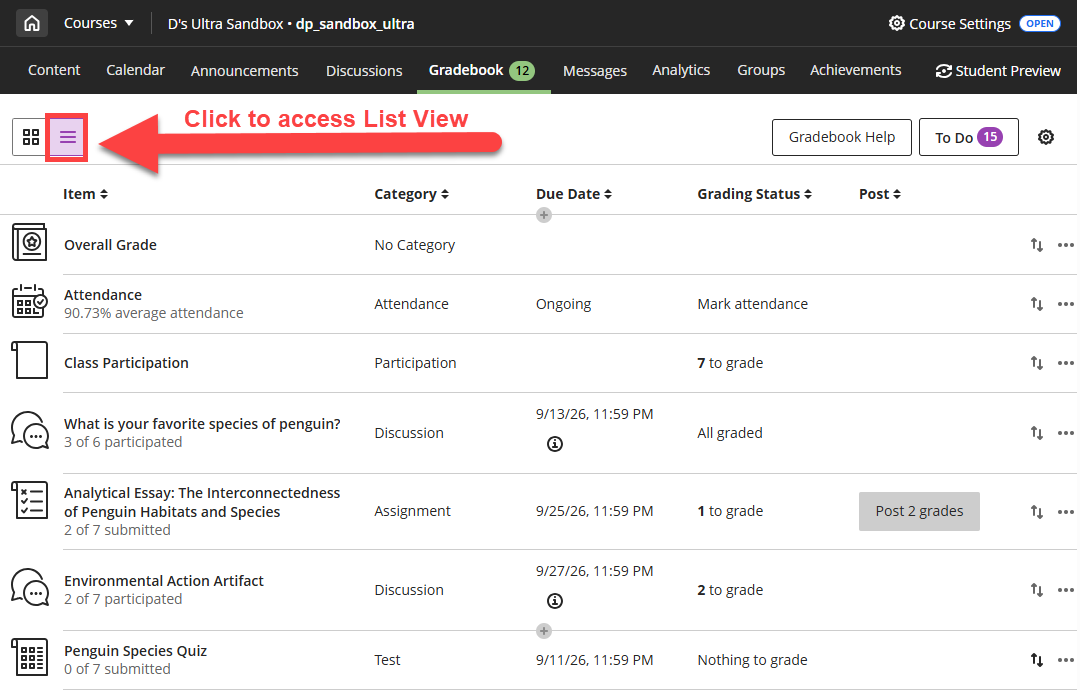
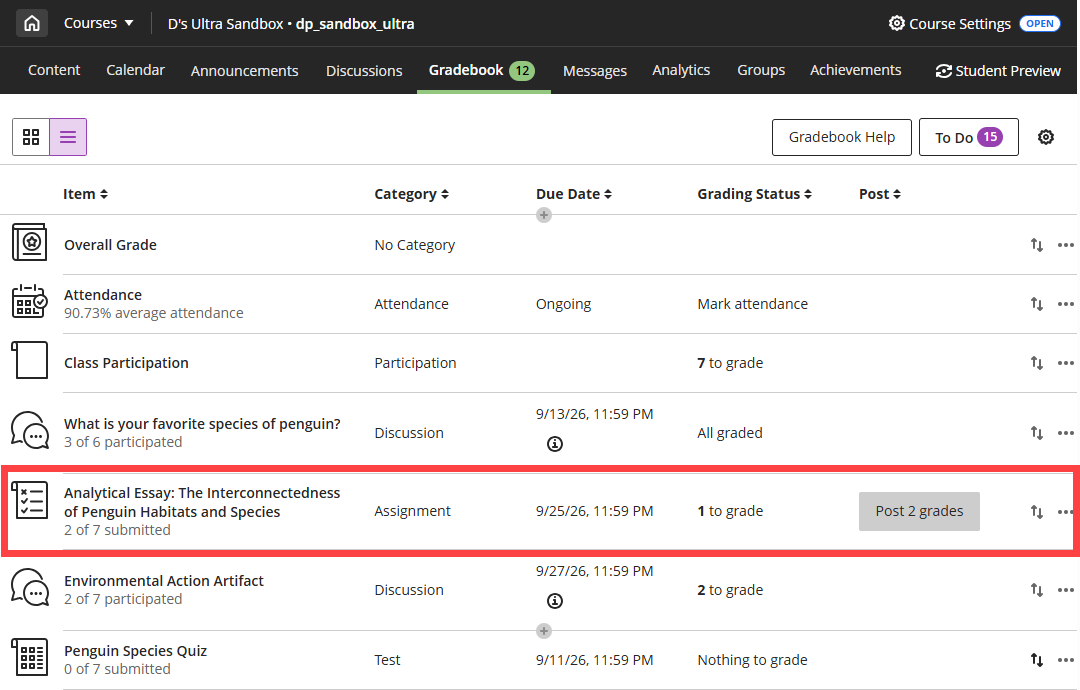
Select an item’s name to go to its Submissions or Grades & Participation page. Or select x to grade to go directly to the submission page and start grading.
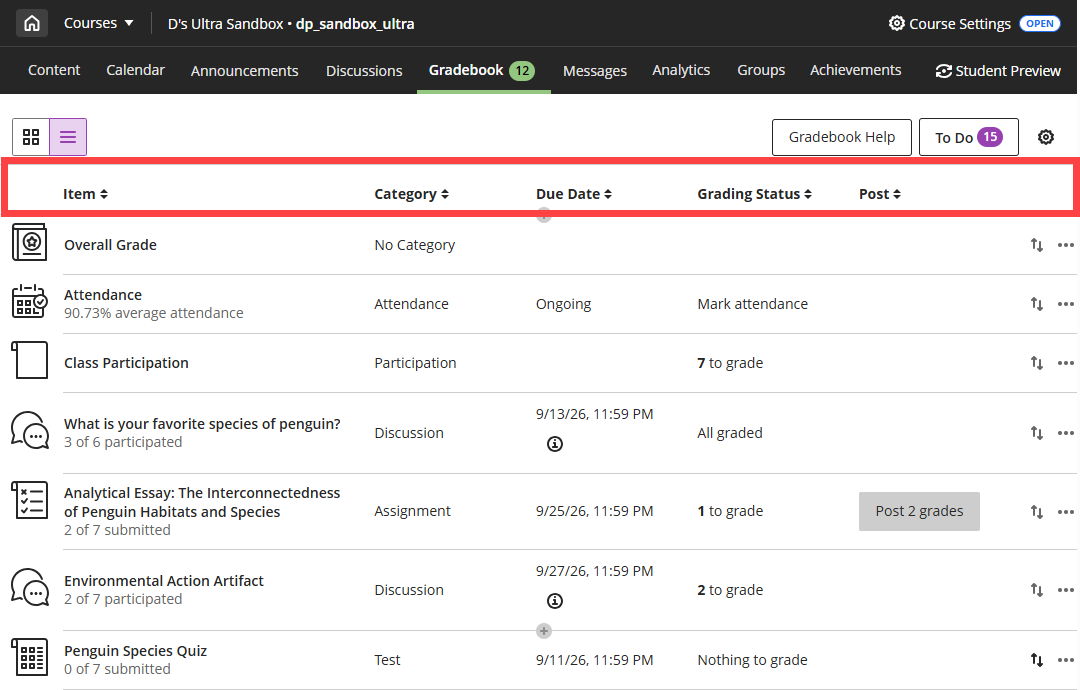
Use the column filters at the top of the page to sort your Gradebook by item name, category, due date, or grading status.
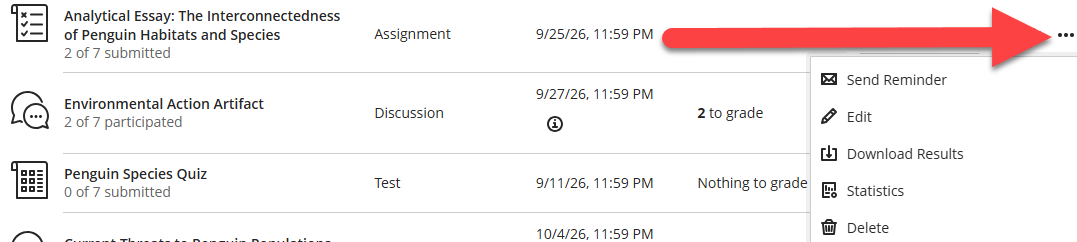
Click on the More Options icon (three dots) in the far right column for additional options, including send a reminder to students, edit the item, download files, statistics, or to delete the item. The options will vary depending on your Gradebook item and student activity.
Set Up Your Gradebook
Plan Your Gradebook Setup
Planning out your Gradebook and grading structure in advance helps ensure that your grades are organized, accurate, and aligned with your course grading policies.
Before setting up your Gradebook, review your syllabus and identify all graded activities, including assignments, quizzes and tests, discussions, presentations, participation, and more. As you look through your activities, consider how you will assess your students' work.
Once you have your plan, begin adding content to your course. As you create gradable items in your course (ex assignments, tests, graded discussions, etc.), your Gradebook will populate automatically. You may also create manual grade columns for any activities that occur outside of myLesley/Blackboard, including in-class presentations, participation, and more. Once you have added your graded activities, set up your Overall Grade so that students can see how their course grade is calculated.
Ready to get started? Grab your syllabus and check out the Gradebook Setup Tutorial.
Create Graded Activities
You may create graded activities alongside other course materials on your Course Content page or within a Learning Module or folder. Students will be able to view the instructions, submit their work or participate in the activity online, and view their grades and feedback. As you create these activities, a column will be added to your Gradebook automatically.
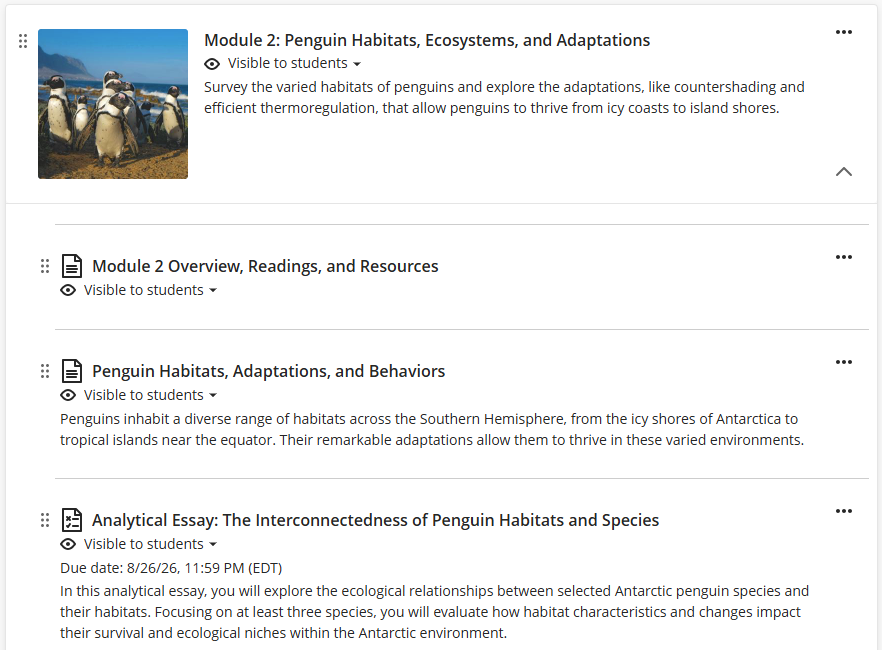
For more information and detailed instructions, refer to:
- Create and Grade Assignments.
- Create, Manage, and Grade Tests.
- Create, Manage, and Grade Discussions.
- Create and Grade Journals.
- Track Attendance.
Create Manual Grade Columns
You may create manual grade columns for any items that students will not submit via Blackboard. This may include in-class presentations, lab work, participation, and more.
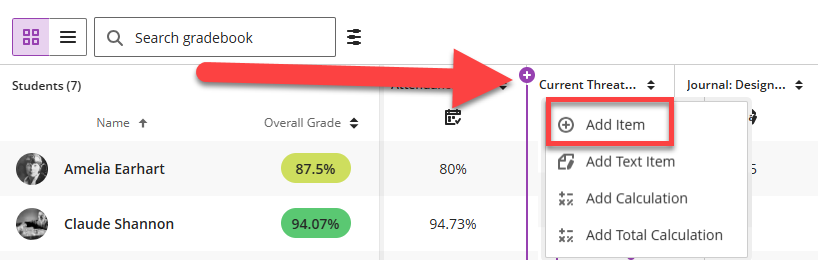
From either the Gradebook's Grid View or List View, locate the place where you want to add your grade column and click the Plus (+) button. This will open a menu. Select Add Item.
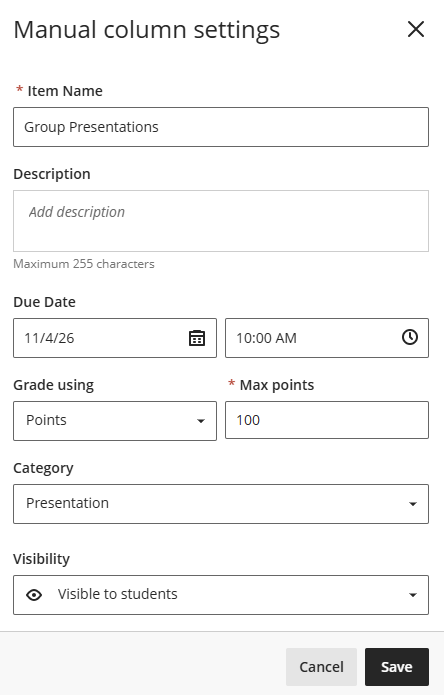
Give your item a name, description (optional), and due date (if applicable). Select whether to grade using letter, points, percentage, or complete/incomplete and enter the maximum number of points allowed. You may also assign the item to a grade category. Select whether the grade column is visible to students and click Save.
Set Up Your Overall Grade
The Overall Grade Column is a calculated column that shows the students' current grades in the course. It appears in the Gradebook next to the students' names so you and your students can quickly and easily see how they are performing.
To set up or edit your Overall Grade column, go to your course Gradebook and click the Settings icon (gear icon). You can access the Gradebook Settings from all Gradebook views.
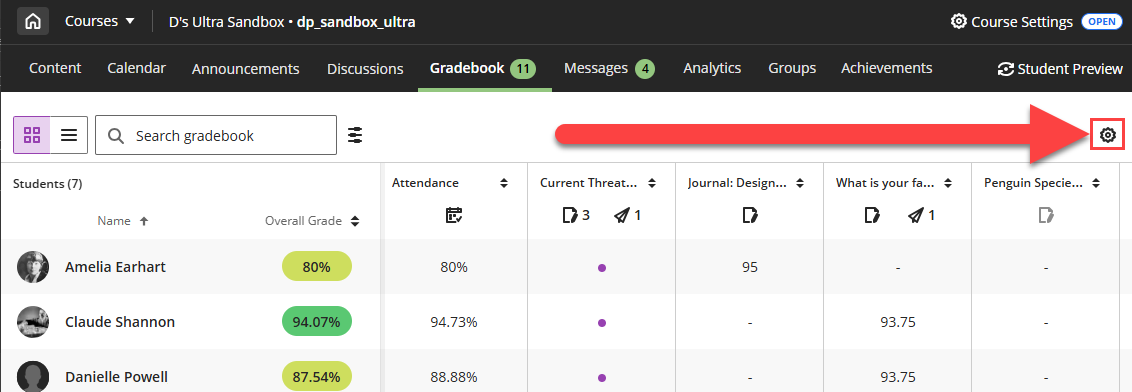
This will open the Gradebook Settings panel. Scroll down to the Overall Grade section and select Manage overall grade settings.
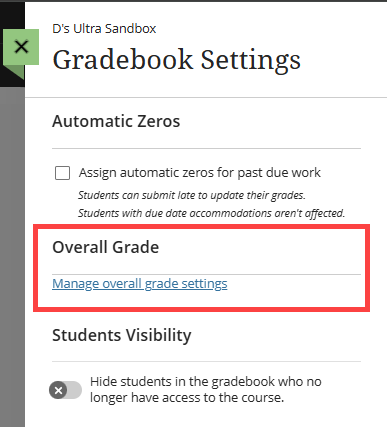
This will open your Overall Grade Calculation Details. You will be prompted to choose how you want to calculate your Overall Grade:
- Grade by Points: Choose Points to calculate students' grades based on the total number of points they earn throughout the course. This grading method can make it easier for students to understand how their final grade is calculated because each assignment, test, and activity contributes a specific number of points. In many cases, your total number of points will add up to 100.
- Grade by Weight: Choose Weighted to calculate students' grades based on the percentage each category or graded item (ex assignments, discussions, tests, etc.) contributes to the overall grade. This grading method allows you to emphasize certain types of coursework regardless of the number of points assigned to individual items.
- Grade by Advanced Calculation: Choose Advanced to create a custom formula to calculate the overall grade.
Next, select how you want to display the Overall Grade (points, percentage, complete/incomplete, letter), whether to calculate the grades based on points earned out of total graded points, and whether to display the Overall Grade to the students.
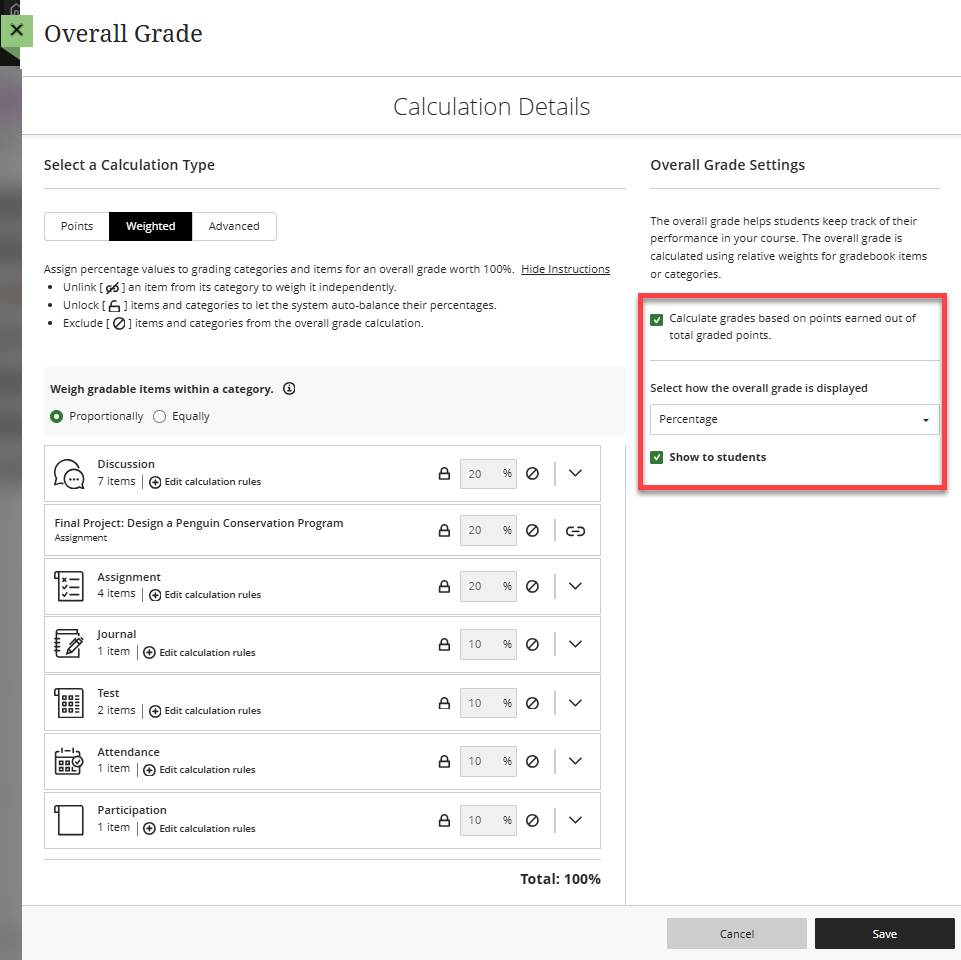
Once you have finished, click Save. Then close the window to return to the Gradebook.
For more information, refer to the Overall Grade Column support article or watch the Set up the Overall Grade video.
Add Extra Credit
You can provide extra credit to students in two ways:
- Add Extra Credit in the Overall Grade Column: Use this method to create one individual extra credit column when you are calculating your Overall Grade by Points. This method will not work if your Overall Grade is using a weighted calculation.
- Extra Credit when Weighting Grades: Use this method to add extra credit when your Overall Grade is using a weighted calculation.
Reorder Gradebook Items
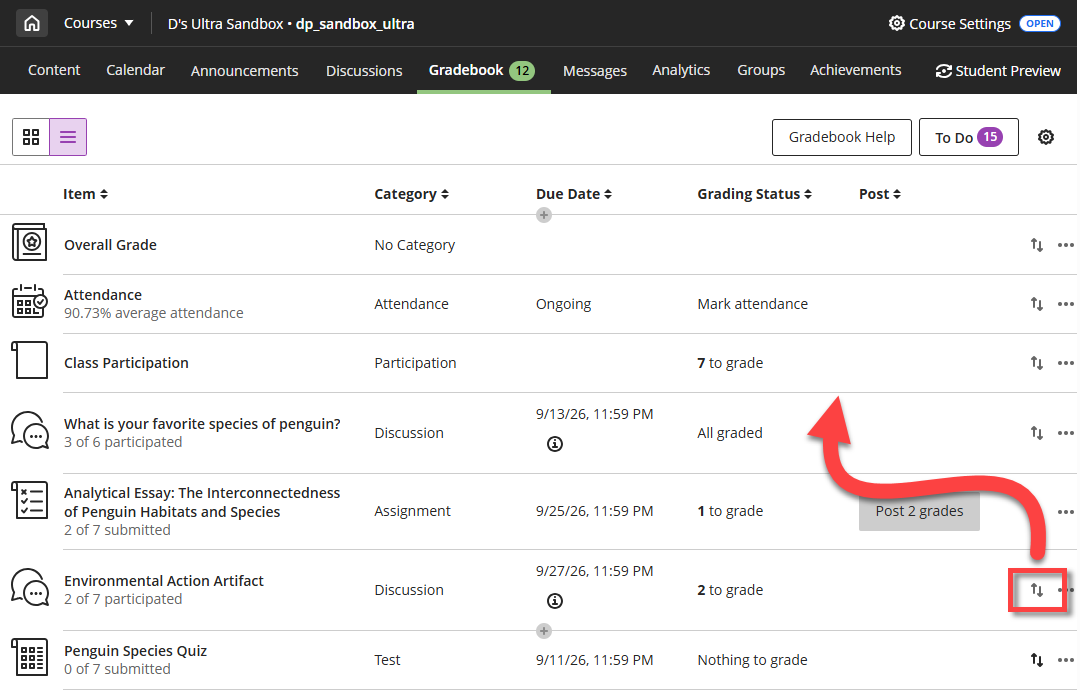
You may reorder Gradebook Items in the List view. Items reordered in the List View will be reflected in the Grid View.
From the List View, click on the Move icon (arrows) on the far right. Drag your item into the desired position in the Gradebook.
Manage Your Gradebook Settings
You can customize your Gradebook to match your teaching style and course goals. Choose how student names are displayed, manage your grade schema, select whether to assign automatic zeroes for past due work, manage rubrics, add grade categories, and more.
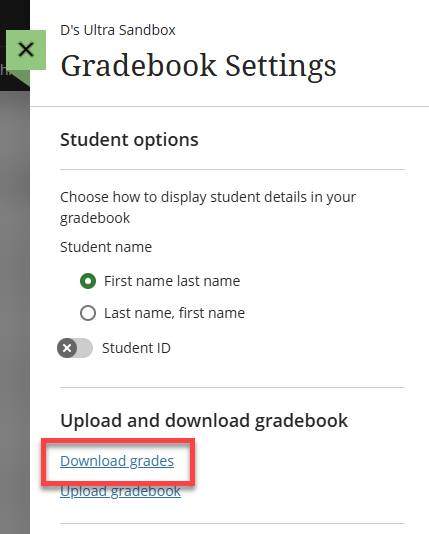
Select Settings from either the Gradebook's Grid View or List View to open the Gradebook Settings Panel.

From here you can manage:
- Student Display Options: Choose whether to display student names by first name last name (ex Amelia Earhart) or by last name, first name (ex Earhart, Amelia). You may also choose whether or not to display the Student ID in the Gradebook.
- Upload and Download Gradebook: You may download a copy of your Gradebook to work offline with your grade data. For more information and detailed instructions, refer to:
- Grade Schemas: You may create or update a grade schema to map percentages to letter grades.
- Student Performance: Enter criteria for identifying students who may need extra support. You may receive notifications based on a student's overall grade, number of missed due dates, or days since they last accessed the course. You can also view student activity in the course and select whether to send students Activity Stream notifications based on a low overall grade or date of last access.
- Automatic Zeroes: You may decide whether or not to automatically assign zeroes to students who do not submit their work by the due date. If automatic zeroes are assigned, students can still submit their work late. Students with certain course-level accommodations will not receive automatic zeroes for overdue work.
- Overall Grade: Select Mange Overall Grade Settings to set up or edit your Overall Grade calculation.
- Student Visibility: This option allows you to hide students in the Gradebook who are no longer enrolled in the course. For example, if a student drops the course you can hide their name and activity in the Gradebook.
- Item Management: Select Manage Gradebook Items to show/hide grade columns from non-student users, such as instructors or TAs. You may also use this setting to bulk edit Gradebook Categories.
- Grade Categories: Use grade categories to group similar types of coursework together. By default certain types of coursework are automatically assigned to a category (ex Assignment, Discussion, Test, Journal). Select Add New Category to create new grade categories. Then go to Item Management to apply these categories to your graded items.
- Course Rubrics: Here you can view, manage, create, or auto-generate rubrics.
- Overall Grade Notations: Select Add Overall Grade Notation to override a student's Overall Grade with a notation that falls outside the course grade schema (ex enter a W for a student who withdraws mid-semester).
Prioritize Your Grading Tasks and Action Items
Blackboard features two main grading tasks:
- Needs Grading: Submissions that have not been graded.
- Needs Posting: Submissions that you have graded but have not been released to students (posted).
Manage Grading Tasks Across All of Your Courses
To view your grading tasks across all of your courses, click Grades in the main Blackboard navigation. This will bring you to the Global Grades Page. Here you will see a list all of your courses (in alphabetical order) and the current status of grading. Locate a course and click on View All Work to go to that course's Gradebook.

Manage Grading Tasks For a Single Course
There are multiple ways to leverage your course Gradebook to help you manage your grading tasks and prioritize what needs your attention.
Gradebook To Do Panel
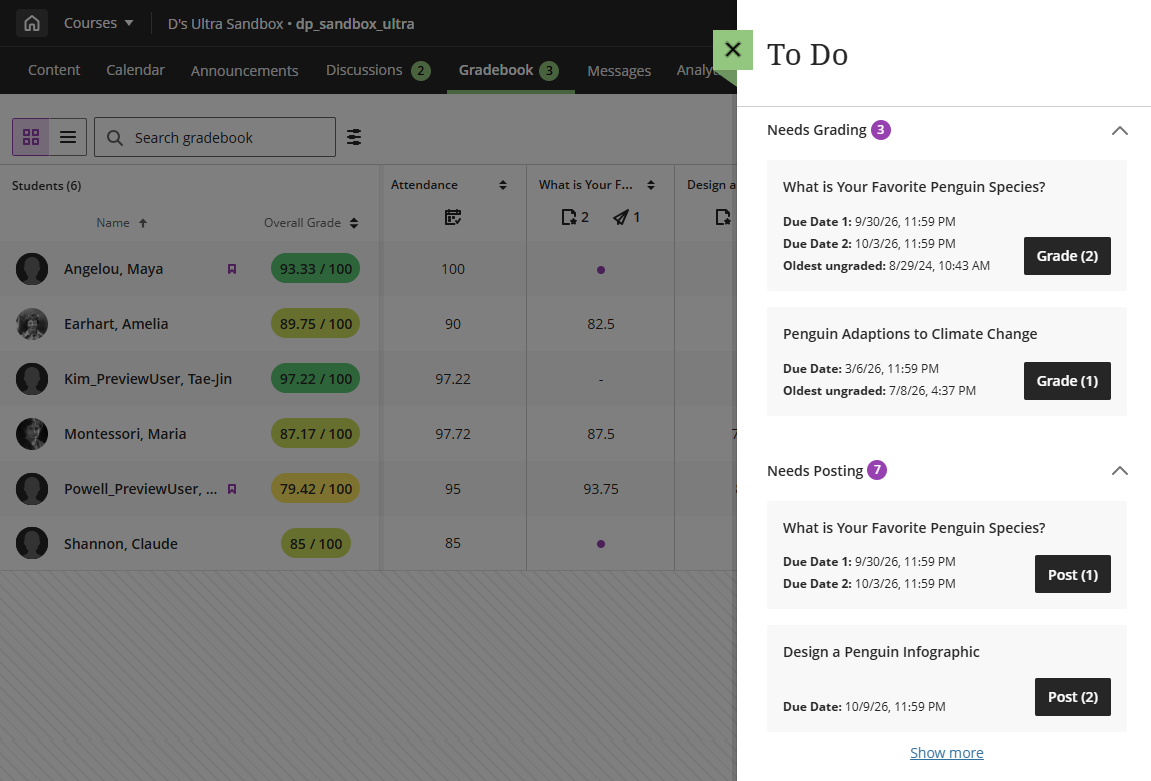
From within your course, navigate to your Gradebook and select the To Do button. This will to open a to-do list of your grading tasks. The number indicator in the To Do button indicates the number of submissions to grade and to post.

The To Do panel will list all of your grading tasks, categorized by Needs Grading and Needs Posting. Select a task to begin.
Needs Grading and Needs Posting Icons (Grid View)
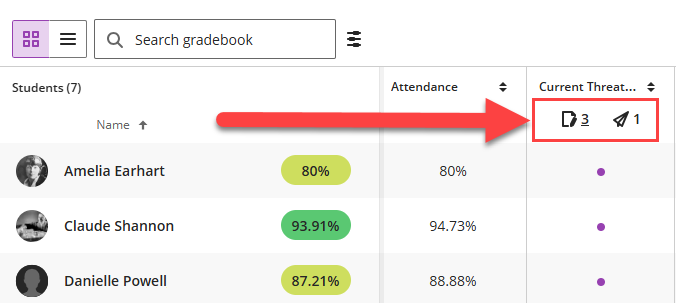
The Gradebook's Grid View features icons under the column headers to indicate items that need grading or need posting:
- Needs Grading: Paper and pencil icon.
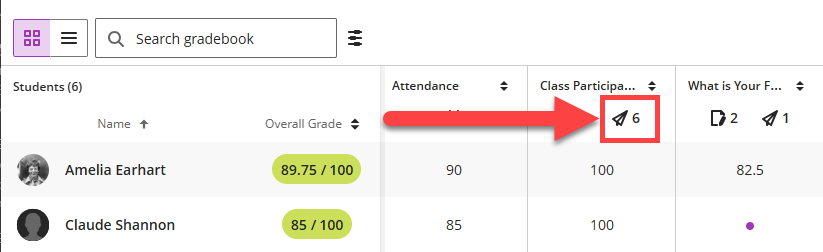
- Needs Posting: Paper airplane icon.
Click on an icon to begin the grading task.
Sort by Grading Status (List View)
Use the sorting features in the Gradebook's List View to quickly and easily view your grading tasks.
Sort by Grading Status to surface everything that needs to be graded.

Sort by Post to surface grades that need to be posted or released to students.

Grade Student Work
Grade Assignments
Blackboard Ultra features Flexible Grading, providing instructors with the flexibility to grade in their preferred style. With Flexible Grading you can easily find and review the status of your grading tasks, provide inline and/or multimedia feedback to your students, and easily access and grade with rubrics.
You will grade your Assignment from the Assignment's Submissions page. You may access this page from multiple areas:
- Base Navigation: Click on Grades, locate the course, and select the Assignment you want to grade.
- Course Gradebook: Click on the Gradebook tab in your course and locate your Assignment. You may access it from either the Grid View or List View.
- Course Content: Locate your Assignment in your Course content. Open your Assignment and click on the Submissions tab.
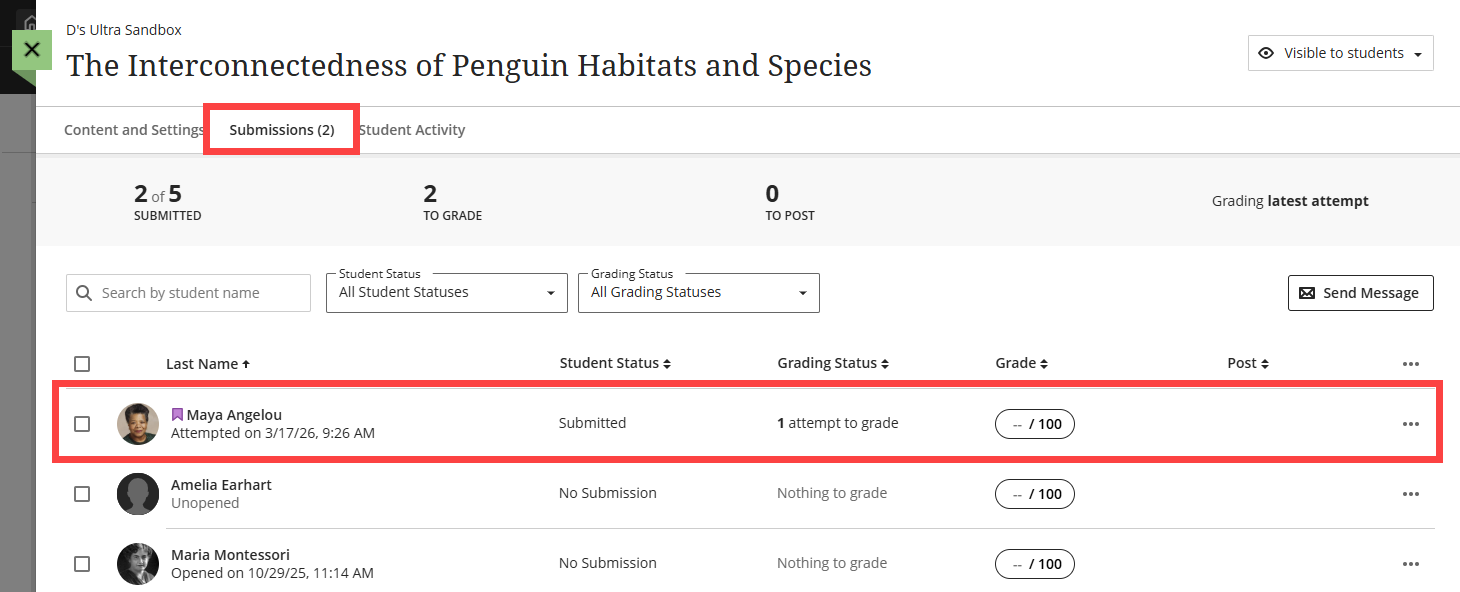
Once you have arrived on the Submissions page, select a student's name to view their assignment and begin grading.
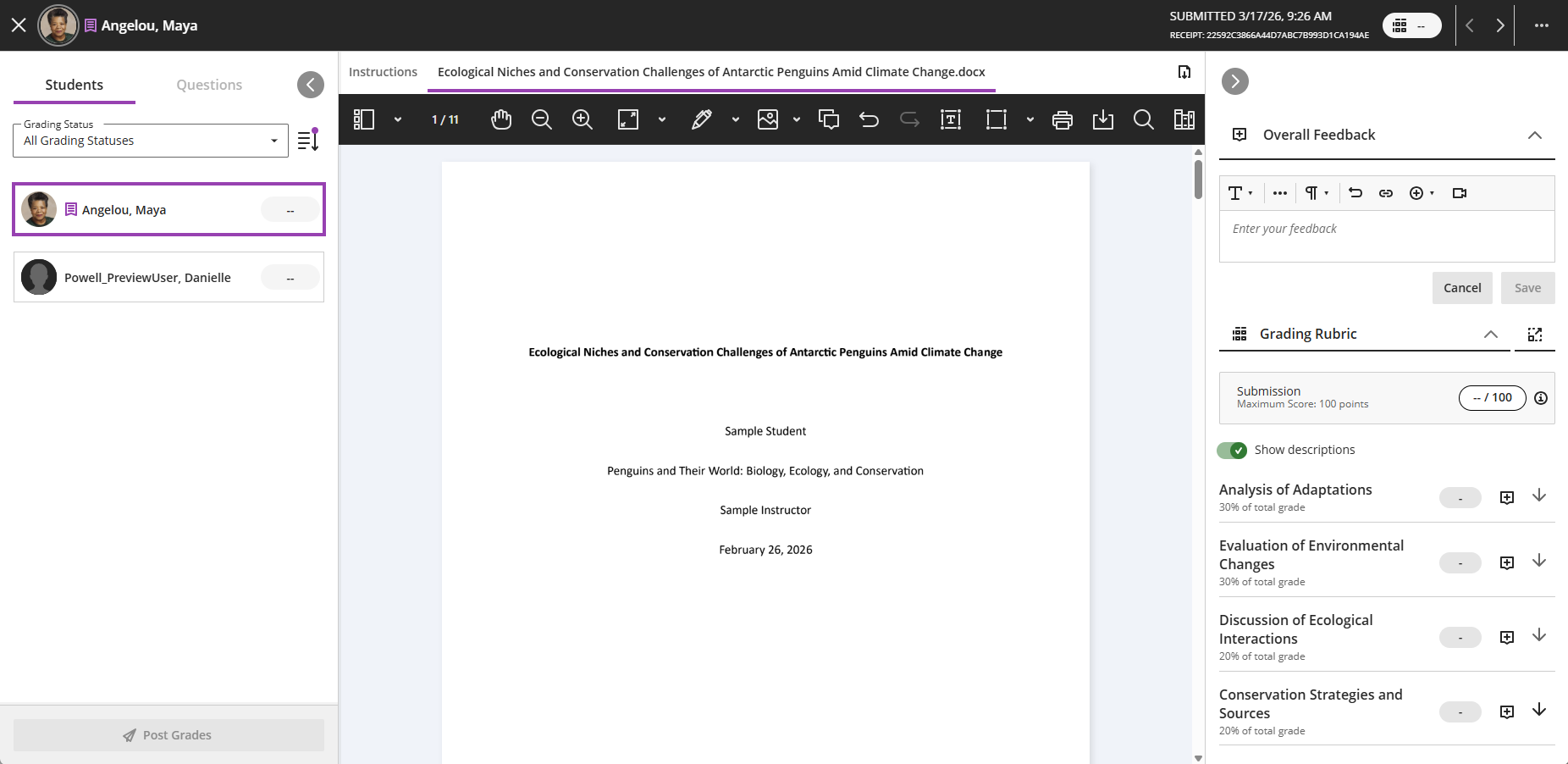
This will open the grading page. your student's submission will appear in the middle of the page with panels on the left and right side. You may click on the arrows to expand or collapse the Students Panel and the Feedback and Rubrics Panel. If your student has submitted more than one file, they will appear on separate tabs above the Bb Annotate tools.
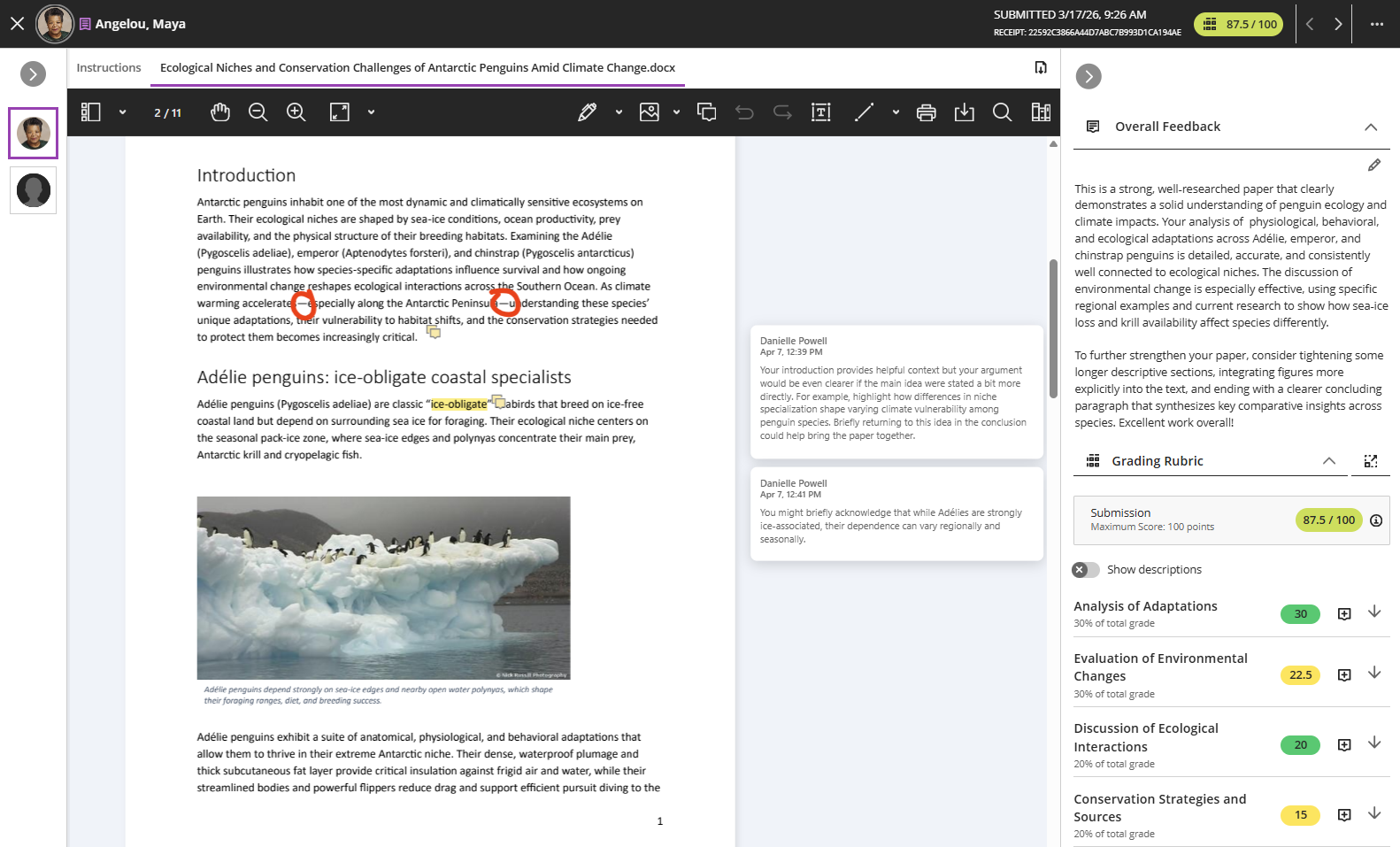
As you review your student's submission, you may use the Bb Annotate tools for inline grading, grade with a rubric, and provide feedback to your student.
For more information and detailed instructions, refer to the Grade Assignments support page or watch the Grading Assignments tutorial video.
Grade Self and Peer Review Assignments
Throughout the peer review process, instructors can monitor student progress from the assignment's Submissions tab. Instructors can see who has submitted their assignment, their grading status, the status of their peer reviews, and their grade.
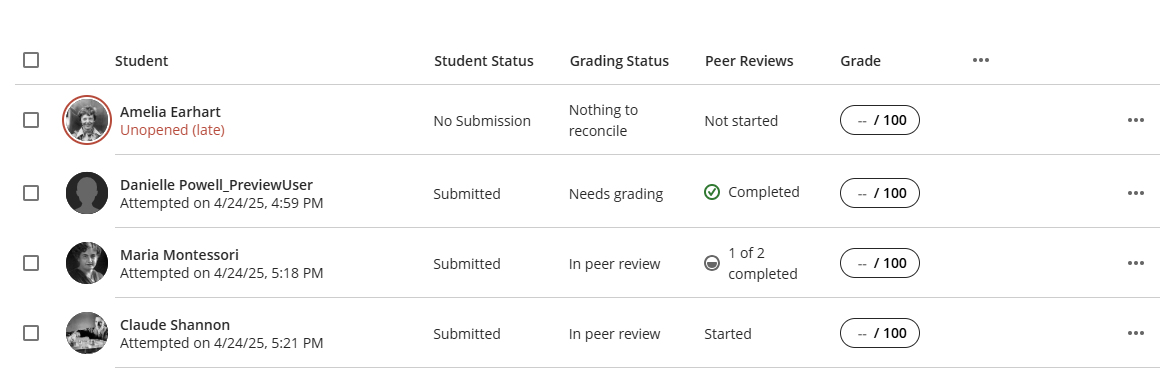
Once you are ready to grade, click on a student's name to open their submission and reviews. You may use the Bb Annotate tools to provide inline feedback, review the feedback they provided to their peers, review the feedback their peers provided, and add a grade.
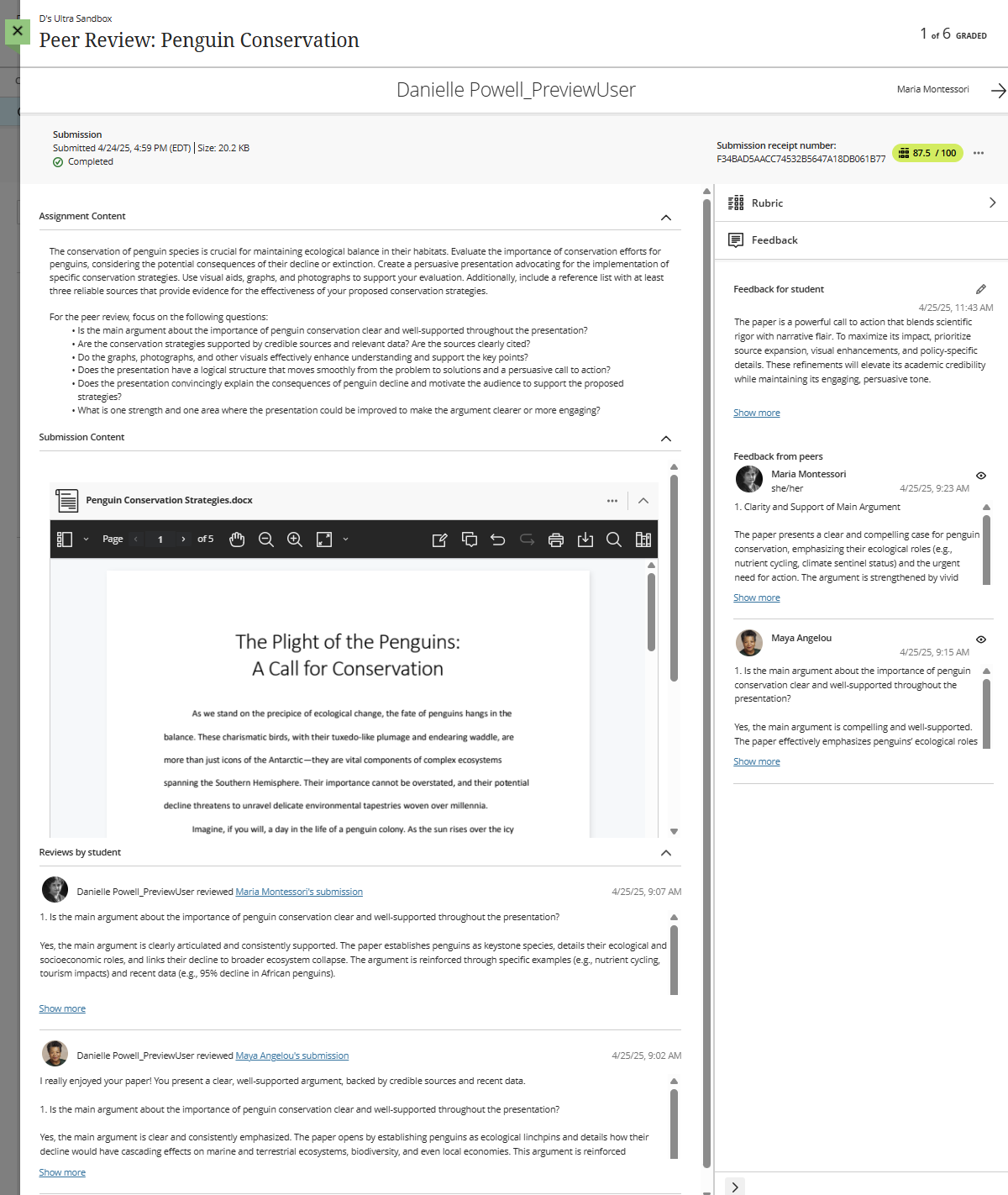
Once you have finished grading, Post your grades.
Note: Students will not be able to review their peers' feedback until the grades are posted.
For more information and detailed instructions, refer to the Self and Peer Assessment in Blackboard Ultra support article.
Grade Tests
Blackboard Ultra features Flexible Grading, providing instructors with the flexibility to grade in their preferred style. With Flexible Grading you can easily find and review the status of your grading tasks, provide inline and/or multimedia feedback to your students, and easily access and grade with rubrics. Most test questions are graded automatically. However, certain question types, including essay questions, must be manually graded.
You will grade your Test from the Test's Submissions page. You may access this page from multiple areas:
- Base Navigation: Click on Grades, locate the course, and select the Test you want to grade.
- Course Gradebook: Click on the Gradebook tab in your course and locate your Test. You may access it from either the Grid View or List View.
- Course Content: Locate your Test in your Course Content area or within a Learning Module or Folder. Open your Test and click on the Submissions tab.
Once you have arrived on the Submissions page, select a student's name to view their test and begin grading.
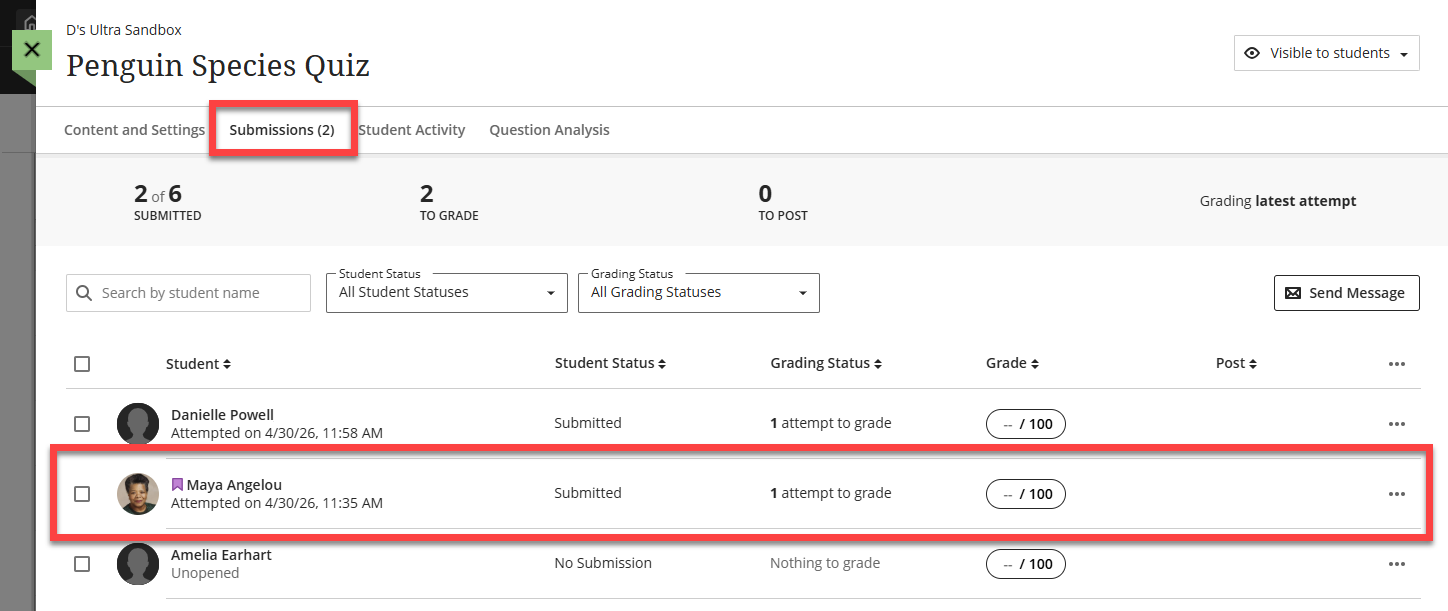
You will have the option to Grade the Test by Student or Grade the Test by Question. The test questions will appear in the center of the page with panels on the left and right side. You may click on the arrows to expand or collapse the Students/Questions Panel and the Feedback Panel.
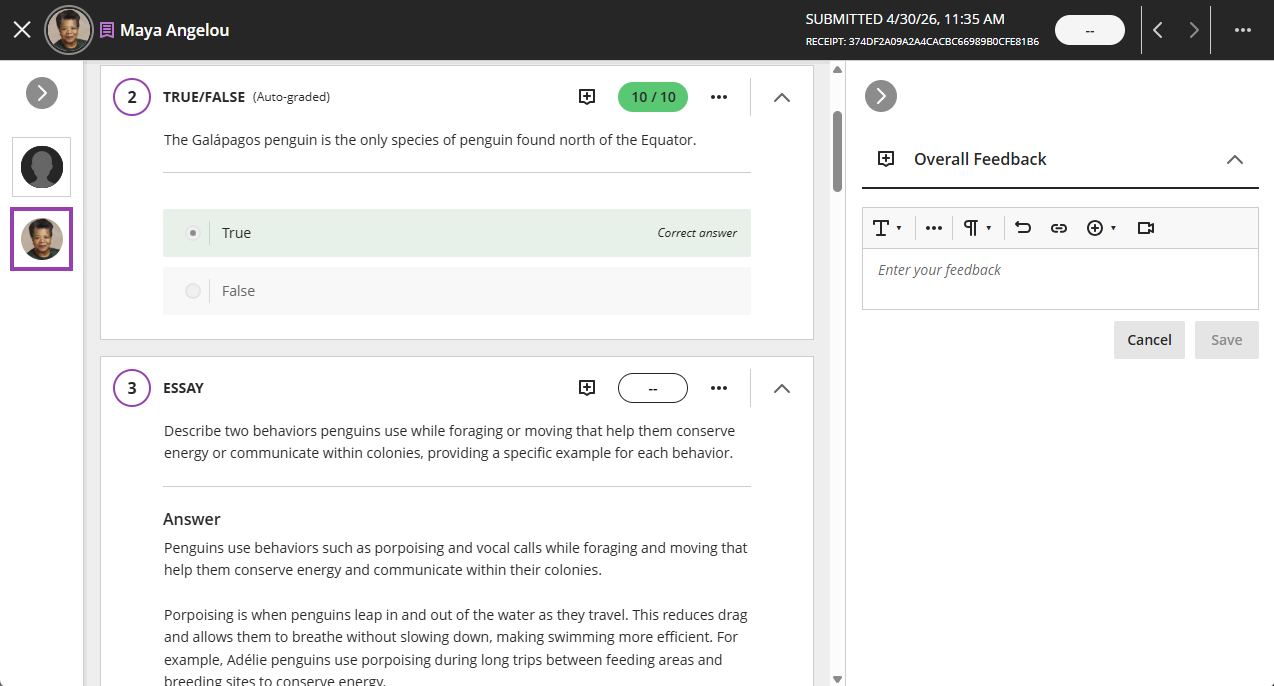
If the question(s) are graded automatically you will see the students' scores for each question. You may manually change the score or select a question's Feedback button to add feedback specific to the student's response to the question.
Essay questions must be graded manually. Read your student's response and enter a score in the question's grade pill. Select the Feedback button to add feedback specific to the student's response to the question.
For more information and detailed instructions, refer to the Grade Tests support page or watch the Flexible Grading Tests tutorial video.
Grade Discussions
By default, discussions are not a graded activity. If you would like to grade your discussion, go into the Discussion Settings and select Grade Discussion.
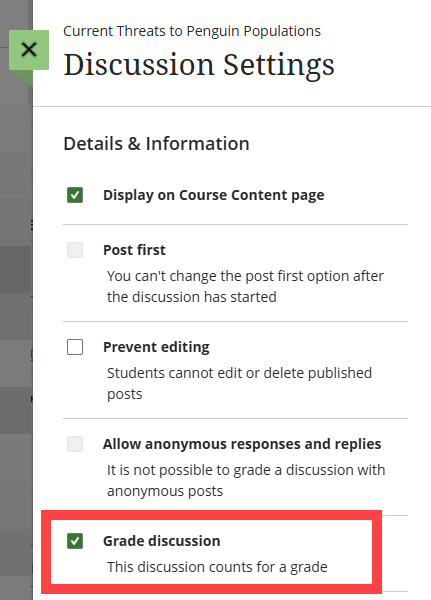
Once selected, you will see additional settings, including due dates and participation requirements, maximum points, and the option to attach a rubric. Refer to the Discussion Settings support page for detailed information.
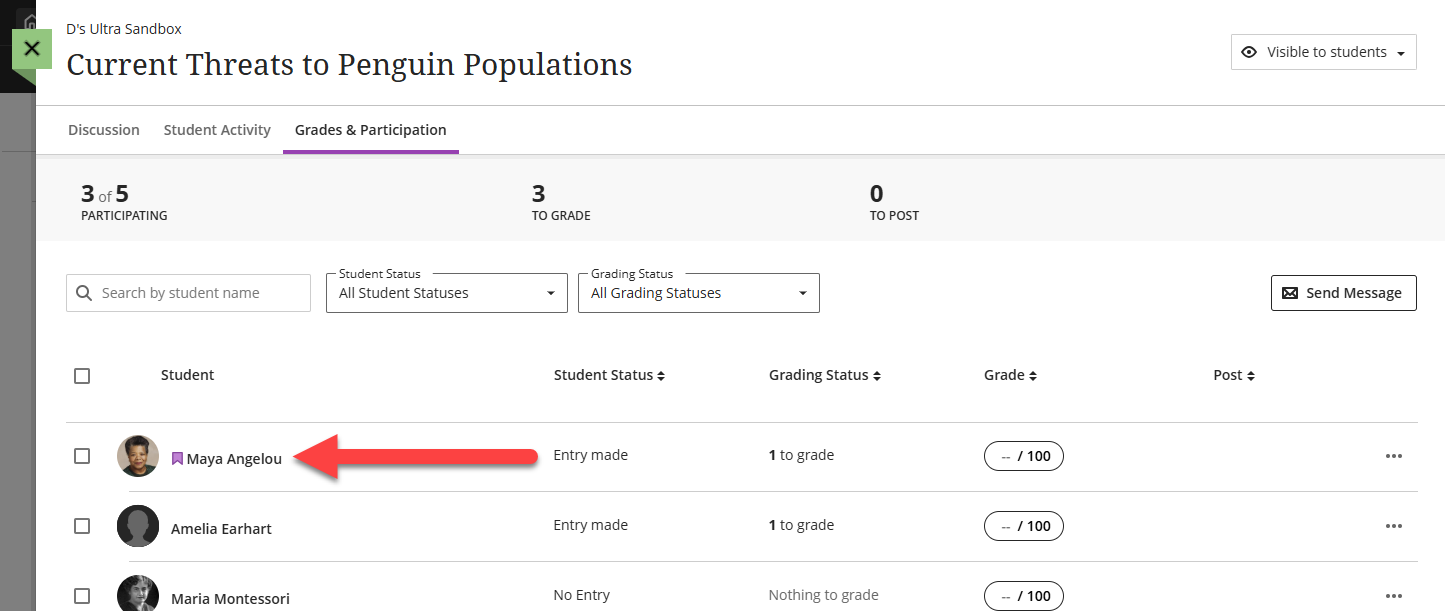
Once your students post their discussion responses, you can begin grading. Discussions are graded from the discussion's Grades & Participation page. You may access this page from three areas:
- Base Navigation: Click on Grades, locate the course, and select the discussion you want to grade.
- Course Gradebook: Click on the Gradebook tab in your course and locate your discussion. You may access it from the Grid View or List View.
- Course Content: Locate your Discussion in your Course Content area or within a Learning Module or Folder. Open your Discussion and click on the Grades & Participation tab.
- Discussions Tab: Click on the Discussions link in your course to navigate to the Discussions area. Open your Discussion and click on the Grades & Participation tab.
Once you arrive on the Grades & Participation tab, you will see a list of all of the students in your course, whether they have participated in the discussion, their grading status, and their grade. Click on a student's name to begin grading their work.
Your student's responses and replies are highlighted so that you can read their contributions in context. At the top of the page, click on the grade pill to enter a grade or to open and grade with a rubric (if using). Click the Feedback (+) icon to open the feedback panel and provide feedback to your student.

For more information, refer to the Grade Discussions support page or watch the How to Grade Discussions tutorial video.
Grade Journals
By default, journals are not a graded activity. If you would like to grade your journal, go into the Journal Settings and select Grade Journal.
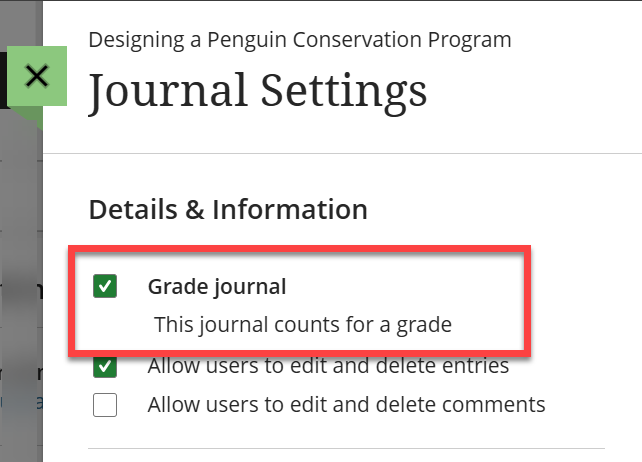
Once selected, you will see additional settings, including a due date, maximum points, and the option to attach a rubric. Refer to the Journal Grade Settings support page for detailed information.
Journals are graded from the journal's Grades & Participation page. You may access this page from three areas:
- Base Navigation: Click on Grades, locate the course, and select the journal you want to grade.
- Course Gradebook: Click on the Gradebook tab in your course and locate your journal. You may access it from the Grid View or List View.
- Course Content: Locate your Journal in your Course Content area or within a Learning Module or Folder. Open your Journal and click on the Grades & Participation tab.
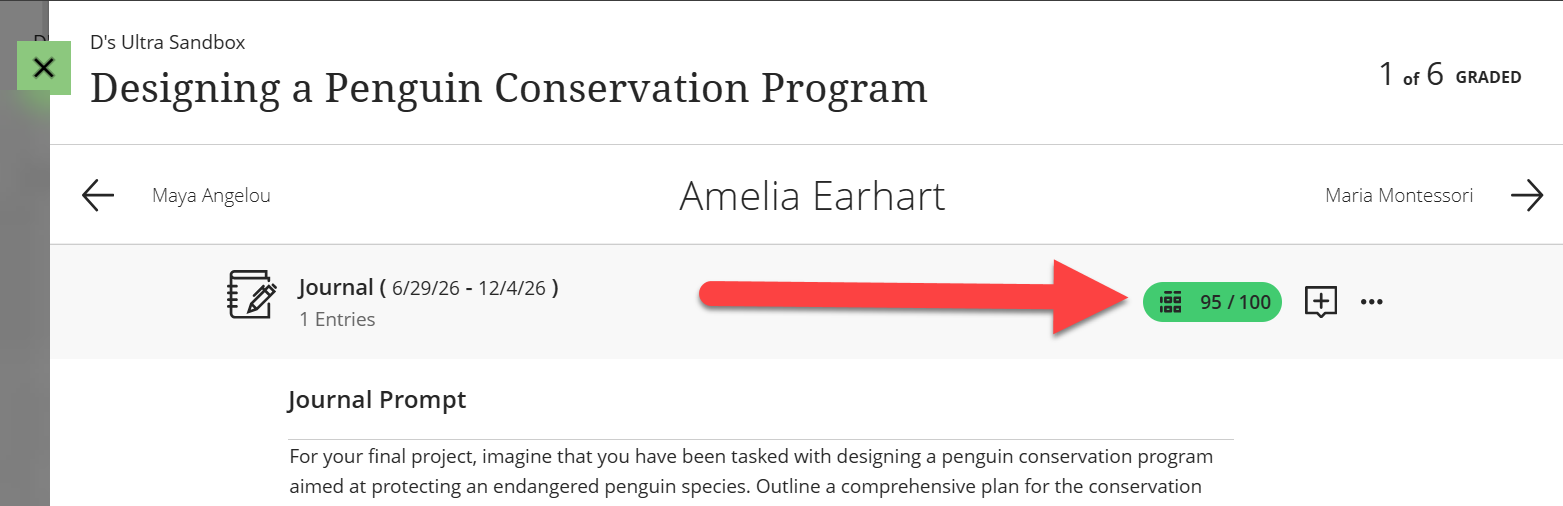
Once you arrive on the Grades & Participation tab, you will see a list of all of the students in your course, whether they have posted journal entries, their grading status, and their grade. Click on a student's name to read and comment on their entries and grade their work.
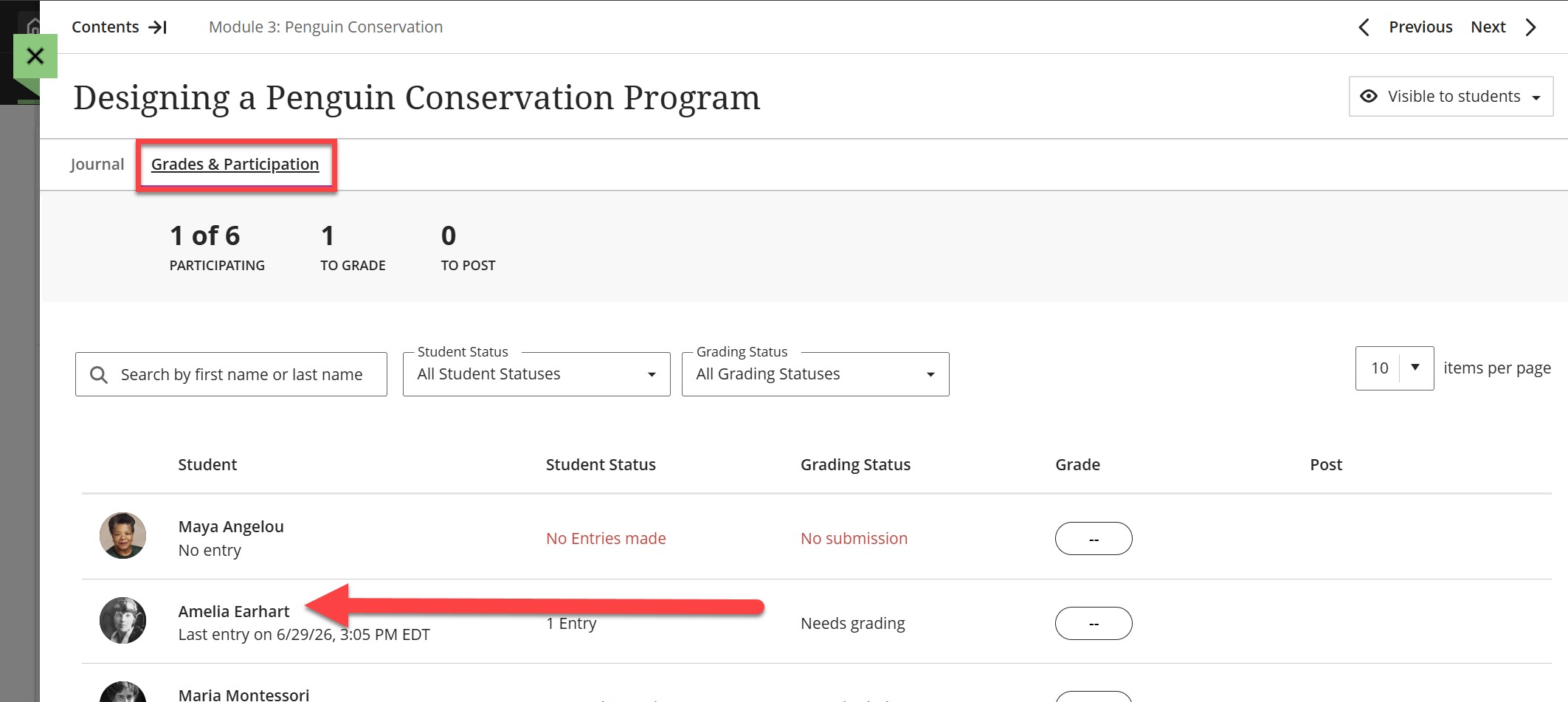
At the top of the page, click on the grade pill to enter a grade or to open and grade with a rubric (if using). Click the Feedback (+) icon to open the feedback panel and provide feedback to your student.
For more information, refer to the Grade Journals support page.
Assign Automatic Zeroes for Late Work
You can choose to automatically assign zeroes to work that is not turned in by the due date. If allowed, students can still submit work after the due date and you can grade it as normal.
Note: Students with due date accommodations will not receive automatic zeroes for overdue work.
To assign or unassign automatic zeroes, go to the Gradebook and click Settings (gear icon). This icon is available from all Gradebook views.

This will open the Gradebook Settings panel. Scroll down to the Automatic Zeroes section and select or unselect the box to assign automatic zeroes.

Manually Enter or Override Grades
You may manually enter or override grades directly from the Gradebook Grid View.
- Hover your mouse over the top of the grade column until the Edit button (pencil icon) appears.
- Click the pencil icon to enter Column Edit Mode.
- Type a grade into a cell and press Enter on your keyboard, use your arrow keys, or click on the next student to continue grading.
- Once you have finished grading, click the checkmark at the top of the column to save your changes.
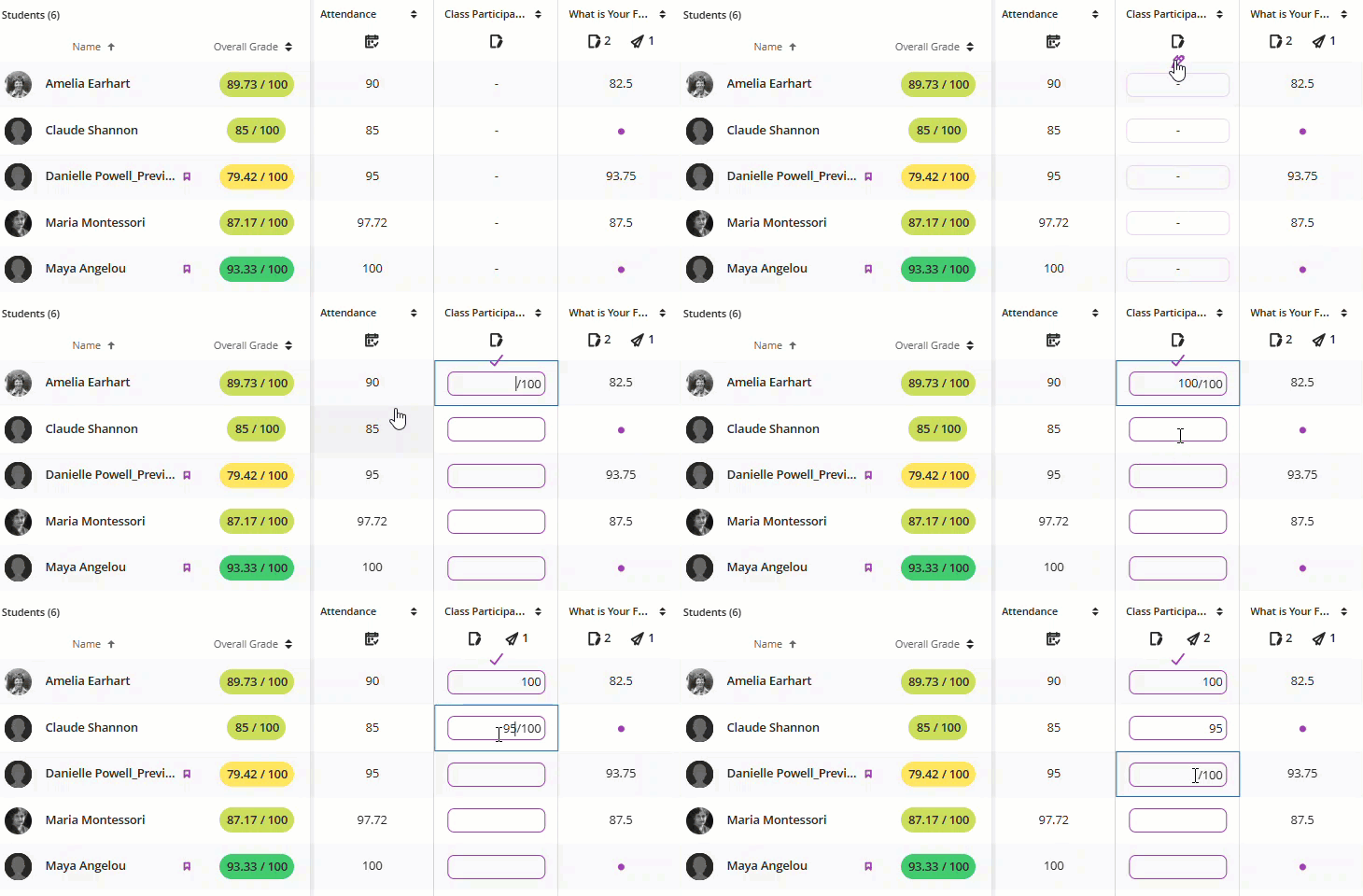
Once you have saved the grades, click the Post icon below the assessment name to post the grades.
Manage Student Accommodations
Blackboard Ultra offers different ways of accommodating your students, depending on your their needs. This may include extended due dates, untimed Tests, an exemption from a course activity, or early access to course content.
- Set Course-Wide Due Date or Time Limit Accommodations: You can set Accommodations for individual students to allow for extended due dates and/or additional time to complete tests. Accommodations are tied to the individual student and are applied to all graded items within the course.
- Grant One-Time Assessment Exceptions: When special circumstances arise, you can give an individual student an Exception for a specific assessment. You may give the student additional submission attempts, reschedule the due date, or extend access to the assessment. Exceptions are tied to the specific Assignment or Test and do not affect other assessments in the course.
- Exempt a student from a graded activity: In some circumstances you may need to exempt a student from an assessment or course activity. Exemptions can be applied to any item in the Gradebook including Assignments, Tests, Discussions, Journals, and more. Exemptions are tied to the specific Gradebook item and do not affect other course activities. When a Gradebook item is exempt, it will not be included in the student's Overall Grade calculation, marked late, or assigned an Automatic Zero.
- Set Release Conditions: You may set release conditions to determine when content is available to students. If you have a student, or group of students, who needs access to content earlier than the rest of the class you may set rules to give students early access. You may set Release Conditions for any item in your Course Content, including Learning Modules, Folders, Ultra Documents, Assignments, Tests, and more.
For more information and detailed instructions, refer to the Manage Student Accommodations in Blackboard Ultra support article.
Track and Grade Attendance
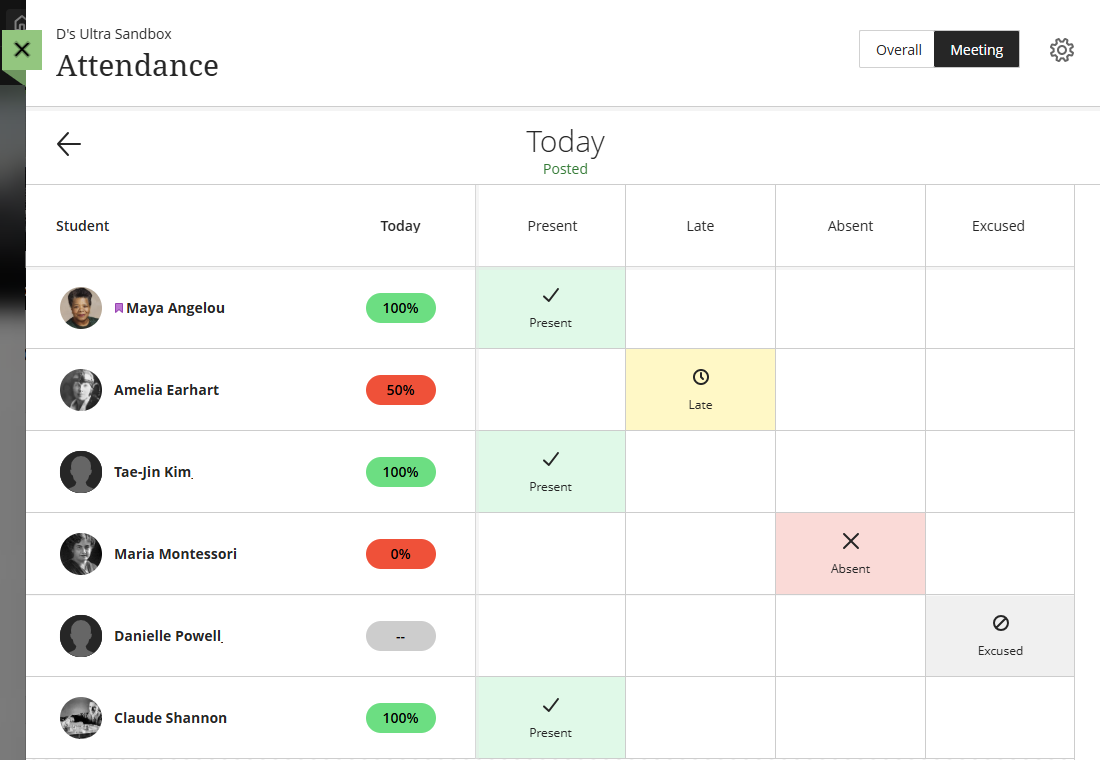
The Attendance tool allows you to easily track attendance from within your myLesley course. For each course meeting, you can mark whether each student is present, late, absent, or excused. The attendance records for each student appear in a single column in the Gradebook alongside their grades. You may also decide whether or not to use attendance as part of the Overall Grade calculation.
For more information and detailed instructions, refer to the Track Attendance in myLesley support article or watch the Attendance Tracking tutorial video.
Download Gradebook Data
You may download a copy of your Gradebook to work offline with your grade data. You may download your full gradebook, selected gradebook columns, a full grade history, or individual student assessments.
Download Grades from your Gradebook
You can download your full Gradebook or selected Gradebook columns for your reference or to use in another program (ex perform a statistical analysis in Microsoft Excel). At this time, you cannot download Gradebook items that allow anonymous grading or peer review.
Select Settings from either the Gradebook's Grid View or List View to open the Gradebook Settings Panel.
In the Upload and Download Gradebook section select Download Grades.
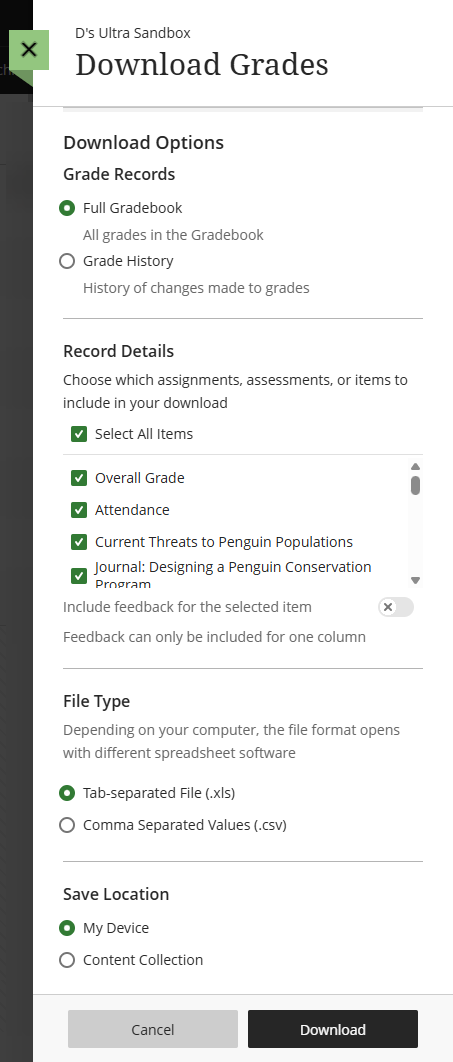 This will open the Download Grades panel. Select the following:
- Download Options: Select Full Gradebook.
- Record Details: Choose which Gradebook items to include in your download.
- You may select individual columns or select Select All Items to download all Gradebook items.
- If you only select one item (ex an Assignment), you may also choose whether to download feedback for that item.
- File Type: Select whether to download your file as a Tab-Separated file (.xls) or Comma Separated Values file (.csv).
- Save Location: Select whether to save to your computer or your Blackboard Content Collection.
Click Download to download your grades. Your file will include the following information:
- Last name, first name, and username
- Student ID, last access, and availability
- Grade columns
- Attendance (if using)
- Manually added items (if using)
- Calculations (if using)
- Overall grade (if using)
When you download all items, the file includes the grades you posted or are ready to post and feedback is not included. The column header includes the name of the grade column and the grade display.

Download Grade History
The Grade History provides a detailed record of student submissions, grades and any grade changes you made in the course.
Select Settings from either the Gradebook's Grid View or List View to open the Gradebook Settings Panel.
In the Upload and Download Gradebook section select Download Grades.
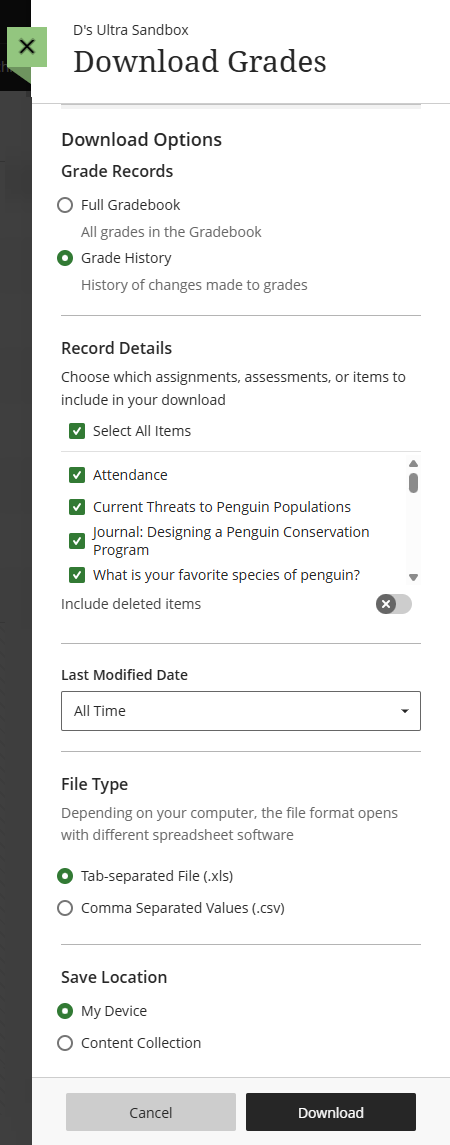 This will open the Download Grades panel. Select the following:
- Download Options: Select Grade History.
- Record Details: Choose which Gradebook items to include in your download.
- You may select individual columns or select Select All Items to download all Gradebook items.
- If you only select one item (ex an Assignment), you may also download feedback for that item.
- Last Modified Date: Select the timeframe to include in your download. To select all grade history made in the course, select All Time.
- File Type: Select whether to download your file as a Tab-Separated file (.xls) or Comma Separated Values file (.csv).
- Save Location: Select whether to save to your computer or your Blackboard Content Collection.
Click Download to download your grade history. Your file will include the following information:
- Date
- Type of assessment and grade category
- Last edition user’s details
- Student username
- Submission receipt: The submission receipt number
- Submission attempt: The number of the submitted attempt
- Type: If it was a regular or an override grade
- Obtained value
- Event: Additional details such as if was a group attempt, if it’s not posted or if it needs grading
Non-posted grades are also included in the file as they provide greater insight into grade changes in the course.

Bulk Download Student Submissions
Instructors have the option to bulk download students' assignment submissions for offline grading. This may be useful if you prefer to grade outside the system or want to provide inline grading and feedback using another tool, such as Microsoft Word.
At this time, you cannot bulk download group submissions.
From the Gradebook Grid View, click on an Assessment Name in the column header to open the Assessment Details panel. Then click the Download icon to open a menu. Select Download Submissions.
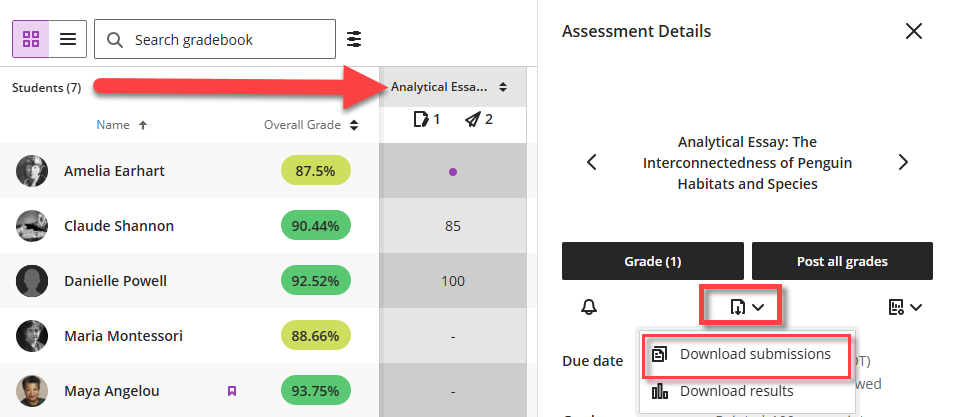
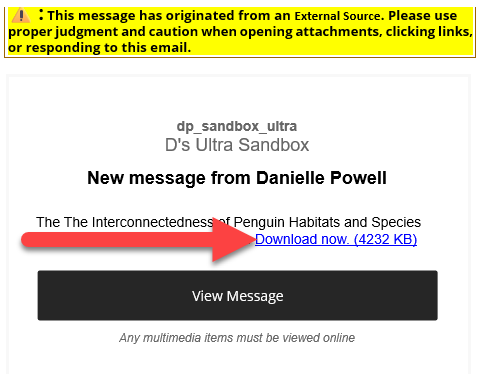
You may choose to download all students' submissions or select individual student submissions. Click Create ZIP file to start the process. You will receive an email and a course message when your package is ready.
Once you receive the email, click Download Now to download your file.
For more information, refer to the Download Assessments support page.
Additional Resources and Support
Gradebook Setup Tutorial
This guide walks you through planning and setting up your Gradebook in Blackboard Ultra—starting with outlining your grading structure, creating all gradable content, and adding any remaining manual grade columns: Gradebook Setup Tutorial.
Create, Manage, and Grade Student Work and Participation
You can create your Assignments, Tests, Discussions, and Journals in the Course Content area, right alongside other content. This enables students to access their course content and submit their work all in the same place. When you create Assignments and Tests, a Gradebook item is created automatically. If you set your Discussions and Journals to be graded, this will also create a Gradebook item.
- Create and Grade Assignments
- Self and Peer Assessment
- Create, Manage, and Grade Tests
- Create, Manage, and Grade Discussions
- Create and Grade Journals
Time Zones and Due Dates
The Time Zones and Due Dates in Blackboard Ultra support article will walk you through how time zones will affect due dates in your myLesley/Blackboard course.
Progress Tracking and Student Progress Reports
This support article provides information on tracking student progress throughout your course: Progress Tracking and Student Progress Reports.
Faculty Quick Start Guide
This guide contains instructions and tutorial videos to get you started with Ultra Course View: Blackboard Ultra Course View Faculty Quick Start Guide.
Blackboard Ultra Training Options
New to Blackboard or Blackboard Ultra? Choose the training option that best suits your needs! Whether you prefer to go at it alone, or want extra support and training on your journey, we have a training for you: Blackboard Ultra Training Options.
Unable to attend one of our trainings? Email elis@lesley.edu to set up an appointment or request a small group training.
Faculty Online Office Hours
Have questions about myLesley? Need assistance? Join the eLIS staff for our weekly online office hours every Monday and Thursday, 2:00 - 4:00 ET. No appointment necessary: Join eLIS Online Office Hours .
Contact Us
Reach out to eLearning and Instructional Support (eLIS) at elis@lesley.edu with any questions or to request a 1:1 or small group training.
Was this article helpful?
That’s Great!
Thank you for your feedback
Sorry! We couldn't be helpful
Thank you for your feedback
Feedback sent
We appreciate your effort and will try to fix the article