In Case You Missed It: What's New in Blackboard for Fall 2026
TABLE OF CONTENTS
- What's New in Blackboard Ultra?
- New Features for Students and Instructors
- New Features for Students
- New Features and Updates for Instructors
What's New in Blackboard Ultra?
Throughout the spring and summer months, Blackboard introduced a variety of new features and enhancements to improve the teaching and learning experience. Updates for both students and instructors include streamlined course navigation and new discussion sorting options, making it easier to find content and stay engaged. Students can also take advantage of the new To-Do List, which provides a centralized view of upcoming coursework and deadlines. For instructors, enhancements include the new Gradebook Grid View, a redesigned Groups tool, the ability to add descriptions to discussions and journals that appear directly on the Course Content page, and expanded Ally tools that help identify and address PDF accessibility issues.
Explore the highlights below to learn more about what's new in Blackboard Ultra for Fall 2026.
Did you know Blackboard releases new features and improvements every month? Some updates introduce entirely new functionality, while others provide smaller enhancements that improve existing tools and workflows. For a comprehensive overview of recent Blackboard Ultra updates, visit the What's New in Blackboard Ultra? support article.New Features for Students and Instructors
These updates are available for both students and instructors.
Course Navigation Updates
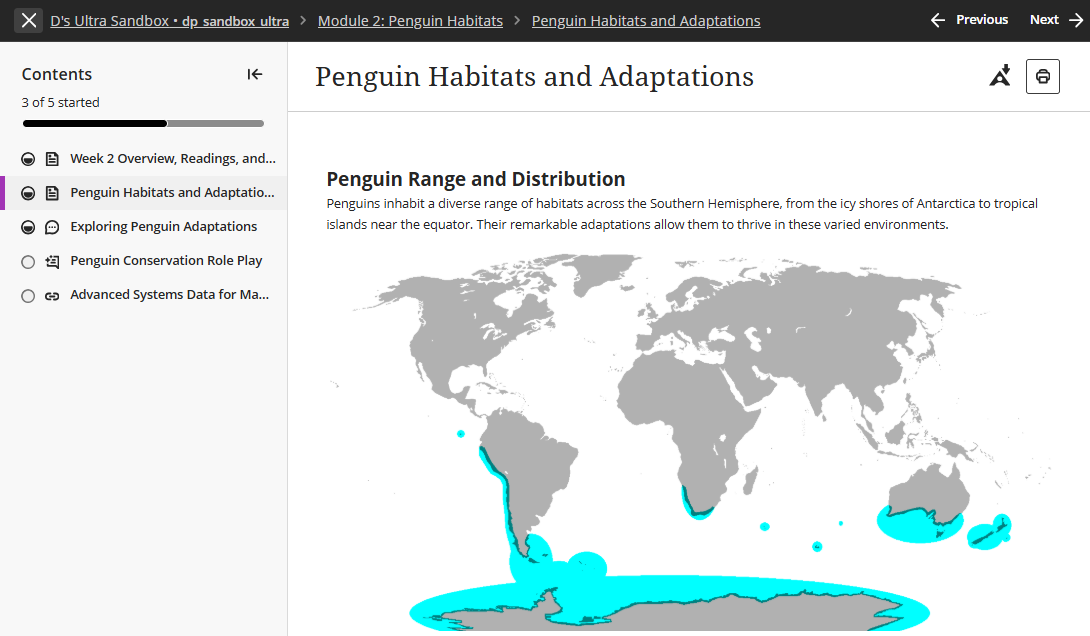
Blackboard has updated course navigation to make moving around your course clear, more consistent, and easier to follow. These enhancements, including expanded full-page navigation, breadcrumbs, and a clearer way to exit content, help reduce navigation errors and improve orientation, with no changes required to your course content or structure.
- Full-page Content Navigation: Learning modules, folders, and content items now open as full pages instead of overlay or side panels. This creates a more consistent navigation experience that improves orientation and makes it easier to return to your place in the course.
- Breadcrumbs for Contextual Clarity: Breadcrumbs now appear at the top of the content pages to show your location within a course’s module and folder structure. This provides added context and easier navigation without any instructor setup.
- Clear Exit Button: The green Exit (X) button has been moved to the navigation banner. This will help users avoid accidentally closing content or losing their place.
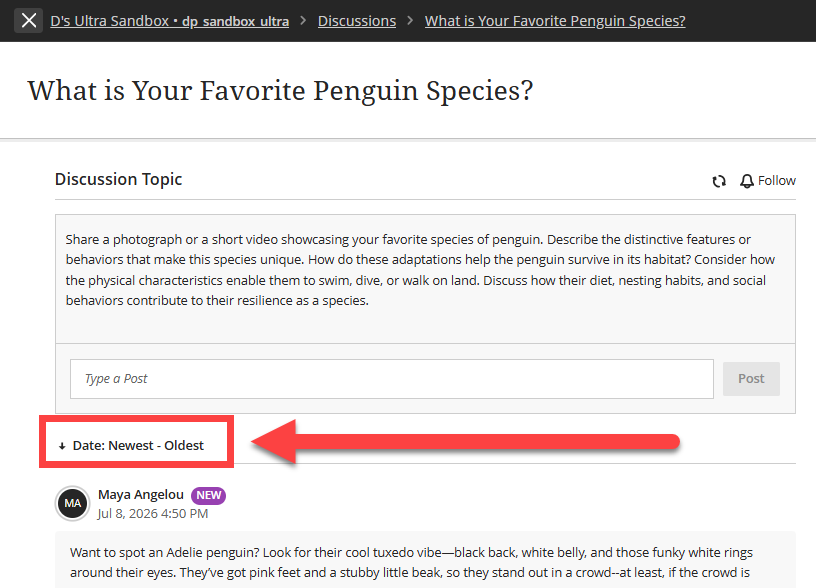
Sort Discussions by Newest First or Oldest First
You can now sort Discussion posts by Newest First or Oldest First, making it easier to navigate active or lengthy discussions. Both instructors and students can use the sorting controls to quickly find recent activity, review conversations, and pick up where they left off, as each discussion remembers their preferred sort order. Sorting applies to all posts and nested replies and works consistently across desktop and mobile devices.
New Features for Students
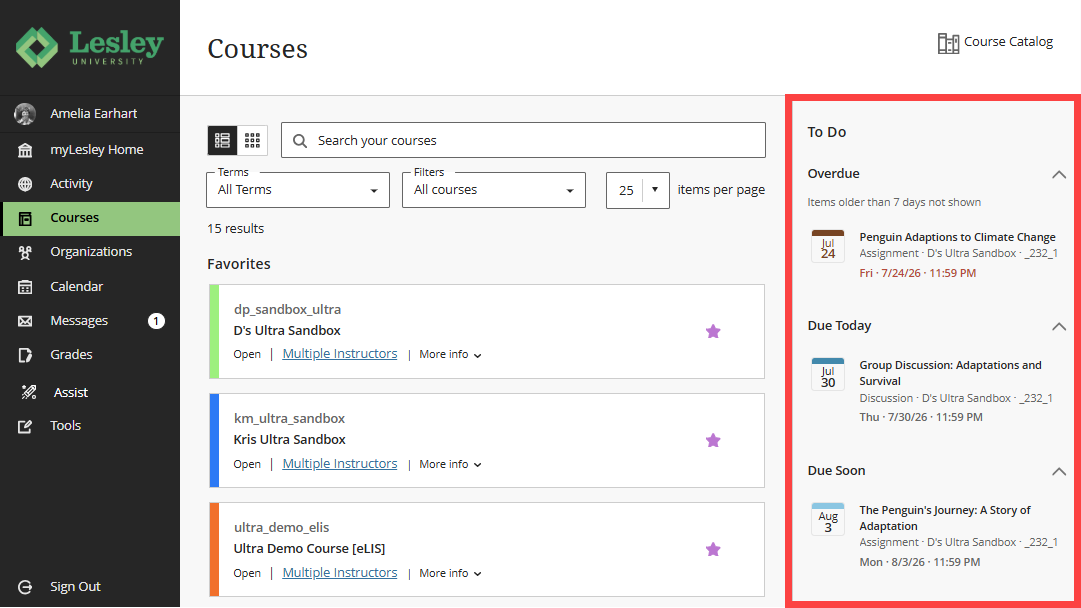
New Student To-Do List
The new Your Top To Dos list appears on students' Courses page. This tool has been designed to help students stay organized by highlighting up to five of their most urgent tasks, such as upcoming due dates,, across all active courses. Tasks are prioritized by date and link directly to the appropriate course activity, making it easier to keep track of deadlines and take action quickly.
New Features and Updates for Instructors
Introducing the New Gradebook
The Gradebook has been restructured, giving instructors a reorganized layout and a new way to manage grading tasks in the newly designed Grid View.
New and updated features include:
- Toggle between Gradebook views with the new Grid View and List View icons.
- Click the To Do button to open your grading tasks (Needs Grading and Needs Posting).
- Updates to grading by assessment (ex Assignments, Discussions, Tests, Journals) in Grid View.
- Updates to grading an individual student's submission in Grid View.
- Changes to manually entering or overriding grades in Grid View.
- Updates to granting a student a one-time exception or exemption.
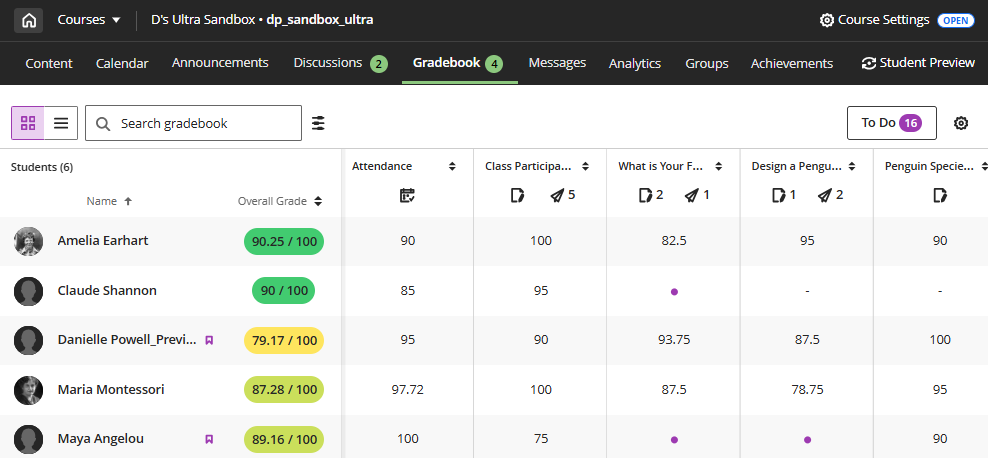
Refer to the Gradebook Updates (2026) support article for detailed information.
Redesigned Groups Tool
Blackboard has redesigned the Groups tool to make creating, organizing, and managing groups faster and more intuitive. The updated interface streamlines common group-management tasks and provides a more consistent experience across group types.
The new groups tool features:
- Redesigned Groups Interface: The redesigned interface features a cleaner layout and more intuitive controls.
- Simplified Group Creation: Instructors now start by choosing how they want to structure groups BEFORE assigning group members.
- Improvements to Manually Assigned Groups: Instructors can now automatically assign students to groups by specifying the number of members per group. Blackboard will create the required number of groups and assign students randomly.
- Bulk Group Creation: Instructors can now create multiple groups at once.
- Flexible Group Membership: Instructors have more flexibility in assigning students to groups, including the option to drag students from the Unassigned list directly into a group, removing individual students from a group, and more.
- Enhanced Sorting Options: Instructors can now sort students and groups by name, student ID, group name, or number of group members.
- Clear Group Activity Context: Each group displays high level information including whether it is assigned to discussions, assignments, or tests.
- Consistent Workflows Across Group Types: Actions and controls now behave the same way regardless of group type.
To get started, navigate to your course's Groups area, choose how you want your groups to be structured, and begin adding or managing members.
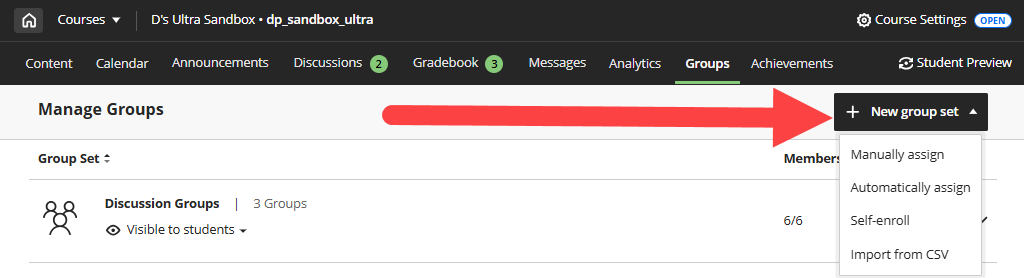
Refer to the Create and Manage Groups support article for more information and detailed instructions.
Add Descriptions to Discussions and Journals
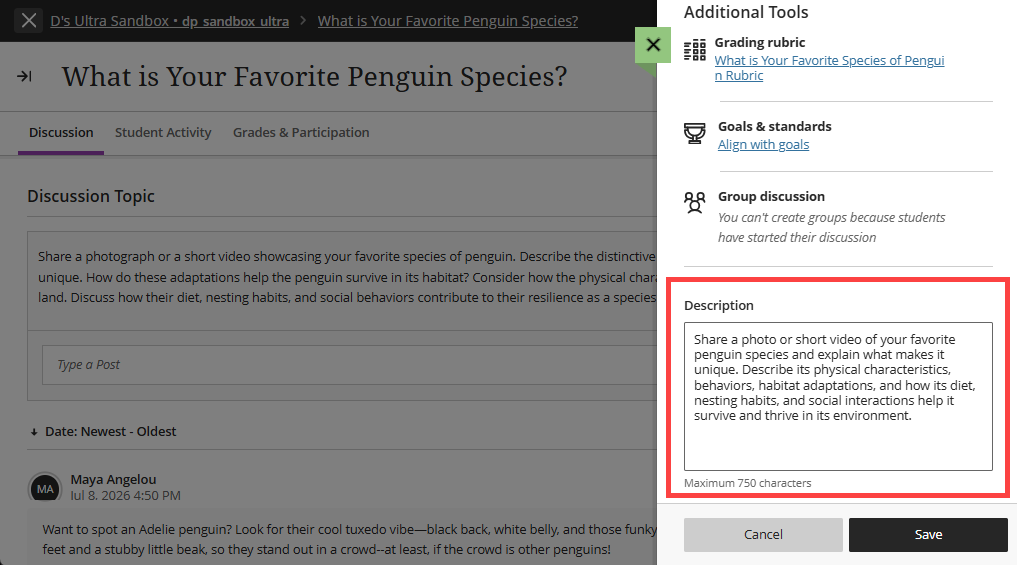
You asked, Blackboard listened! You can now add descriptions to Discussions and Journals to provide context, expectations, or instructions separate from the activity prompt. Students can view these descriptions directly from the Course Content page, creating a more consistent experience and helping them better understand an activity before they begin.
Use Ally to Identify and Fix PDF Accessibility
PDFs are some of the most common course files and are often the most inaccessible. You can use Blackboard Ally to take advantage of quick fixes for PDF documents right from the Instructor Feedback Panel. This includes the ability to:
- Auto-tag PDFs.
- Set a title.
- Add a language set.
- OCR a scanned PDF.
Ally will walk you through remediating your PDF without ever leaving your course. Once your file has been fixed, Ally will save and upload a new version of the PDF into the course and overwrite the old file in the process.
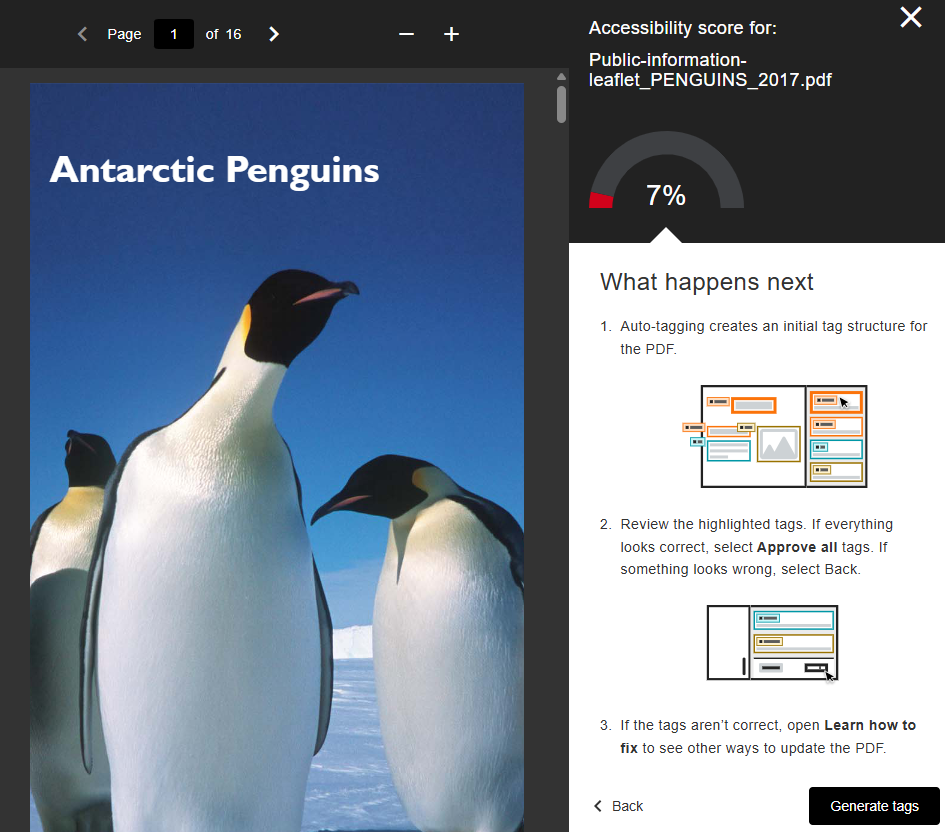
Refer to the Ally PDF Remediation Options support page for more information and detailed instructions.
Note:
Avoid using scanned PDFs, especially as course content. If possible, find a digital copy of the original document. If you find a digital version online or in the library, link to it.

Do not download the files from the internet and upload them into your course!

For more information, refer to: Accessibility Checklist: Don't use scanned PDFs.