Gradebook Updates (August 2026)
TABLE OF CONTENTS
- Introducing the New Gradebook
- Navigate Between Gradebook Views
- Manage Grading Tasks (Needs Grading and Needs Posting)
- Grid View: Grade by Assessment (ex Assignments, Discussions, Tests, Journals)
- Grid View: Grade an Individual Student's Submission
- Grid View: Manually Enter or Override Grades
- Grid View: Grant a One-Time Exception or Exemption
Introducing the New Gradebook
The Gradebook has been restructured, giving instructors a reorganized layout and a new way to manage grading tasks in the newly designed Grid View. New and updated features include:
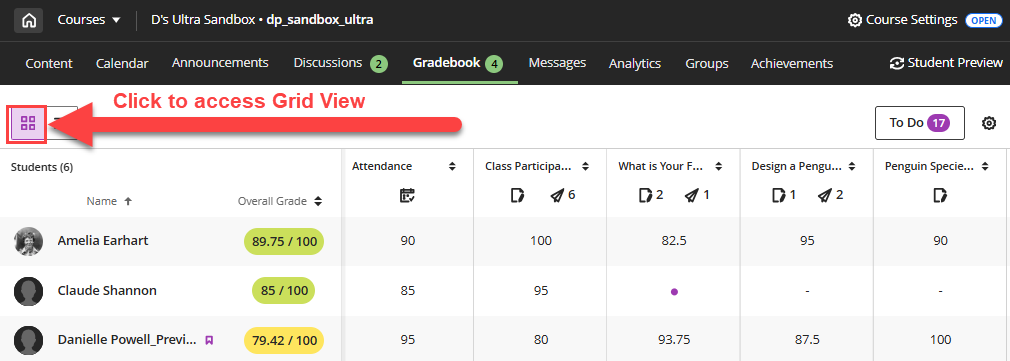
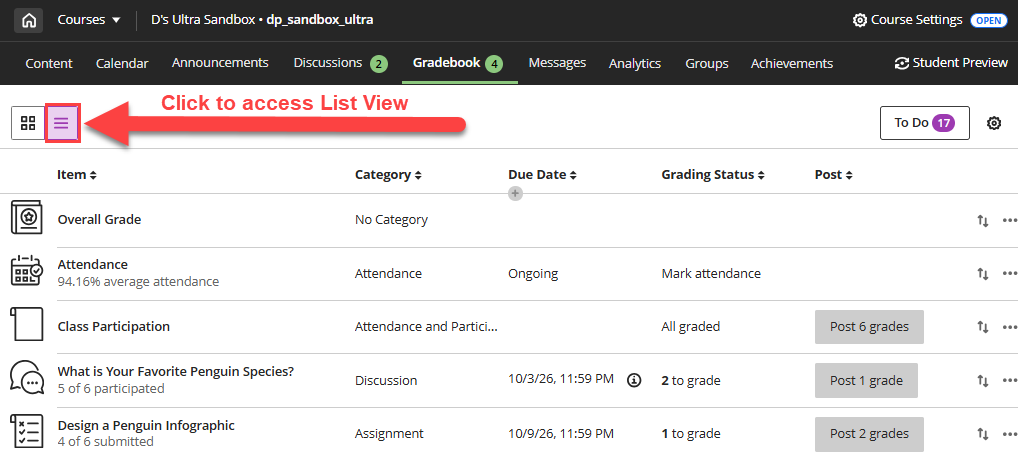
- Toggle between Gradebook views with the new Grid View and List View icons.
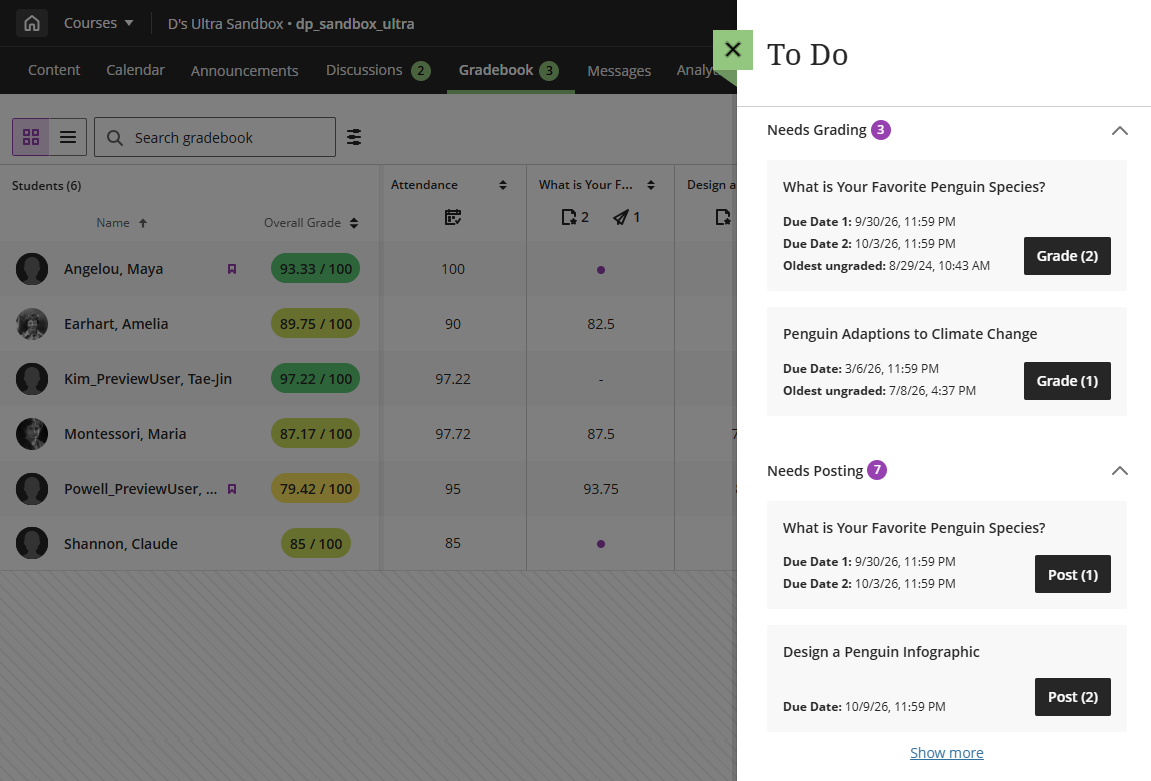
- Click the To Do button to open your grading tasks (Needs Grading and Needs Posting).
- Updates to grading by assessment (ex Assignments, Discussions, Tests, Journals) in Grid View.
- Updates to grading an individual student's submission in Grid View.
- Changes to manually entering or overriding grades in Grid View.
- Updates to granting a student a one-time exception or exemption.
Read A Year of Listening: How Your Feedback Shaped the New Gradebook Grid View to find out more about the rationale and process behind the Gradebook Grid View update.
Navigate Between Gradebook Views
Easily toggle between the Gradebook's Grid View and List View
 by clicking on the buttons at the top of the page.
Click the Grid View button to access the Gradebook's Grid View (formerly Grades view).
Click on the List View button to access the Gradebook's List View (formerly Gradable Items).
Manage Grading Tasks (Needs Grading and Needs Posting)
Click on the To Do button at the top of the page to open a to do list of your grading tasks.

This will open your To Do panel. Your tasks will be categorized by Needs Grading and Needs Posting. Select a task to begin.
Grid View: Grade by Assessment (ex Assignments, Discussions, Tests, Journals)
Quickly grade all student submissions by clicking on the grade icon below the assessment name. This will bring you to the assessment's Flexible Grading page.
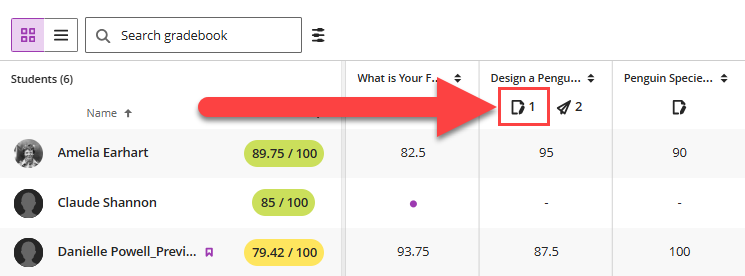
Or click on the Assessment Name in the column header to open the Assessment Details panel.
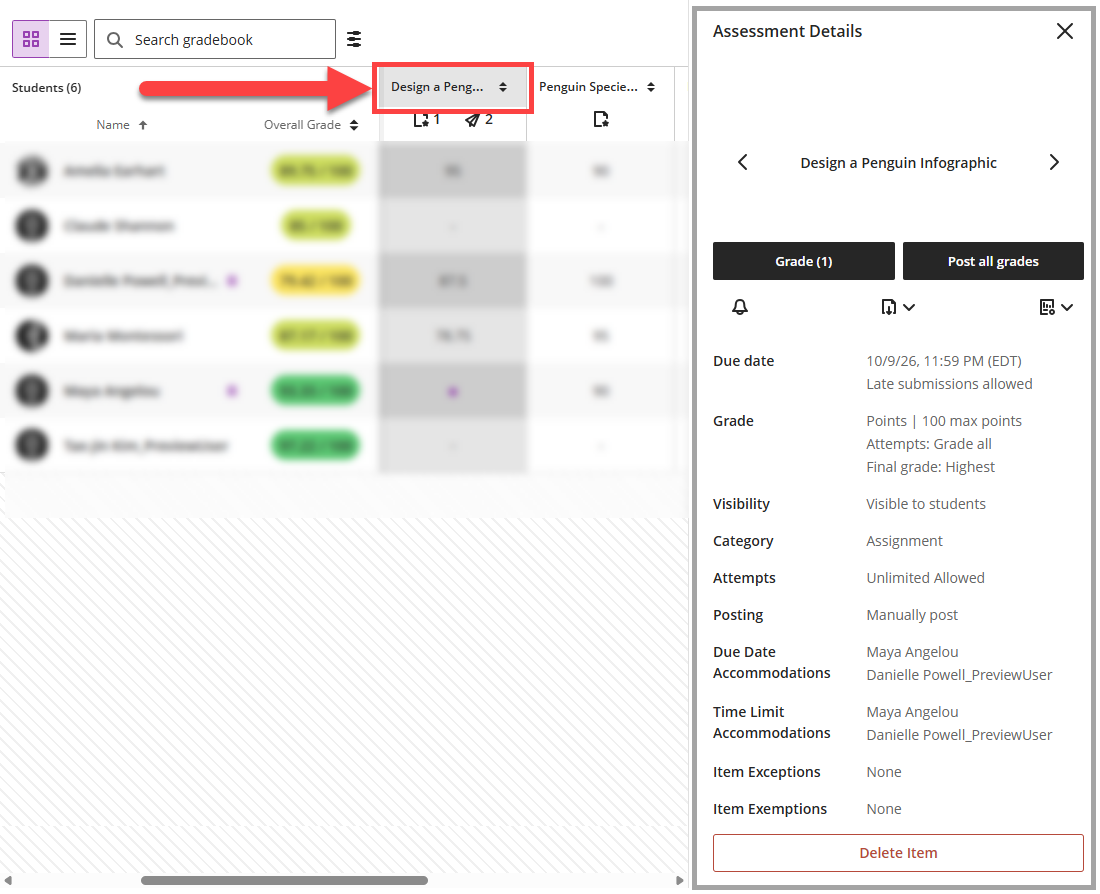
From the Assessment Details panel you can complete common grading tasks including:
- Grade student attempts.
- Post grades.
- Send a reminder message to students who have not yet submitted.
- Download submissions and results.
- View grade statistics.
Depending on your assessment type, you may view additional assessment details including the due date, grade and submission/participation information, student accommodations, and more. To edit this information, click on the assessment name.
For more information, watch the Gradebook Column Header and Assessment Details Panel overview video.
Grid View: Grade an Individual Student's Submission
Click a grade cell to open the Grade Details panel.
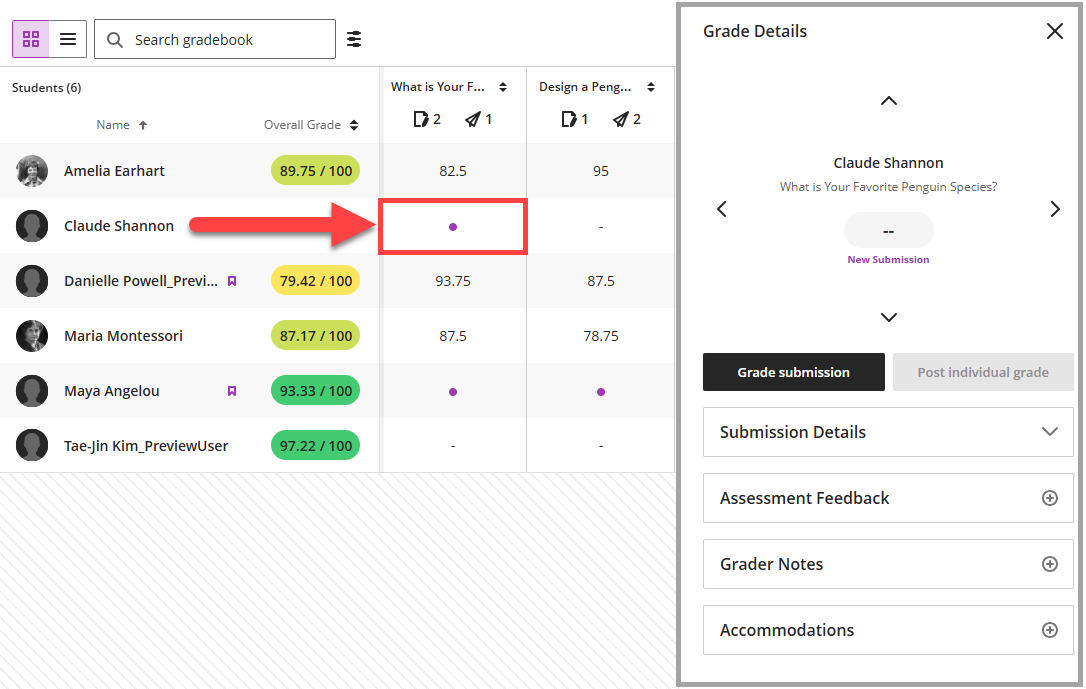
From the Grade Details panel you can complete common grading tasks including:
- Grade the student's submission attempts.
- Post the individual student's grade.
- View submission details (ex due date, submission date, grade, the maximum number of points, number of allowed attempts).
- Enter, edit, or view Overall and Attempt feedback.
- Add private grading notes.
- View the student's course-level accommodations, exempt the student from the assignment, or grant a one-time exception (due date extension, access extension, number of attempts).
Click the navigation arrows to navigate to the next student (up/down arrows) or the next assessment (left/right arrows).
For more information, watch the Gradebook Grade Details Panel overview video.
Grid View: Manually Enter or Override Grades
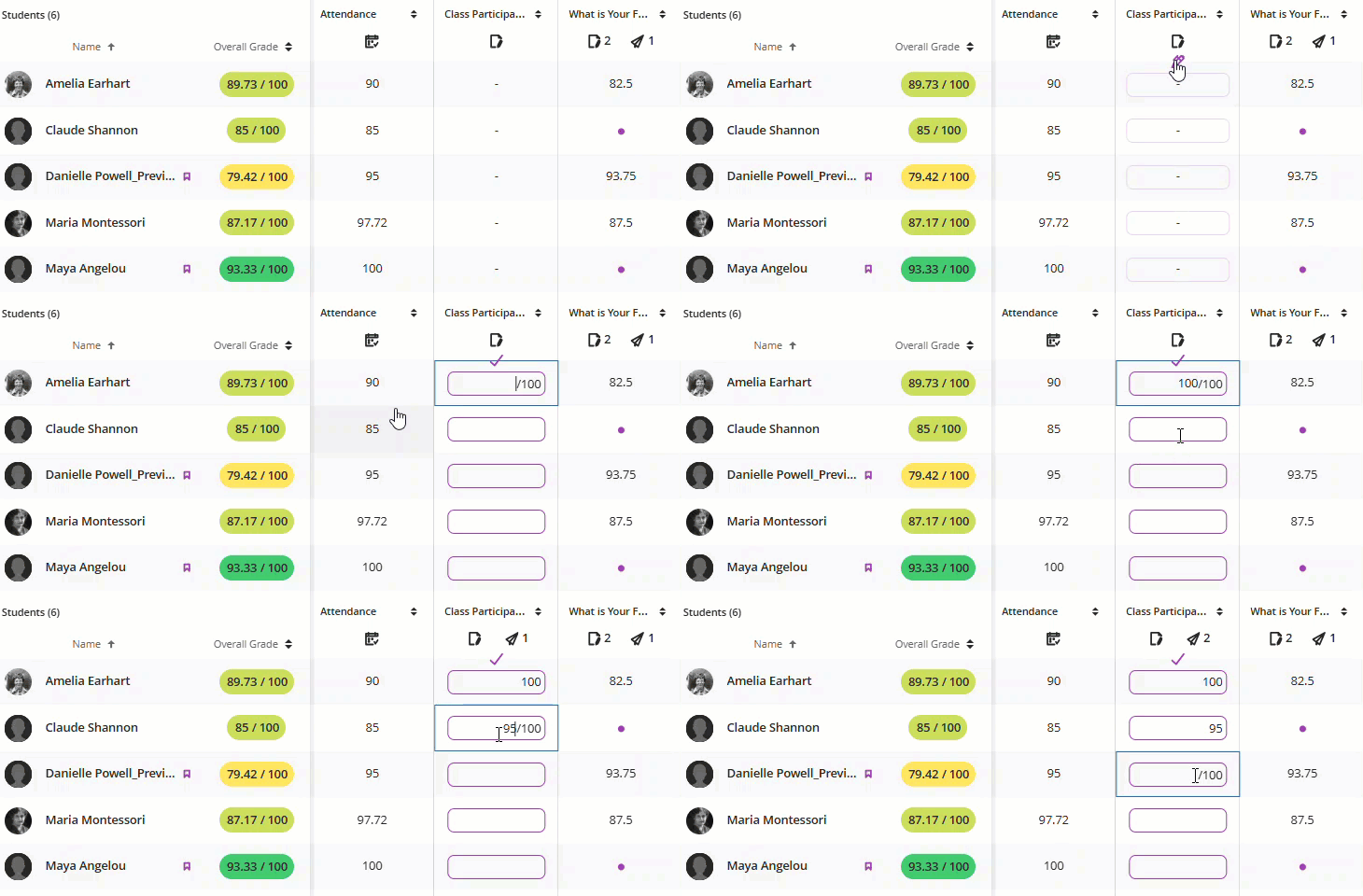
The process for manually entering grades has changed. Instead of clicking in a grade cell to enter a grade, you will need to:
- Hover your mouse over the top of the grade column until the Edit button (pencil icon) appears.
- Click the pencil icon to enter Column Edit Mode.
- Type a grade into a cell and press Enter on your keyboard, use your arrow keys, or click on the next student to continue grading.
- Once you have finished grading, click the checkmark at the top of the column to save your changes.
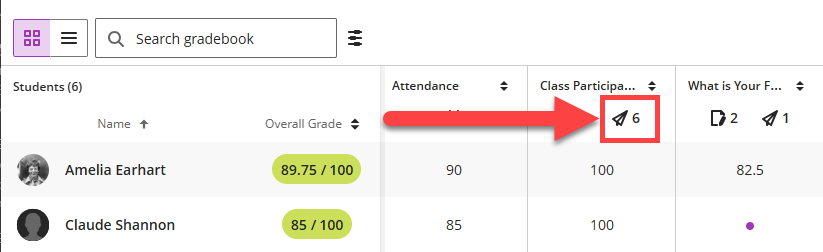
Once you have saved the grades, click the Post icon below the assessment name to post the grades.
For more information, watch the Gradebook Manual Grade Entry and Posting Grades overview video.
Grid View: Grant a One-Time Exception or Exemption
When special circumstances arise, you can exempt a student from an assessment or grant a one-time exception, including an extended due date, extended access to the assessment, or additional submission attempts.
Click a grade cell to open the Grade Details panel. Then click Accommodations to open the student's assessment accommodations.
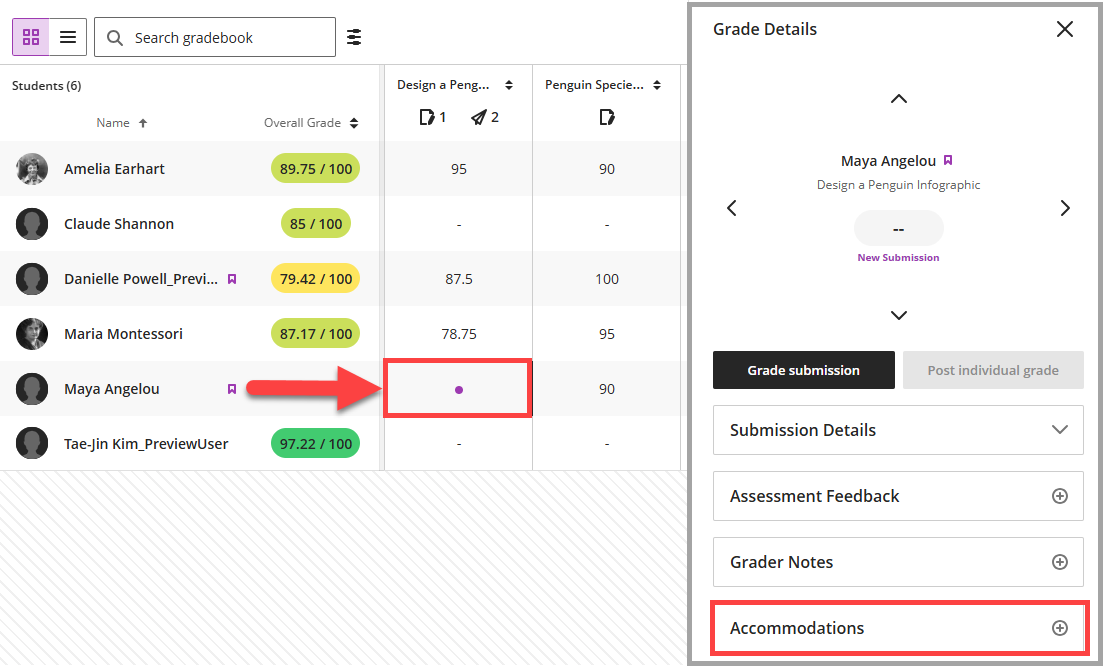
From the Assessment Accommodations area you can:
- View the student's course-level accommodations.
- Exempt the student from the assessment.
- Extend the assessment due date.
- Change the dates your student can access the assessment.
- Allow extra or unlimited submission attempts.
For more information, watch the Gradebook Accommodations, Exceptions, and Exemptions overview video.