TABLE OF CONTENTS
About Notifications
You can determine which notifications you receive about activity in all of your courses:
- Activity Stream: Choose which notifications and activities appear on your Activity Stream.
- Email: Choose which notifications you want to receive via email and whether you want to be emailed immediately or once per day.
- SMS Notifications: Enter a mobile number to receive notifications via text message.
- Push Notifications: If you are using the Blackboard App, you may select which notifications will pop up on your mobile device.
For more information, refer to the Set Up Notifications support page or watch the Notification Settings tutorial video.
Manage Your Notification Settings
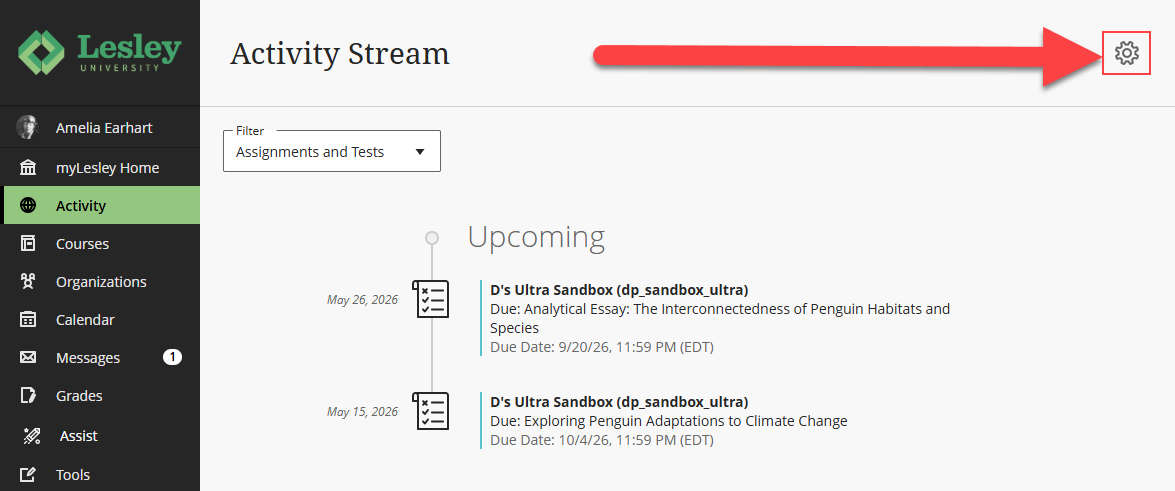
From the main Blackboard navigation, click the Activity link to go to your Activity Stream and then click the Notification Settings (gear icon) at the top of the page.
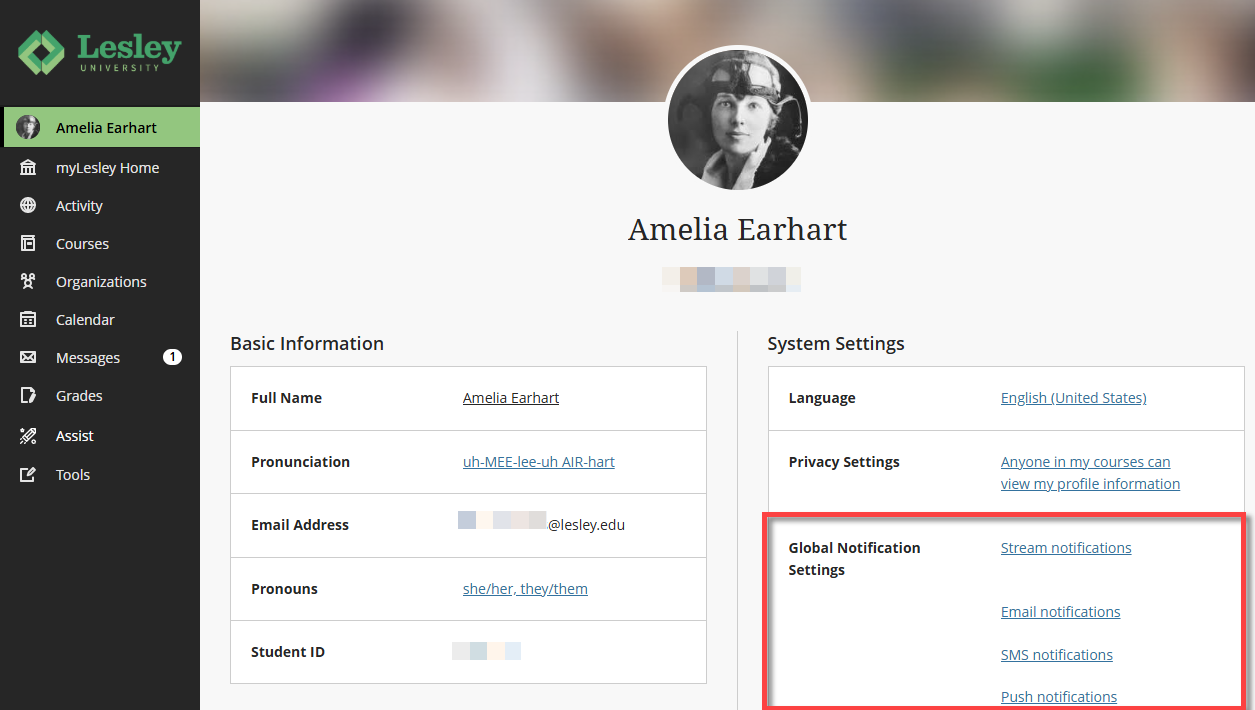
Or go to the Global Navigation Settings area on your Profile page.
This will open the Notification Settings panel.
Stream Notifications
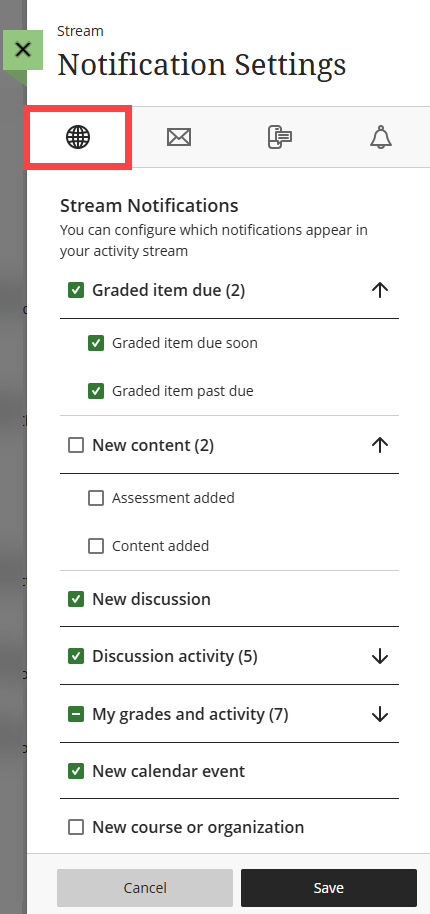
Your Activity Stream provides you with real-time notifications of activity in all of your courses. Notifications for due dates, grades, and feedback will always appear in your Stream. However, you may choose whether to receive notifications for new content, grades and activity, discussions, calendar events, and more.
From the Notification Settings panel, select Stream Notification Settings (globe icon). Then select which notifications you would like to receive.
Click Save to save your changes.
Email Notifications
You may choose which notifications you would like to receive via email. All notifications will be sent to the email address associated with your Lesley account.
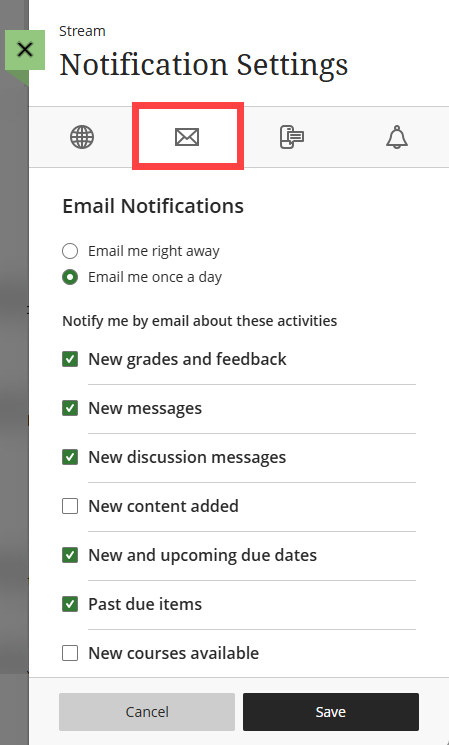
From the Notification Settings panel, select Email Notification Settings (envelope icon).
Choose how often you want to receive emails for course activities:
- Email me right away: You will receive individual notifications for all activity types that you have chosen.
- Email me once a day: You will receive one email with all of your daily notifications.
Then select which notifications you would like to receive via email. You may choose whether to receive notifications for new content, grades and feedback, upcoming due dates, past due items, discussions, calendar events, and more.
Click Save to save your changes.
SMS Notifications
If you add your mobile number to your profile, you may opt to receive text notifications about new grades and feedback or new messages.
From the Notification Settings panel, select SMS Notification Settings (mobile icon) and enter your mobile number.
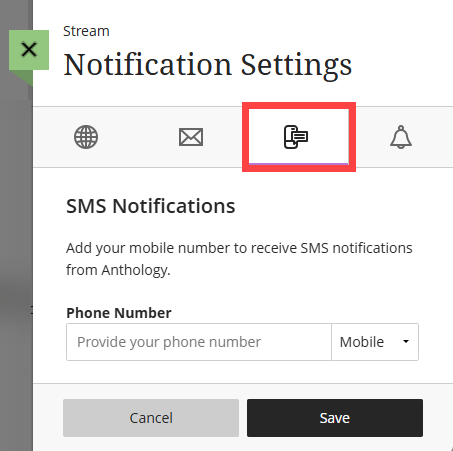
Click Save to save your changes.
Push Notifications (Blackboard App)
If you are using the Blackboard App, you may select which notifications will pop up on your mobile device.
From the Notification Settings panel, select Push Notification Settings (bell icon). Then select which activities should send push notifications. You may choose whether to receive notifications for new content and discussions, discussion responses, grades and feedback, upcoming due dates, and more.
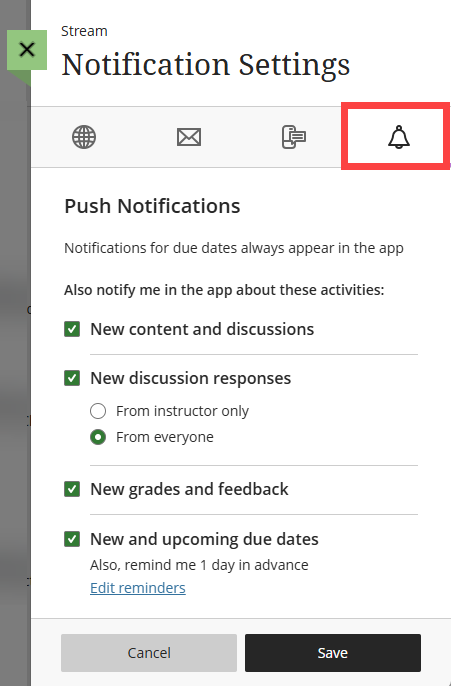
Click Save to save your changes.
You may also update these notification settings within the Blackboard app. For more information, refer to the Use Push Notifications support page.
Was this article helpful?
That’s Great!
Thank you for your feedback
Sorry! We couldn't be helpful
Thank you for your feedback
Feedback sent
We appreciate your effort and will try to fix the article