TABLE OF CONTENTS
- About Collaborators
- Access Your Media's Collaboration Tab
- Add Collaborators (Co-Viewers, Co-Publishers, and Co-Editors)
- Change Media Ownership
About Collaborators
You may share your Kaltura media by adding collaborators. Depending on the permissions you set, collaborators may view your media in their My Media, publish your media to their course, and/or edit your media.
- Co-Viewer: Co-viewers will be able to view your media in their Kaltura My Media but cannot edit or publish the media.
- Co-Publisher: Co-publishers can view your media in their Kaltura My Media and publish the media in their course content or course Media Gallery.
- Co-Editor: Co-editors can view your media in their Kaltura My Media, edit the media's details and metadata, trim media, replace media, edit captions, edit chapters, edit slides, and view the analytics. Co-editors cannot delete media or add new co-editors and co-publishers.
You may also transfer your media's ownership to another user.
Access Your Media's Collaboration Tab
To begin, go to your Kaltura My Media by clicking on the Tools link in the Global Navigation menu. This will bring you to the Tools area. Select Kaltura My Media.
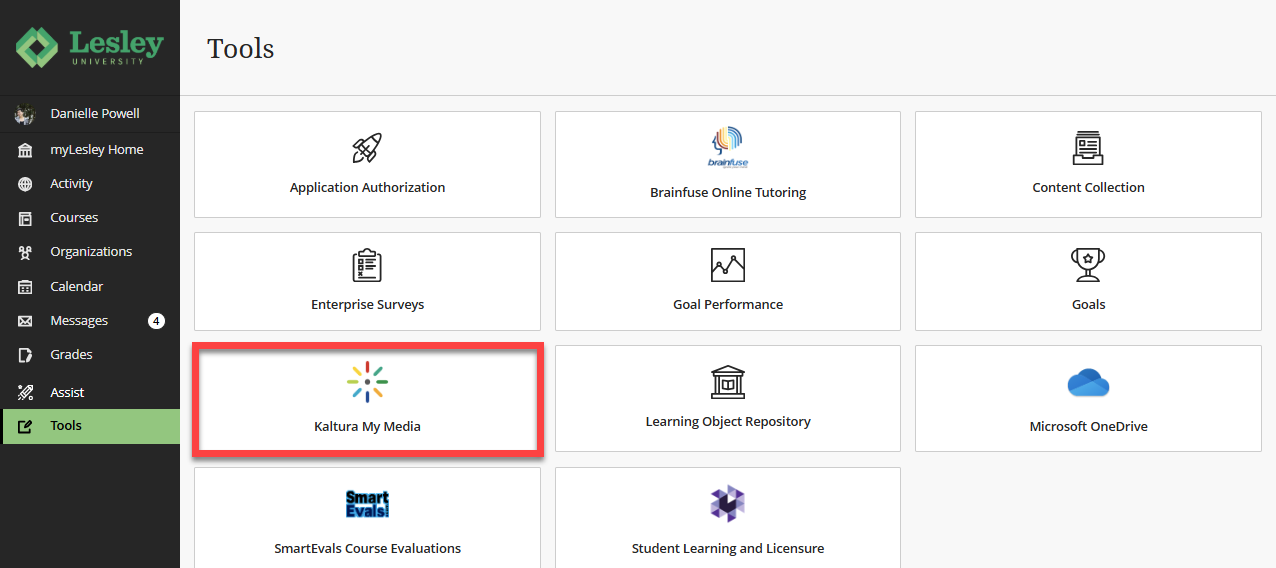
If prompted to allow Kaltura authorization, click Allow. You should only need to do this once.

Locate the media you wish to edit and click on the edit (pencil) icon.
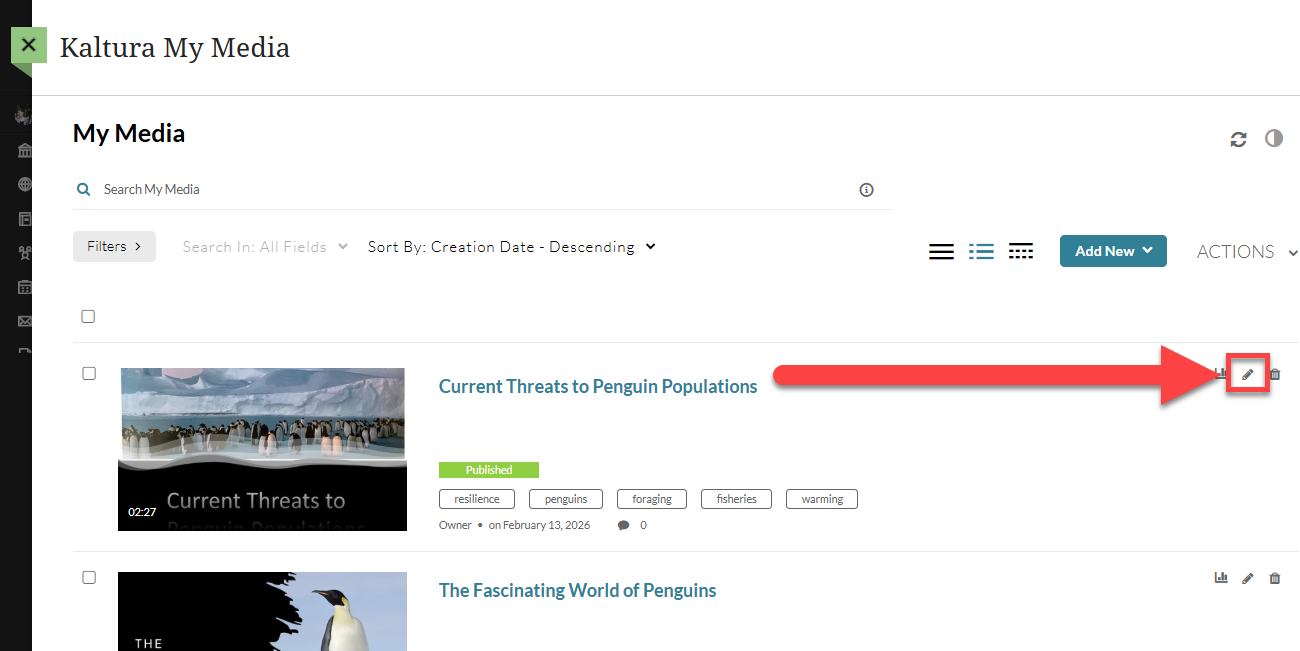
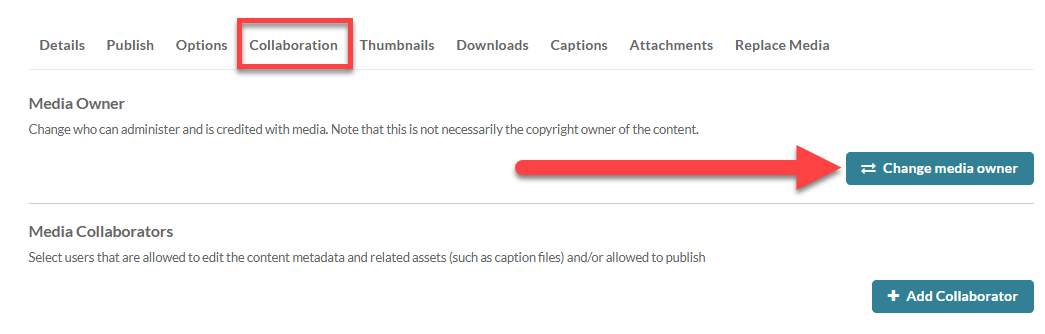
This will bring you to the Edit Media page. Click on the Collaboration tab.
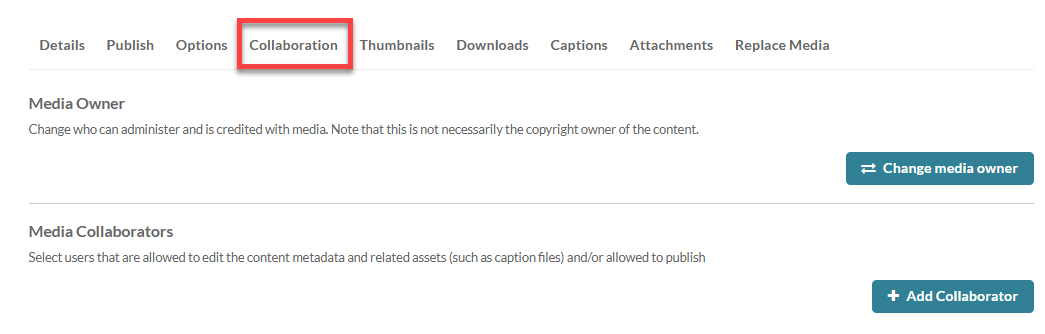
Here, you may change the media owner or allow others to view, edit, and publish your media.
Add Collaborators (Co-Viewers, Co-Publishers, and Co-Editors)
From the Collaboration tab, select Add Collaborator to allow other users to view, edit, and/or publish your media to their course content or course Media Gallery.
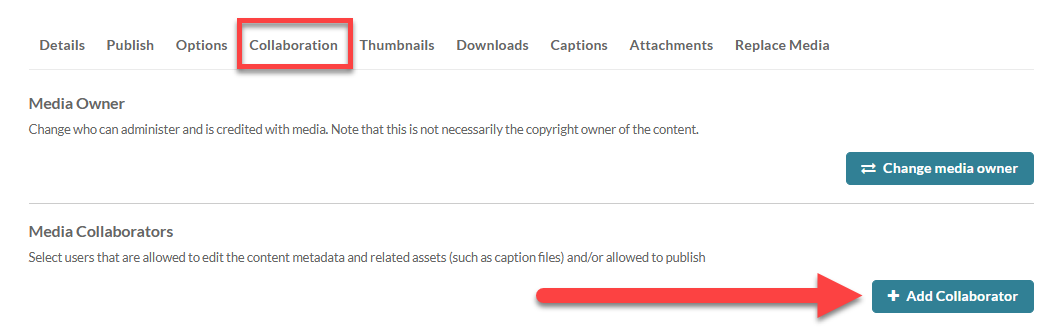
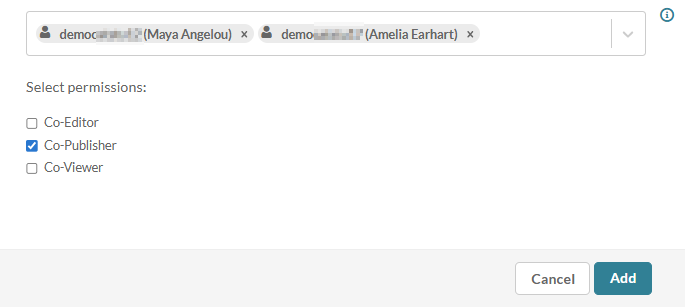
Start typing your collaborator's Lesley username and autocomplete will begin suggesting users. You may add multiple collaborators.
Then select the level of access the user will receive:
- Co-Viewer: Co-viewers will be able to view your media in their Kaltura My Media but cannot edit or publish the media.
- Co-Publisher: Co-publishers can view your media in their Kaltura My Media and publish the media in their course content or course Media Gallery.
- Co-Editor: Co-editors can view your media in their Kaltura My Media, edit the media's details and metadata, trim media, replace media, edit captions, edit chapters, edit slides, and view the analytics. Co-editors cannot delete media or add new co-editors and co-publishers.
Click Add to save your changes and add your collaborators.
Change Media Ownership
You may transfer ownership of your media to another user, such as a colleague or mentor. This can be especially useful if you are leaving the university or switching responsibilities.
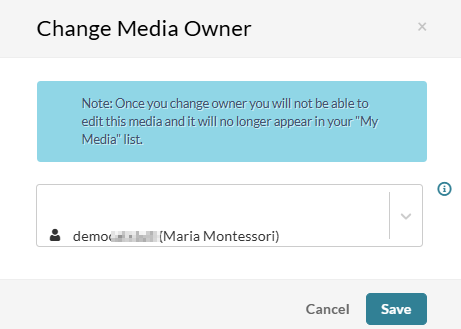
Note: Once you change the media owner you will no longer be able to edit the media and it will no longer appear in your Kaltura My Media.
From the Collaboration tab, select Change Media Owner.
Start typing the new owner's Lesley username and autocomplete will begin suggesting users. Select the new media owner and click Save to save your changes.
Was this article helpful?
That’s Great!
Thank you for your feedback
Sorry! We couldn't be helpful
Thank you for your feedback
Feedback sent
We appreciate your effort and will try to fix the article