TABLE OF CONTENTS
- Add Media Collaborators (Co-Viewers, Co-Publishers, and Co-Editors)
- Find Shared Media in your Kaltura My Media
- Publish Media Shared With You
Add Media Collaborators (Co-Viewers, Co-Publishers, and Co-Editors)
You may share your Kaltura media by adding collaborators. Depending on the permissions you set, collaborators may view your media in their My Media, publish your media to their course, and/or edit your media.
- Co-Viewer: Co-viewers will be able to view your media in their Kaltura My Media but cannot edit or publish the media.
- Co-Publisher: Co-publishers can view your media in their Kaltura My Media and publish the media in their course content or course Media Gallery.
- Co-Editor: Co-editors can view your media in their Kaltura My Media, edit the media's details and metadata, trim media, replace media, edit captions, edit chapters, edit slides, and view the analytics. Co-editors cannot delete media or add new co-editors and co-publishers.
You may also transfer your media's ownership to another user.
For detailed instructions, refer to the Kaltura Media: Add Collaborators or Change Media Ownership support article.
Find Shared Media in your Kaltura My Media
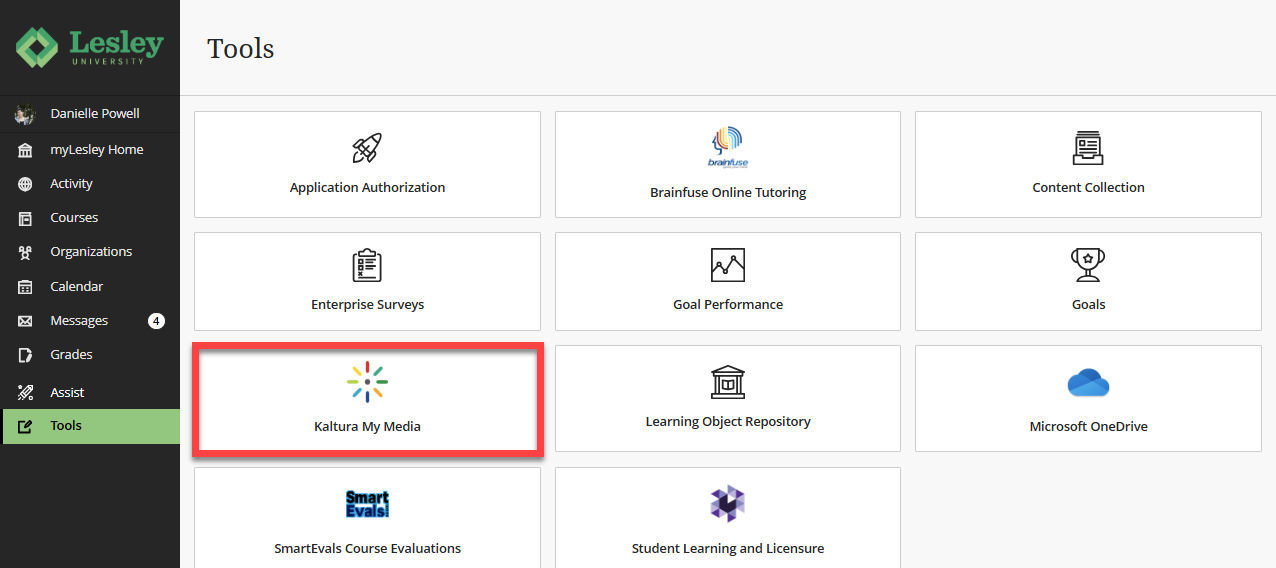
To access your My Media, login to myLesley and click on the Tools link in the Global Navigation menu. This will bring you to the Tools area. Select Kaltura My Media.
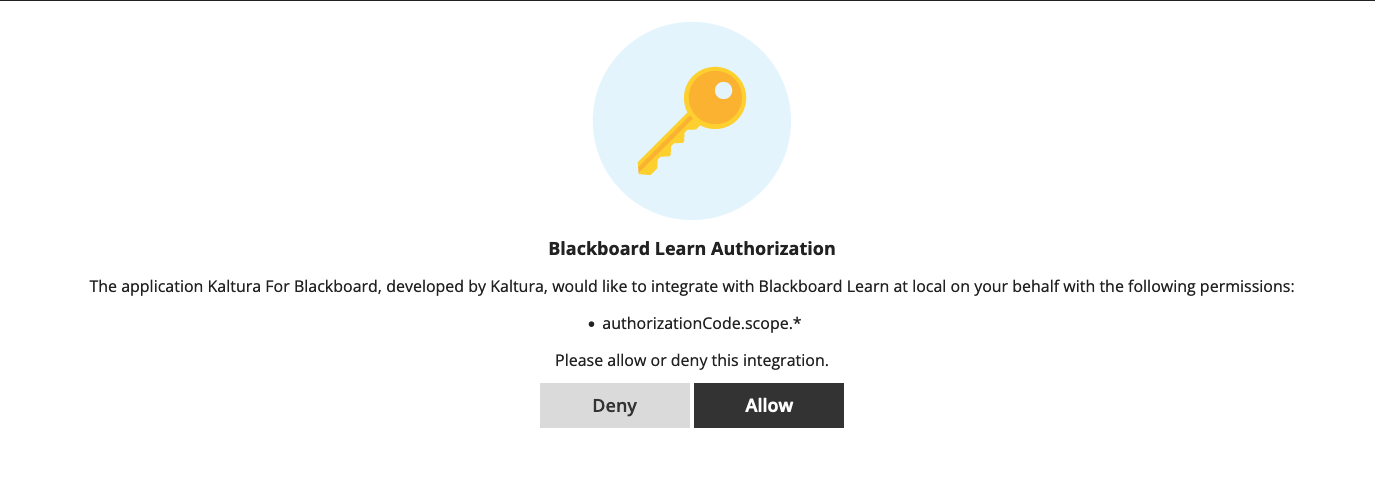
If prompted to allow Kaltura authorization, click Allow. You should only need to do this once.
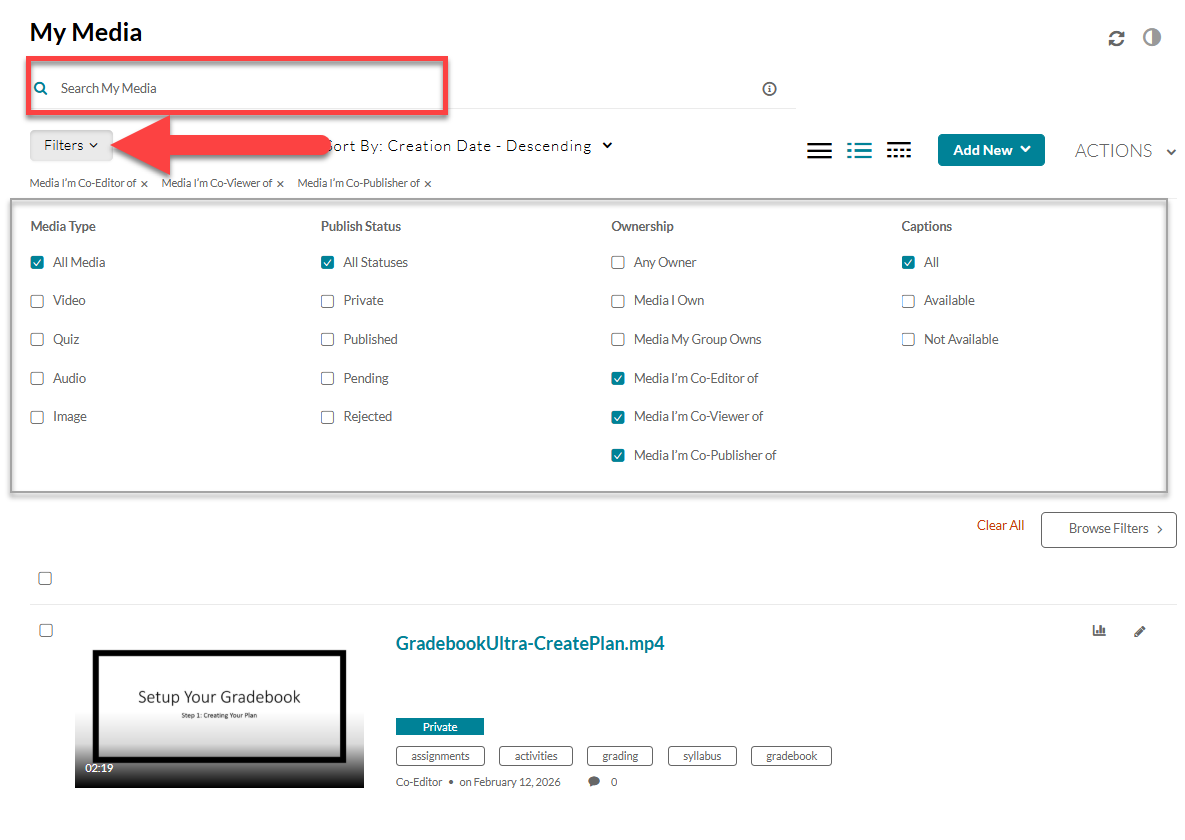
This will bring you into your Kaltura My Media. By default, your My Media will show all media that you own and media for which you are a co-viewer, co-editor, or co-publisher. You may narrow down your view by using the Search and Filter options to find media that has been shared with you.
Depending on the permissions given by the media owner, you will be able to:
- Co-Viewer: You can view the media in your Kaltura My Media but cannot edit or publish the media.
- Co-Publisher: You can view the media in your Kaltura My Media and publish the media in your course content or course Media Gallery.
- Co-Editor: You can view the media in your Kaltura My Media, edit the media's details and metadata, trim media, replace media, edit captions, edit chapters, edit slides, and view the analytics. You cannot publish the media in your course, delete the media or add new co-editors and co-publishers.
Publish Media Shared With You
If you have co-publisher permissions, you may publish the media in your myLesley course content. You may add Kaltura Media directly into a, Discussion, Assignment, Ultra Document (faculty only), or anywhere you see the Text/Content Editor.
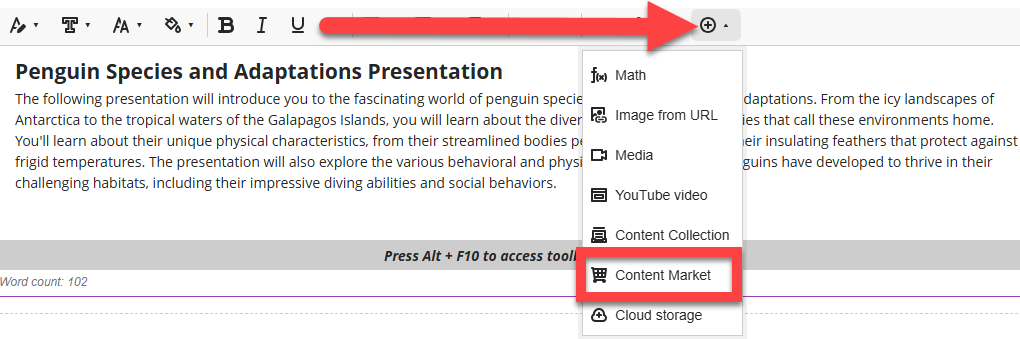
Locate the place where you want to add your media and click the Insert Content (+) button in the content editor. This will open a menu. Select Content Market.
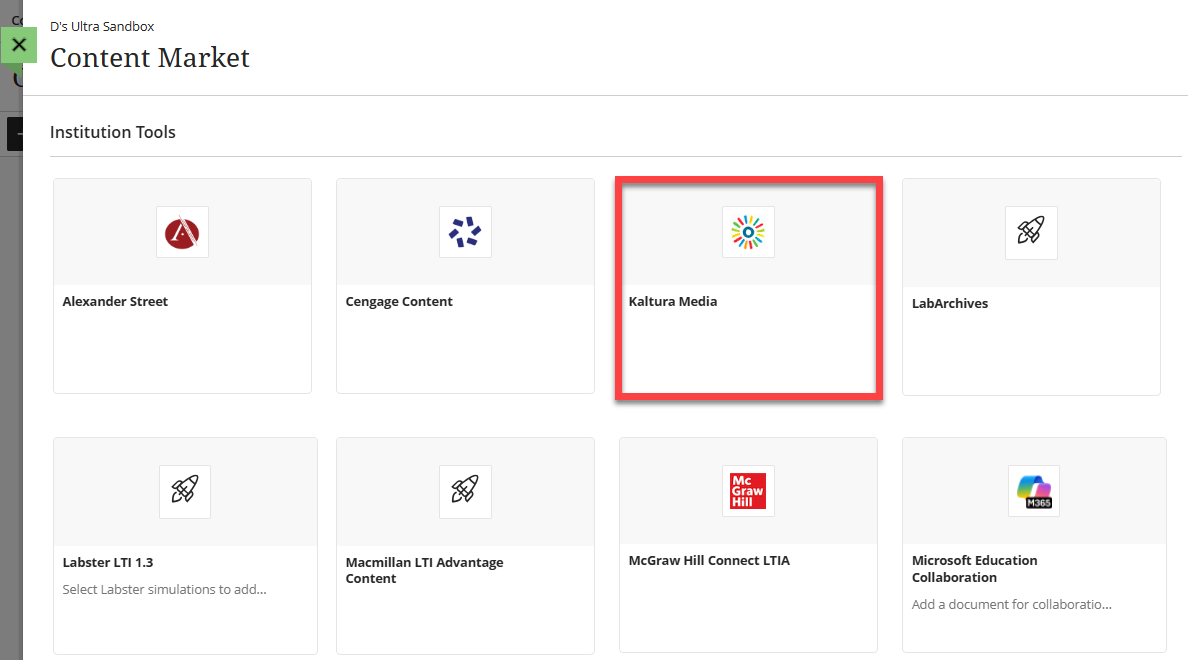
This will bring you into the Content Market. Select Kaltura Media.
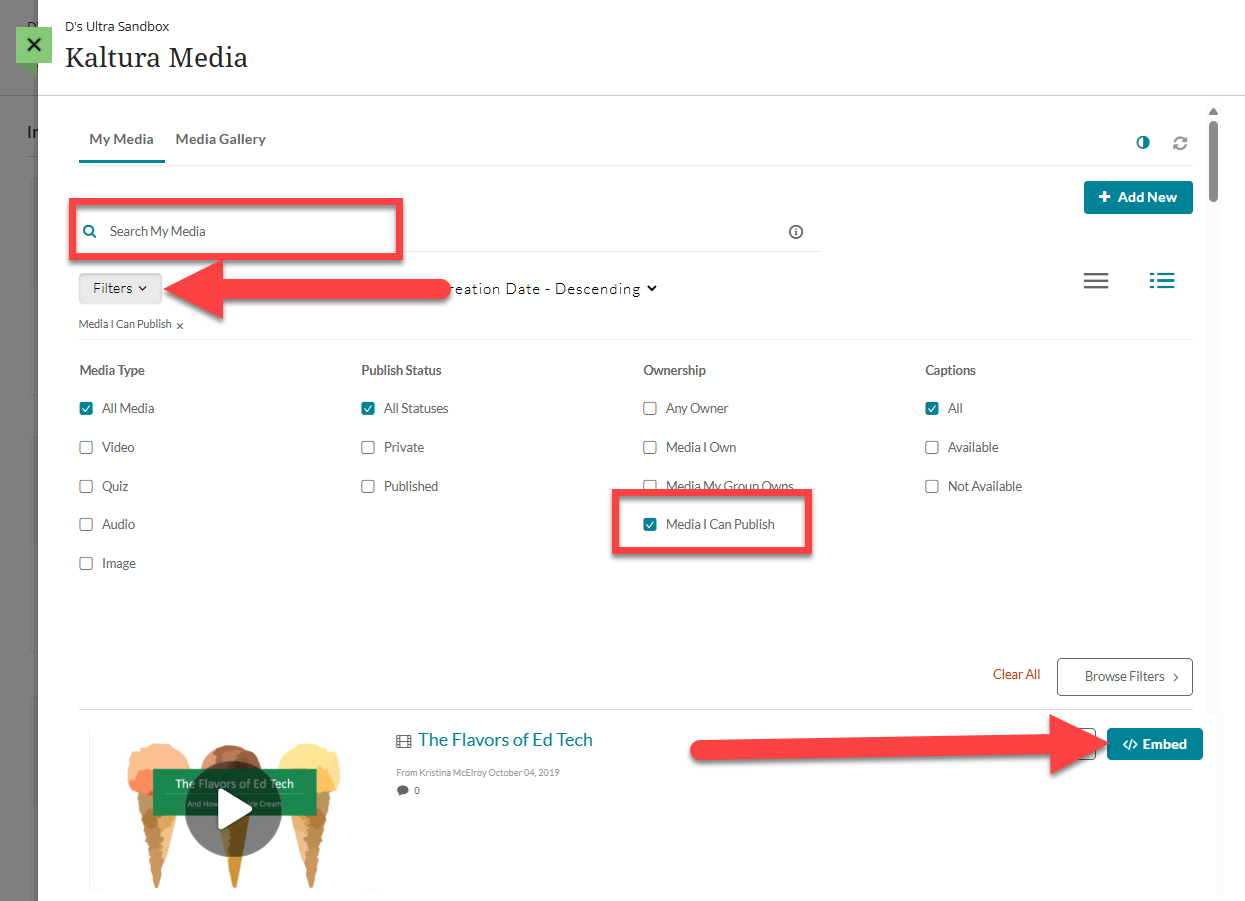
This will bring you into your Kaltura My Media. By default, your My Media will show all media that you own and media for which you are a co-viewer, co-editor, or co-publisher. You may narrow down your view by using the Search and Filter options to find media that you can publish.
Locate the media you wish to add to your course and click the Embed button.
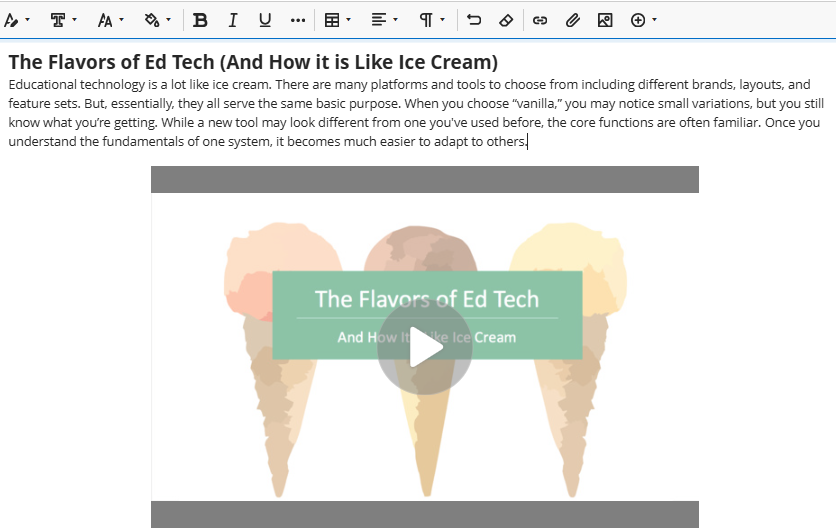
Your media will be embedded into your content. Make any other changes to your content and Save or Submit.
Refer to the Add Kaltura Media to your myLesley Course support article for more information and detailed instructions.
Was this article helpful?
That’s Great!
Thank you for your feedback
Sorry! We couldn't be helpful
Thank you for your feedback
Feedback sent
We appreciate your effort and will try to fix the article