TABLE OF CONTENTS
Create a Kaltura Interactive Video Quiz
The Kaltura Video Quiz lets you turn your videos into interactive learning experiences by embedding questions directly into playback. Add multiple‑choice, true/false, or open‑ended questions that pause the video and prompt students to respond as they watch. This helps boost engagement, check understanding in real time, and gather insights into which concepts may need review, transforming passive viewing into active learning.
Refer to the Create an Interactive Video Quiz support article for detailed instructions.
View Quiz Grades
As students complete their quiz, the grades will be sent to the myLesley Gradebook. Refer to the Blackboard Ultra Gradebook and Grading support article for more information on navigating the Gradebook.
View Quiz Reports and Analytics
Instructors may view detailed reports on quiz attempts and responses in the quiz' Analytics Dashboard.
Access your Quiz Analytics Dashboard
You may access your video quiz' Analytics Dashboard from your Kaltura My Media.
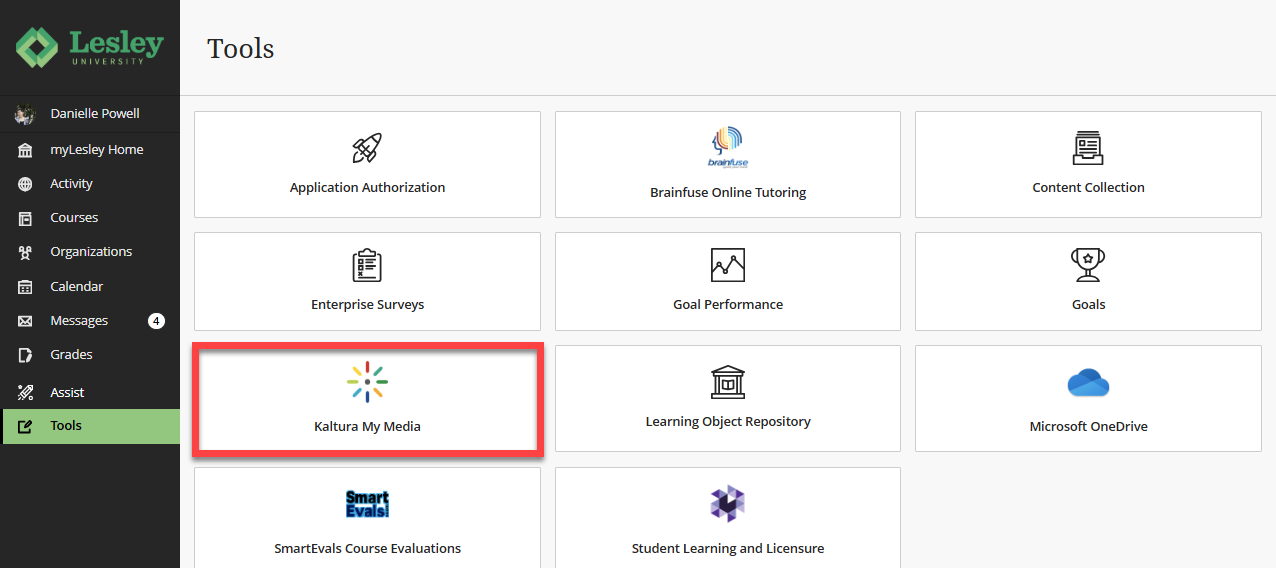
To access your My Media, log into myLesley and click on the Tools link in the Global Navigation menu. This will bring you to the Tools area. Select Kaltura My Media.
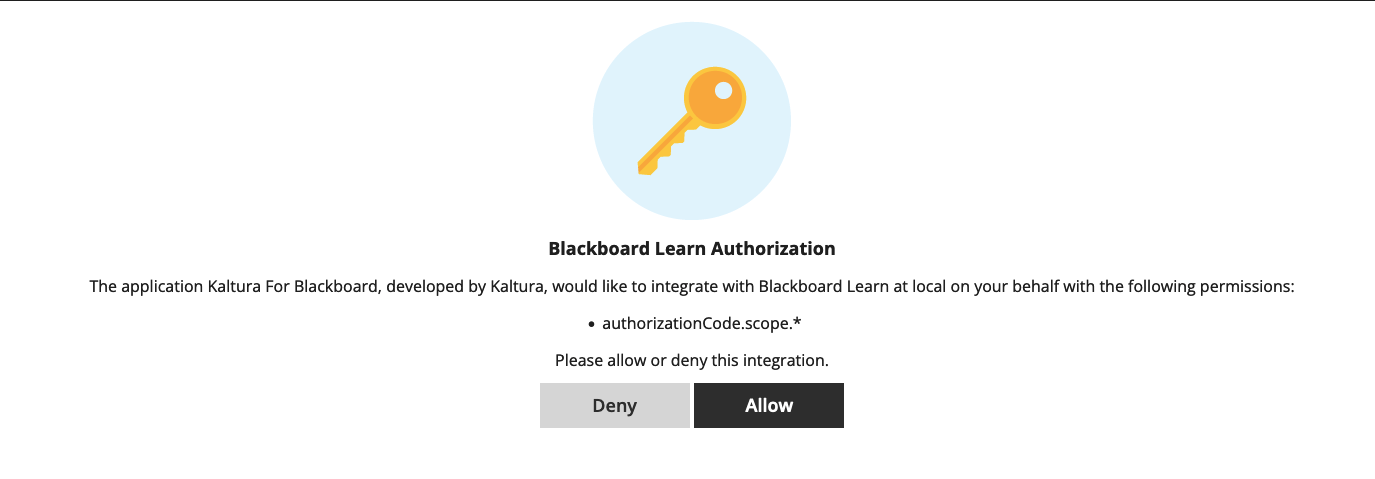
If prompted to allow Kaltura authorization, click Allow. You should only need to do this once.
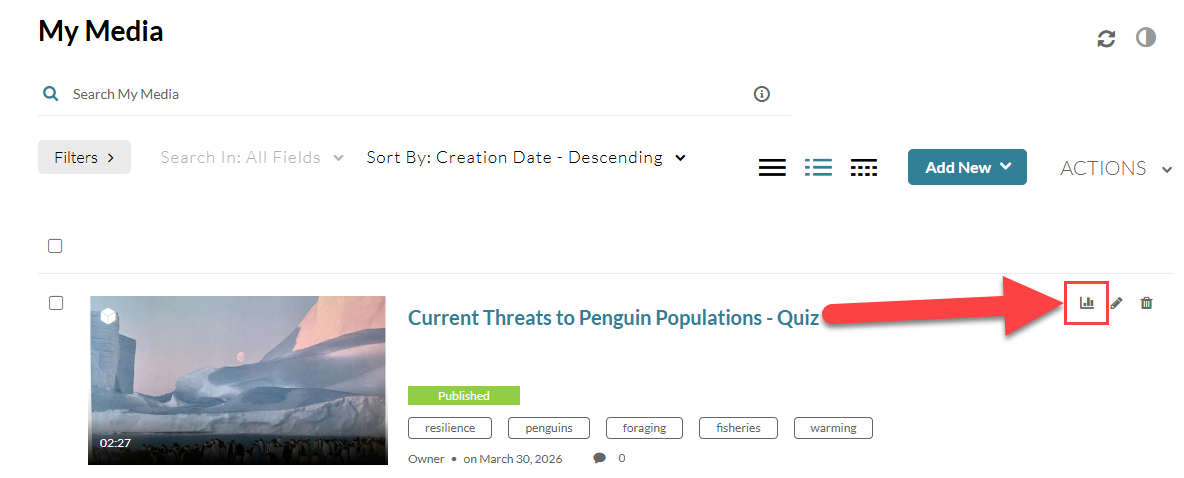
This will bring you to your Kaltura My Media. Here, you can view all of your Kaltura Media content, including your Interactive Video Quizzes.
Locate your Interactive Video Quiz and click the Analytics icon.
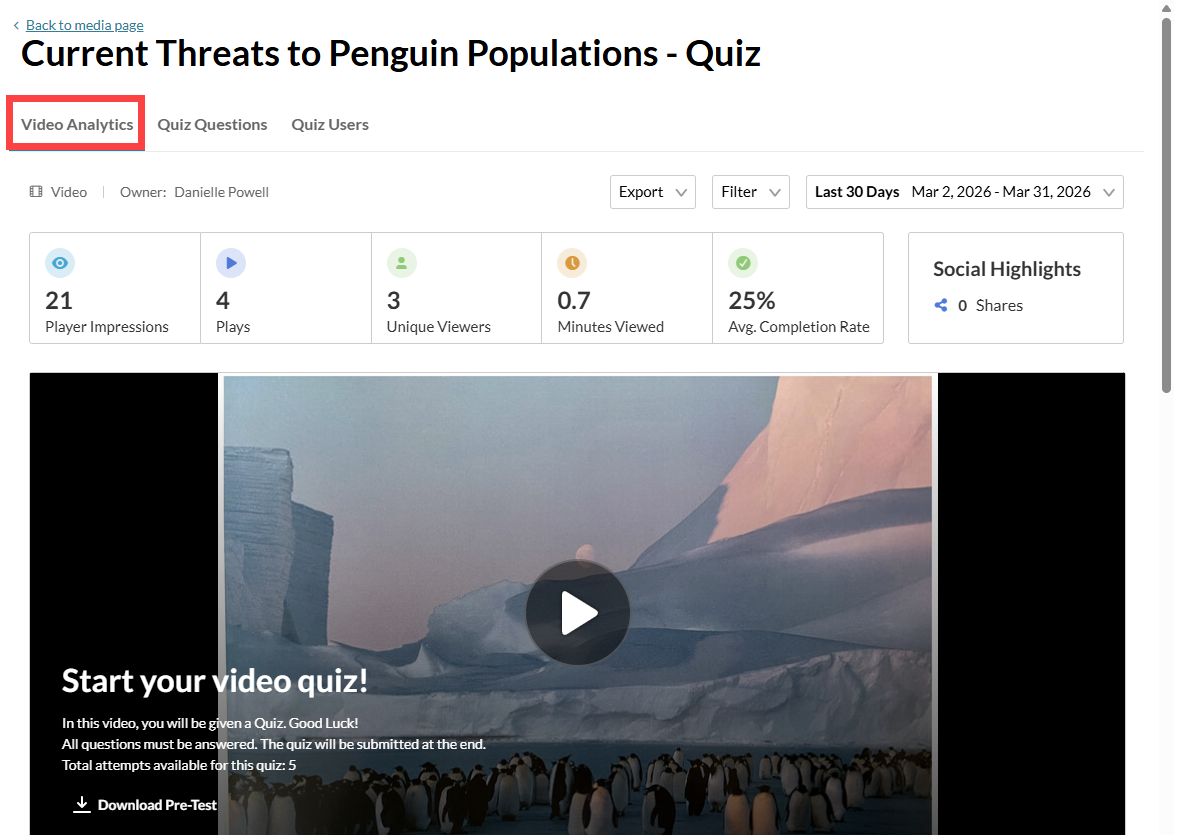
You will be brought to the Video Analytics page where you can view detailed reports on quiz attempts and responses. The analytics dashboard provides insights into user submissions, scores, and question-level data.
Video Analytics Tab
Here, you will see overview for your selected timeframe, including the number of plays, unique viewers, minutes viewed, and average completion rate. Refer to the Kaltura Media Entry Level Analytics support page for detailed information.
Quiz Questions Tab
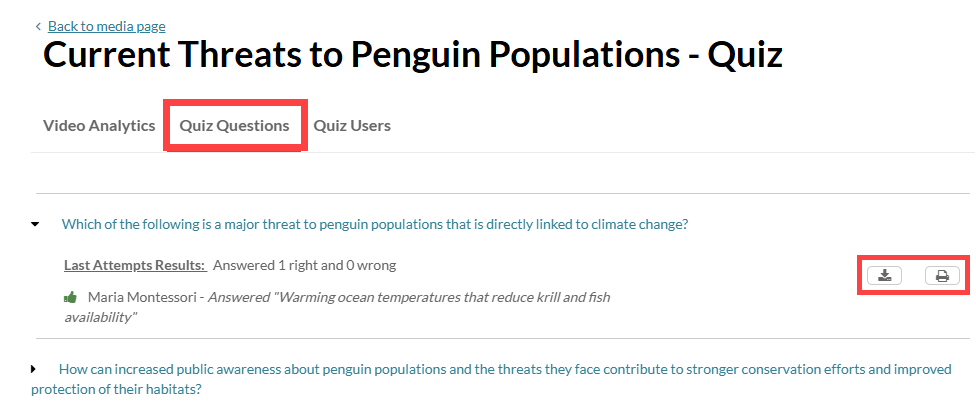
Click on the Quiz Questions tab to see how users responded to each quiz question. You can review answers, add notes to open-ended responses, and export or print answers to individual questions.
Click on a quiz question to see all users' responses. You may download or print the question responses by clicking on the icon.
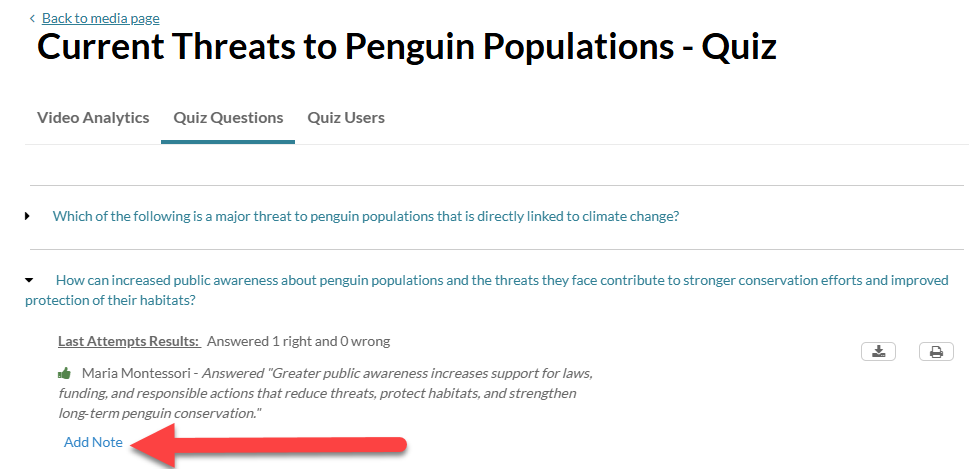
You can add notes to open-ended questions after a user submits a response. Users will need to open the video quiz in order to view the note.
Click on a question to see the users' responses and click Add Note.
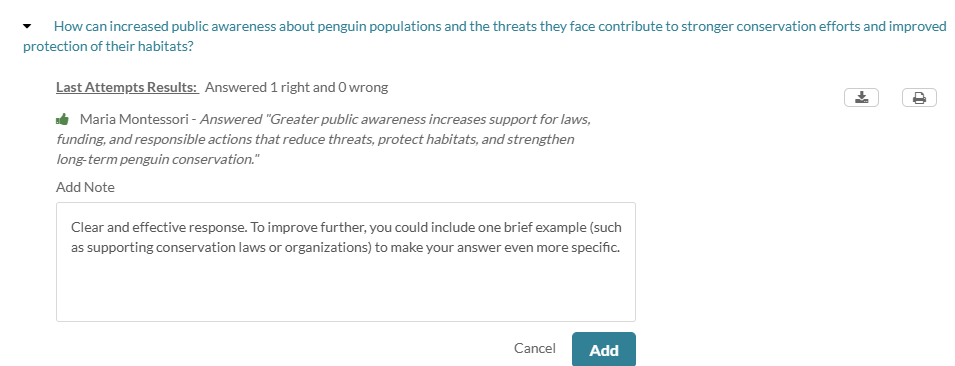
This will open a text box. Type in your text-based note/feedback and click Add.
Quiz Users Tab
Click on the Quiz Users tab to see a list of user submissions, sorted by date.
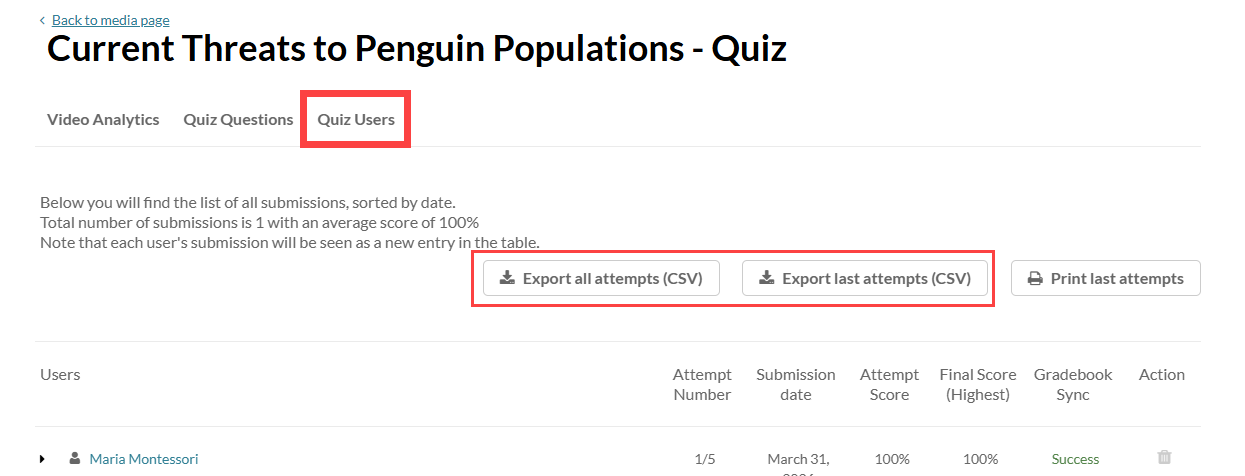
To export quiz reports, select:
- Export All Attempts (CSV): Download a report that includes all user attempts.
- Export Last Attempt (CSV): Download a report that shows only the last recorded attempt for each user.
Click on a user's name to view their Attempt Results.
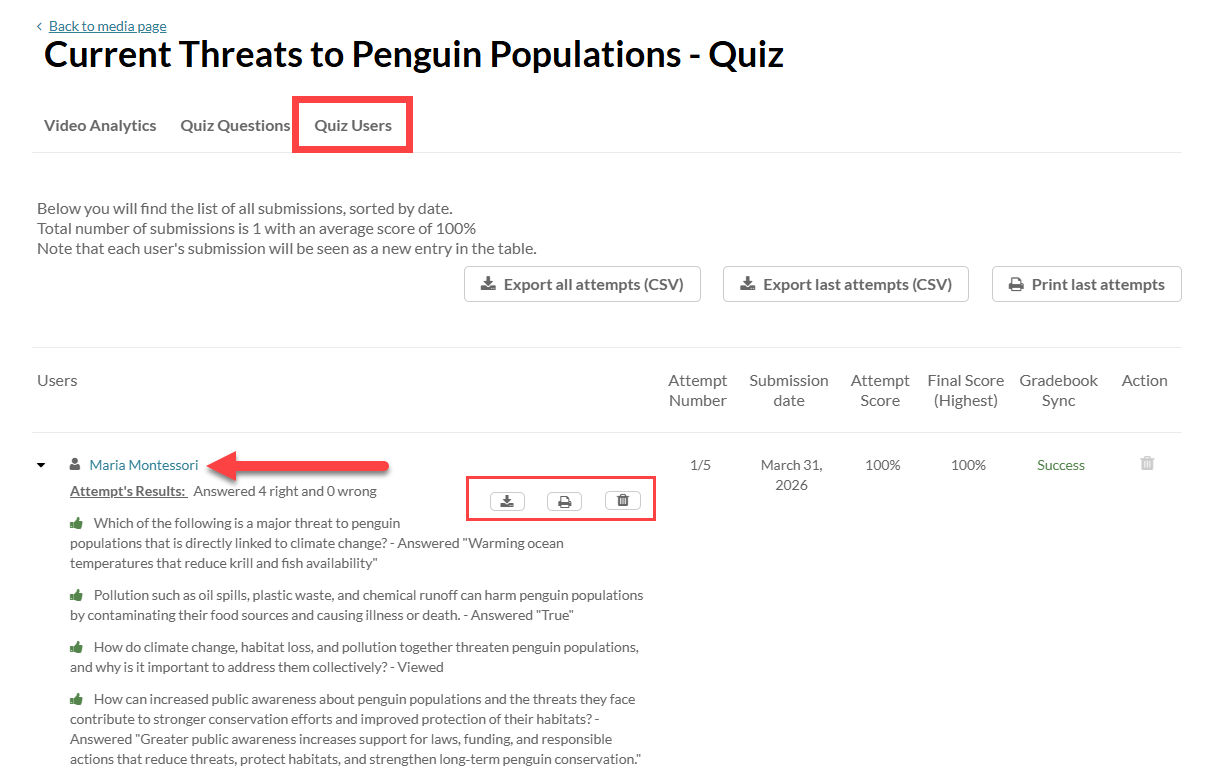
You may view the user's response to each question and:
- Export to CSV: Download this user's report data.
- Print: Print the report for this user.
- Delete: Remove the last attempt. To delete all attempts, click the Delete button in the Action column..
Was this article helpful?
That’s Great!
Thank you for your feedback
Sorry! We couldn't be helpful
Thank you for your feedback
Feedback sent
We appreciate your effort and will try to fix the article