Kaltura Media: Create an Interactive Video Quiz (Instructor)
TABLE OF CONTENTS
- About Kaltura Video Quiz
- Launch the Video Quiz Tool
- Create and Edit a Video Quiz
- Quiz Question Types
- Add Hints and Whys
- Preview Your Video Quiz
- Add a Video Quiz to your myLesley/Blackboard Course
- View Video Quiz Results
About Kaltura Video Quiz
The Kaltura Video Quiz lets you turn your videos into interactive learning experiences by embedding questions directly into playback. Add multiple‑choice, true/false, or open‑ended questions that pause the video and prompt students to respond as they watch. This helps boost engagement, check understanding in real time, and gather insights into which concepts may need review, transforming passive viewing into active learning.
Launch the Video Quiz Tool
To create or edit a video quiz, go to your Kaltura My Media.
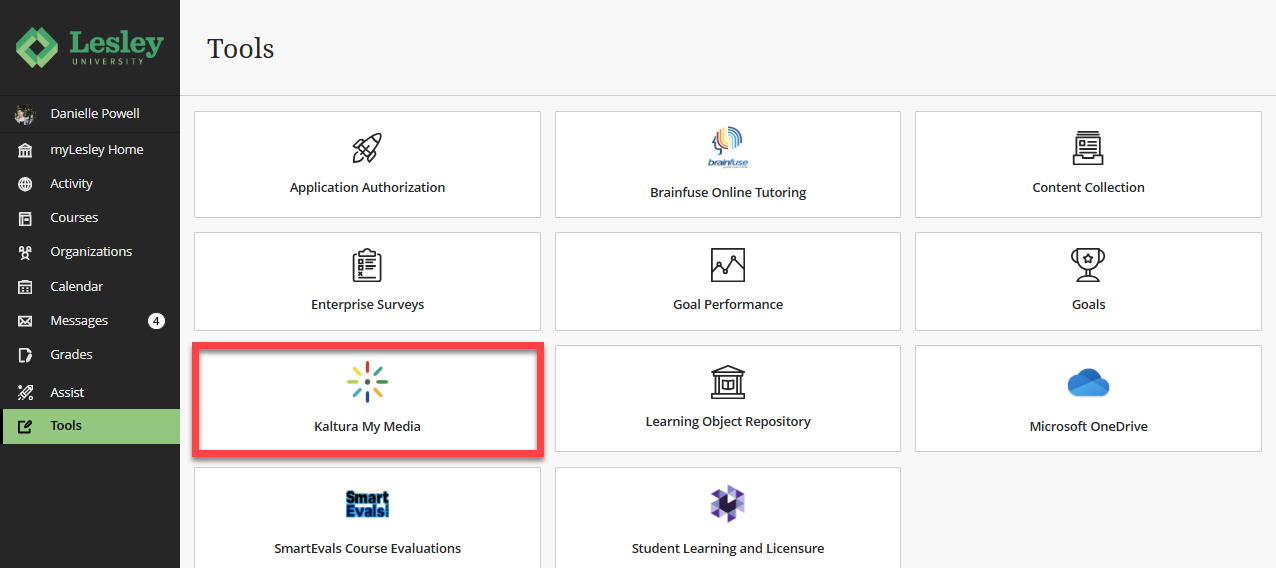
To access your My Media, log into myLesley and click on the Tools link in the Global Navigation menu. This will bring you to the Tools area. Select Kaltura My Media.
If prompted to allow Kaltura authorization, click Allow. You should only need to do this once.
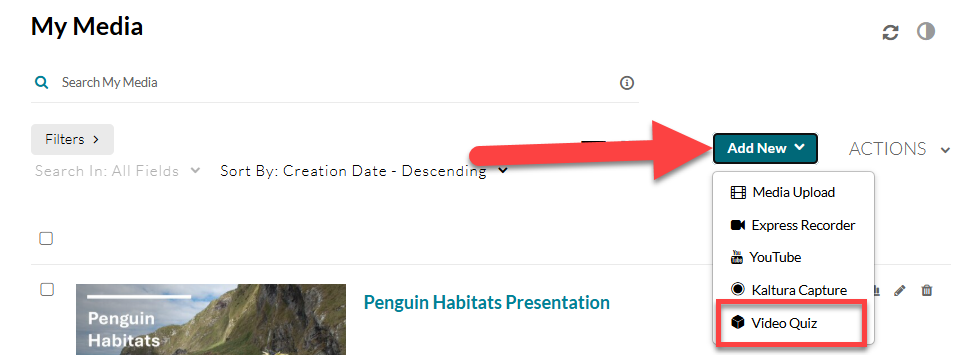
This will bring you to your Kaltura My Media. Click on the Add New button at the top of the page. This will open a menu. Select Video Quiz.
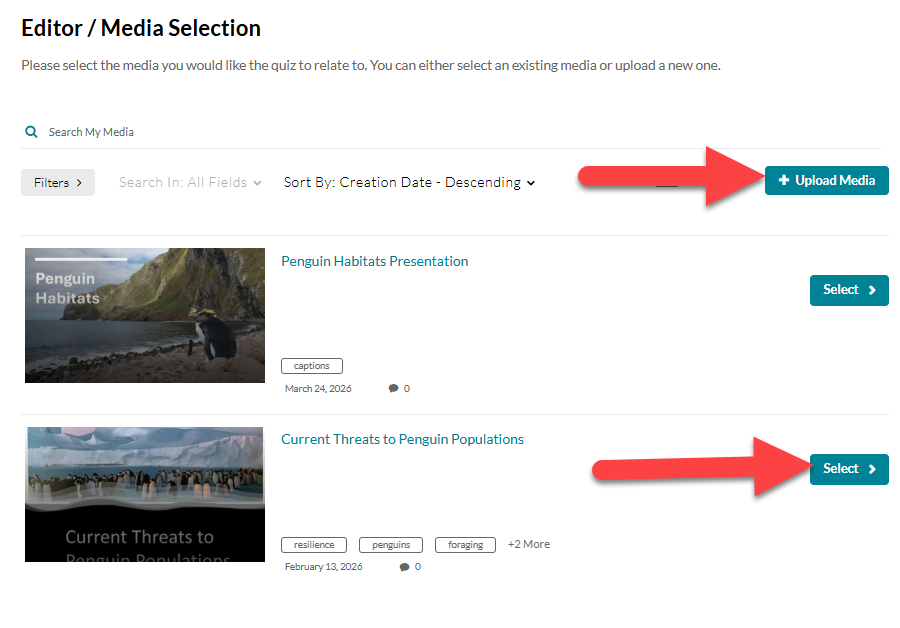
This will bring you to the Editor / Media Selection area. You may select an existing video in your My Media library or click on Upload Media to upload a new video.
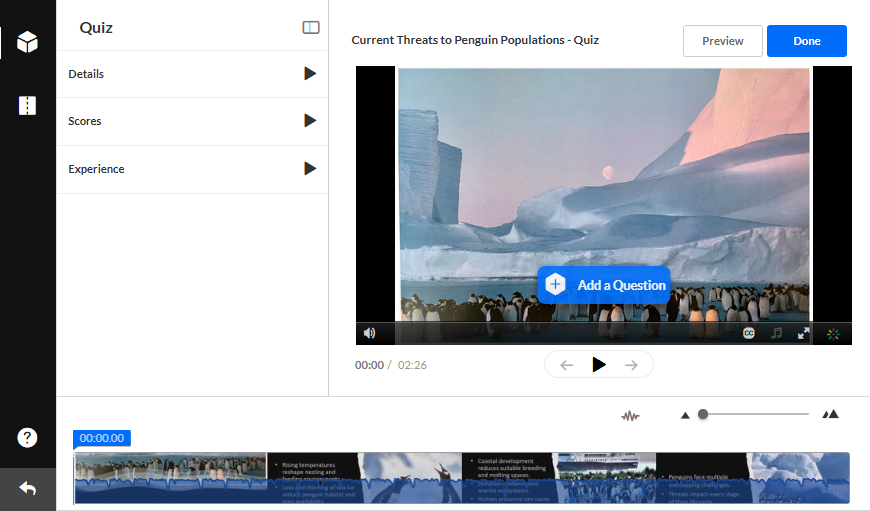
This will bring you to the Quiz Editor. Here, you can configure your quiz settings and dd questions.
Create and Edit a Video Quiz
Once you have selected your media, you will be brought to the Quiz Editor. Here you may manage your quiz settings and add questions to your quiz.
Configure Quiz Settings
In the Quiz panel, to the right of your video, you can edit the quiz Details, Scores, and Experience.
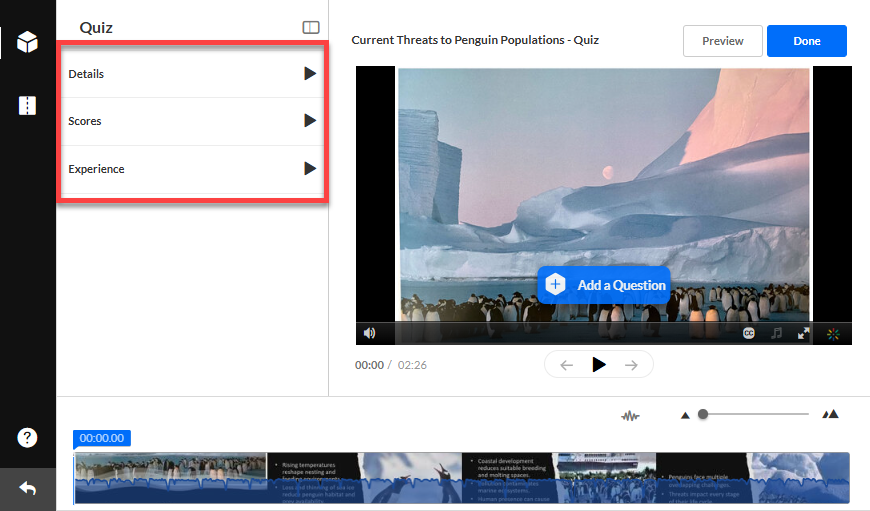
Click the Details tab to edit the quiz details:
- Edit the quiz name and welcome message.
- Allow viewers to download the list of questions before starting the quiz.
- Display the default instructions: "All questions must be answered. The quiz will be submitted at the end."
Click the Scores tab to set or modify the scoring options:
- Allow multiple attempts (the number of attempts will be shown on the Welcome page).
- Select Do Not Show Scores to show a 'Thank You' message after viewers submit the quiz. The viewers will not see their quiz scores after submitting the quiz.
- Select Show Scores to show viewers the Quiz Score Page after the quiz is submitted. You may opt to Include Answers to show viewers their correct/incorrect answers.
Click the Experience tab to set or modify the experience options:
- Select Allow Answers Change to allow your viewers to change an answer before submitting the quiz.
- Select Allow Skip to enable a "Skip for Now" button, allowing viewers to skip a questions and go back to it later.
- Select Do not Allow Skip to force viewers to submit an answer before proceeding forward.
- Select No Seeking Forward to prevent users from using the seek bar to navigate the video past the point they viewed.
Click Revert to defaults at any time. to revert to the default settings.
Add Quiz Questions
You will have the option to add different question types, including multiple choice, true/false, open-ended question, or a reflection point.
To add a quiz question, play your media and pause at your desired location or use the Timeline to advance to your desired location. Then click the Add Question button in the media player.
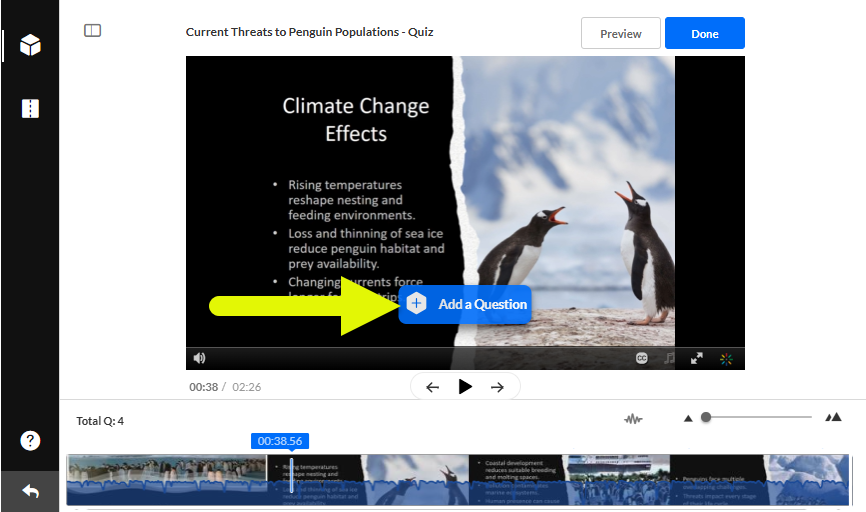
You will be prompted to choose a question type:
- Multiple Choice: Add up to four answer options and specify one correct answer.
- True/False: Add two answer options (true/false or yes/no)
- Open-Ended Question: Type an open-ended question (400 character limit). Open-ended questions are not auto-graded.
- Reflection Point: This will pause the video and present a question for viewers to reflect on.
After each question is added to the quiz, a question icon appears below the video in the timeline. You can click on this icon to return to the question editor at any time during the editing process.
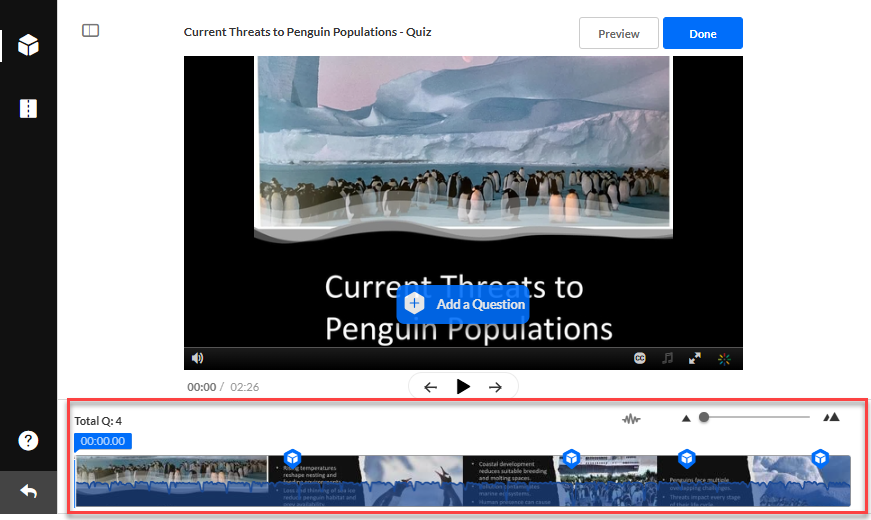
Once you have finished adding questions, click Done to save your quiz.
Watch the How to Add Questions to a Kaltura Video Quiz tutorial video for an overview.
Quiz Question Types
You may create four different question types:
- Multiple Choice: Add up to four answer options and specify one correct answer.
- True/False: Add two answer options (true/false or yes/no)
- Open-Ended Question: Type an open-ended question (400 character limit). Open-ended questions are not auto-graded.
- Reflection Point: This will pause the video and present a question for viewers to reflect on.
Create a Multiple Choice Question
To create a multiple choice question with one correct answer:
- Enter your question text.
- Enter the correct answer in the Add the CORRECT Answer Here field. Then enter additional answer options.
- Click the + icon to add additional answer options (you may have up to 4 answer options)
- Click the shuffle icon to randomly shuffle the answer options.
- Click the lightbulb icon to add hints and whys (optional).
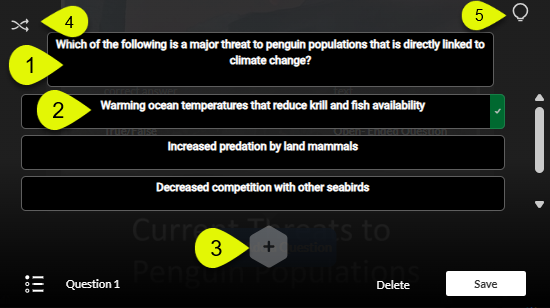
Once you have finished, click Save to add the question to your quiz.
Create a True/False Question
To create a true/false question with one correct answer:
- Enter your question text.
- Select the correct answer as indicated by a green checkmark or red X.
- Click the lightbulb icon to add hints and whys (optional).
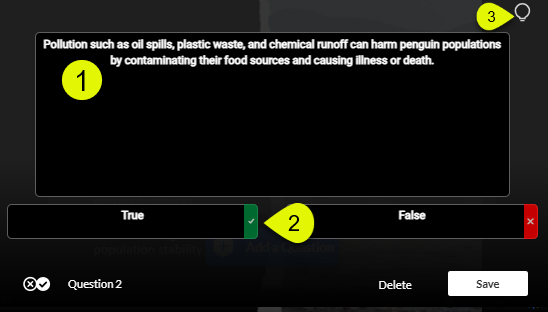
Once you have finished, click Save to add the question to your quiz.
Create an Open-Ended Question
To create an open-ended question:
- Enter your question text.
- Click the lightbulb icon to add hints and whys (optional).
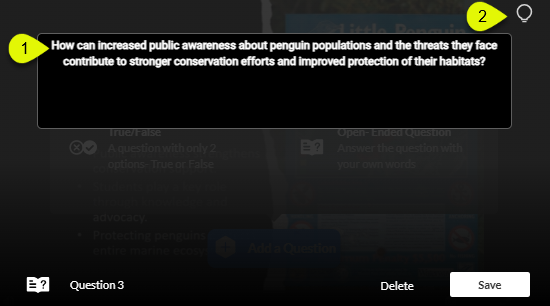
Once you have finished, click Save to add the question to your quiz.
Note: Open-ended questions cannot be auto-graded.
Create a Reflection Point Question
To create a reflection point question, enter your question text.
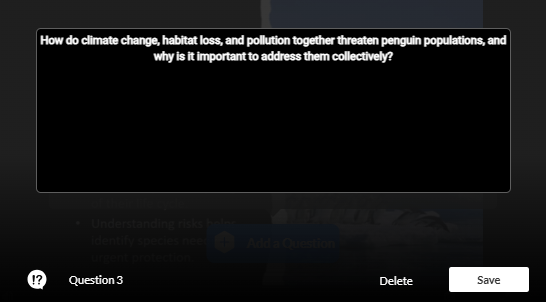
Once you have finished, click Save to add the question to your quiz.
Add Hints and Whys
You can help your viewers by adding a hint or a justification for an answer (why).
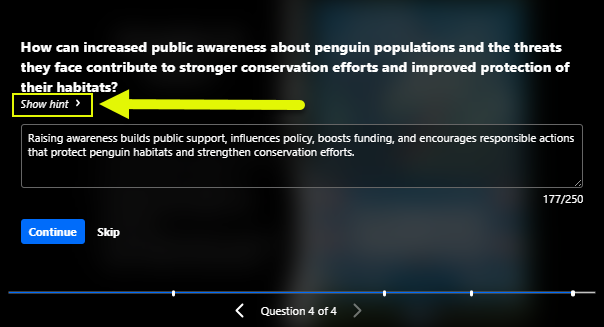
- Hint: Hints contain additional information that can help answer the question. When taking a quiz, viewers can click Show hint to show the hint. Using a hint will not affect the viewer's score.
- Why: Whys provide a justification for an answer or explain why it's the correct answer. Viewers will only see the Why at the end of the quiz when reviewing their results. This option is only available if you selected Include Answers in the Scoring tab.
Add a Hint
To add a hint, go to your question and click the lightbulb icon. Select Hint.
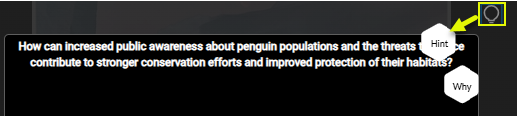
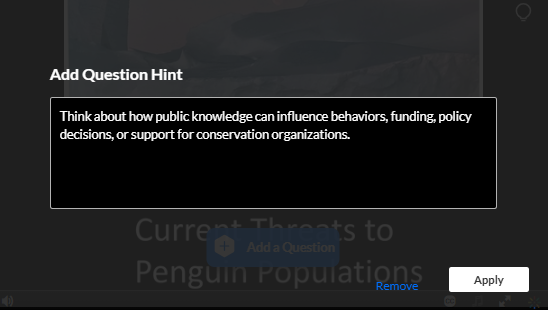
Enter your question hint and click Apply.
Your hint will be applied to your question. When viewers take your quiz, they will have the option to show hint.
Add a Why
To add a Why, go to your question and click the lightbulb icon. Select Why.
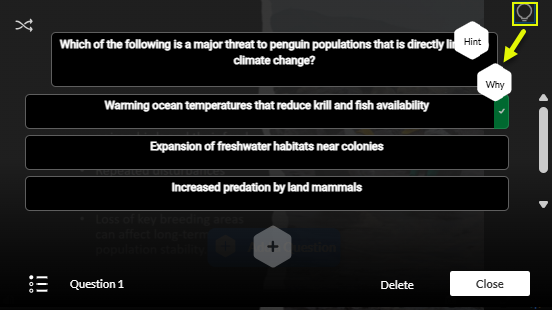
Enter your correct answer rationale and click Apply.
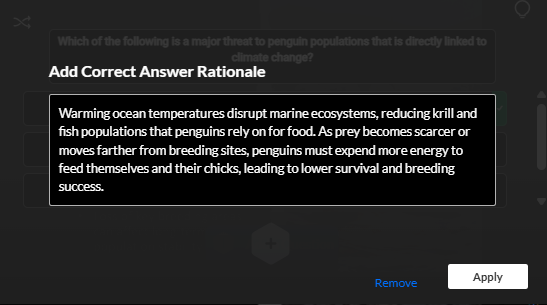
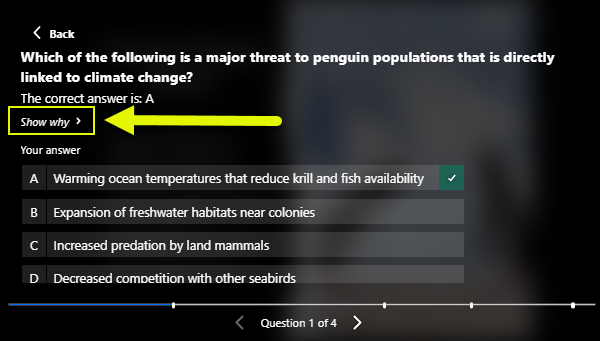
Your why will be applied to your question. After viewers complete the quiz and view their results, they will have the option to click Show why for the rationale behind the correct answer.
Preview Your Video Quiz
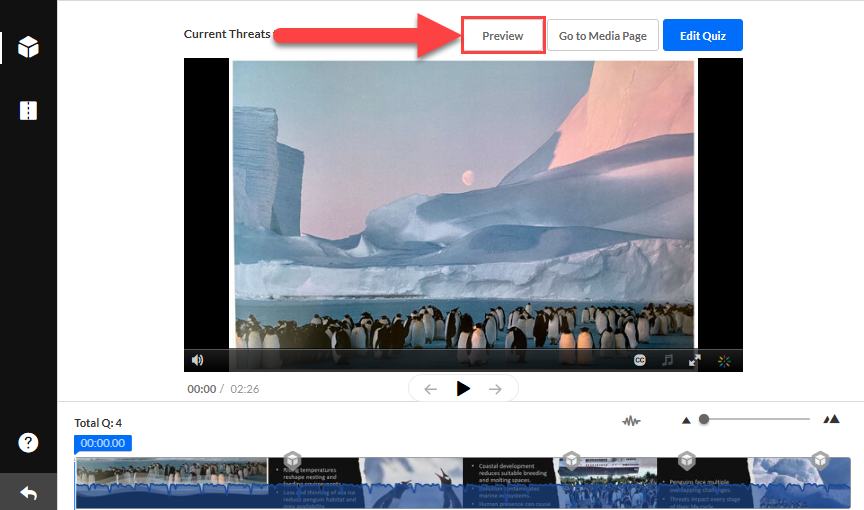
Once you have added your quiz questions and saved your quiz, click on the Preview button to preview your video quiz.
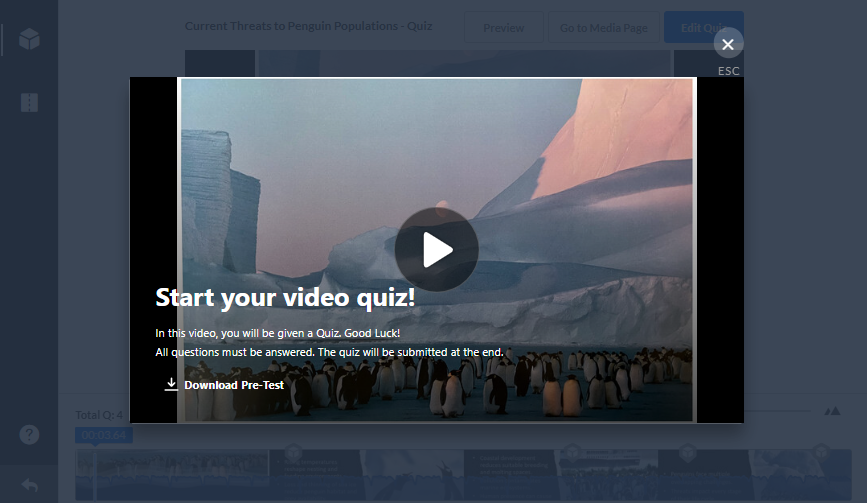
If you added a welcome message and/or instructions in the Details tab, this will display when you launch the video quiz. If you selected the option to allow viewers to download the list of questions before starting the quiz, the Download Pre-Test button will appear on this screen.
Click the Play button to watch the video and answer the quiz questions.
Add a Video Quiz to your myLesley/Blackboard Course
Before you begin, create your Video Quiz in your Kaltura My Media.
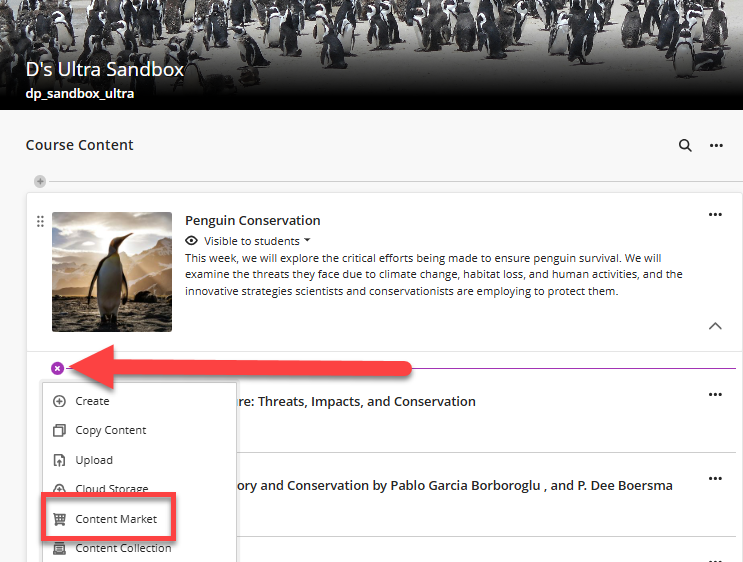
To add your Video Quiz to your course, click on the + button anywhere on your Course Content page, within a Learning Module, or within a Folder. This will open a menu. Select Content Market.
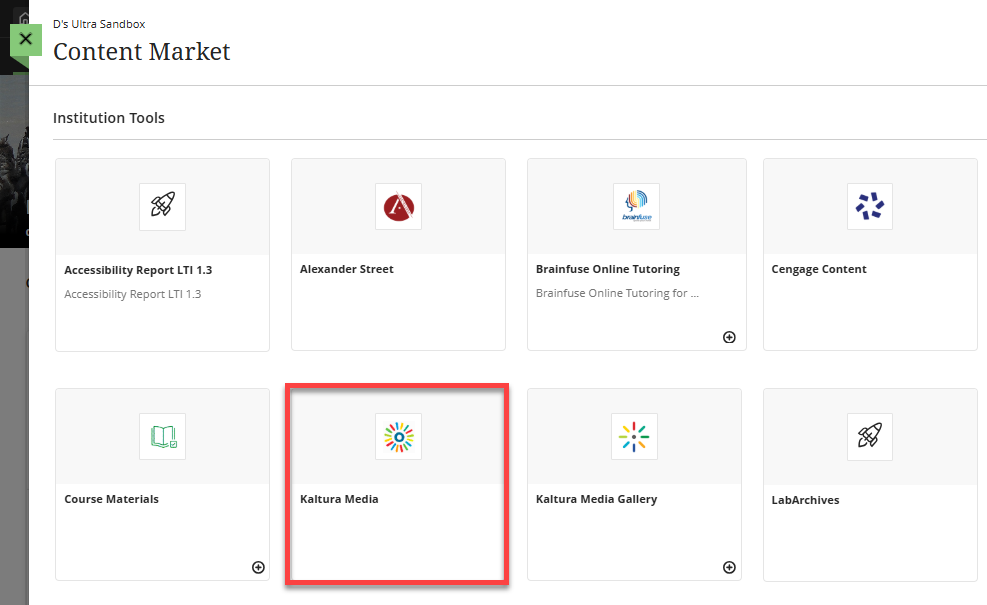
This will bring you to the Content Market. Select Kaltura Media.
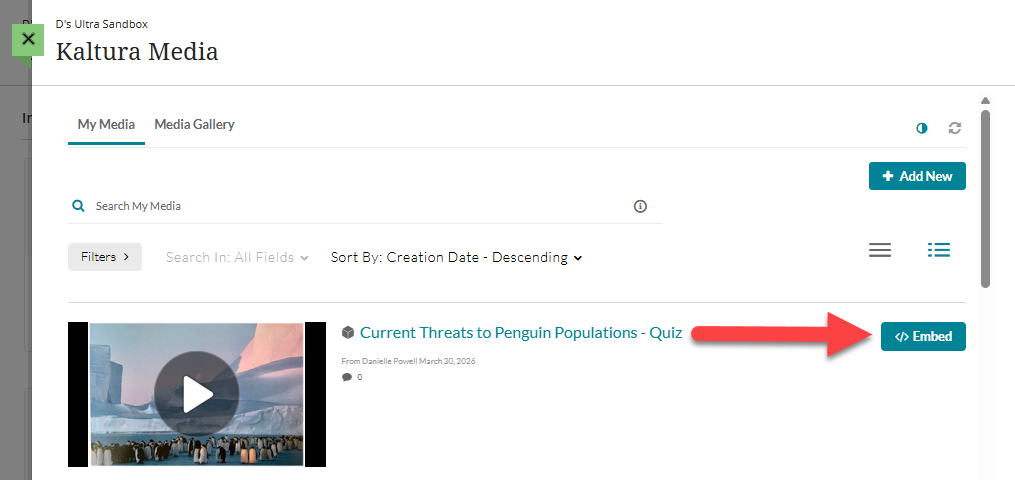
This will take you to your Kaltura My Media, where all of your Kaltura media is stored. Locate your video quiz and click Embed.
Your video quiz will be added to your course. Next, you will want to add your grading information.
Locate your video quiz in your Course Content and click the More Options (three dots) menu. Select Edit.
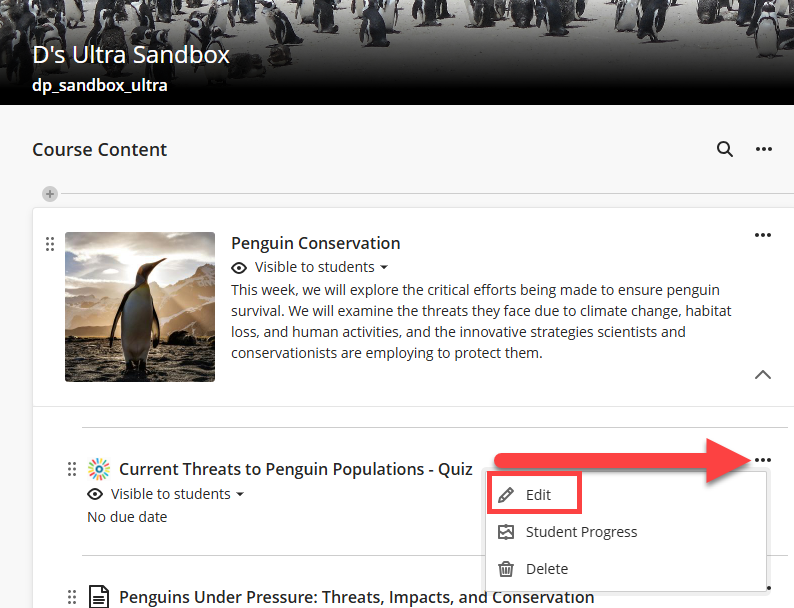
You may edit your video quiz name, change the visibility status, add a due date, maximum points, and assign it to a grade category. Click Save to save your changes.
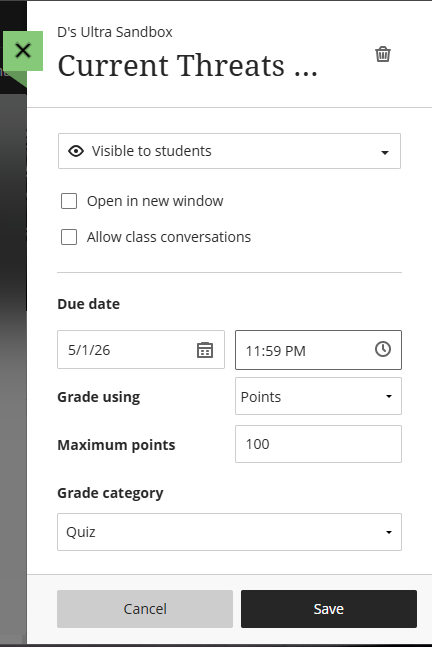
When students complete the quiz, their scores will be sent to the Gradebook.
View Video Quiz Results
As students complete their quiz, grades will be sent to the myLesley Gradebook.
To view quiz scores as well as detailed reports on quiz attempts and responses, refer to the View Interactive Video Quiz Results support article.