Add a Course Image to your myLesley Course
TABLE OF CONTENTS
What is a Course Image?
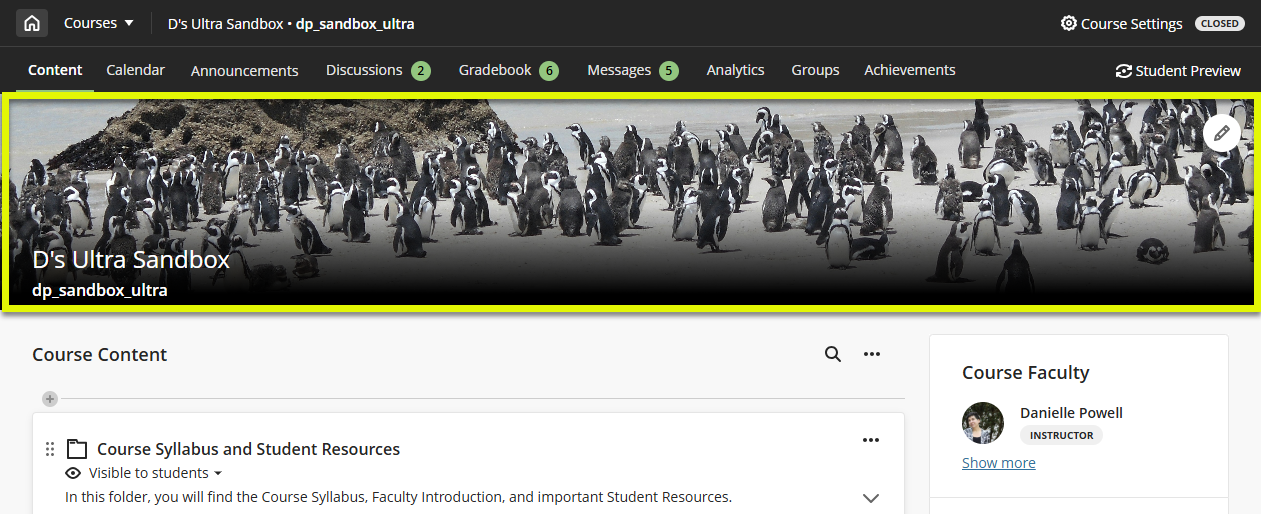
You may add a course image to help students quickly recognize and locate your course. Your image will appear on the course card and as a full-width banner at the top of your course.
- Course Banner: Your course banner displays at the top of your course page alongside the course name and ID.
- Course Card: On the Courses page, your course image will display on your course card (grid view).
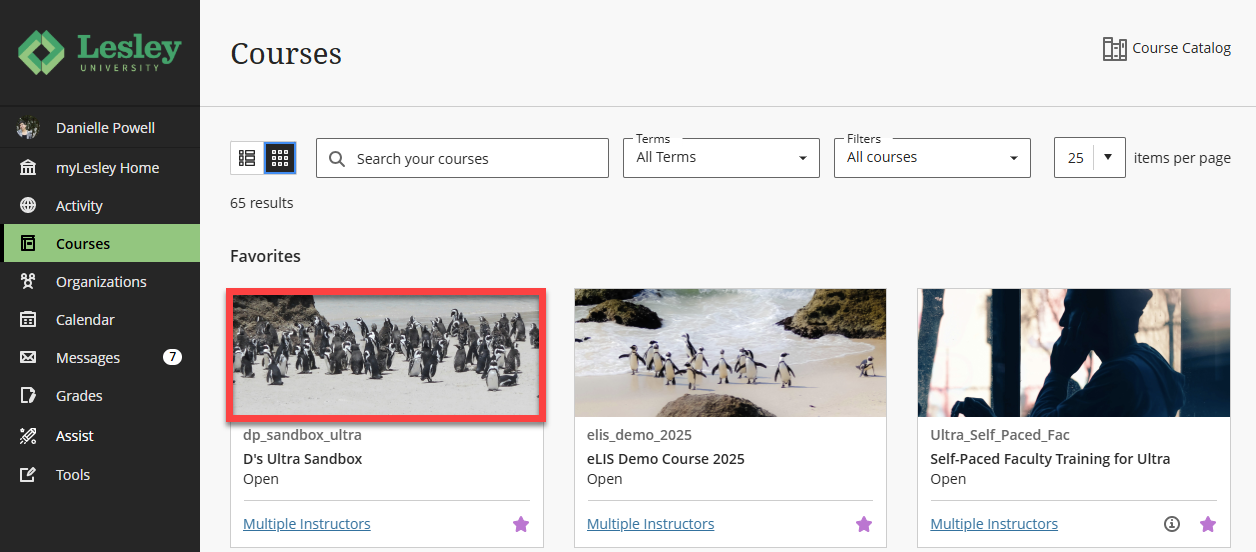
Image Recommendations
Image requirements:
- File Type: JPEG, PNG
- File Size: Your file may be no larger than 10.24 MB.
- Image Size: Your image should be 1200 x 240 pixels or larger. An ideal image should have a 5:1 ratio.
When choosing an image:
- Choose an abstract image or an image with a focus at the center. These images work better as a banner, due to cropping variability.
- Avoid text-based images. These images do not scale or crop well and your text may be cut off or difficult to read.
- The main content should be in the center of your image (at 550 x 150 pixels within a 1200 x 240 pixels banner) to guarantee its visibility both in the course banner and the course card. Anything outside that central area may be cropped out at various screen sizes.
Add A Course Image
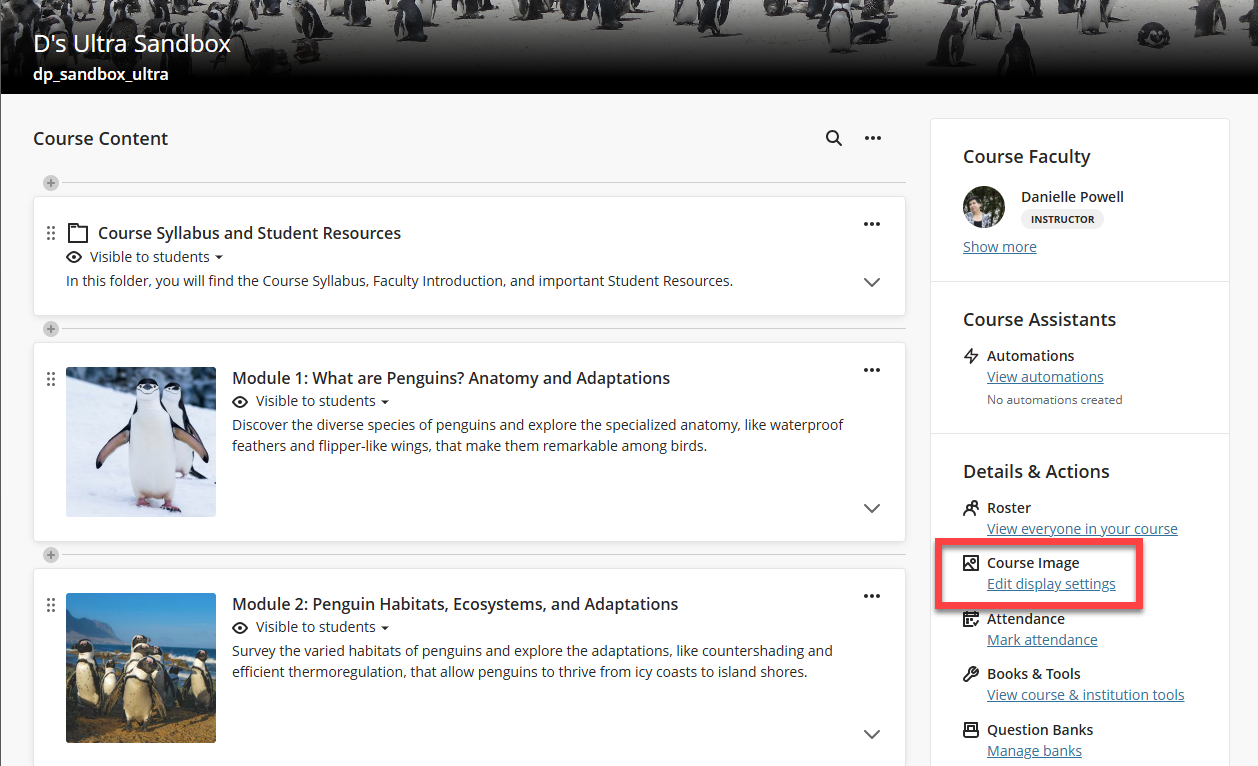
From your Course Content page, navigate to the Details & Actions menu and select Course Image.
This will open your Display Settings menu. Click on the Insert Image icon.
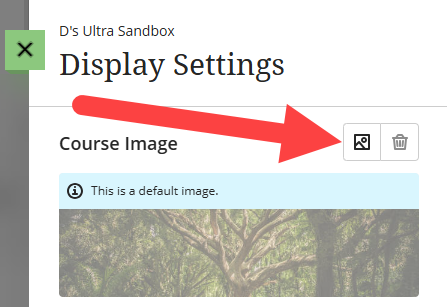
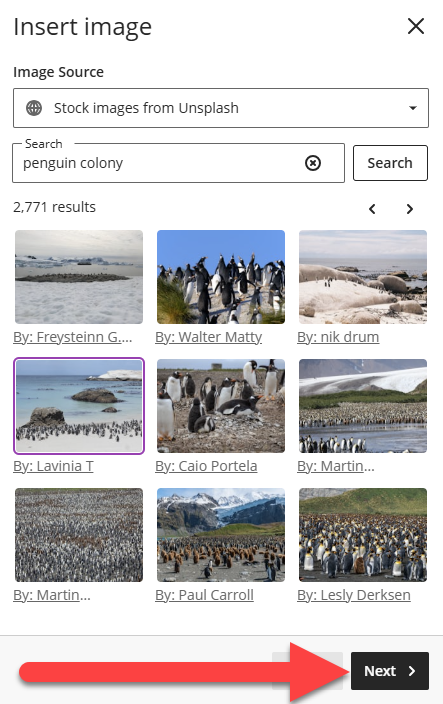
This will open the Insert Image window. In the Image Source section, select Upload from Device to upload an image from your device or select Stock images from Unsplash to add a royalty-free image from Unsplash.
If you are uploading an image, it should meet the following criteria:
- Format: JPEG or PNG
- Size: 1200 x 240 pixels minimum
- Maximum size: 10.24 MB
Once you have uploaded or selected your image from Unsplash, click Next.
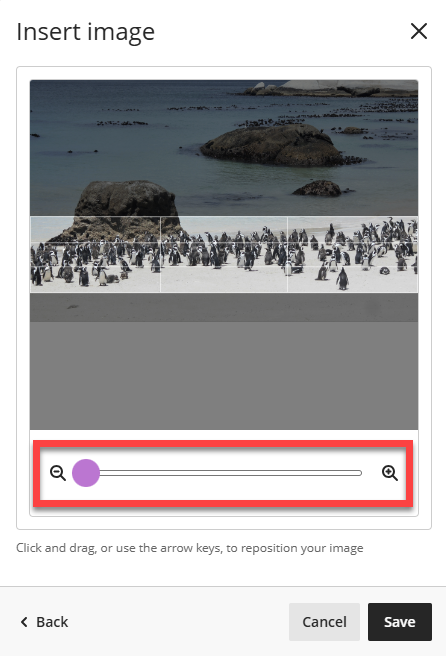
You will then be prompted to reposition your image. Use the slider or your arrow keys to zoom in or out. The highlighted section of the image will become your course banner. Click Save to continue.
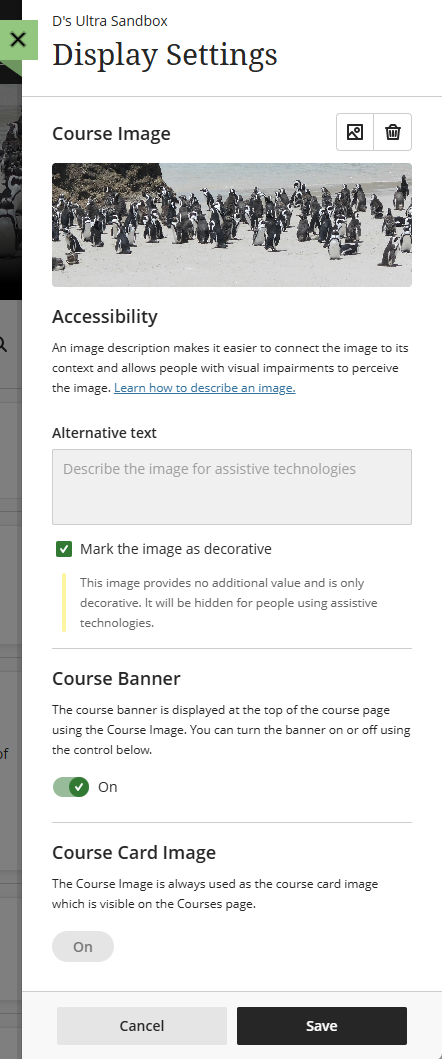
You will be brought back to the Display Settings panel.
Add alternative text to describe the image for those using assistive technology. If the image is merely decorative and provides no additional value, you may mark it as decorative.
Toggle the Course Banner to On in order to display your image at the top of your Course Content page. and click Save to save your changes.