How do I give my parents or guardian access to review my financial information and pay my bill?
Is a parent, guardian, or other trusted 3rd-party helping you finance your education? If so, you might want to grant them access to your student account billing information as an Authorized User. You'll do this through the Student Account Center (SAC).
Contents
- Accessing the Student Account Center
- Adding an Authorized User:
- Making a Payment as an Authorized User:
Accessing the Student Account Center
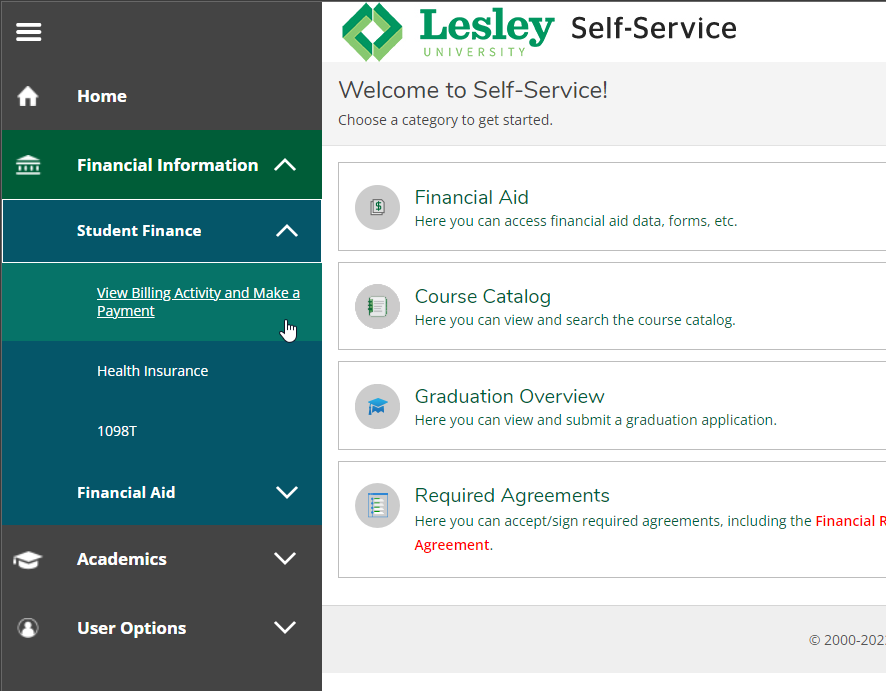
To visit the SAC, log into Self-Service with your Lesley username and password at lesley.edu/selfservice. In the Financial Information menu, select "Student Finance" and then "View Billing Activity and Make a Payment." You will be redirected to the Student Account Center.
After you log into the SAC, your home screen will display. Here you can access your profile, review your expenses, make a payment, and manage refunds.
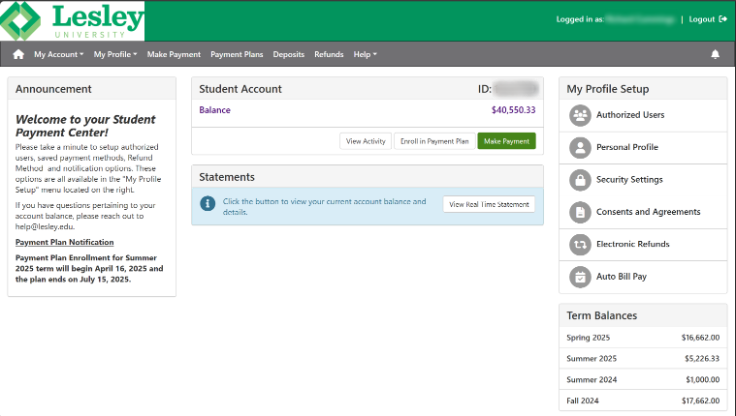
Authorized Users (AUs) can review your account/balance and make a payment towards the account. Only students/primary payers can add an AU.
Adding an Authorized User:
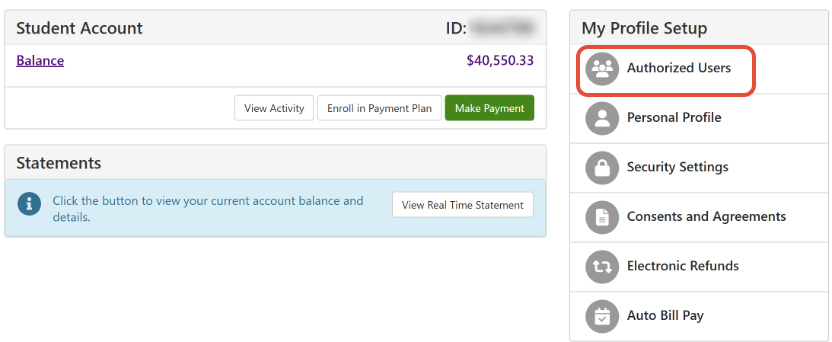
- Select "Authorized Users" from the My Profile Setup menu after you've logged in.
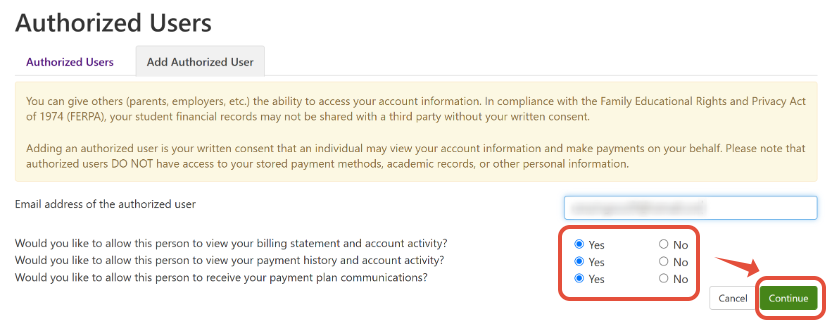
- From the Authorized Users page, select "Add Authorized User”. Enter the email address of the Authorized User.
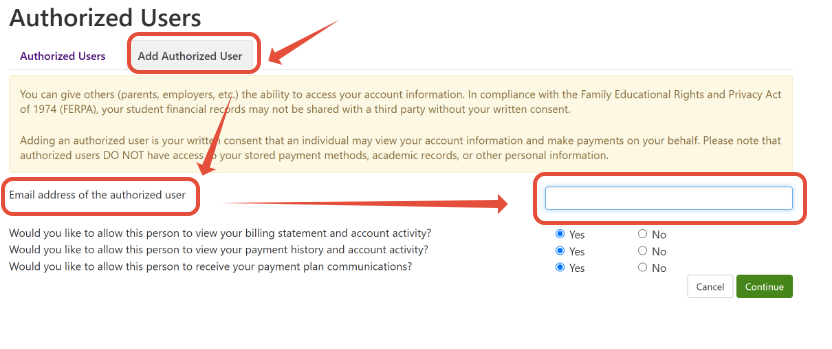
- Select Yes or No to the access you would like to grant to the Authorized User. Then, click the green button labeled "Continue."
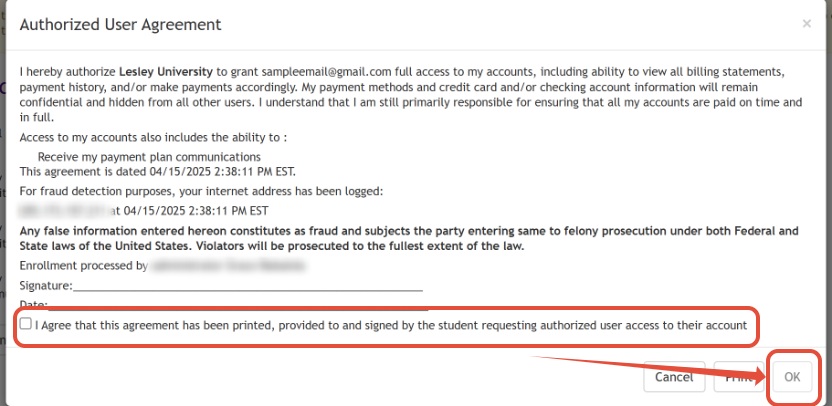
- Read the Authorized User Agreement. Then, check the box beside "I agree that this agreement has been printed, provided to and signed by the student requesting authorized user access to their account" if you agree. Next, click on the "OK" button.
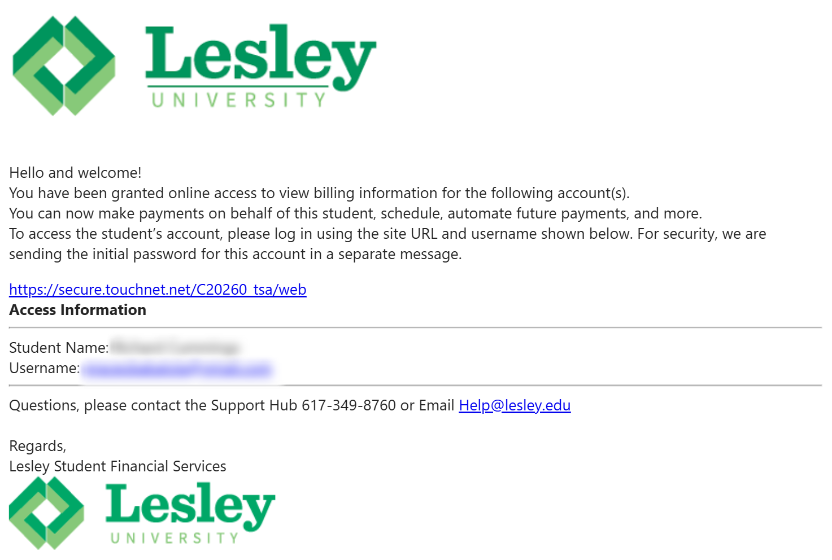
- The Authorized User will receive two emails. The first email will contain their login link and username.
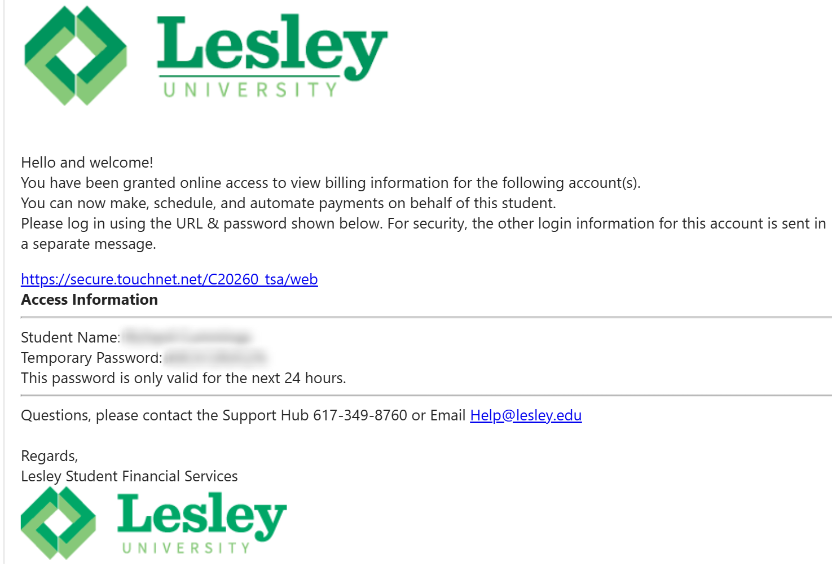
- The second email will include the login link again, along with a temporary password. Please note the temporary password expires in 24 hours.
Making a Payment as an Authorized User:
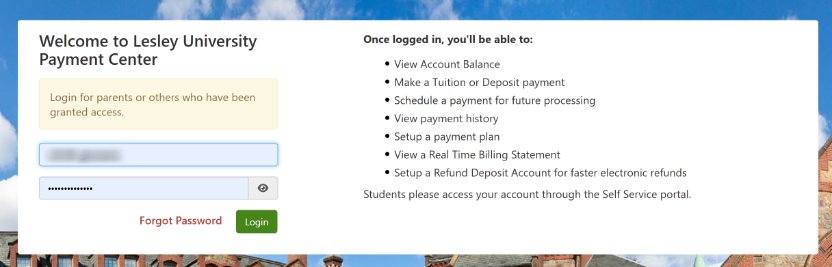
- Authorized Users will receive their login information after they've been added as an Authorized User. They can log in and make a payment on behalf of a student/primary payer.
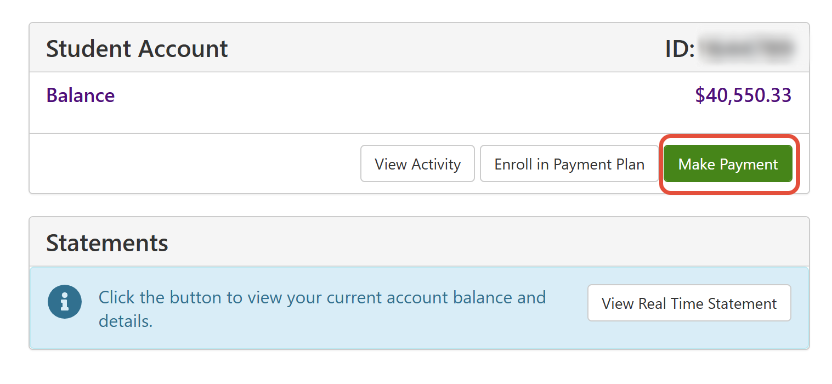
- Authorized Users should click the green button labeled "Make a Payment" and then enter the payment amount. Authorized Users can also set up a payment plan. Please reference our payment plan setup article for instructions on starting a payment plan.
- Authorized Users can choose to pay the Current Semester or to Pay by Term. If they're a returning payer and have saved payment information, it will appear under Method.
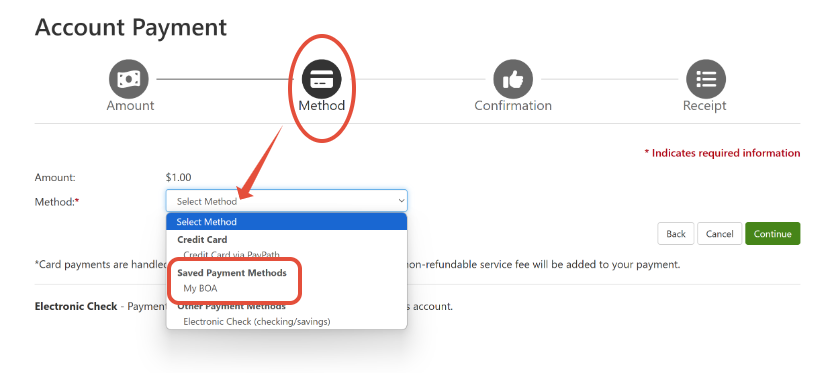
Please note: An Authorized Payer does not have access to the Primary Payer (student's) saved payment profile, and vice versa.
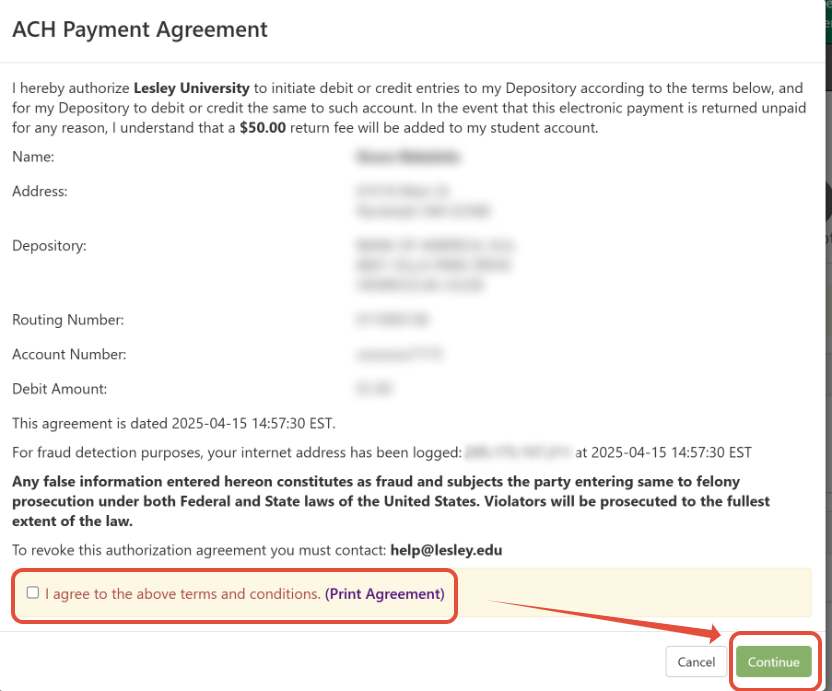
- For ACH, an ACH Payment Agreement will appear. Check the box beside "I agree to the above terms and conditions," and then click on the green button labeled "Continue." For credit cards, you will be directed to our third-party processor, PayPath.
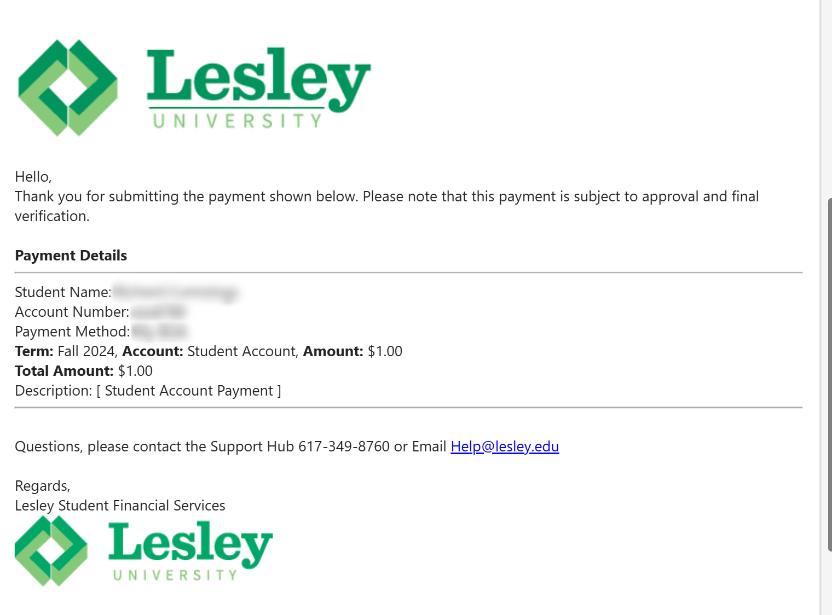
- Upon successful completion of payment, you will receive a payment confirmation, an emailed receipt, and a text message (only if paying by ACH).
For instructions on allowing access to your student academic record information, please visit our Knowledge Base article on the Self-Service Parent Portal.