Changing passwords for shared email accounts (2026)
If you are the manager of a shared email account, here are directions on how to change the password. If you are not a manager, and can't figure out who is the manager, put a ticket in with IT at it@lesley.edu to ask who the manager is for the account..
1.To change the password of a shared account that you manage, go to https://password.lesley.edu.
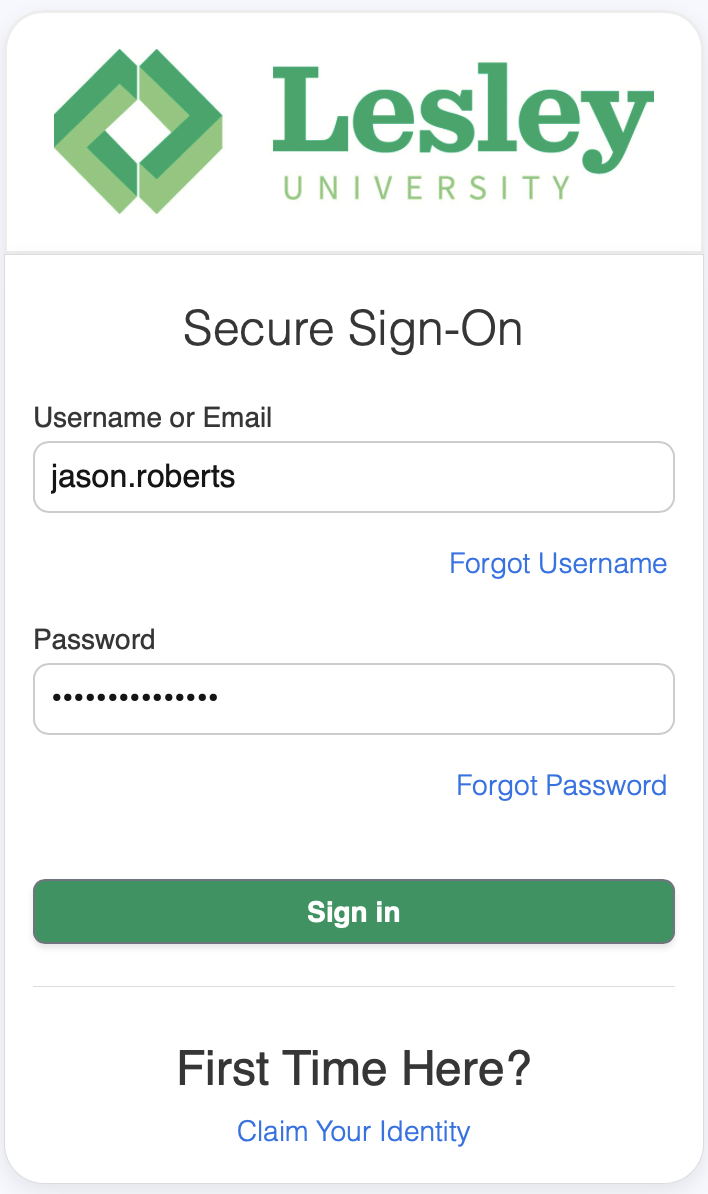
2.Log in as yourself.
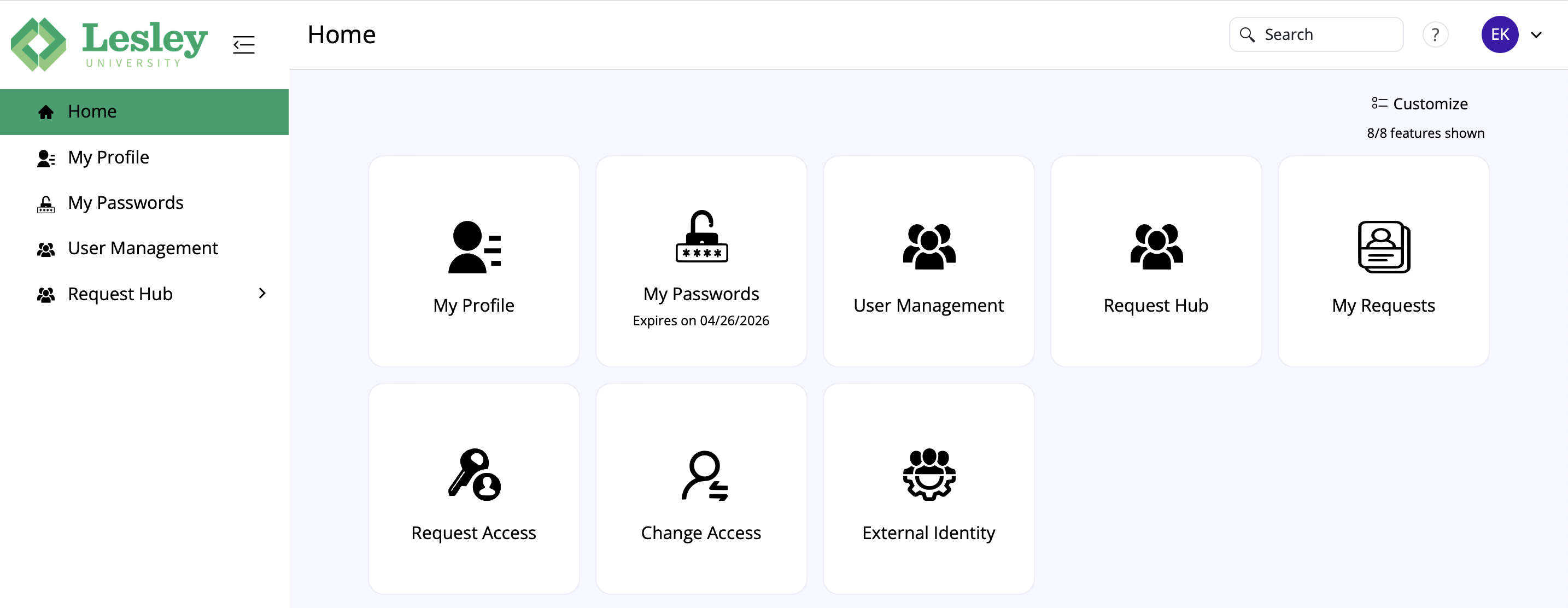
3. Click on the User Management tab
:
4. In the search box type the shared username account. Do not hit return. When the search list populates, choose the correct account name.

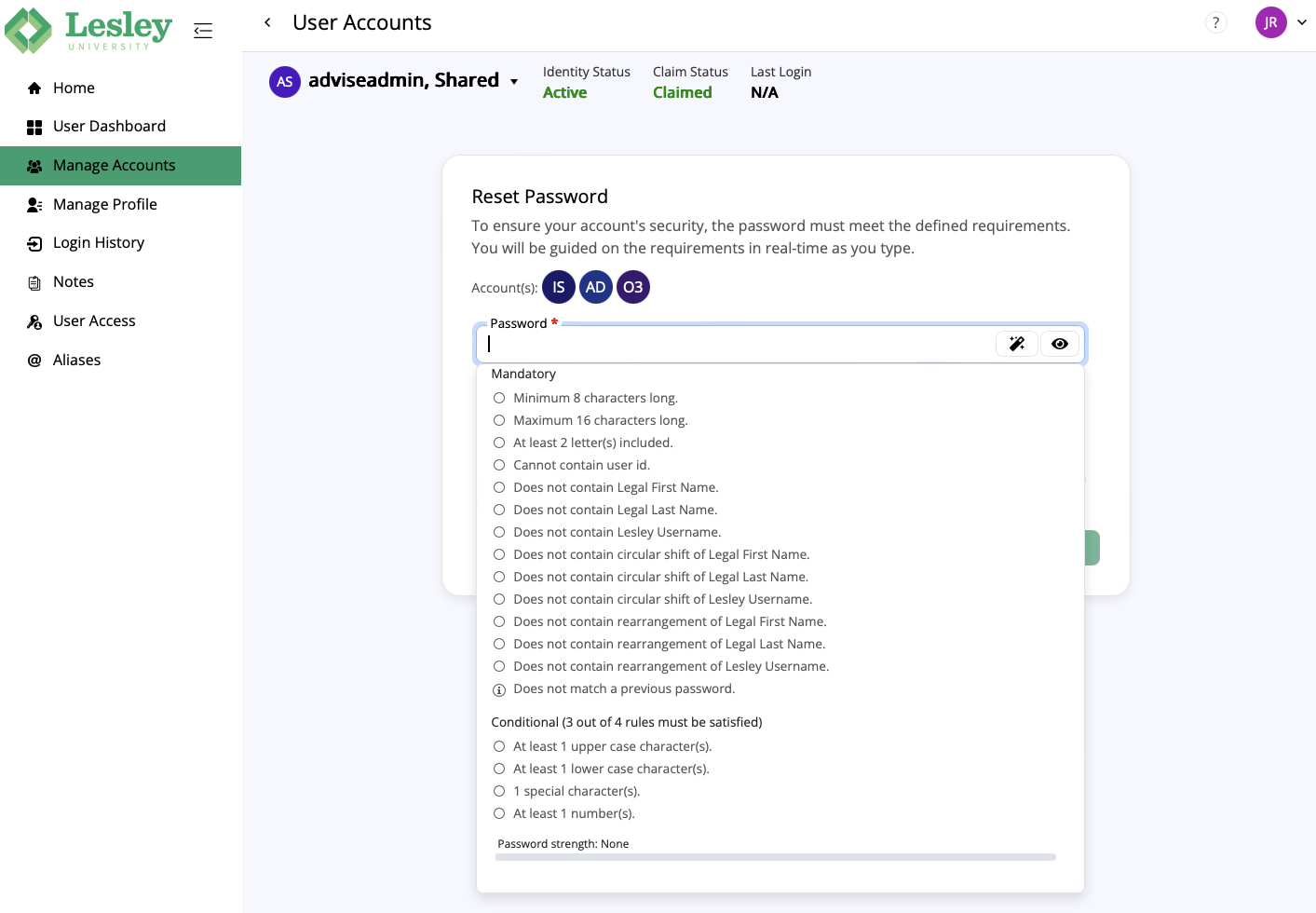
5. Go to MANAGE ACCOUNTS in the options at the top. Press the RESET button.
Enter your choice of password (making sure that it fits the password policies listed). Press the RESET PASSWORD button.
Enter your choice of password (making sure that it fits the password policies listed). Press the RESET PASSWORD button.