TABLE OF CONTENTS
About the Update
Blackboard's January 2026 release will feature improved system navigation designed to help you find what you need faster, reduce clicks, and make every interaction more intuitive and efficient. The changes reflect feedback from instructors, administrators, and students and aim to:
- Use screen space more effectively: The new layout avoids stacked panels and improves overall content visibility.
- Reduce navigation errors, such as accidental exits: The “Exit (X)” button often led to accidentally closing out of a course. By removing the X, you will now need to intentionally click the Home button or Course Switcher to leave the course.
- Improve performance and page load times: Switching from panels to pages is designed to speed up performance by eliminating the need to layer panels on top of each other.
- Provide clearer context and orientation: Simplified URLs and layout help users stay oriented to where they are in the course.
- Minimize motion for smoother navigation: Switching to a full-page view removes overlapping panels, creating smoother navigation and reducing disruptive panel loading.
Overview Video
Watch the January 2026 Blackboard UI Changes overview video for an overview of these changes.
Base Navigation Improvements
The new Base Navigation offers a cleaner design with quick access to key navigation tabs.
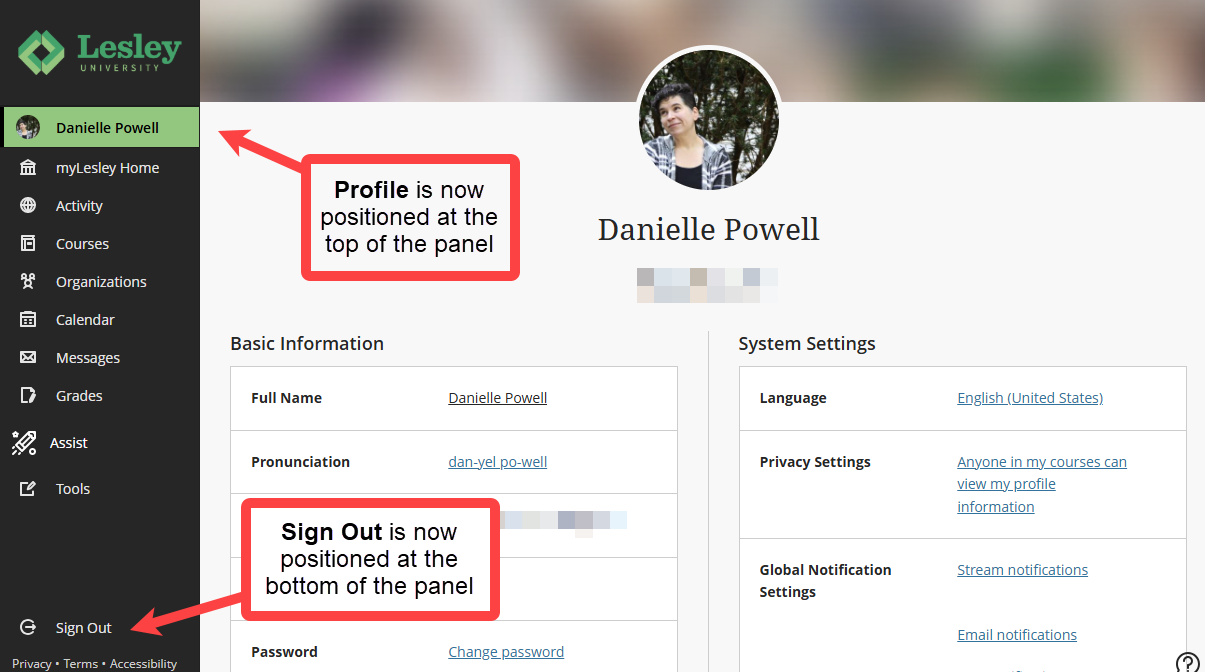
- Your Profile is now positioned at the top of the panel and includes your profile image, making it easier to view and personalize your Blackboard identity.
- The Sign Out link has been moved to the bottom of the panel. This separation from other tabs provides clearer, more intuitive access.
Ultra Course Improvements
Full-Screen Course Pages
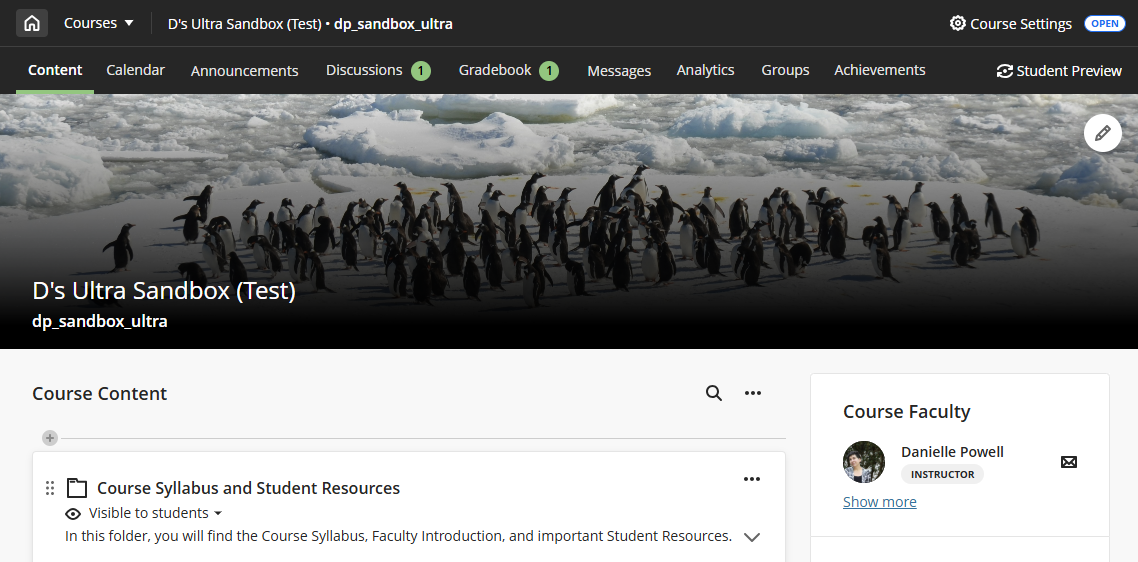
Ultra courses now open in full-screen mode to enhance your screen space and reduce clutter.
Click Home Button to Exit a Course
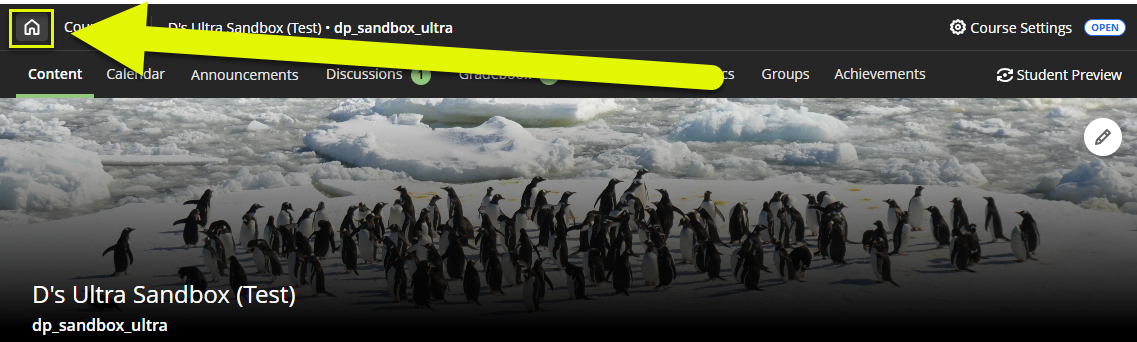
To prevent accidentally closing out of a course, the “X” to exit a course has been replaced with a Home button. Click the Home button to exit your course and return to the myLesley Home page.
Course Switcher
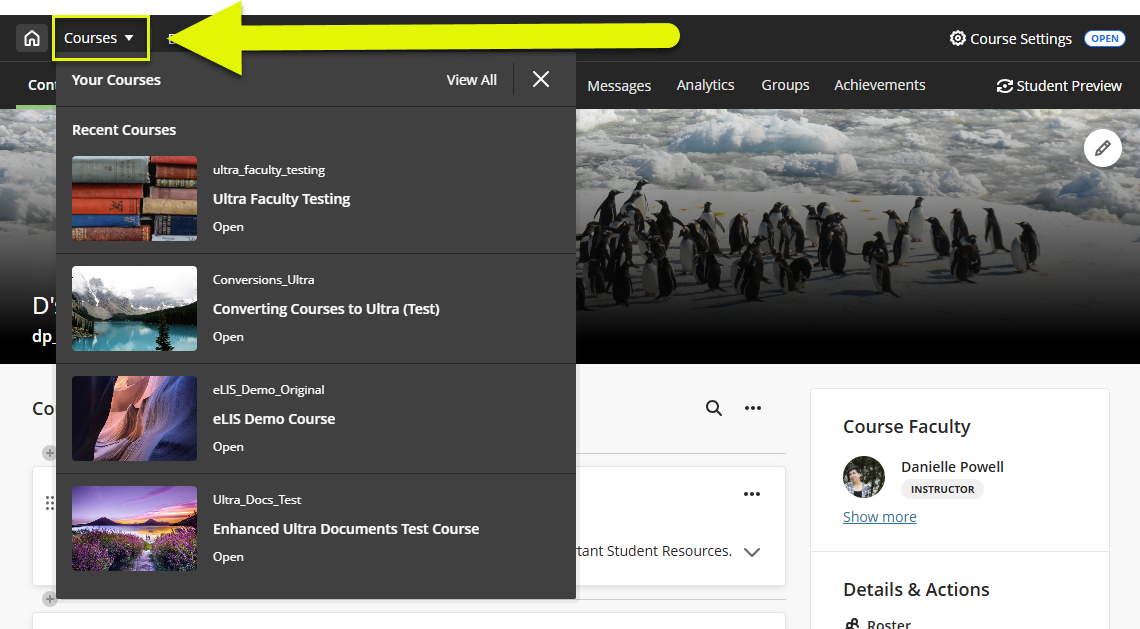
Click the Courses button to open the Course Switcher. From here, you can quickly jump to your four most recent courses or choose View All to access the full Courses page.
Full-Width Banner with Course ID and Title
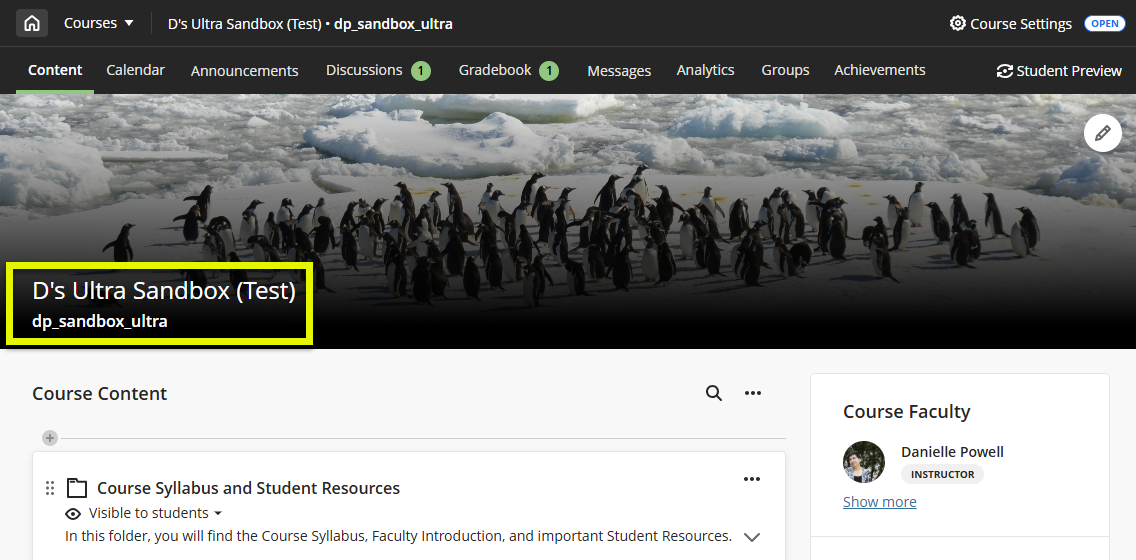
The course banner now extends across the full width of the screen and displays the course ID and title on a darker background for improved clarity and accessibility.
Was this article helpful?
That’s Great!
Thank you for your feedback
Sorry! We couldn't be helpful
Thank you for your feedback
Feedback sent
We appreciate your effort and will try to fix the article