TABLE OF CONTENTS
Overview
Lesley Facilities work orders should be submitted through WebTMA. You can find instructions on accessing and completing the WebTMA request form below. If you'd like to keep a copy of these instructions for future reference, download the attached file titled, "How to Submit a WebTMA Work Order."
Accessing the WebTMA work order form
- Direct Link:
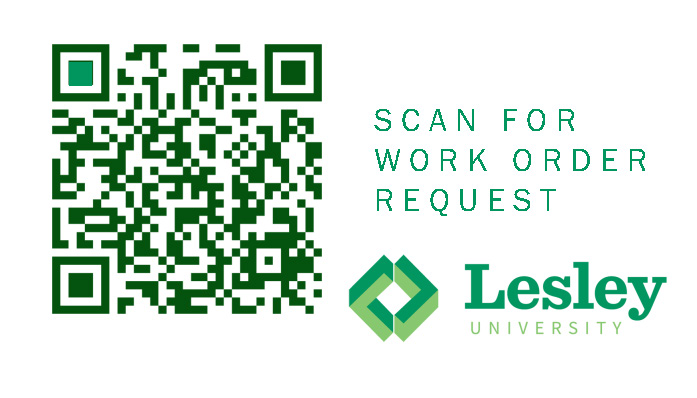
https://aramark.webtma.com/app/request/f3e649d6-8716-410b-b0a6-b127076c1200 - QR Code: For quick access, you can scan the QR code below to load the work order request form. You can also find the QR code attached to this article.
Submitting a service request (work order) in WebTMA
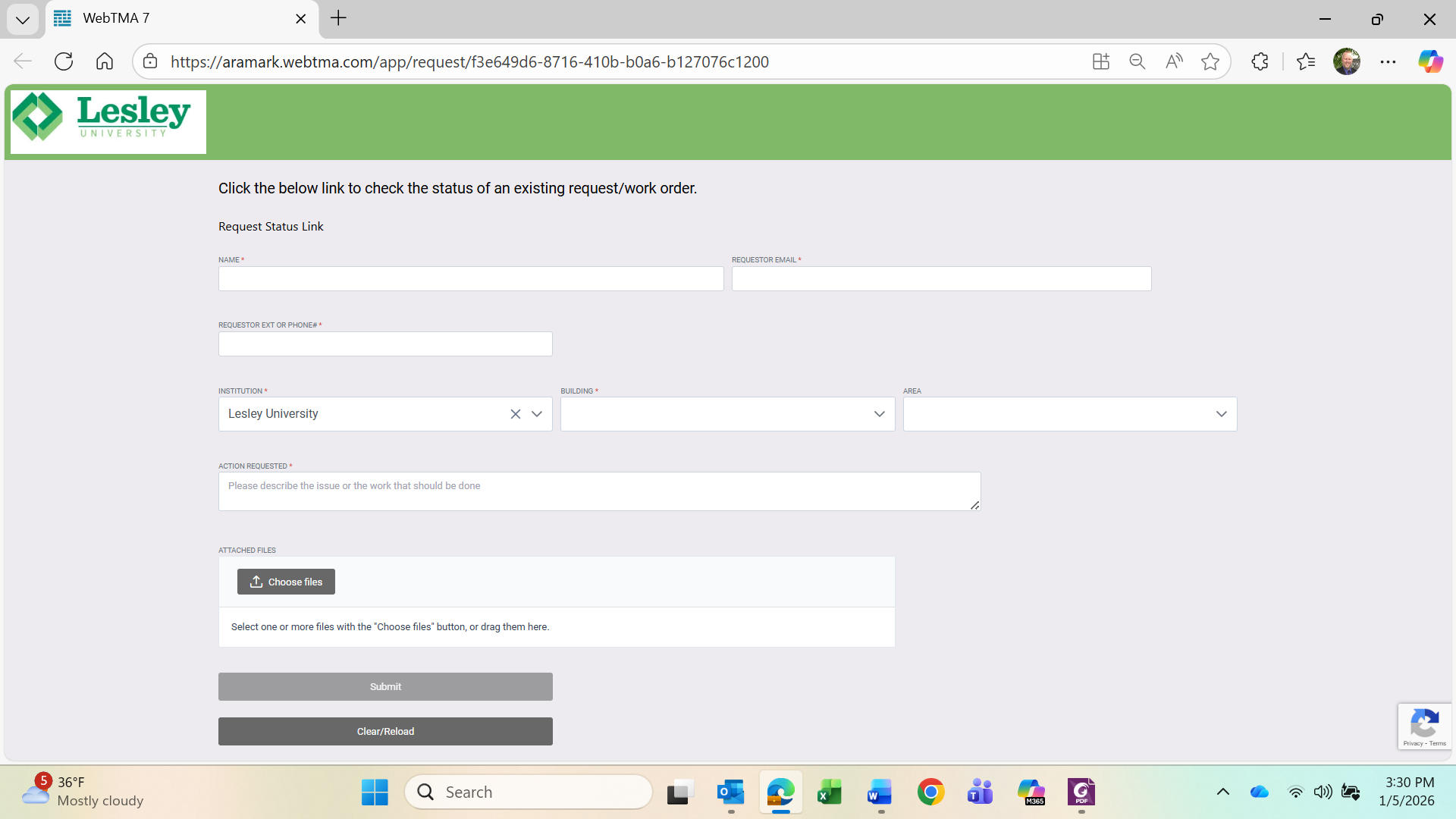
When you open the WebTMA request form, fields marked with red asterisks (*) are required.
- Enter your name in the NAME field.
- Enter your email address in REQUESTOR EMAIL.
- Enter your phone and/or extension in the REQUESTOR EXT OR PHONE# field.
- Select the appropriate building and area from the BUILDING and AREA dropdown menus.
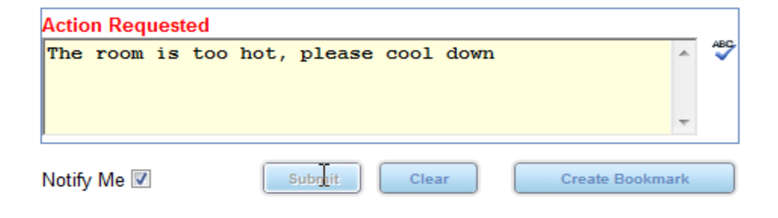
- In ACTION REQUESTED, describe the issue or work that needs to be done. Be as specific as possible; the more detail you provide, the easier it is for Facilities to help.
- If applicable, attach relevant files (such as pictures or video) in the ATTACHED FILES section.
- Click Submit.
After you submit
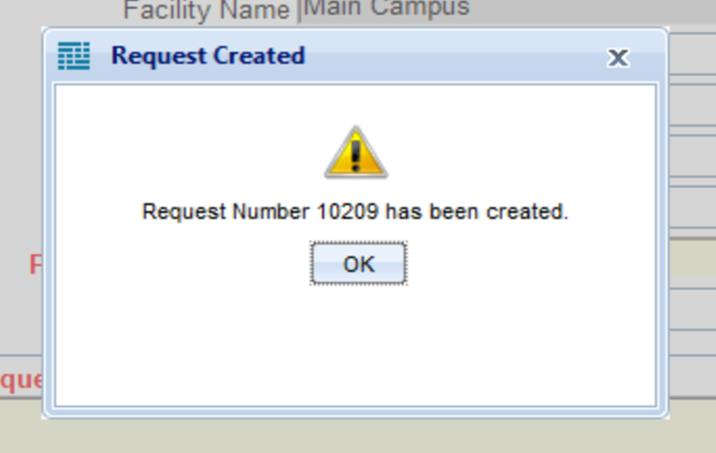
- A confirmation window will appear letting you know your request was submitted.
- Keep your Request Number for future reference.
Tips for a faster response
In the Action Requested field, include:
- What’s happening (and when you noticed it)
- Exact location (building, floor, room/space number)
- Any relevant details (leak size, error message, unusual sounds/smells, etc.)
- Best way/time to reach you if Facilities needs clarification
Was this article helpful?
That’s Great!
Thank you for your feedback
Sorry! We couldn't be helpful
Thank you for your feedback
Feedback sent
We appreciate your effort and will try to fix the article