TABLE OF CONTENTS
The Lesley University Event Request Form is required to initiate the planning, routing, and approval process for university-hosted events. Use this guide to complete and submit it.
Step 1: Routing Selection
After you've logged in, you'll be prompted to select a Vice Provost or Academic Cabinet Member from a list. The form will be routed to that individual for approval. Select their name from the form participants dropdown menu. Then, click Continue to proceed to the next step.

Step 2: Completing the Event Request Form
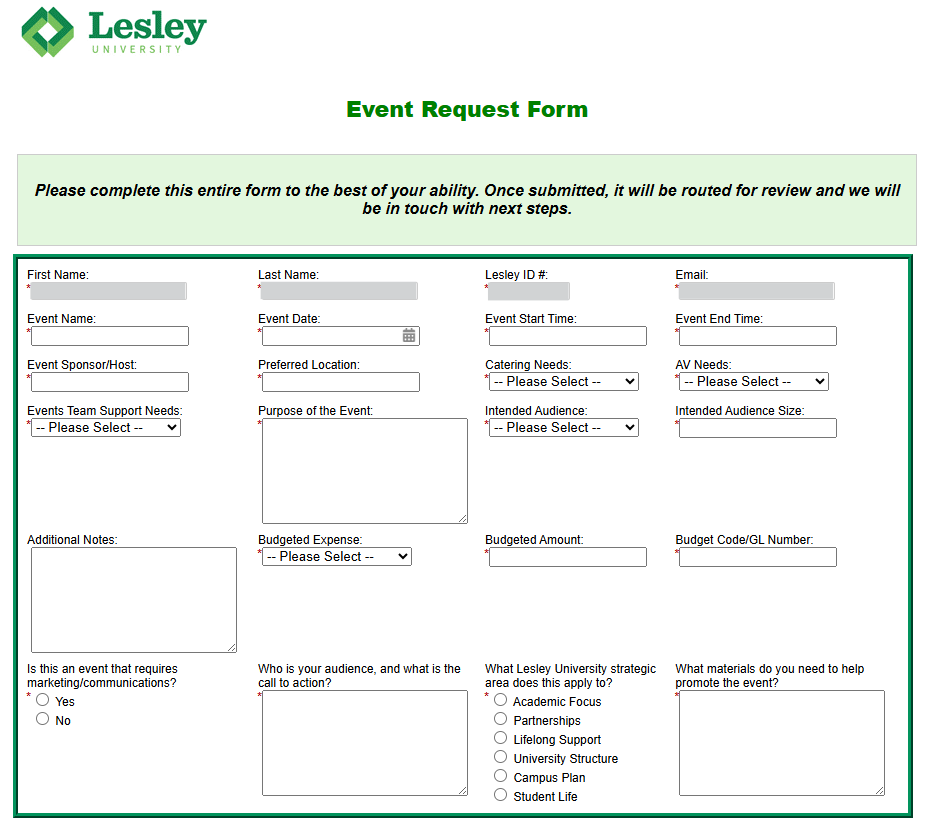
The form is divided into sections covering logistics, purpose/audience, budgeting, and marketing/communications. Required fields are marked with a red asterisk (*).
1. Contact & Basic Logistics
- Contact Info: Verify your First Name, Last Name, Lesley ID #, and Email.
- Event Details: Enter the Event Name, Date, and both Start Time and End Time.
- Location: Input the Event Sponsor/Host and your Preferred Location on campus.
2. Support & Logistics Needs
Use the dropdown menus to indicate what resources you require:
- Catering Needs: Specify if you need food services, and if so, what kind. Options include:
- No catering
- Breakfast
- Lunch
- Dinner
- Reception
- Snacks
- Multiple Needs
- AV Needs: Specify if you need audio/visual equipment, and if so, what kind. Options include:
- No AV
- Projection
- Sound
- Projection & Sound
- Other
- Events Team Support Needs: Select the level of assistance needed from the University Events team. Options include:
- Block Space Only
- Market Event Only
- Market Event and Provide Registration
- Full Event Support
3. Purpose & Audience
- Purpose: In the text box, provide a detailed description of why the event is being held.
- Audience: Select the Intended Audience (Internal, External, or Both) and provide the Intended Audience Size.
- Additional Notes: Use the Additional Notes field to include any details or context that don't fit elsewhere in the form.
4. Budgeting
- Select yes or no to indicate if you have a Budgeted Expense.
- Enter the Budgeted Amount.
- Provide the Budget Code/GL Number to ensure proper fund allocation.
5. Marketing & Strategic Alignment
These required questions will help our Marketing and Communications team support your event.
- "Is this an event that requires marketing/communications?"
- Select yes or no from the radio buttons.
- "Who is your audience, and what is the call to action?"
- Enter your answer in the text field. This information will help keep your event marketing focused and effective.
- "What Lesley University strategic area does this apply to?"
- Select which University pillar this event supports.
- "What materials do you need to help promote the event?"
- List the specific items you need for promotion (e.g., social media graphics, flyers, email blasts, etc.).
Submission
Once you have completed the form to the best of your ability, click Next to submit your request.
Was this article helpful?
That’s Great!
Thank you for your feedback
Sorry! We couldn't be helpful
Thank you for your feedback
Feedback sent
We appreciate your effort and will try to fix the article