PCS/ICS Having Trouble Signing You In Error
Users who are signed in to both their personal account and a shared group account may experience difficulties connecting to the VPN due to conflicting authentication sessions.
This occurs when the device selects the shared account instead of the user's personal account. Shared accounts DO NOT have permission to connect to the VPN for security reasons.
If you are signed in to both accounts, you may receive an error similar to the one shown below. This typically happens when the shared account has been granted access to all applications, including Ivanti. As a result, Ivanti may attempt to authenticate using the shared account credentials instead of your personal account credentials.
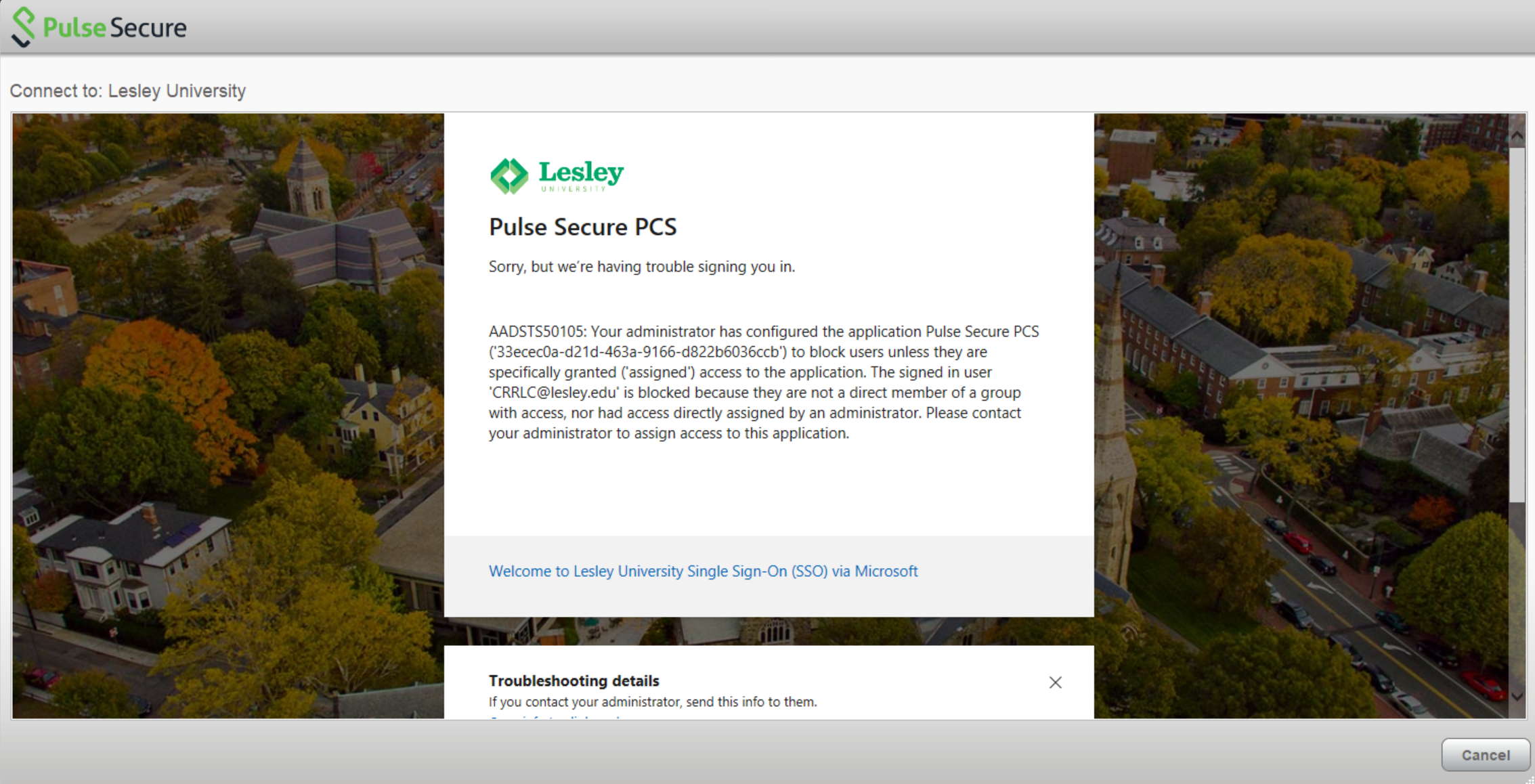
Sign out of the shared account in the browser, or open an Incognito/InPrivate window, then try connecting to Ivanti using only your personal work account and try re-connecting.
If that doesn't resolve it the 2nd option to try is:
1.) Open a browser in Incognito/Private window mode
2.) Go to in the search bar to https://remote.lesley.edu or https://remote2.lesley.edu
3.) Select proceed and wait for page to load. If it doesn't please select "click here".
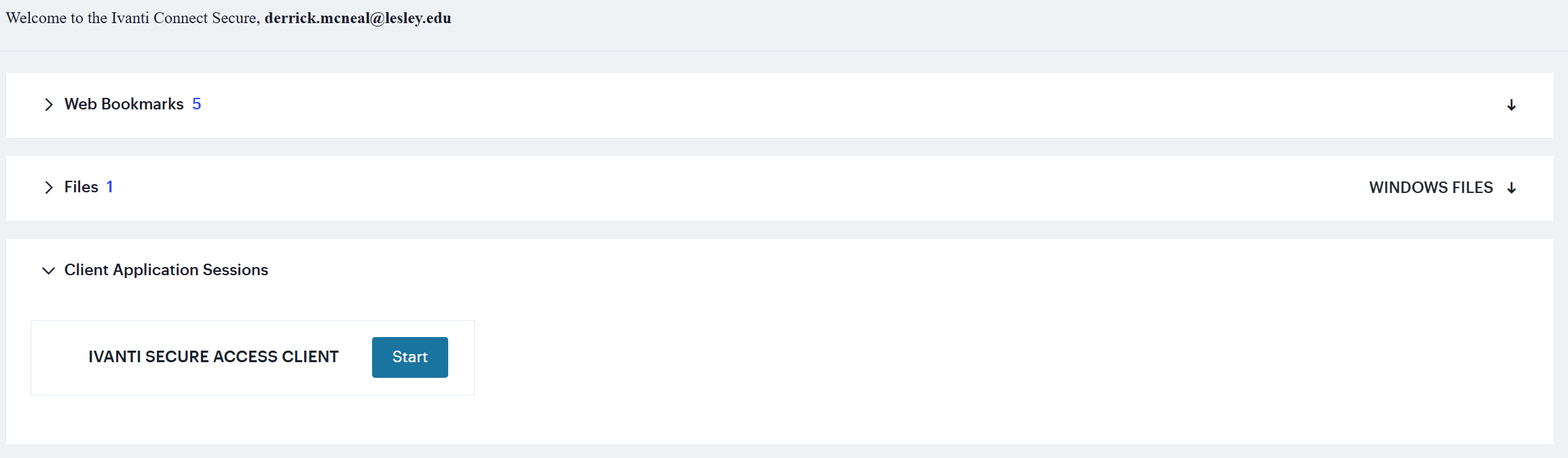
4.) when on the page go to "Client Application Sessions" and hit start.
The 3rd option is as follows:
1.) Quit the Ivanti Connect Application
2.) Open a file explorer window to %localappdata%\Pulse Secure\EdgeBrowser
3.) Delete the EBWebView directory
4.) Open Ivanti and connect to the VPN