TABLE OF CONTENTS
What is browser cache?
Your browser's cache is a temporary folder where recently visited web pages are stored. As you navigate to different web pages, your browser will try to load these cached pages to save time and allow web pages to load faster rather than downloading them again.
Occasionally, some of this saved information can become outdated and cause web pages to not display properly, or at all, or for certain elements on the page to not work. Clearing the cache replaces the outdated information by reloading pages directly from the web server, thus providing you a fresh copy of the web page and improves overall performance.
As a best practice, restart your device after clearing your cache.
How to clear your browser's cache
Chrome
- On your computer, open Chrome.
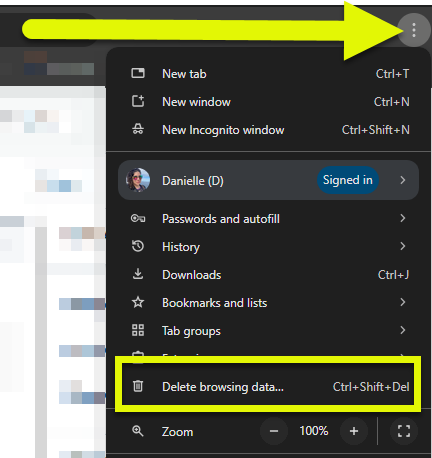
- At the top right, click the three dots menu and select Delete browsing data.
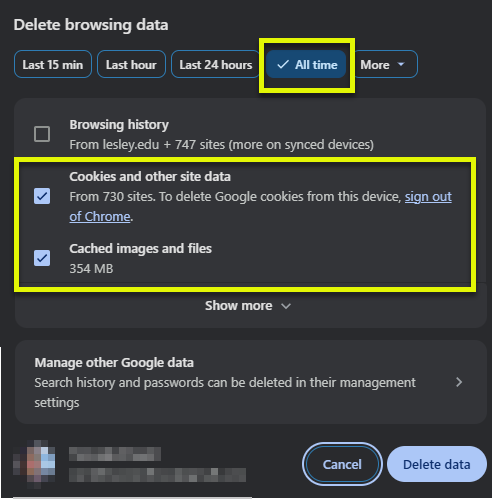
- Select a time range (we recommend All time) and check the boxes next to Cookies and other site data and Cached images and files. Click Delete data to delete your cache and cookies.
- Restart your device for changes to take effect.
Refer to the Clear Cache & Cookies in Chrome support article for more information and instructions for deleting cache and cookies on mobile browsers.
Firefox
- On your computer, open Firefox.
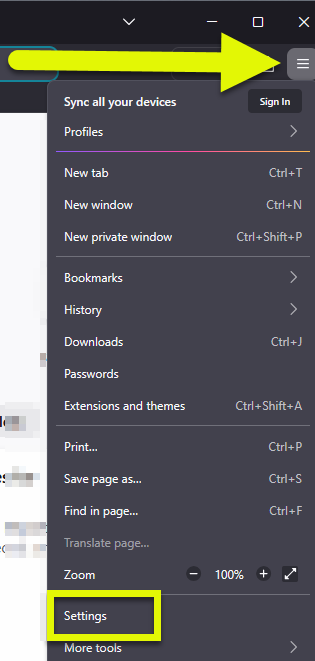
- On the top right, click on the Menu button and select Settings.
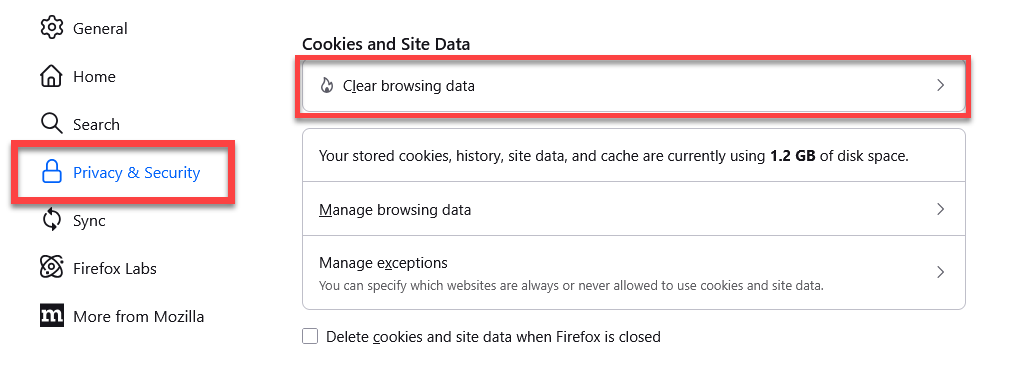
- Select the Privacy & Security panel and go to the Cookies and Site Data section. Then click Clear browsing data to open the options.
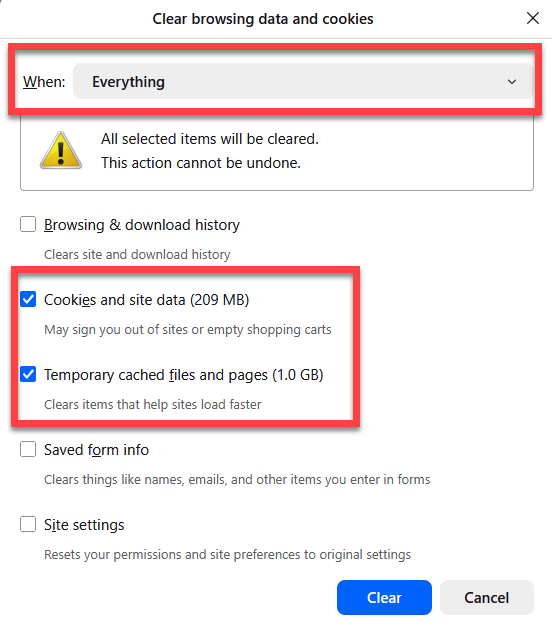
- In the When section, select a time range (we recommend Everything). Then check the boxes next to Cookies and site data and Temporary cached files and pages. Click Clear to clear your cache and cookies.
- Restart your device for changes to take effect.
Refer to the Clear cookies and site data in Firefox support article for more information.
Edge
- On your computer, open Edge.
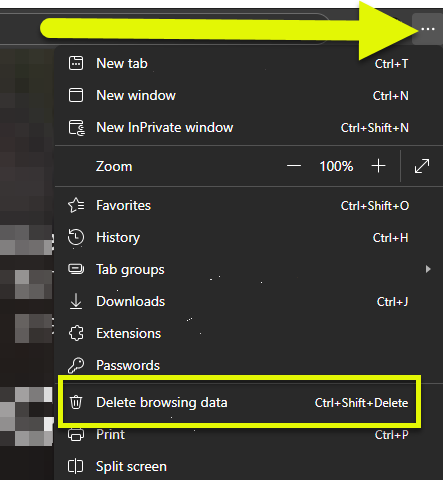
- On the top right, Click the Settings button and select Delete browsing data.
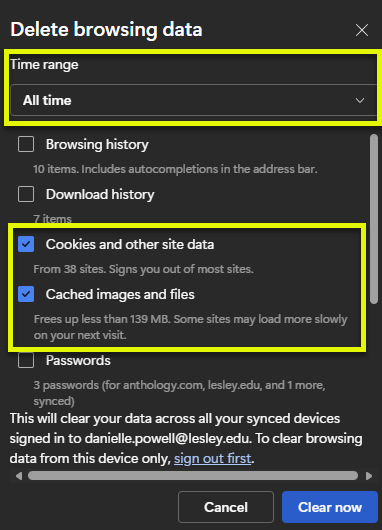
- In the Time range section, select a time range (we recommend All time). Then check the boxes next to Cookies and other site data and Cached images and files. Click Clear now to clear your cache and cookies.
- Restart your device for changes to take effect.
Refer to the View and delete browser history in Microsoft Edge support article for more information.
Safari (MacOS)
- On your Mac, open Safari.
- Go to the Safari menu and select Settings.
- Click the Privacy tab. Uncheck the options to Prevent cross-site tracking and Block all cookies. Next, select Manage Website data to open the options.
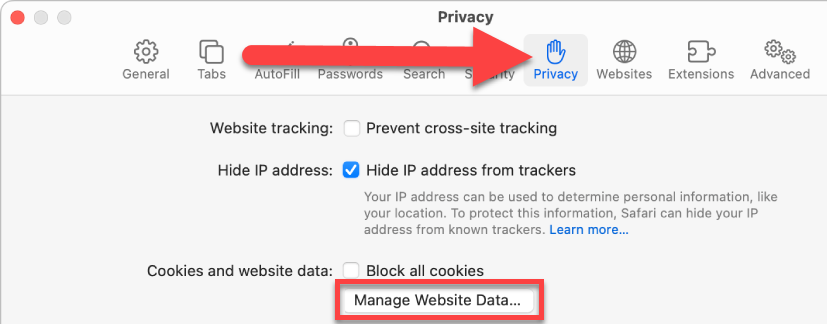
- You will see a list of all sites that have stored data (cache and cookies). Click Remove All.
- Restart your device for changes to take effect.
Refer to the Clear cookies in Safari on Mac support article for more information.
Safari (iOS)
- On your iPhone, go to Settings, select Apps, then select Safari.
- Scroll down and select Advanced. Then select Website Data.
- You will see a list of all sites that have stored data (cache and cookies). Select Remove All Website Data. If this button is gray, there is either no data to clear, or you might need to check your web content restrictions in Screen Time.
Refer to the Delete your Safari history, cache, and cookies on iPhone support article for more information.
Was this article helpful?
That’s Great!
Thank you for your feedback
Sorry! We couldn't be helpful
Thank you for your feedback
Feedback sent
We appreciate your effort and will try to fix the article