TABLE OF CONTENTS
- About the Blackboard App
- System Requirements
- Install the Blackboard App and Log in
- Navigate the App
- Students: Participating in Courses with the Blackboard App
- Instructors: Teaching with the Blackboard App
- Content Supported in the Blackboard App
About the Blackboard App
The Blackboard app provides a modern and intuitive experience on any device with the features both students and instructors use the most.
System Requirements
Your device needs one of these operating systems to run the Blackboard Learn app:- iOS 14 or later
- Android 11 or later
Install the Blackboard App and Log in
Search for Blackboard and install the Blackboard app on your mobile device.
Once you have installed the app, open it and search for Lesley University. You will then be prompted to log in using Web-Login. Click the Continue with Web-Login button to log in to the app.

This will open the Web Login. Select myLesley Login to log in with your Lesley credentials. If you are experiencing trouble with your Lesley credentials please go to password.lesley.edu to reset your password or contact it@lesley.edu.

If you experience an authentication error with your Blackboard app you may need to update. To update your app, log out of the Blackboard app, remove "Lesley University" from the school indicator, and re-search for the university.
- In the Blackboard App press the menu icon (3 parallel horizontal lines) in the upper left corner.
- Press Settings.
- Press Log Out. A pop-up will ask if you are sure you want to logout. Press Log Out.
- You will be brought to the login screen. Delete your username. Under "Welcome to Lesley University", click the Change button.
- At the Type Your School's Name prompt, enter Lesley University, and select it from the list.
- Press Web Login to login.
- You will be brought to the Lesley Login page. Enter your Lesley credentials to log in.
Navigate the App
Activity Stream
The Activity Stream is the first screen after login and where you can see up-to-the-minute action for all of your courses, including announcements, upcoming tests and assignments, changes to due dates and events, upcoming calendar events, and more.

For more information refer to the Use the Activity Stream in the Blackboard App support article.
Courses
Select Courses to see the courses in which you are enrolled. Select a course card to navigate to the course. Tap the star icon next to the course name to add it to your favorites and keep it at the top of your page.

Once you are within your course you will see a concise view of your course content. Courses may look a little different than they do in the web browser, but you can easily navigate through your content and complete most of your tasks.
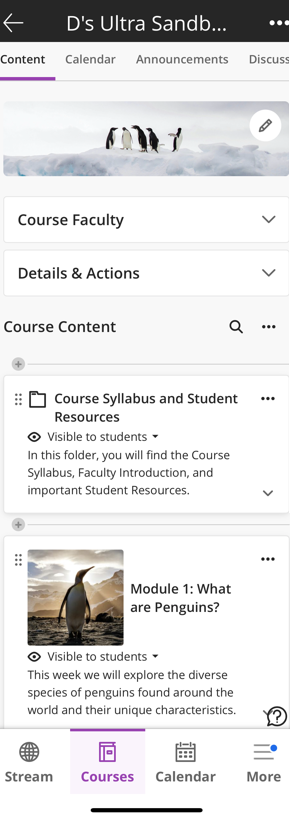
While most of your course content will display natively in the app, there are some tools and features that will open in the in-app browser or not work at all. Refer to the Content Supported in the Blackboard App section for detailed information.
Calendar
Select Calendar to view your global myLesley calendar. Students and instructors can view Calendar items, such as due dates for upcoming assignments, events, and more. You may also create new events.

More Menu
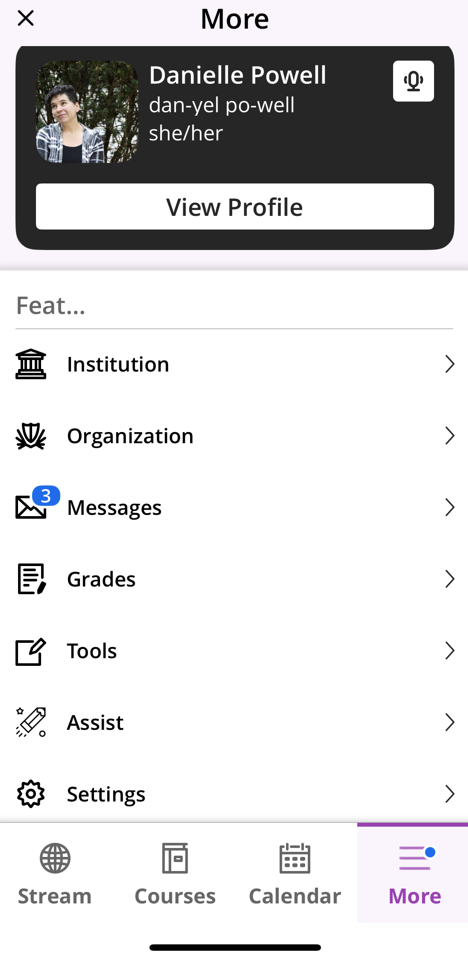
Select More to access additional content and features, including:
- Profile: On the Profile page you can view and update your Blackboard Profile, including your profile picture, name pronunciation, and preferred pronouns.
- Institution: The myLesley Home page features helpful links and resources for faculty and students.
- Organizations: View and navigate to any Organizations in which you are enrolled.
- Messages: On the Global Messages page you can create, view, and reply to Course Messages.
- Grades: The Grades in the Blackboard App area is where students can view and access all of their grades and feedback. Instructors can review, grade, annotate, and post grades.
- Tools: The Tools area is where you can access additional Blackboard tools, including Kaltura My Media, Brainfuse Online Tutoring, Smart Evals Course Evaluations, and more.
- Assist: Blackboard Assist features campus resources for students.
- Settings: From the Settings area, you can customize your notification settings, select who can view your profile, and students can download and view offline content.
Students: Participating in Courses with the Blackboard App
The Blackboard App allows you the flexibility to access your courses and participate in activities on the go. What you see in the app is similar to what you can see on a web browser.
View Course Content
Within the Blackboard App, you can view your course content, including Learning Modules and folders, Ultra Documents, attachments, videos, links, and more.
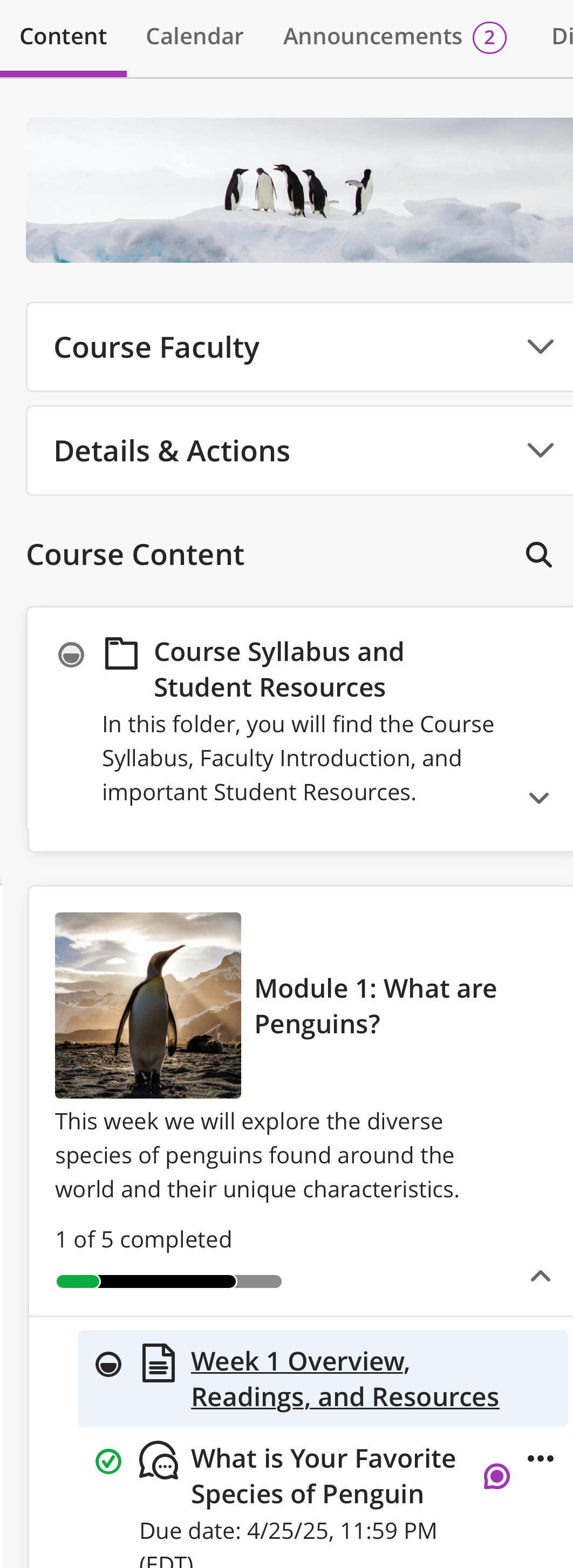
While most of your course content will display natively in the app, there are some tools and features that will open in the in-app browser or not work at all. Refer to the Content Supported in the Blackboard App section for detailed information.
Submit Assignments
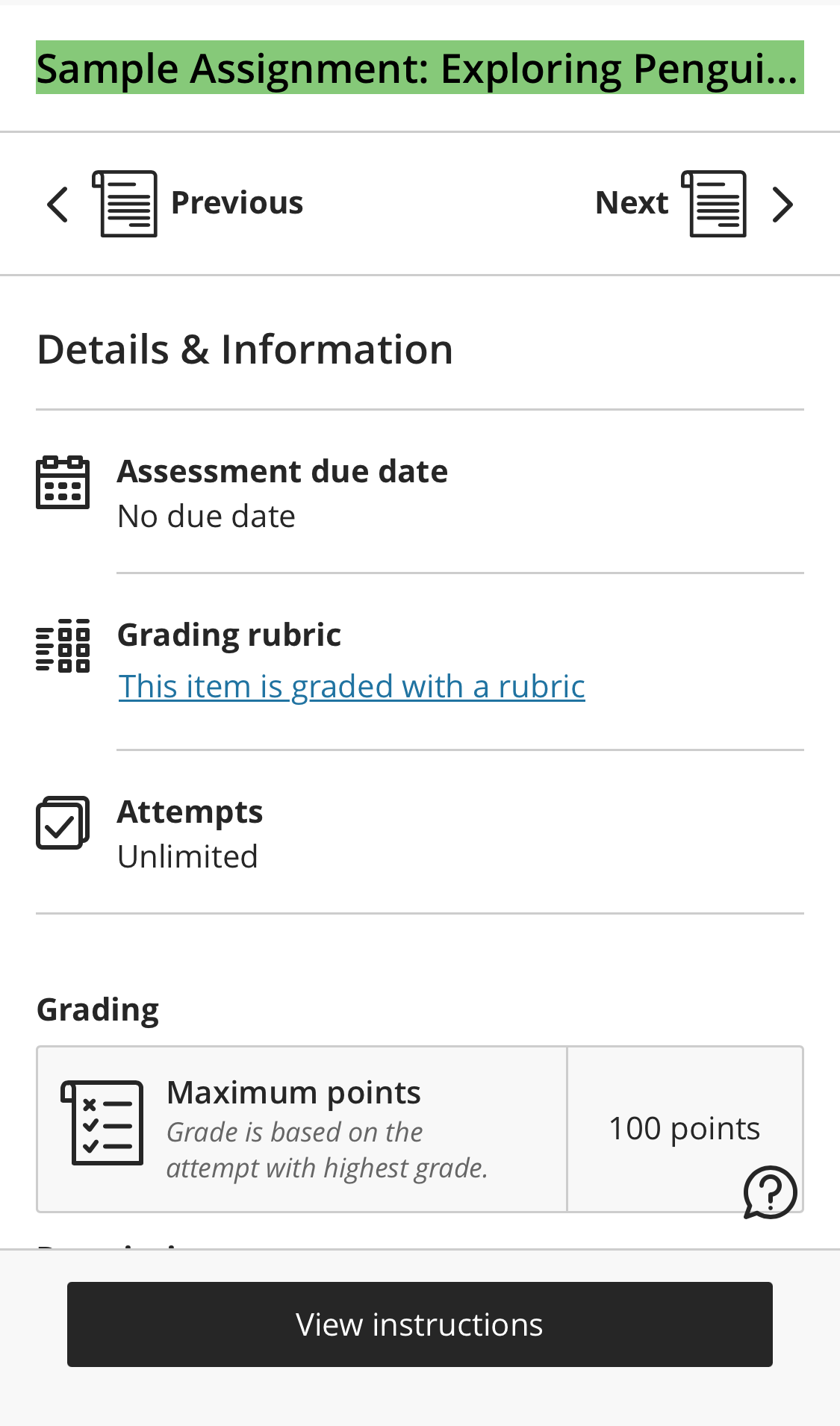
You may access your Assignments from the Activity Stream or from within your course. Read the assignment details and click View Instructions to submit your Assignment.
- Document (.doc, .docx)
- Presentation (.ppt, .pptx)
- Spreadsheet (.xls, .xlsx)
- PDF
For more information and detailed instructions, refer to the Students: Assessments and Grades in the Blackboard App support article.
Take a Test
While you may be able to use the Blackboard App to take tests, we strongly discourage it. When taking tests, we recommend using a computer and a reliable network connection.Participate in Discussions
You can read Discussions, post your response, and respond to others' posts. Click in the Post a response to the discussion text box to create your post. File attachments and group discussions are not supported in the app.
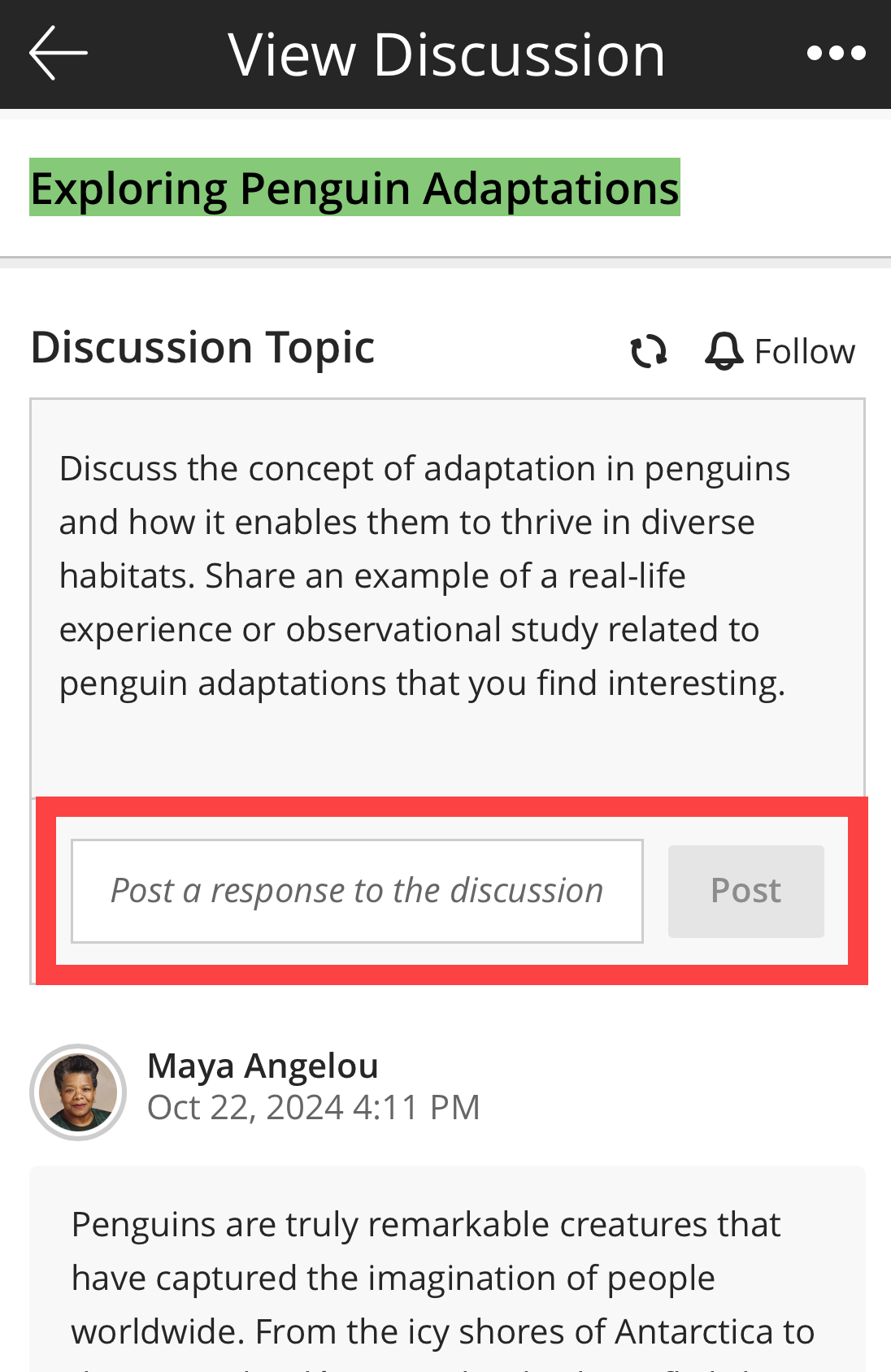
For detailed instructions, refer to the Students: Discussions in the Blackboard App support article.
Post Journal Entries
Navigate to the Journal in your Ultra course and click in the Type an entry text box to create your entry. Journals may or may not be graded.
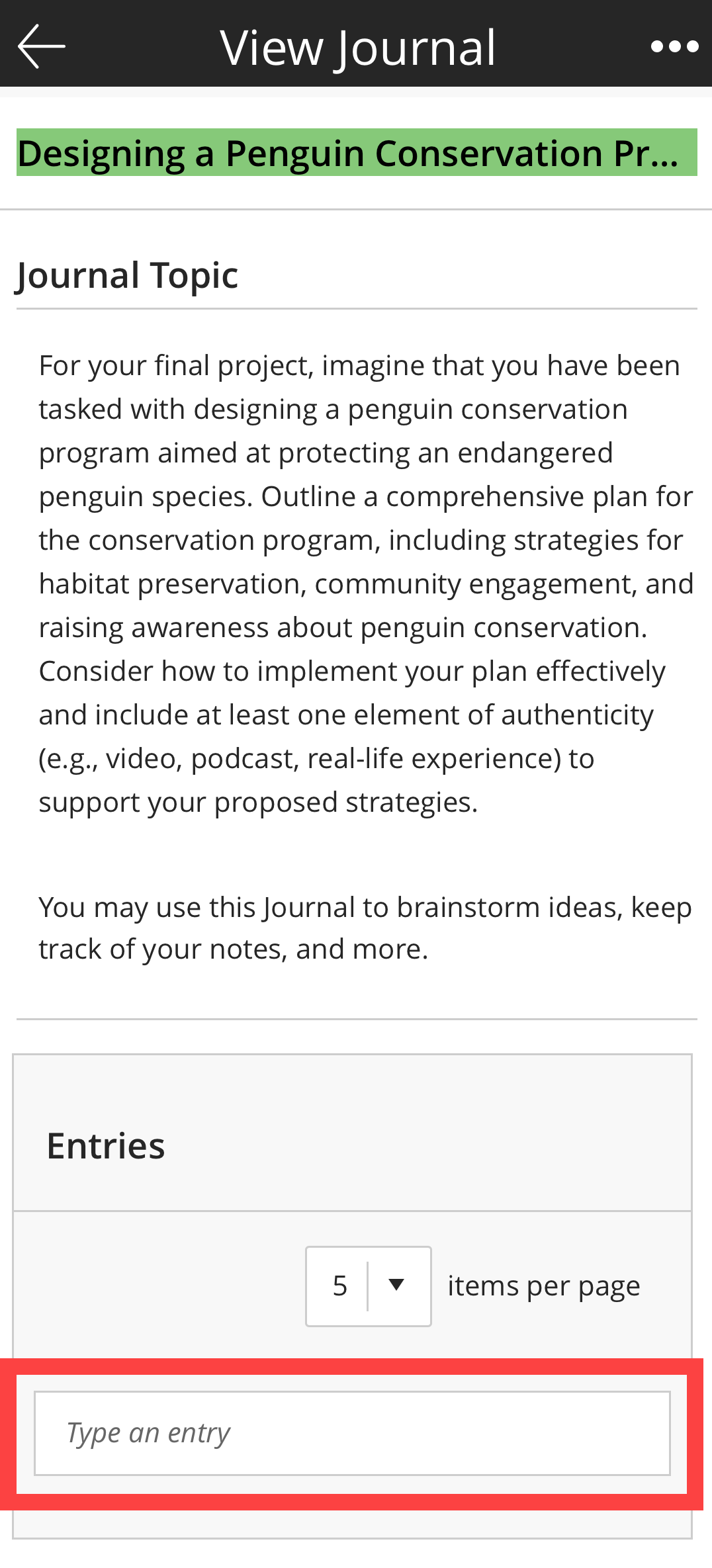
For more information, refer to the Students: Journals in the Blackboard App support article.
Send and Respond to Course Messages
Course messages allow you to easily communicate with your instructor and classmates. You may access your Course Messages from the Global Messages area or from within the Messages area of a course. Depending on your Notification Settings, you will receive a notification every time you receive a message.
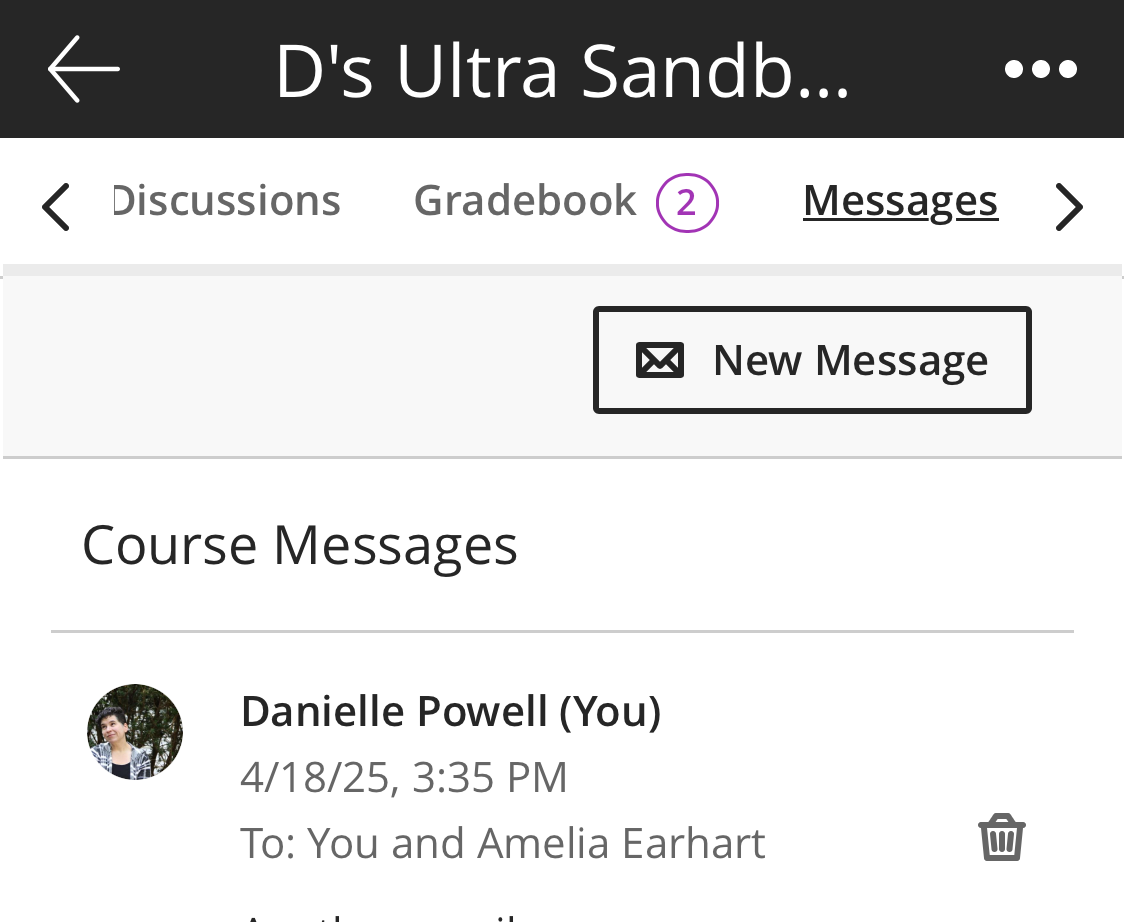
For more information, refer to the Students: Course Messages in the Blackboard App support article
View Your Grades and Feedback
You can access the grades for all of your courses at once via the Global Gradebook, or view your grades in an individual course.
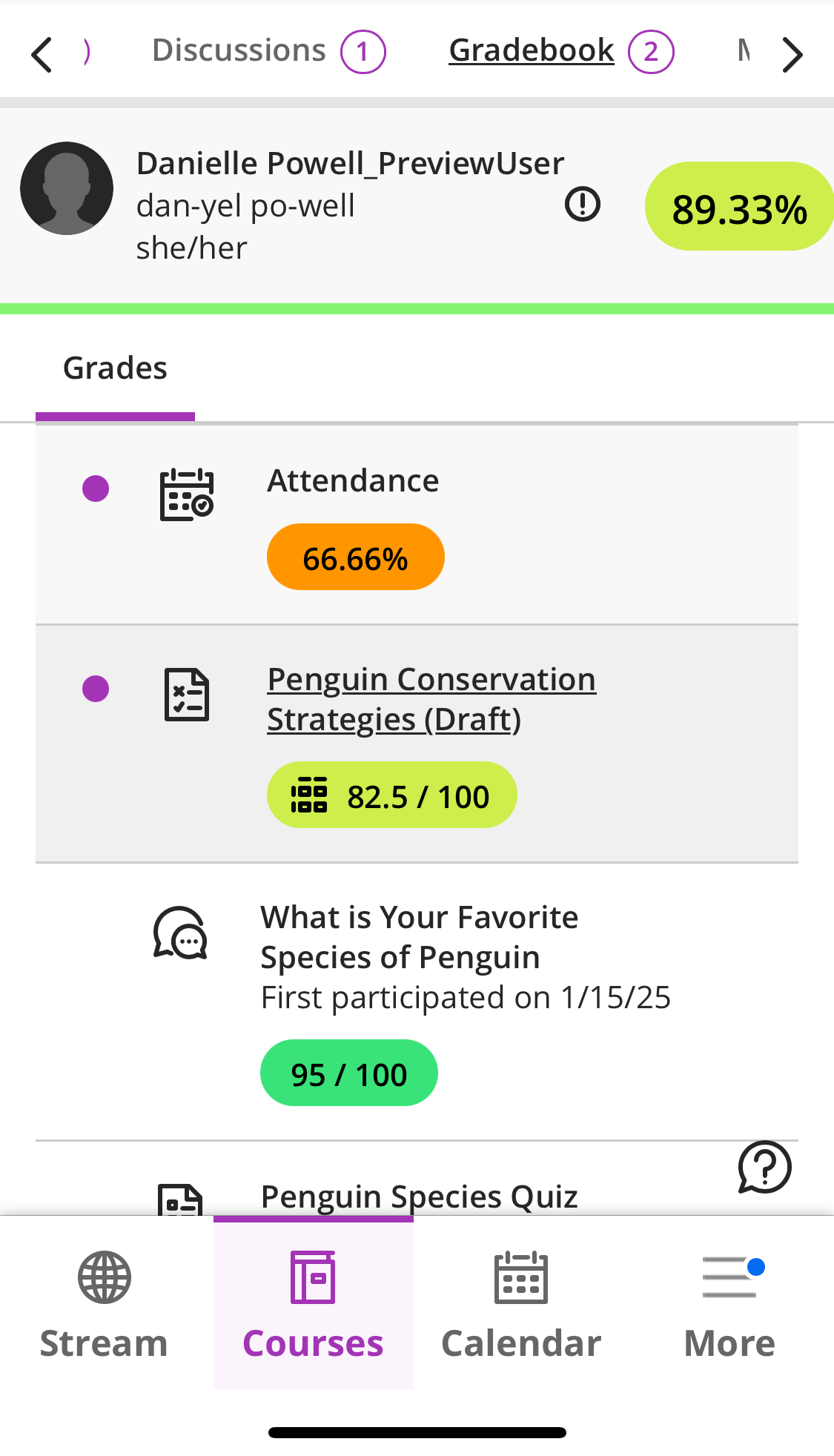
For more information and detailed instructions, refer to the Students: Grades in the Blackboard App support article or watch the Students: Grades in the Blackboard App tutorial video.
Instructors: Teaching with the Blackboard App
The Blackboard App allows you the flexibility to teach your course on the go. What you see in the app is similar to what you can see on a web browser.
Create Mobile-Friendly Content
As a best practice, you should build your course to be mobile friendly from the start. This will ensure that students have the best experience regardless of their device.
As you build your course, pay special attention to the course tools and attachments that you use to ensure that they are compatible across all devices.
- Supported Content: Refer to the Content Supported in the Blackboard App section for more information on the content supported in the Blackboard App.
- Supported File Types: As a best practice, be sure that any content you upload to your course can be viewed on a mobile device. Acceptable file types include:
- Documents: DOC, DOCX, PDF
- Presentations: PPT, PPTX
- Spreadsheets: XLS, XLSX
- Images: JPG, JPEG, PNG
For more information, refer to the Create Mobile-Friendly Content support article or watch the Create Mobile-Friendly Content in Blackboard tutorial video.
Create or Edit Course Content and Student Activities
You can easily create and edit most types of course content, including Ultra Documents, file attachments, web links, Discussions, and Journals.
Certain types of course content, including Assignments, Tests, Rubrics, Groups, and Kaltura Media may be viewed and edited in the app but must be created in the web browser. Refer to the Content Supported in the Blackboard App section for detailed information.
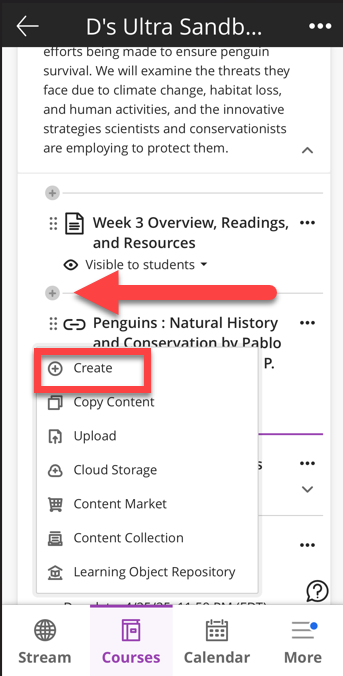
Open a course and tap the plus sign on the Content tab wherever you want to add content.
Post Announcements
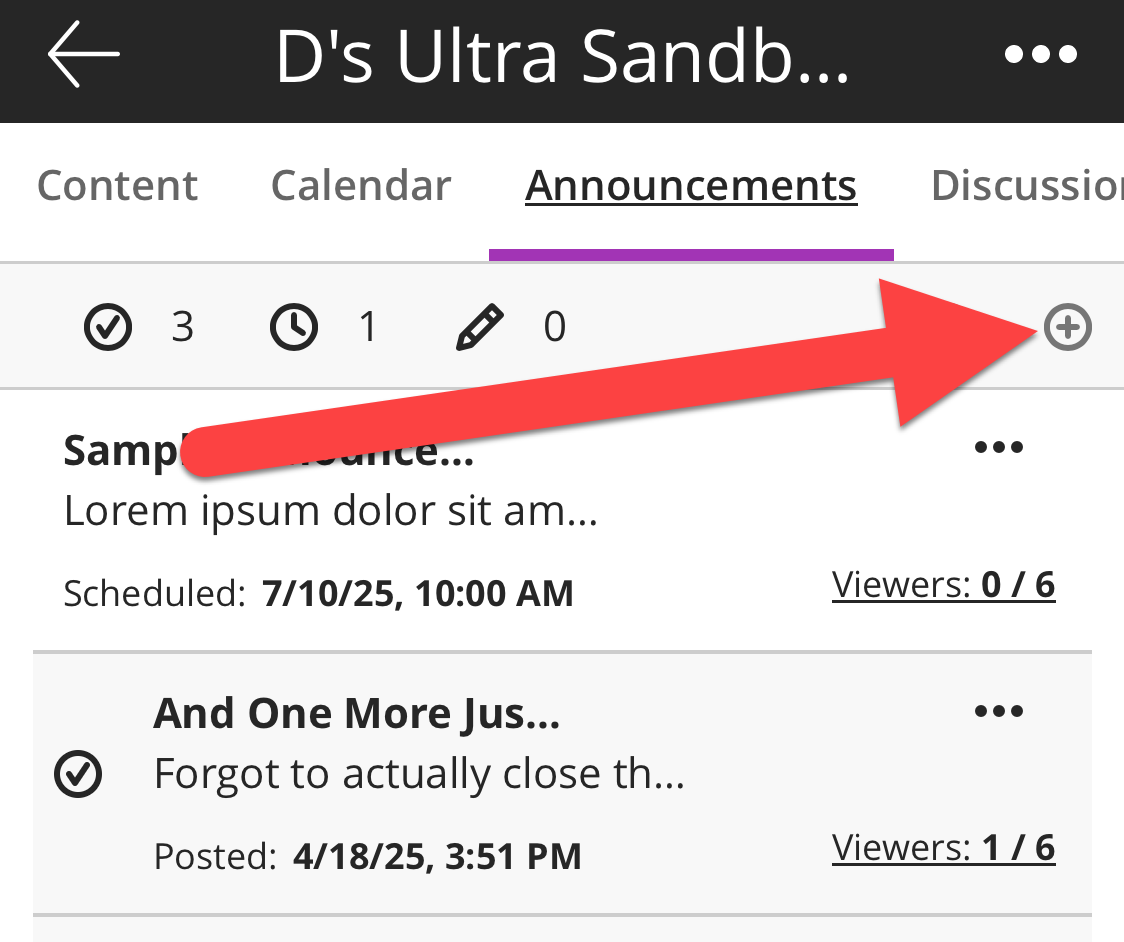
You can easily view, create, edit, and delete Announcements in the Blackboard App. From within a course, go to the Announcements area and click the plus sign to create a new Announcement.
For more information, refer to the Instructors: Create and Manage Announcements support article.
Send and Respond to Messages
Course messages allow you to easily communicate with your students. You may access your Course Messages from the Global Messages area or from within the Messages area of a course. Depending on your Notification Settings, you will receive a notification every time you receive a message.
For more information, refer to the Course Messages in the Blackboard App support article.
Grade Student Work
The Blackboard App allows instructors to grade assignments on both phones and tablets.
Grading for Tests, Discussions, and group submissions must be done in the web browser. Refer to the Content Supported in the Blackboard App section for detailed information.
For detailed instructions, refer to the Instructors: Assessments and Grades in the Blackboard App support article or watch the Instructors: Grades in the Blackboard App tutorial video.
Content Supported in the Blackboard App
The Content Supported in the Blackboard App table lists the most common course content and its level of support in the Blackboard App.
Was this article helpful?
That’s Great!
Thank you for your feedback
Sorry! We couldn't be helpful
Thank you for your feedback
Feedback sent
We appreciate your effort and will try to fix the article