TABLE OF CONTENTS
About Messages
You can use Blackboard Messages to send private and secure messages to others in your course, including your instructor, classmates, or group members. Because Messages stay inside Blackboard, you don’t need to worry about incorrect or outdated email addresses.
You will receive an email copy of all Messages sent to you and will see new message indicators in the base navigation as well as within your course.
For more information, refer to the Messages support page or watch the Blackboard Messages tutorial video.
Access Your Messages
You may access your Messages in the Global Messages area in the base navigation as well as from the Messages area within your course. Indicators will alert you to new messages.
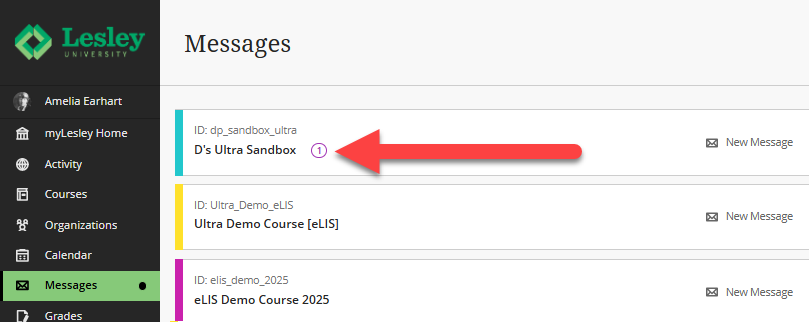
Access Messages Across All Courses in the Global Messages Area
You can access Messages across all of your courses (past and present) in the Global Messages area. If you have a new message, you will see a number next to the Messages link in the base navigation. Once you access the Messages page, courses with unread messages will appear first in the list.
Click on a message to be brought to that course's Messages page where you may view, reply to, and create messages.
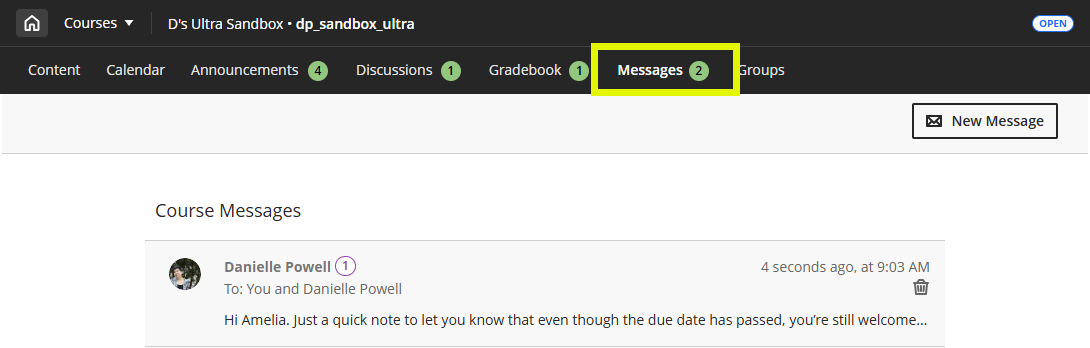
Access Messages Within Your Course
From within a course, click the Messages link in the course menu. A number indicator will let you know that you have new unread messages. Click on a message to read and reply.
Read and Reply to Messages
Your messages are organized in threads. When you open a message you will see the full conversation, with all sent and received replies.
To reply to a message, enter your response in the text box below the last message in the thread. You may use the text/content editor to add and format your text, upload images, add links and attachments, embed media, and more. Click Reply to send your message.
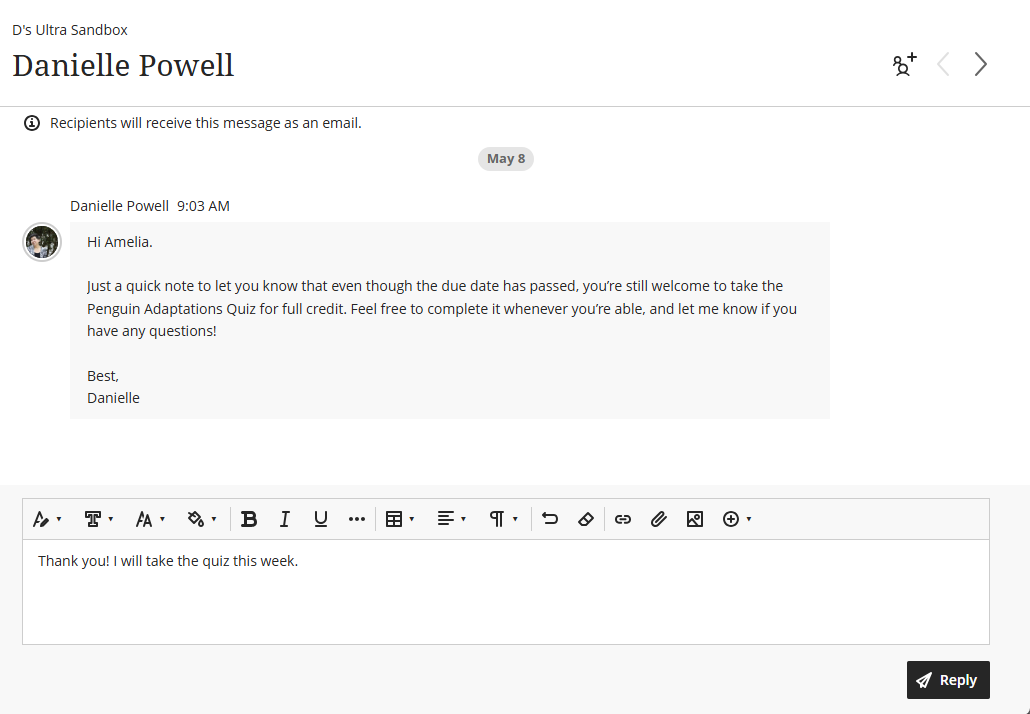
Since you will also receive an emailed copy of your course messages, you may also reply to your messages directly from your email.
Create and Send Messages
To create a new message, click the New Message button from the Global Messages area or from your Course Messages page.
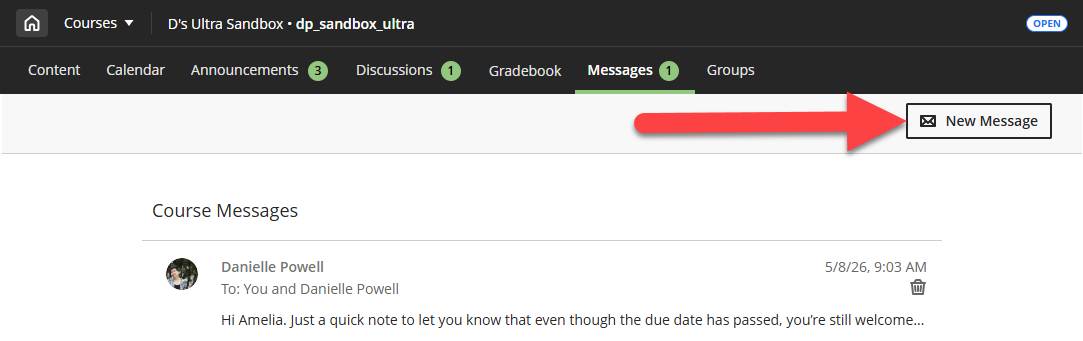
This will open the New Message page.
In the To section, select your recipient(s). You may select an individual, multiple individuals, or group members.
Once you have selected your recipient(s), enter your message in the text box. You may use the text/content editor to add and format your text, upload images, add links and attachments, embed media, and more.
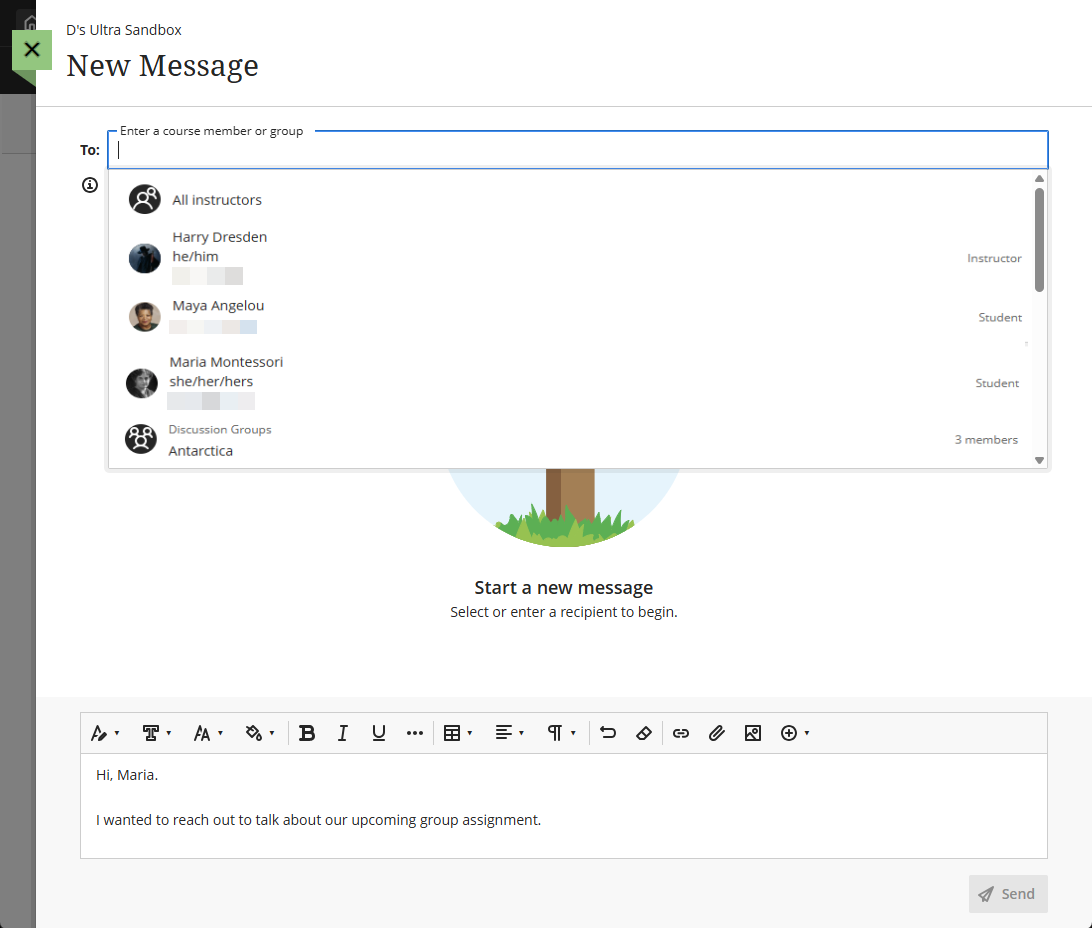
Once you have finished, click Send. Your recipients will receive an emailed copy automatically.
Was this article helpful?
That’s Great!
Thank you for your feedback
Sorry! We couldn't be helpful
Thank you for your feedback
Feedback sent
We appreciate your effort and will try to fix the article