TABLE OF CONTENTS
- What are Assignments?
- Submit an Assignment
- Submit a Peer Review Assignment
- Group Assignments
- SafeAssign
- View Assignment Grades and Feedback
What are Assignments?
Whether you are taking a course face-to-face or online, you may be asked to submit an assignment using the myLesley Assignment tool. Rather than ask you to print a copy of your paper or email it, your instructor can collect your papers online, grade them, and return them to you with feedback. Assignments submitted in this manner are always private between you and your instructor.
Submit an Assignment
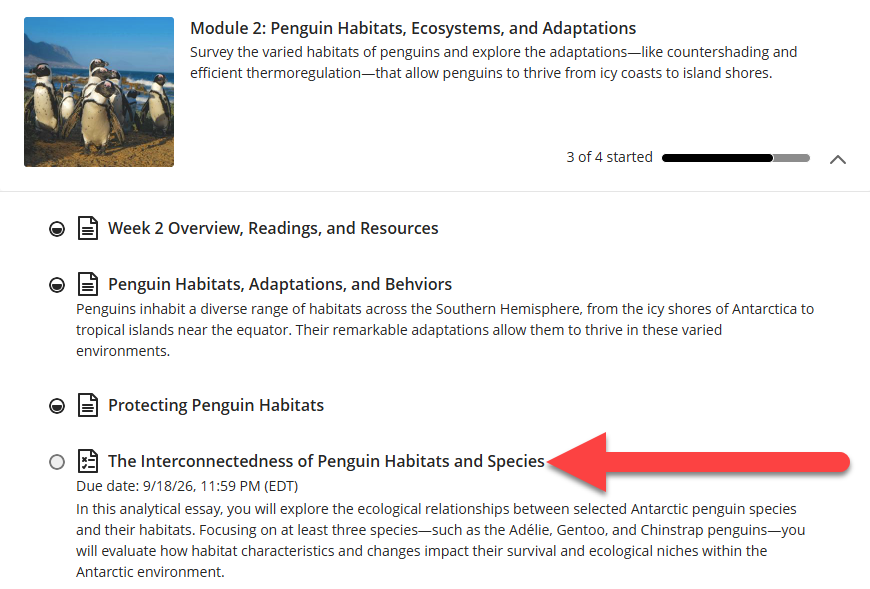
You may access your assignments in your Activity Stream, your Calendar, or from within your Course Content. Click on the assignment link to open it.
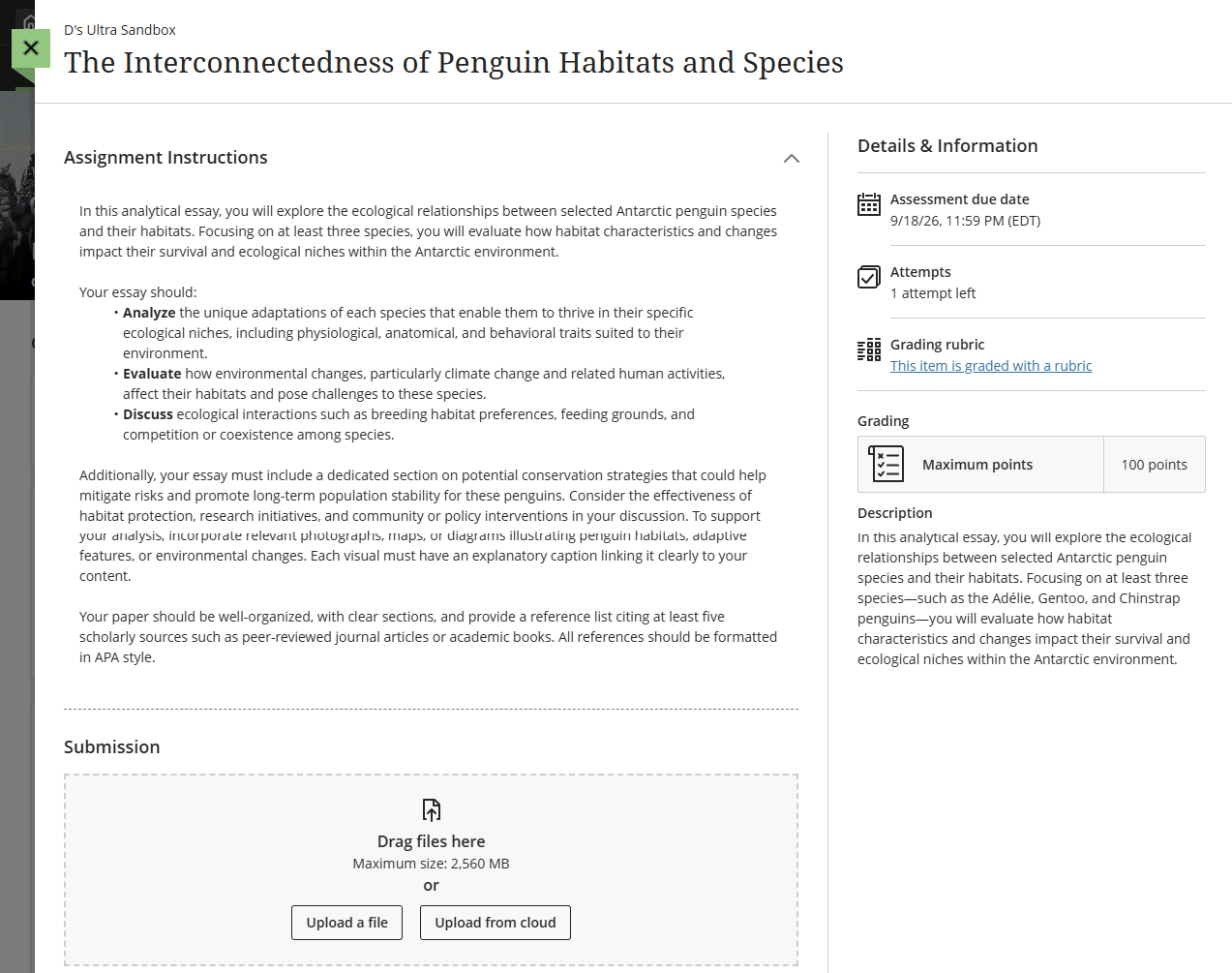
Before you begin:
- Read the instructions carefully: Requirements may vary from course to course, and assignment to assignment. If you have questions, reach out to your instructor as soon as possible.
- Check the due date and grading details: You will find the assignment due date, points, and grading rubric (if used) in the Details & Information section.
- Check for multiple attempts: If you can submit an assignment more than once, take advantage of your instructor's revise-and-review process.
In most cases, you will create your assignment in another tool (such as MS Word or Google Docs). Before you submit your assignment, make sure that you save it in a compatible file format. In order for your instructor to provide inline feedback on your assignment, submit your file in one of the following formats:
- Document (.doc, .docx)
- Presentation (.ppt, .pptx)
- Spreadsheet (.xls, .xlsx)
Did you create your assignment in Pages or Keynote? You will need to convert your file to a compatible format before submitting.Once you are ready to submit your assignment, open the Assignment, go to the Submission area, and drag your file into the submission box or click Upload a File to select your file.
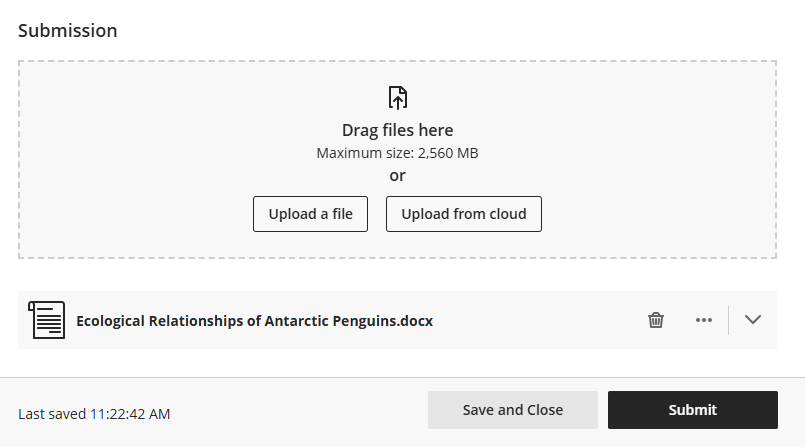
Click Submit to submit your assignment.
If your instructor has not allowed multiple attempts you can only submit your assignment once! If you have made an error (ex attached the wrong file), please contact your instructor immediately.
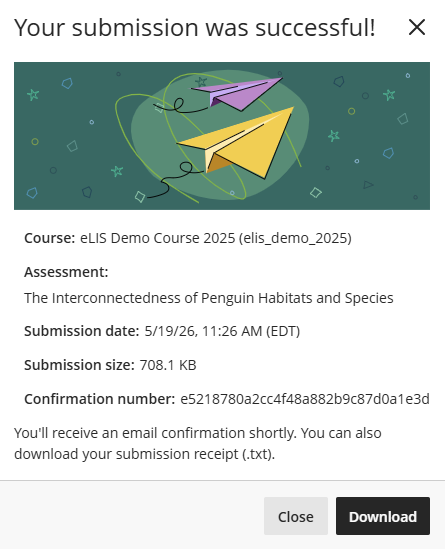
Once you submit your assignment, a submission receipt displays with the option to download a text file for your records. You will also receive an email copy of your submission receipt.
For more information, refer to the Assessments support page or watch the Submit an Assignment tutorial video.
Submit a Peer Review Assignment
Peer assessments allow you to review your classmates’ work through criteria-based evaluation. You will provide and receive constructive feedback, reflect on that feedback, and revise your work in response to the feedback.
Your instructor may use peer assessments to:
- Promote reflection, critical thinking, and metacognitive skills.
- Enhance feedback, communication, and collaboration skills.
- Encourage high-quality work and equitable participation.
- Provide you with richer, more actionable feedback from multiple viewpoints.
- Mirror real-world processes, allowing you to practice critiquing others in a professional manner.
The following instructions will walk you through the process of submitting an assignment for peer review, reviewing other students' assignments, and reviewing feedback: Qualitative Peer Review.
Group Assignments
In some cases, your instructor may assign group assignments. For more information, please refer to the following resources:
SafeAssign
SafeAssign is service designed to check submitted assignments for originality. SafeAssign compares your submitted assignments against a set of academic papers to identify areas of overlap between the submitted assignment and existing works.
After a paper is processed, SafeAssign generates an Originality Report detailing the percentage of text in the submitted paper that matches existing sources. The report also shows the suspected sources for each section that returns a match. The report does not state whether a phrase that matches a source is properly referenced and your instructor must read the report and determine if you used proper citations.
For more information, please refer to the following resources:
- SafeAssign support article
- Submit with SafeAssign support article
- SafeAssign Originality Report
- Tips for Avoiding Plagiarism
View Assignment Grades and Feedback
Once your instructor has viewed your assignment, they may grade it and provide feedback. Refer to the View Assignment Grades and Feedback in myLesley support article for information on viewing your graded assignments.
Was this article helpful?
That’s Great!
Thank you for your feedback
Sorry! We couldn't be helpful
Thank you for your feedback
Feedback sent
We appreciate your effort and will try to fix the article