TABLE OF CONTENTS
- What are Tests?
- Prepare for Your Test
- Take a Test
- Tips for Taking Online Tests
- View Test Grades and Feedback
What are Tests?
Online tests, like paper-and-pencil tests, contain a variety of question types such as multiple choice, short answer, or matching. Taking online tests allows your instructor to use features such as automated grading, allowing multiple attempts, time limits, multimedia in questions, and time ranges.
While you may be able to use the Blackboard App to take tests, we strongly discourage it. As a best practice, we recommend using a computer and a reliable network connection.
Prepare for Your Test
Before you begin your test:
- Notify your Instructor of your accommodations. If you need accommodations, including extended time, reach out to your instructor in advance.
- Plan ahead. Plan to take your test in one sitting. Before you begin, review the Details & Information to identify the due date, number of attempts, whether the test is timed, etc.
- Check for multiple attempts. You may be able to take a test multiple times. Look in the Details & Information section for the test to see how many tries you will have for the test. If you have multiple attempts, your instructor will control how the grade is calculated.
- Use a strong reliable internet connection. Make sure you use a strong, reliable internet connection. We do not recommend taking your test on a mobile device.
- Is your test timed? If your test is timed, do not begin the test until you are ready. The timer will start as soon as you open it.
For more information, refer to the Prepare for an Assessment support page or watch the Prepare for an Assessment tutorial video.
Take a Test
You may access your test from your Activity Stream, your Calendar , or from within your course. Click on the test link to open it.
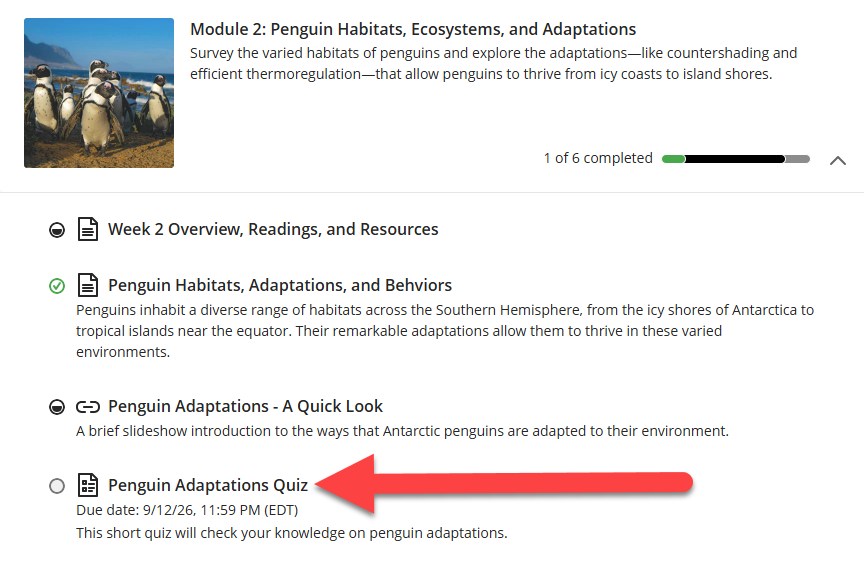
Is your test timed? If your test is timed, do not begin the test until you are ready. The timer will start as soon as you open it.
Once you enter your Test:
- Read the instructions. Pay close attention to the test instructions. The requirements may vary from course to course, and test to test. If you have questions, reach out to your instructor as soon as possible.
- Read and review. Read each question carefully and double-check your answers.
- Track your progress. Use the test progress bar to track test completion.
- Check multiple answer questions. For multiple choice questions with multiple answers, your instructor controls whether you are penalized for incorrect choices. Make sure you read these questions carefully and only select the answers you believe to be correct.
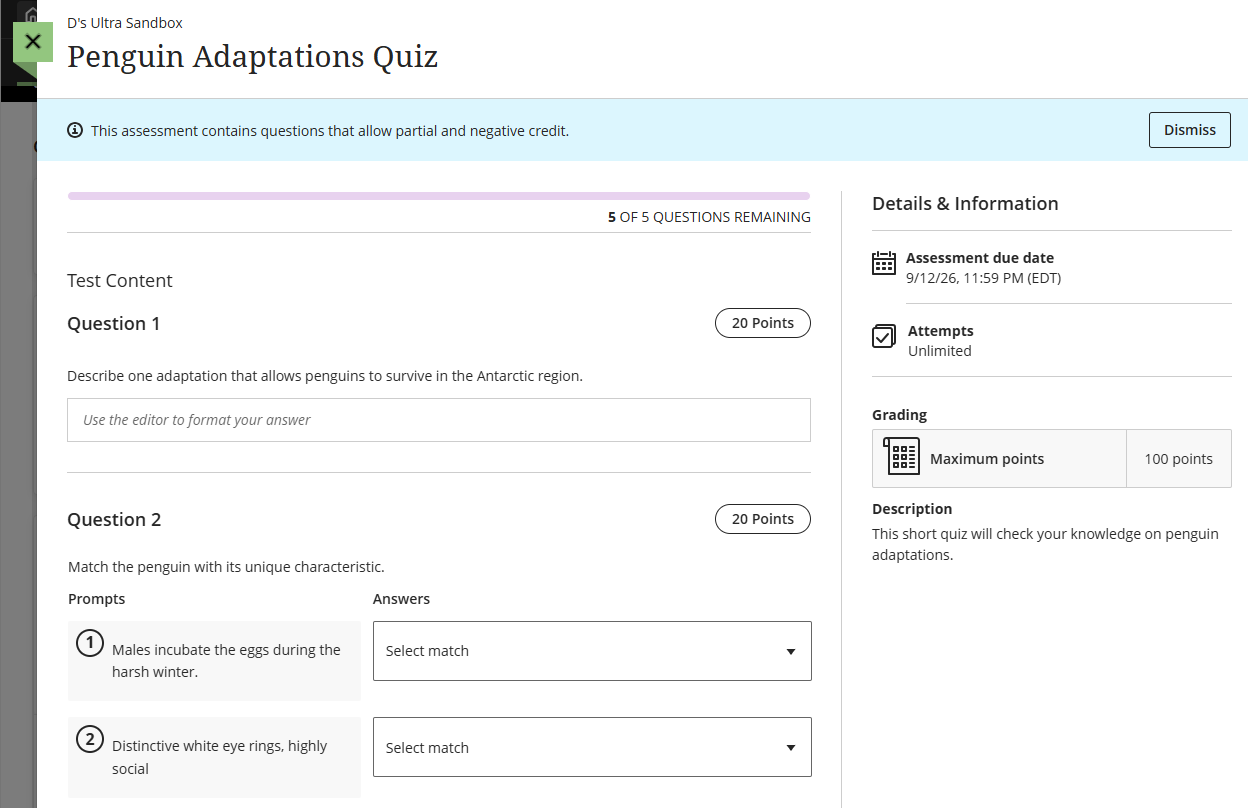
Once you begin your test do not refresh the page, close the browser window/tab, or click the back button! Doing so may cause an error in the system.
As you take your test, your answers will be auto saved two seconds after you’ve added your answer. Essay question responses are saved every 10 seconds while you’re typing and also again 2 seconds after you’ve stopped typing. Every time an answer has been auto saved, you will see a Last saved notification at the bottom of the test.
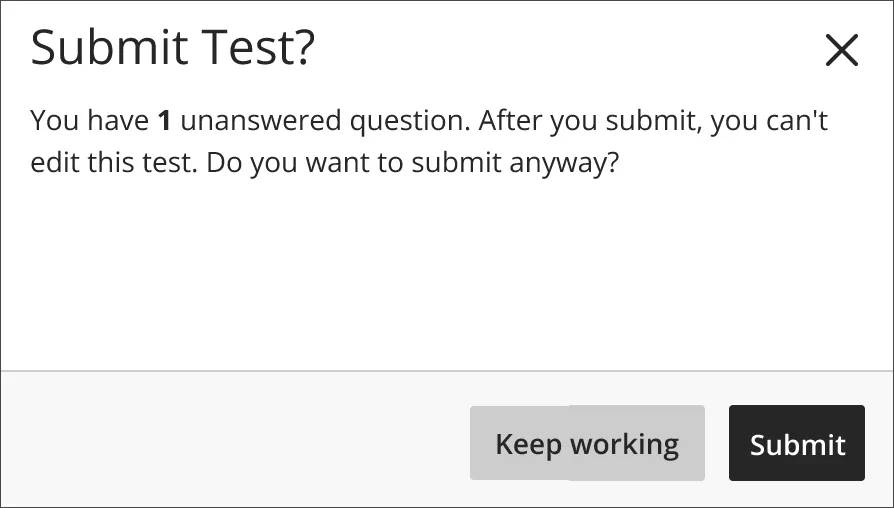
Once you have finished your test, double check your answers and then click Submit.
If you try to submit a test with unanswered questions, an alert will appear showing the number of unanswered questions. You can decide whether to submit the test or keep working.
For more information and detailed instructions, refer to the Assessments support page or watch the Test Taking and Submission tutorial video.
Tips for Taking Online Tests
Keep the following in mind as you take your test:
- Don't wait until the last minute! Take your test as soon as you can. If you have questions or run into issues reach out to your instructor right away.
- Notify your Instructor of your accommodations. If you need accommodations, including extended time, reach out to your instructor in advance.
- Plan ahead. Plan to take your test in one sitting. Before you begin, review the Details & Information to identify the due date, number of attempts, whether the test is timed, etc.
- Read the Instructions Carefully: Pay close attention to the test instructions. The requirements may vary from course to course, and assignment to assignment. If you have questions, reach out to your instructor as soon as possible.
- Use a Strong, Reliable Internet Connection: While you may be able to use the Blackboard App to take tests, we strongly discourage it. When taking tests, we recommend using a computer and a reliable network connection.
- If you lose internet connection during your test, you’ll receive a Connection lost warning. Do not refresh the page or use your browser back button! Check your settings to see if you are connected to the internet.
- Once your internet connection is restored, your work will auto-save and you will be notified.
- Is your test timed? If your test is timed, do not begin the test until you are ready. The timer will start as soon as you open the test. Once you begin the test, you can hide the timer to relieve pressure.
- Do not refresh the page, close the browser window/tab, or click the back button! Refreshing your page, closing your browser window/tab, or clicking the back button may cause an error in the system. If you experience problems during a test, contact your instructor immediately.
View Test Grades and Feedback
Your instructor will choose when you can see your grade and feedback. In some cases you may be able to view your score immediately after submitting your test. In other cases, your instructor will release grades after all the tests have been graded.
For more information on viewing your grades and feedback, refer to the View Test Grades and Feedback in myLesley support article.
Was this article helpful?
That’s Great!
Thank you for your feedback
Sorry! We couldn't be helpful
Thank you for your feedback
Feedback sent
We appreciate your effort and will try to fix the article