TABLE OF CONTENTS
- About Grades and Feedback
- Access Your Grades and Feedback
- Navigate Your Course's Gradebook
- View Assignment Grades and Feedback
- View Test Grades and Feedback
- View Discussion Grades and Feedback
- View Journal Grades and Feedback
- Late Work and Automatic Zeroes
About Grades and Feedback
Your instructor will post your grades once grading is complete, or they will release all grades at one time to the entire class. Depending on your Notification Settings, you may receive a notification in your Activity Stream or your email when content has been graded.
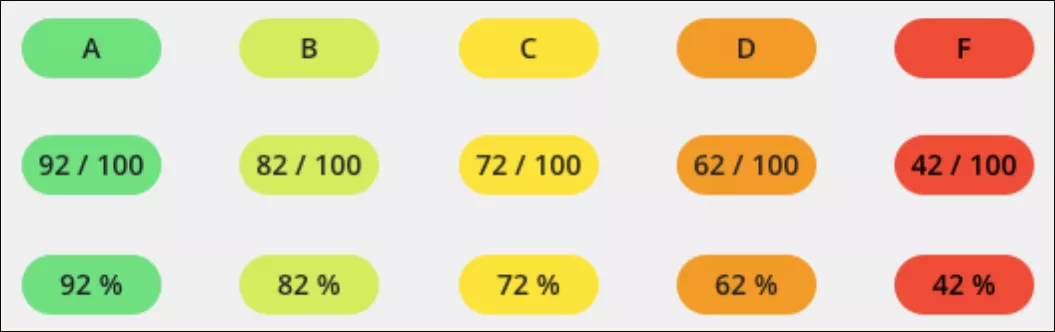
Your grades for each item will display in a grade pill as a letter, points, or percentage, depending on your instructor's grading preference. The grade pill colors map to these percentages, with the highest score range in green and the lowest in red:
> 90% = green
89–80% = yellow/green
79–70% = yellow
69–60% = orange
>59% = red
Access Your Grades and Feedback
There are many places in the system that allow you to view your grades and instructor feedback. Get a heads-up about new grades in your Activity Stream, view grades for all of your courses in the Global Gradebook, view all grades in a single course in your Course Gradebook, or select a gradable item in your course to view its grade and instructor feedback.
View Recently Graded Items in your Activity Stream
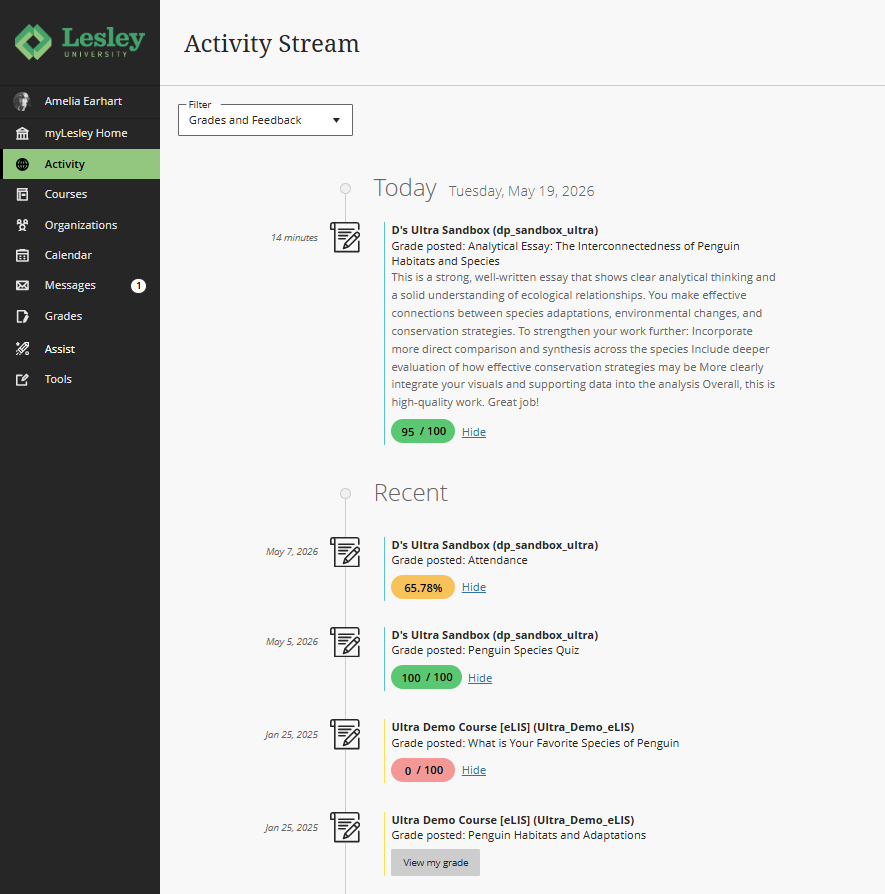
From the base navigation, click on the Activity link in the menu. This will bring you to the Activity Stream, where you can view notifications for newly graded items, past due assignments, upcoming events and due dates, and other announcements and activity from your courses and organizations. You may filter or select which activities appear on the Activity Stream via your Notification Settings.
Newly graded items will appear in your Activity Stream along with instructor feedback. Click View my grade to see your grade or select an item go directly to the graded item.
View Grades Across All Courses in the Global Gradebook
From the base navigation, click on the Grades link in the menu. This will bring you to the Global Gradebook. The Global Gradebook displays all grading information across all of your courses. Courses are organized in alphabetical order.
Select a course name or click on the View all work link to go to that course's Gradebook.
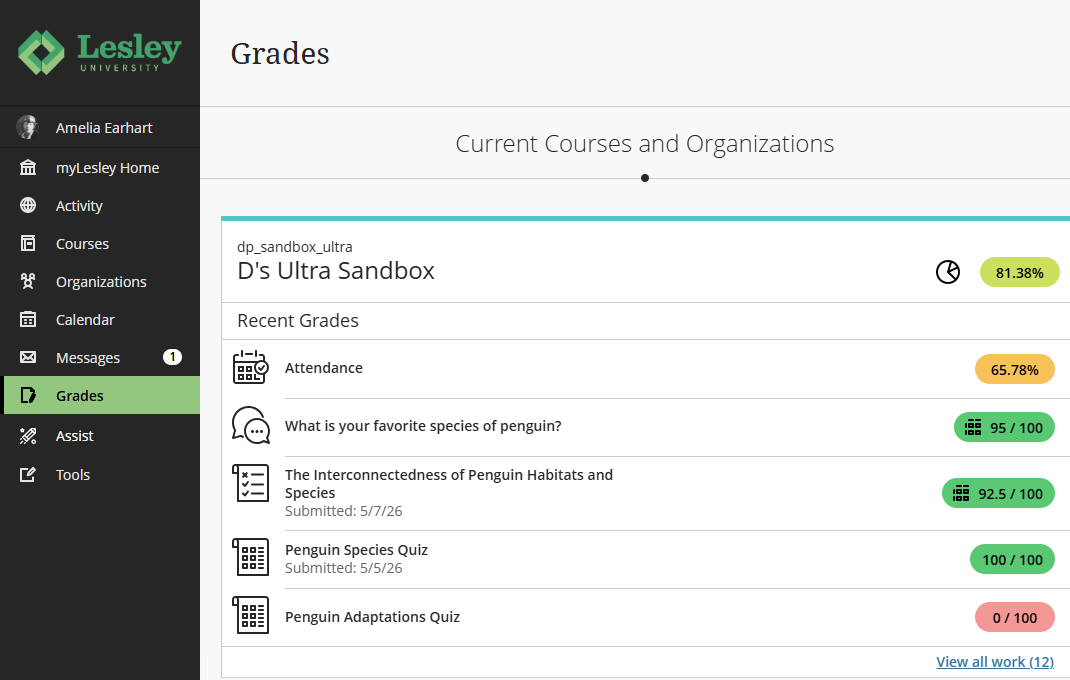
Click on the How Am I Doing? report (pie chart icon) to review your performance in each course. Select a course name or click on the View all work link to see all of your grades in the course.
View All Grades and Feedback in an Individual Course's Gradebook
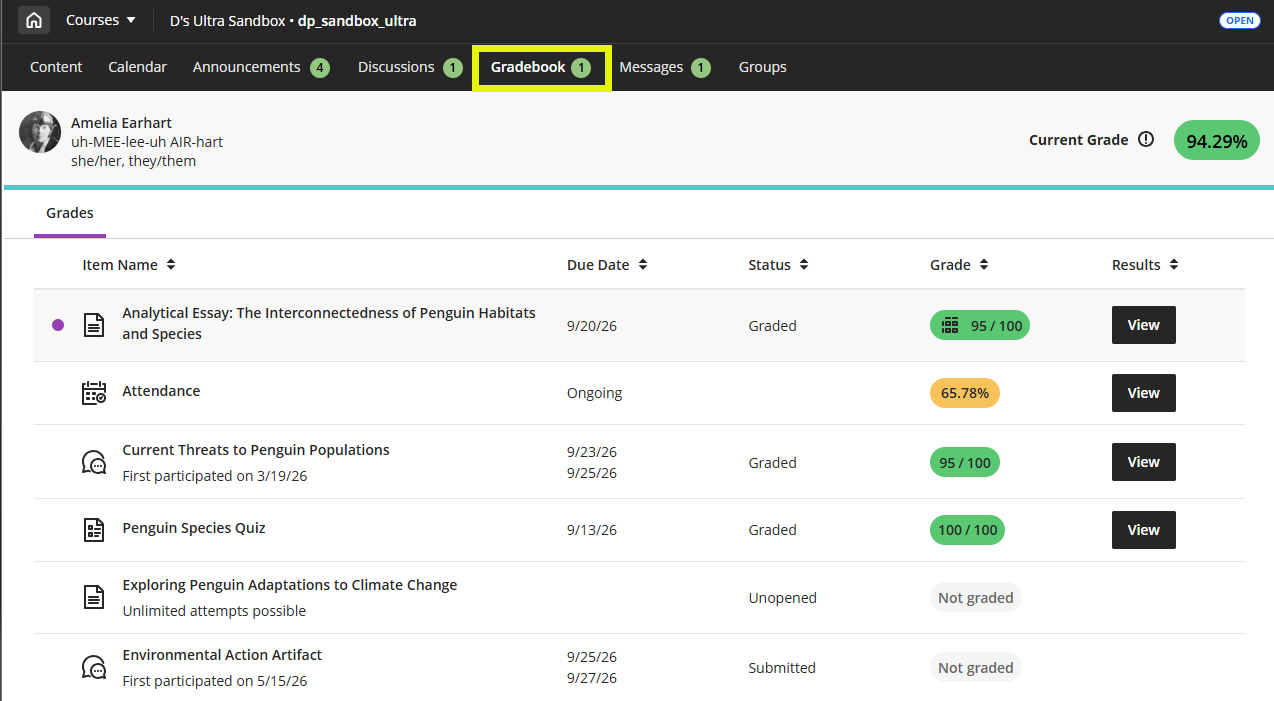
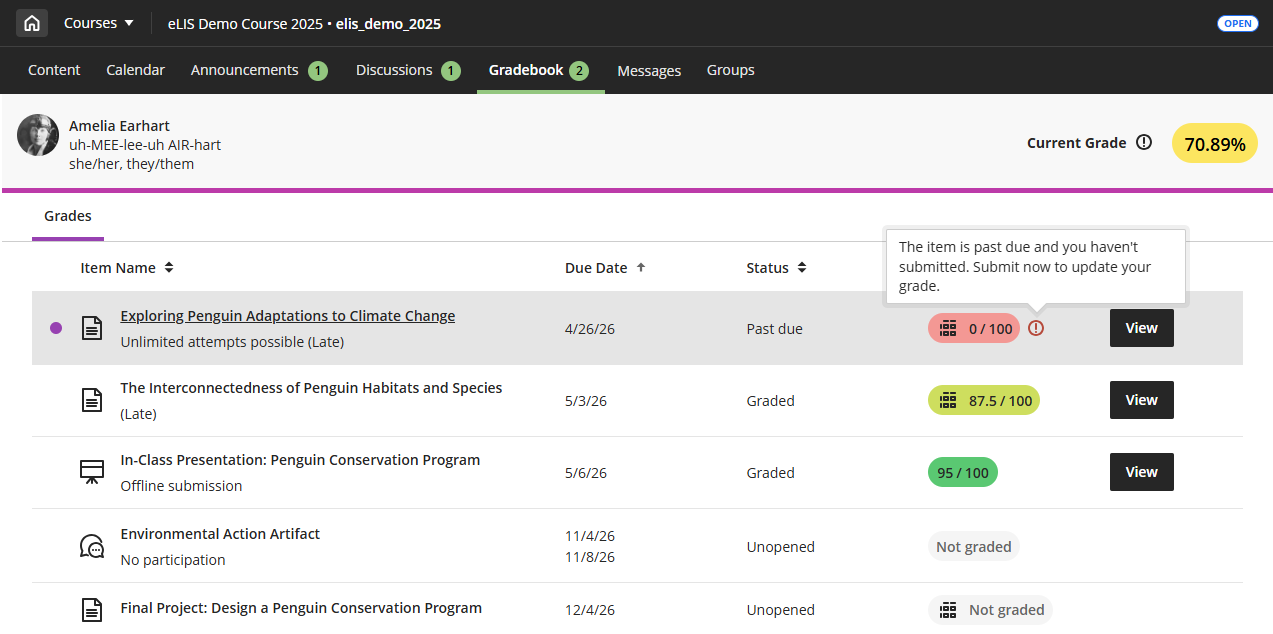
The Course Gradebook displays your progress and feedback for each graded item. When new grades are posted a number will appear on the Gradebook tab and a purple dot will highlight each newly graded item.
Navigate to your course and click on the Gradebook link in the course menu at the top of the page. Here you will see the status of your graded items. Click the View button in the Results column to view your grade and instructor feedback.
Navigate Your Course's Gradebook
Navigate to your course and click on the Gradebook link in the course menu at the top of the page. Here you will see the status of your graded items.
Newly graded items will appear at the top of the Gradebook and noted by a purple dot. Click the View button in the Results column to view your grade and instructor feedback.
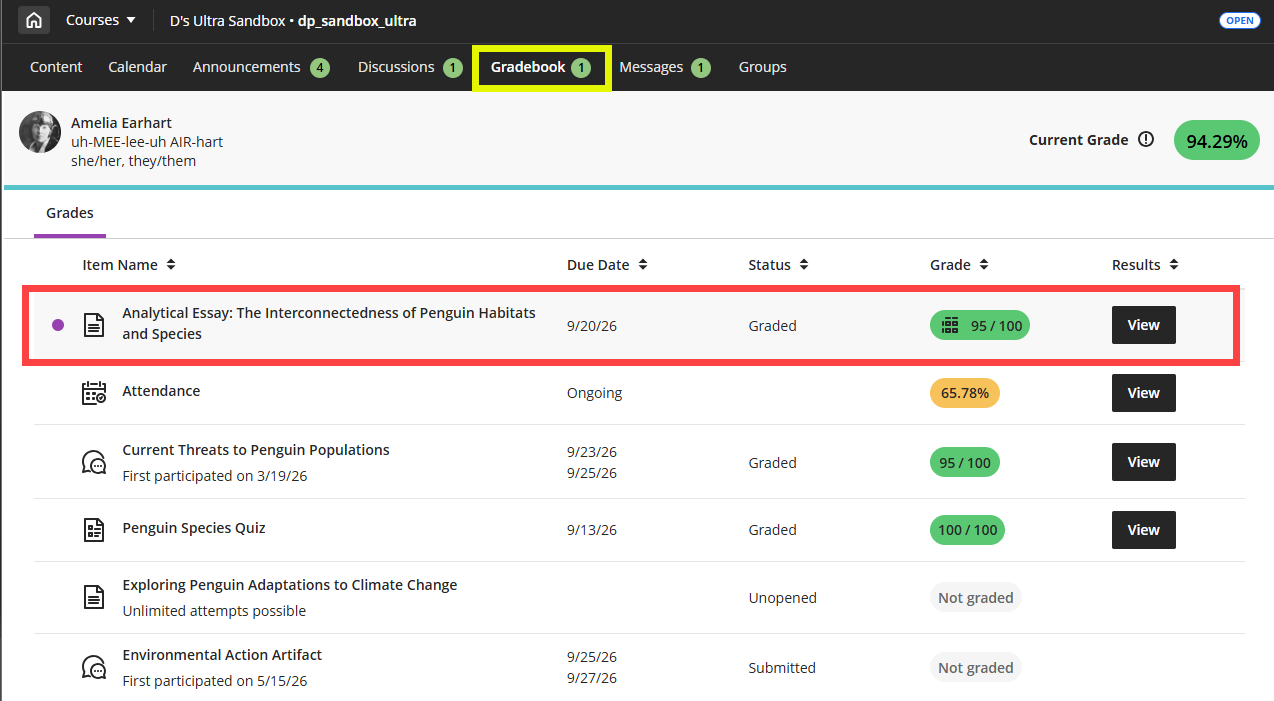
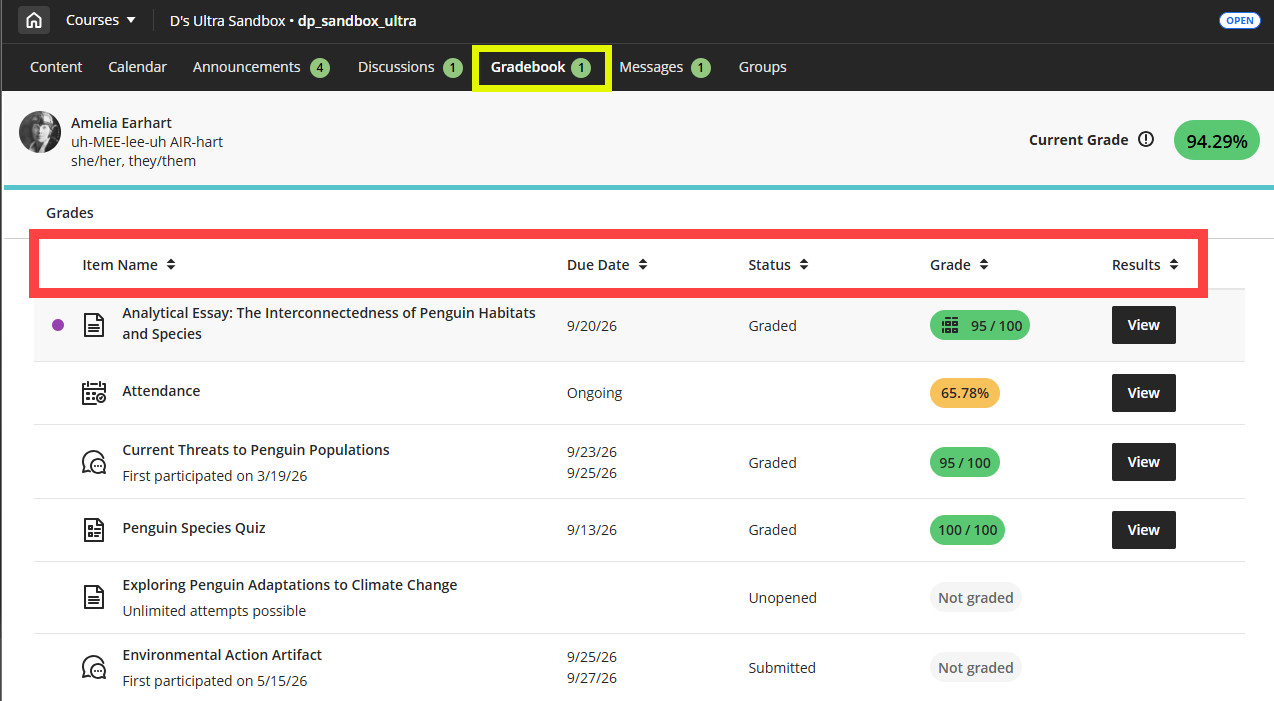
Your course gradebook contains the following columns:
- Item Name: This is the name of the gradable item. Select the item's name to see comments and the item's details.
- Due Date: If your instructor assigned due dates, they will be visible in this column.
- Status: This column displays the status of your submission (unopened, submitted, graded).
- Grade: This column displays your grade.
- Results: Click the View button to view your grade and instructor feedback.
You may use the Sort feature to sort your gradebook columns to help you locate information more quickly. For example, you can reorder the list based on due date, grade status, or grade.
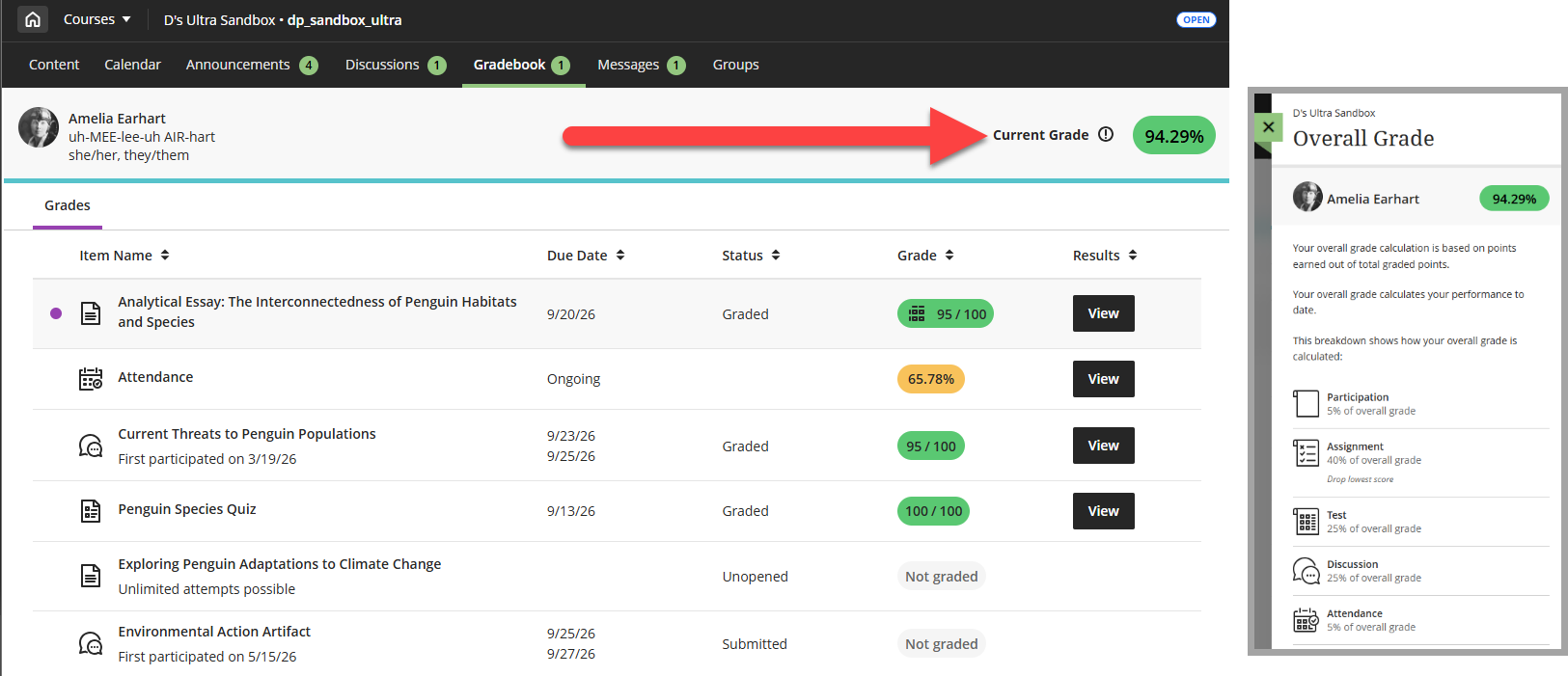
If your instructor set up the Overall Grade, you will see this displayed at the top of your Gradebook. The overall grade lets you keep track of how you're doing in each of your courses. Select your Overall Grade to see how it is being calculated.
For more information and detailed instructions, refer to the Grades support page or watch the Check Grades tutorial video.
View Assignment Grades and Feedback
Your instructor will post your Assignment grade once grading is complete, or they will release all grades at one time to the entire class. You may access your Assignment grades and feedback from your Activity Stream, your Global Gradebook, your Course Gradebook, or by selecting the Assignment in your Course Content.
Click on your Assignment to open. Then click View Submission to view grading details and feedback.
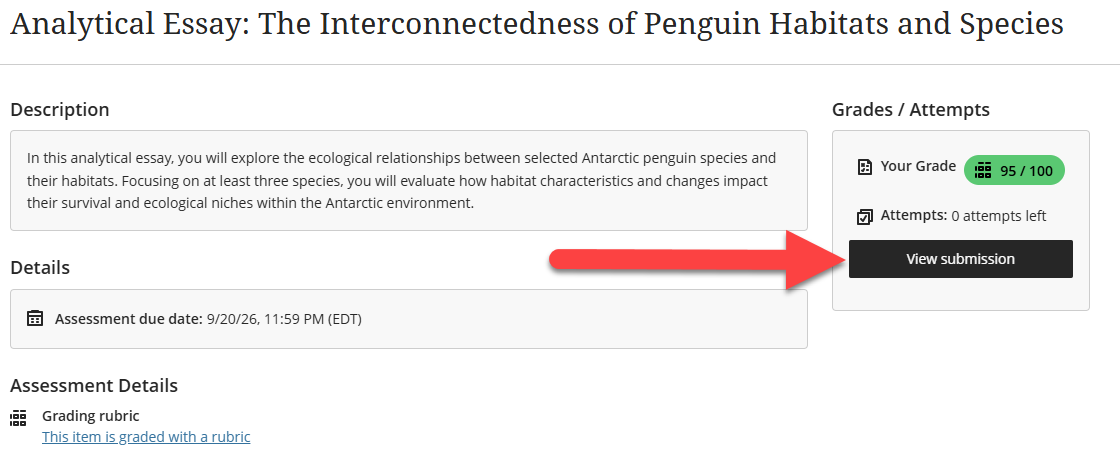
Once you open your submission, you will be able to review:
- your grade;
- your submission;
- inline grading and feedback (if used);
- your overall feedback;
- rubric grade and criteria feedback (if used).
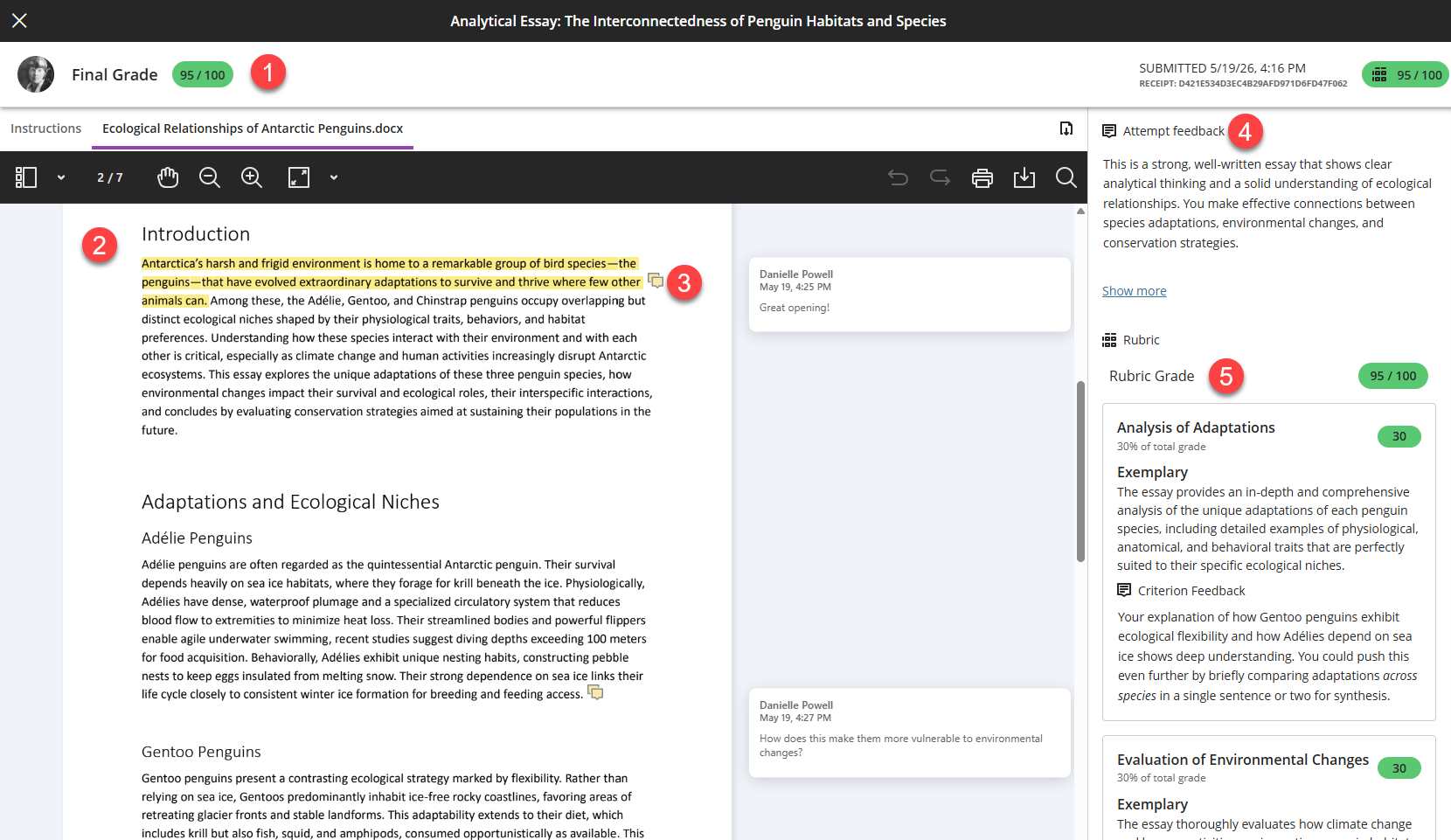
For more information and detailed instructions, refer to the Assessment Grades support page or watch the Review Assignment Feedback tutorial video.
View Test Grades and Feedback
Depending on the type of test questions and the settings your instructor chose, your test may be scored immediately or you may have to wait until your instructor posts the test scores for the entire class. Depending on your Notification Settings, you may receive a notification in your Activity Stream or your email when content has been graded.
You may access your Test grades and feedback from your Activity Stream, your Global Gradebook, your Course Gradebook, or by selecting the Test in your Course Content.
Click on your Test to open. Then click View Submission to view your scores for individual questions and any feedback your instructor provided.
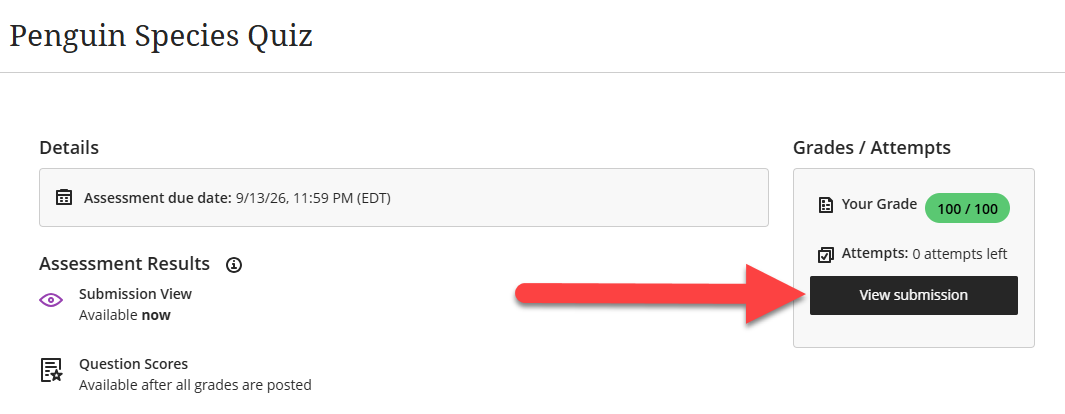
For more information, refer to the Assessment Grades support page or watch the Test Review and Feedback tutorial video.
View Discussion Grades and Feedback
If your Discussions are graded, your instructor will post your Discussion grade once grading is complete or release the grades all at once. Depending on your Notification Settings, you may receive a notification in your Activity Stream or your email when content has been graded.
You may access your Discussion grades and feedback from your Activity Stream, your Global Gradebook, your Course Gradebook, or by selecting the Discussion in your Course Content or by clicking the Discussions link in the course menu.
Click on the Discussion to open it. Your Discussion grade and feedback will be available in the Details & Information section.
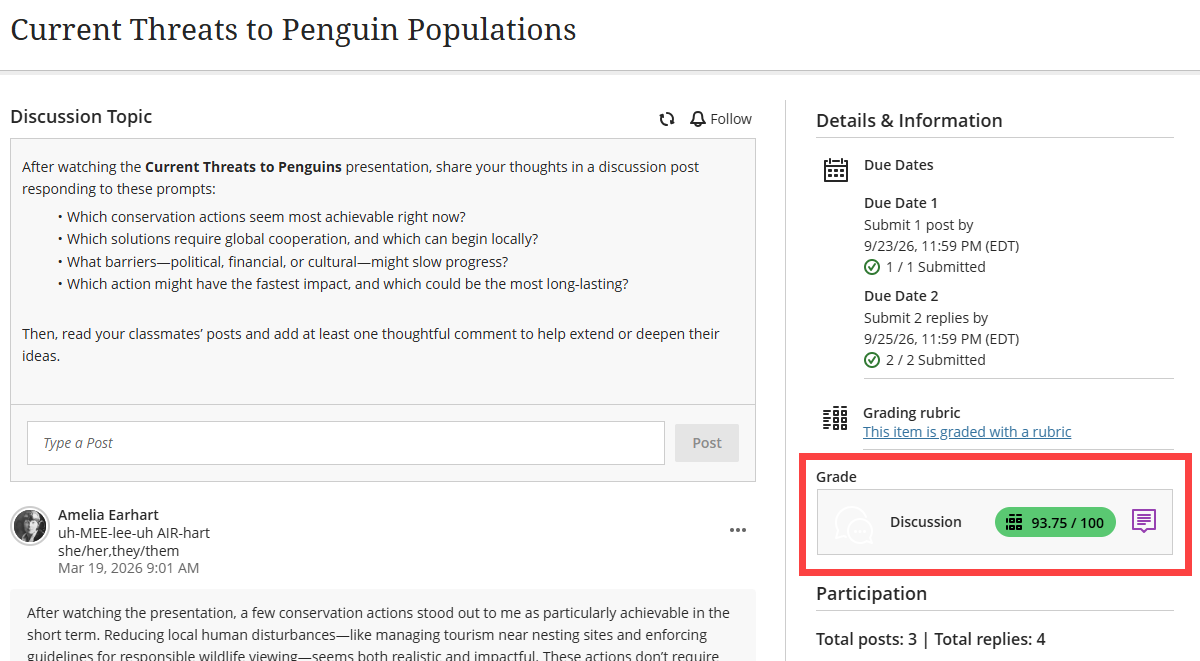
If your instructor provided feedback, click on the Feedback icon to view it.
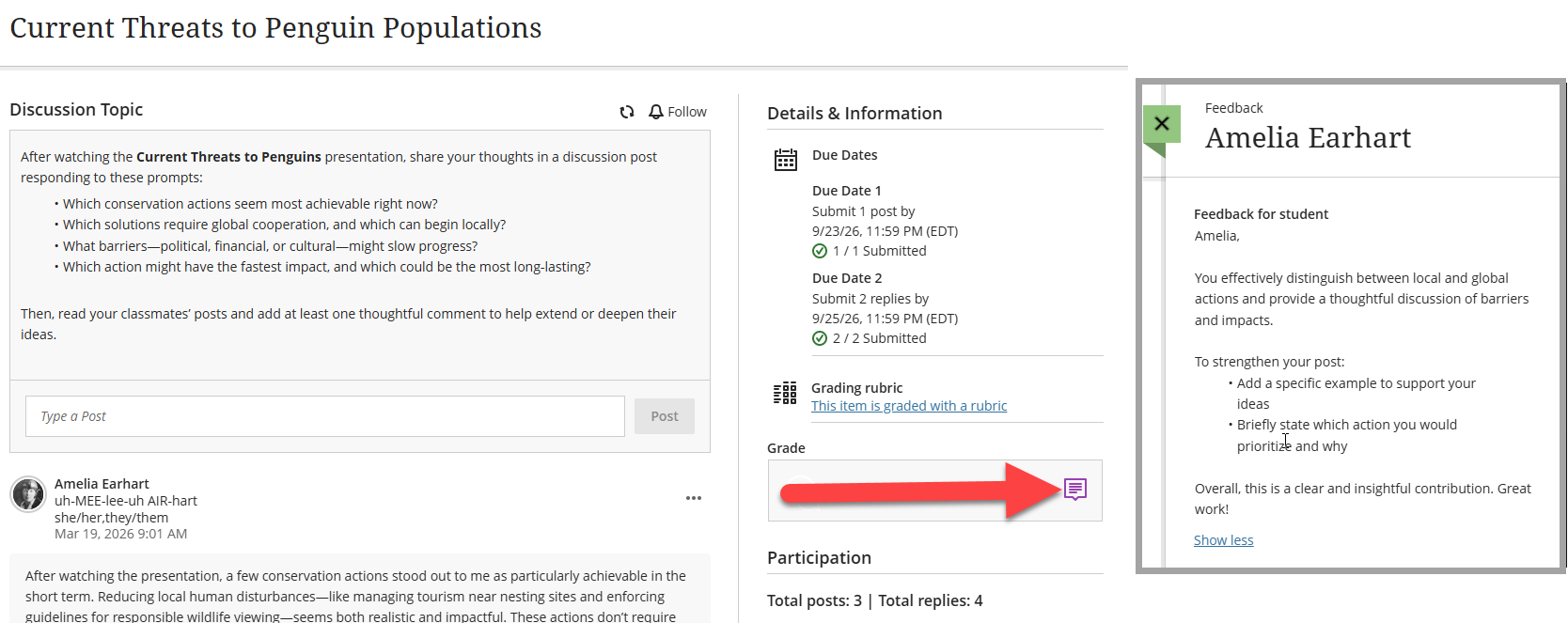
If your instructor used a rubric to grade your discussion, you may view the grading rubric as well as any criteria feedback your instructor provided. Click the rubric icon to open the grading rubric.
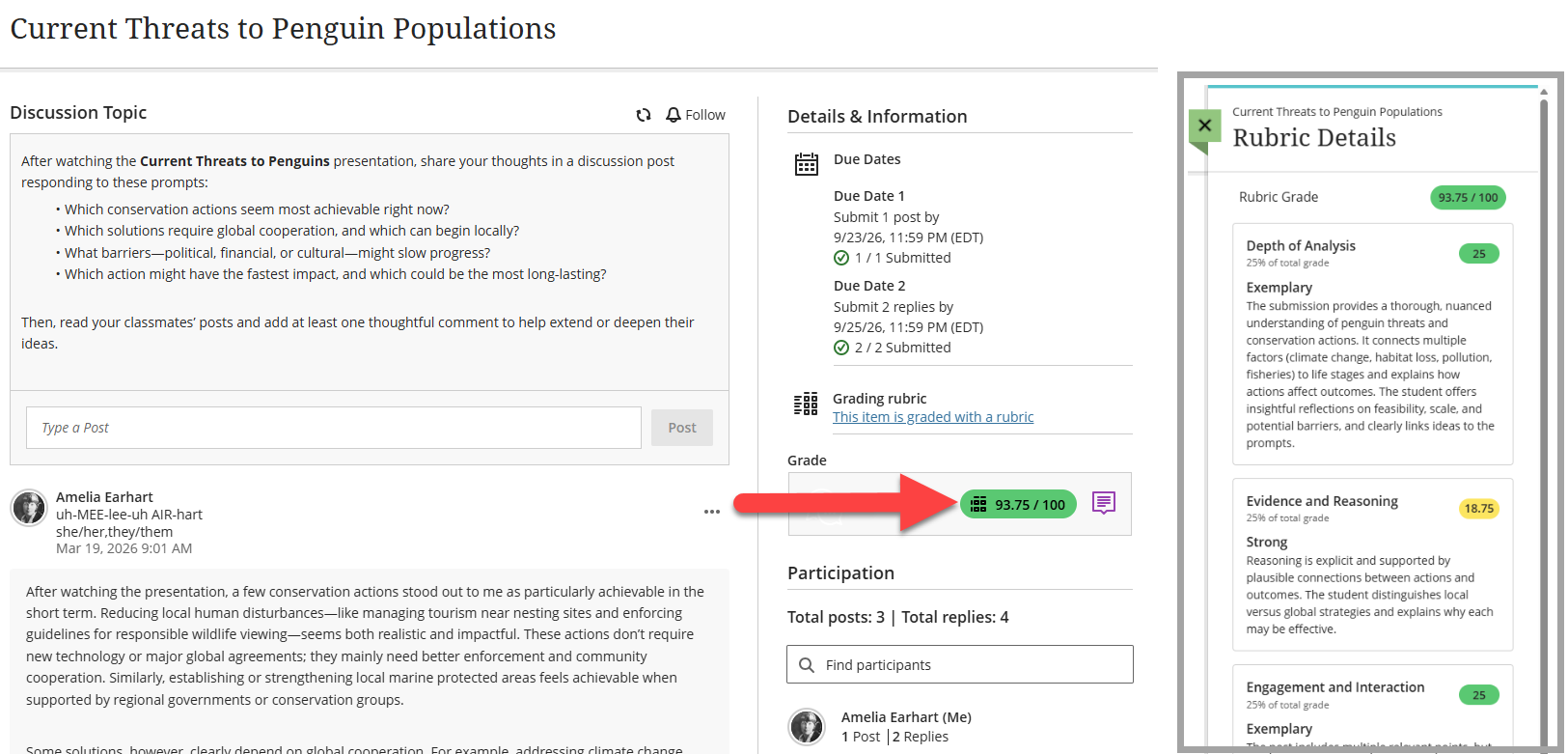
For more information, refer to the Discussion Grades support page.
View Journal Grades and Feedback
If your Journal is graded, your instructor will post your grade once grading is complete or release the grades all at once. Depending on your Notification Settings, you may receive a notification in your Activity Stream or your email when content has been graded.
You may access your Journal grade and feedback from your Activity Stream, your Global Gradebook, your Course Gradebook, or by selecting the Journal in your Course Content.
Click on the Journal to open it. Your grade and feedback will be available in the Details & Information section.
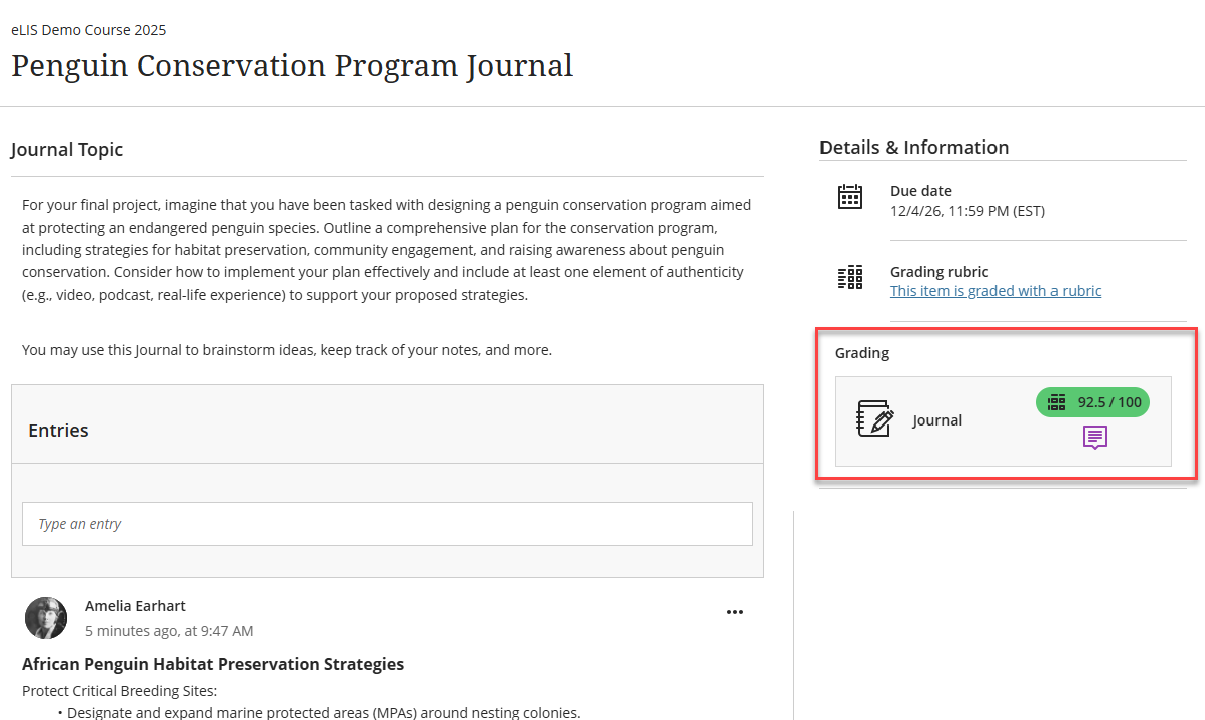
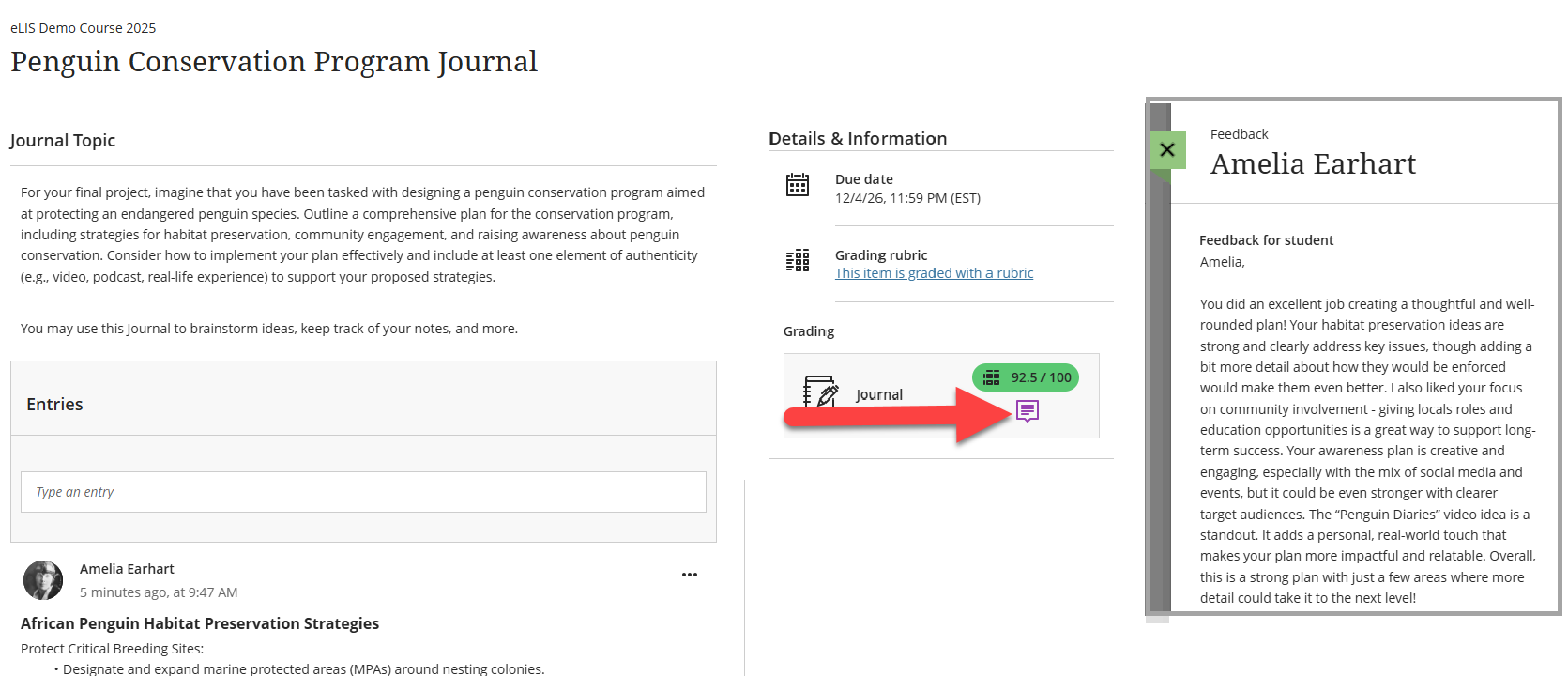
If your instructor provided feedback, click on the Feedback icon to view it.
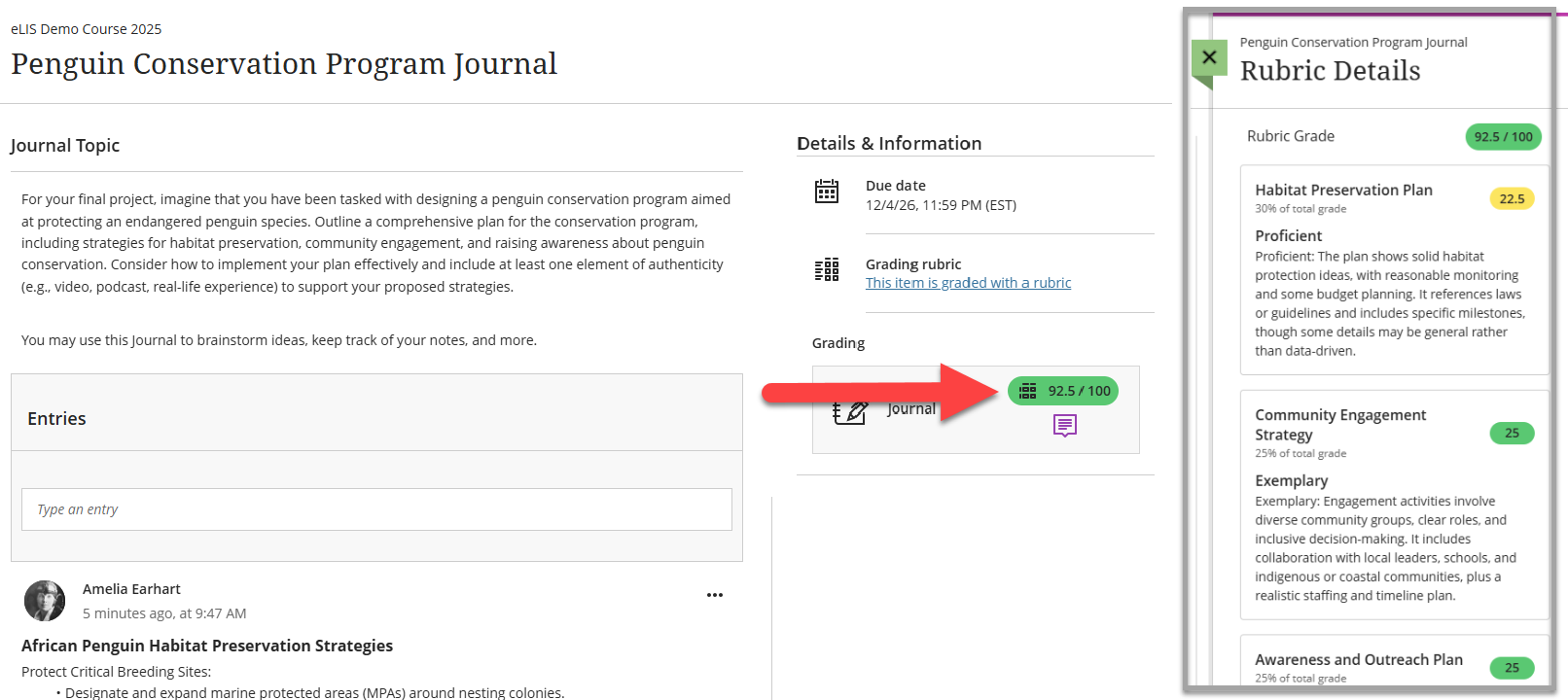
If your instructor used a rubric to grade your journal, you may view the grading rubric as well as any criteria feedback your instructor provided. Click the rubric icon to open the grading rubric.
Late Work and Automatic Zeroes
If your instructor uses due dates, any work submitted after the due date will be marked as Late. In some cases, you may see zeros added automatically for work you haven't submitted before the due date. In most cases, you can still submit attempts to update your grade. Reach out to your instructor with any questions about their late work policy.
Was this article helpful?
That’s Great!
Thank you for your feedback
Sorry! We couldn't be helpful
Thank you for your feedback
Feedback sent
We appreciate your effort and will try to fix the article