Create Journal Entries in myLesley (Students)
TABLE OF CONTENTS
What are Journals?
Journals provide a private space for you to communicate with your instructor. Unlike discussions, journals are not shared with classmates. They are meant for personal reflection and one-on-one interaction. You may use the journal to reflect on your learning, share your thoughts or concerns, discuss and analyze course materials, or respond to prompts provided by your instructor.
Your instructor may guide your entries with specific topics and may choose to grade your journal submissions or use them simply as a tool for feedback and reflection.
Create a Journal Entry
To post a journal entry, click on the journal link in your Course Content.
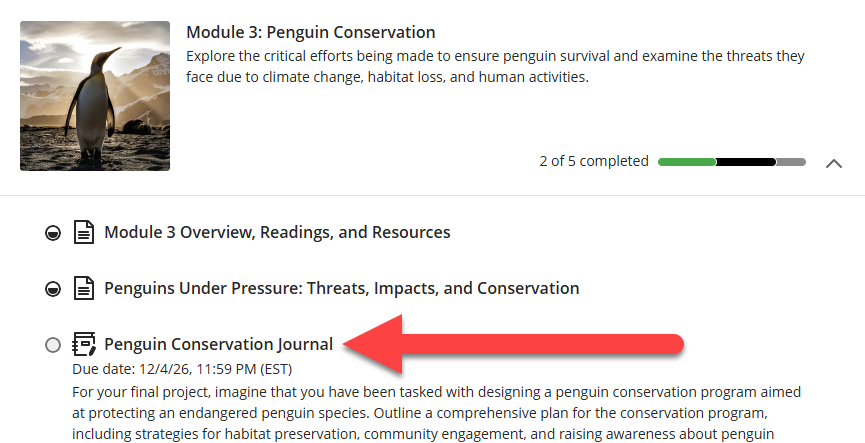
Once you have entered the Journal:
- Check the due date and grading details: If your journal is graded, you will find the due date, points, and grading rubric (if used) in the Details & Information section.
- Read the Topic carefully: Pay close attention to the journal prompt and take the time to write a meaningful entry. If you have questions, reach out to your instructor as soon as possible.
- Post your entry: Write your response to the prompt and use the text/content editor to add and format text, upload images, add links and attachments, embed media, and more.
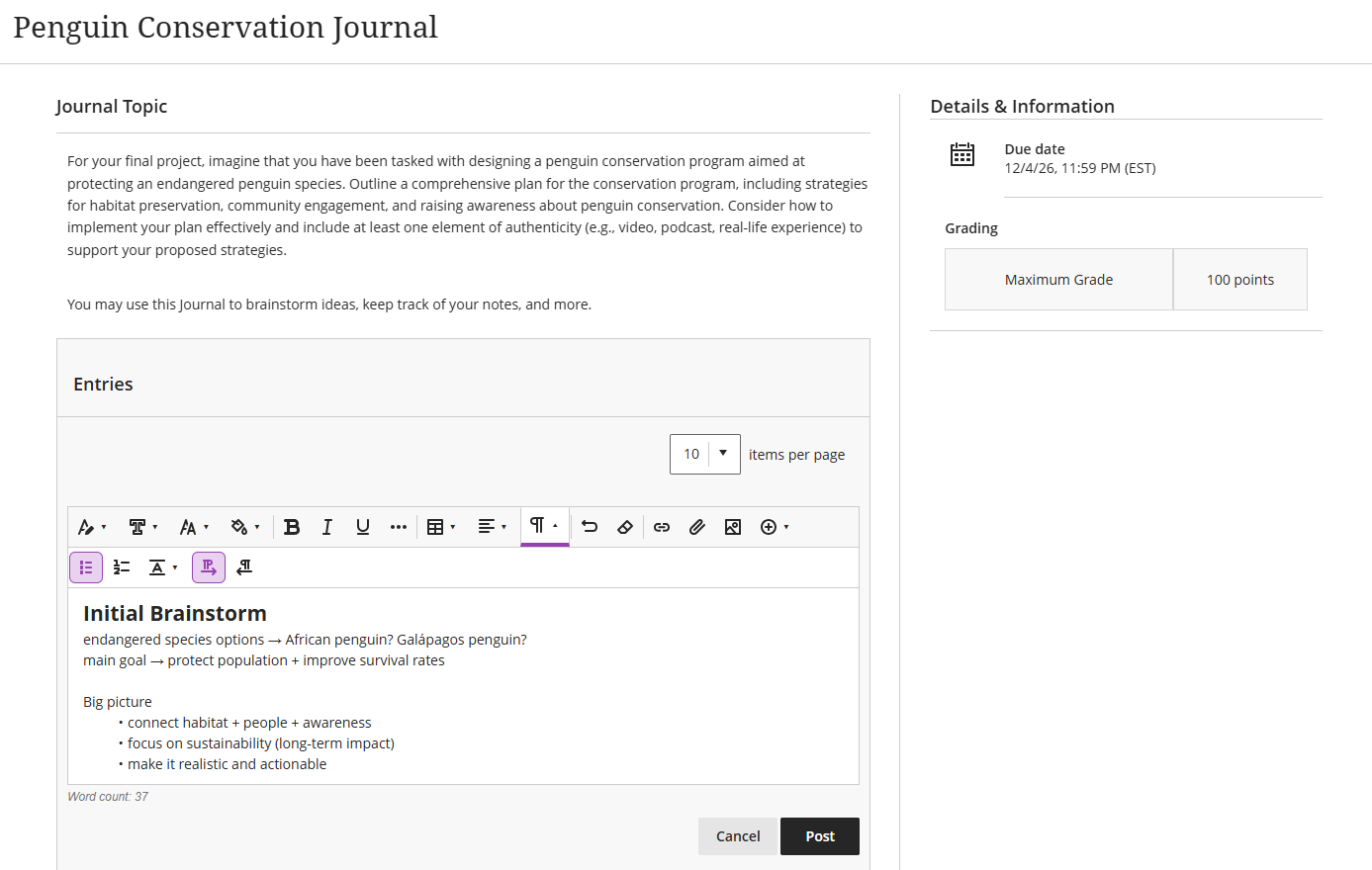
Click Post to post your journal entry. You may come back and make as many posts as you want.
For more information and detailed instructions, refer to the Journals support page or watch the Journals tutorial video.
Journals Tips and Tricks
- If your journal is graded, your instructor may include a rubric. If this is the case, make sure you review it carefully before posting.
- Take the time to write a meaningful entry. Write clearly and proofread before posting.
- Use the text/content editor to add and format text, upload images, add links and attachments, embed media, and more.
- If you copy and paste text from a document or website, be sure to use the Clear Format option in the editor to remove the formatting. You will need to reformat using the options in the text editor.
- Stay on topic.
View Journal Grades and Feedback
If your journal is graded, your instructor may provide you with a grade and feedback. Refer to the View Journal Grades and Feedback in myLesley support article for information on viewing your graded items.