TABLE OF CONTENTS
- Overview
- Download Your Syllabus
- Download Graded Assignments
- Download Your Kaltura Media
- Back Up Your Content to a Cloud-Based Service
Overview
As a best practice, we recommend saving, and backing up your content as soon as your course has ended.
In accordance with the Course Lifecycle Policy, courses are disabled in myLesley after a certain time period:
- Undergraduate and Masters' level courses are disabled 2 years from the end date of the course.
- Doctoral level courses are disabled 5 years from the end date of the course.
NOTE for graduating students: Students lose access to their Lesley SSO account 60 days after graduation. With the termination of your account you will also lose access to many Lesley tools and services, including myLesley. For more information, refer to the Technology Access for Graduating Students support article.
Download Your Syllabus
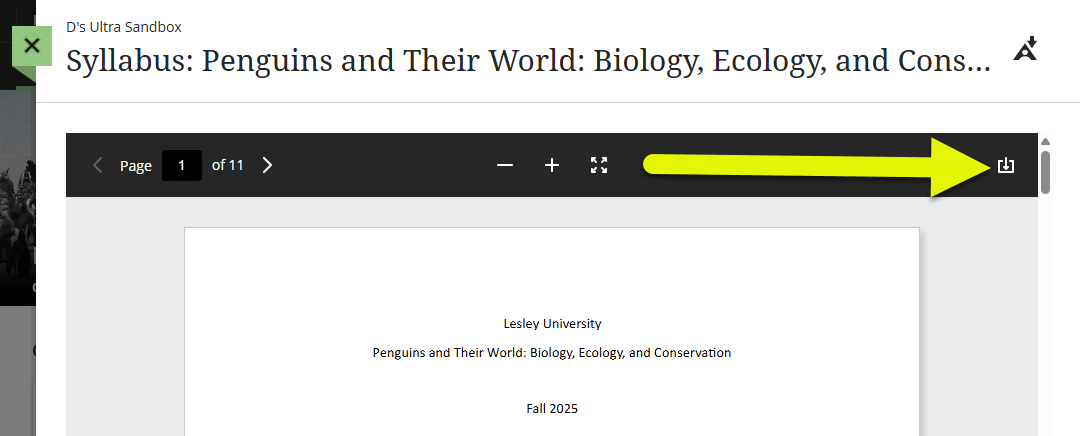
If your instructor uploaded the syllabus to the course you may click on it to download.
Download Graded Assignments
Ultra Courses
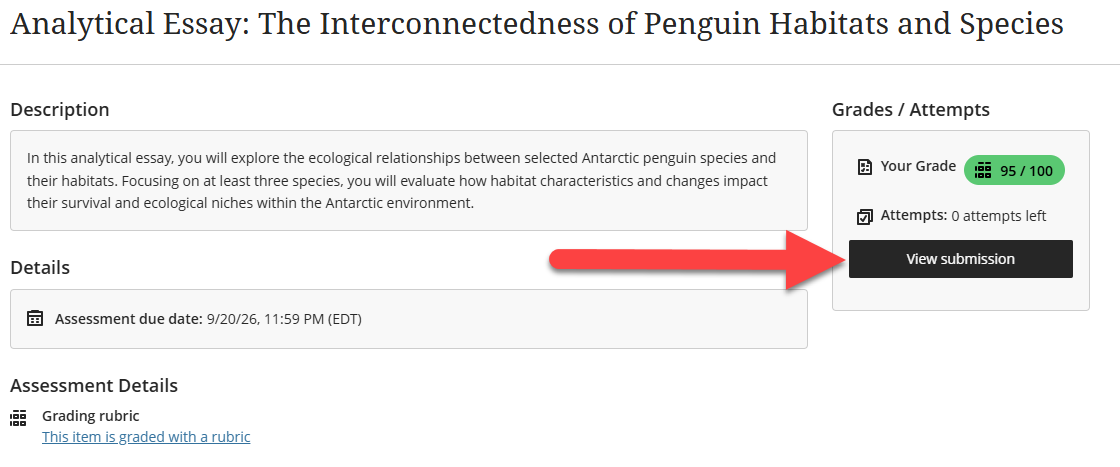
Locate your graded assignment from your Course Gradebook or by selecting the assignment in your Course Content. Click on your assignment to open and then click View Submission to view grading details and feedback.
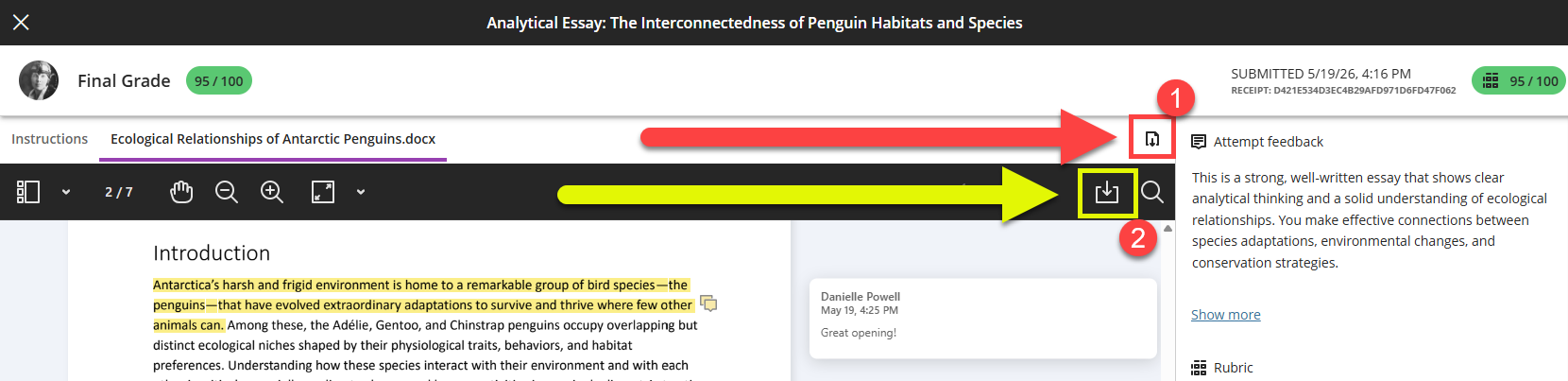
Once you open your submission:
- Click on the Download Submission icon to download a copy of your original submission.
- If your instructor used the inline grading tools, click on the Download icon in the Annotate Toolbar to download an annotated PDF with their inline feedback.
Original Courses
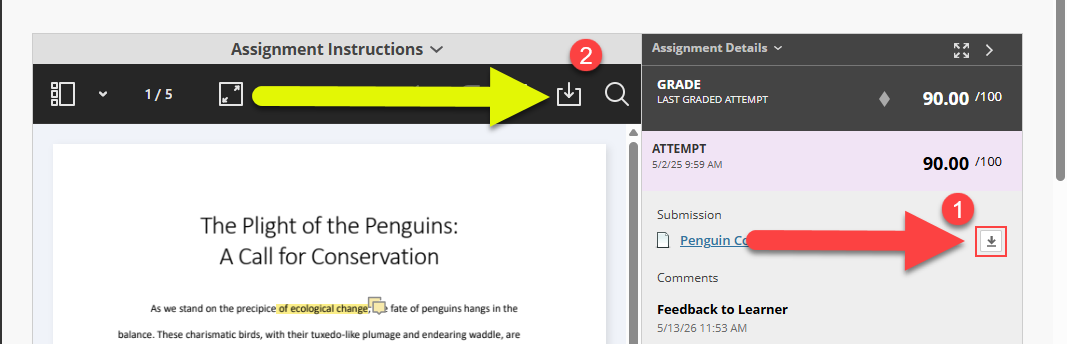
To download graded assignments, go to your My Grades page and select your assignment.
Once you open your submission:
- Click on the Download Submission icon to download a copy of your original submission.
- If your instructor used the inline grading tools, click on the Download icon in the Annotate Toolbar to download an annotated PDF with their inline feedback.
Download Your Kaltura Media
If you uploaded content into Kaltura Media, you may download a copy from your Kaltura My Media. For detailed instructions, refer to the Kaltura Media: Download Your Media support article.
Back Up Your Content to a Cloud-Based Service
Once you have archived and saved copies of your content to your computer, we recommend using a cloud-based storage solution, such as One Drive, Google Drive, or Dropbox, to ensure that you will be able to access your content from any computer at any time. We strongly recommend backing up all of your materials to cloud-based storage.
Lesley University provides access to Microsoft OneDrive for all faculty, staff, and students. To access your free OneDrive account, go to http://lesley.edu/office365 and log in with your Lesley credentials.
Was this article helpful?
That’s Great!
Thank you for your feedback
Sorry! We couldn't be helpful
Thank you for your feedback
Feedback sent
We appreciate your effort and will try to fix the article