TABLE OF CONTENTS
- What is an Online Discussion?
- Participate in a Discussion
- Discussion Tips and Tricks
- View Discussion Grades and Feedback
What is an Online Discussion?
An online discussion is similar to a classroom conversation that takes place over time. Your instructor will post a question or topic and you will respond with your own thoughts and ideas. Then, you will read your classmates' responses and reply to continue the conversation.
Participate in a Discussion
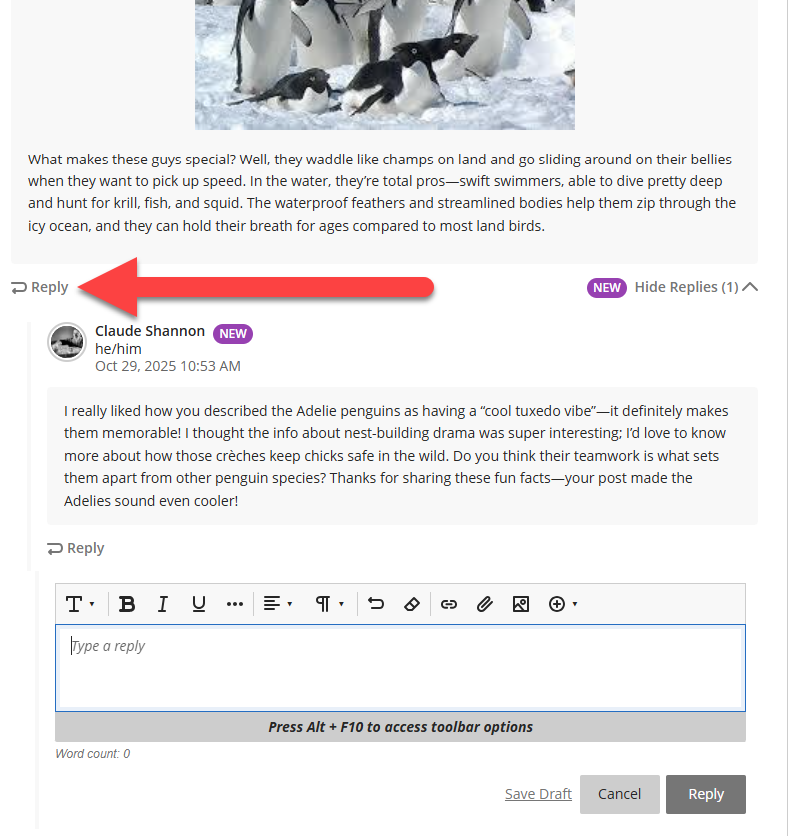
To participate in a discussion, click on the Discussion link from the Course Content page or click on the Discussions link in your course navigation bar.
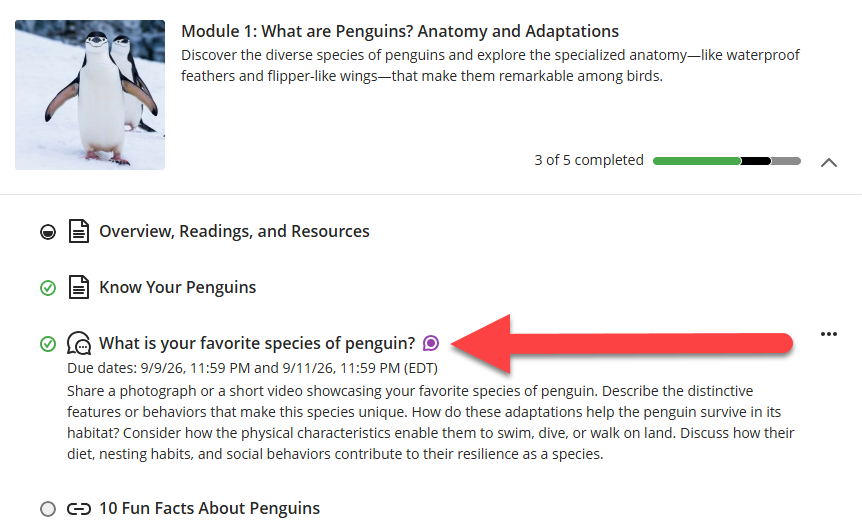
Once you enter your discussion:
- Check the due date and grading details: If your Discussion is graded, you will find the due dates, points, and grading rubric (if used) in the Details & Information section.
- Read the prompt carefully: Pay close attention to the discussion prompt and take the time to write a meaningful response.
- Post your response: Enter your response to the prompt and use the text/content editor to add and format text, upload images, add links and attachments, embed media, and more. If you copy and paste text from a document or website, be sure to use the Clear Format option in the editor.
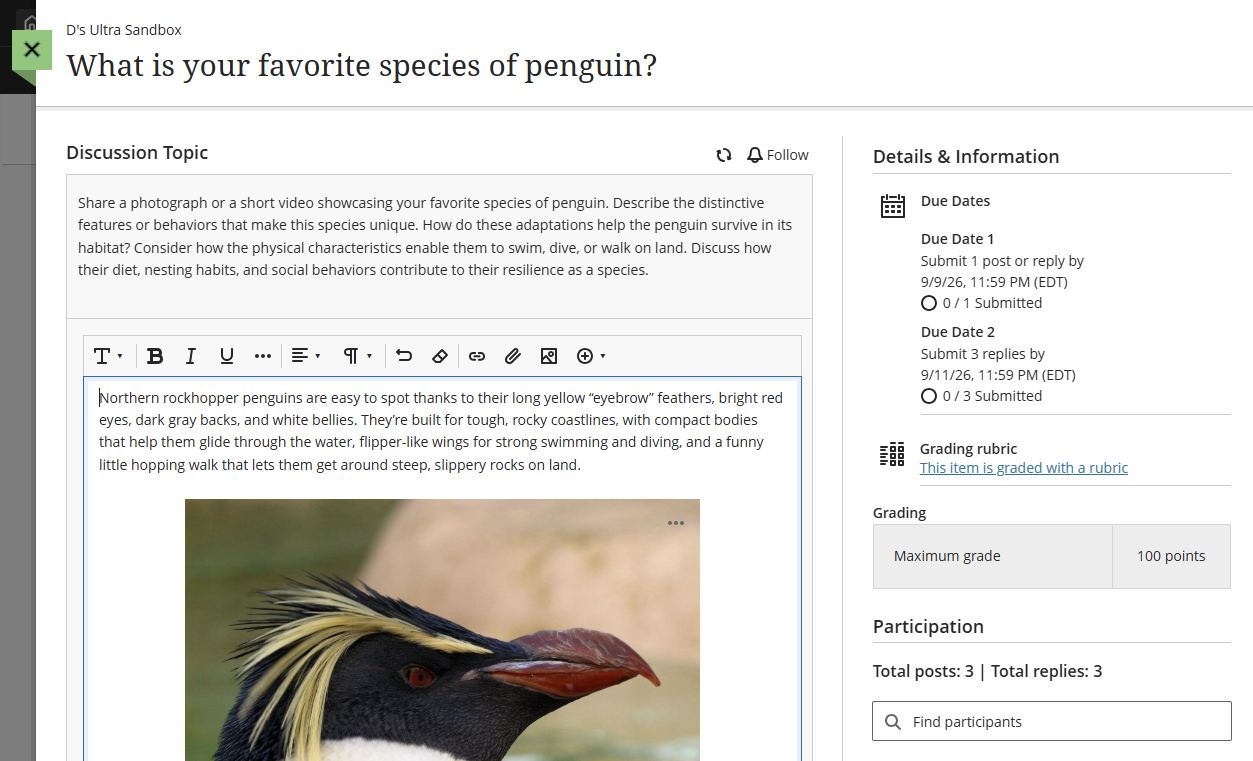
Once your classmates have had the chance to respond, go back into the Discussion and read their posts. Click the Reply button beneath a post to write a meaningful response.
For more information and detailed instructions, refer to the Discussions support page or watch the Participate in Discussions tutorial video.
Discussion Tips and Tricks
Remember these tips when participating in a discussion:
- Your instructor may include a rubric so that you are aware of how you are being graded. If this is the case, make sure you review it carefully before starting.
- Take the time to write a meaningful response to the Discussion prompt. Write clearly and proofread before posting.
- Use the text/content editor to add and format text, upload images, add links and attachments, embed media, and more.
- If you copy and paste text from a document or website, be sure to use the Clear Format option in the editor to remove the formatting. You will need to reformat using the options in the text editor.
- Write a meaningful response to your classmates' posts. Be respectful and professional.
- Stay on topic.
- Check back frequently or update your Notification Settings to be alerted to new Discussion activity.
View Discussion Grades and Feedback
If your discussion is graded, your instructor may provide you with a grade and feedback. Refer to the View Discussion Grades and Feedback in myLesley support article for information on viewing your graded items.
Was this article helpful?
That’s Great!
Thank you for your feedback
Sorry! We couldn't be helpful
Thank you for your feedback
Feedback sent
We appreciate your effort and will try to fix the article