Blackboard Ultra: Create, Manage, and Grade with Rubrics
TABLE OF CONTENTS
- About Rubrics
- Access the Course Rubrics Page
- Create or Generate Rubrics
- Add a Rubric to an Assignment, Discussion, or Journal
- Grade Using a Rubric
- Manage Rubrics
- Rubric Evaluation Report
About Rubrics
Rubrics help ensure fair, consistent grading and help students understand your expectations. By sharing a rubric before students begin their work, you provide transparency about how the assignment will be evaluated and help students focus on meeting the established expectations.
Rubrics are organized in a table with rows and columns:
- Rows represent criteria, deliverables, or areas being evaluated (ex Analysis, Evidence, Organization, Citations).
- Columns represent performance levels (ex Exemplary. Proficient, Developing, Needs Improvement).
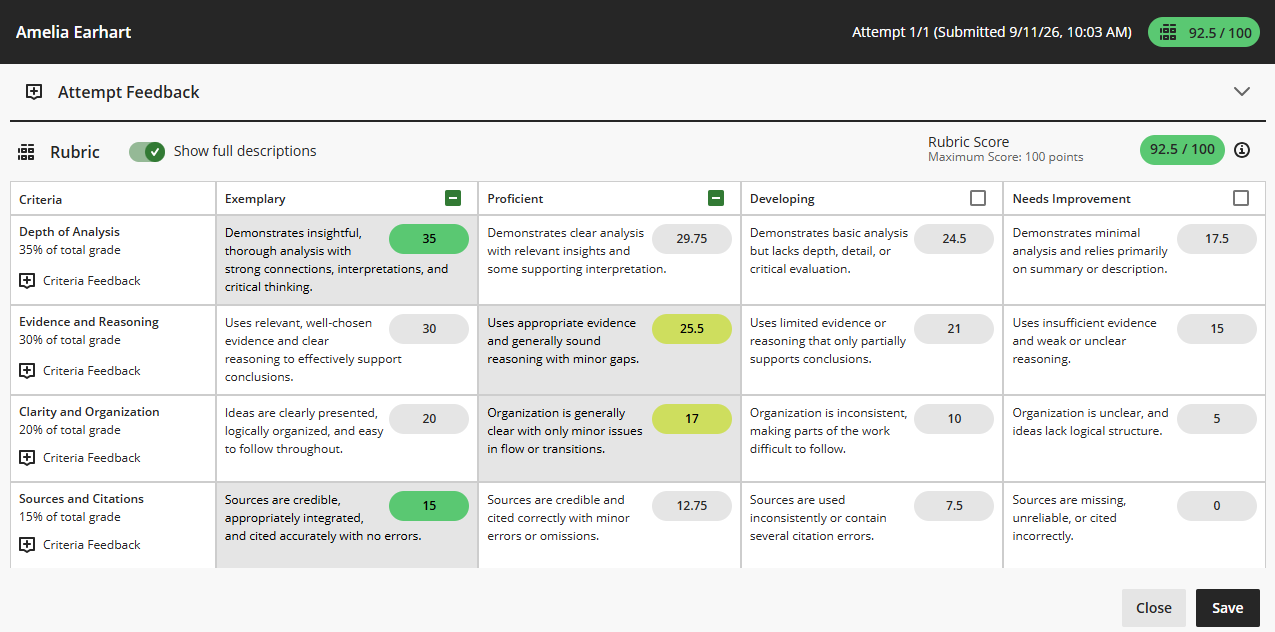
Blackboard supports several types of rubrics that can be associated with Assignments, Discussions, and Journals:
- Percentage-based rubrics
- Percentage-range rubrics
- Points-based rubrics
- Points-range rubrics
- No-points rubrics
The way that points or percentages are calculated depends on the rubric type you choose.
Access the Course Rubrics Page
The Course Rubrics page is a dedicated page for managing all rubrics in a course. Here you may create or generate new rubrics, edit or manage existing rubrics, import rubrics, export rubrics, and more.
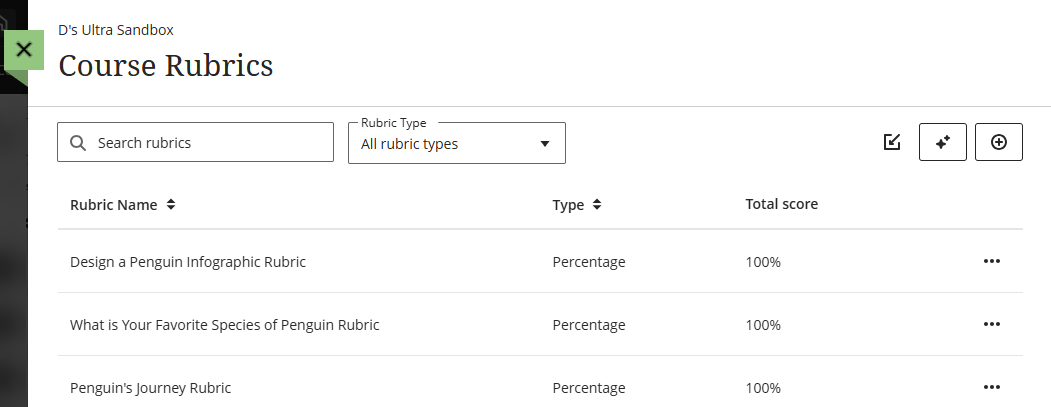
You may access this page from your Gradebook settings or from your Assignment, Discussion, or Journal settings.
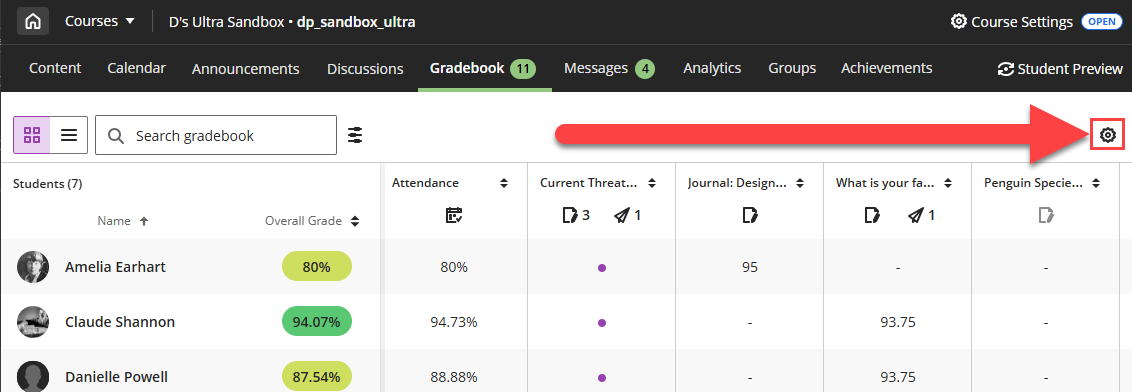
From your course Gradebook:
- Click the Settings button (gear icon).
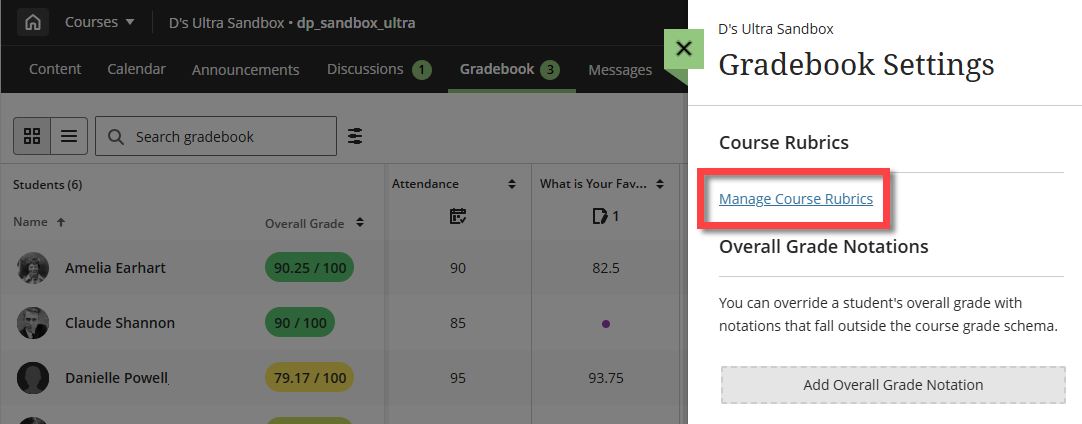
- This will open the Gradebook Settings panel. Scroll down to Course Rubrics and select Manage Course Rubrics.
From your Assignment, Discussion, or Journal:
- Click the Settings button (gear icon).
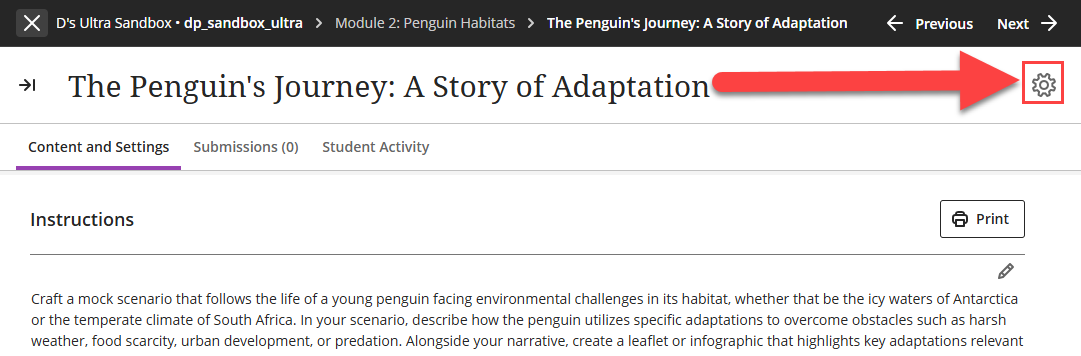
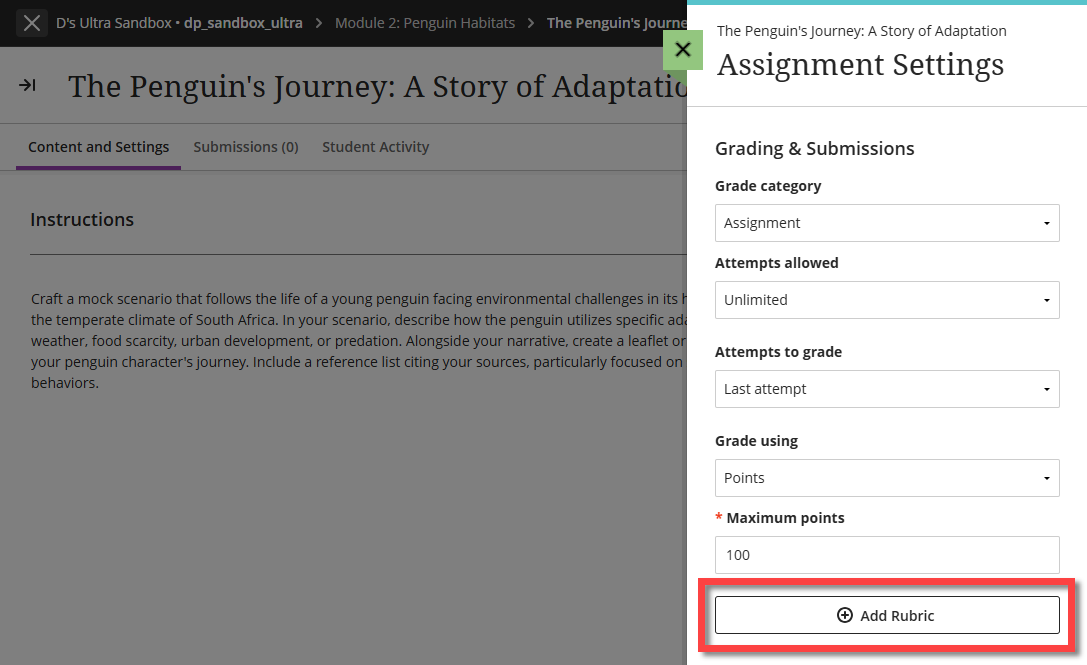
- Scroll down to Grading and Submissions or Grading and Participation and select + Add Rubric.
Create or Generate Rubrics
You may create or generate rubrics from the Course Rubrics page.
Note: You cannot create or edit rubrics at small screen widths or on mobile devices. Rubrics are read-only on mobile devices.
Create a Rubric
From the Course Rubrics page, click the Create button (+ icon).
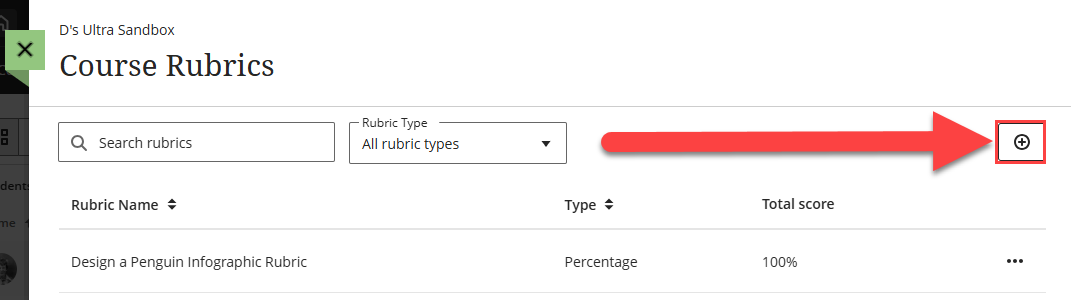
This will open a new rubric. Give your rubric a name and use the drop-down menu to select the type of rubric you want to create.
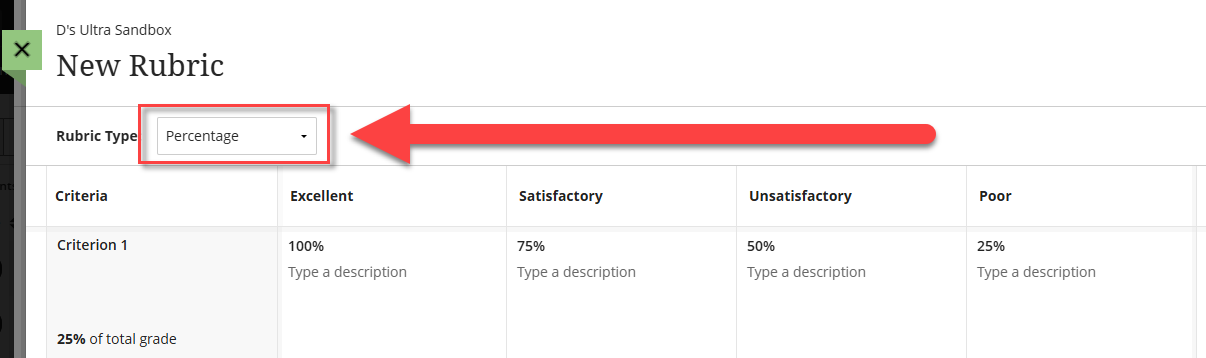
Blackboard currently supports several rubric types:
- Percentage-based rubrics
- Percentage-range rubrics
- Points-based rubrics
- Points-range rubrics
- No-points rubrics
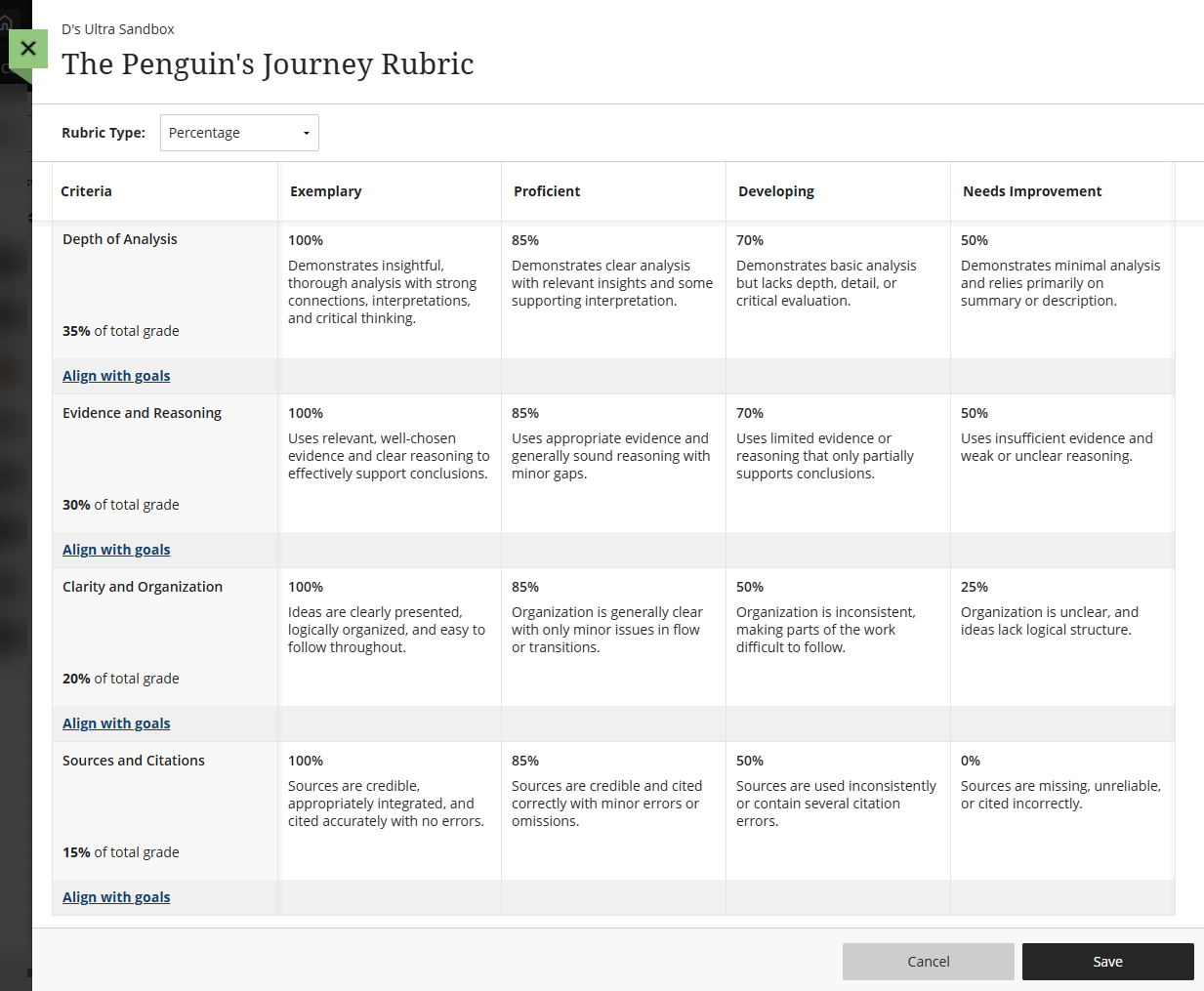
By default, your rubric will display four criteria rows and four performance columns. You may add, delete, rename, and edit the rows and columns to best suit your needs.
Hover your mouse over the headers or cells to bring up the Edit (pencil) icon.
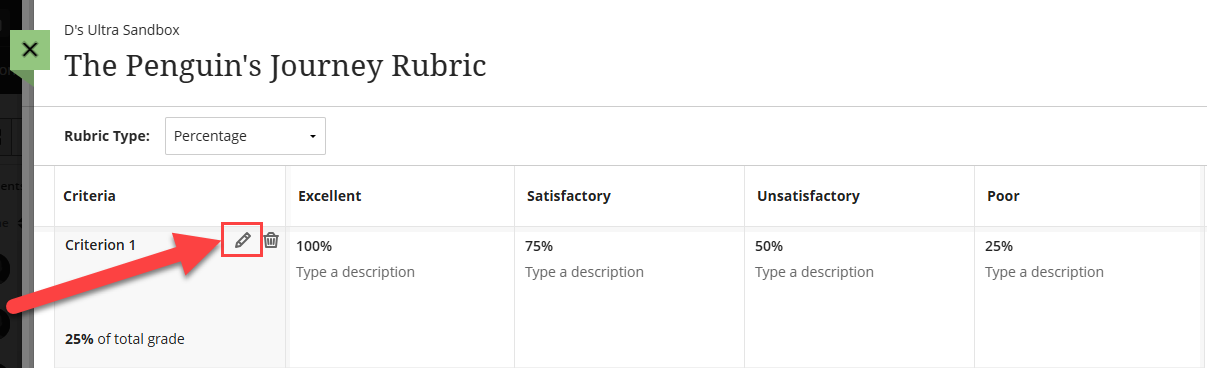
You may edit the criteria, each criterion percentage, the performance level titles, performance number points/percentage, performance descriptions, and more. Once you have finished, click Save.
Generate a Rubric
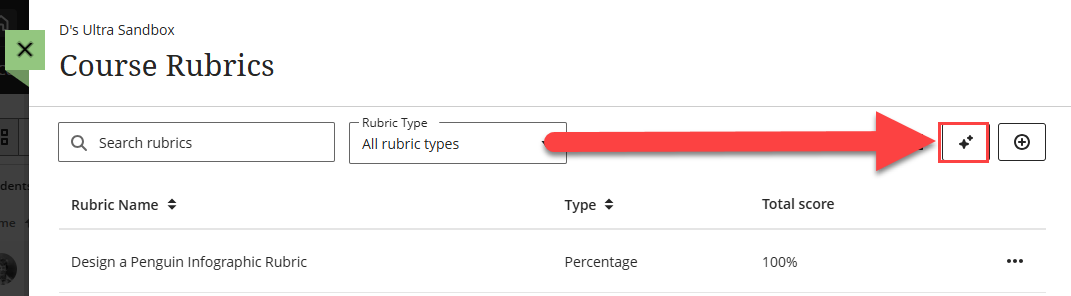
From the Course Rubrics page, click the Generate button.
This will launch the Generate Rubric tool. The AI Design Assistant will generate a rubric based on the information that you provide in the Define Rubric area.
Use the Description box (limited to 2000 characters) to add some information about what you will be assessing. Then select the type of rubric you wish to create (percentage, percentage range, points, points range, or no points), the complexity, and the number of columns and rows. Once you have finalized your settings, click Generate.
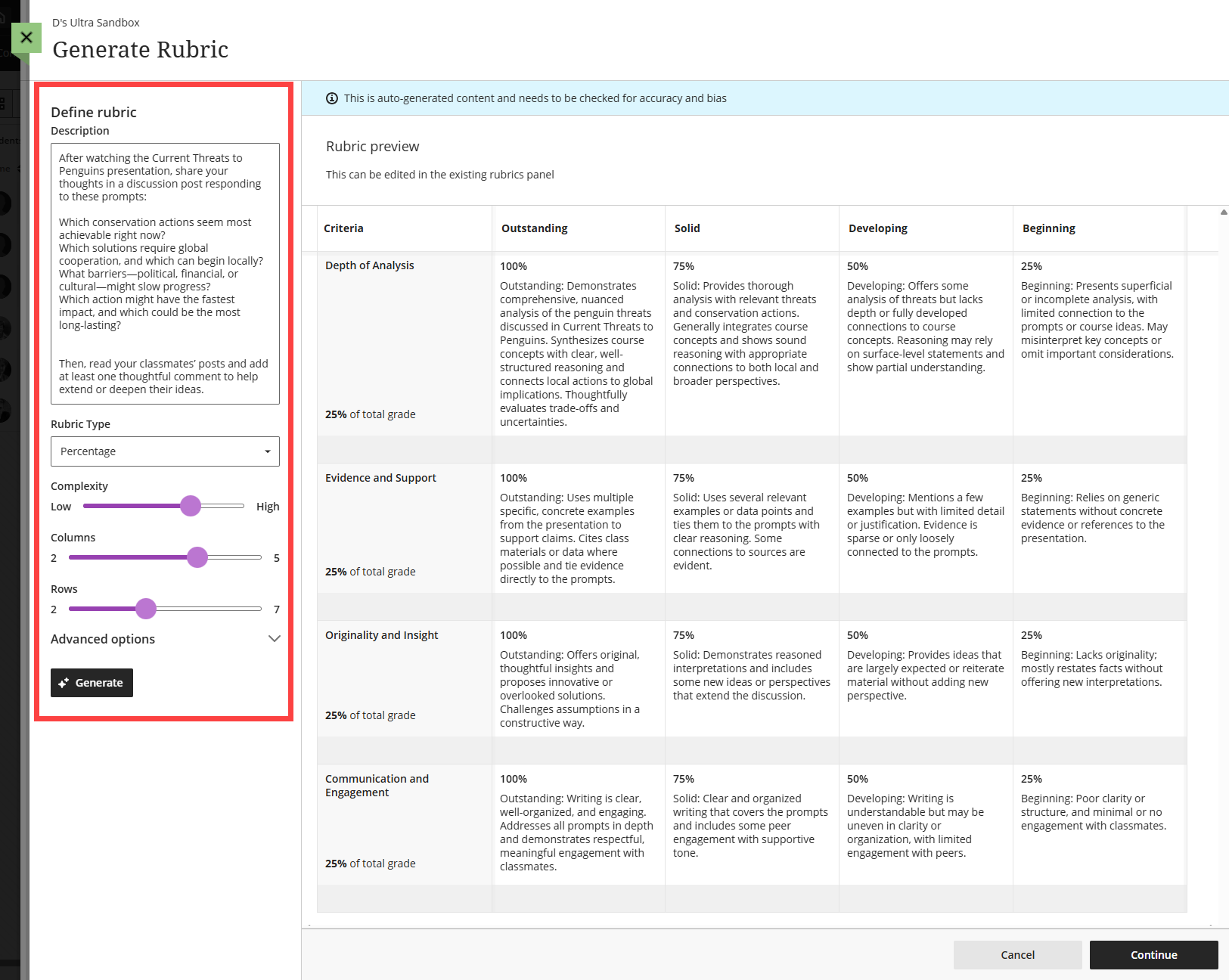
Review your rubric for accuracy and bias and to ensure that it meets your needs and edit the description or complexity as needed. Select Continue to edit the rubric to better fit your teaching style, goals, and course outcomes.
Give your rubric a name and make any edits to the criteria, criterion percentage, performance level titles, performance number points/percentage, performance descriptions, and more.
Hover your mouse over the headers or cells to bring up the Edit (pencil) icon.
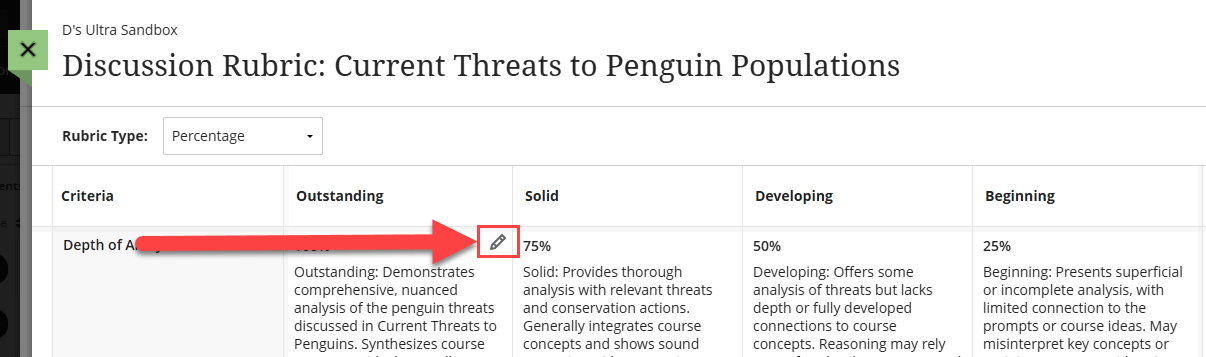
Once you have finished, click Save.
Add a Rubric to an Assignment, Discussion, or Journal
Once you have created a rubric you can associate it with an Assignment or a graded Discussion, or Journal.
Click the Settings button (gear icon) in your Assignment, graded Discussion, or Journal. This will open the Settings panel.
Scroll down to Grading and Submissions or Grading and Participation and select + Add Rubric.
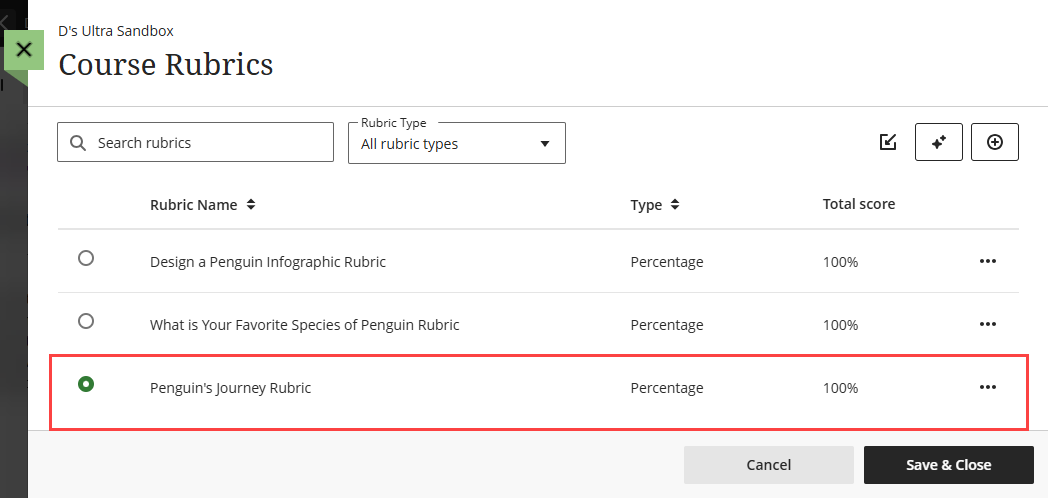
This will bring you to your Course Rubrics page. Select an existing rubric or create a new rubric then click Save & Close to add the rubric to your graded item.
Watch the Associate Rubrics tutorial video for more information.
Grade Using a Rubric
If you have associated a rubric with your Assignment, Discussion, or Journal, you may use the rubric to simplify your grading process.
Once your students have submitted their work, you can begin grading. You will access your student's submissions from the an Assignment's Submission page or a Graded Discussion or Journal's Grades & Participation page. You may access these pages from three areas:
- Base Navigation: Click on Grades, locate the course, and select the item you want to grade.
- Course Gradebook: Click on the Gradebook tab in your course and select your graded item. You may access it from either the Grid View or List View.
- Course Content: Locate your graded item in your Course content and click on it to open.
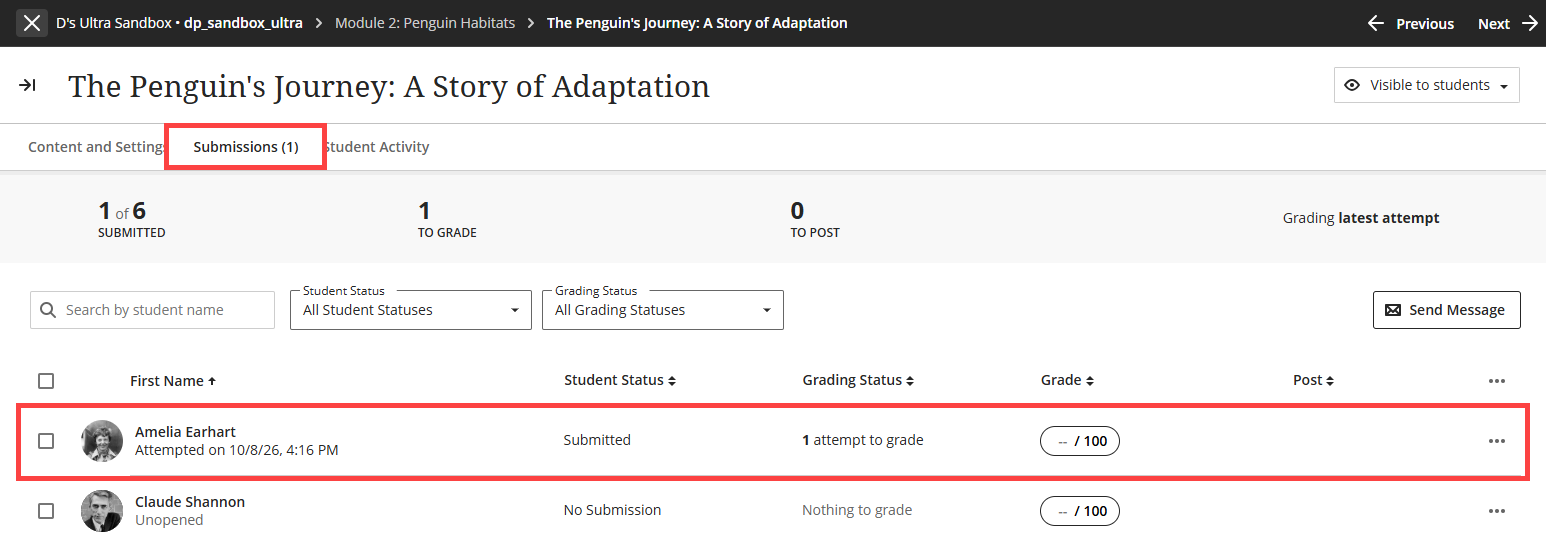
Once you have arrived on the Submissions page or Grades & Participation page, select a student's name. to begin grading.
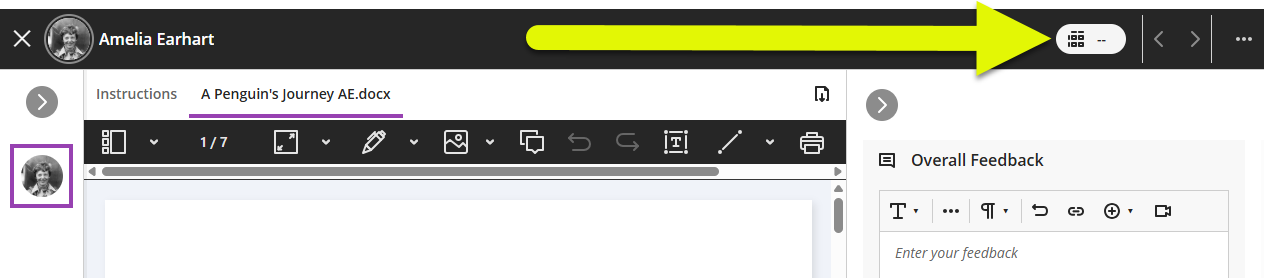
At the top of the page, click the Rubric icon next to the grade pill to open the grading rubric.
This will open the stacked-view rubric in the side panel. For each criterion, click the grade pill to select the student's performance level. You may also provide text-based feedback for each criterion.
As you grade, the Rubric Score will update automatically.
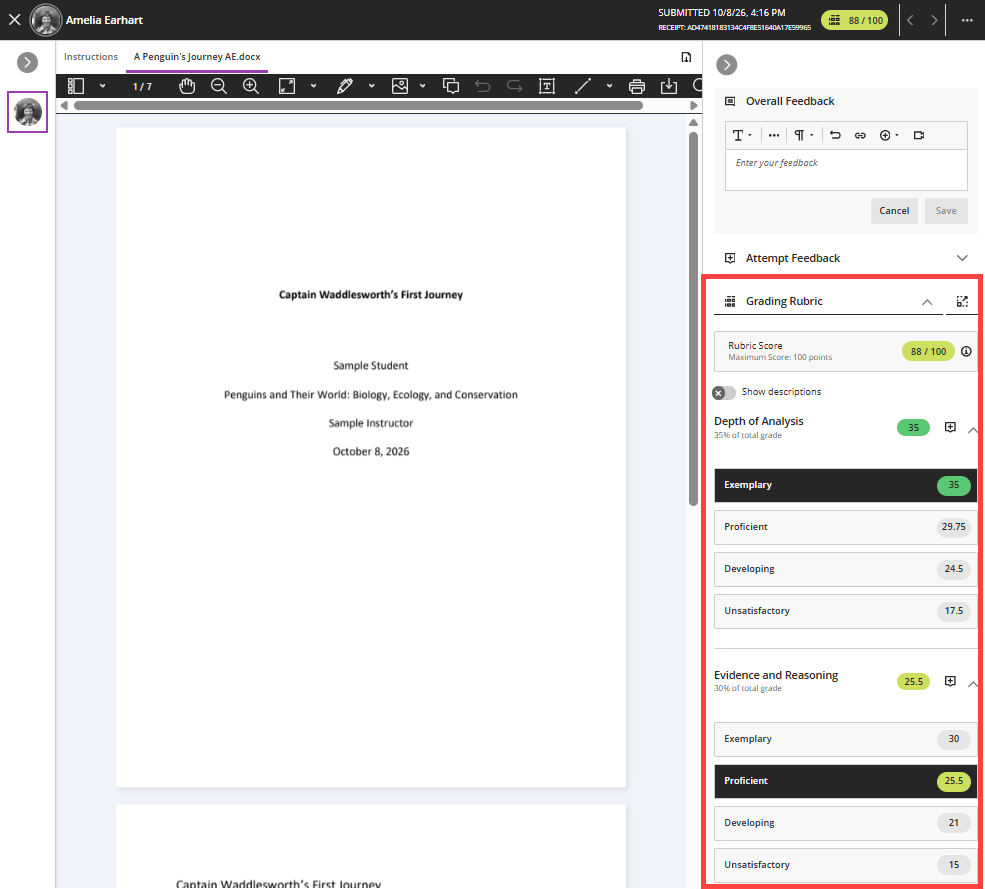
Refer to the Grade with Rubrics support article for more information or watch the Grade Using Rubrics tutorial video.
Manage Rubrics
You can manage all of the rubrics in your course on the Course Rubrics page. From this page, you can create, generate, edit, copy, delete, import, and export rubrics.
Edit a Rubric
On the Course Rubrics page, select a rubric and click on it to open.
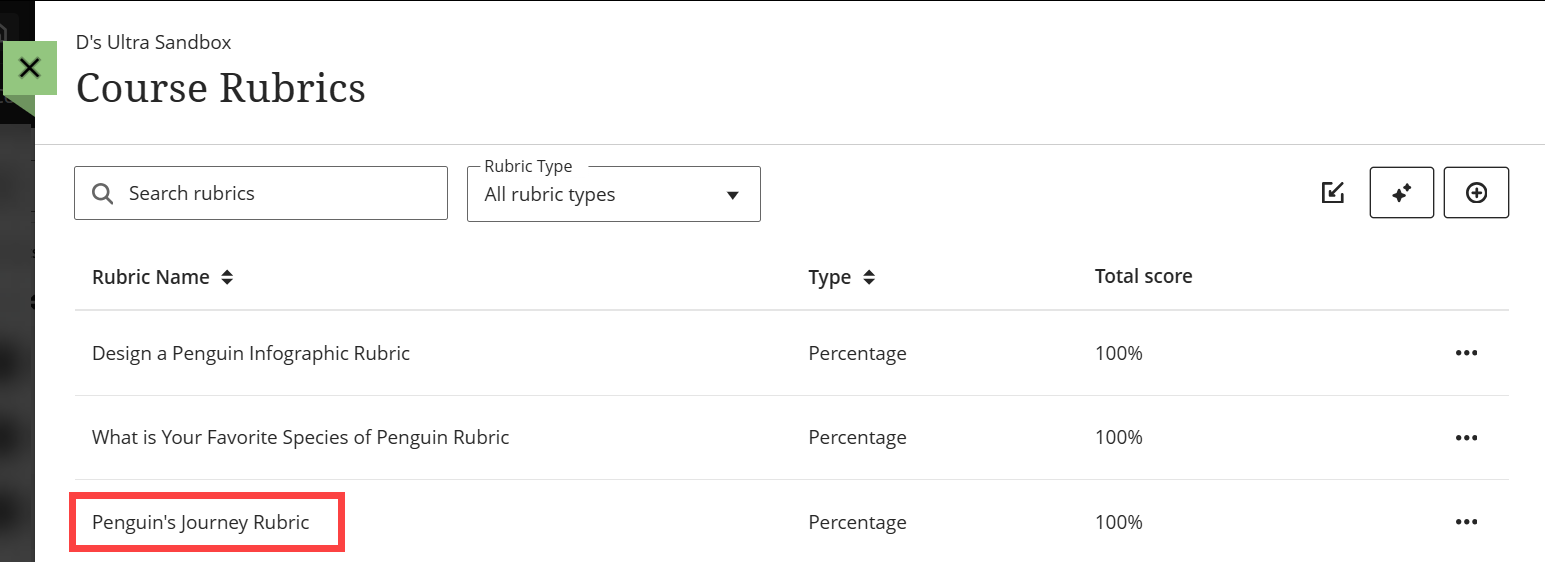
You may edit the rubric title, type, criteria, performance, percentages, etc. Once you have finished, click Save.
Note: Once you use a rubric for grading you can no longer make edits. Instead, you will need to create a copy of the rubric and edit the duplicate version.
Create a Copy of a Rubric
On the Course Rubrics page, select a rubric and click More Options (...) to open a menu. Select Duplicate.
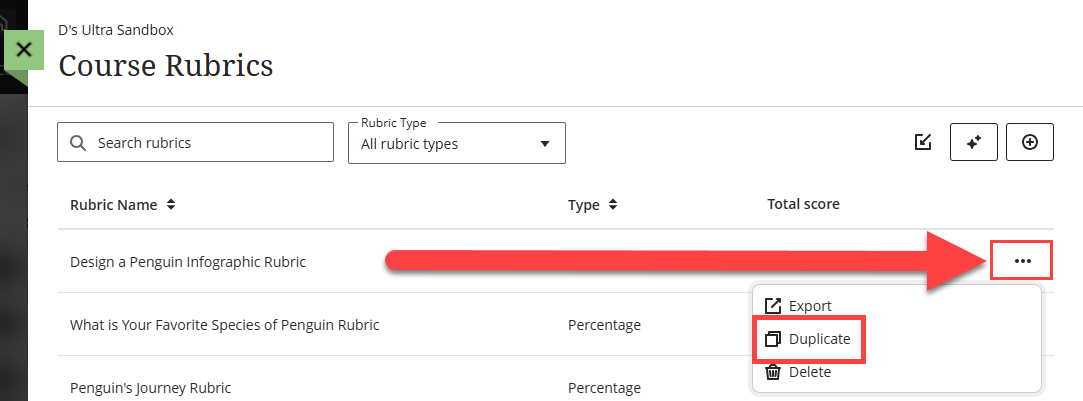
You will then be prompted to rename your rubric. Make any edits to the type, criteria, performance, percentages, etc. and click Save to save your changes.
Note: If the rubric has already been used to grade a test or assignment, the copied rubric becomes the version associated with the item. Existing grades are preserved as overrides, and you can regrade submissions using the new rubric.
Copy Rubrics from One Course Into Another
You may copy rubrics from any course that you have previously taught. You may copy them in bulk as part of the course copy process or copy them individually.
To copy content, go to the the course you want to copy content INTO. On the Course Content page, click the plus sign (+) to open the menu and select Copy Content.
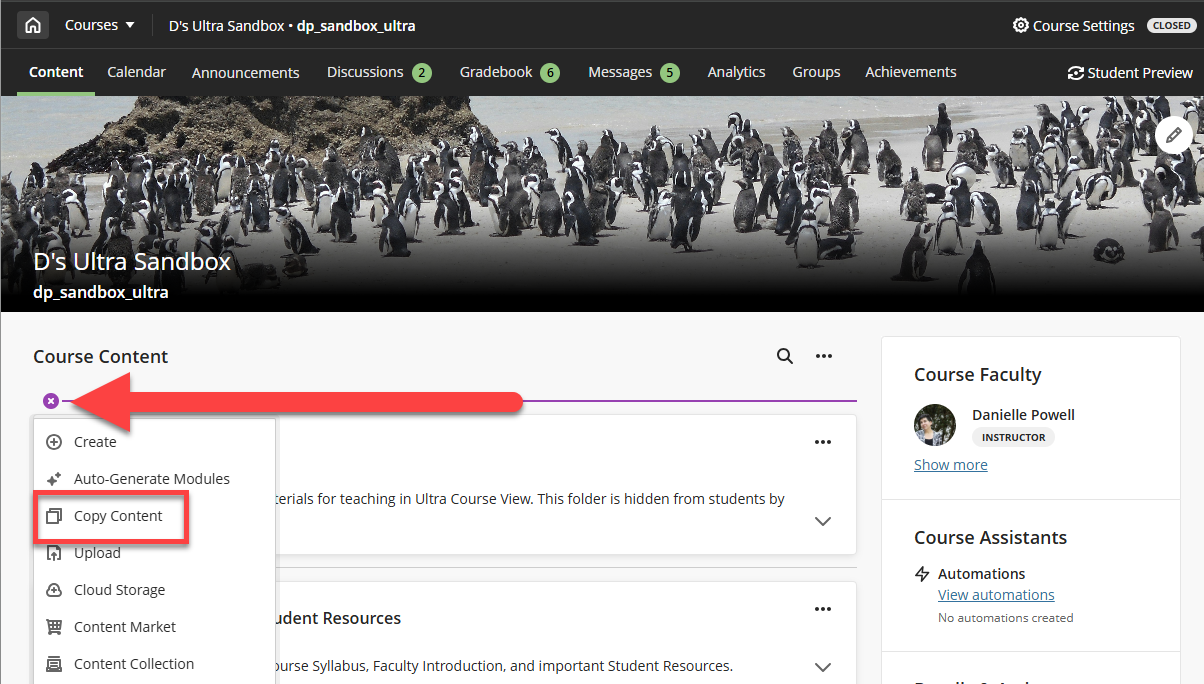
This will bring up a list of all courses in which you are enrolled. Scroll through the list or use the search bar to search for a specific course. Click on the name of course you want to copy from.
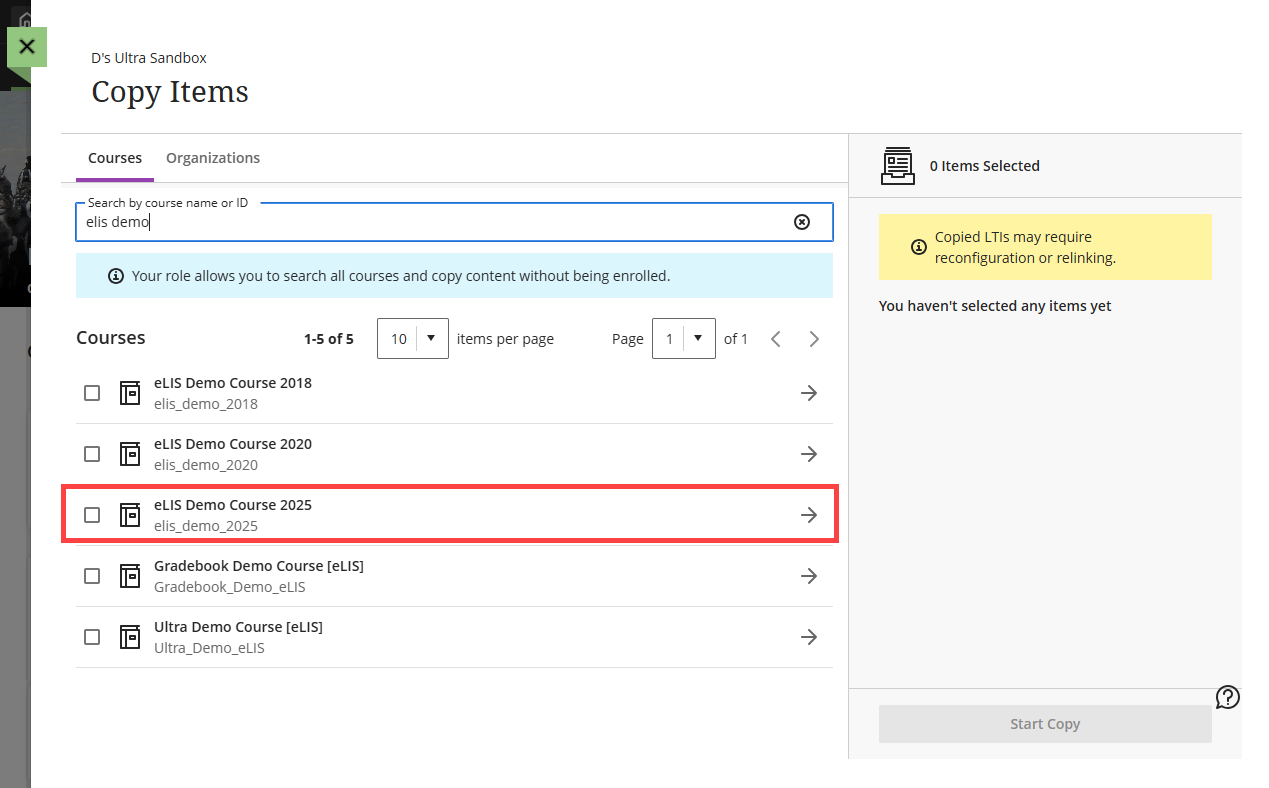
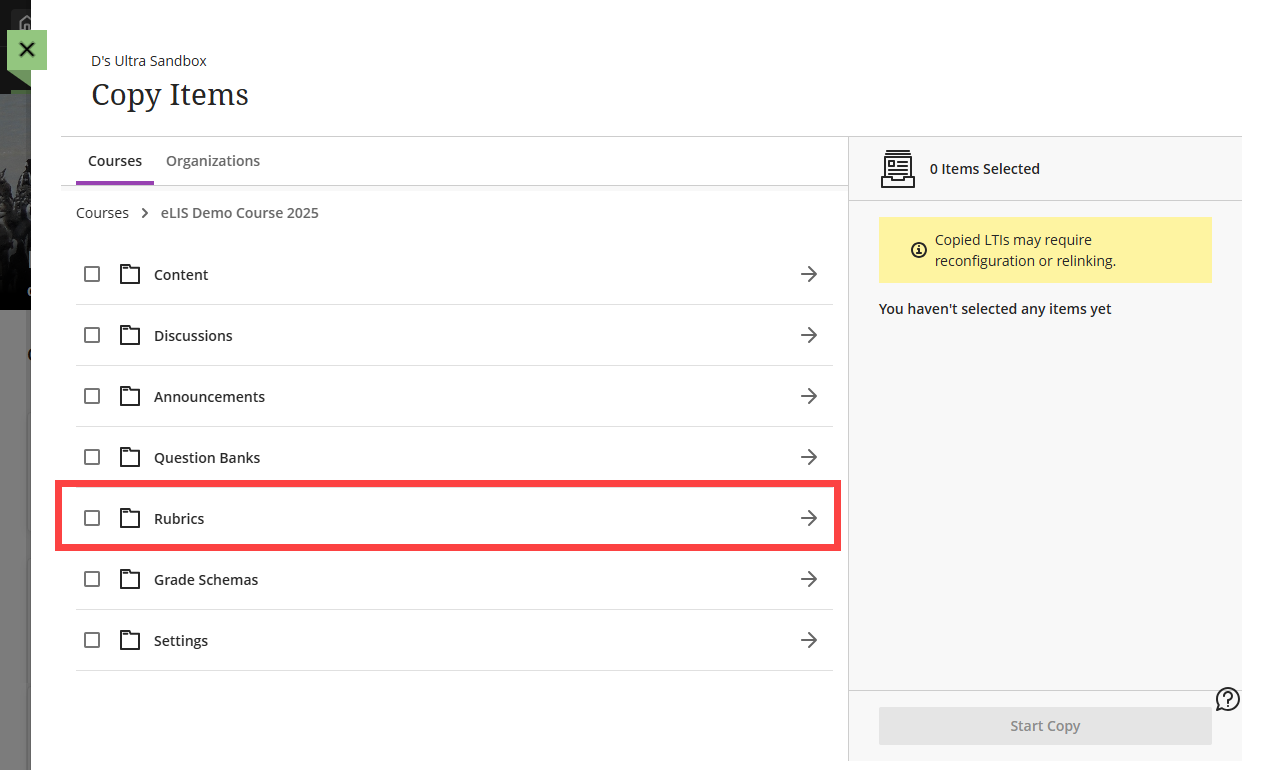
This will open a list of folders. Click on the Rubrics folder.
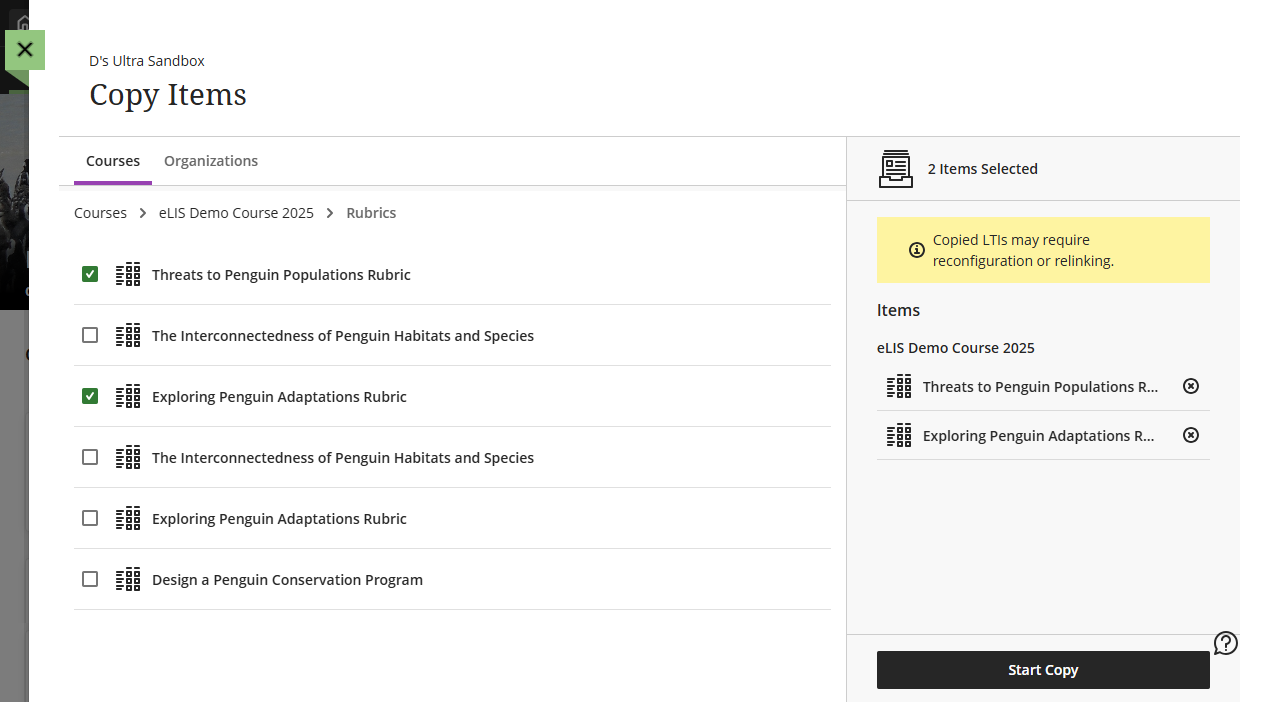
Select the Rubric(s) you wish to copy and click the Start Copy button.
For more information on copying course content, refer to the Copy Your myLesley Course support article.
Export a Rubric
You can export a rubric from your course to reuse it in another course or share with a colleague. The exported file is a .zip file intended for importing into another course and is not a viewable document.
On the Course Rubrics page, select a rubric and click More Options (...) to open a menu. Select Export.
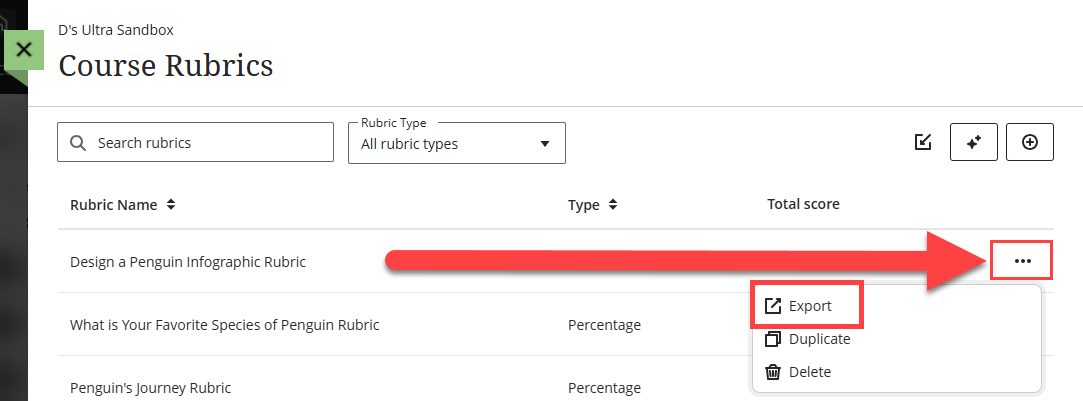
The rubric will download automatically and save to your downloads folder.
Import a Rubric
You may import a rubric that was previously exported from Blackboard. The rubric must be in the exported .zip file.
On the Course Rubrics page, select the Import button.
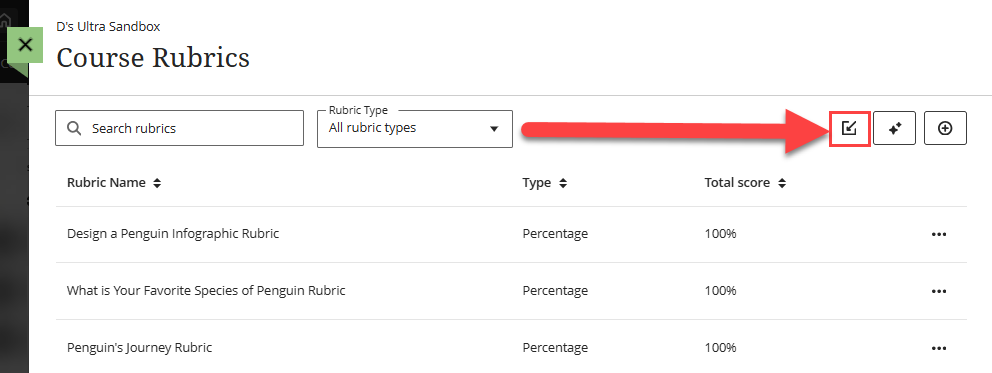
Locate the .zip file on your computer and select it. Review and edit your rubric as needed.
Note: If the same rubric already exists in the course, an error message appears to prevent duplicate rubrics from being created.
Delete Rubrics
You may permanently delete a rubric from your course. If your rubric was used for grading, the grades will remain.
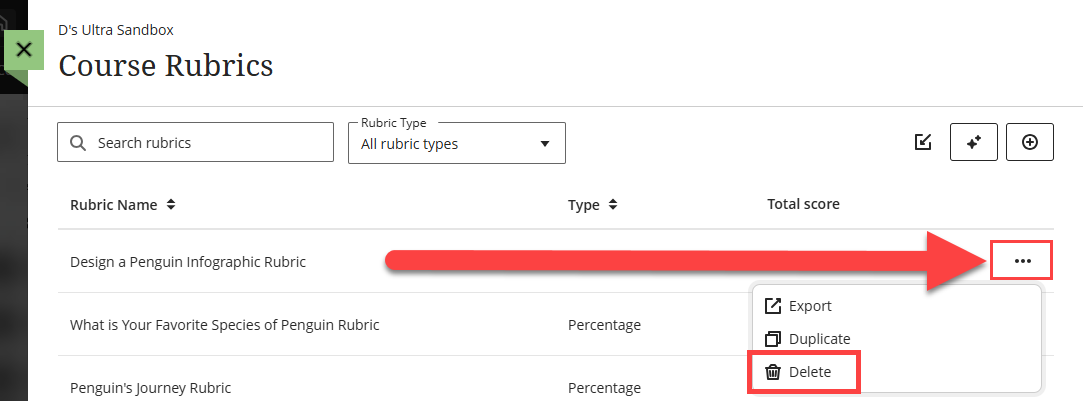
On the Course Rubrics page, select a rubric and click More Options (...) to open a menu. Select Delete.
Rubric Evaluation Report
You can use Blackboard's Rubric Evaluation Report to see how students performed across each criterion in a rubric. By highlighting patterns and trends across the course, the report can help you evaluate learning outcomes and make informed adjustments to your teaching or course design.
Rubric Evaluation Reports are available for gradebook items that have an associated rubric AND grades have been posted. Report data is refreshed overnight and updates approximately every 24 hours.
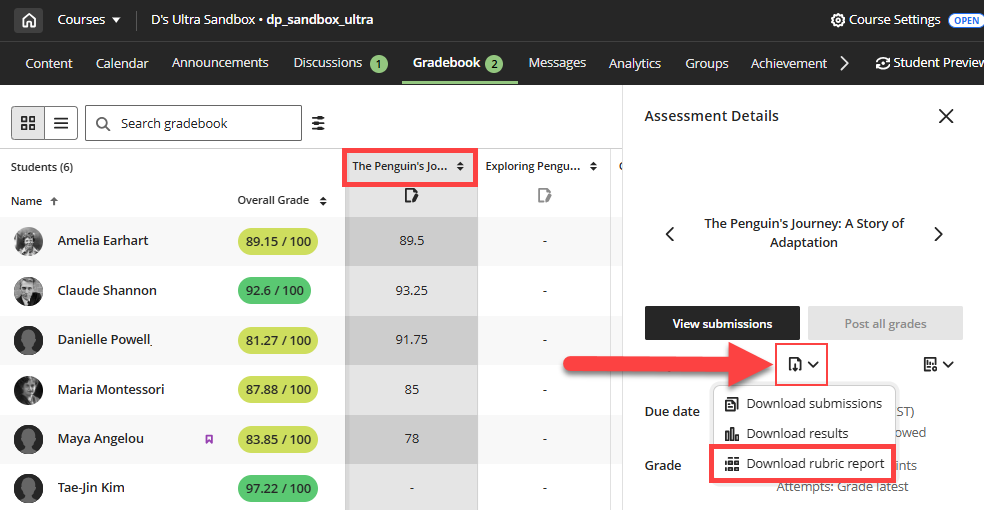
To download the Rubric Evaluation Report for a graded item, go to your course Gradebook's Grid View. Locate the column for your graded activity and click on the column header to open the Assessment Details Panel.
Select the Download icon to open a menu and select Download Rubric Report.
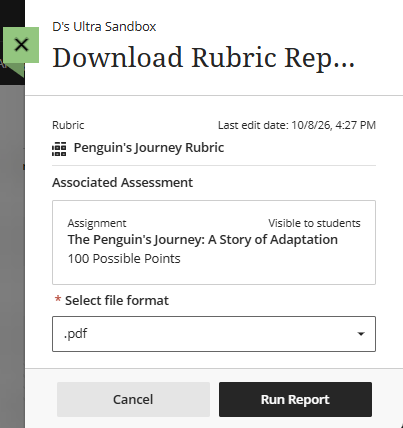
On the report configuration page, select your preferred Output Format (PDF or CSV) and click Run Report.
Note: If there is not enough grading data available, a message appears on the configuration page letting you know the report cannot be generated yet. Try running the report in 24 hours.
The Rubric Evaluation Report is divided into four sections:
- Overview: This section identifies the activity being measured, the rubric used, the rubric type, and the total number of student evaluations included in the report.
- Rubric Overall Performance: This section shows the average score your students achieved against the total points possible. Use this to get a quick sense of how the class performed overall.
- Rubric Analysis: This section displays a bar graph comparing the points possible for each rubric criterion to the average points students earned for that criterion.
- Frequency Distribution: This table shows the percentage of students who reached each level of achievement for every criterion, along with statistical values including average, median, mode, and standard deviation. Use this section to answer specific questions about student learning.
To better understand the report, review and download a sample rubric evaluation report [PDF].