Support Hub Redesign: What's New?
The Support Hub has been relaunched with a new front door designed around how our community uses it. Visitors can browse information by role, as a prospective or enrolled student, faculty, staff, or alumni, and search is front and center.
Articles are being edited for easy readability, with step-by-step instruction cards, an article read time estimator, and a navigation menu you can hide. The redesign was built with neurodiversity in mind, with a dark mode toggle and an ongoing accessibility audit. Multiple article templates are being created to set a publishing standard, so the Hub is a clearer, more welcoming place to find answers on any device.
A new front door
The home page now starts with search and with role pills, so you can browse as a prospective student, enrolled student, faculty member, staff member, or alum. Shortcuts sit right below, including Pay your tuition bill and Events.
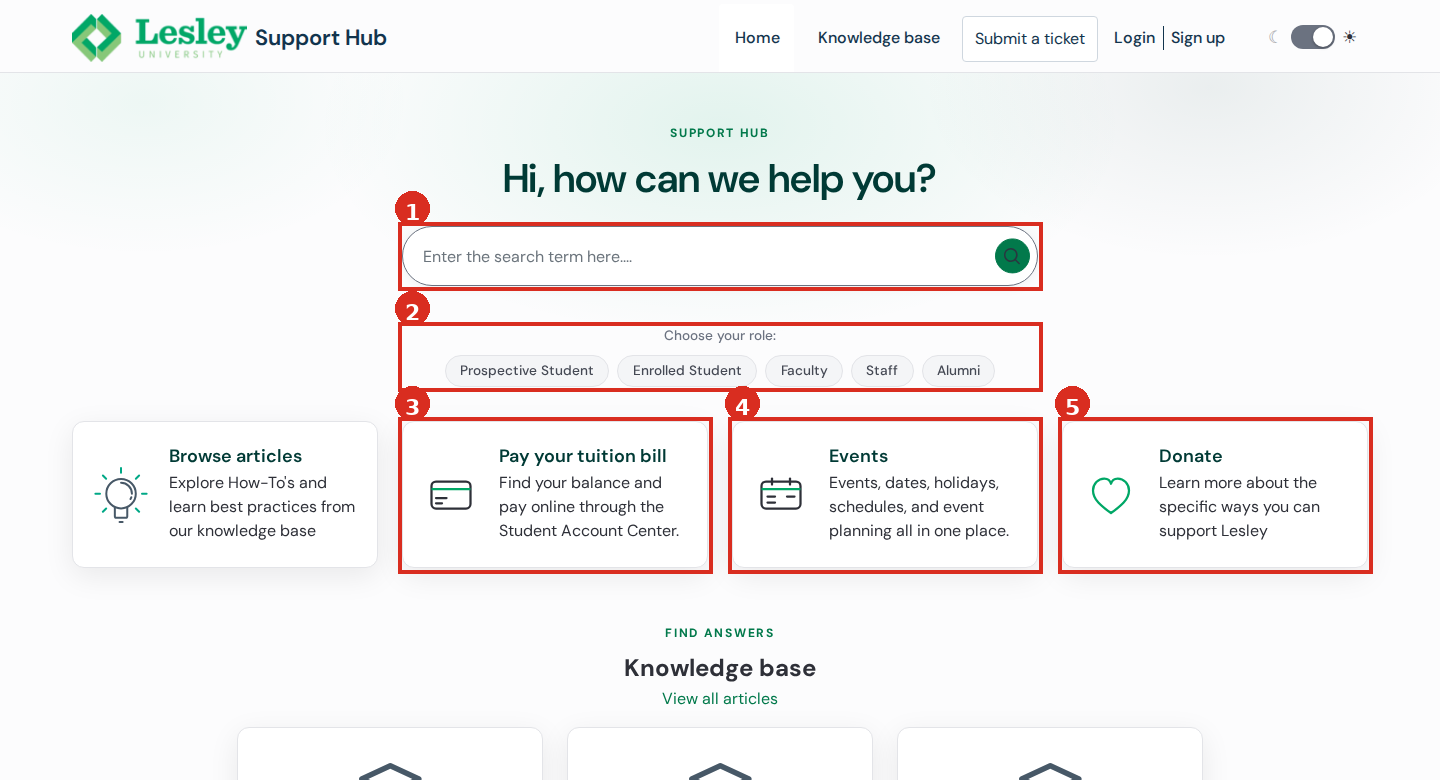
Figure 1. The new home page. 1 Search, front and center. 2 Browse by role: Prospective Student, Enrolled Student, Faculty, Staff, Alumni. 3 Pay your tuition bill tile. 4 Events tile. 5 Donate tile.
Dark mode
Use the toggle at the top right of any page to switch the whole Hub between light and dark. Dark mode keeps the same layout, search, and role pills, in a palette that is easier on the eyes in low light.
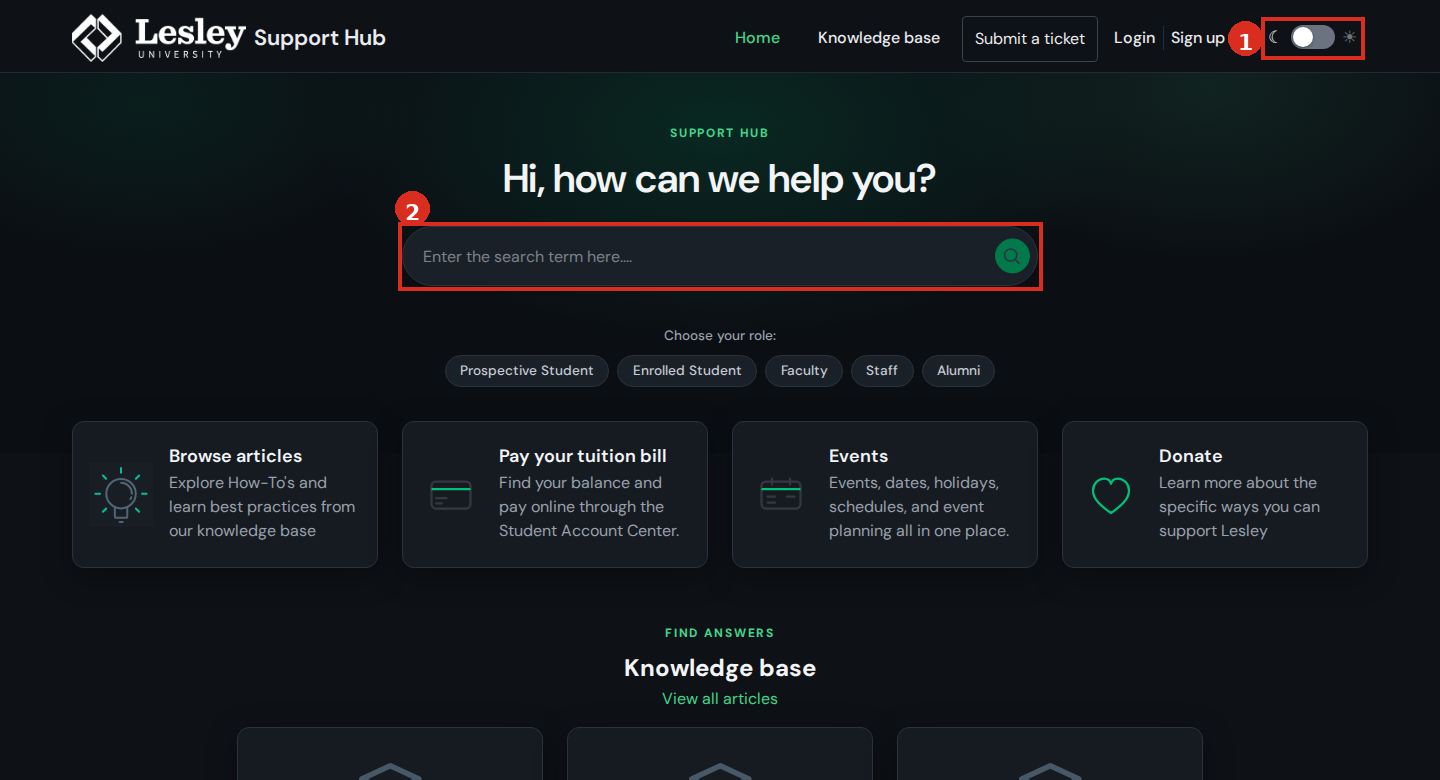
Figure 2. Dark mode. 1 Dark mode toggle at the top right. 2 Search in dark mode.
Articles that are easier to read
Articles now open with a read time estimator under the title, so you know the commitment before you start. A table of contents sits in the left sidebar, scoped to the section you are in, and the sidebar itself can be hidden to give the article the full width of the page. A share row in the sidebar lets you share an article on X, Facebook, or LinkedIn, or copy its link.
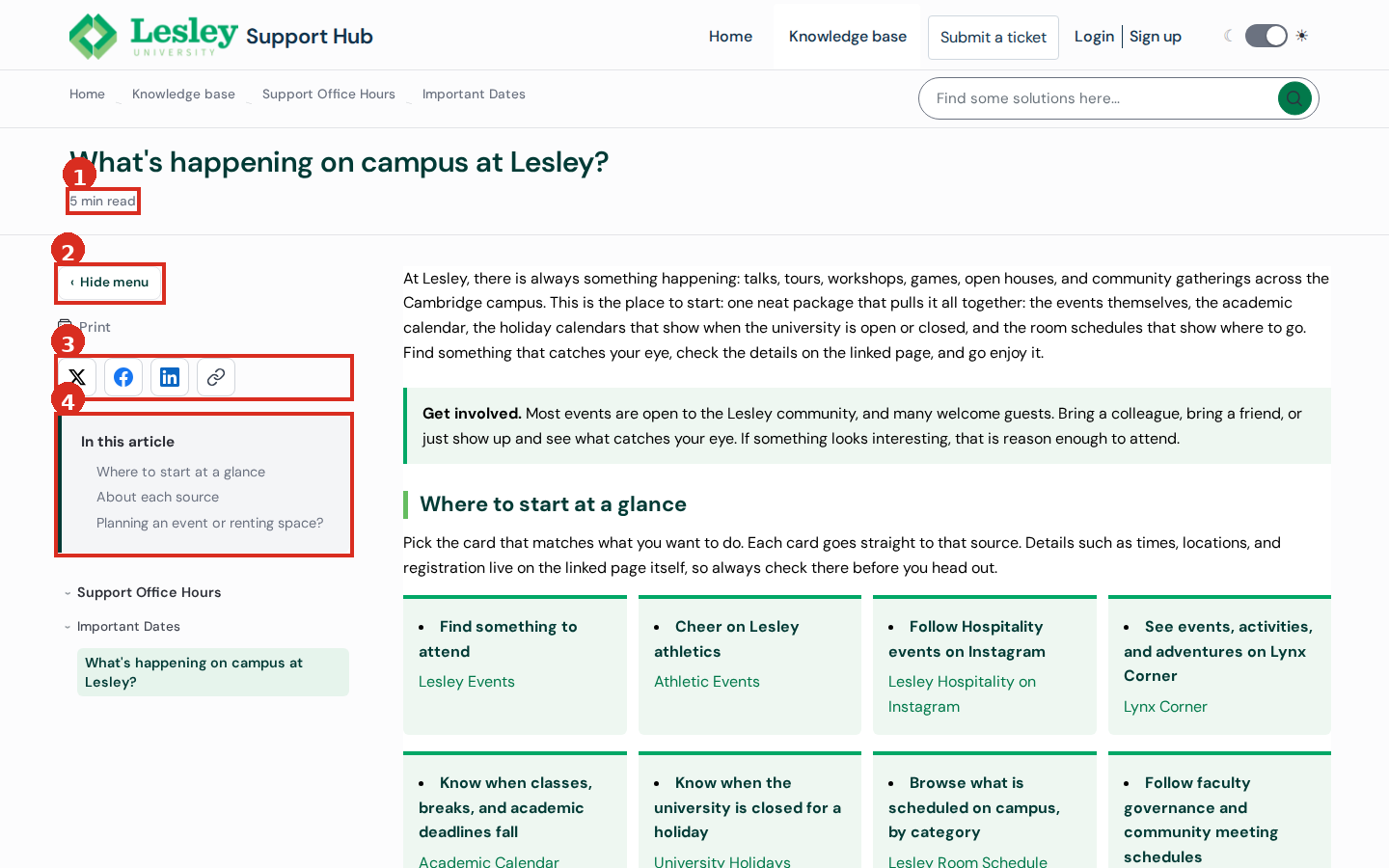
Figure 3. An article page. 1 Read time estimator under the title. 2 Hide menu button. 3 Share row: X, Facebook, LinkedIn, Copy link. 4 In this article table of contents.
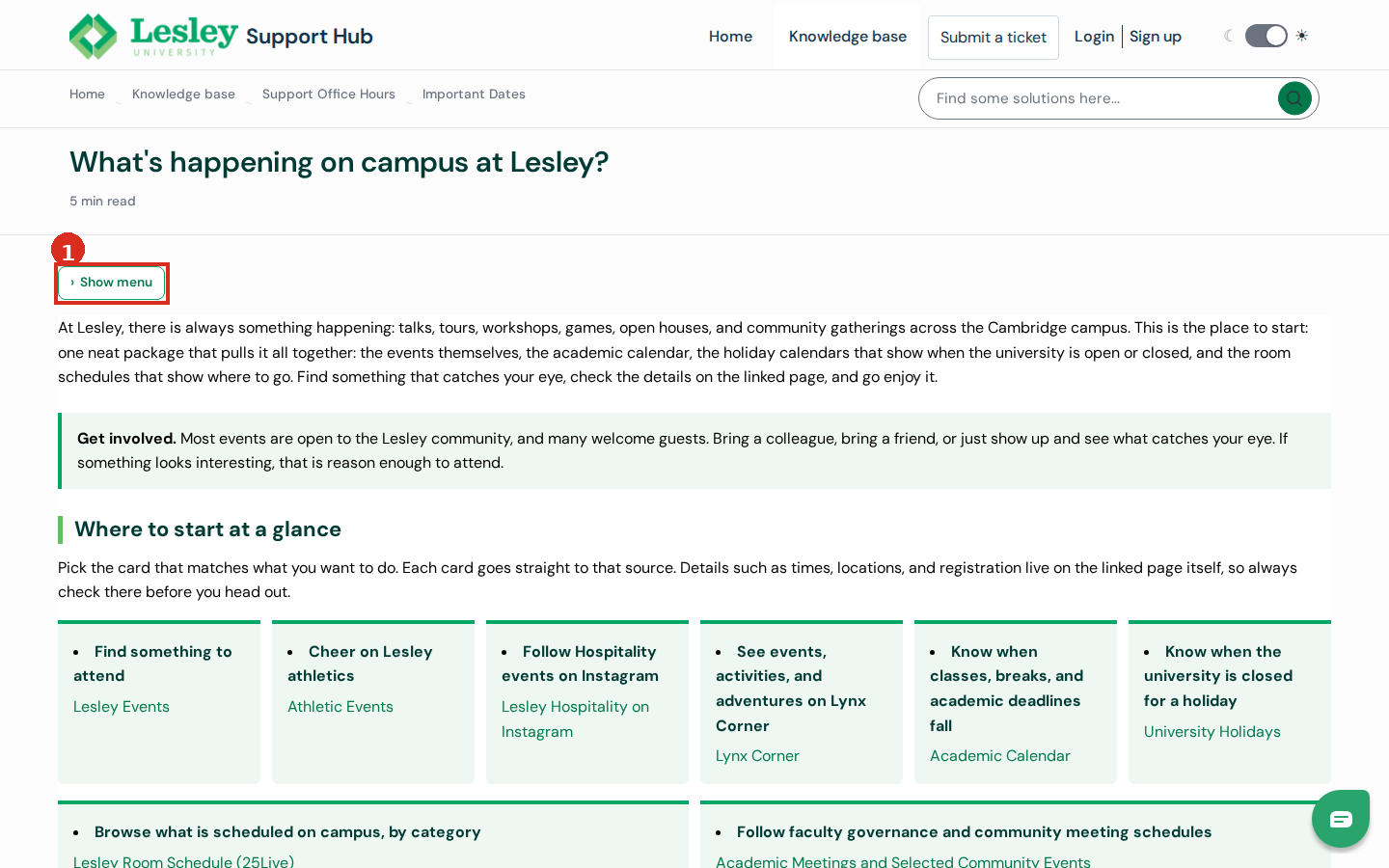
Figure 4. The same article with the menu hidden. 1 Show menu restores the sidebar. The article widens when the menu is hidden.
Try it yourself
The cards below are the new step-by-step card style, and the steps themselves walk you through the new article features.
- Open any article
Pick an article from the Support Hub. The read time under the title tells you how long it will take.
- Hide the menu
Select Hide menu in the left sidebar to widen the article. Select Show menu to bring it back.
- Share it
Use the share row in the sidebar to share on X, Facebook, or LinkedIn, or select Copy link.
What changed, in detail
Select a topic to show its details. These accordions are the new collapsible section style.
Home page changes
Search sits front and center, with role pills below it for prospective students, enrolled students, faculty, staff, and alumni. Shortcut tiles point to the most used destinations, including Pay your tuition bill and Events. The footer carries Submit a ticket and Chat with Lynxie.
Article page changes
Every article now shows a read time estimator under its title, an "In this article" table of contents, and a sidebar scoped to the section you are in. The sidebar can be hidden and restored, articles can be printed from the sidebar, and the share row covers X, Facebook, LinkedIn, and Copy link.
Help is still one click away
If an article does not answer your question, the footer of every page carries Submit a ticket, and Chat with Lynxie appears alongside it when live chat is available.
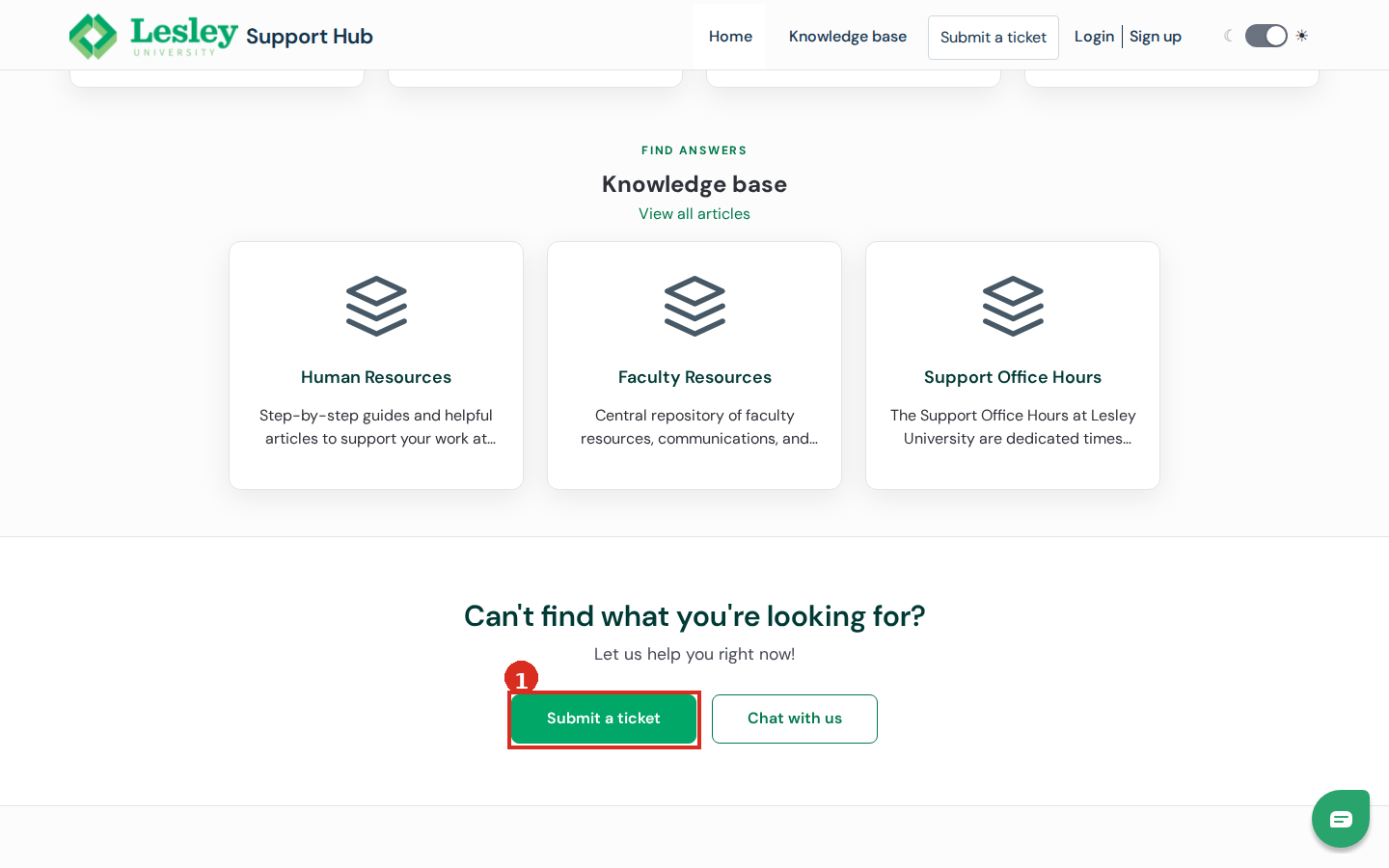
Figure 5. The footer. 1 Submit a ticket. Chat with Lynxie appears alongside it when live chat is available.
Built to be welcoming for everyone
The redesign was built with neurodiversity in mind, with a dark mode toggle and an ongoing accessibility audit. The goal is a Hub that is clearer and more welcoming on any device, and that work continues.
Lynxie, the Hub's chatbot
The Hub is also the brain behind Lynxie, our help AI chatbot who does not sleep, giving just-in-time answers day or night, even on holidays. If you have recommendations, please send them to feedback@lesley.edu.