Edit Your myLesley Profile
TABLE OF CONTENTS
- About the Profile Page
- Add or Update Your Profile Picture
- Add or Edit Your Name Pronunciation and Preferred Pronouns
- Change or Update Your Preferred Name
- Who Can See My Profile Information?
- Update Your Notification Settings
About the Profile Page
When you log into myLesley, you will find your name at the top of the left-hand side of the screen. Select your name to view and update your personal profile. You may add a profile picture, add or edit your name pronunciation and preferred pronouns, and update your privacy and notification settings.
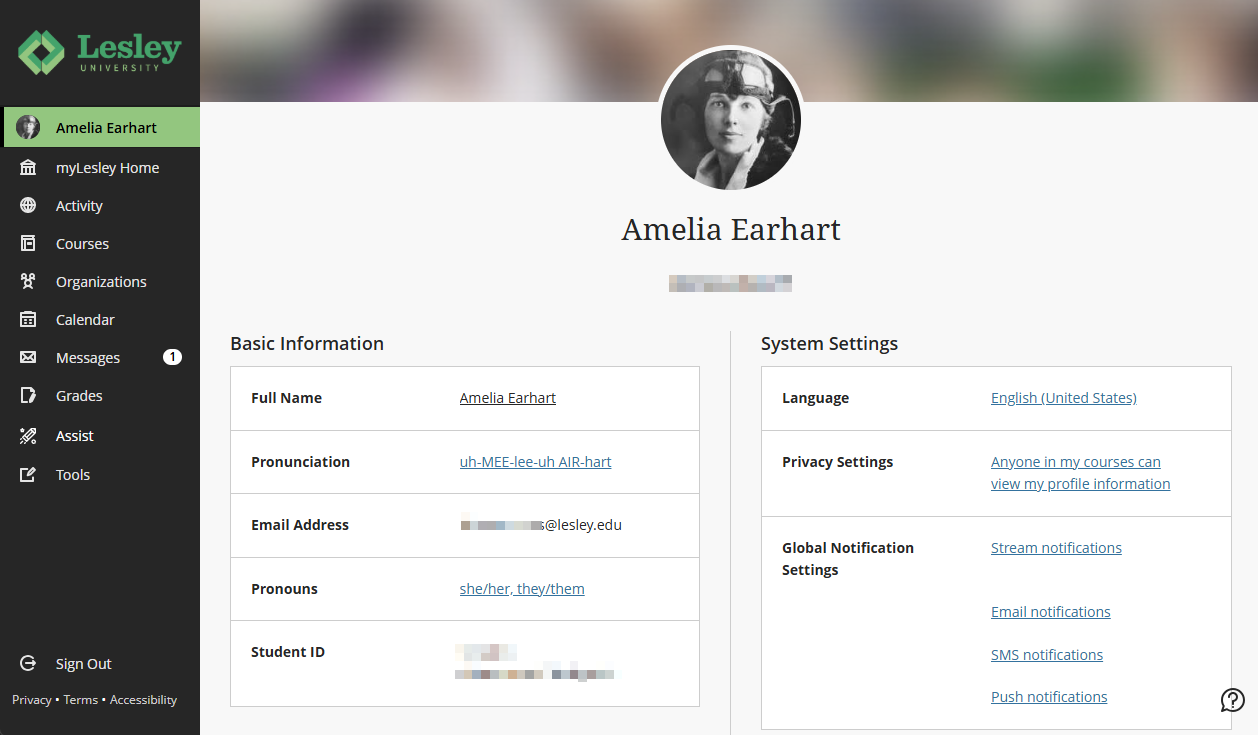
Please note that you cannot edit or update your name or email address on the Profile page - you must update this information in Self-Service.
Watch the Edit Your Profile tutorial video for more information about updating your profile.
Add or Update Your Profile Picture
Make your profile more personal by uploading a profile image rather than using the default generic silhouette display. The profile image that you upload will display throughout the site, including messages, discussions, and the course roster.
Adding a picture is a great way to start building rapport and it helps other users identify who you are by seeing it when reviewing discussions and sending messages.
Click the pencil icon to change your profile picture.

This will open a new panel. Click on Upload new profile picture to browse for your picture on your computer. Or, you can drag a file to the Upload area.

Your image will be saved automatically. Close the panel to return to your profile.
Add or Edit Your Name Pronunciation and Preferred Pronouns
You may personalize your profile by adding your name pronunciation and preferred pronouns. From the Profile page, click on Add Pronunciation or Add Pronouns to open the Contact Information panel.
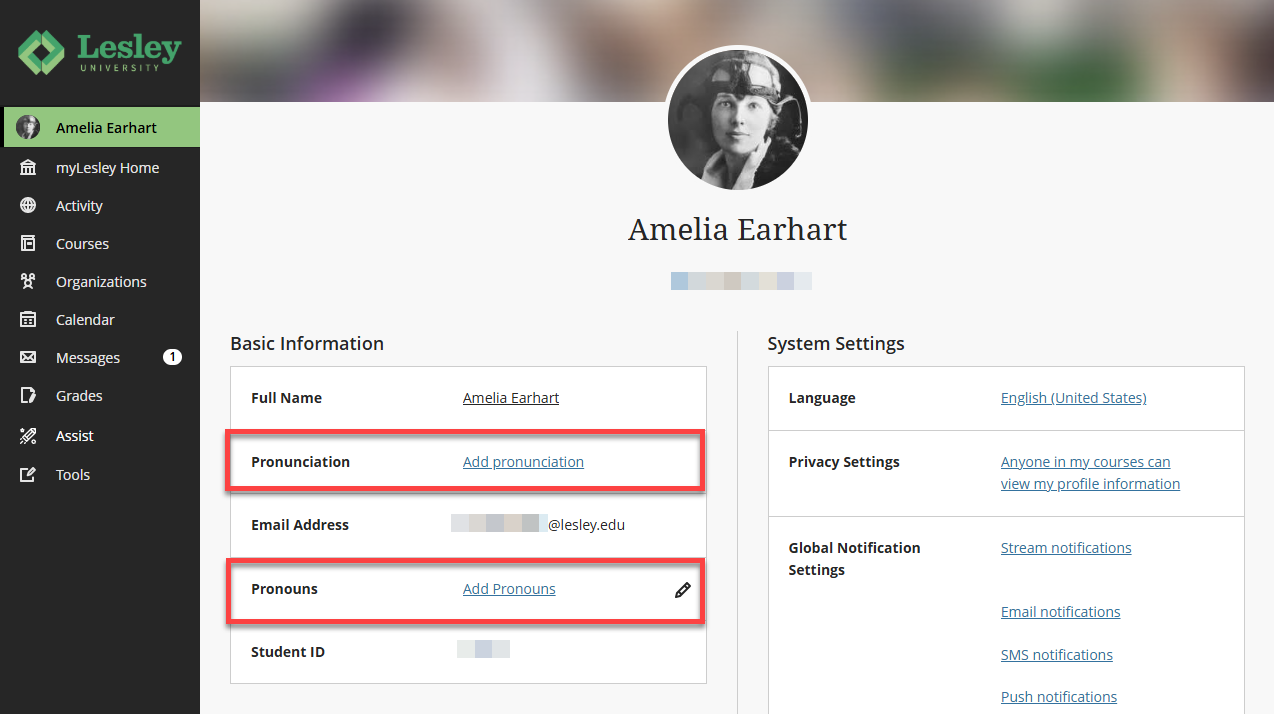
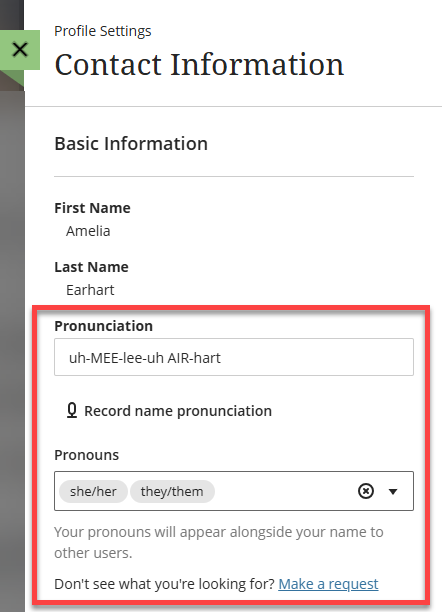
In the Pronunciation area, type the phonetic spelling of your name. You may also click on Record name pronunciation to record yourself saying your name. This will allow your instructors and classmates to play back your recording and hear how your name is pronounced.
In the Pronouns section, select your preferred pronouns from the list. You may select more than one set of pronouns. If you don’t see the pronoun options best suited to your needs, you may click the Make a request link. Requests are sent to the administrator for review and approval.
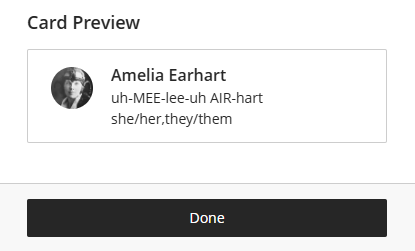
View the Card Preview at the bottom of the panel to see how your profile will appear to your instructor and classmates. Click Done to return to your Profile page.
Change or Update Your Preferred Name
By default, your legal name will display across Lesley systems. If you prefer to use a name that is different from your legal name, you can update your preferred name across systems using Lesley's Self-Service portal.
For more information and detailed instructions, refer to: How do I add my preferred name to my ID, Blackboard, Outlook, and course rosters?
Who Can See My Profile Information?
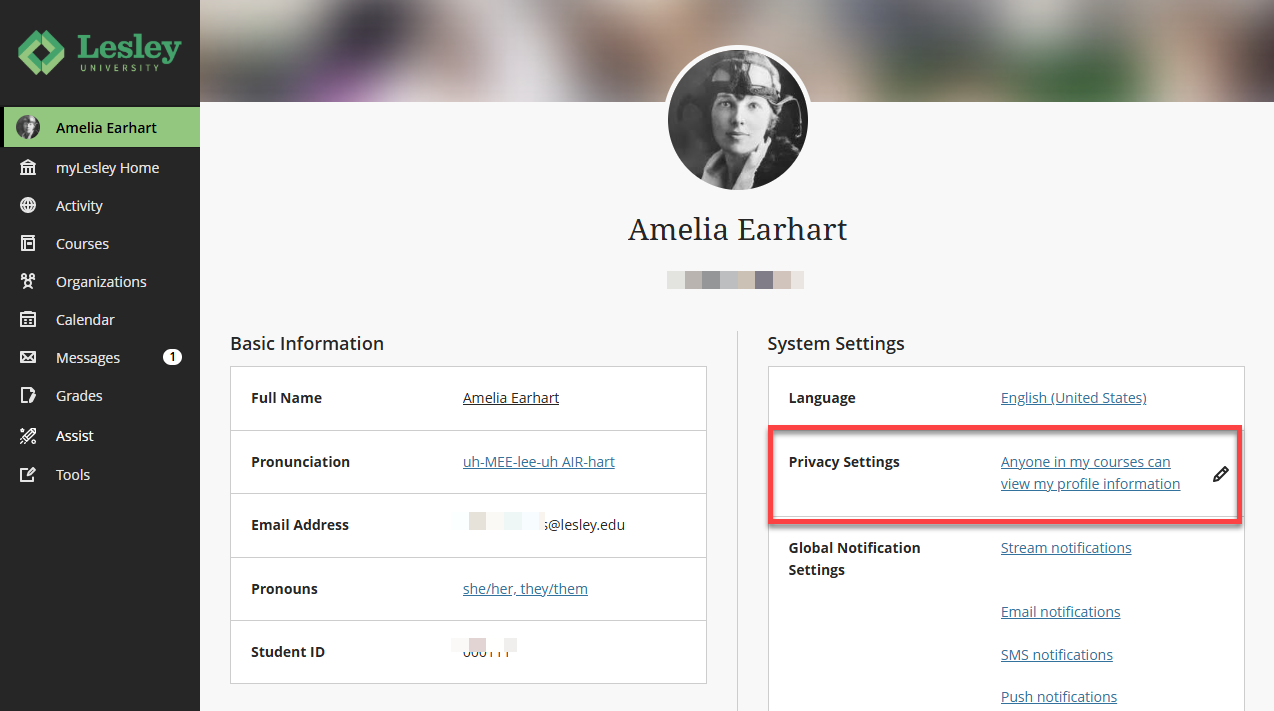
Depending on your privacy settings, your profile will be visible to other users throughout the site, including messages, discussions, and the course roster. Click on Privacy Settings to select who can view your profile information. You may choose:
- Only instructors
- Anyone in my courses
- Anyone on the platform
If you do not want others to see this information, you should remove it.
Update Your Notification Settings
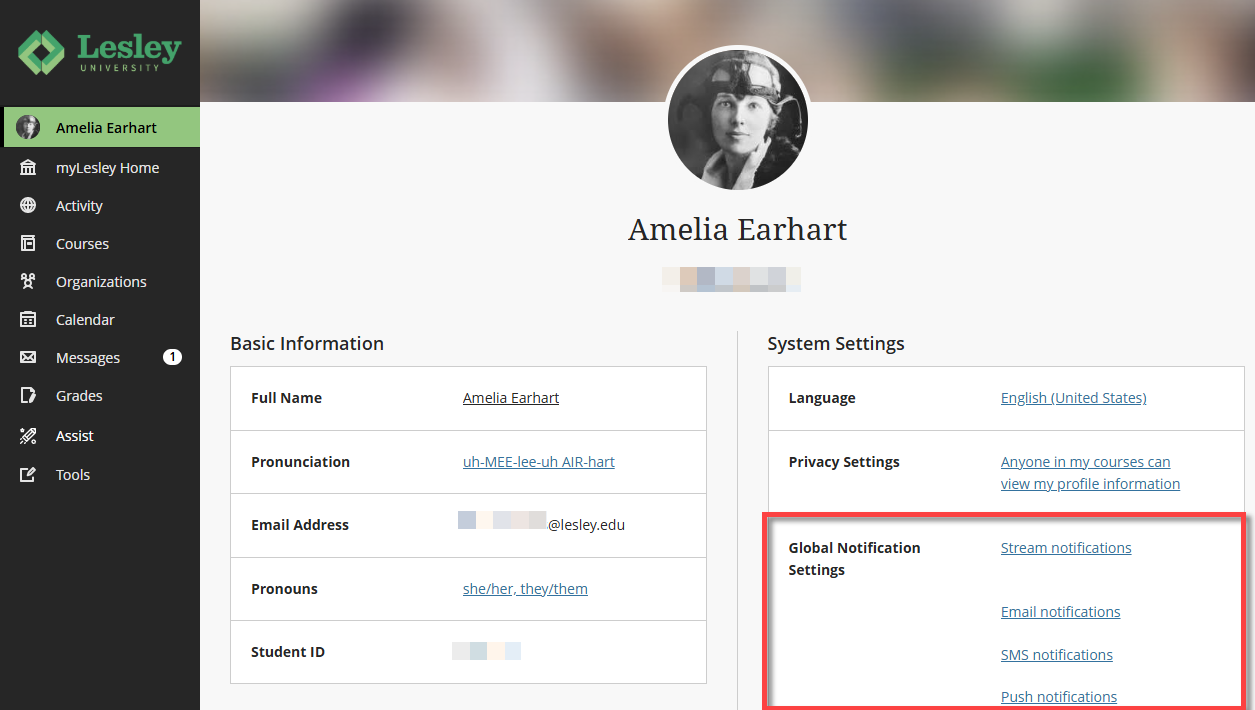
You can determine which notifications you receive about activity in all of your courses:
- Activity Stream: Choose which notifications and activities appear on your Activity Stream.
- Email: Choose which notifications you want to receive via email and whether you want to be emailed immediately or once per day.
- SMS Notifications: Enter a mobile number to receive notifications via text message.
- Push Notifications: If you are using the Blackboard App, you may select which notifications will pop up on your mobile device.
Click on a notification type in the Global Navigation Settings area to open the Notification Settings Panel.
For more information, refer to the Manage Your Notifications in myLesley support article.