TABLE OF CONTENTS
Export Your myLesley Calendar
You can synchronize your Blackboard calendar with third-party calendars, such as Outlook and Google, via an iCalendar (iCal) feed. Once you set up the iCal feed, any updates to your Blackboard calendar will reflect on your third-party calendar. Please note that it may take up to 24 hours to sync the calendars.
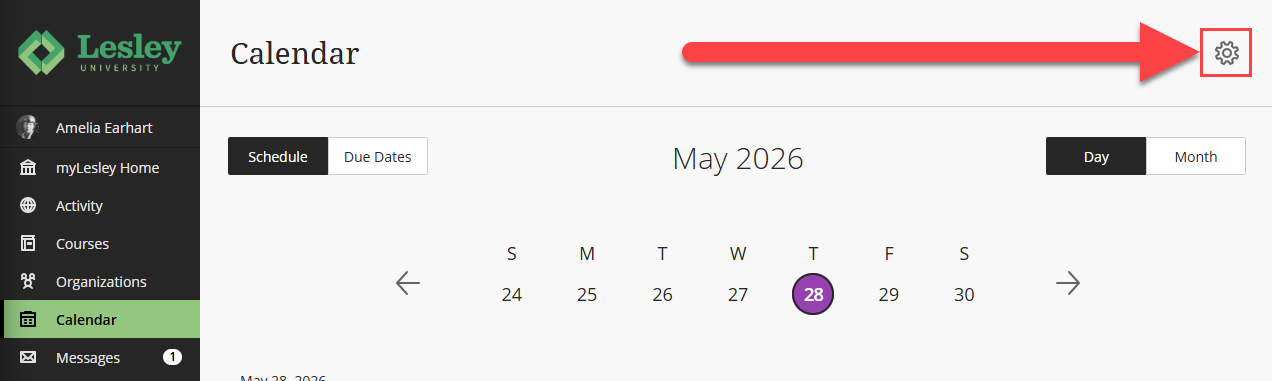
Access your myLesley calendar by clicking on the Calendar link in the base navigation menu. Then click the Settings button (gear icon).
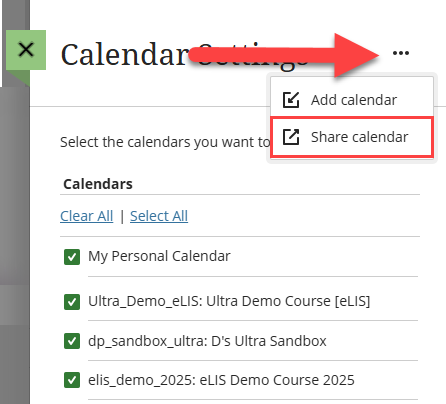
This will bring you into your Calendar settings. Here, you will see a list of all of your calendars (from each active course and organization in which you are enrolled). Select or unselect the calendars you wish to view, then click on the menu button (three dots) and select Share Calendar.
This will bring up the Share Calendar Link option. Click Copy to copy your calendar link.
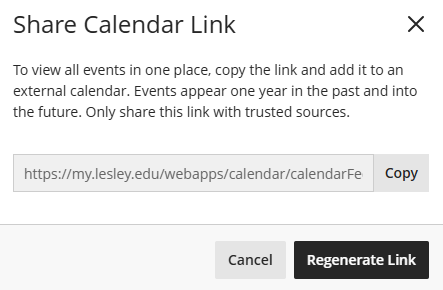
You will now be able to paste this link into your desired calendar (ex Outlook, Google).
Add Your myLesley Calendar to your Outlook Calendar
To add your Blackboard calendar to your Lesley Outlook calendar, login to your Lesley email at https://lesley.edu/email.
Click on the Calendar icon on the left side menu to open your Outlook calendar. Then click Add Calendar.
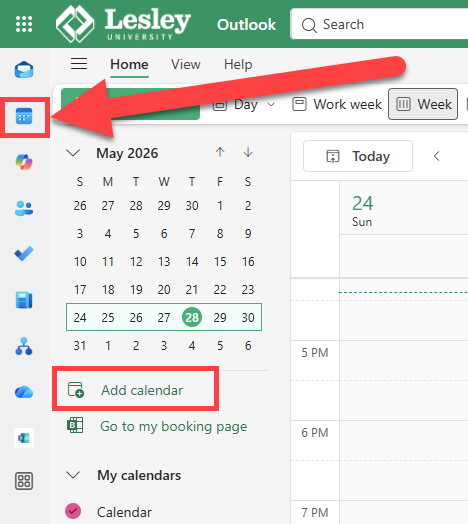
This will bring you to the Add Calendar area. In the left-hand menu, select Subscribe from web. Paste the URL of your calendar, give it a name, and (optional) color and charm. Select Import to import your calendar.
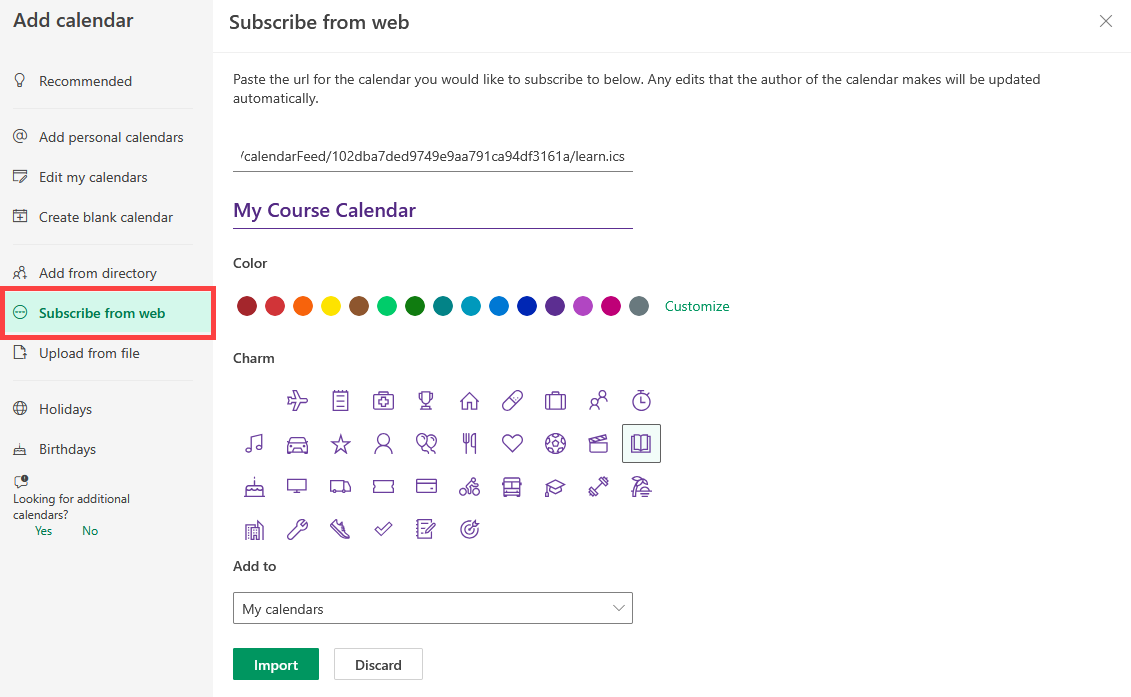
Your myLesley calendar will be added to your Outlook calendar. Please note that it may take up to 24 hours to sync the calendars.
Was this article helpful?
That’s Great!
Thank you for your feedback
Sorry! We couldn't be helpful
Thank you for your feedback
Feedback sent
We appreciate your effort and will try to fix the article