TABLE OF CONTENTS
About Blackboard Tests
You can easily create Tests alongside other content in your course, allowing students to easily find and take their test online. Once students submit their test, you may review their submissions, grade by student or by test question, and provide feedback.
For more information, refer to the Tests support page or watch the Create Tests video tutorial.
Create a Test
Ultra Course View allows you to create tests alongside other content in your course. Your students will take their test online and you may then grade your students' test submissions and provide feedback.
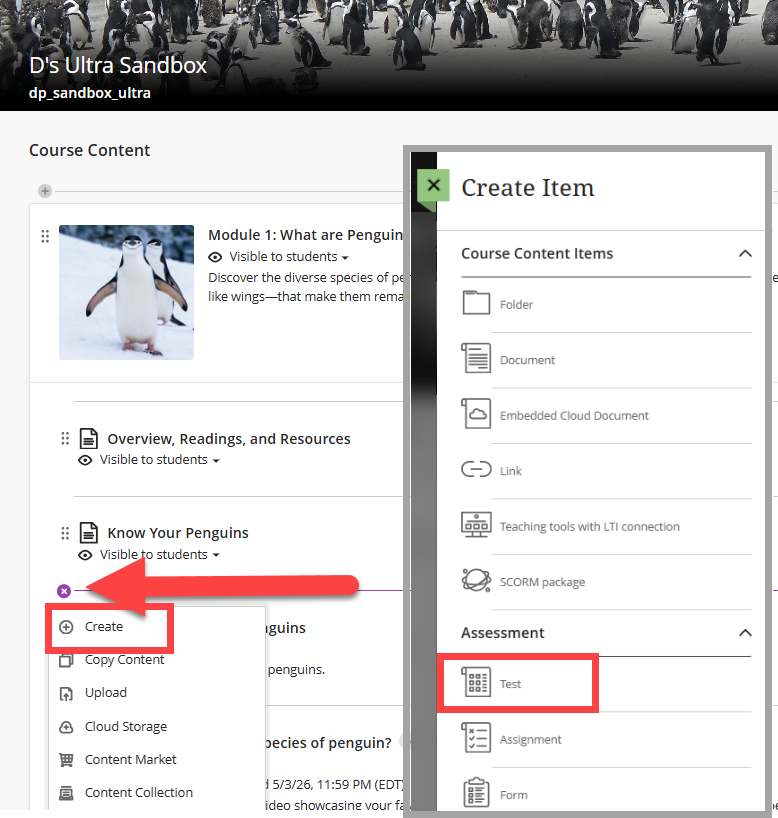
To create a Test, click on the + button anywhere on your Course Content page, within a Learning Module, or within a Folder. Select Create and then select Test.
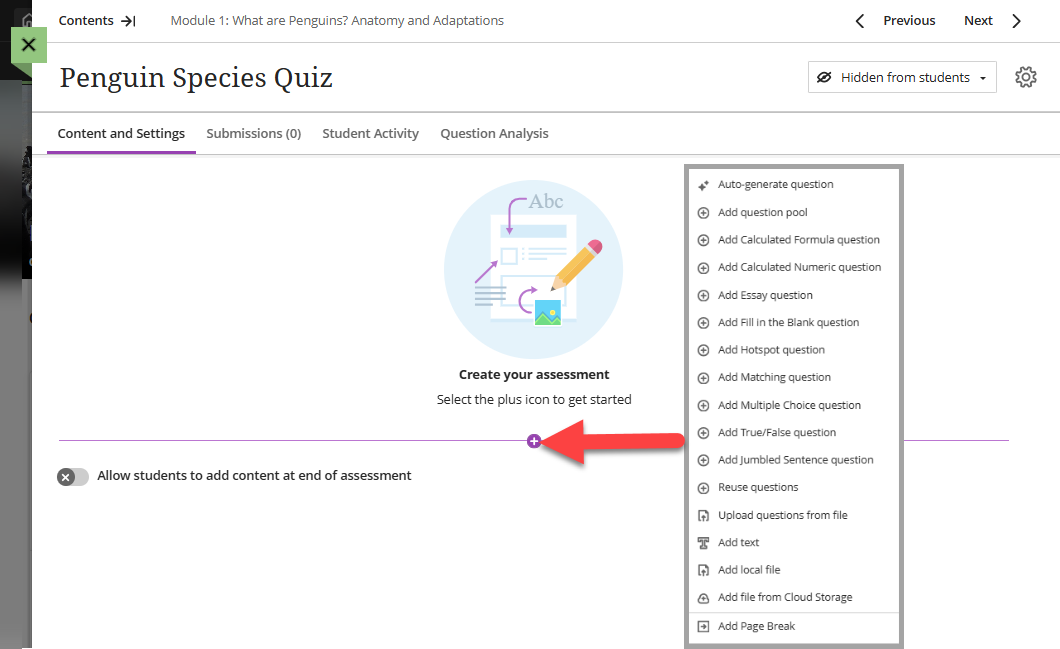
Give your test a name and click the + icon to begin adding test content. You may choose a question type, add a question pool, upload questions from a file, or reuse questions or content from an existing test. You may also add files and text (ex instructions and additional resources).
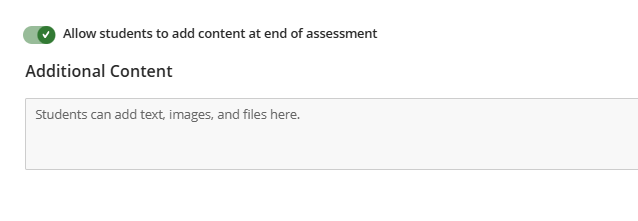
In addition to answering test questions, you may also allow students to add additional content at the end of the assessment, such as additional text or supporting files.
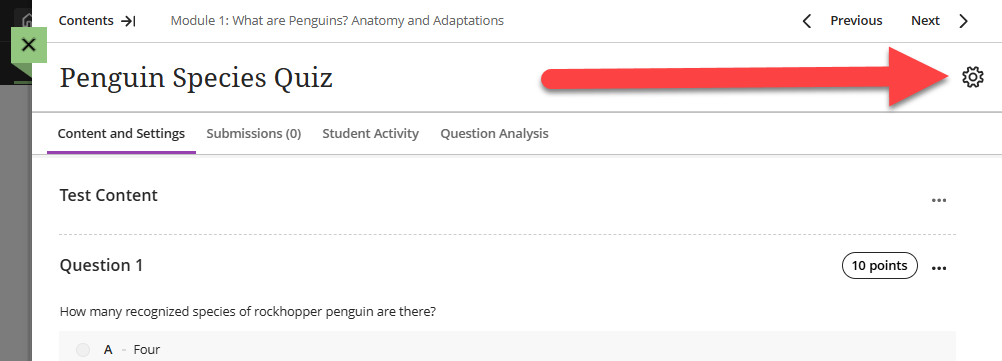
Once you have created your Test, click on the Test Settings (gear icon) to open the Test Settings Panel. Here you can add a due date, set the presentation options, set the number of attempts, post test grades automatically, add a description (which will appear on the Course Content page), and more.
Once you have finished, click Save at the bottom of the Test Settings panel to save your changes.
Test Questions
Create Test Questions
Click the + icon to open a menu and select a question type. You will then be prompted to enter your question and, depending on your question type, enter your answer choices.
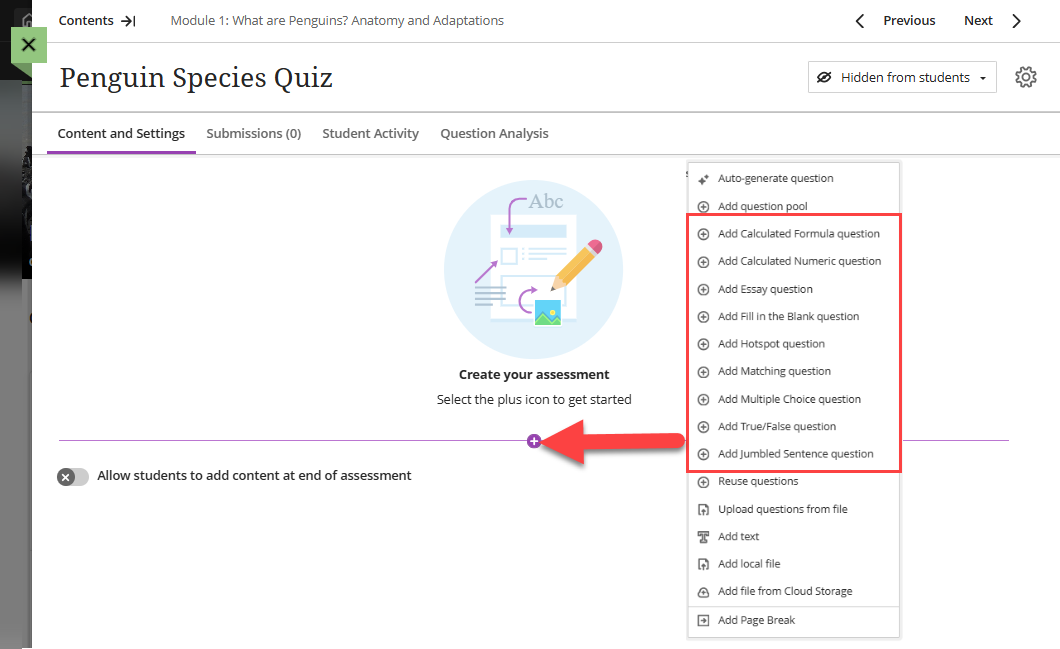
You may create the following question types:
- Calculated Formula questions
- Calculated Numeric questions
- Essay questions
- Fill in the Blank questions
- Hotspot questions
- Jumbled Sentence questions
- Matching questions
- Multiple Choice / Multiple Answer questions
- True/False questions
You may also create extra credit questions to give students the opportunity to earn additional points. Students will receive points for correct answers to extra credit questions and will not be penalized for incorrect answers.
Need assistance coming up with Test questions? Utilize the the Blackboard AI Design Assistant to Auto-Generate Test Questions and Question Banks.By default, each test question is worth 1 point. You may edit the points per question by clicking on the points box and entering the number of points for your question.

Depending on your question type, you may opt to assign partial and/or negative credit for some answers.
Create Question Pools
Use Question Pools to display a random set of questions each time a student takes a test. You can choose how many questions from the pool will be displayed (ex 5 out of 20), and each student will see a different selection. If your test allows multiple attempts, your students may see different questions upon each retake.
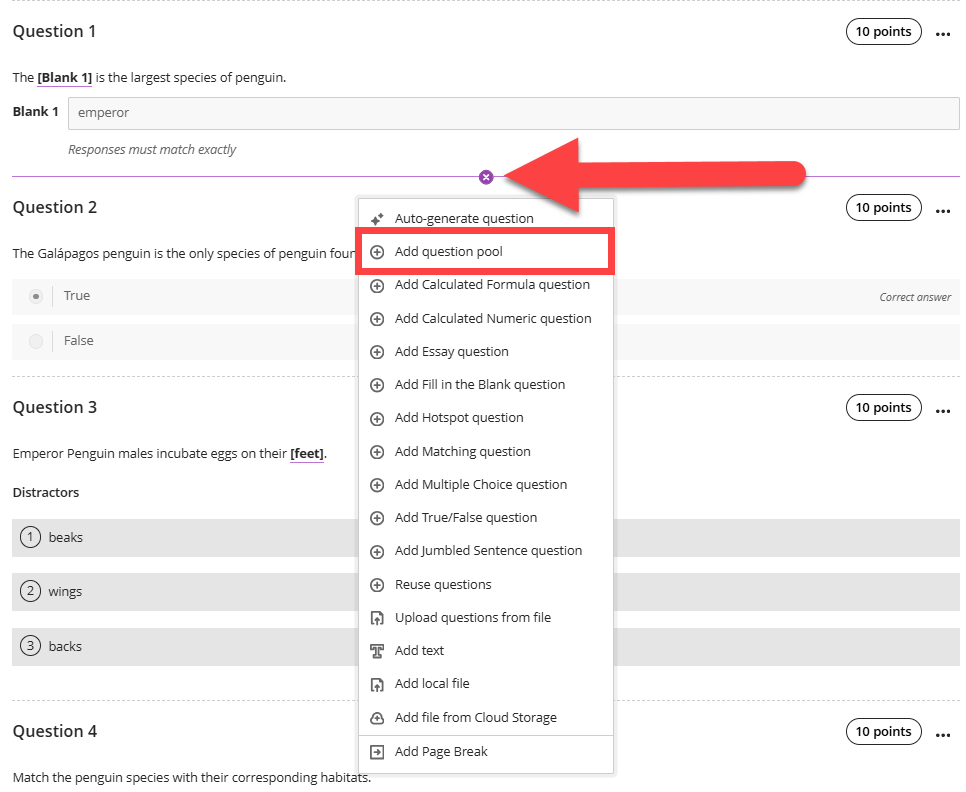
From within a Test, select the location where you want to add a Question Pool and click the plus sign (+) to open a menu. Select Add Question Pool.
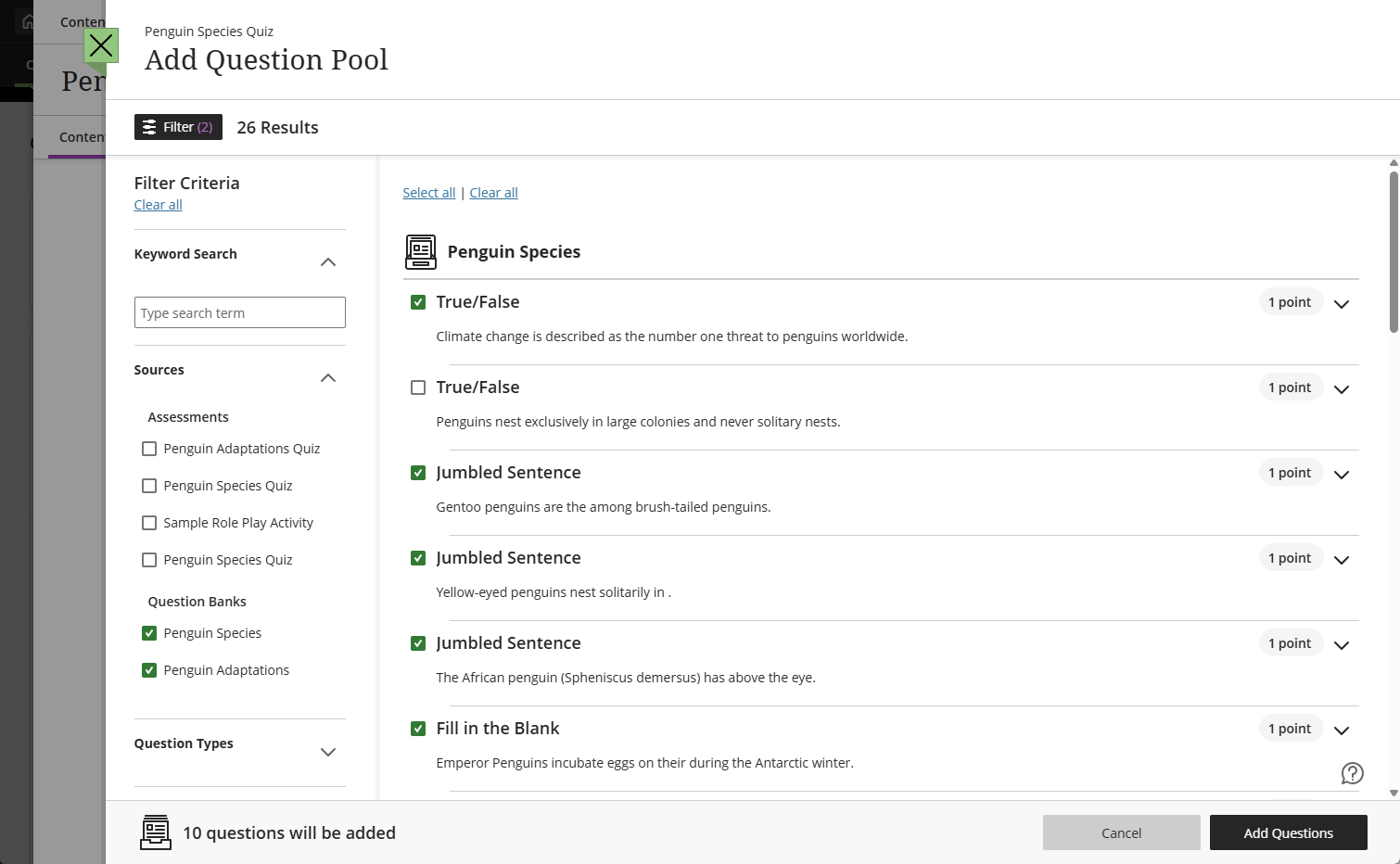
This will bring you to the Question Pools page. Here you can browse, preview, filter, and select questions from other assessments and question banks in the course you're currently in. Select the questions you would like to include in your Question Pool and click Add Questions.
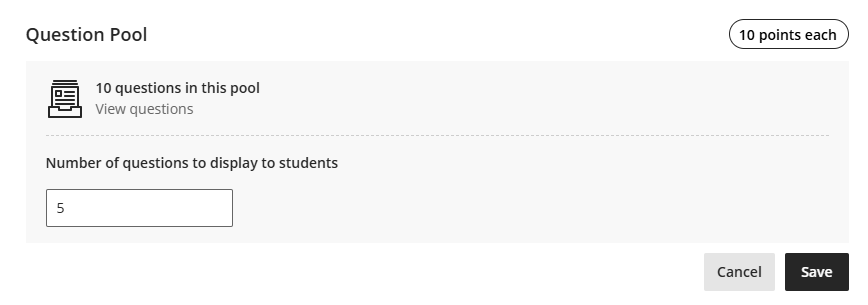
You will be brought back to your Test. Select the number of points each question will be worth and how many questions to display to students. Click Save to save your changes and add the Question Pool to your test.
For more information and detailed instructions, refer to the Question Pools support page or watch the Use Question Pools in an Assessment tutorial video.
Reuse Test Questions
You can reuse questions and other content from any tests or question banks in your course. You may also copy question banks from other courses or import questions to include in your assessments.
From within a Test, select the location where you want to add questions and click the plus sign (+) to open a menu. Select Reuse Questions.
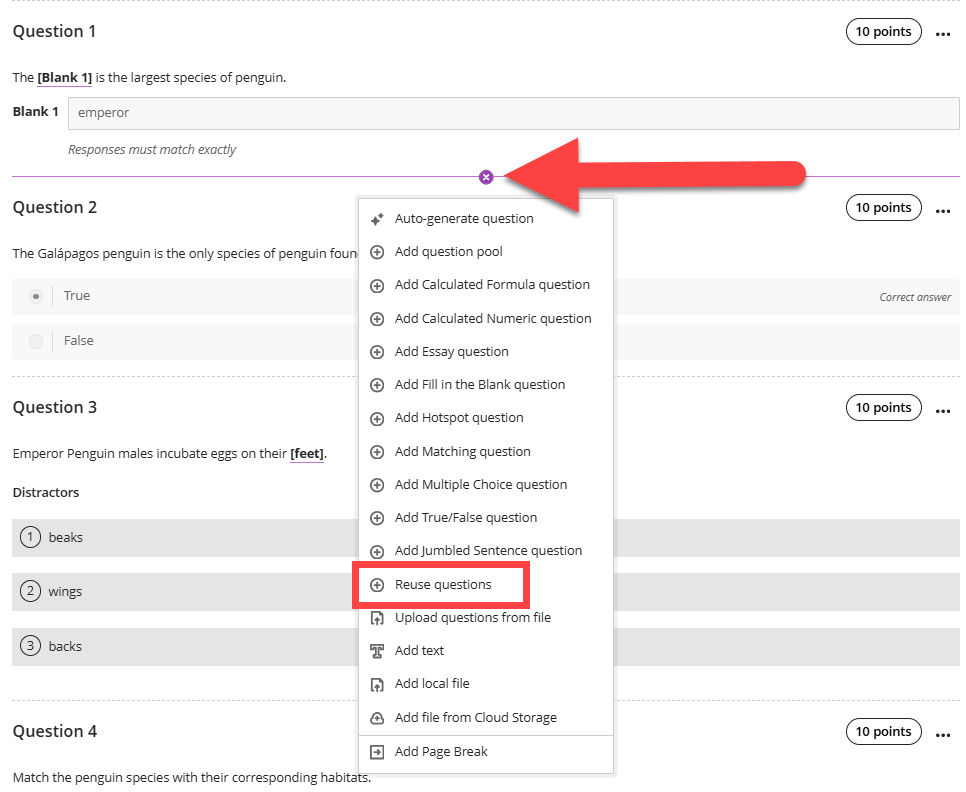
This will being you to the Reuse Questions page. Here you can select questions from existing assessments and question banks. Use the filters to view specific assessments or question types.
Select the questions you want to reuse and click Copy Questions.
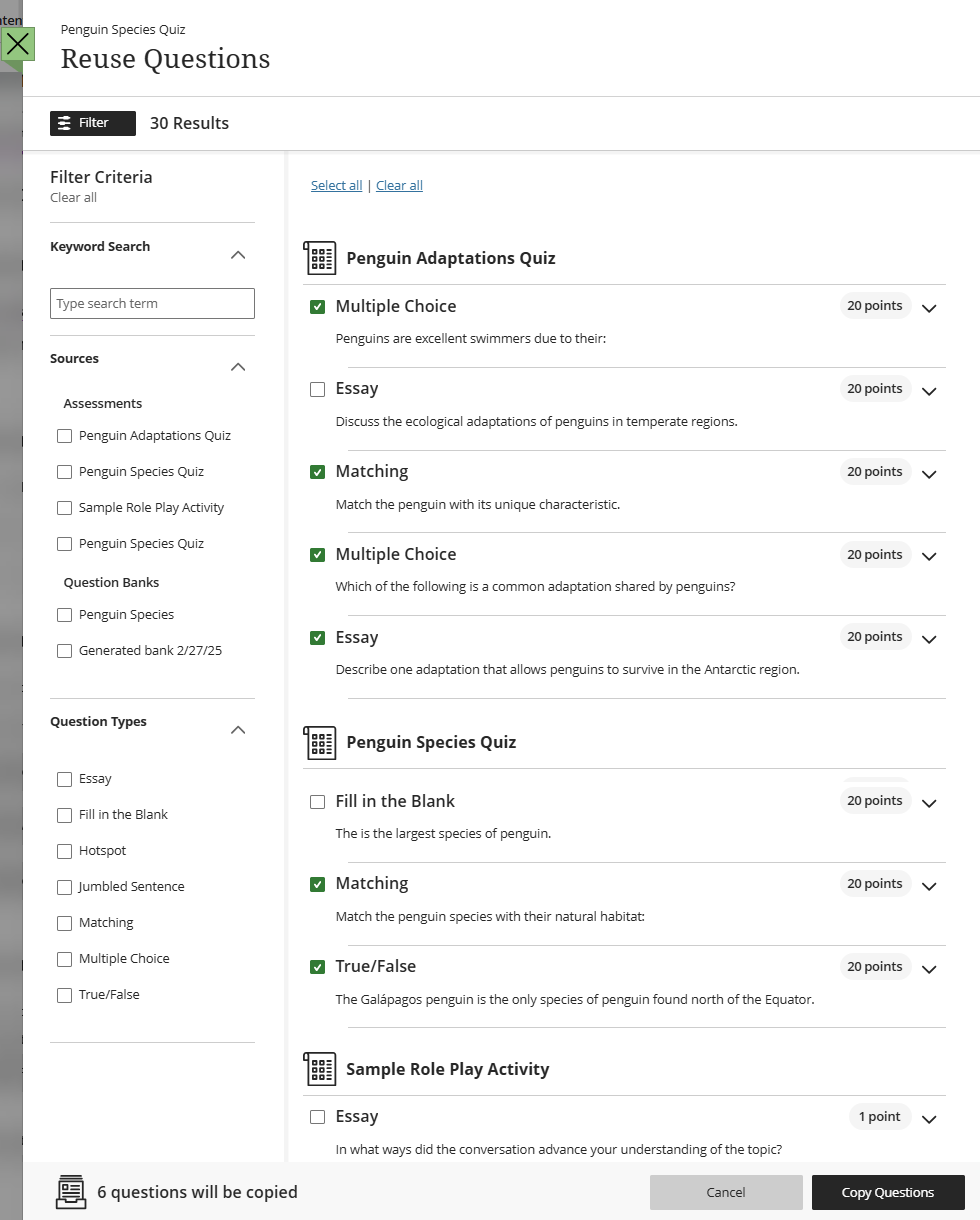
Your questions will be copied into your Test. You may edit the questions or change the points once they have been added to your test.
For additional information and detailed instructions, refer to the Reuse Questions support page.
Question Banks
You can use Question Banks to build a centralized collection of questions that you can use across multiple assessments and courses. You can create new Question Banks or import questions from other courses or publisher content.
From your Course Content page, go to the Details & Actions menu and select Manage Banks.
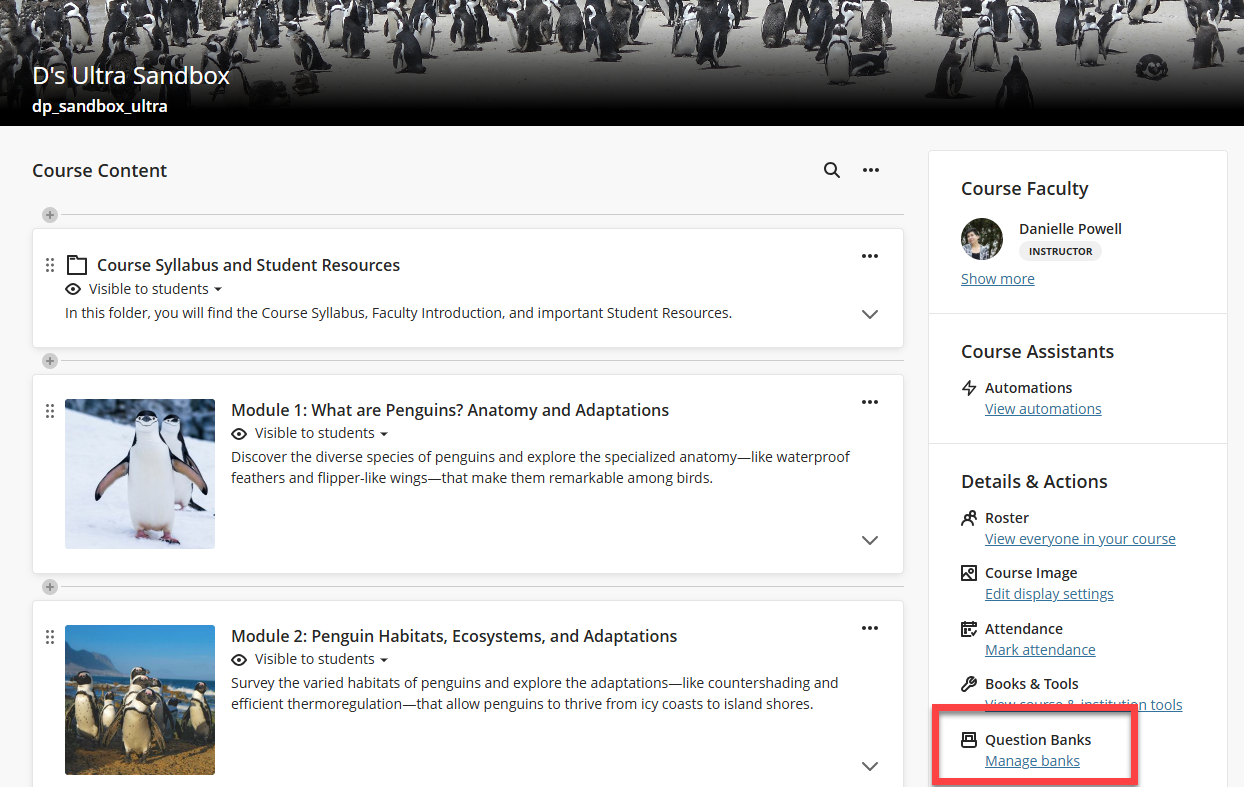
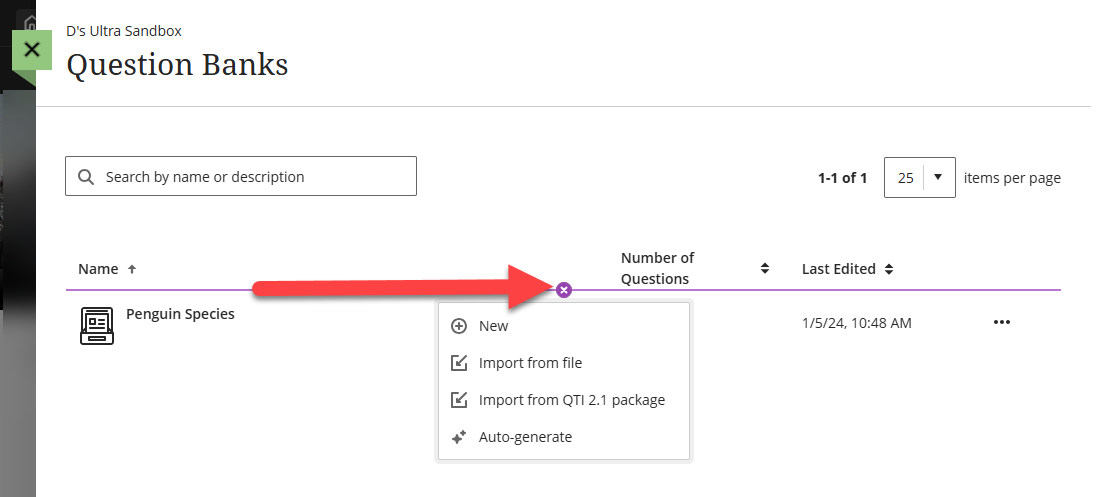
This will bring you to the Question Banks page. Here, you can access existing Question Banks or click the plus sign (+) to open a menu and create, import, or auto-generate a new Question Bank.
For more information and detailed instructions, refer to the Question Banks support page or watch the Create and Use Question Banks tutorial video.
Manage Test Settings
Once you have created your Test, click on the Test Settings (gear icon) to open the Test Settings Panel. Here you can add a due date, set the presentation options, set the number of attempts, post test grades automatically, add a description (which will appear on the Course Content page), and more.
Once you have finished, click Save at the bottom of the Test Settings panel to save your changes.
Test Details & Information
The Details & Information section allows you to add a due date, select options around late work, and collect assignments offline.
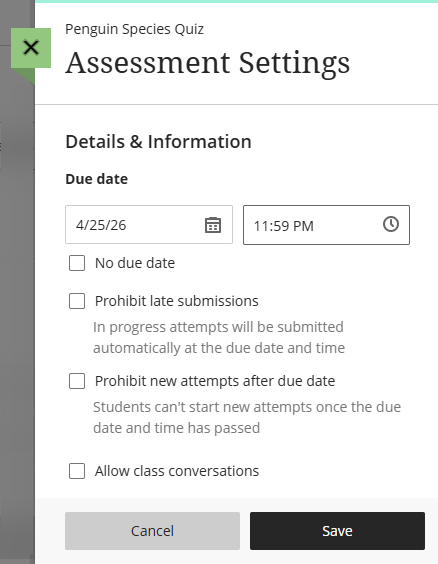
- Due Date: Assign a due date for your Assignment. The due dates will appear on your students' Activity Stream and in their myLesley Calendar. If students submit their assignments after the due date, their Assignment will have a Late label in the Gradebook.
- Prohibit Late Submissions: If you prohibit late submissions, any In-progress and saved attempts will be auto-submitted at the due date. Refer to the Prohibit Late Submissions and New Attempts After Due Date support page for more information, use cases, and limitations.
- Prohibit New Attempts After Due Date: Selecting this option will prevent students from beginning a new attempt after the due date. Students with accommodations or exceptions will not be affected.
- Allow Class Conversations: Class Conversations allow students to have a conversation around a specific piece of course content. Refer to the Class Conversations support article for more information.
Presentation Options
The Presentation Options section allows you to customize how your test appears to students.
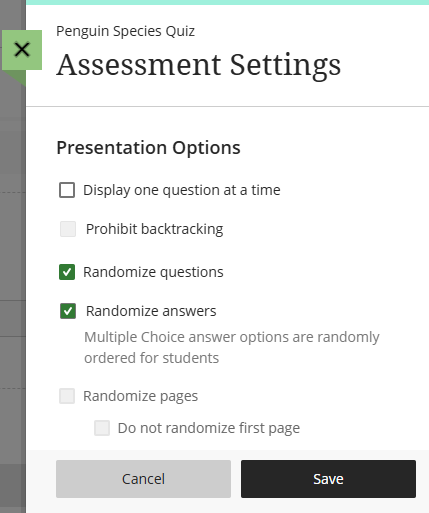
- Display one question at a time: Select this option to present questions to students individually, allowing them to focus on one question at a time. Watch the Display One Question at a Time tutorial video to learn more.
- Prohibit backtracking: Select this option to force a sequence through your test. If you select this option, students will not be able to skip a question and go back to it later.
- Randomize questions: Select this option to present questions to students in a random order. Each time they begin a test attempt, the questions will display in a random order.
- Randomize answers: When you select this option, students will see answers to Matching, Multiple Answer, and Multiple Choice questions in a random order.
- Randomize pages: If your test contains multiple pages, you can randomize the order in which these pages are displayed.
Formative Assessment Tools
Use the Formative Assessment option to label test as Formative. Formative Assessments are included in the Gradebook calculations by default, but you can choose to edit the grade calculations to exclude them.
Refer to the Formative Assessments support page for more information.
Test Grading & Submissions Settings
The Grading & Submissions area allows you to select grading criteria, including the grade category, the number of attempts, points, and more.
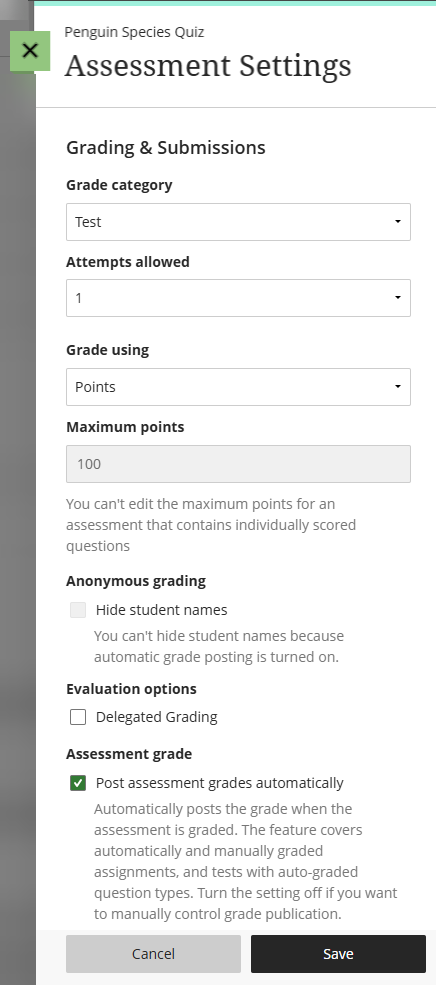
- Grade Category: By default, Tests are assigned to the Test category. You may select a different category or create a custom category in the Gradebook. Refer to the Grade Categories support page for more information.
- Attempts Allowed: By default, students may submit one attempt. You may change this to allow multiple or unlimited attempts and choose which attempts you will grade.
- Final Grade Calculation: If you allow multiple attempts you may decide which of the attempts will count as the assessment's final grade. Refer to the Selection for Multiple Attempts support page for more information.
- Grade using: Select your grading schema (letter, points, percentage, or complete/incomplete). Refer to the Grading Schemas support page for more information.
- Maximum Points. The maximum points is determined by the points assigned to each test question. To change the maximum points, update the number of points your test questions are worth.
- Anonymous Grading: This will hide the students' name from view while you are grading. Refer to the Anonymous Grading support page for more information.
- Delegated Grading: If there is more than one grader in the course, you may enable delegated grading. Refer to the Delegated Grading support page for more information.
- Post Assessment Grades Automatically: Select this option to automatically post grades when the assessment has been graded.
Assessment Results
The Assessment Results area allows you to define when the student can view their test submission and the type of information they will see. In the Submission View area, select the default setting of Available after submission to bring up the Assessment Results Timing panel.
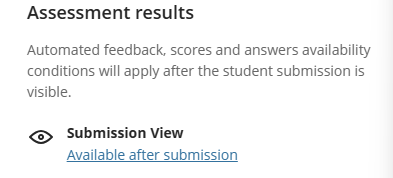
In the Assessment Results Timing panel, select when the submission content is visible to students and when they can view their feedback and individual question scores. You may allow students to view submissions, feedback, and scores after they submit the test, after the instructor posts the individual student's grade, after the due date, after the instructor posts all the test grades, or on a specific date).
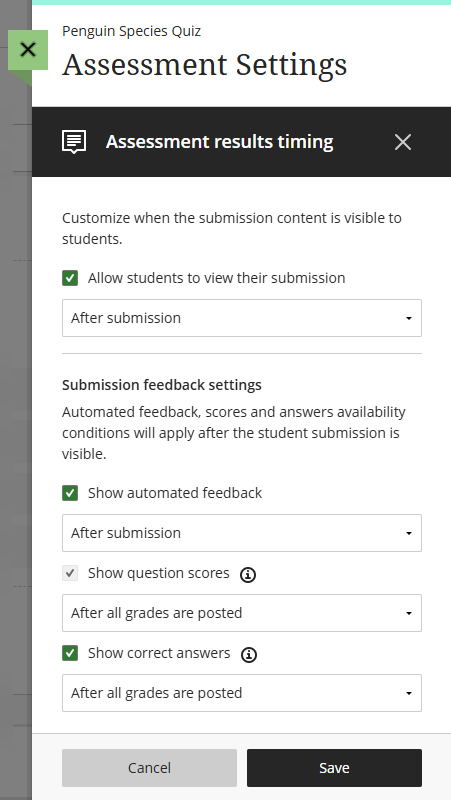
- Allow Students to View Their Submission: By default, students can view their test results after submitting. Use the drop-down menu to change when the students can view their results. Uncheck the box if you do not want students to view their test results.
- Show Automated Question Feedback: If you added automated question feedback when creating your test questions, you may use the drop-down menu to select when students will be able to view it. If you also select Show correct answers, your automated feedback settings need to display at the same time or before your show correct answers date.
- Show Question Scores: By default, student can view their question scores after all grades are posted. Use the drop-down menu to change when students can view their question scores.
- Show Correct Answers: You can allow students to see the correct answers to automatically scored questions. Use the drop-down menu to select when students will be able to view this information.
Click Save to save your changes and return to the Assessment Settings Panel.
Assessment Security
The Assessment Security allows you to add an extra layer of security to your Assessments and control when students and groups take an assessment. Access codes are generated randomly by the system.
Refer to the Assessment Settings: Access Code support page for more information and examples.
Additional Tools
The Additional Tools area allows you to add additional options for your Test.
- Time Limit: You may set a time limit for students to complete a Test. Refer to the Time Limit support page for more information. If you have students with time limit accommodations, you may allow them extra or unlimited time. Refer to the Set Due Date or Time Limit Accommodations support article for detailed instructions.
- Goals & Standards: This feature is only in limited use at the university.
- Assign to Groups: You may create a Test and assign it to one or more groups. By default, you assign a grade to each group as a whole, but you may change a student's individual grade.
- Originality Report: You may use SafeAssign to check your students' essay questions for plagiarism. Refer to the myLesley: SafeAssign support article for more information.
Test Description
Add a description that will appear along with the Test on the Course Content page. This provides students with more information about the Test before they open it. The description is limited to 750 characters and cannot contain formatting.
Grade Tests
Blackboard Ultra features Flexible Grading, providing instructors with the flexibility to grade in their preferred style. With Flexible Grading you can easily find and review the status of your grading tasks, provide inline and/or multimedia feedback to your students, and easily access and grade with rubrics.
Most test questions are graded automatically. However, certain question types, including essay questions, must be manually graded.
For more information, refer to the Grade Assessments with Flexible Grading support article or watch the Flexible Grading Tests tutorial video.
Access Student Submissions
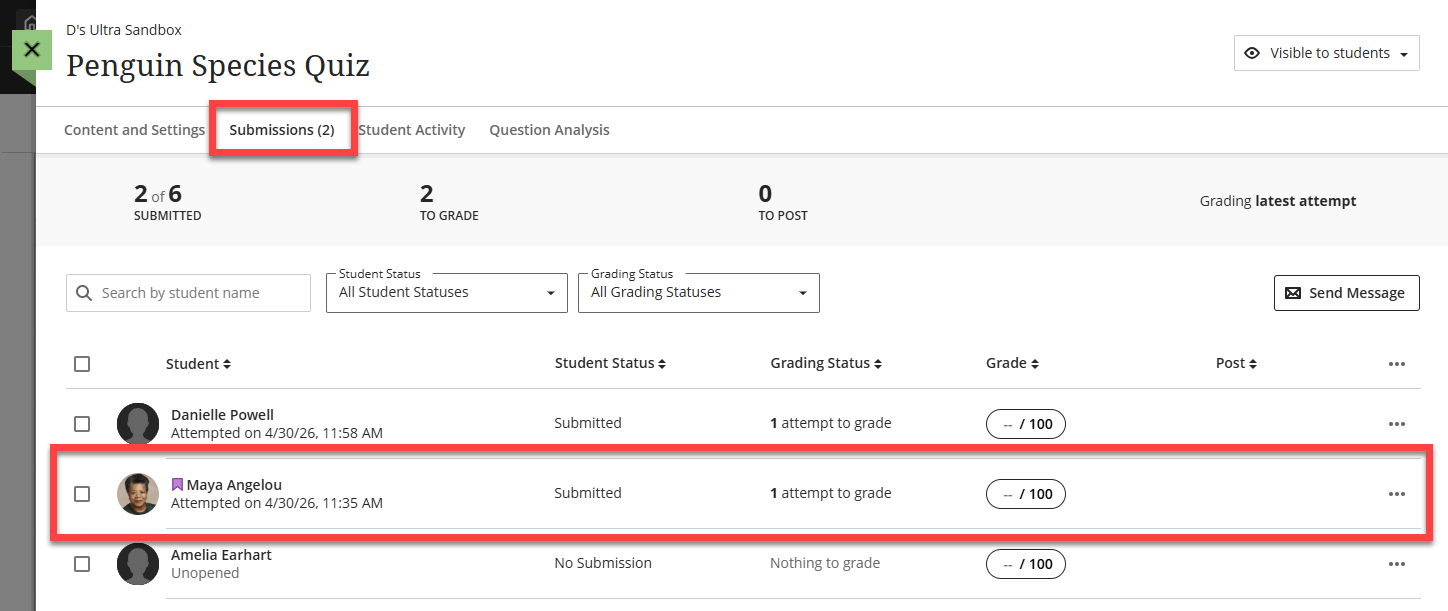
Once your students submit their tests, you can review their submissions or begin grading. Tests are graded from the Test's Submission page. You may access this page from three areas:
- Base Navigation: Click on Grades, locate the course, and select the Test you want to grade.
- Course Gradebook: Click on the Gradebook tab in your course and locate your Test. You may access it from either the Grid View or List View.
- Course Content: Locate your Test in your Course Content area or within a Learning Module or Folder. Open your Test and click on the Submissions tab.
Once you have arrived on the Submissions page, select a student's name.
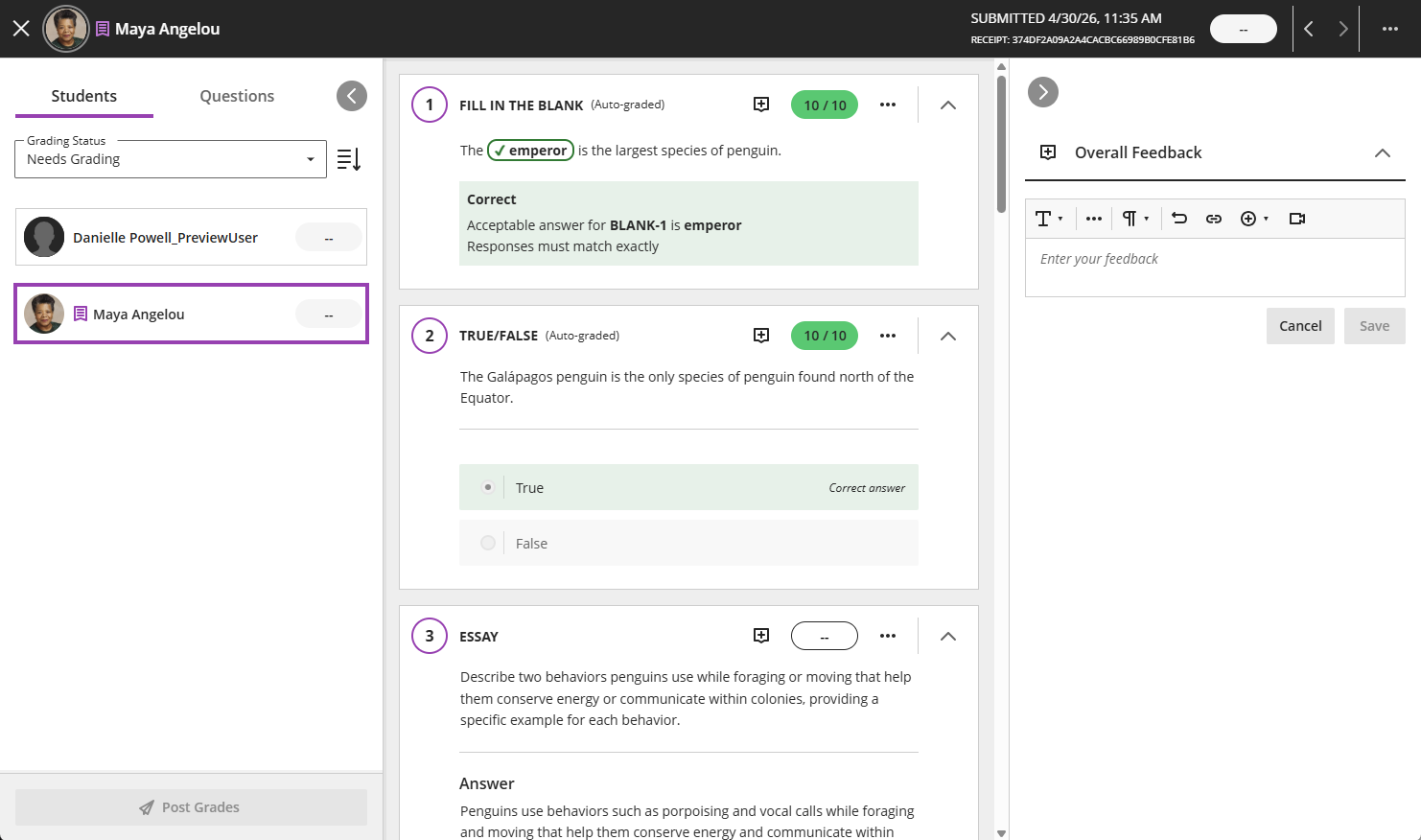
This will open the grading page. your student's submission will appear in the middle of the page with panels on the left and right side. You may click on the arrows to expand or collapse the Students/Questions Panel and the Feedback Panel.
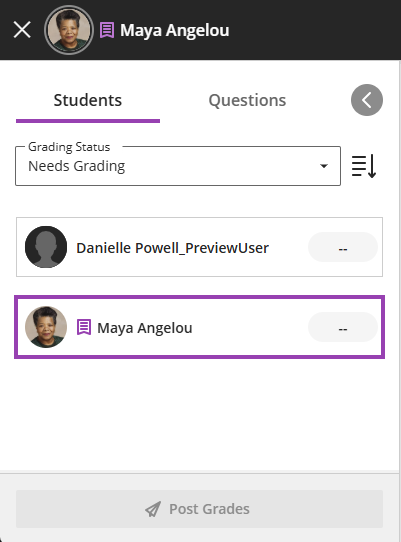
You may grade your tests by student or by question.
Grade Test by Student
To grade your test by student, open the Students/Questions Panel and select Students. Use the Grading Status filter to display all students or select the Needs Grading filter to focus on remaining grading work.
Select a student to begin.
The student's test will be shown in the Submissions panel in the center of the screen. You may click on the arrows to expand or collapse the Students/Questions Panel and the Feedback Panel.
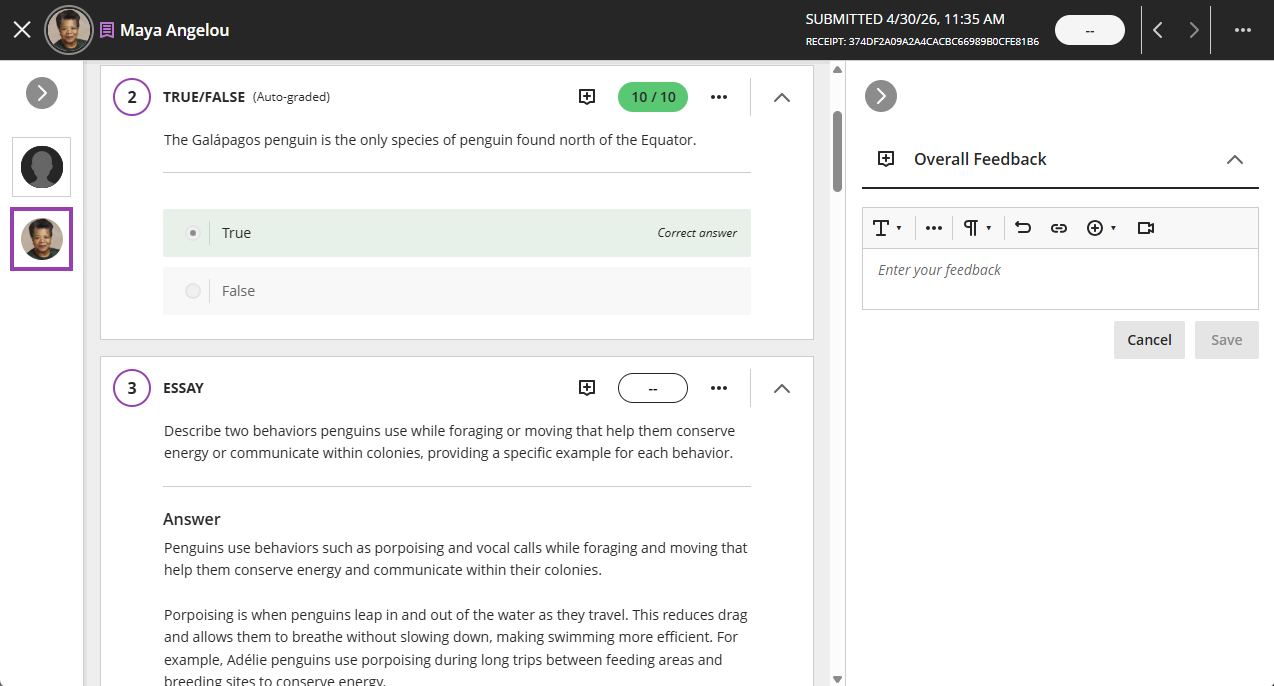
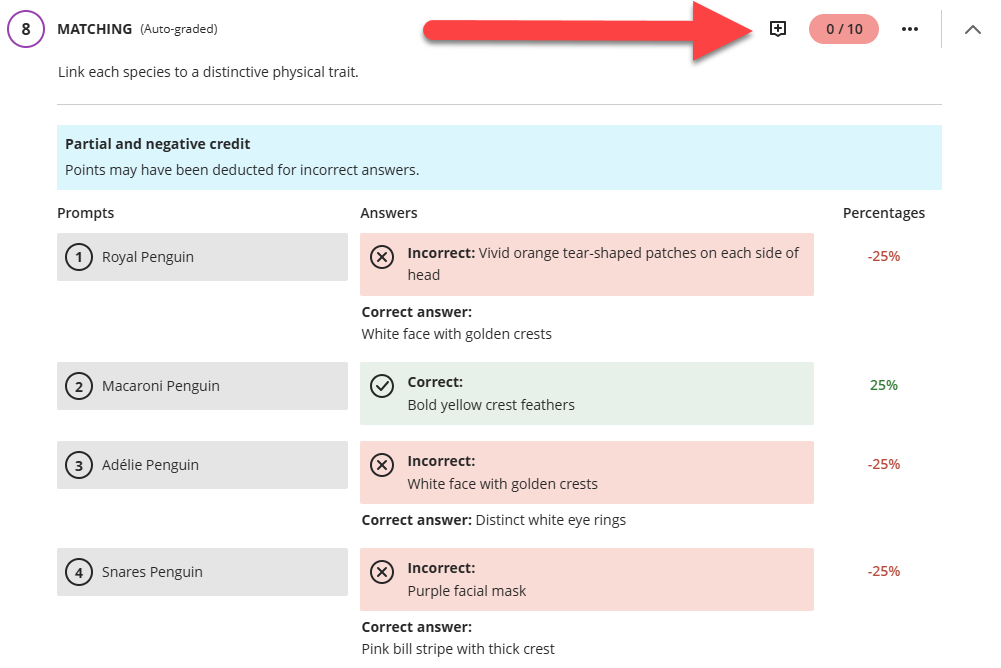
If the question(s) are graded automatically you will see the students' scores for each question. Select a question's Feedback button to add feedback specific to the student's response to the question.
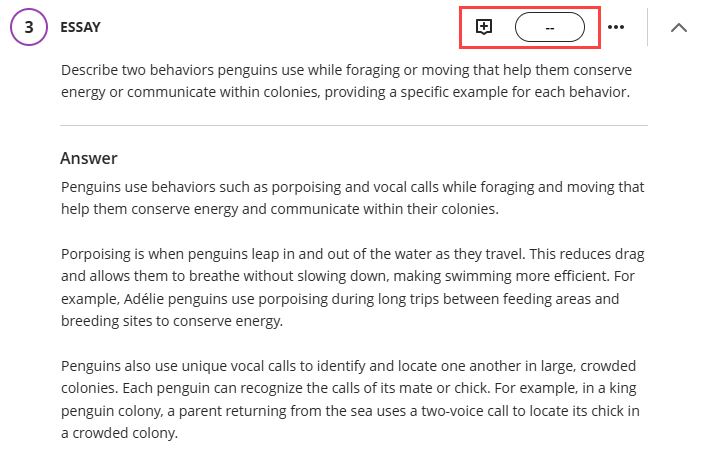
Essay questions must be graded manually. Read your student's response and enter a score in the question's grade pill. Select the Feedback button to add feedback specific to the student's response to the question. Use the Record Audio and Video Feedback option to add a video or audio recording of your feedback. Students can watch or listen to your feedback alongside any text you include.
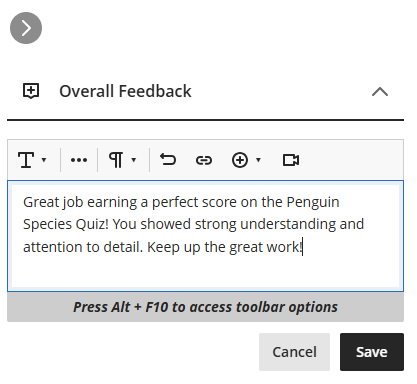
Once you have finished grading the test, you may provide some overall feedback to your student in the Feedback panel. Use the Record Audio and Video Feedback option to add a video or audio recording of your feedback. Students can watch or listen to your feedback alongside any text you include.
Once you have finished grading, you may move on to the next student by selecting their name from the Students/Questions panel.
For more information, refer to the Grade a Test Submission by Student support page.
Grade Test by Question
To grade your test by question, open the Students/Questions panel and select Questions. Use the Grading Status filter to display all students or select the Needs Grading filter to focus on remaining grading work.
Select a question to grade all students' responses to a single question.
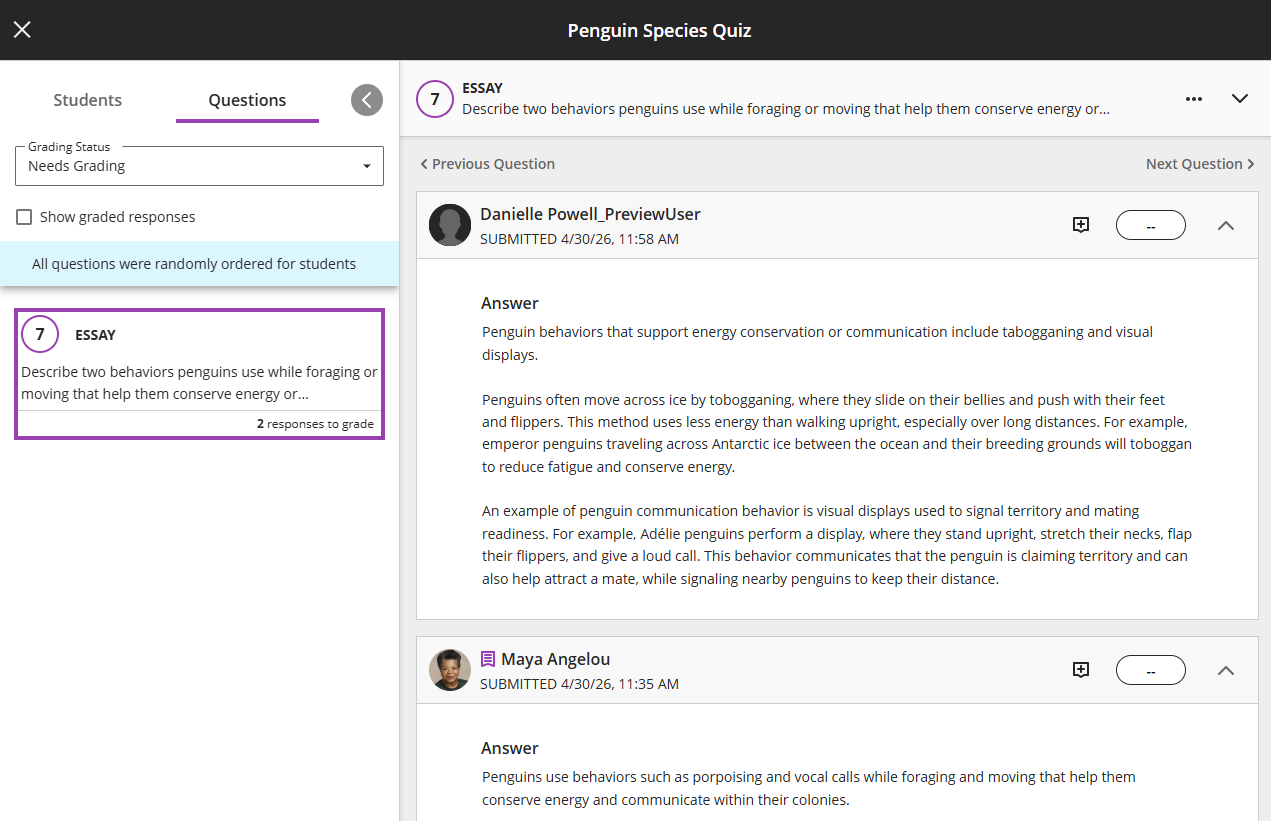
If the question(s) are graded automatically you will see the students' scores for each question. Select a question's Feedback button to add feedback specific to the student's response to the question.
Essay questions must be graded manually. Read your student's response and enter a score in the question's grade pill. Select the Feedback button to add feedback specific to the student's response to the question. Use the Record Audio and Video Feedback option to add a video or audio recording of your feedback. Students can watch or listen to your feedback alongside any text you include.
Once you have finished grading one question, you may move on to the next question by selecting it from the Students/Questions panel or by clicking on the Previous Question and Next Question options at the top or bottom of the page.
For more information, refer to the Grade a Test by Question support page.
Post Test Grades
You may opt to post test grades automatically or to post grades manually.
Post Test Grades Automatically
To automatically post grades when the Test is graded, go to the Test Settings Panel and select the Post Assessment Grades Automatically option. This setting is on by default.
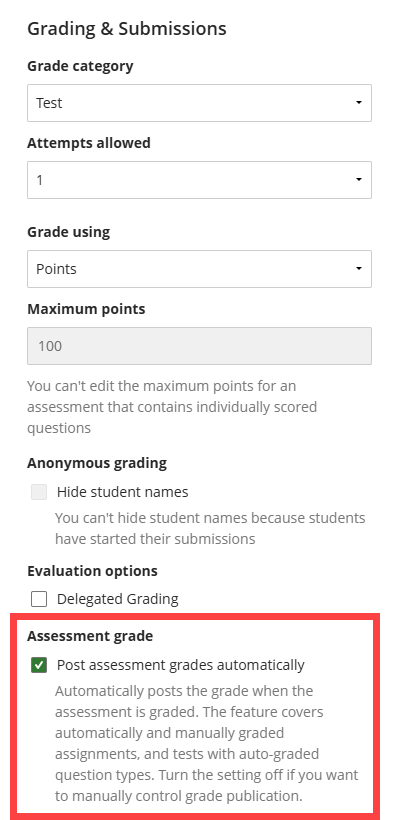
If your test contains essay questions, the test grade will post automatically after you grade the essay questions.
Post Test Grades Manually
If you did not set your test to auto-grade, you can post grades from your course Gradebook or from the Test's Submission page. For more information and detailed instructions, refer to the Post Grades support page.
Was this article helpful?
That’s Great!
Thank you for your feedback
Sorry! We couldn't be helpful
Thank you for your feedback
Feedback sent
We appreciate your effort and will try to fix the article